


 TL;DR:
To securely back up an Android phone to a PC before a factory reset, you can perform manual offline USB transfers, use brand-specific software like Samsung Smart Switch, deploy comprehensive third-party tools like MobileTrans, or utilize cloud platforms like Google Drive.
● MobileTrans supports one-click transfers for 18+ data types and compatibility up to Android 16 and iOS 26 with passcode encryption, but its free tier is highly restricted compared to completely free, ecosystem-locked desktop tools like Huawei HiSuite or Xiaomi PC Suite.
● Cloud-based methods via Google Drive or Dropbox offer up to 15 GB of free encrypted storage and cross-platform syncing, but they require a stable internet connection, lack one-click full backup capabilities, and mandate manually downloading the uploaded files to your PC.
● To ensure a PC and backup software can successfully detect the device and extract deep application or system data via a wired connection, you must install the proper device drivers and activate USB Debugging under Developer Options.
Ask AI for a summary
 ChatGPT
 Perplexity
 Gemini
 Claude
 Grok
Grok
Suppose you plan to reset your Android; back up the data on your PC to save it for future access. This will secure your photos, messages, contacts, and other valuable data since a reset wipes everything. However, beginners mostly wonder how to back up an Android phone to a PC before factory reset through simple and effective ways. Therefore, this guide will introduce you to some simple solutions with step-by-step tutorials.
In this article
Part 1. Why Is It Important to Back Up Android Phones to PCs?
Before you learn how to back up an Android phone to a PC before a factory reset, do you know why you need a backup? If not, review the given reasons and determine the importance of backing up the data on the PC:
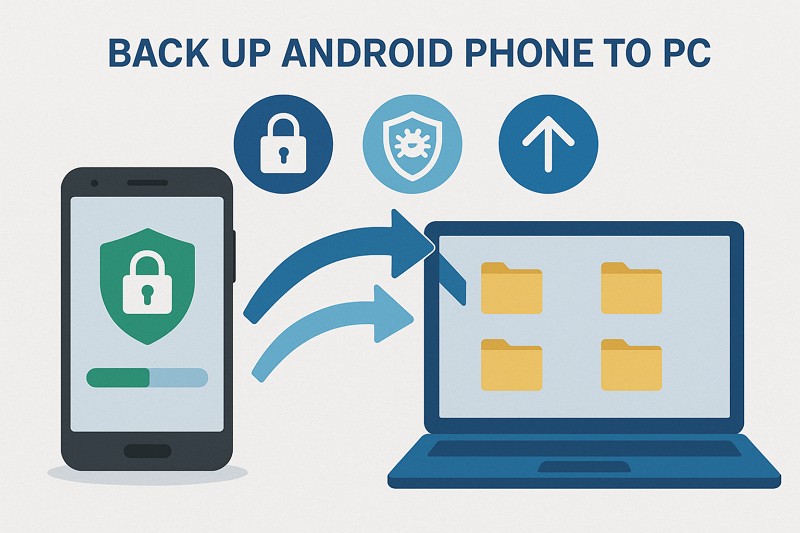
- Securing Data Against Loss or Damage: Whenever you save your data on a personal computer, your photos, messages, and other information will be secure in case the personal computer is stolen or damaged. Additionally, with a secure backup, one can recover important files and valuable memories without worrying.
- Recovering Data After a Crash or Virus Attack: Sometimes a crash of the software or the malicious software can make the data of the phone unreadable. Having a backup saved on a PC will thus enable all the data to be restored, therefore preventing the loss of data permanently.
- Saving Space: The concomitant transfer of the data also frees up a lot of space in the phone. As the storage capacity increases, the device will run faster, and the applications will run a lot smoother than before the transfer.
- Easy Migration of Data to a New Phone: A backup makes it easier to move data to a new phone. In this process, you will be able to transfer your old files and programs to the new machine without having compatibility problems.
- Managing and Controlling Files in One Place: Saving the backup on a PC will provide you with complete control of your information. It is also easy to encrypt, organize, or restore specific files at any given time.
Part 2. What Gets Erased in a Factory Reset
When looking for answers for how to back up an Android phone to PC before a factory reset, know that if you perform a factory reset, it will erase everything. This process will completely remove personal information in the internal storage of the phone, returning it to its factory state.
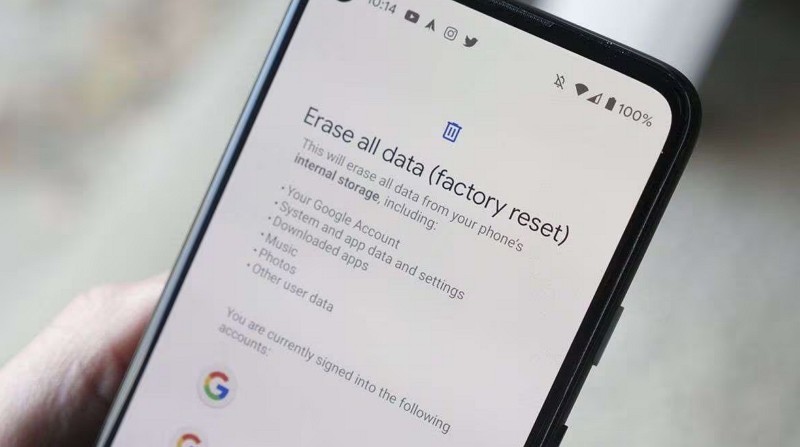
Any login credentials, Wi-Fi passwords, and application data will also be deleted, and only the system software and built-in applications will be left in their default state. Nevertheless, the files in the SD card will not be deleted unless they are deleted intentionally. In addition, the backed-up data can be restored after you are signed in again, even after resetting your Google account.
Part 3. How to Back Up Android Phones to PCs Before Factory Reset – 5 Ways
To determine how to back up Android phone to PC before factory reset, review the 5 simple ways given below:
Way 1. MobileTrans
MobileTrans is an innovative tool that comes with a Backup and Restore feature to secure your data. Using this, you can back up 18 plus data types like messages, contacts, and images in just one click. Additionally, it offers support for the latest Android 17 and iOS 27.




Users can also add a passcode to encrypt the backup files as they back up WhatsApp directly to a PC. Go through the tutorial guided below to back up your Android on PC:
Step 1. Go to the Backup & Restore section. Head to the Phone tab and connect the device to the PC.
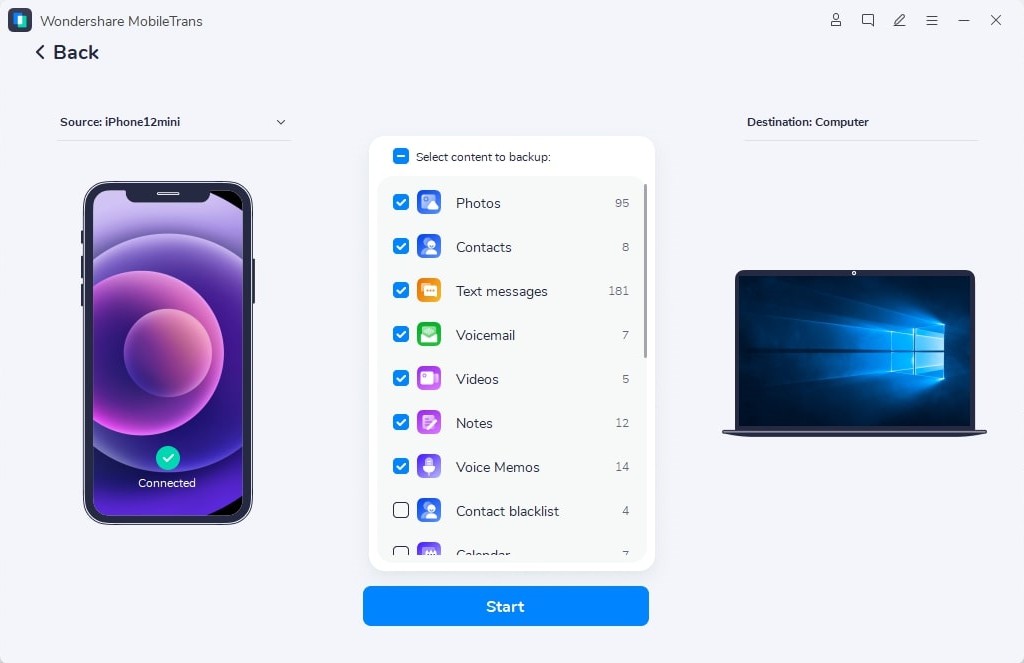
Step 2. The tool will load all the data types. Choose the data types you want to back up and press the Start option.
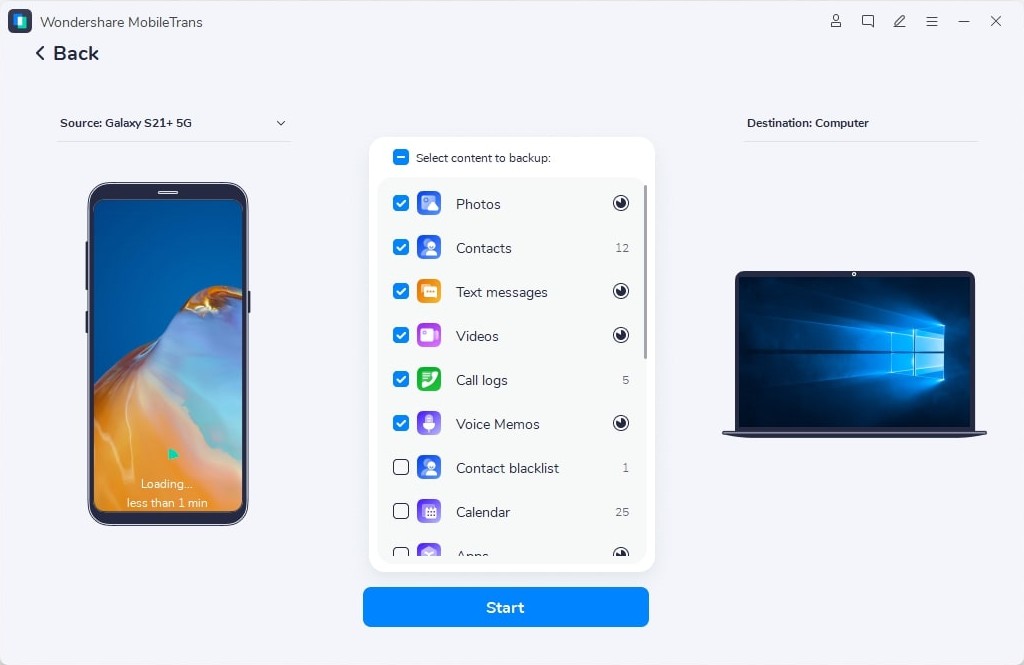
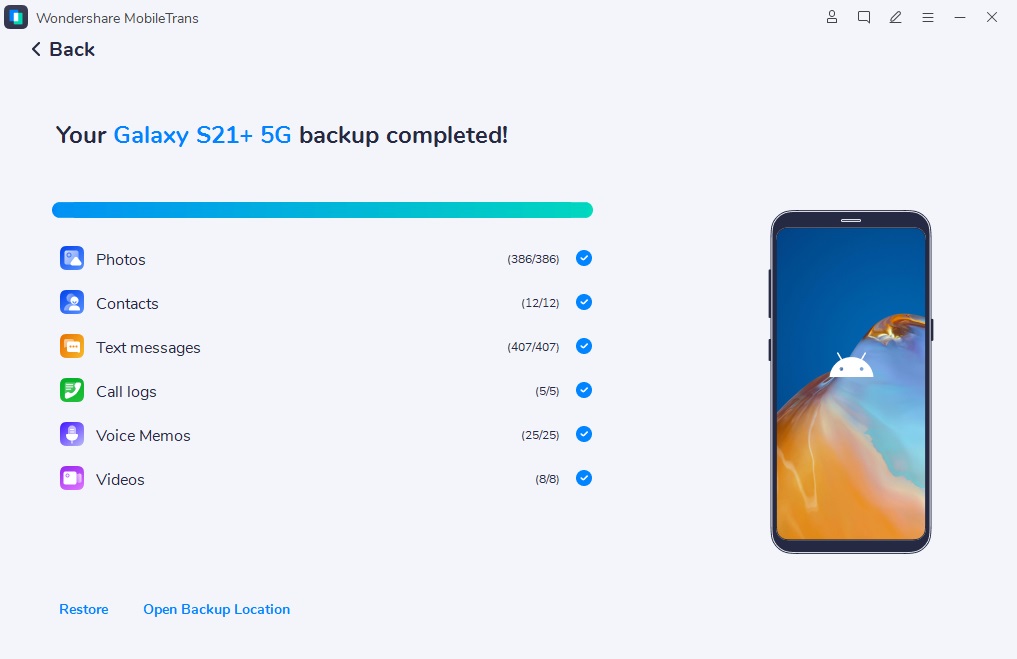
Step 3. Keep the phone connected. As the process ends, choose Open Backup Location to review data.
Way 2. Manual USB File Transfer
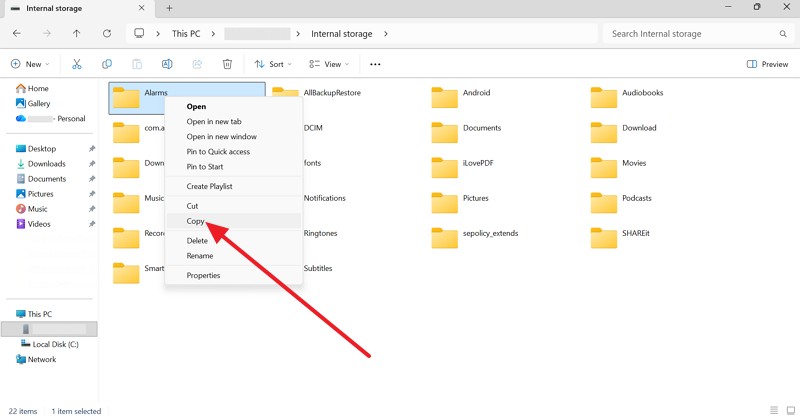
Those who want to know how to back up an Android phone to a PC before a factory reset can also try the manual way. This means you can connect the phone to a PC via a USB cable and determine the data you want to move. Moreover, this method provides complete control over the backup procedure and is not associated with any software or internet access, as shown:
Step 1. Connect your Android smartphone to a computer with a USB cable. Go to File Explorer > Choose Android device internal storage > Copy the data.
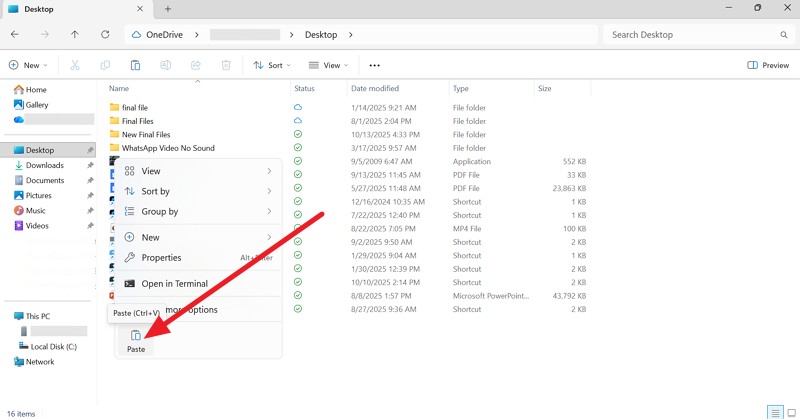
Step 2. Create a folder for backup. Right-click to select the Paste option.
Way 3. Google Account Backup
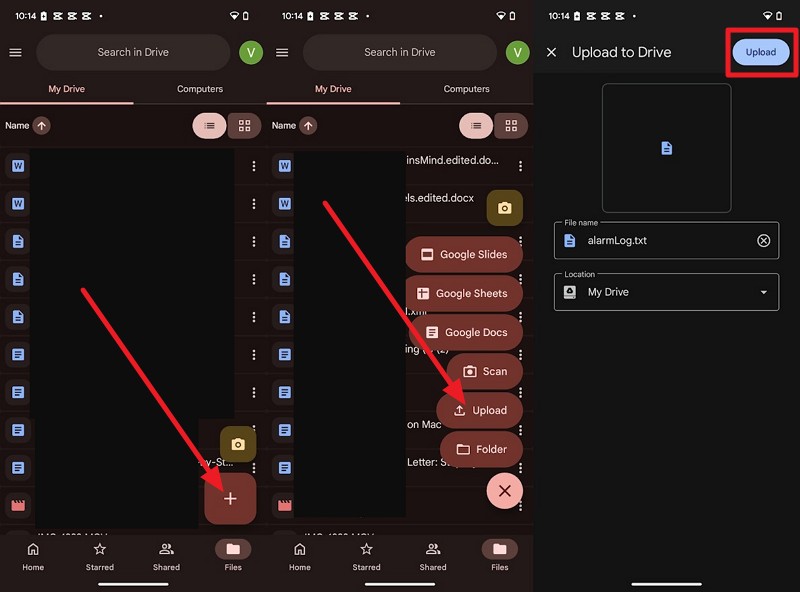
Use Google Drive to safely back up an Android phone before a factory reset. This method stores app data, contacts, settings, photos, and files securely in your Google Account. It keeps everything accessible from a PC through a browser or Drive app, ensuring data protection and easy restoration without manual transfers or cables. If you need a detailed guide on how to do so, review the simple steps given ahead:
Step 1. Press the + icon to pick the Upload option. Choose the file and hit the Upload option.
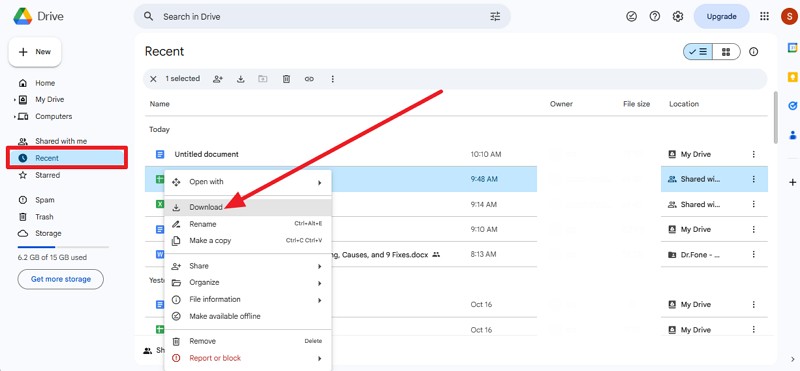
Step 2. Log in to Google Drive on your PC. Go to the Recent tab and right-click the file to pick the Download option.
Way 4. Samsung Smart Switch/Huawei HiSuite/Xiaomi PC Suite
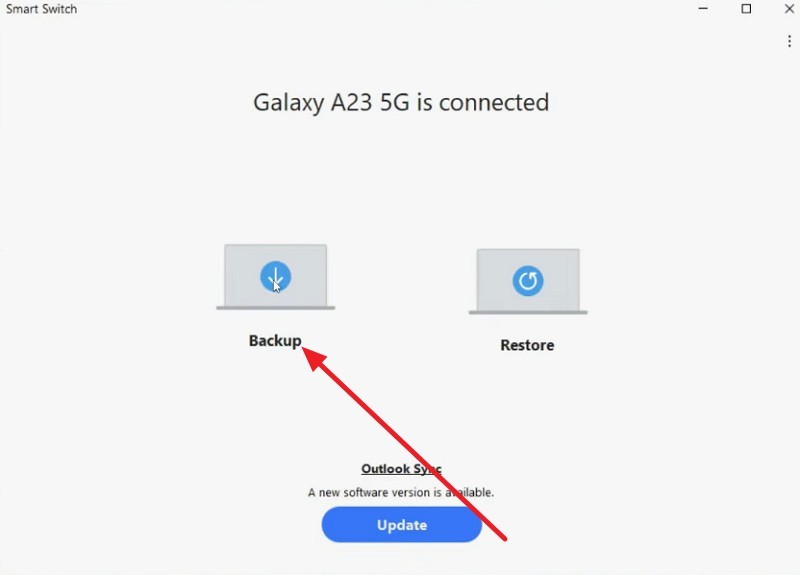
If you wonder how to back up Android phone to PC before factory reset, try an app like Smart Switch. This application is simple, and it provides one-click backup and restore options. Besides, it offers the facility to restore the stored information to your mobile phone or to transfer it to a new Samsung device at any time. There's no need for cloud storage, and it can be done easily, as shown below:
Step 1. Install the Smart Switch app on PC and connect Android via USB cable > Choose the Backup option on the PC.
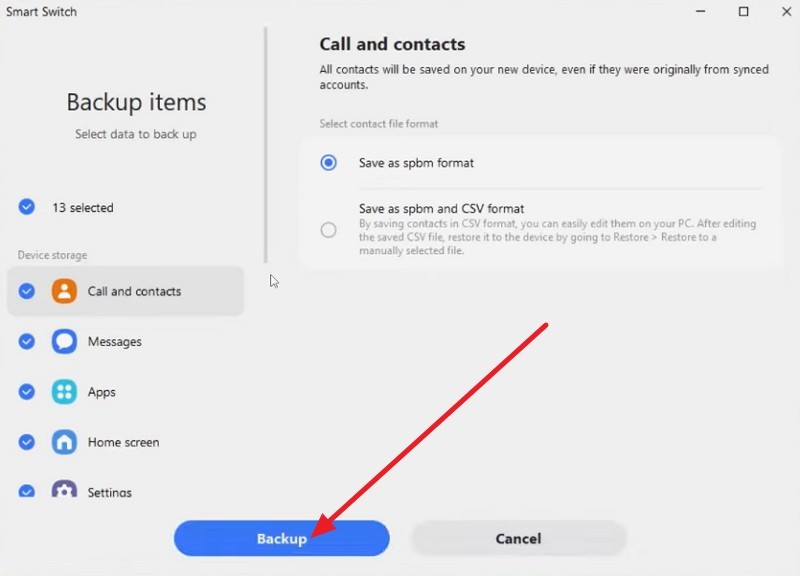
Step 2. Pick the data types and press the Backup button.
Way 5. Other Cloud Services
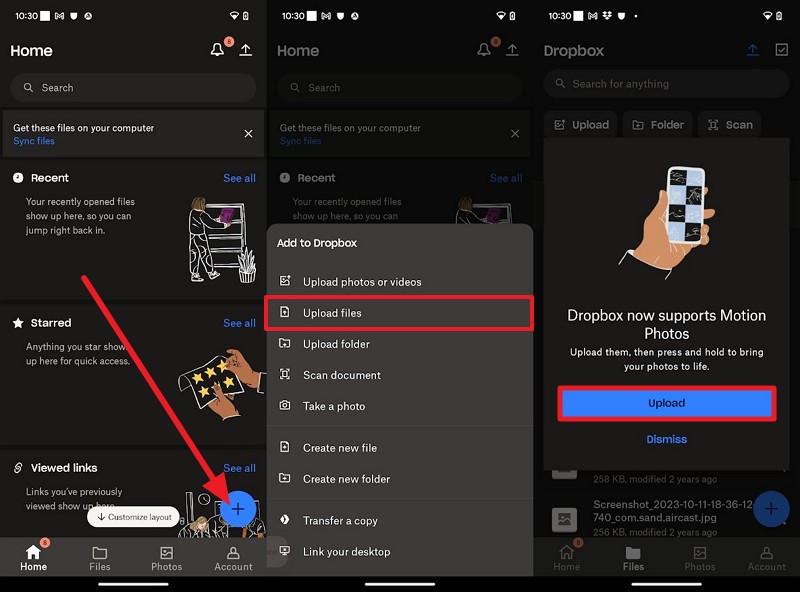
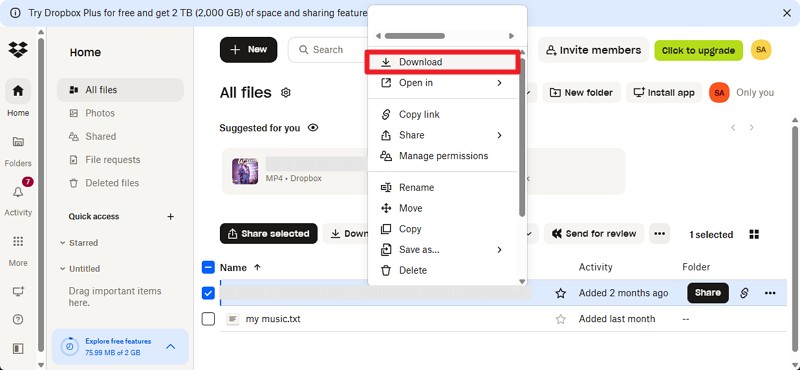
To store data on a PC, use cloud resources, such as Dropbox, to safely store files, photos, and documents online, keeping them accessible from any device. Files remain accessible across Android, iOS, Windows, and macOS without hardware limits. Dropbox offers automatic cloud backup, encrypted storage, and real-time sync to protect against crashes or loss. If you want to back up data with this solution, follow the simple guided steps:
Step 1. Choose the + icon to pick the Upload Files option. Choose the file and press Upload.
Step 2. Log in to Dropbox on the PC. Go to the Recents section and right-click to choose the Download option.
Part 4. Tips to Back Up an Android Phone to PC Before Factory Reset
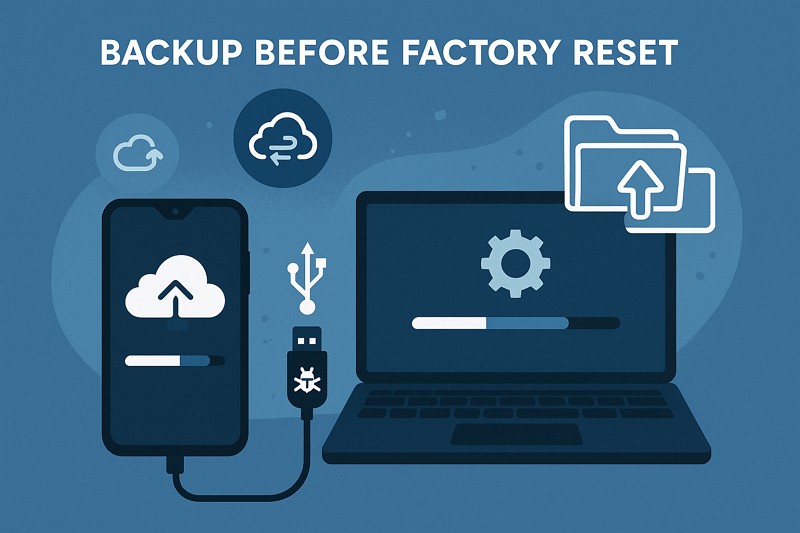
Now that you know how to back up Android phone to PC before factory reset, it's important to follow the tips given below for safe backup creation:
- Use Manual USB Transfer for Important Files: Choose the manual backup method for essential files and connect your Android phone to your PC with a USB cable. This direct method keeps your files safe without relying on the internet or cloud storage limits.
- Use Backup Software for Complete Data: Use a renowned tool like MobileTrans to have secure and fast backup on your PC. This program lets you view, select, and back up contacts, messages, call logs, app data, and media easily.
- Enable USB Debugging and Install Drivers: Install the correct USB drivers for your phone and turn on USB Debugging under Developer Options. This helps your computer detect the device properly and allows backup tools to access deeper app and system data securely.
- Check Backup Files and Create Extra Copies: Before a reset, check all the essential files that are included in your backup. Additionally, create more backup copies by using multiple methods, such as a Google account or an external drive, to ensure nothing is lost.
- Encrypt Your Backup for Extra Security: Before saving your data on a PC, use built-in encryption tools or password protection to secure sensitive files. This prevents unauthorized access and ensures personal information stays safe during or after the backup process.
Conclusion
Summing up, if you want to know how to back up an Android phone to a PC before a factory reset, this guide has given all the answers. Here, you can review the 5 listed ways to determine which one suits your expertise. However, while following the given expert's guide, it's suggested to use MobileTrans as the reliable choice to back up your data on a PC.










