Transfer Data to Samsung Galaxy: Move Everything to S26
Transfer Data to Samsung S26
Upgrading to Galaxy S26? Move contacts, photos, messages, WhatsApp and more from iPhone or Android
to your new Samsung Galaxy S26 in minutes.
How to Transfer Data from Samsung to Samsung
- With Smart Switch

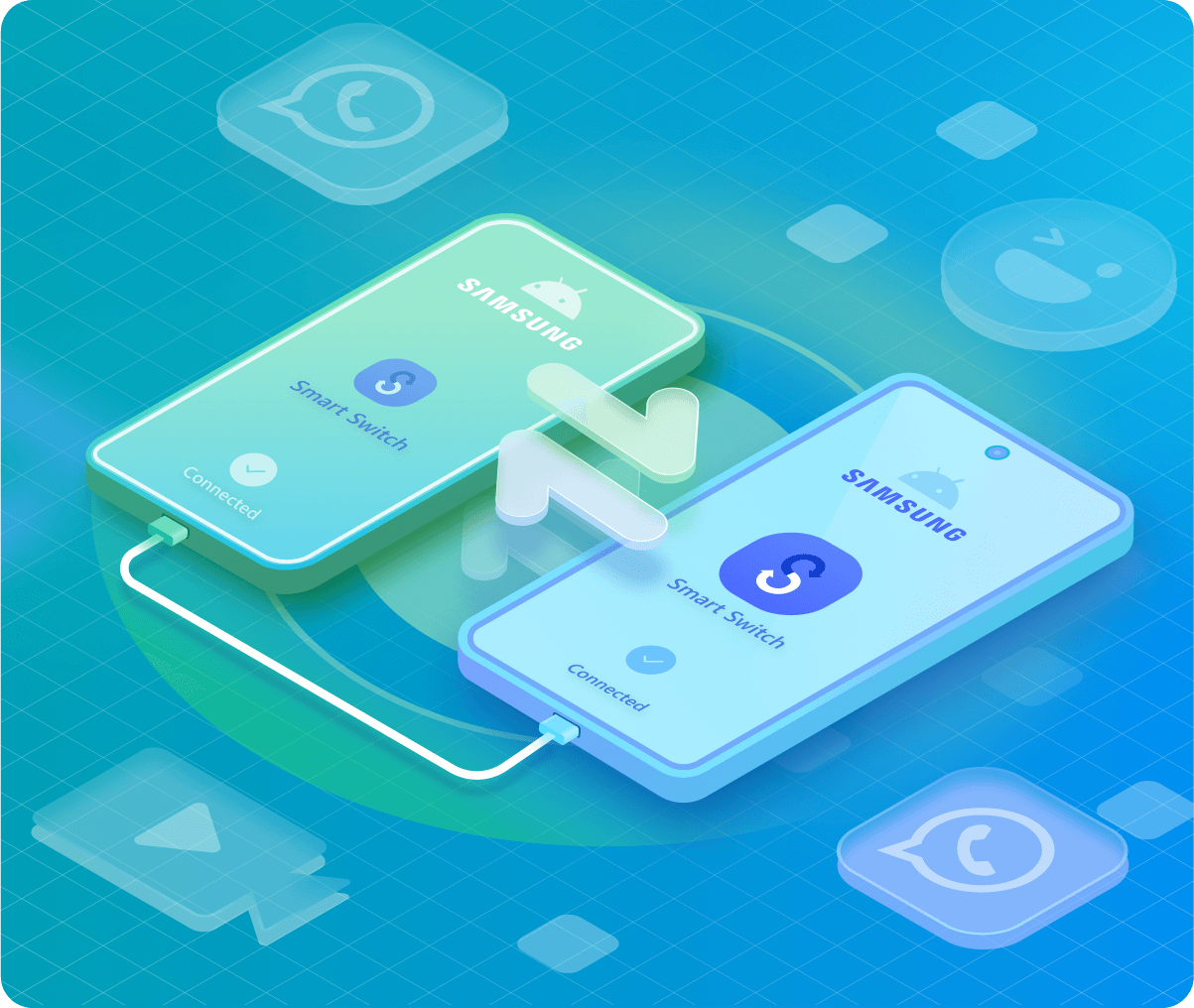
Smart Switch is a free, official app by Samsung to migrate data from Android, iOS, or Windows devices to a new Galaxy device.
2. Establish a connection between them.
3. Choose the items and tap on Transfer on your old phone.
4. Tap "Receive data" on your new Galaxy S26.
Supports transferring data via USB cable, Wi-Fi, or computer.
Some apps may require separate internal backups or re-authentication.
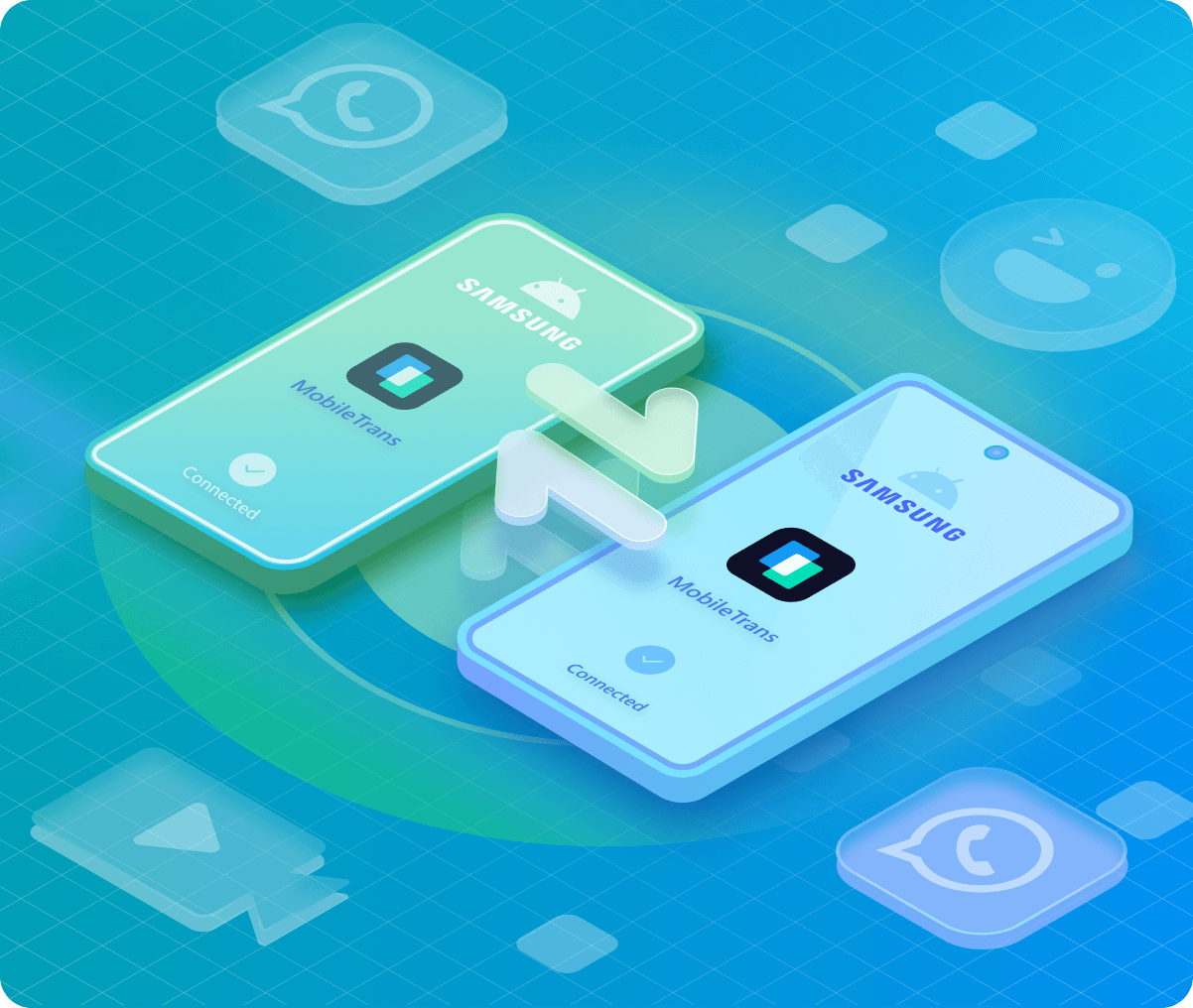
Are you wondering how to transfer data from Samsung to Samsung without Smart Switch? MobileTrans is the reliable tool you need. It helps users move social apps (WhatsApp, Line, and so on) and system data that many official tools cannot transfer.
2. Connect two phones and choose the data types.
3. Click Start to transfer data to Samsung S26.
Transfers data at high speed.
Easy to use and work more stably.
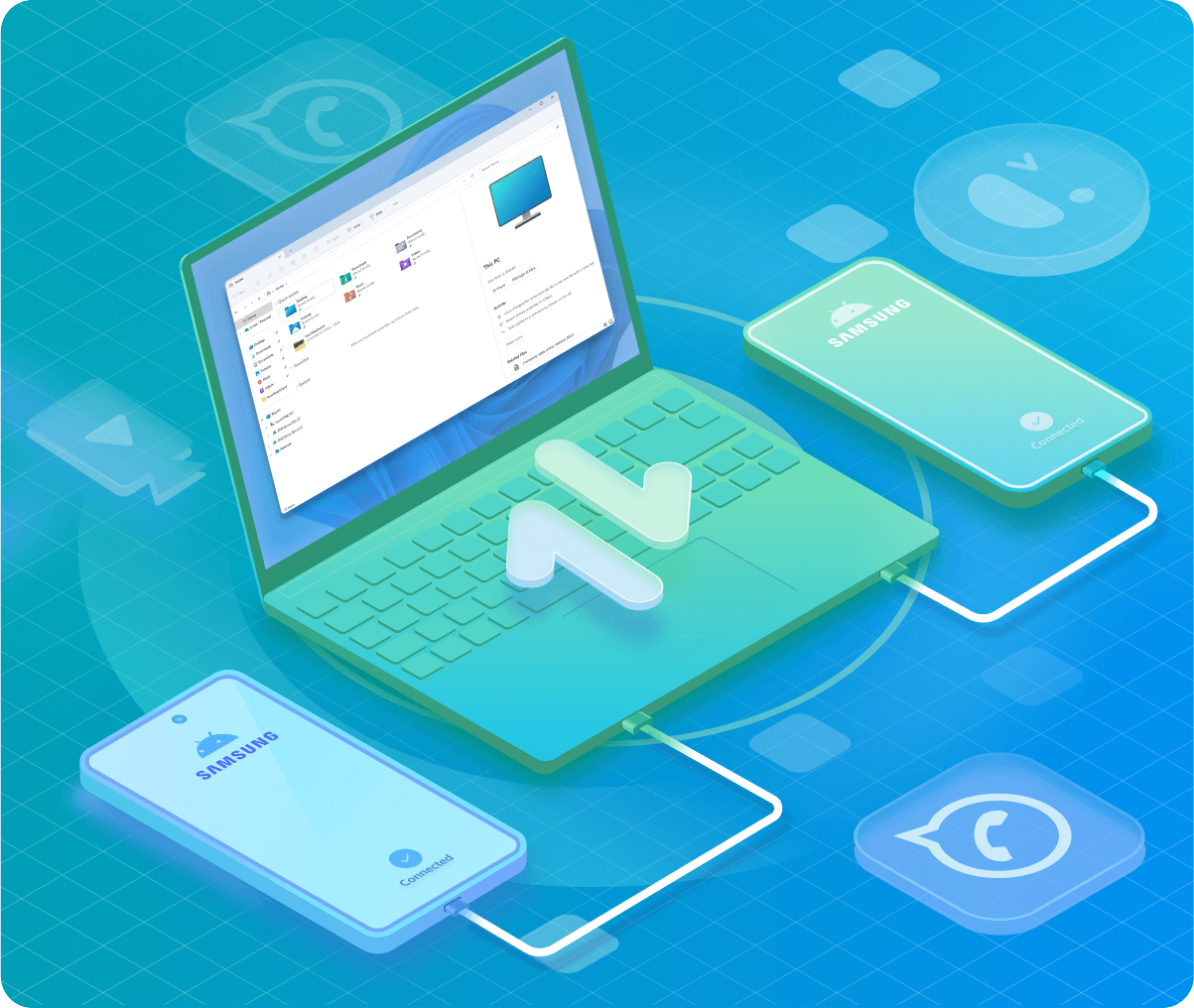
You can also transfer your data to Samsung S26 without using any apps via your Windows Explorer. Let's find out how.
2. Set USB mode to "File Transfer" on both phones.
3. Open two Windows Explorer windows: one for the old phone, one for the Galaxy S26.
4. Copy & Paste folders like DCIM (Photos), Pictures, Music, and Documents.
It's hard to find hidden file paths.
How to Transfer Data from iPhone to Samsung
- With MobileTrans
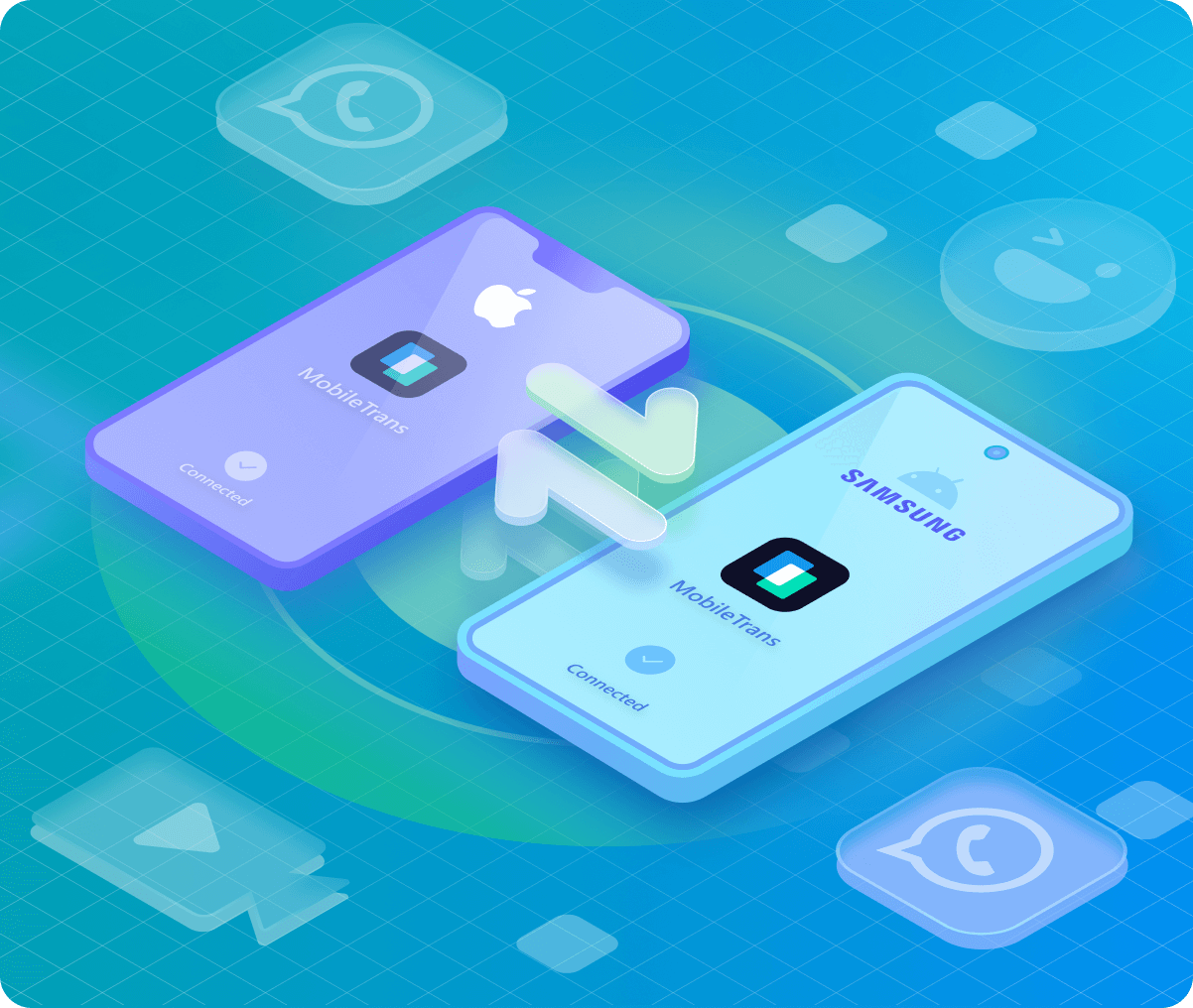
Ready to move to the new Samsung S26? If you want to skip the PC and transfer data directly, the MobileTrans App is the best way to transfer data to Samsung S26.
2. Go to Phone Transfer > Phone to Phone and select data to transfer.
3. Connect two phones by Wi-Fi or scanning the QR code.
4. Tap on Start to transfer data to Samsung S26.
Supports both QR-code wireless transfer and direct cable connection.
Simplifies complex data mapping into a 1-click experience.
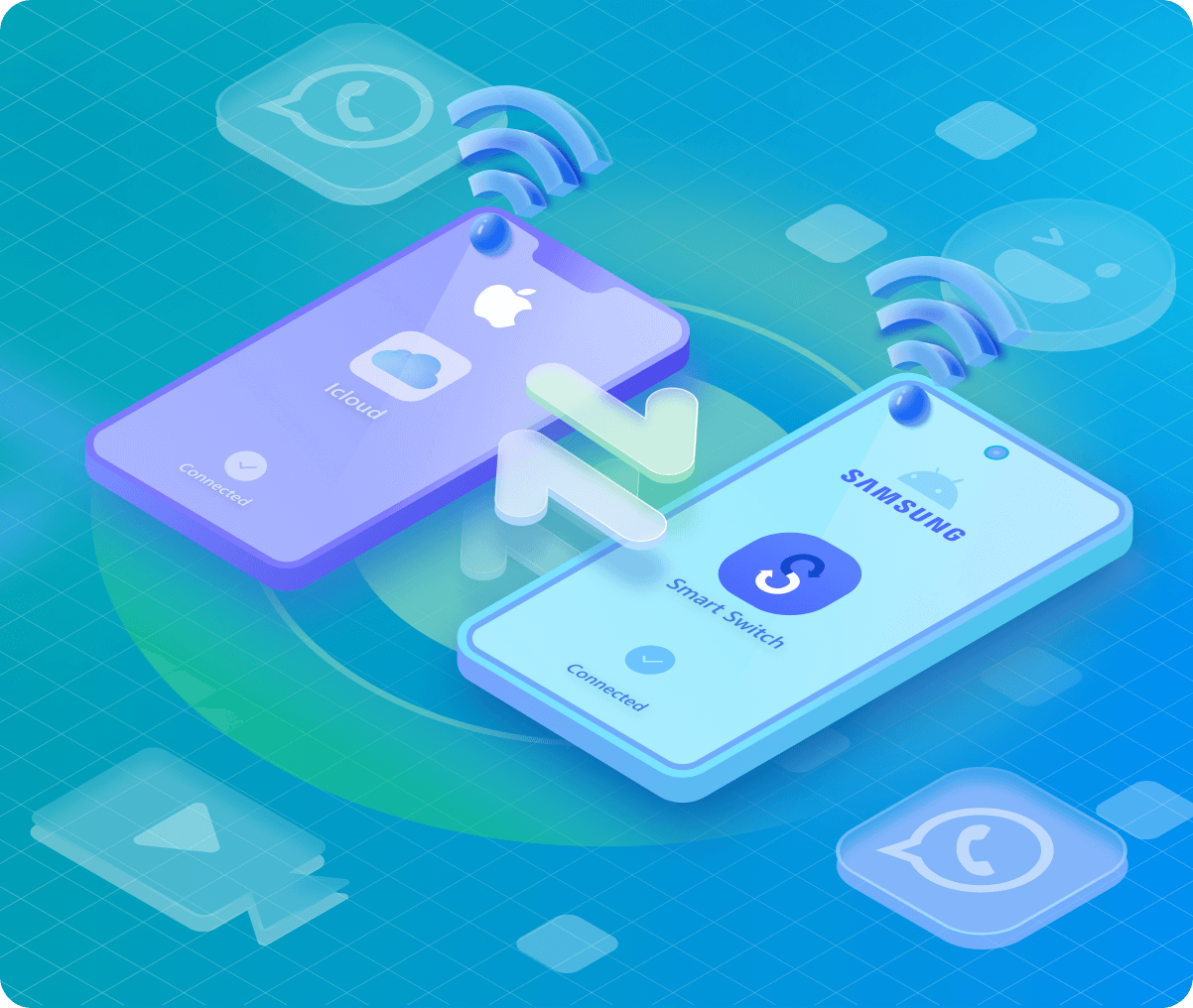
After backing up your important iPhone data to iCloud, you can wirelessly transfer your data to Samsung using Smart Switch. Let's find out how:
2. Go to Receive data > iPhone/iPad, and then click Get data from iCloud.
3. Sign in to iCloud and choose data to transfer.
Free for users with enough iCloud space.
Only selected data types can be transferred.
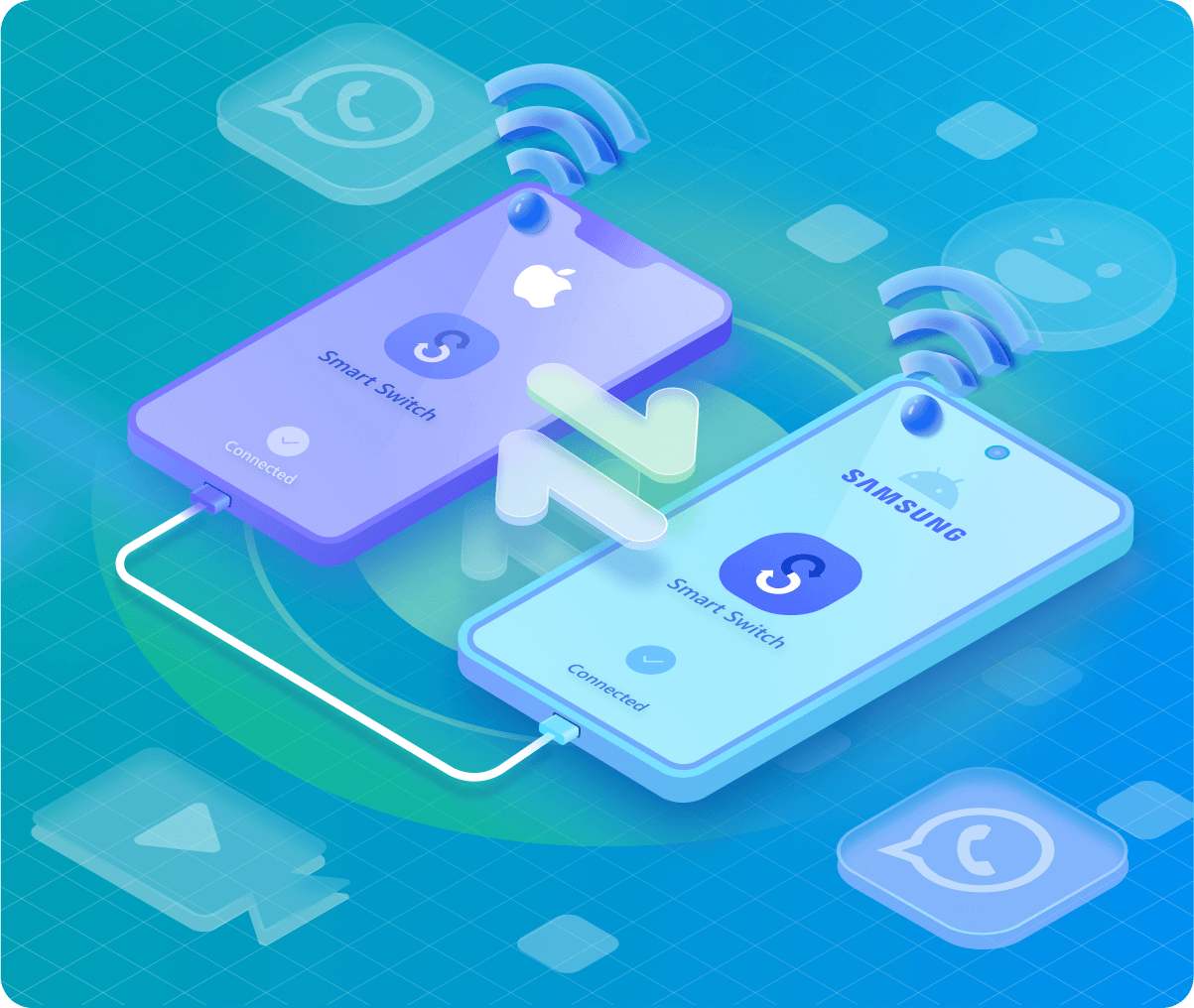
You can use Smart Switch to transfer data from an iPhone to a Samsung device. Unlike transfers between Galaxy phones, iPhone-to-Samsung data transfer works best with a direct device connection, especially when moving large files or app data.
2. Use a USB-C to USB-C cable (for iPhone 15/16/17) or a USB-C to Lightning cable (for older iPhones). Plug them directly into both phones.
3. Select the data you want to transfer to Samsung S26.
4. Tap on Transfer to start the process.
Transfers much more than the iCloud method.
If your iPhone backup is encrypted with a password, you’ll need to enter it to proceed.
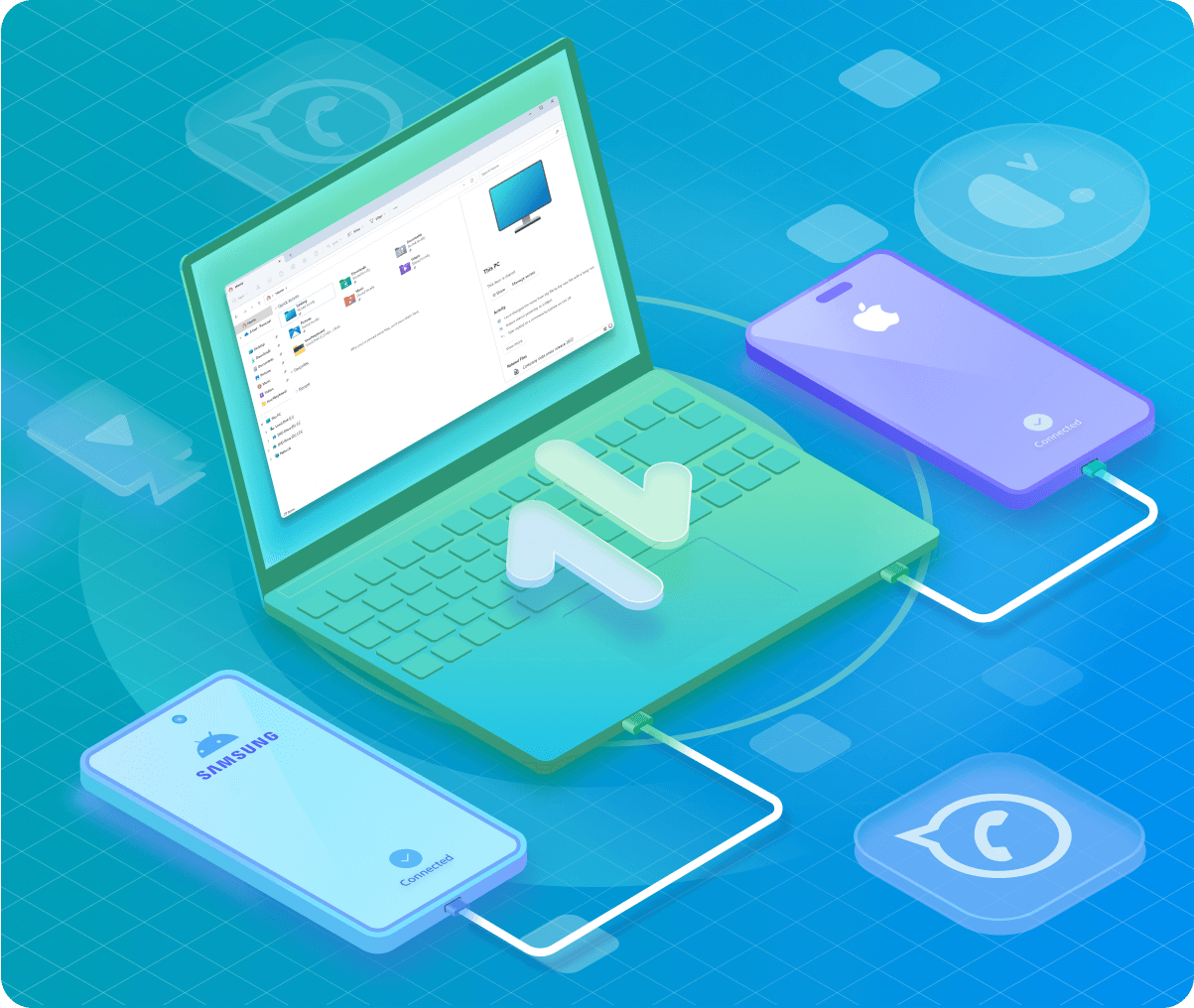
This is a manual, media-only method. It is not a full phone transfer and cannot move your life's data (like chats or contacts).
2. Unlock your iPhone and tap "Trust"; on the S26, set USB mode to "File Transfer".
3. Open Windows Explorer. Navigate to iPhone > Internal Storage > DCIM.
4. Drag photos/videos from those messy subfolders and paste them into the Pictures or DCIM folder on your S26.
No cloud storage limits.
You may need to convert Apple's HEIC/HEVC files to JPG/MP4 for compatibility.
How to Transfer Data from Other Android Phone to Samsung
- With Smart Switch
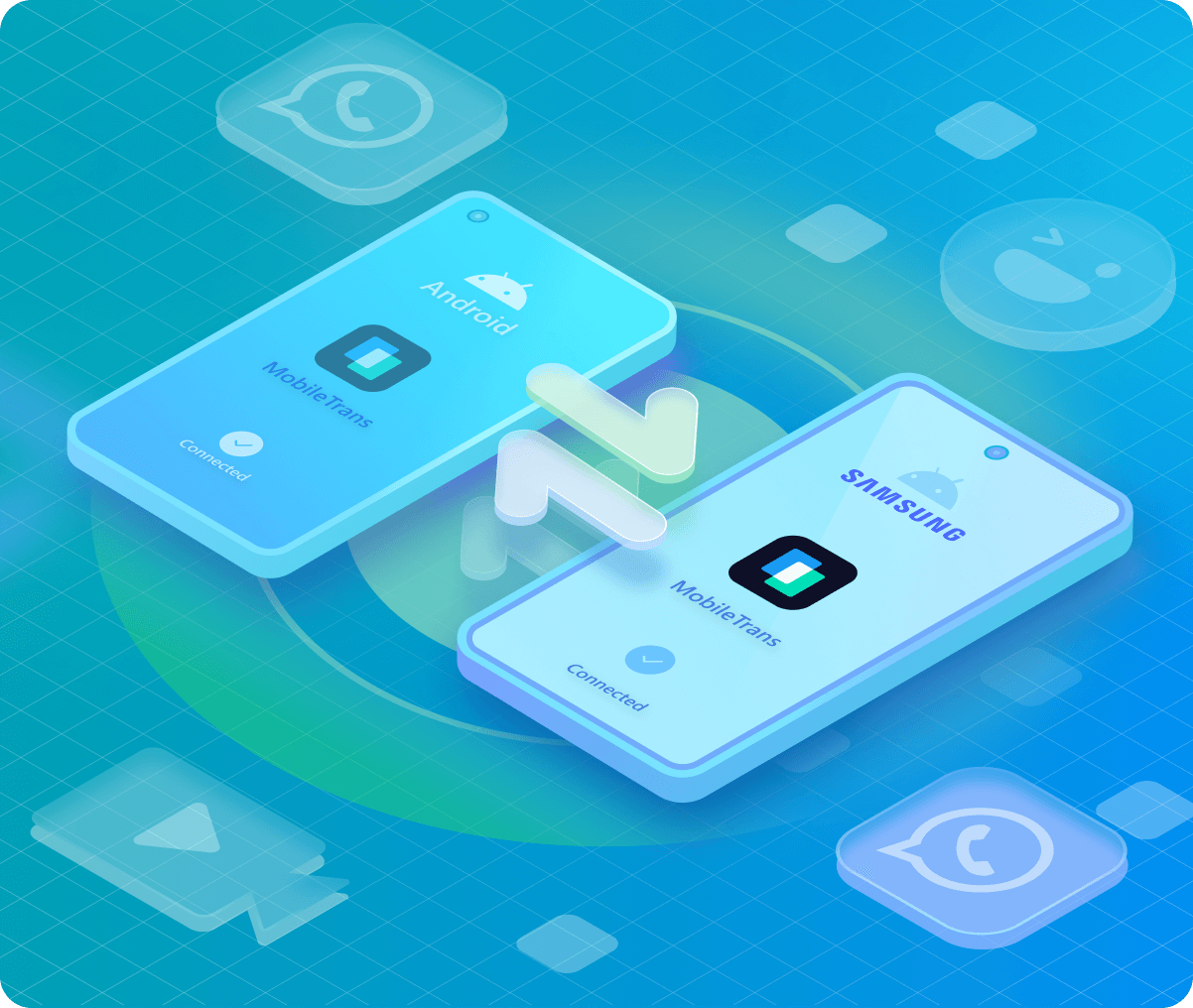
The Samsung Galaxy S26 Ultra is the pinnacle of 2026 Android flagships. To move your entire digital life from an old Android to this beast without the lag of wireless transfers, MobileTrans is the professional’s choice.
2. Connect your old Android and the Samsung S26 Ultra to the computer with USB-C cables.
3. Go to Phone Transfer > Phone to Phone Transfer.
4. Select the data you need and click the Start button.
Supports 6000+ mobile devices.
Transfers WhatsApp data without factory reset.
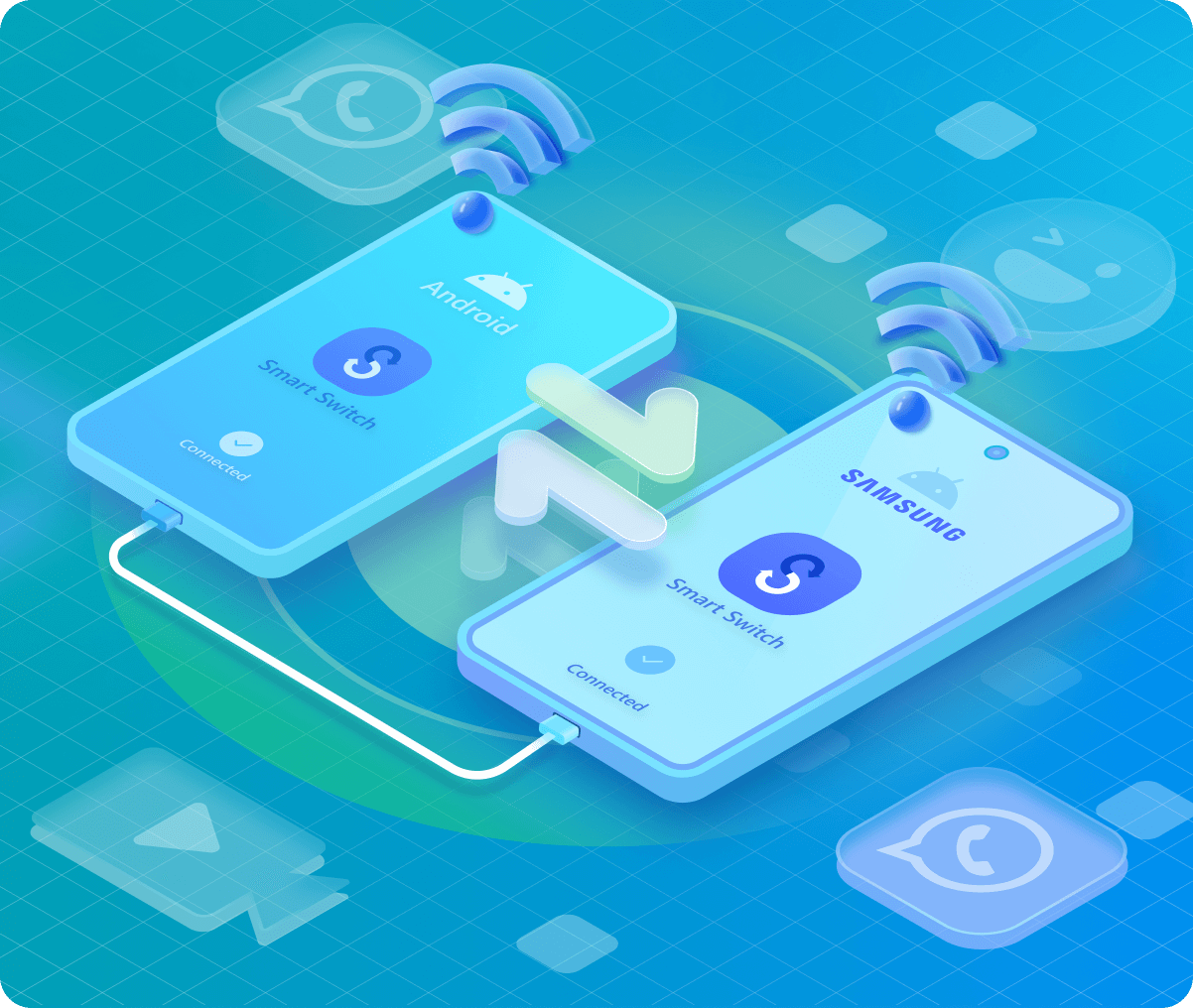
As long as you are switching to a Samsung phone (like the new Galaxy S26), Smart Switch is the most reliable official tool for a seamless transition.
2. Tap Send data on the old phone and Receive data on the new Samsung.
3. Choose the data types and tap Transfer.
Supports USB cable, Wi-Fi, or PC/Mac backup.
Most apps will require you to log in again for security reasons.
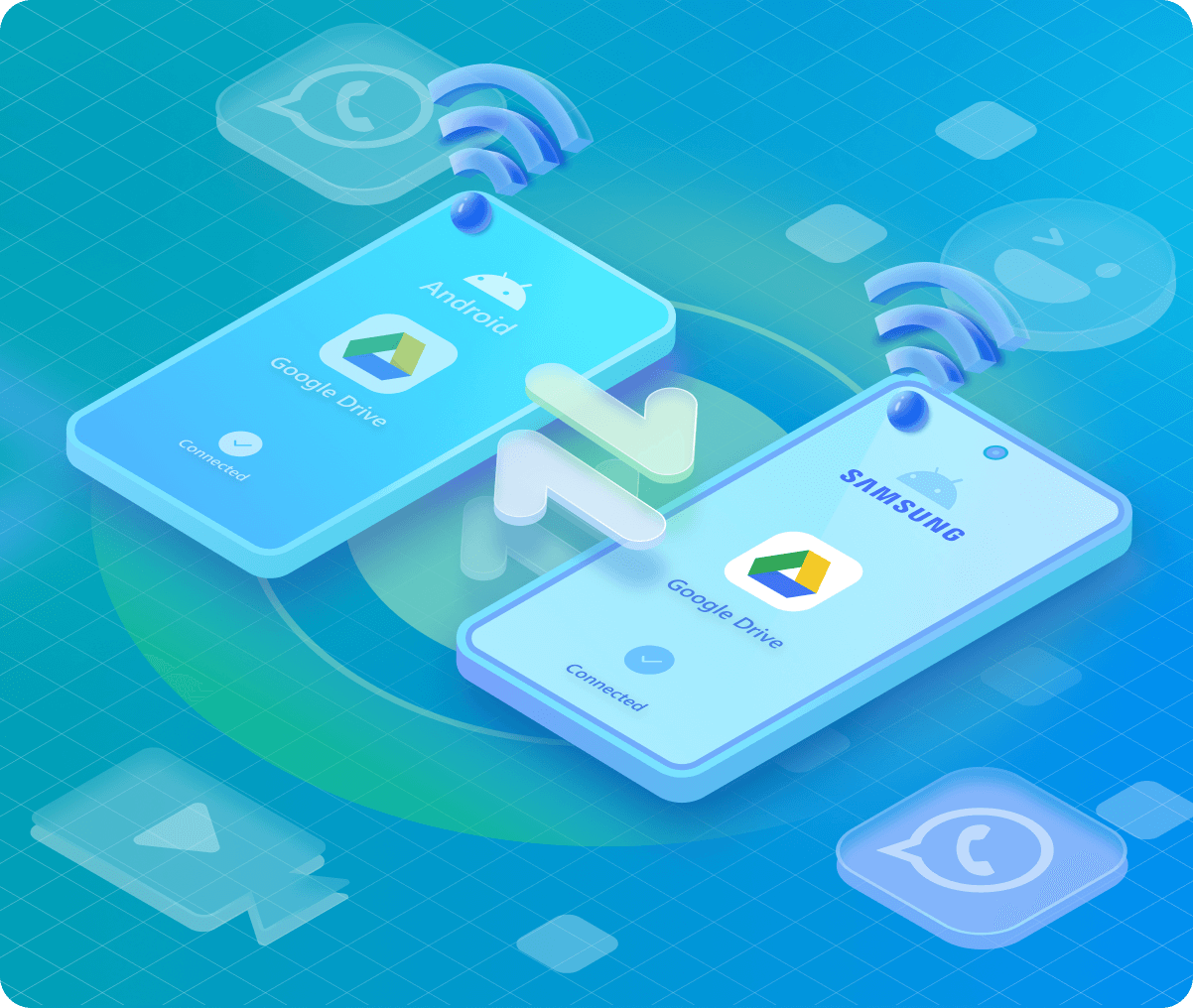
Google Drive is the best "set and forget" method for wireless migration of system settings and basic data, though it has strict storage limits.
2. Turn on New S26 and follow the setup wizard.
3. When prompted to "Copy apps & data," select "Can't use old device?" or "A backup from the cloud."
4. Sign in with the same Google Account and select the most recent backup to restore.
Large data transfers over Wi-Fi take much longer than using a cable.
Needs internet connection.

Best Ways to Transfer Data to Samsung S26:
MobileTrans vs. Smart Switch vs.
Cloud
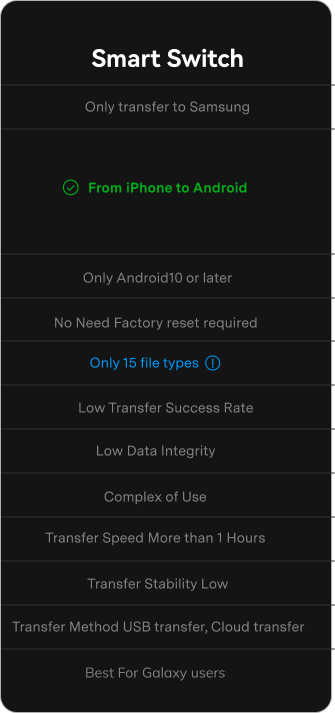
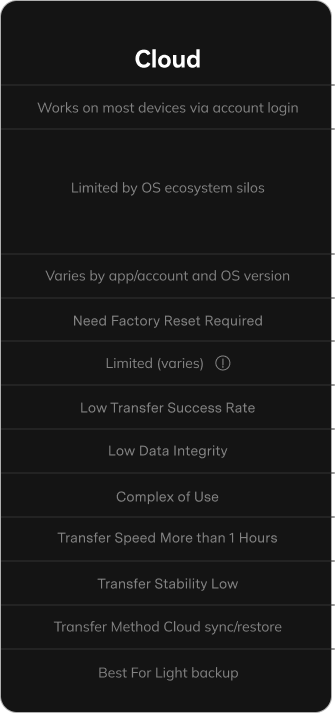
| Categories | MobileTrans | Smart Switch | Cloud |
|---|---|---|---|
| Device Compatibility | Supports 6000+ iOS & Android devices | Only transfer to Samsung | Works on most devices via account login |
| Cross-platform |
From Android to iPhone
From iPhone to Android
From Android to Android
From iPhone to iPhone
|
 From iPhone to AndroidFrom
Android to Android
From iPhone to AndroidFrom
Android to Android |
Limited by OS ecosystem silos |
| System Version Supported | Android 4.6 and up (Android 16 included) iOS 6 and up (iOS 27 included) |
Only Android10 or later | Varies by app/account and OS version |
| Factory reset required | No Need | No | Yes |
| File Types Supported | Supports 18 file types | Only 15 file types | Limited (varies) |
| Transfer Success Rate | High | Low | Low |
| Data Integrity | High | Low | Low |
| Ease of Use | Easy | Complex | Complex |
| Transfer Speed | Within 30 Minutes | More than 1 Hours | More than 1 Hours |
| Transfer Stability | High | Low | Low |
| Transfer Method | USB transfer | USB transfer, Cloud transfer | Cloud sync/restore |
| Best For | Switching between iPhone/Android & WhatsApp migration |
Galaxy users | Light backup |

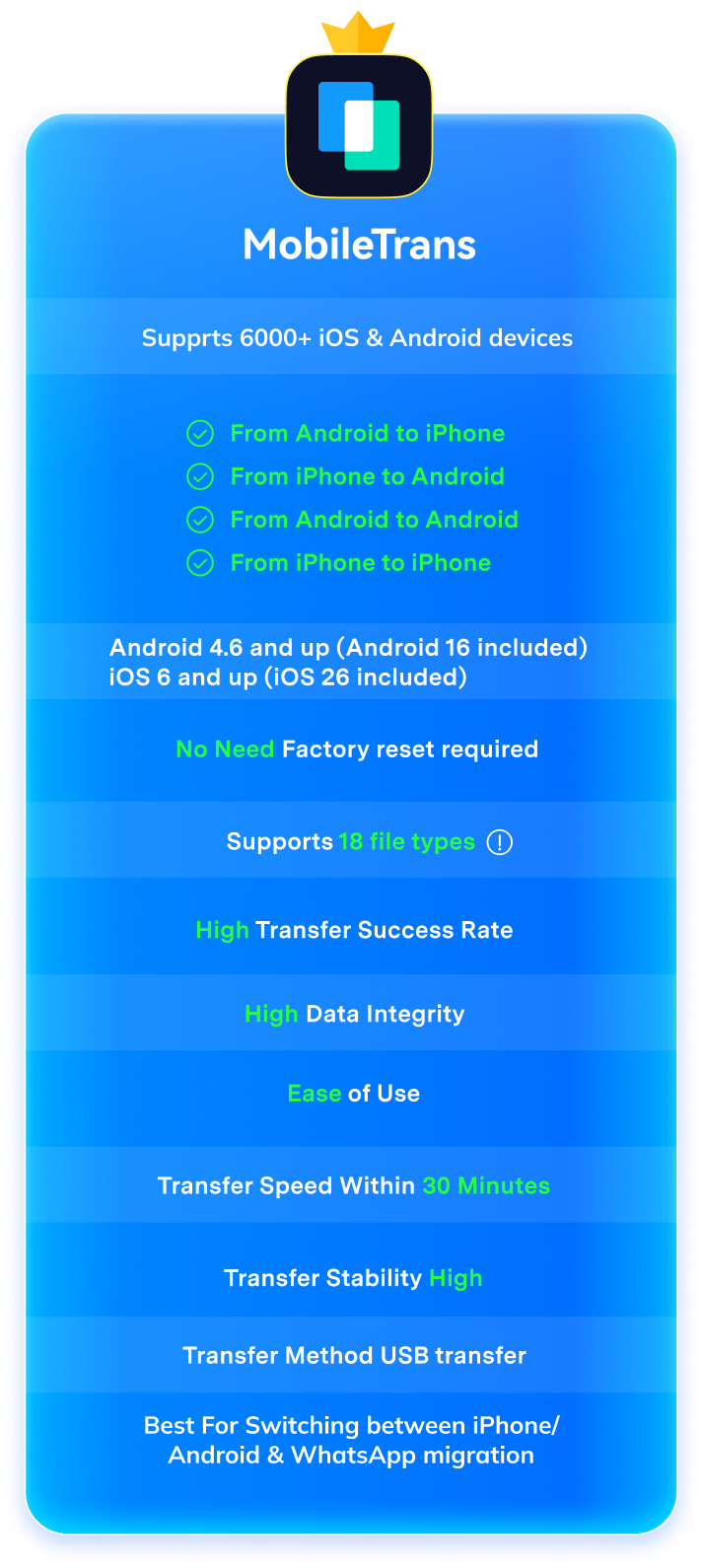
| MobileTrans |
|---|
| Supports 6000+ iOS & Android devices |
|
From Android to iPhoneFrom
iPhone to AndroidFrom
Android to AndroidFrom
iPhone to iPhone |
| Android 4.6 and up (Android 16 included) iOS 6 and up (iOS 27 included) |
| No Need |
| Supports 18 file types |
| High |
| High |
| Easy |
| Within 30 Minutes |
| High |
| USB transfer |
| Switching between iPhone/Android & WhatsApp migration |
|
Try It Free
Try It Free
|
Why Choose MobileTrans for Your S26?

Expert Tips for Samsung Data Transfer
Back up your data first, charge both phones, and use a stable Wi-Fi connection. This helps reduce Smart Switch transfer failures and saves time.

• A failed transfer usually doesn't delete data on the old
phone.
• For best results, transfer in batches and verify key data before wiping.
• Supported items may vary by device and connection type.

If Smart Switch is stuck (e.g., 30% / 99%) or painfully slow, try the quick fixes below. If it still fails, switch methods: go wired (USB‑C) first, then use a desktop transfer(such as MobileTrans) for the most stable experience.

• Restart both phones and retry the transfer
• Keep both devices unlocked and on the same Wi-Fi network
• Disable battery optimization and background app restrictions

• Move closer to the Wi-Fi router or switch to a wired USB-C connection
• Turn off Bluetooth, VPN, and other background services
• Transfer data in smaller batches instead of all at once
• Update Smart Switch to the latest version on bothdevices
• Check Android and Samsung system updates
• Try switching from wireless to cable transfer
Get Ready for Your New Galaxy:
Transfer All Data to S26 in Minutes

MobileTrans
• Fully compatible with the latest One UI 8.5 and Android 16.
• Transfer phone data and WhatsApp data across OS.
• Support backup and restore between phone and PC.
MobileTrans App
• Transfer up to 10 types of phone data between devices.
• Transfer large files between phone, PC and tablet.
• No cellular data usage. No cable is required.
Learn More About Samsung S26
How to Transfer Data from Huawei to Samsung?
How to Transfer Data from Xiaomi to Samsung?
How to Transfer Data from OPPO to Samsung?
How to Transfer Data from HTC to Samsung?
How To Transfer WhatsApp from iPhone to Samsung?
How to Transfer iPhone Home Screen Layout to Samsung?
How to Print Text Messages from Samsung?
Top 9 Smart Switch Alternatives in 2026 (Android/iOS/Desktop)