Transfer Files Between

Phone And PC:
Fast &
Stable
- Transfer photos, videos, and large files between phone and PC — fast and stable.
- Connect your phone via USB and get instant recognition, no setup needed.
- Transfer everything to your computer without iTunes or extra tools.
- Works seamlessly with iPhone, Android, Windows PC, and Mac.
- Keep your data private with 100% local transfer — no cloud required.

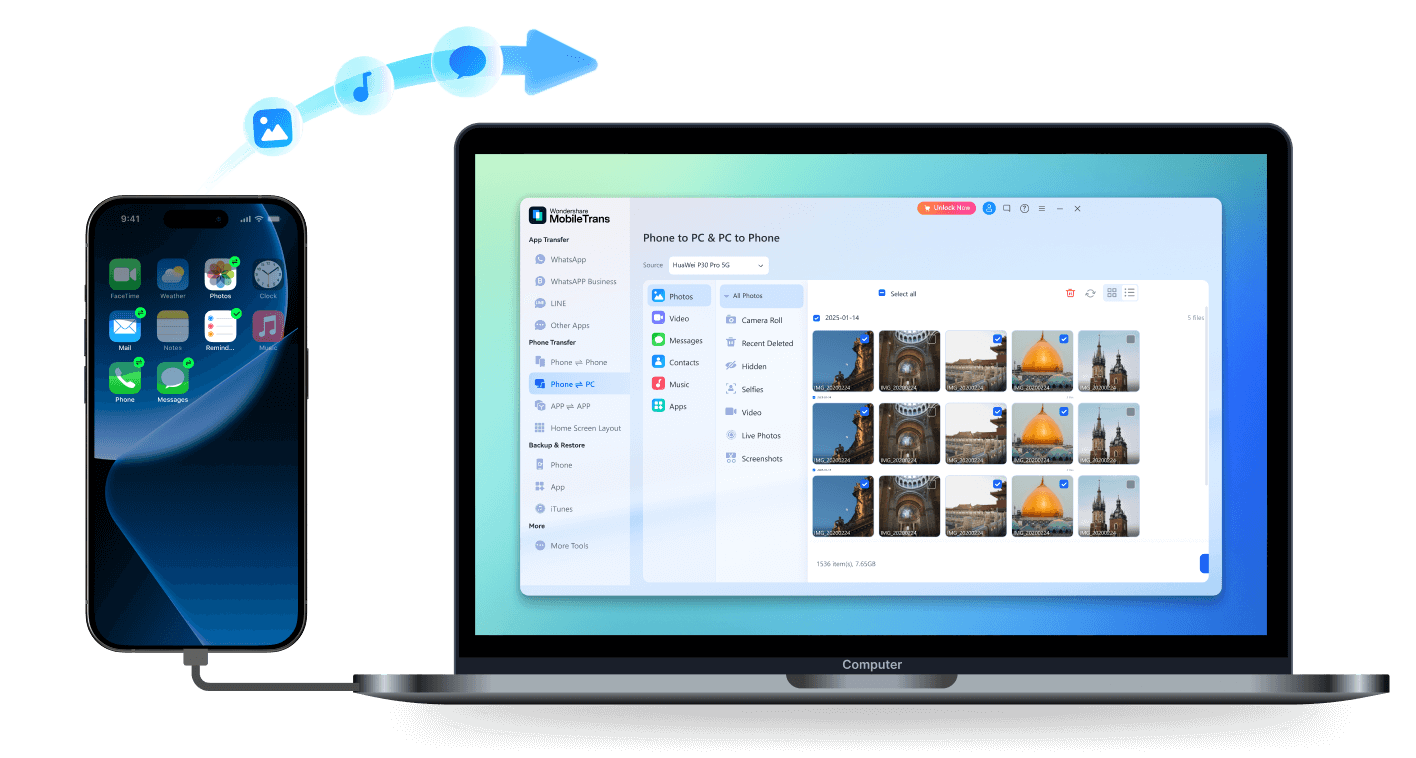
Why Is It So Hard to Transfer Files from Phone to PC?
There are countless reasons to move files from your phone to your computer — switching devices, saving space, or keeping data backed up.
But if you’ve ever tried, you know it’s rarely smooth. From connection errors to endless setup and cloud privacy risks, file transfer shouldn’t be this frustrating.
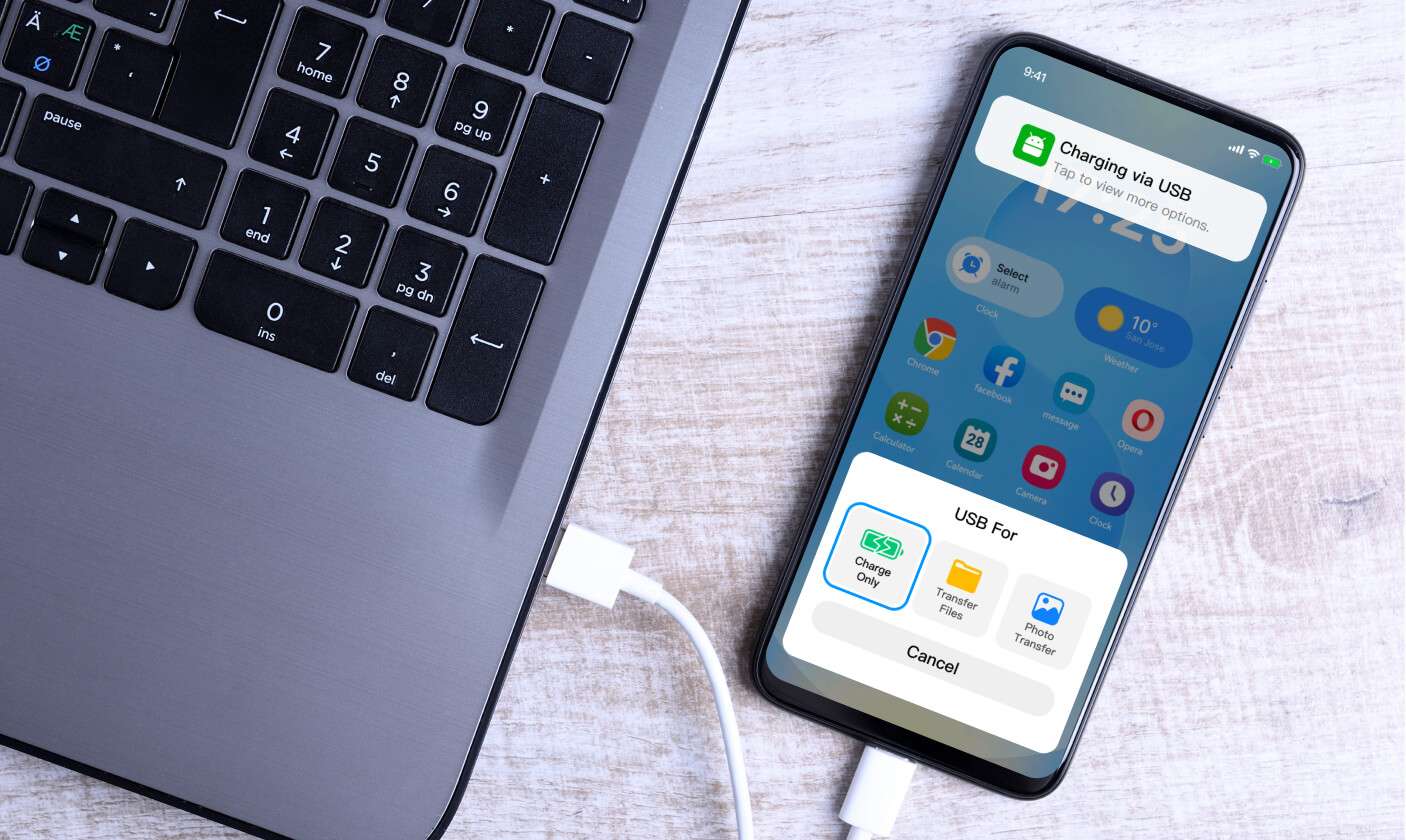
You connect your phone to your PC — and it only charges. No folders, no photos, no clue what’s wrong. Between USB modes, driver installs, and “Trust this computer?” pop-ups, what should take seconds ends up taking forever. It shouldn’t be this hard just to see your own files.
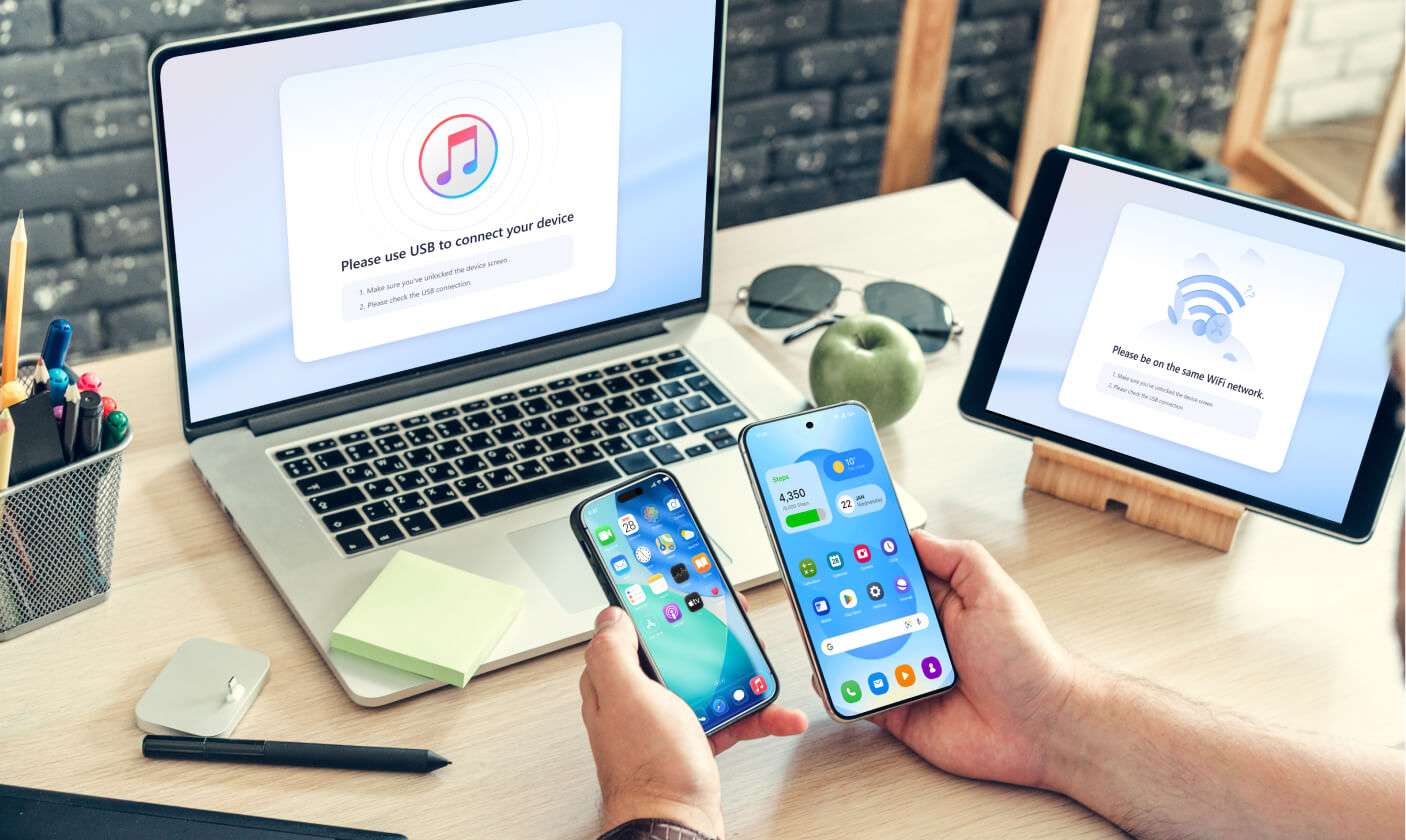
Transferring between Android and Windows is one thing — but between iPhone and PC? That’s a whole different story. iTunes, drivers, permissions… all just to move a few photos. Cross-platform shouldn’t mean cross-headache.
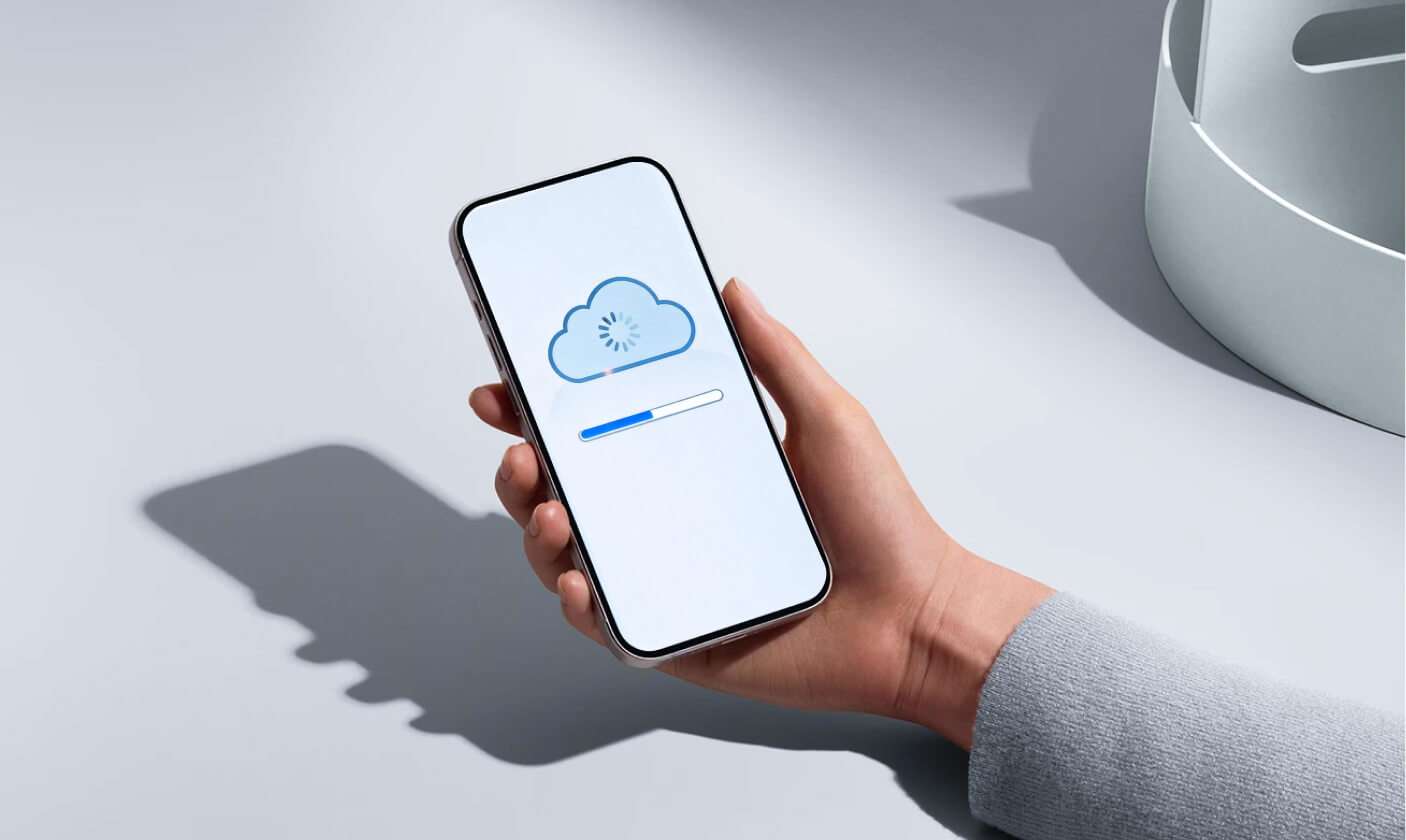
Cloud storage sounds simple until your uploads crawl at a snail’s pace and your phone stays busy for hours. Even worse, personal photos and work files end up stored who-knows-where online. Most users just want a direct, secure way to transfer large files from phone to PC — fast, private, and completely under their control.


The All-in-One Phone to PC File Transfer Solution
MobileTrans simplifies your digital life. Stop wondering how do you transfer photos from mobile to computer; this tool
handles all your data—from photos and videos to contacts and messages. Recognized as the best phone to PC transfer
app, it provides a simple, direct path to transfer files from Android to PC or iPhone. No more driver errors or cloud limits.
Just a fast, complete, and effortless way to back up your phone.
Cross-Platform Transfer
Move data between iPhone, Android, PC, and Mac Seamlessly
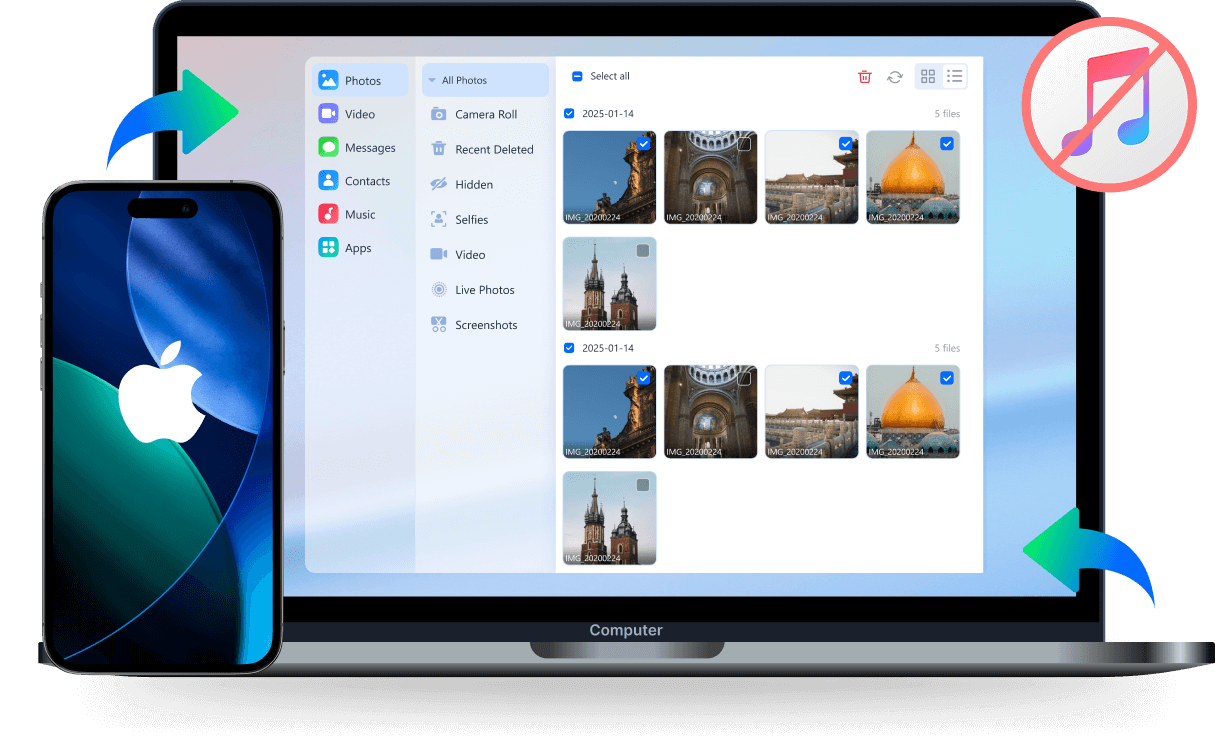
Stop fighting Apple's complex ecosystem just to move your files. If you're tired of slow iCloud syncs and frustrating limitations, MobileTrans is the simple solution you need. It finally allows you to transfer data from iPhone to PC without iTunes, giving you the fast, direct USB connection for photos, videos, and contacts that you've been missing. Forget the headaches and get your files moved in minutes, not hours.





Cross-Platform Transfer
Move data between iPhone, Android, PC, and Mac Seamlessly
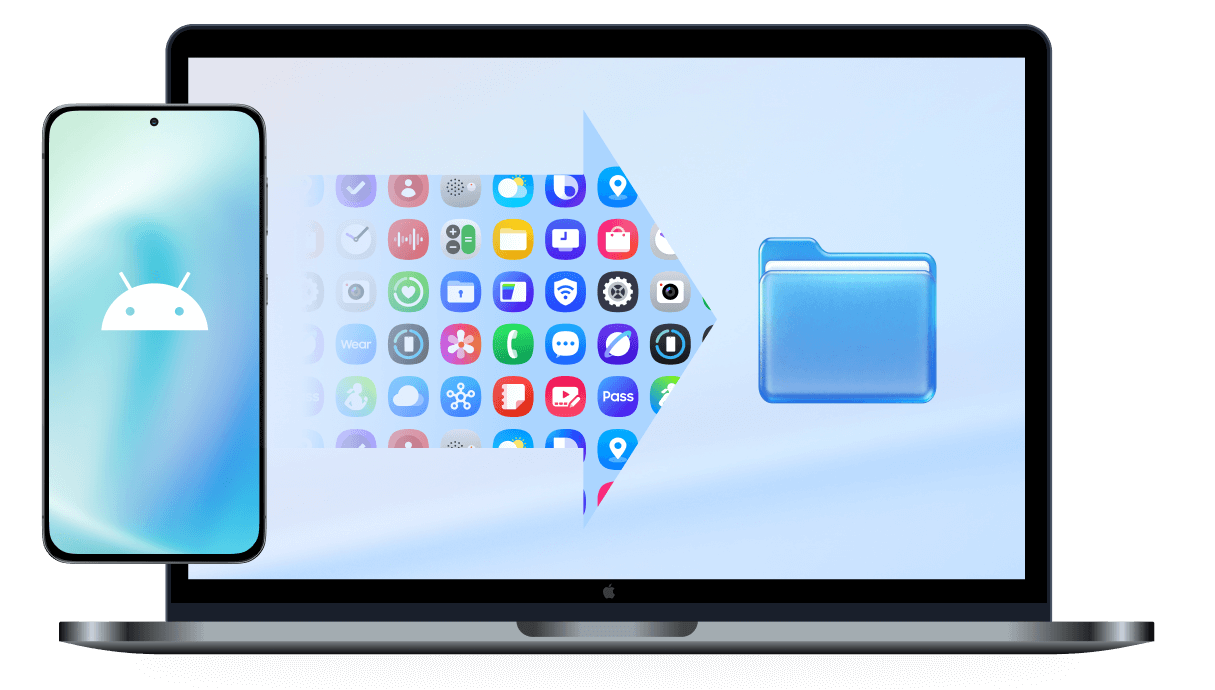
Are you constantly searching for "how to transfer files from Android to Mac" only to find unreliable solutions? Ditch the unstable Android File Transfer app and stop wasting time with workarounds that crash or fail. MobileTrans provides the seamless, stable, and fast connection that you wish Apple and Google would have built, letting you move all your photos, documents, and messages without the usual frustration.
One-Tap Connection
Connect Phone and PC Effortlessly
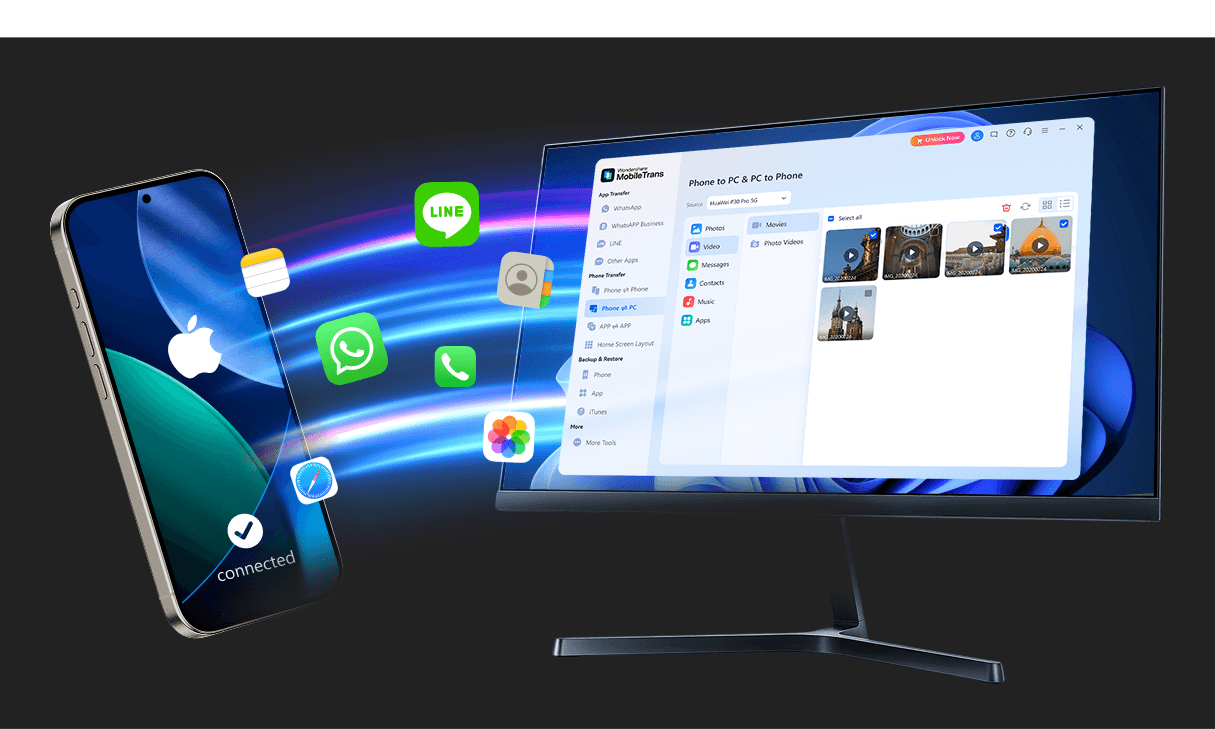
Tired of plugging your iPhone into a Windows PC only to see it “charging” instead of showing your files? Or spending minutes installing drivers, switching USB modes, or fighting with iTunes just to move a few photos? MobileTrans eliminates the hassle. It automatically detects your device, connects in seconds, and transfers everything you need — photos, videos, and more — without endless setup or permissions. Whether you go wired or wireless, MobileTrans makes file transfer finally feel simple.
High-Speed Bulk Transfer
Transfer Large Files from Phone to PC Quickly
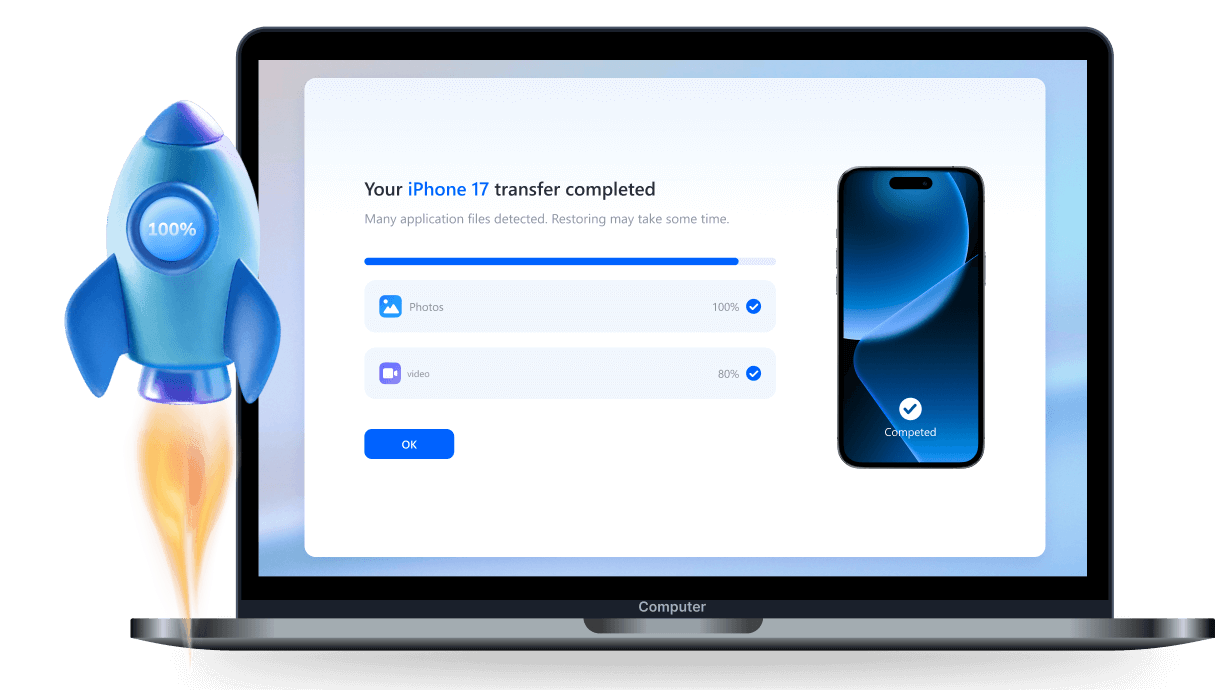
Stop searching for how to transfer large videos from iphone to computer only to be blocked by slow speeds or cloud size limits. MobileTrans is built for power, providing the stable, high-speed connection you need. Effortlessly transfer large file from iphone to pc, including your entire 4K video library or massive backups, in just minutes. No more failed uploads or overnight waits.
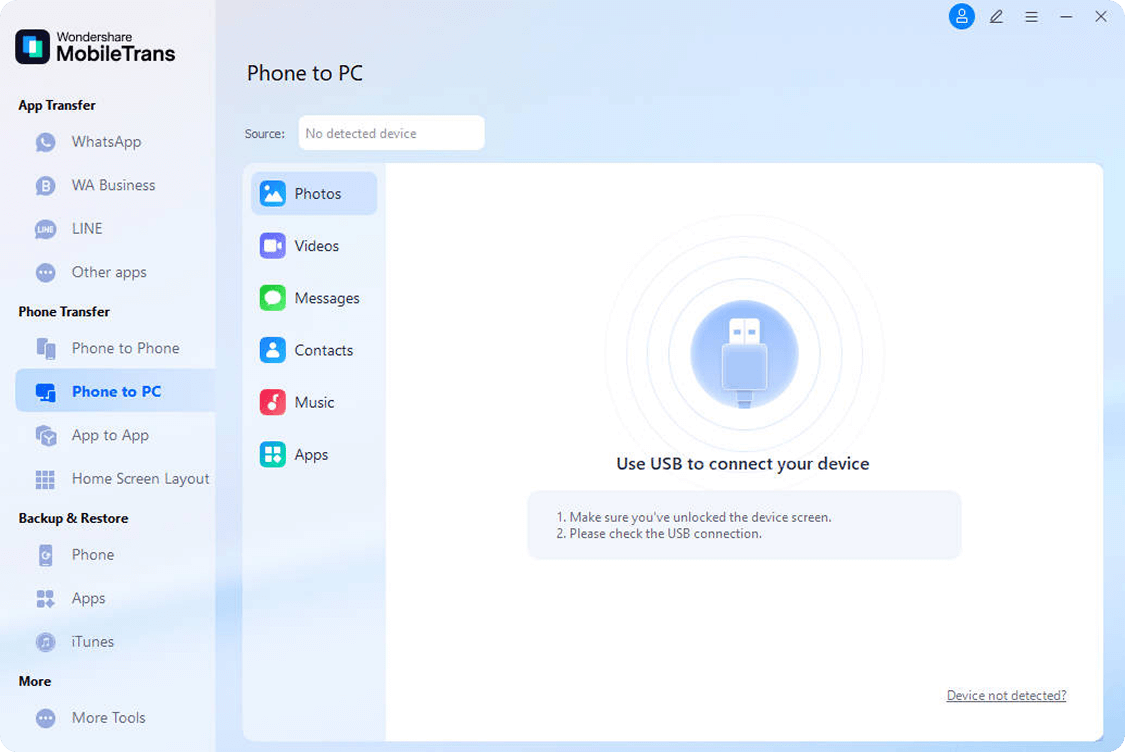
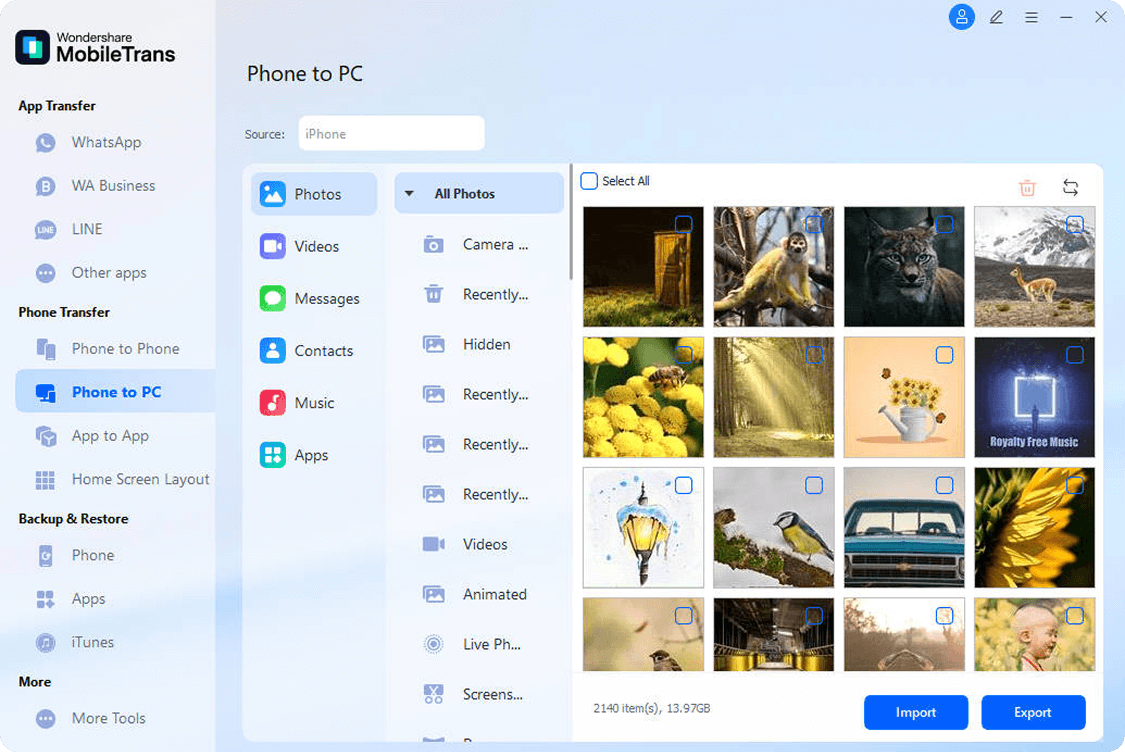
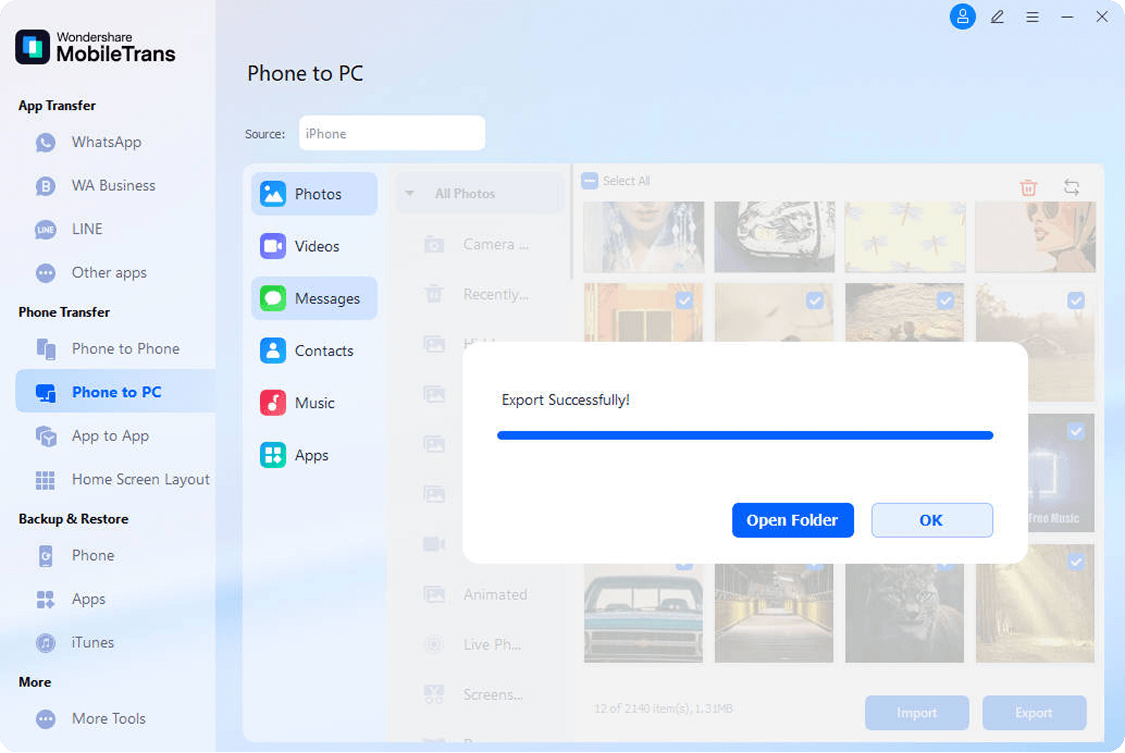
How to Transfer Files from Phone to PC with MobileTrans?
Need a simple way to move your photos or files between phone and computer? MobileTrans shows
you how to import photos from iPhone to PC and how to transfer files from PC to iPhone—no
iTunes, no cloud, just a quick USB connection. Keep your data synced, backed up, and always
within reach.
Other Common Methods to Transfer Files From Phone to PC



- Connect your phone and PC using a USB cable.
- Unlock your phone and choose “File Transfer (MTP)” mode.
- Open your phone’s storage on the PC.
- Manually copy and paste files to your computer.
- Upload your files to iCloud or Google Drive on your phone.
- Wait for upload to complete (depends on network speed).
- Sign in to the same account on your PC browser.
- Download the uploaded files to your computer.

- Enable Bluetooth (or AirDrop) on both devices.
- Pair or connect the phone and computer.
- Select files on your phone and choose “Send via Bluetooth/AirDrop.”
- Accept and save files on the PC or Mac.

- Send files to yourself or a trusted contact in the messaging app.
- Open the app’s web or desktop version on your PC.
- Locate the sent files in the chat.
- Manually download each file to your computer.
Why Millions Trust MobileTrans
MobileTrans, the best phone to PC transfer app, combines the speed of USB, the convenience of cloud, and the ease of wireless sharing — all in just 3 simple steps.
It’s the fastest, most stable, and most effortless way to transfer data from any phone to PC.
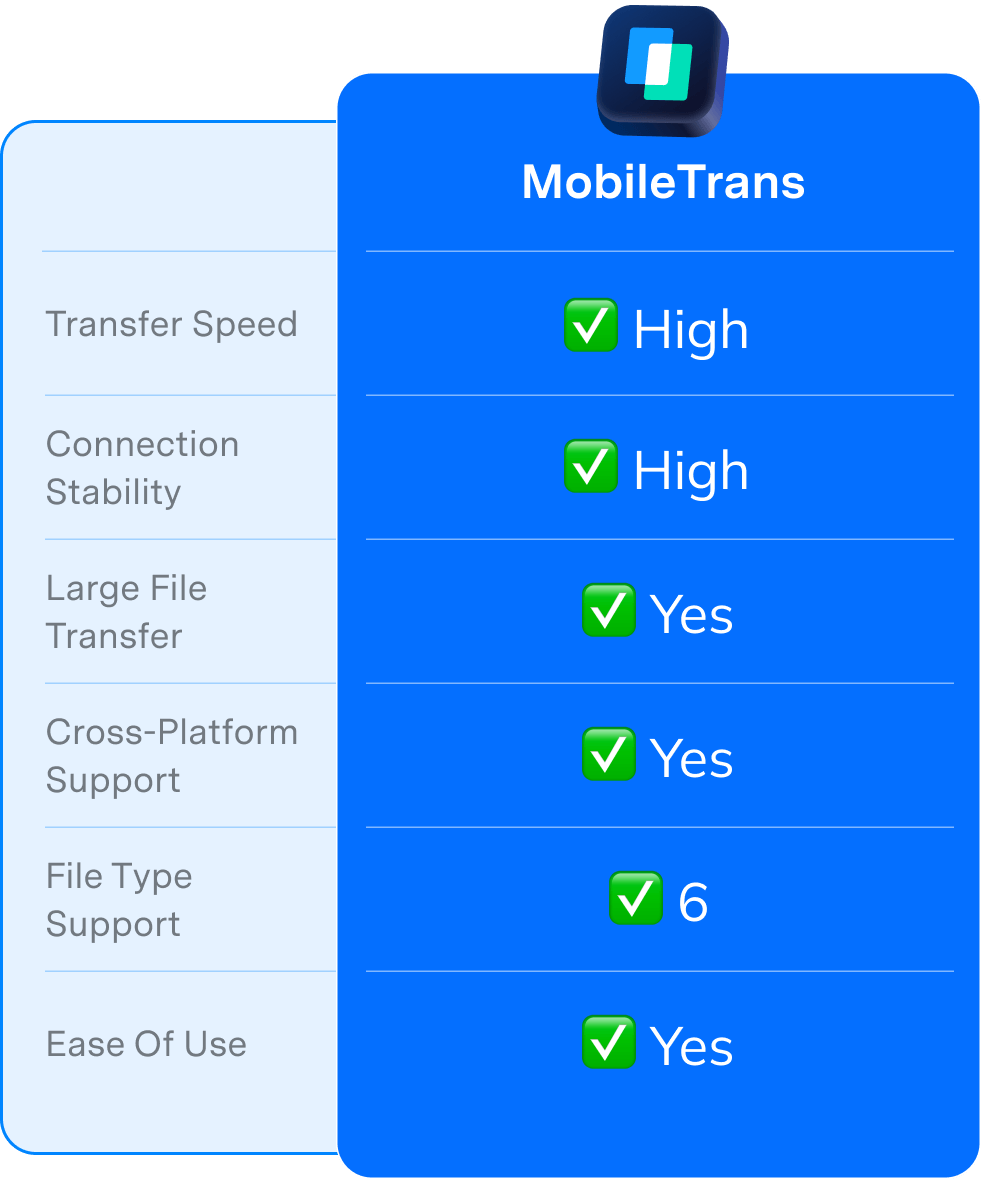
| MobileTrans | USB | iCloud/Google | Bluetooth/AirDrop | Messaging Apps | |
|---|---|---|---|---|---|
| Transfer Speed | ✅ High | ✅ High | ❌ Slow | ❌ Very Slow | ❌ Slow |
| Connection Stability | ✅ High | ⚠️ Drops | ⚠️ Unstable | ⚠️ Unstable | ❌ Low |
| Large File Transfer | ✅ Yes | ⚠️ Risky | ❌ Limited | ❌ No | ❌ No |
| Cross-platform Support | ✅ Yes | ⚠️ OS-dependent | ✅ Yes | ❌ No | ✅ Yes |
| File Type Support | ✅ |
4
Supported file types:Photos, Videos, Music, Documents
|
4
Supported file types:Photos, Videos, Music, Messages
|
2
Supported file types:Photos, Videos
|
4
Supported file types:Photos, Videos, Music, Apps
|
| Ease of Use | ✅ Yes | ❌ Manual | ❌ Manual | ❌ Manual | ❌ Manual |

| MobileTrans |
|---|
| ✅ High |
| ✅ High |
| ✅ Yes |
| ✅ Yes |
|
6
Supported file types:Photos, Videos, Music, Contacts, Messages, Apps
|
| ✅ Yes |
More Features of MobileTrans Phone-to-PC Transfer
Helps Anyone Who Needs to Transfer Files Between Phone and PC

“I used to waste time just trying to get my phone recognized by my PC — switching cables, checking drivers, nothing worked. MobileTrans connected in seconds and started transferring right away. It finally feels effortless to move my photos and files.”

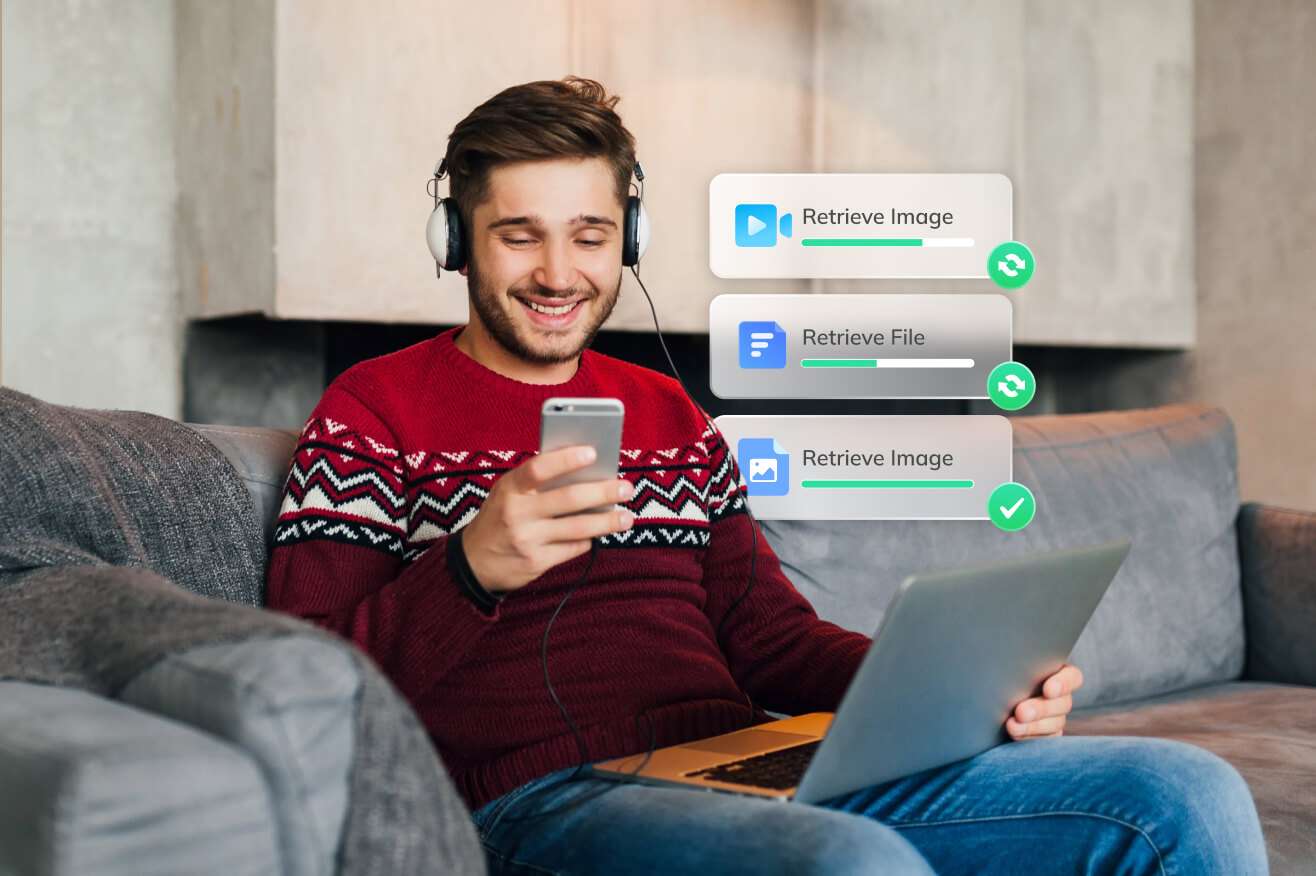
“As a content creator, I move gigabytes of footage from my phone to PC every day. Cloud uploads were painfully slow, and USB transfers kept dropping. With MobileTrans, my videos transfer in minutes — stable, fast, and no waiting around.”

“I use an iPhone for work and a Windows laptop for editing. Before MobileTrans, getting files across was a nightmare — iTunes, drivers, so many steps. Now, I just connect once and drag everything over. It works perfectly every time.”
More Tips for Smart & Secure Contact Transfer

