


 TL;DR:
To take a full backup of an Android phone on a PC, you can use MobileTrans for selective cross-platform transfers, or rely on brand-specific desktop software like Samsung Smart Switch, Huawei HiSuite, and Xiaomi PC Suite.
● MobileTrans supports backing up and restoring over 18 data types, including WhatsApp messages, across both Android and iOS devices, but the free version has limited features and requires an original USB cable to prevent disruptions.
● Samsung Smart Switch backs up contacts, apps, and files exclusively for Samsung devices, but it restricts users to wired transfers since no wireless backup option is available.
● Huawei HiSuite and Xiaomi PC Suite manage local backups specifically for Huawei, Xiaomi, and Redmi phones utilizing a USB connection and a mobile verification code, though they lack advanced backup customization options.
Ask AI for a summary
 ChatGPT
 Perplexity
 Gemini
 Claude
 Grok
Grok
It is essential to protect your phone data from loss or mistaken deletion. Many people want to learn how to take a full backup of an Android phone on a PC safely. A full backup basically keeps all your device data, including contacts and apps, secure in one place. Without backup, unexpected errors or device issues may cause permanent data loss. This guide explains simple ways to store your Android data on your computer.
In this article
Part 1. Understanding Android Backup Options
Understanding different backup methods helps keep your phone data safe and easily accessible. This part will help you explore and understand multiple types of backups:
1. Local Backup (Manual Copy)
Local or manual backup means copying your Android files manually to another safe location. You can move different types of data, like photos and documents, to a storage card or internal storage. This method does not need the internet and is simple for quick saving. Still, if your phone is lost, broken, or stolen, all phone data may disappear.
2. Cloud Backup
Cloud backup basically stores your phone data online, like on Google Drive or similar. It automatically saves all your phone data without using your computer. You can access your stored data anytime by signing into your account easily. Besides, it depends on the internet connection and the available storage space in your cloud account.
3. Full PC Backup
A complete PC backup actually saves all your Android data directly on your computer safely. Learning how to back up Android to PC ensures all your phone's data is fully protected. Plus, this method gives complete control over storage and easy restoration anytime needed. Unlike cloud backups, it does not depend on internet speed or space limits.
Part 2. Why Is Backing Up an Android Phone to a PC Important?
Backing up your Android ensures data safety during unexpected phone problems or loss. Knowing how to back up an Android phone to a PC and its importance protects essential files:
- Data Safety: Backing up keeps your multimedia files and messages safe from mistaken deletion. It prevents permanent loss when your device gets damaged or reset unexpectedly.
- Easy Restoration: A backup allows restoring all files quickly without spending hours recreating data. This saves time and effort whenever you switch devices or face technical issues.
- Device Upgrade: During upgrades, backups transfer all apps and even settings to new phones. Plus, it avoids losing important data while setting up a new Android device.
- Storage Management: Storing data on a PC frees space on your phone for new files easily. Thus, you can delete old files from your phone while keeping them securely saved.
- Offline Access: Computer backups also allow accessing data without internet or cloud storage needs. It also ensures you can always retrieve important files even when network problems occur.
Part 3. How to Take a Full Backup of Android on PC
It is simple to protect your entire Android data by saving it safely on a computer. Thus, the following section provides 3 ways to learn how to take a full backup of an Android phone on a PC:
Way 1. MobileTrans | One-Click Backup Solution
MobileTrans offers an effortless and one-click solution to understand how to back up Android to PC. It supports backing up more than 18 data types, including multimedia files and messages. During backup, you can choose specific files to move instead of copying everything unnecessarily. Plus, this software keeps your original data safe without overwriting anything during the process. After backup, you can restore data to any Android or iPhone device effortlessly.


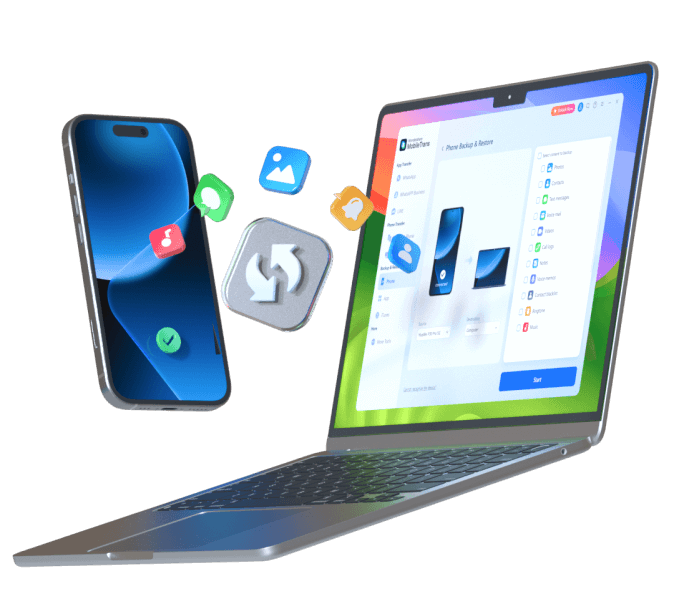
It provides an easy process that anyone can follow without technical experience or confusion. The following steps show clearly how to back up an Android phone to a PC using MobileTrans:
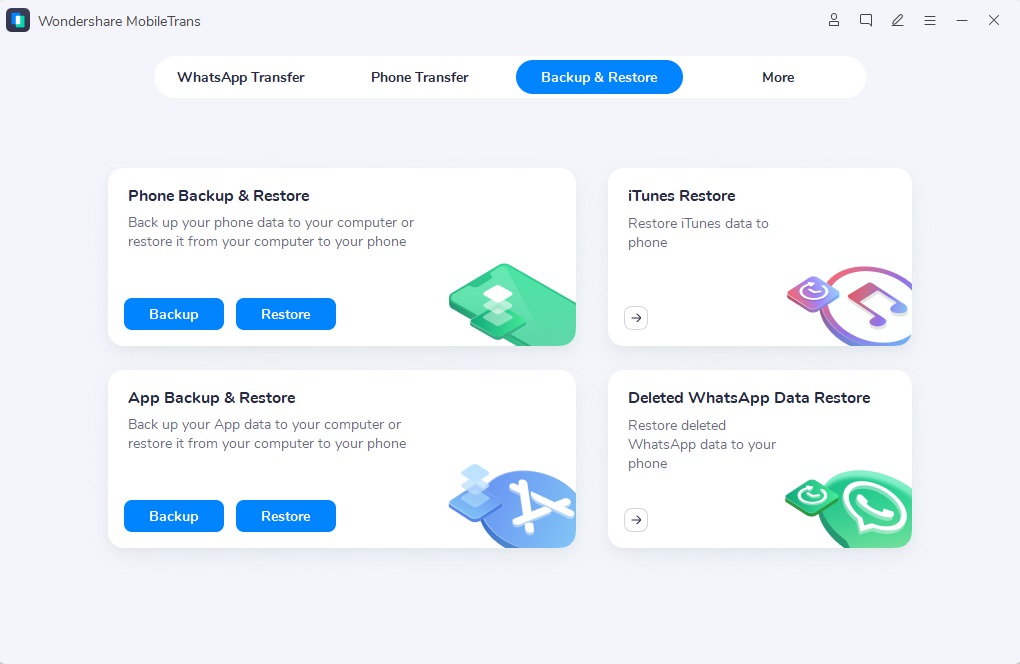
Step 1. Access the Phone tab from the Backup & Restore section and press the Backup button.
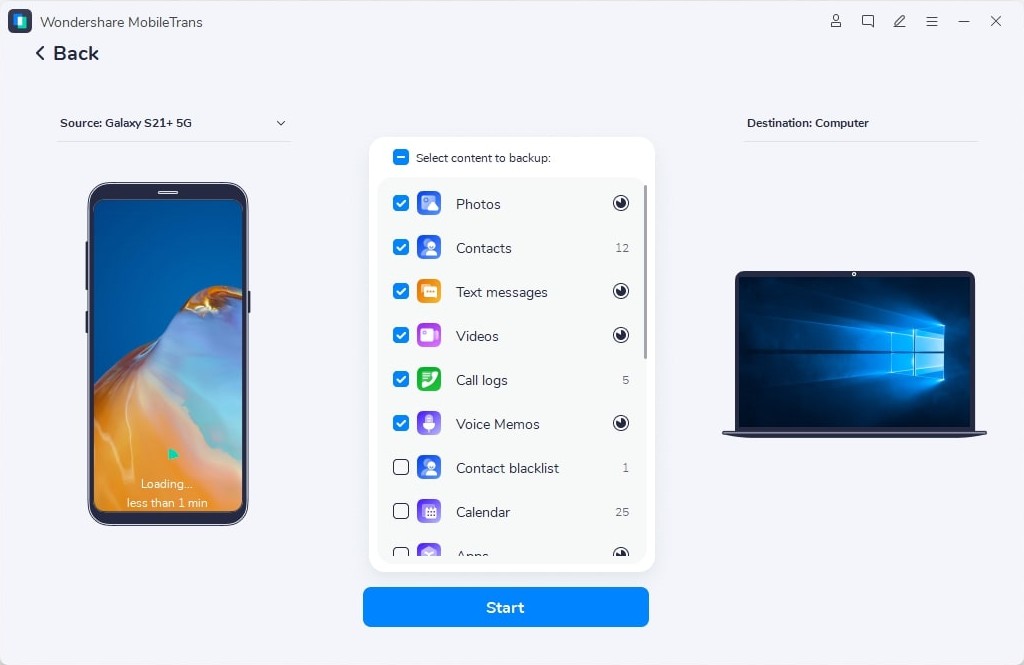
Step 2. Connect your Android to the PC > Choose All Data Types > Press Start.
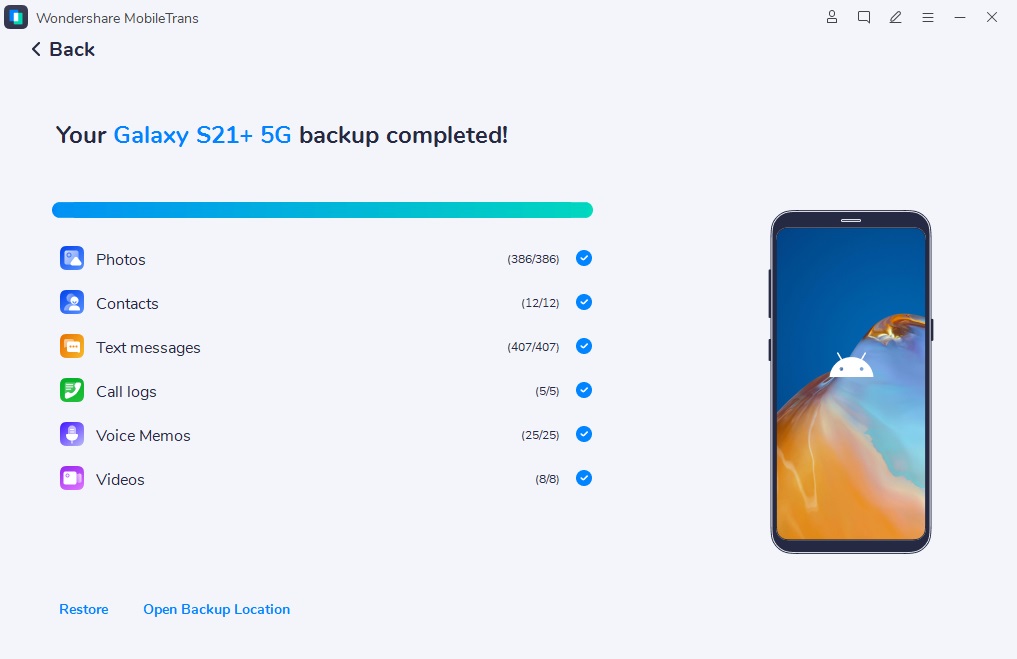
Step 3. As the backup process finishes, you will access a confirmation window.



Way 2. Samsung Smart Switch
It is another easy tool for Samsung users to back up data. This method helps transfer all types of phone data, including contacts and apps, safely to a computer. It offers fast and organized backup, keeping your files secure and accessible anytime. You can also restore backups to any Samsung device whenever needed. Adhere to the guide to learn how to take a full backup of an Android phone on a PC:
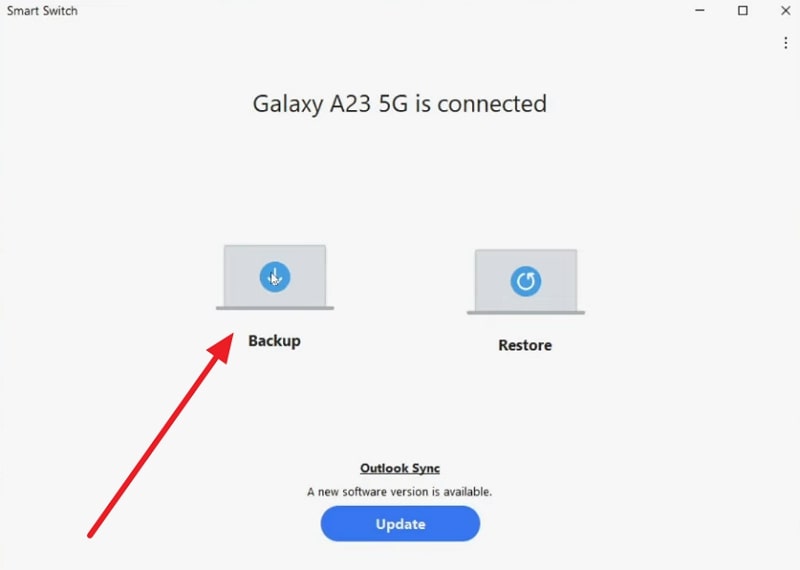
Step 1. Upon seeing the welcoming screen on the Smart Switch desktop app, connect your Android.
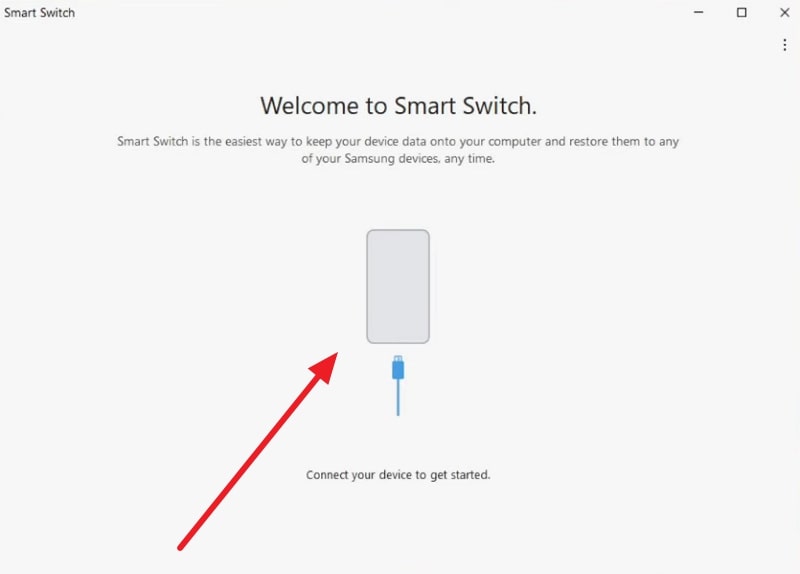
Step 2. When connected and appears, choose the Backup feature.
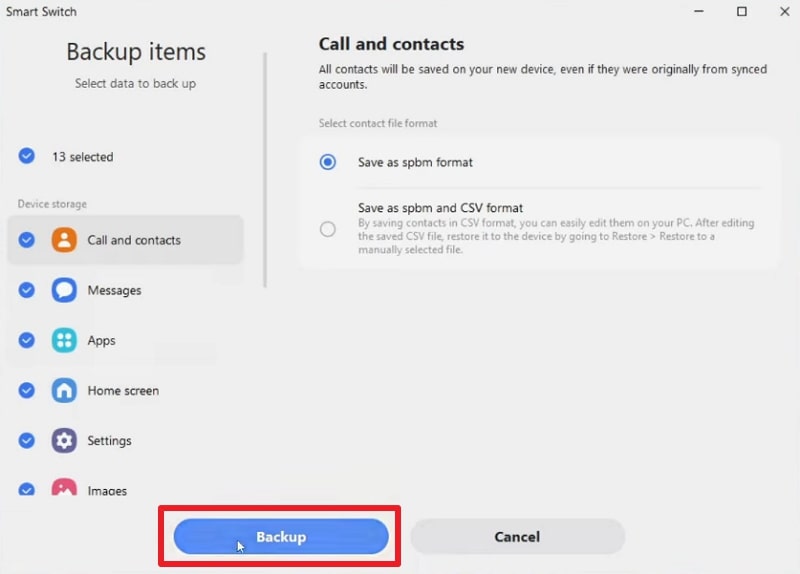
Step 3. Select all your phone data and hit the Backup button.
Way 3. Huawei HiSuite/Xiaomi PC Suite
These tools also make managing phone data simple and convenient for users. Both tools help transfer, sync, and back up files like photos and contacts easily. You can also restore important data whenever needed without complex steps or settings. They offer fast performance, file management, and an easy connection between phone and computer. Review the given steps to understand how to back up Android to PC via these tools:
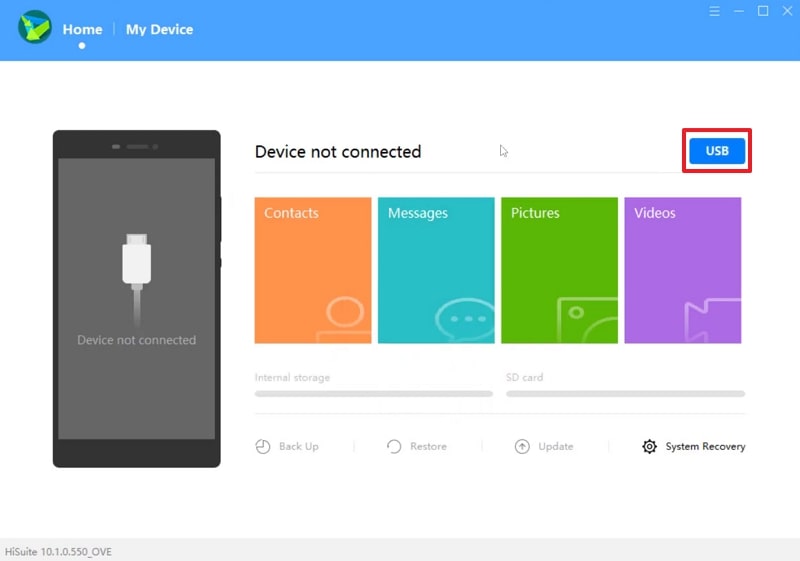
Step 1. When you access the main screen, press USB and connect your Android.
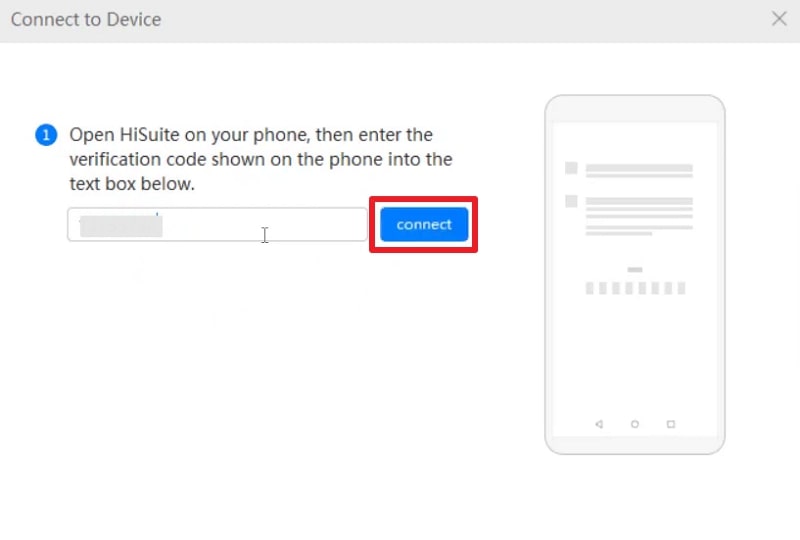
Step 2. Enter the Verification code received on your phone.
Step 3. As your phone's data appears, opt for the Backup option.
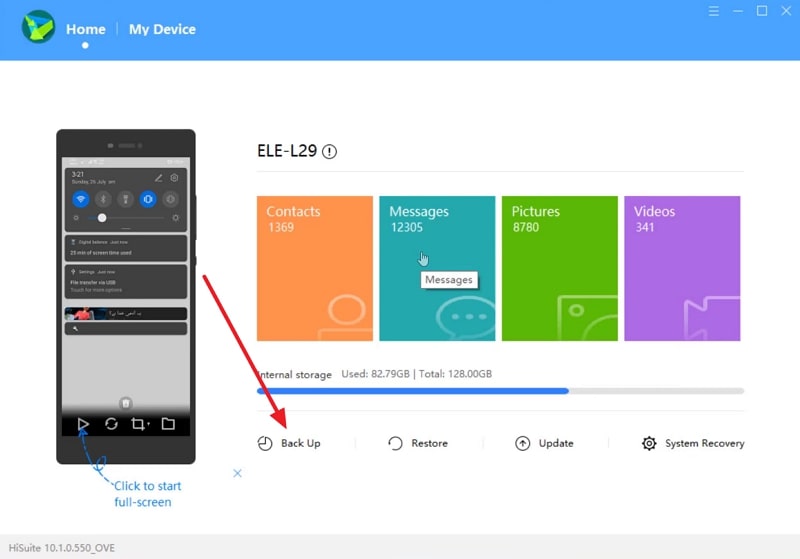
Step 4. Ensure all your data is selected and press the Back Up button.
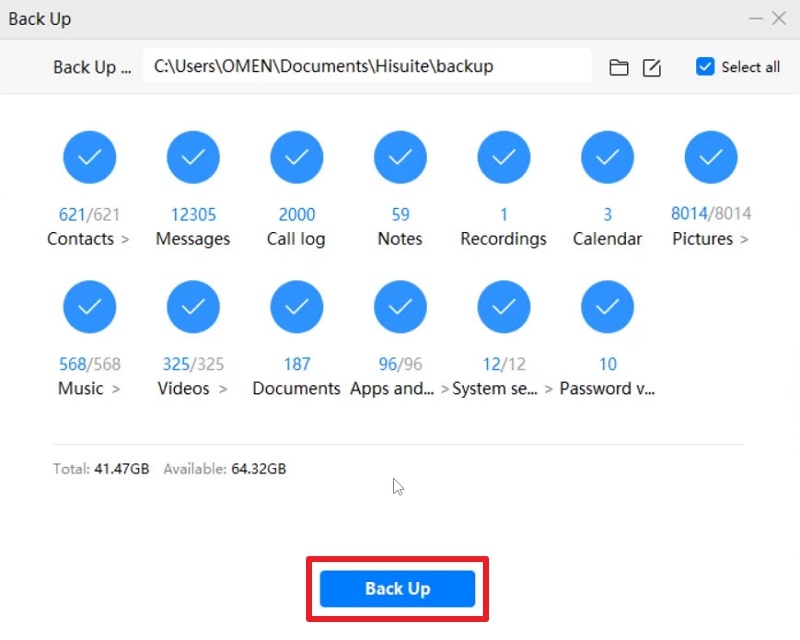
Part 4. How to Select the Best Android Backup Software for PC
It is essential to choose reliable software that meets your backup requirements easily. So, understanding what matters most helps you decide how to back up an Android phone to a PC:
- Compatibility Check: Always pick software that supports every Android version and phone model properly. It ensures effortless operation without errors or data compatibility problems during backup.
- Data Coverage: Good software should back up photos, contacts, videos, apps, and other essential files. This guarantees every important item on your phone stays secure and recoverable anytime.
- Backup Speed: Choose a tool that quickly processes backups without slowing your phone or computer. Faster performance saves time and ensures complete data transfer within a few minutes.
- Restore Option: Reliable backup tools also offer easy restore options for saved data recovery. You can get all your files back quickly whenever phone data is lost.
- Selective Backup: The best software lets you choose which files to back up selectively. It prevents the storage of unimportant data and saves extra space on both devices.
Conclusion
To conclude, backing up your Android phone ensures your memories and settings remain safe from sudden loss. A regular backup helps restore everything easily whenever your device faces damage or errors. Learning how to take a full backup of an Android phone on a PC keeps all data protected. For a simple, fast, and reliable solution, choose MobileTrans. It lets you protect your Android data easily with just one click.
FAQs
-
Q: How should I create a full backup of my Android phone?
A: It's actually best to make a full backup every few weeks to keep data regularly updated. Plus, frequent backups ensure your latest data and settings remain secure from unexpected issues. Therefore, set reminders or use tools with automatic backup scheduling to avoid missing any important updates.
-
Q: Can I restore my backup to another Android device?
A: Most PC backup tools let you restore data to any compatible Android phone easily. Your contacts, photos, and messages will appear on the new device after completing restoration. Yet, app compatibility may vary slightly depending on the Android version or brand used.
-
Q: Does the backup include my WhatsApp messages and media files?
A: Some backup tools, like MobileTrans, include WhatsApp data automatically during the process. However, you might need to select the WhatsApp data option manually for complete coverage. Still, always confirm the tool supports app data before starting to prevent any missing files later.










