


 TL;DR:
To restore a local WhatsApp backup, Android users must locate their target backup file in the device's Databases folder, rename it to msgstore.db.crypt15, and verify their original phone number during a fresh app installation.
● Local internal storage backups are exclusively available for Android devices and occur automatically every night at 2:00 a.m.; iPhone users lack this offline feature and must rely on iCloud services or third-party computer backup tools like MobileTrans.
● Successful offline restoration strictly requires matching the exact phone number used during the backup, granting storage permissions in the device settings, and ensuring the file resides in the exact WhatsApp/Databases or Android > Media > com.whatsapp > Databases directory.
● If the app fails to recognize the backup due to file corruption or incomplete transfers, users can bypass the error by manually renaming an older, uncorrupted local file to the required msgstore.db.crypt15 format before initiating the restore prompt.
Ask AI for a summary
 ChatGPT
 Perplexity
 Gemini
 Claude
 Grok
Grok
Imagine you've just performed a factory reset and opened WhatsApp, only to be greeted by an empty chat screen. The conversation that once held meaning, contained essential business details, and included voice notes had vanished into thin air. What if this never happened, and your chats were just hidden within your device, waiting to be brought back to life?
Now, this makes learning how to restore WhatsApp backup from internal storage necessary in the first place. The following guide is about how to restore chats successfully. You'll be further introduced to a one-click solution for backing up and restoring your WhatsApp chats to your computer's local storage.
In this article
Part 1. What Is the WhatsApp Backup in Local Storage?
In simple terms, the WhatsApp backup in local storage is an automatic backup created by the app daily and stored on your phone's internal storage. It works on Android and creates encrypted backup files that are accessible and restorable offline. This local backup is made by the app every night, usually at 2:00 a.m., but you can also perform one manually through the settings.
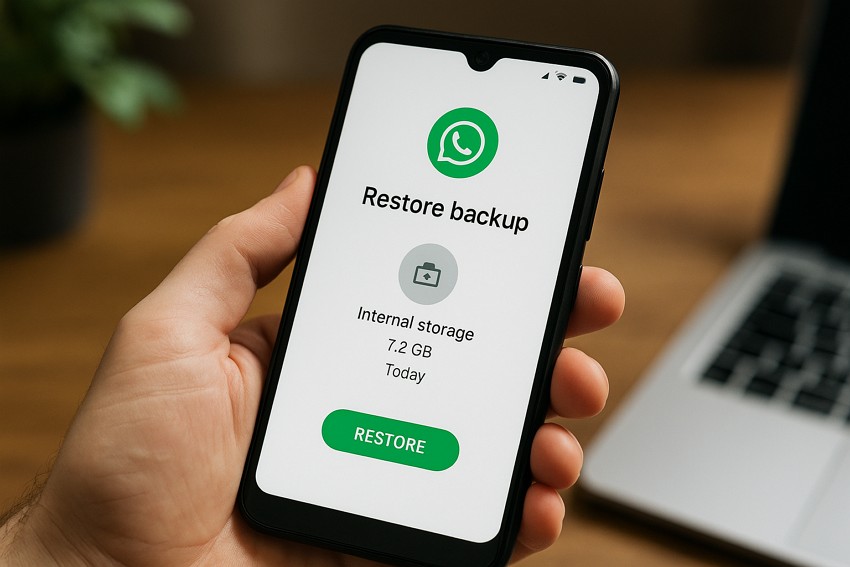
This local backup is saved in the WhatsApp/Databases folder on your phone. It includes your chat history, photos, voice messages, and other data. Understanding how to restore WhatsApp chats from internal storage becomes even more critical when you haven't enabled cloud sync.
Part 2. Is Backup WhatsApp to Local Storage Available on iPhone?
No, local WhatsApp backup is not provided to iPhone users; it is only available for Android devices. In contrast to Android, where WhatsApp creates a local backup on the device's internal storage, the iPhone version of WhatsApp relies solely on iCloud services for backup. For automatic backups on iPhone, users can schedule a manual backup to iCloud within WhatsApp's settings.
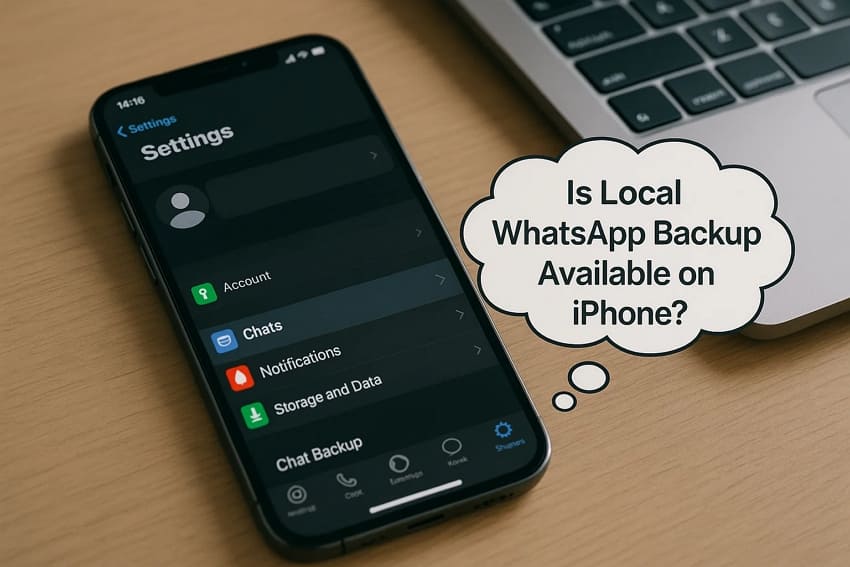
The process to restore WhatsApp backup from internal storage is not available on iPhone as it is on Android devices. However, iPhone users can use third-party software or export chats via email, either for personal archiving or to store on a computer.
Part 3. How to Restore WhatsApp Backup from Internal Storage
As discussed, restoring WhatsApp data from internal storage is a practical approach when cloud backups fail or are unavailable. Its major advantage is its offline accessibility, as you don't need an internet connection or a Google account to recover your chats. The local backups are updated daily, guaranteeing you often have a recent copy of your data available.
Explore how to restore WhatsApp chat from internal storage following the tutorial:
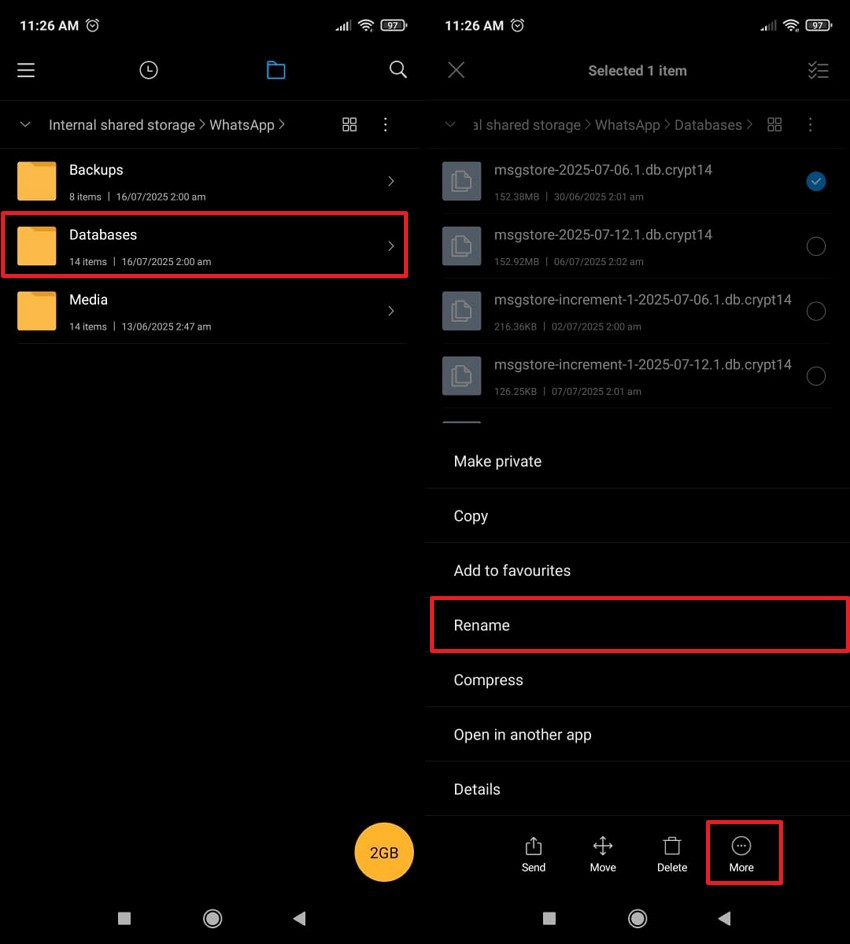
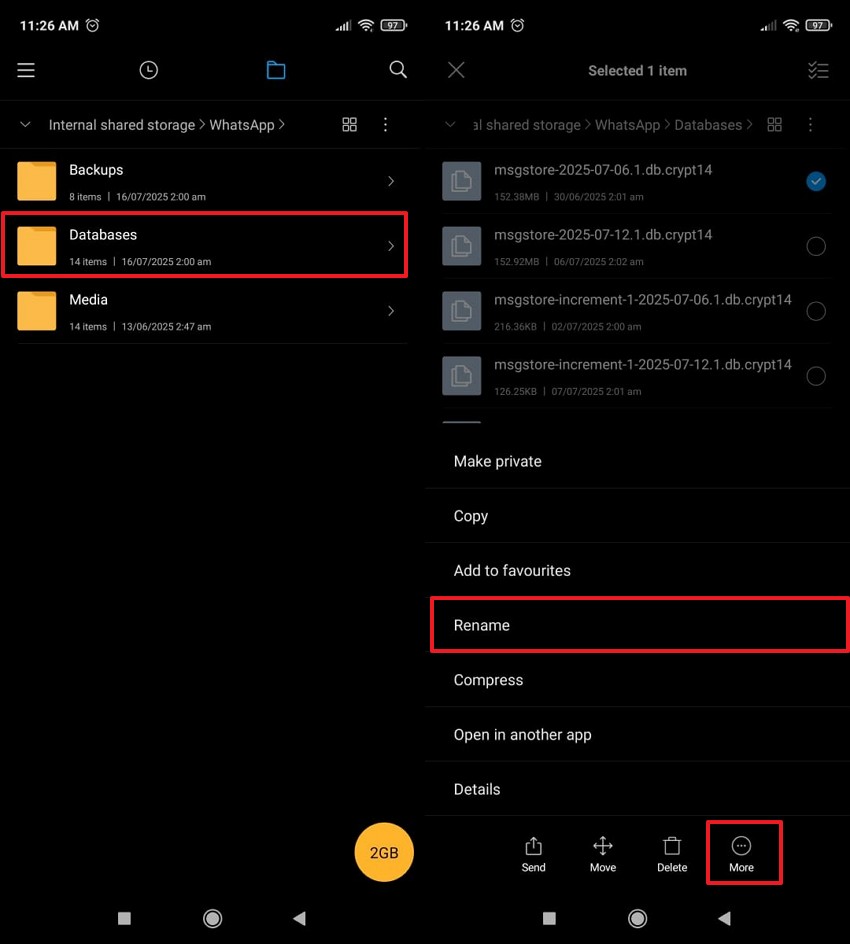
Step 1. Open the File Manager and access Internal Shared Storage > WhatsApp > Databases folder. After this, select File > Press "More" icon > Choose "Rename" option to rename the desired backup file to the last name.
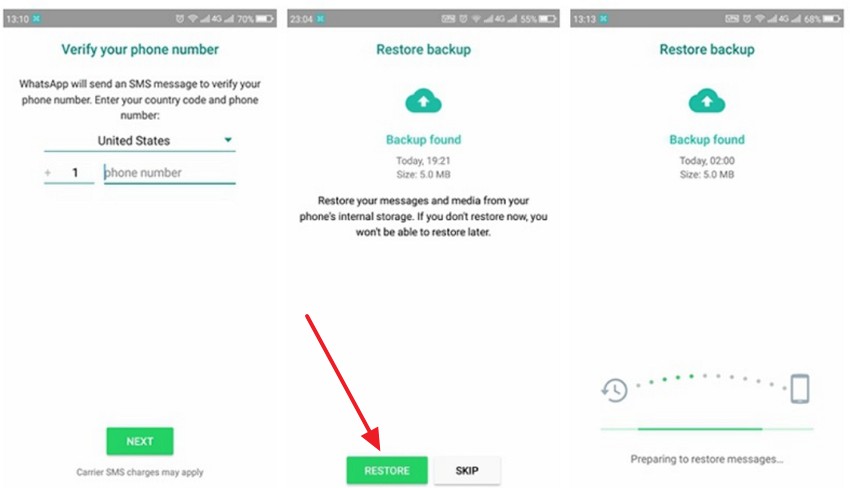
Step 2. Access WhatsApp > Continue with sign-in > Verify your number > Press Restore> Initiate chat restore.
Part 4. 5 Issues & Solutions: Why You Cannot Restore WhatsApp Backup from Internal Storage
During the learning phase of restoring a WhatsApp backup from internal storage, it's equally important to know what could go wrong. For this, the following section covers 5 common issues and their tutorials to help you fix them:
Incorrect Backup File Location or Name
The app will not detect your local backups unless they are at the exact location that WhatsApp is supposed to locate them. The app will not be able to find or restore the backup, even if it is not named correctly or transferred to a different directory.
For a successful restore, solve this issue by following the steps:
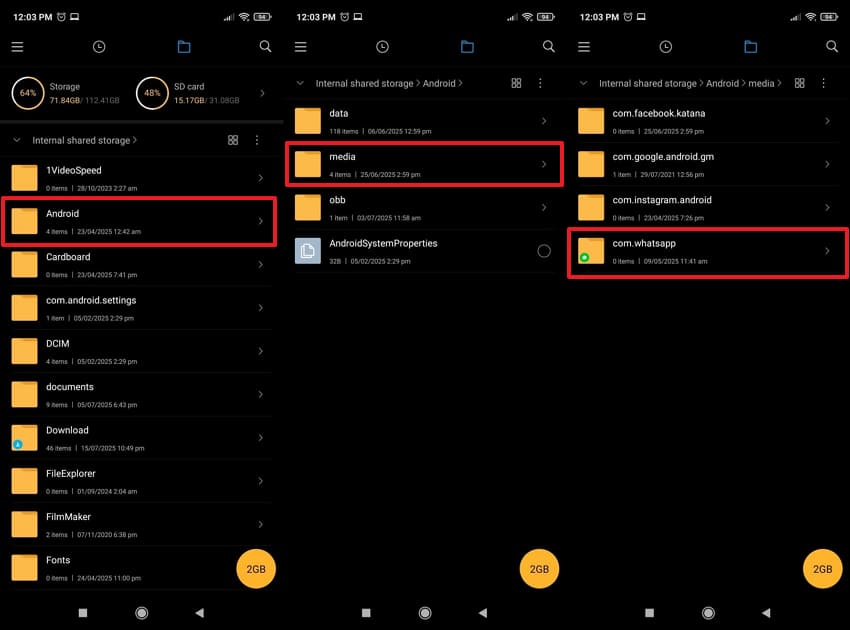
Instructions: To check backup file location, access File Manager > Internal Storage folder > Android > Media > com.whatsapp > Databases. Ensure the file is named msgstore.db.crypt15 (or the latest version of the crypt file). If the file name is incorrect, rename it to "msgstore.db.crypt15".
App/Storage Permissions Not Granted
WhatsApp requires specific permissions to access your device's internal storage and read the backup files stored on it. When storage permissions are denied in the App Permission settings, WhatsApp won't be able to detect or restore those backups.
Even if the file is correctly placed or named, ensure storage backup is allowed when restoring WhatsApp chat from internal storage. Explore the solutions:
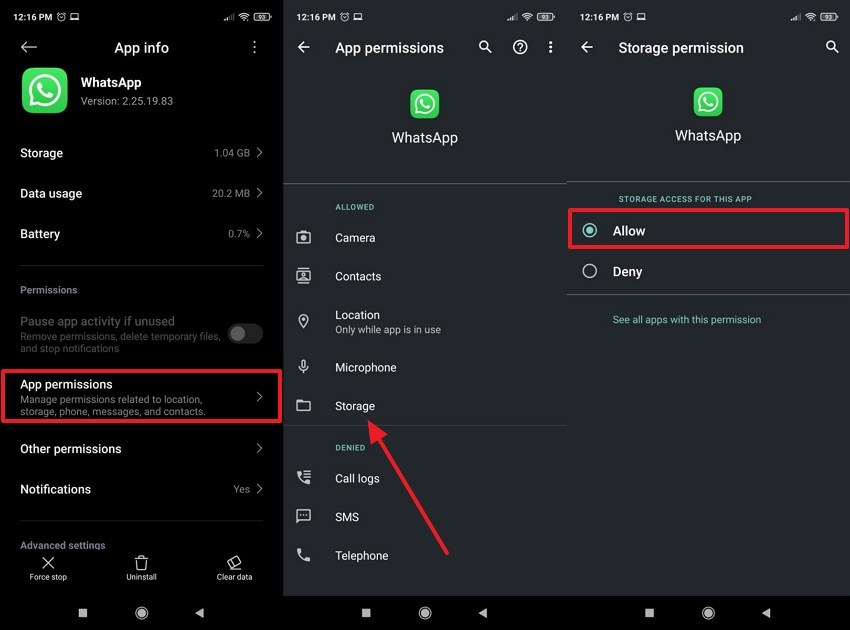
Instructions: Long-press the WhatsApp icon > Access App Info > App Permission > Storage > Allow storage access to the app.
Incompatible App Version
When the WhatsApp version you're installing is newer or older than the one used to create backups, it may not recognize or restore the backup. The app periodically updates its encryption methods and backup structures. This means the app version updates can cause errors.
It eventually becomes a challenge for users to restore WhatsApp backup from internal storage, especially when transferring data. The solution given below explains how to overcome this issue effectively:
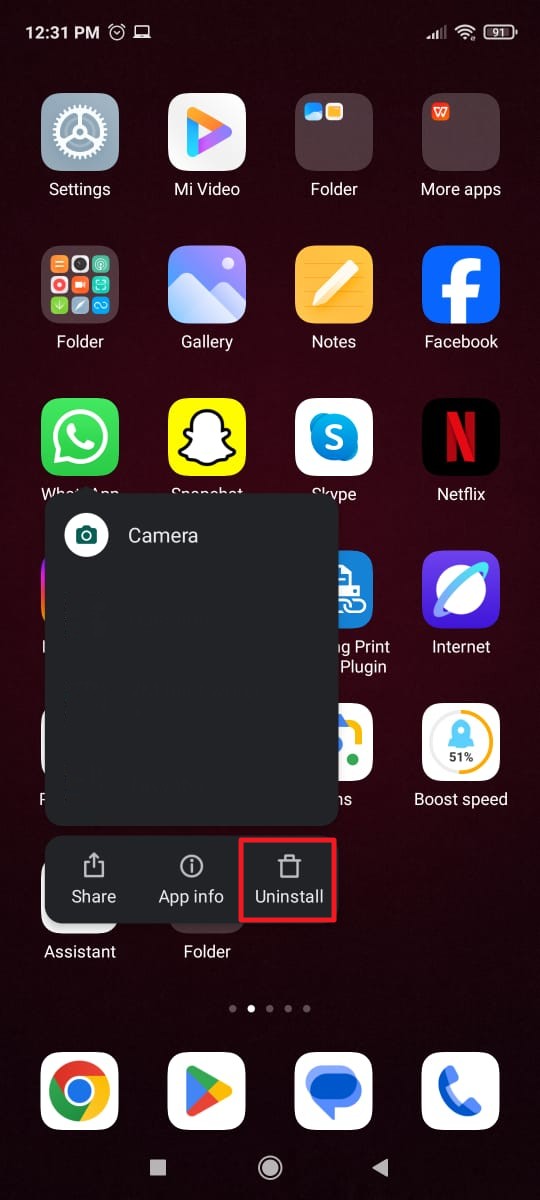
Instructions: Hold the WhatsApp icon > Choose the Uninstall option > Download the updated version from the Play Store.
Wrong Phone Number
Backups on WhatsApp are tied to the phone number with which they were created. When you attempt to restore a backup using a different number, the app will not authorize the restore. If you've changed the number and haven't updated it within WhatsApp before backing up, the new number won't match, resulting in blocked restoration.
Read the instructions for this issue, and get back to restore WhatsApp chats from internal storage:
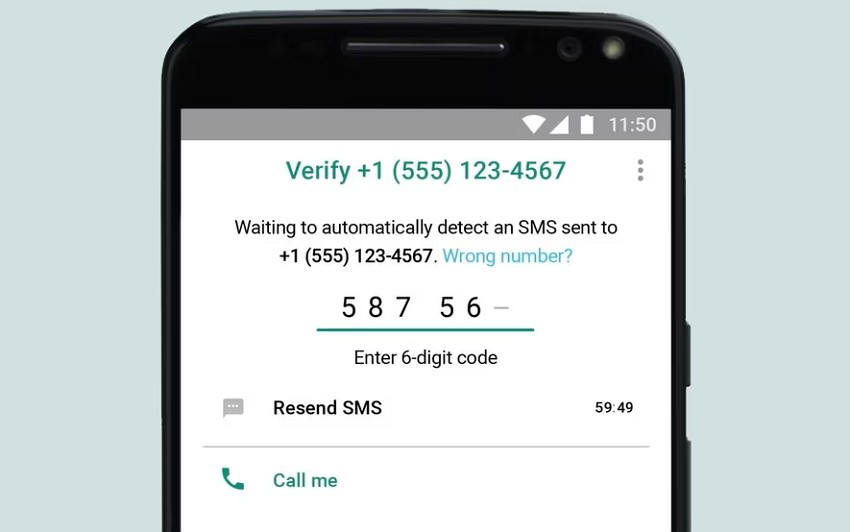
Instructions: Verify and ensure you use the same phone number when registering for WhatsApp during restoration.
Corrupted or Incomplete Backup File
Since the app looks for the primary file, msgstore.db.crypt15, by default, for local restore, corruption of the backup will cause it to fail to recognize the file. An incomplete or corrupt backup file can occur due to interrupted backups and file transfer errors. It may silently report errors during the restore process.
To address the situation, rename the older and uncorrupted backup file. This can ultimately trick WhatsApp into restoring the backup. When knowing how to restore WhatsApp backup from internal storage, the given tutorial might help:
Instructions: Visit Internal Storage> WhatsApp > Databases > Select older backup file > Tap More > Rename file to msgstore.db.crypt15 or respective crypt version.
Part 5. Backup and Restore Your WhatsApp Chats to the Computer's Local Storage
Are you lost in the maze of WhatsApp backups and trying to recover your data? If so, consider MobileTrans as an ultimate phone backup and restore platform for everyone. To facilitate your learning process of restoring WhatsApp chats from the computer's internal storage, it offers a one-click solution for all. This software supports nearly all the latest firmware versions, such as Android 16 and iOS 27 beta.



Explore the following steps to backup and restore WhatsApp from the computer's internal storage:
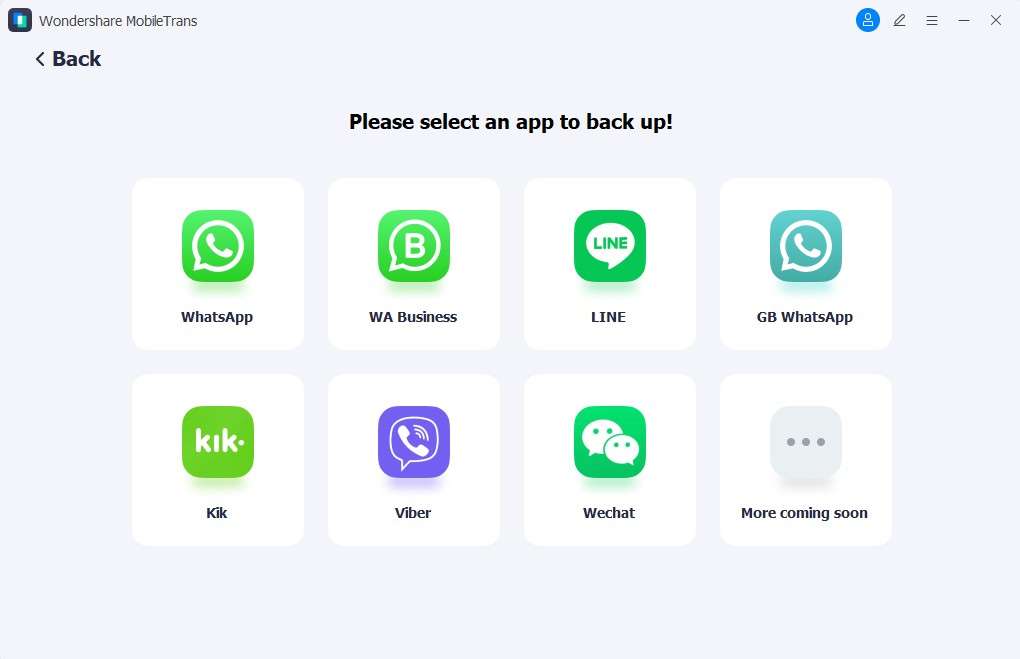
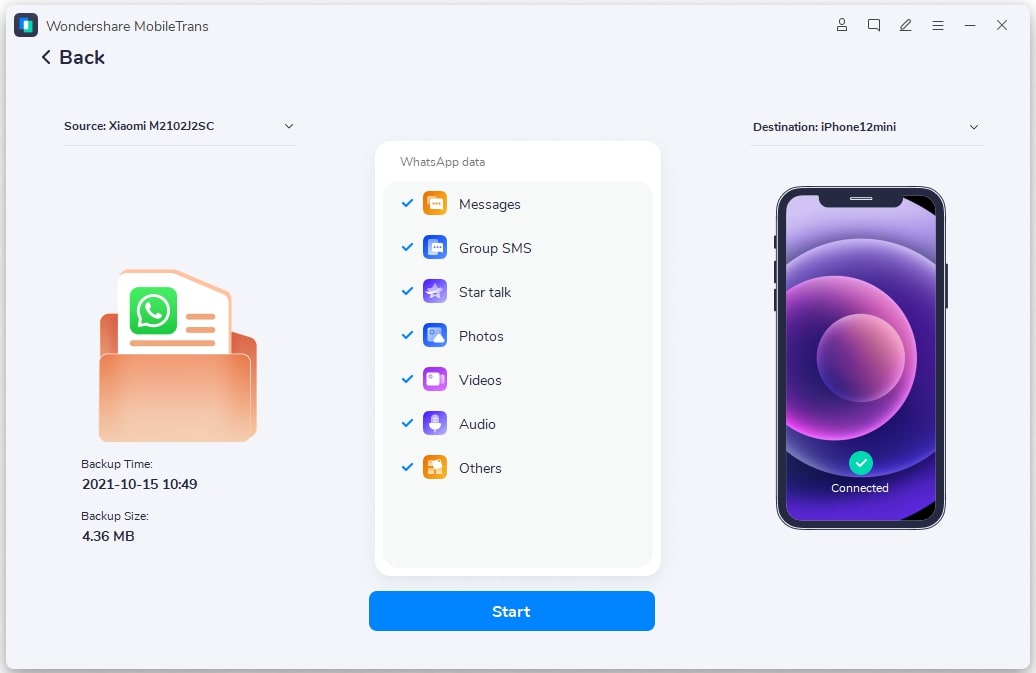
Step 1. Launch MobileTrans and go to Backup & Restore > Apps > Connect your device to the computer > Select the WhatsApp app. Specify the Source and Destination devices before backup.
Step 2. Initiate the backup with the Start button. Keep the phone connected until the backup is completed.
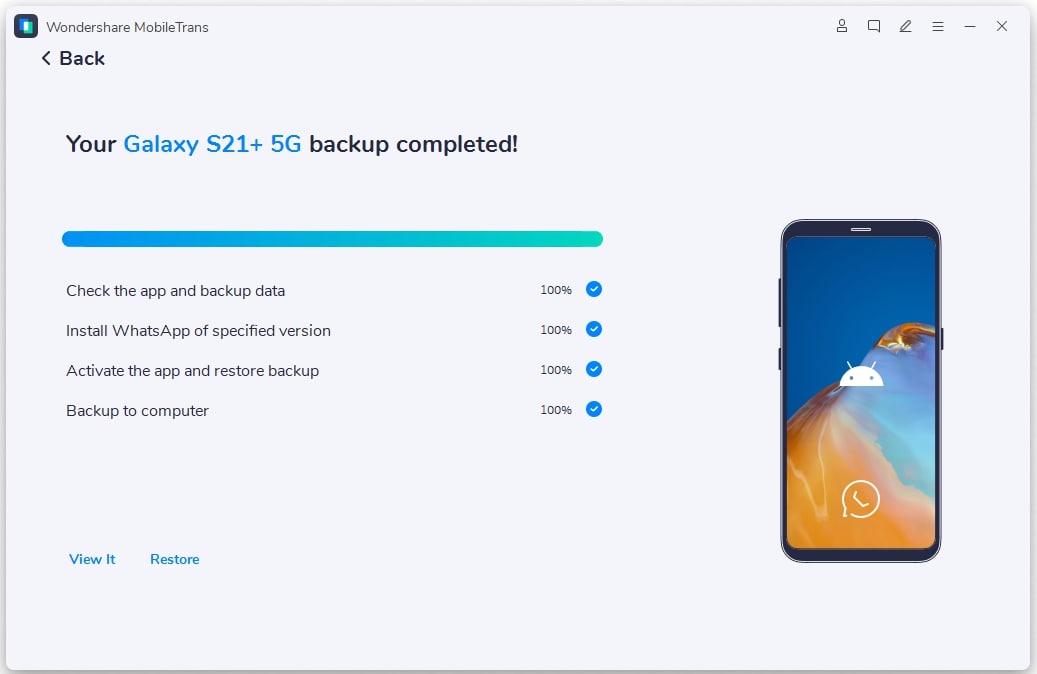
Step 3. You can restore WhatsApp messages on the destination device. Back to the Apps tab on the left bar > Find the WhatsApp backup record > Restore to your phone > Wait until the data restores.



Bonus Tip: How to Create WhatsApp Backup on Internal Storage of an Android Device
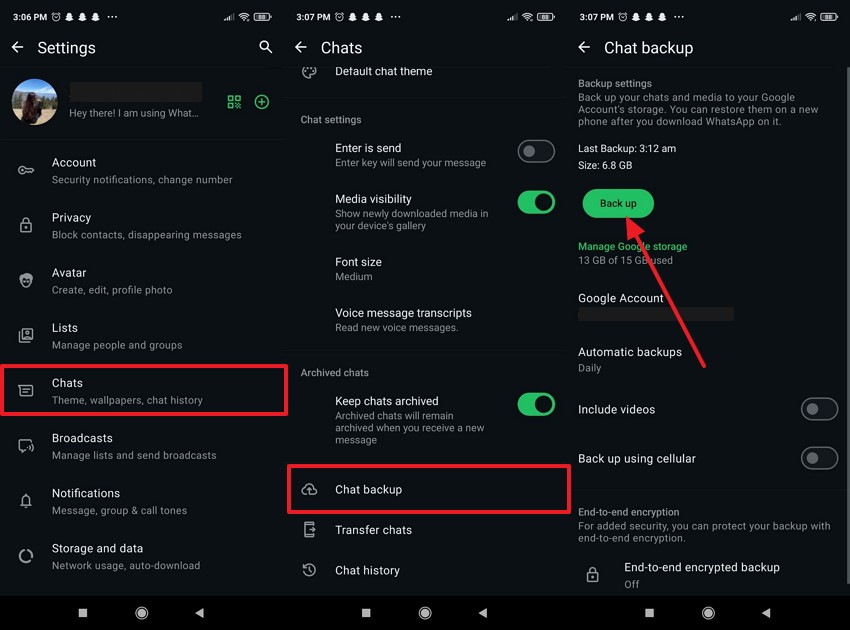
To protect your data, creating a local backup of the WhatsApp chats on your Android device is one of the most reliable ways. This backup is valuable in cases of app crashes, accidental deletion, and phone resets where cloud sync may fail. Users who want to learn how to restore WhatsApp chats from internal storage should first know how to back up. Adhere to the manual below, and learn to do it yourself:
Instructions: Open WhatsApp Settings > Access Chats option > Press Chat Backup > Tap Backup button.
Conclusion
In conclusion, this article has simplified the process of restoring WhatsApp data from internal storage, providing a clear understanding of the steps to follow. For your assistance, we've outlined the steps to restore a WhatsApp backup from internal storage in a detailed, step-by-step manual. Not only this, but MobileTrans is also introduced as a digital solution to back up and restore your entire WhatsApp chat with a single click.










