


 TL;DR:
You can fix a stuck WhatsApp iCloud restore by securing a stable Wi-Fi connection, freeing up local iPhone storage, verifying your Apple ID, or performing a clean reinstall of the app.
● A normal iCloud restore takes 5 to 30 minutes; if the process exceeds an hour, your iPhone has likely halted the download automatically due to insufficient local storage space.
● Before reinstalling the app, ensure iCloud Backup is manually enabled for WhatsApp in your Apple ID settings and use the iOS Reset Network Settings option to clear any corrupted DNS or Wi-Fi configurations.
● If iCloud servers fail or cloud storage is full, you can bypass internet dependencies entirely by using MobileTrans to transfer chat data directly between two devices via a computer connection.
Ask AI for a summary
 ChatGPT
 Perplexity
 Gemini
 Claude
 Grok
Grok
Getting your WhatsApp chats back should be easy. But sometimes, WhatsApp restore from iCloud stuck error becomes a real problem. You see the loading screen for hours. Your messages stay locked away in the cloud.
You're not alone—millions of users face this issue daily. When WhatsApp gets stuck restoring from iCloud, it can feel like your valuable chats are slipping away. But don't panic. We've got seven straightforward solutions that can help you get everything back in place.
In this article
Part 1: Possible Reasons - Why WhatsApp Restores from iCloud Stuck?
Many things can cause WhatsApp restoring from iCloud stuck problems. Understanding these reasons helps you fix the issue faster. Most problems come from simple technical glitches.
- Poor internet connection - Slow WiFi makes downloads fail.
- Not enough iPhone storage - No space means no restore.
- Wrong Apple ID logged in - Different account blocks access.
- Outdated iOS version - Old software creates bugs.
- iCloud storage full - No room for backup files.
- Network settings corrupted - Bad settings stop downloads.
- WhatsApp app glitches - Software bugs cause freezing.
- Server problems at Apple - iCloud is sometimes down.
Part 2: Quick Fixes - WhatsApp restore from iCloud stuck
These seven fixes solve most WhatsApp stuck on restore from iCloud problems. Try them in order for the best results. Each solution targets different causes.
Fix 1: Check the Internet Connection
A stable internet connection is vital for restoring WhatsApp chats. Weak WiFi or cellular data causes the restore process to freeze or fail completely.
Many users overlook this basic step when WhatsApp takes a long time to restore from iCloud. Your phone needs consistent high-speed internet to download backup files from Apple's servers.
How it helps:
- Downloads backup files without interruption
- Prevents timeout errors during restore
- Ensures a stable connection to iCloud servers
Steps:
Step 1. Go to Settings > WiFi and connect to a strong network.
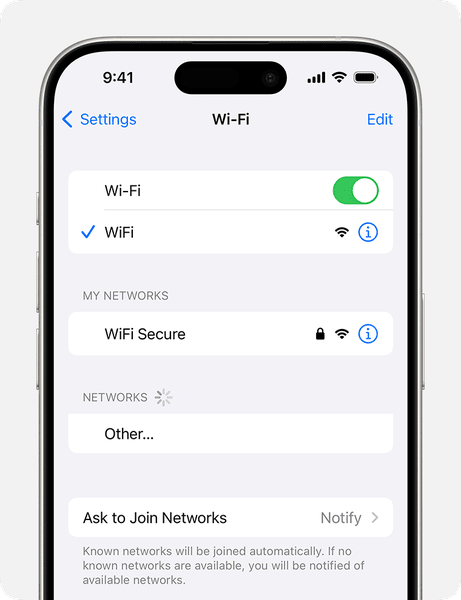
Step 2. Test internet speed using a browser or speed test app
Fix 2: Review the Storage Space on iPhone
Your iPhone needs enough free space to restore WhatsApp backups. Large chat histories with photos and videos require significant storage space.
When WhatsApp restore from iCloud stuck happens, storage problems are often the cause. iPhones automatically stop downloads when storage runs low to protect system performance.
How it helps:
- Creates room for backup files to download
- Prevents automatic download cancellation
- Allows a complete restore without interruptions
Steps:
Step 1. Go to Settings > General. Select iPhone Storage.
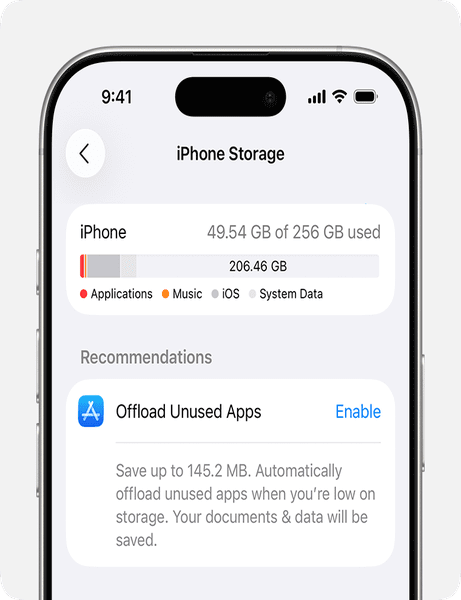
Step 2. Delete unused apps or photos to free up space
Fix 3: Verify Account Details
Using the wrong Apple ID blocks access to your WhatsApp backups. Each backup links to specific iCloud account credentials.
Double-checking account details fixes many restore from iCloud WhatsApp stuck issues. Simple login mistakes cause hours of frustration for users worldwide.
How it helps:
- Connects to correct iCloud backup files
- Eliminates authentication errors
- Ensures access to your specific chat history
Steps:
Step 1. Go to Settings > [Your Name] and verify your Apple ID.
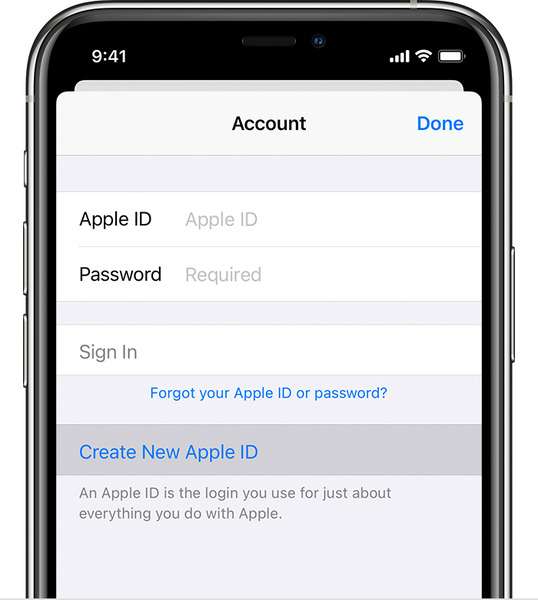
Step 2. Sign out and back in if using the wrong account
Fix 4: Manually Enable iCloud in Settings
Sometimes iCloud backup gets disabled accidentally. WhatsApp needs permission to access iCloud storage for restores.
Manual activation solves many WhatsApp restoring from iCloud stuck problems. Users often disable iCloud without realizing the impact on app backups.
How it helps:
- Grants WhatsApp access to iCloud storage
- Enables backup and restore functionality
- Fixes permission-related errors
Steps:
Step 1. Go to Settings > [Your Name]. Select iCloud.
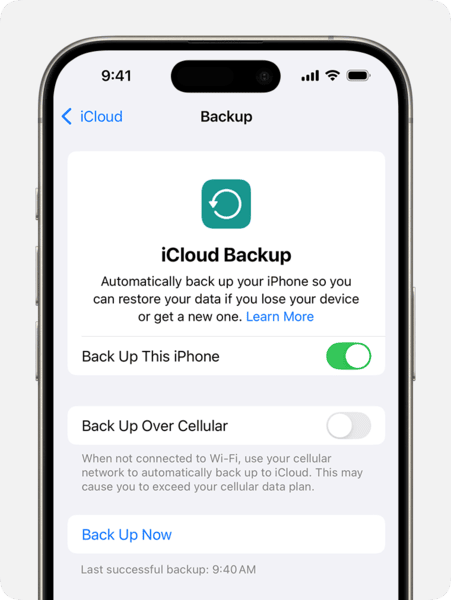
Step 2. Toggle on iCloud Backup and WhatsApp
Fix 5: Update iOS
Outdated iOS versions create compatibility problems with WhatsApp and iCloud. New app updates require recent system software to function properly.
Updating iOS fixes many WhatsApp stuck on restore from iCloud issues. Apple regularly releases patches for backup and restore bugs.
How it helps:
- Fixes known bugs in the backup system
- Improves compatibility with WhatsApp
- Provides the latest security updates
Steps:
Step 1. Go to Settings > General. Select Software Update.
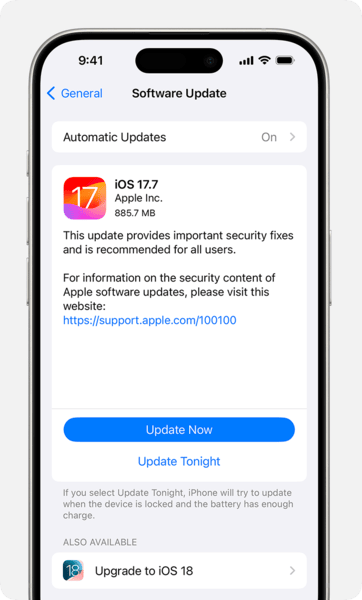
Step 2. Download and install available iOS updates
Fix 6: Reset Network Settings
Corrupted network settings block iCloud connections. Reset clears bad configurations that prevent successful downloads.
This fix helps when WhatsApp taking long to restore from iCloud due to network problems. Resetting restores default connection settings.
How it helps:
- Clears corrupted network configurations
- Restores default connection settings
- Fixes DNS and WiFi problems
Steps:
Step 1. Go to Settings > General. Select Transfer or Reset iPhone.
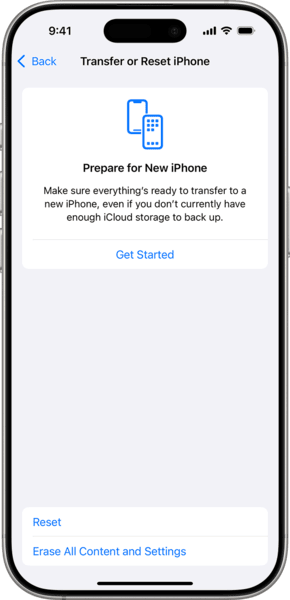
Step 2. Tap Reset > Reset Network Settings
Fix 7: Delete and Reinstall WhatsApp
Fresh app installation removes corrupted files, causing restore problems. This final option works when other fixes fail.
Reinstalling WhatsApp eliminates software glitches that make WhatsApp restore from iCloud stuck. A clean installation provides a fresh start for the backup system.
How it helps:
- Removes corrupted app files
- Provides a clean installation
- Eliminates software conflicts
Steps:
Step 1. Delete WhatsApp from the home screen.
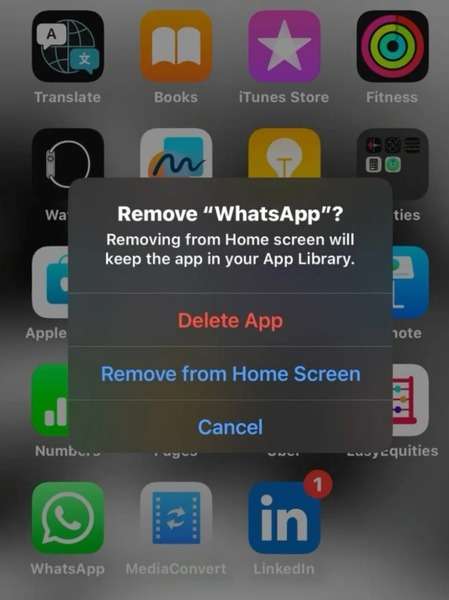
Step 2. Reinstall from App Store and restore backup
Part 3: iCloud Backup Failed? Try MobileTrans to Save Your Conversations
MobileTrans offers reliable WhatsApp data transfer when iCloud fails. This professional tool works across different phone brands and operating systems.
Unlike iCloud, MobileTrans doesn't depend on internet speed or cloud storage limits. It transfers WhatsApp chats directly between devices using a computer connection.





Simple steps to use MobileTrans:
Step 1. Open MobileTrans on your computer and connect both phones. Select the WhatsApp option under "App Transfer".
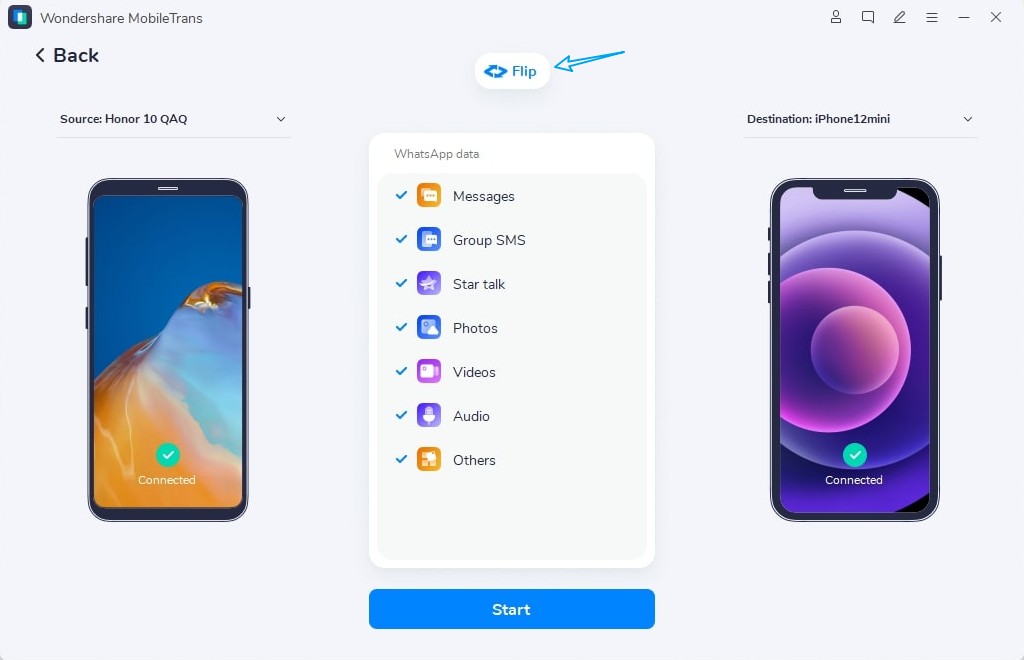
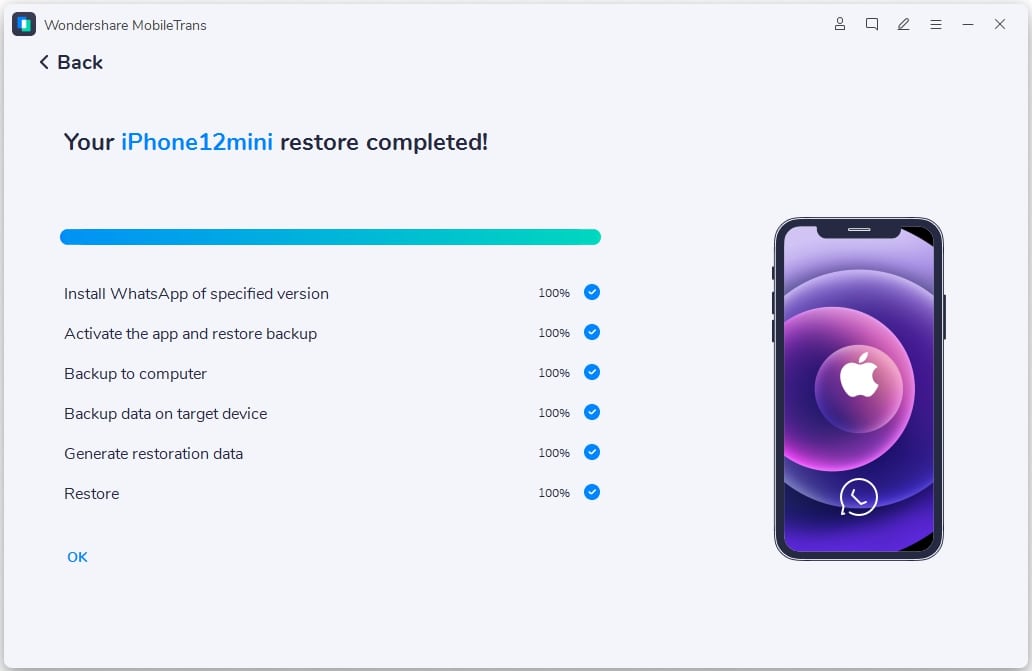
Step 2. Tap "Start" to transfer texts quickly. Choose more data if needed. When done, check WhatsApp on the new device.
Part 4: Tips - When All Else Fails: Other Options and Future Prevention
When the restore from iCloud WhatsApp stuck problems persist; alternative solutions exist. Prevention strategies also help avoid future backup issues.
- Contact WhatsApp support - Get official help for complex problems
- Try a different WiFi network - Switch networks to bypass connection issues
- Wait for Apple server maintenance - iCloud sometimes needs time
- Use iTunes backup instead - Computer backups work independently
- Check iCloud status page - Verify Apple services are running
- Clear WhatsApp cache - Remove temporary files causing conflicts
- Restart iPhone completely - Full reboot fixes memory issues
- Enable automatic backups - Schedule regular chat backups



Conclusion
WhatsApp restore from iCloud stuck problems frustrate millions of users daily. But these seven fixes solve the most common issues quickly and easily.
Remember to check your internet connection first, then storage space. If problems continue, try MobileTrans as a reliable alternative. Regular backups prevent future data loss headaches.
FAQ
-
Q: How long should WhatsApp restore from iCloud take?
A: Restoring WhatsApp from iCloud usually takes 5 to 30 minutes. Time depends on internet speed and backup size. If it takes over an hour, something's wrong. Try our troubleshooting tips to fix it.
-
Q: Why does my WhatsApp keep getting stuck during restore?
A: If WhatsApp keeps getting stuck during iCloud restore, check the basics first. Make sure your internet is stable, your device has enough storage, and you're using the correct Apple ID. Fixing these often solves the problem.
-
Q: Can I restore WhatsApp without iCloud?
A: If WhatsApp won't restore from iCloud, try other options. Use an iTunes backup or tools like MobileTrans. These can work better when iCloud gets stuck.











