

![How to Restore WhatsApp Chat After Factory Reset [4 Best Ways]](https://mobiletrans.wondershare.com/images/images2025/restore-whatsapp-chat-after-factory-reset-1.jpg)

 TL;DR:
Restoring WhatsApp chats after a factory reset requires verifying your original phone number to trigger existing iCloud, Google Drive, or local backups, while unbacked-up data requires third-party extraction software.
● Native cloud and Android local backups overwrite all existing WhatsApp chats during restoration, with Android internal storage strictly limiting retention to the last seven backup files.
● iTunes and Finder methods for iPhone users require a full system restoration rather than isolating WhatsApp data, preventing any selective recovery of specific conversations or media.
● MobileTrans serves as a fallback when no backup exists, allowing selective extraction of over 18 data types without overwriting current device data for models up to Android 16 and iOS 27.
Ask AI for a summary
 ChatGPT
 Perplexity
 Gemini
 Claude
 Grok
Grok
After a factory reset, many users feel stressed about losing important WhatsApp chats. Conversations with family or work contacts may be gone forever. Luckily, multiple quick and easy methods are available to bring them back without much technical knowledge.
This guide explains how to restore WhatsApp chat after a factory reset using different methods. Even if no backup exists, you will still learn an effortless recovery solution.
In this article

Part 1. What Happens to WhatsApp Data After a Factory Reset
When you perform a factory reset, all locally saved data is completely erased. This includes your chat history and even app settings. If you created a backup on cloud storage before the reset, you can recover this data effortlessly afterward. The app will automatically ask you to restore the backup when you verify your number.
Without a backup, however, everything is deleted and cannot be retrieved directly. In such cases, some dedicated and advanced external recovery software might help. These tools can scan the device for traces of erased data, though results may vary. Therefore, knowing how to get back WhatsApp messages after a factory reset becomes very important.
Part 2. How to Restore WhatsApp Chat After Factory Reset - 4 Ways
As explored above, multiple native and quick methods exist to help you restore your WhatsApp chats. So, this section covers four ways to learn how to restore WhatsApp messages after a factory reset:
1. Restore via Cloud Backup (iCloud for iPhone, Drive for Android)
Cloud backup is the most effortless way to recover WhatsApp chats after a reset. It securely stores your chats and multimedia on iCloud for iPhone or Google Drive for Android. You only need your phone number to verify and access the backup.
This method ensures your important chats remain safe even after unexpected resets. Hence, go through the given steps below to understand how to restore WhatsApp chat after a factory reset:
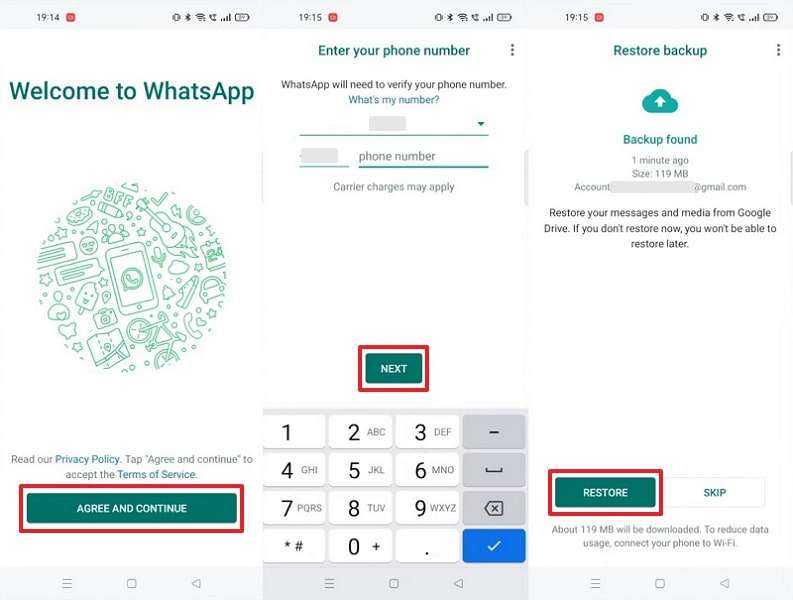
For Android: After installing WhatsApp, follow these steps: Agree and Continue > Enter Phone Number > Next > Restore.
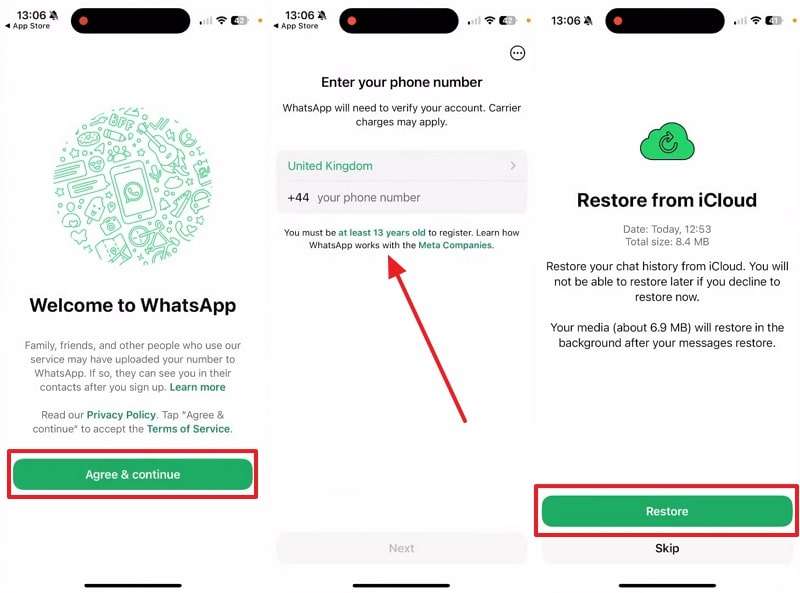
For iPhone: Press Agree & Continue > Type Phone Number > Tap the Restore button.
Limitations
- Works only if backups were enabled.
- Restored backup replaces existing WhatsApp chats.




2. Restore via Local Backup (Android Only)
Local backup offers Android users another way to restore WhatsApp chats after a reset. It automatically saves recent chat history and media on the phone's internal storage or SD card. This backup can be used to recover conversations without relying on cloud services.
During reinstallation, WhatsApp detects the local file and prompts restoration. So, review the steps below to find out how to restore WhatsApp messages after a factory reset on Android:
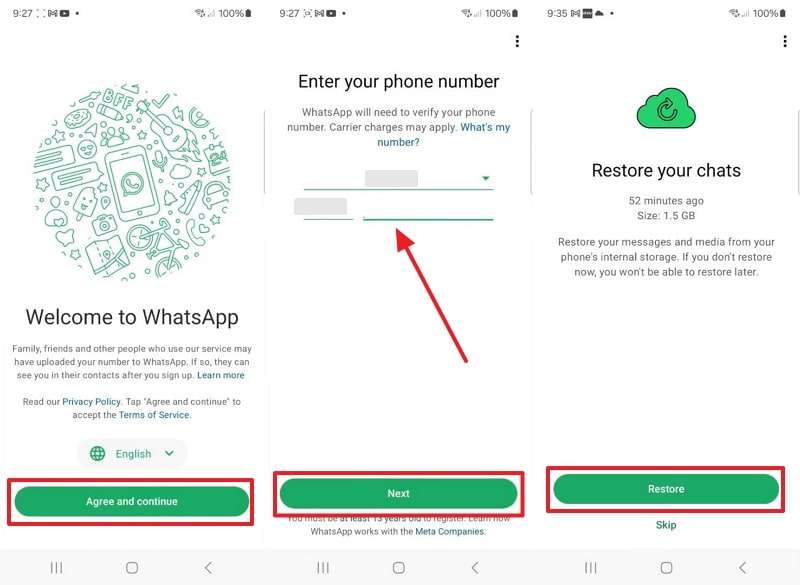
Instructions. As you press Agree and Continue > Enter Number > Next, follow the displayed guide and hit Restore.
Limitations
- Files may get corrupted or deleted.
- WhatsApp keeps only the last seven local backups.
3. Restore via iTunes/Finder Backup (iPhone Only)
These programs also let iOS users restore WhatsApp chats after a reset. This method saves a complete copy of your device data, including WhatsApp conversations and media. When restoring, all previously backed up data gets transferred back to the iPhone.
Besides, it is helpful if cloud backup is disabled or unavailable during reset. So, let's explore how to restore WhatsApp messages after a factory reset on an iPhone:
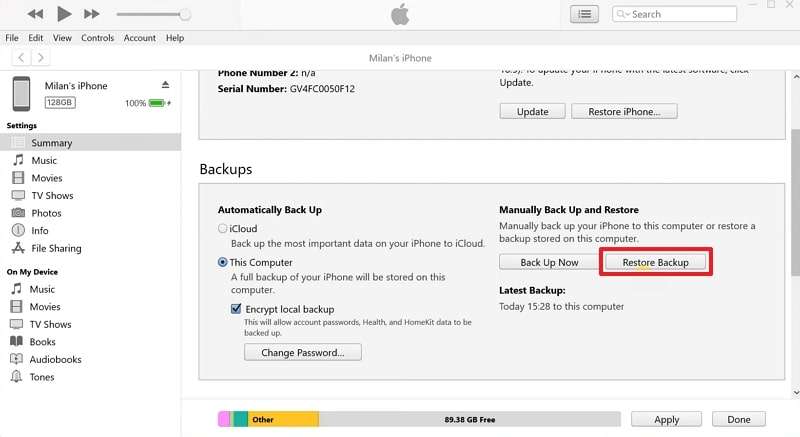
Step 1. Launch iTunes/Finder after connecting your iPhone to the PC/Mac and press the Restore Backup button.
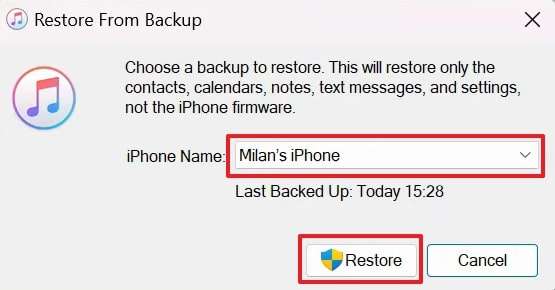
Step 2. Choose the most recent backed-up file and click the Restore button.
Limitations
- Restores the entire iPhone, not WhatsApp only.
- Cannot choose specific chats or files.
4. Restore with Third-Party Tools (If No Backup Exists)
When no backup exists, external tools like MobileTrans provide a b solution to recover chats. This dedicated tool supports restoring WhatsApp and WhatsApp Business data across devices. You can recover over 18 data types, including contacts and multimedia files.
Unlike cloud services, MobileTrans also lets you choose which data to retrieve. While learning how to retrieve deleted WhatsApp messages after a factory reset, MobileTrans recovers chat without overwriting existing data.
Key Features
- Multi-Device: Supports over 6,000 iOS and Android devices for seamless compatibility.
- Backup Creation: Effortlessly creates complete or partial backups for WhatsApp and WhatsApp Business.
- Export Chats: Downloads conversations in PDF or HTML form for safe storage and reading.
- Latest Support: Compatible with the latest Android 16 and iOS 27, including iPhone 18 models.
Detailed Guide to Restore WhatsApp Even Without a Backup Using MobileTrans
After discovering its dedicated feature, follow the steps to understand how to get back WhatsApp messages after a factory reset:
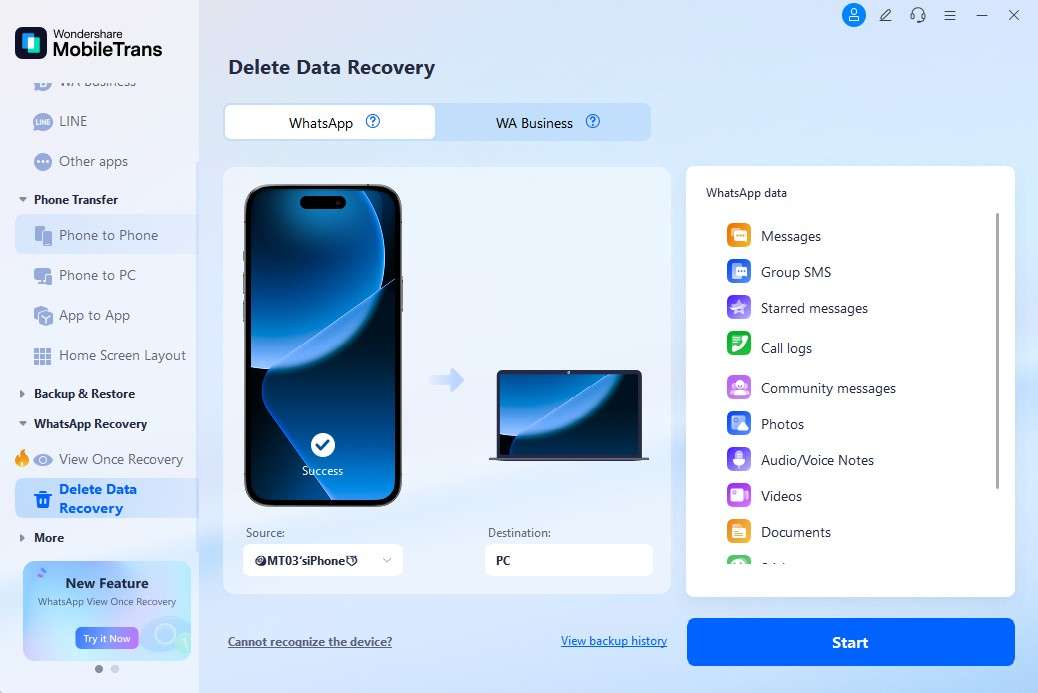
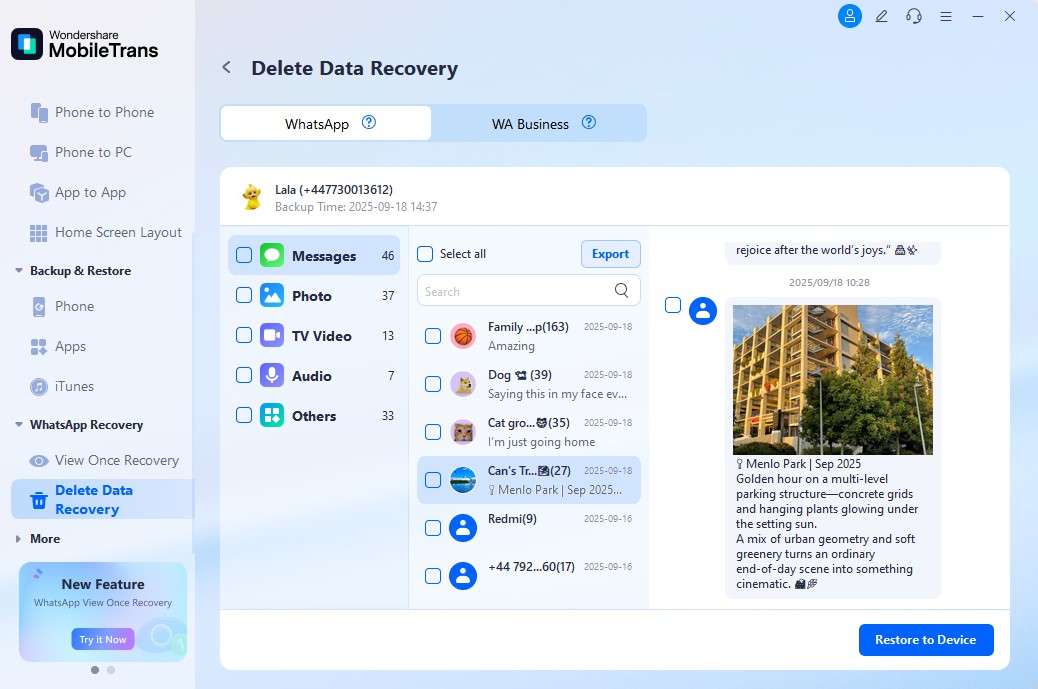
Step 1. Access the Deleted Data Recovery feature and link your phone to the computer via a USB cable.
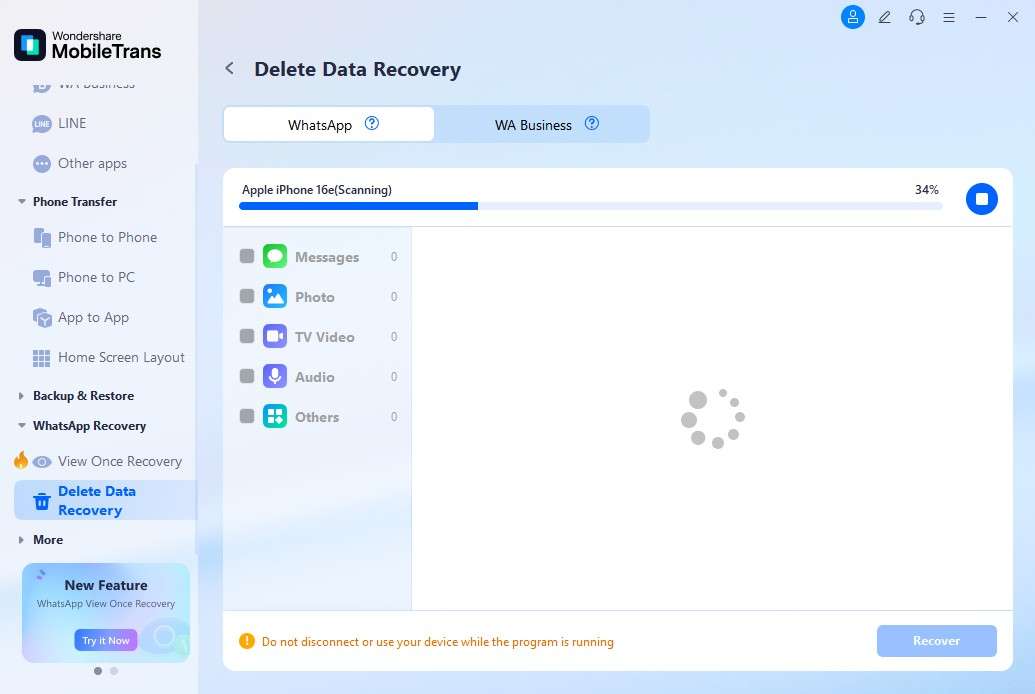
Step 2. Keep your phone connected and allow MobileTrans to scan for WhatsApp data.
Step 3. When your WhatsApp data appears, select your desired data and hit Restore to Device.
Part 3. Best Practices to Avoid WhatsApp Data Loss in the Future
Apart from the above, it is always better to protect your chats before a problem occurs. Below, you will find a few best practices to avoid stress and save time later:
- Regular Backup: Always keep backups enabled to save your chats for safer and faster restoration later. Thus, knowing how to back up WhatsApp chat after a factory reset helps protect essential conversations.
- Check Storage: Ensure you have enough free space in cloud storage for backups. Without proper storage, backups may fail, and you could lose your messages.
- Manual Export: Manually export important chats and email them to yourself for extra protection. This ensures you always have accessible copies of crucial chats outside WhatsApp.
- Stable Internet: Use a b and stable Wi-Fi connection whenever creating or restoring backups. Weak networks may interrupt backup processes, which leave files incomplete and difficult to repair.
- Update App: Keep your WhatsApp updated to the latest version for improved backup reliability. It ultimately fixes bugs and enhances storage to help backups run more effortlessly.
Conclusion
To conclude, although restoring chats after a factory reset may seem confusing, there are solutions available. You can recover chats by following the methods explored in this article. Each option has certain limitations depending on device type and available backups. However, when no backup exists, MobileTrans becomes the safest choice. It provides an effortless way to learn how to restore WhatsApp chat after a factory reset without a backup.
FAQs
-
Can I restore WhatsApp without verifying my number?
WhatsApp requires verifying the same number to access old chats and backups. Without verification, the app treats your account as new and doesn't load previous messages. This is a security measure ensuring only the rightful owner can restore sensitive chat history. -
How long does WhatsApp restoration usually take?
The restoration time depends on backup size and the internet connection speed. Plus, smaller backups often restore quickly, while larger ones may take hours to complete. In addition, Wi-Fi is always recommended to ensure seamless restoration without interruptions or delays. -
Is it possible to restore WhatsApp messages selectively?
Cloud and iTunes/Finder do not provide selective restore options for chosen chats or media. They restore entire backups, replacing everything with previously saved content without flexibility. On the other hand, MobileTrans allows restoring specific chats or data types without altering or removing your data.










