



 TL;DR:
You can restore missing WhatsApp chat history on your iPhone after the iOS 27 update by reinstalling the app to trigger an iCloud backup recovery, executing a full system restore via iTunes or Finder, or using MobileTrans to selectively extract data.
● Reinstalling WhatsApp to restore from iCloud requires sufficient cloud storage capacity, typically 5GB or more for media, and will permanently overwrite any new chats received after the backup date.
● Recovering through an iTunes or Finder backup is an alternative when cloud syncing fails, but this action completely erases all current information on the iPhone and replaces it with the older system backup.
● MobileTrans is specifically suited for users who need to retrieve exact conversations or Business WhatsApp data without overwriting the phone's current storage, requiring a USB connection to a computer to selectively restore or export files to PDF or HTML formats.
Ask AI for a summary
 ChatGPT
 Perplexity
 Gemini
 Claude
 Grok
Grok
Many iPhone users may notice that their WhatsApp chat history has gone after an iOS update. They seek ways to retrieve their disappeared chats and essential data. Luckily, multiple native and easy methods are available to recover all chat history. This guide will tell you how you can restore WhatsApp chat history on your iPhone after an iOS update.
In this article

Part 1. Why Many Users Ask: Did WhatsApp Chat Disappear After the iOS 27 Update?
After installing the iOS 27 update, many iPhone users are surprised to find missing chats on WhatsApp. This usually occurs when app settings are reset, which blocks access to stored chat data. Besides, the update process may sometimes interrupt iCloud syncing and lead to the disappearance of chats. Incomplete or corrupted updates can also prevent WhatsApp from loading previous chat logs.
Users even notice storage conflicts that restrict WhatsApp's ability to reload chats after the update. Plus, network errors during installation may cause chat history to remain inaccessible on devices. Such situations create issues, as essential discussions seem to lose their way suddenly. That is why users seek to restore WhatsApp chat history on iPhone after an iOS update.




Part 2. What Happens to WhatsApp After the iOS 27 Update
Several reasons contribute to users experiencing issues with WhatsApp after the iOS 27 update. Below, we will explore a few common causes that explain what really happens after the new update:
- Missing Chats: Many people see their recent or old chats disappear without any warning. This issue worries users, making them search for ways to recover their conversations.
- Lost Media: Photos, videos, and shared documents may not appear after the update. Plus, users feel upset because they lose personal memories or work files from WhatsApp.
- App Crashes: The messaging app may also close suddenly when trying to open or send chats. These repeated crashes make the app frustrating and hinder daily communication.
- Login Problems: Users encounter errors when signing into WhatsApp after installing iOS 27. The system may not recognize account details, causing delays in reconnecting quickly.
Part 3. Native Methods to Restore WhatsApp Chat History on iPhone After iOS 27 Update
When WhatsApp chats disappear after iOS 27, users naturally look for simple recovery solutions. So, this section covers ways to restore WhatsApp chat history on iPhone after an iOS update:
Way 1. Restore from iCloud WhatsApp Backup
You can restore WhatsApp from iCloud backup to quickly recover lost chats. This option helps bring back messages, media, and contacts without much effort. It is useful when backups are correctly saved and synced with your iCloud account.
A significant drawback is that older backups replace or overwrite newer chats, causing data loss. Anyway, go through the steps to restore WhatsApp chat history on iPhone after an iOS update:
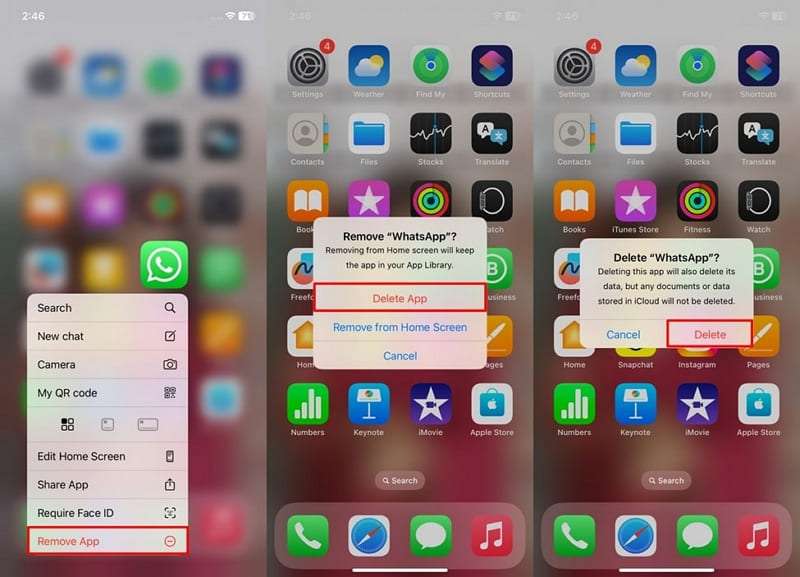
Step 1. Tap the WhatsApp app icon and opt for Remove App > Delete App > Delete.
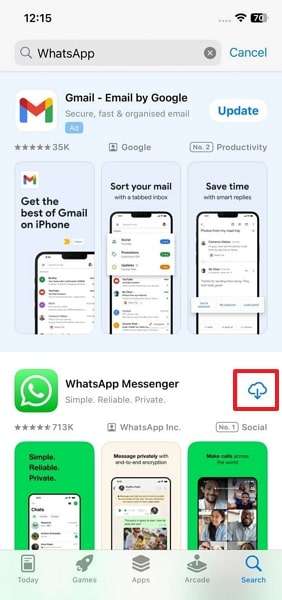
Step 2. Access WhatsApp on the App Store and press the Install icon.
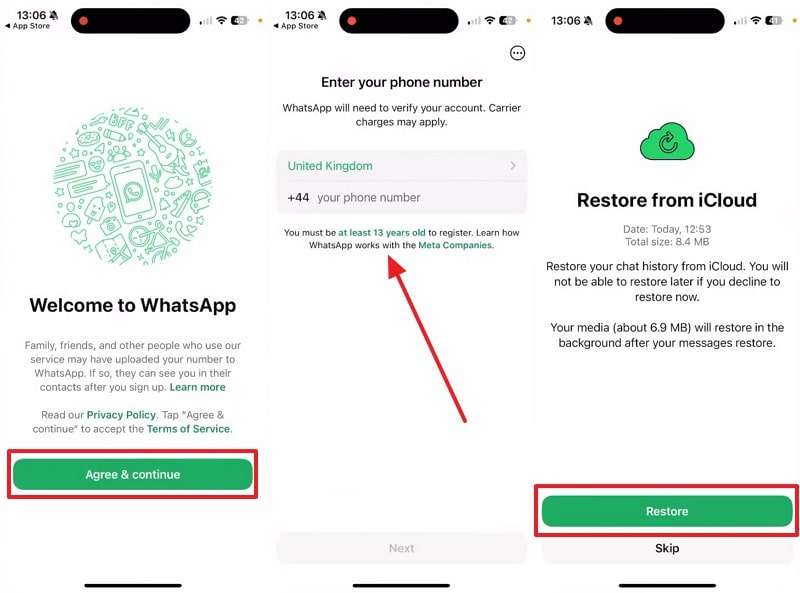
Step 3. Upon launching, press Agree & Continue > Enter the same number> Next > Restore.
Way 2. Restore from iTunes/Finder Backup
The other means of retrieving chat history is to opt for and utilize iTunes or Finder backup files. This method helps recover chats and multimedia directly from previously saved device backups. It is useful when iCloud storage is insufficient or syncing errors keep happening.
Besides, it completely erases your phone's data, risking permanent loss of current information. Thus, let's explore how you can restore messaging chat history on your smartphone effortlessly:
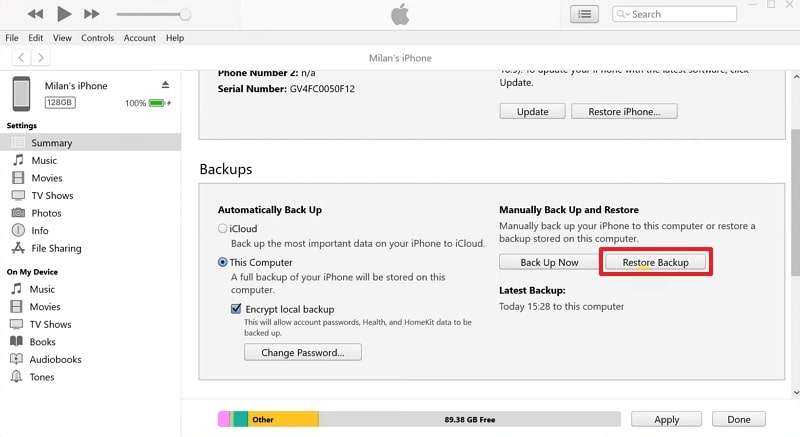
Step 1. After connecting your phone to the computer, open iTunes and click the Restore Backup button.
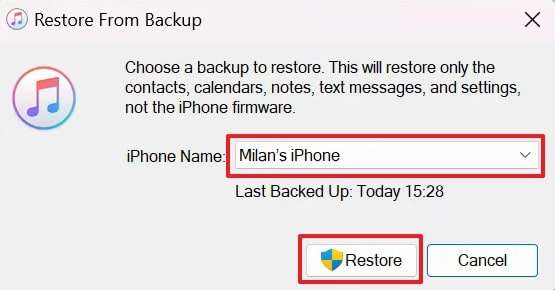
Step 2. Select your desired or most recent backed-up file and click the Restore button.
Part 4. Why Native Methods Sometimes Fail & When You Need a Third-Party Tool
Many times, native methods do not work as expected after an update. Many users encounter issues like missing backups or corrupted files during the restore process. iCloud may not update properly, leaving you with an older backup version. In such cases, new chats and files may get replaced or overwritten by outdated ones.
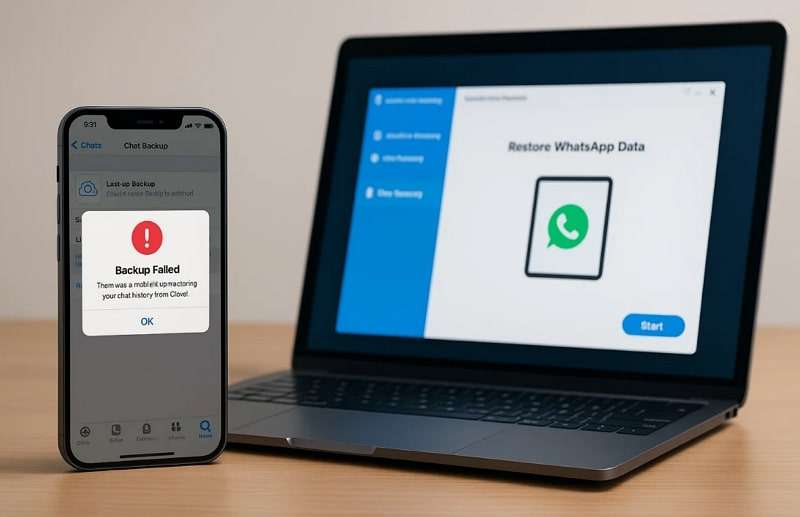
Similarly, iTunes/Finder restores can erase current phone data, causing unnecessary loss. This is disturbing, especially when essential conversations or work files are at risk. For these reasons, relying only on native options is not always safe or reliable. That is why external tools become useful, as they offer more control and flexibility. They allow selective recovery to restore the WhatsApp chat history on the iPhone after an iOS update.
Part 5. Use MobileTrans to Restore WhatsApp Chat History on iPhone After iOS 27 Update
Among the best external tools, MobileTrans offers a complete solution to restore WhatsApp chat history on an iPhone after an iOS update. You can selectively choose which data to recover, unlike iCloud or any other native tool.
Besides, this WhatsApp data recovery program will not overwrite any current data, ensuring you will not lose your original phone data during the restoration process. It supports both Android and iOS devices, including the latest Android 16 and iOS 27.
Key Features
- Business WhatsApp: Enables backup and restoration of WhatsApp Business data, preserving essential chats.
- File Export: This feature allows you to export WhatsApp and Business chats to a computer in PDF or HTML formats.
- Multi Device: Supports transfer between more than 6000 different iOS and Android device models.
- Backup Creation: Allows users to create complete backups of device data on computers.
- Multiple Apps: Also supports migrating other apps, such as LINE and Viber chats, between different phones.
Guide to Use MobileTrans to Restore WhatsApp Chat History on iPhone After iOS 27 Update.
Go through the given steps to restore your deleted chat history using this dedicated tool:
Step 1. Initiate by heading to the WhatsApp Recovery > Deleted Data Recovery > WhatsApp.
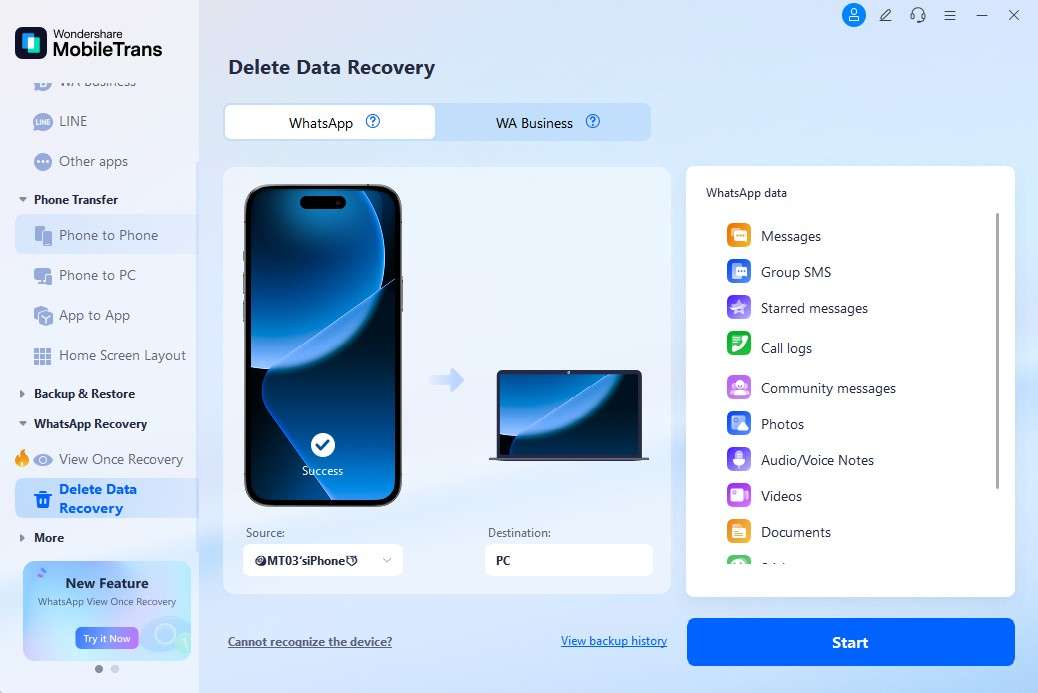
Step 2. Link your smartphone to the computer via a USB cable.
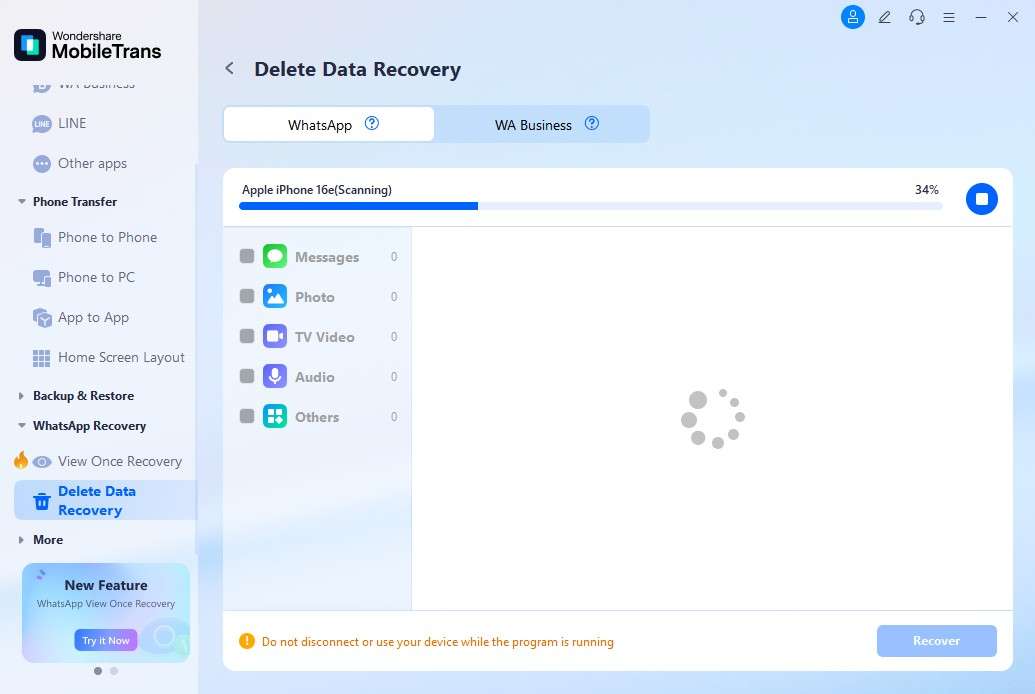
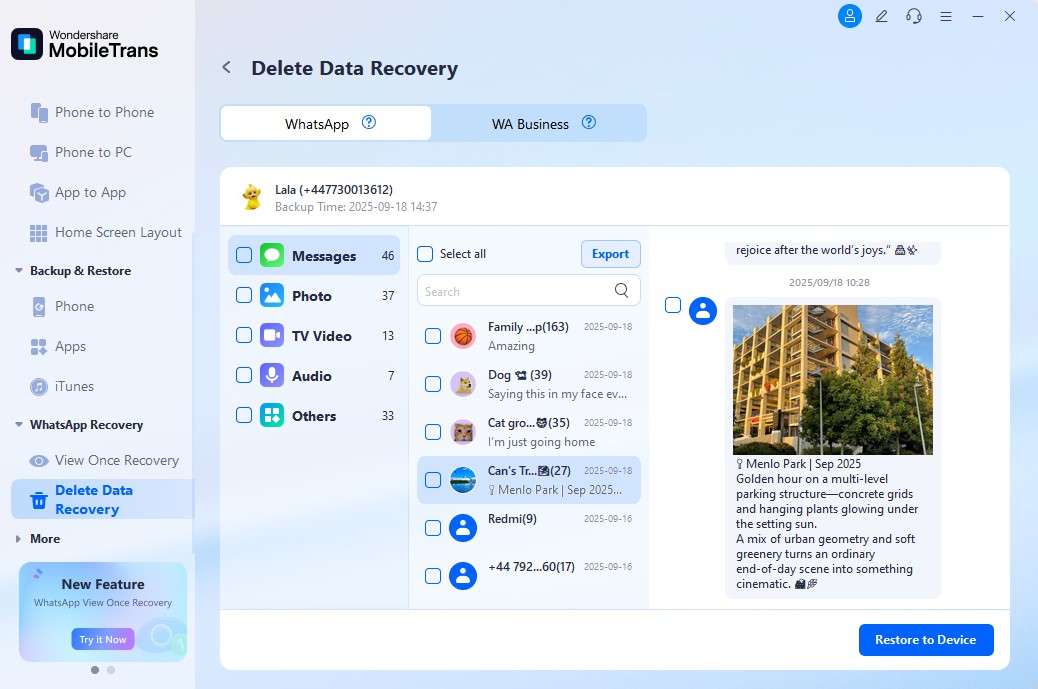
Step 3. When your deleted WhatsApp data appears, select your desired chat history and then press Restore to Device.
Conclusion
In conclusion, many users may find it stressful to restore WhatsApp chats after updating to iOS. While native options provide basic recovery, they fail in complex situations. Issues like missing backups or overwritten data make recovery difficult. That is why exploring better solutions is essential for a secure and quick recovery. Thus, the best effortless option to restore WhatsApp chat history on an iPhone after an iOS update is MobileTrans.
FAQs
-
Will restoring from iTunes delete my current WhatsApp conversations?
This method completely overwrites the current iPhone data with the backup file, affecting not only WhatsApp but also other data. It means any new messages or chats created after the backup are lost. Users should carefully decide before restoring to avoid permanently losing meaningful conversations. -
Is there a way to restore specific chats without recovering everything?
Selective recovery is possible using advanced external tools like MobileTrans. Unlike iCloud or other native methods, it allows you to choose exact chats. Plus, this avoids overwriting your phone while letting you restore only the desired chats. -
How much iCloud storage do I need for WhatsApp backup?
The required storage depends on chat size, media attachments, and shared documents. For large files, at least 5GB or more of iCloud storage is usually necessary. Plus, insufficient storage can cause failed backups, which means you won't be able to restore chats later.










