
 TL;DR:
You can transfer data from an iPhone to a Google Pixel after the initial setup by using desktop tools like MobileTrans and iTunes for offline migration, or by utilizing Google Drive, Google Photos, WhatsApp, and email for wireless syncing.
● MobileTrans supports selective offline transfers of over 18 data types, but it requires a computer connection for every transfer and restricts features in its free version.
● Wireless syncing with Google Drive or Google Photos requires logging into the same Google account and a stable internet connection, with Drive limiting free storage to 15 GB and Photos potentially compressing image quality.
● Manual transfers using Gmail or instant communication apps eliminate the need for cables, but Gmail strictly restricts attachments to 25 MB per email and WhatsApp decreases the original resolution of multimedia files.
Ask AI for a summary
 ChatGPT
 Perplexity
 Gemini
 Claude
 Grok
Grok
As you switch from an iPhone to a new Pixel, you might worry about losing files. Many people complete the setup first and then realize important data is still missing. Luckily, you can transfer data from an iPhone to a Pixel after setup easily using simple ways. Even when it's multimedia or documents, several reliable options make the process effortless. This guide explains multiple ways to move data between phones.
In this article
Part 1. Can You Transfer Data from iPhone to Pixel After Setup?
It is absolutely possible to migrate your files even after setting up your new Pixel phone. You can transfer data from an iPhone to a Pixel after setup using different tools. This can be done using simple apps and cloud services that make the transfer easy.
Though the process might take a little effort, it remains simple. Apart from that, you can also use some dedicated data transferring tools to move your data without data loss.
Part 2. How to Transfer Data from iPhone to Pixel After Setup
After setting up your Pixel, you might still want to move your old iPhone data. Below, we will explore the top 6 ways to transfer data from an iPhone to a Pixel after setup:
Way 1. MobileTrans
Among the best solutions, MobileTrans offers an effortless way to transfer data from an iPhone to a Pixel after setup. It allows users to move 18+ types of data between 2 phones, including multimedia and contacts. While transferring, users will be able to preview the data and only migrate their preferred files. Plus, it supports over 6000 Android and iOS devices smoothly. It ensures fast data transfer without depending on the internet.




Many users find this dedicated tool helpful, but struggle to use it correctly. So, take guidance from the given steps to transfer data from an iPhone to a Pixel after setup:
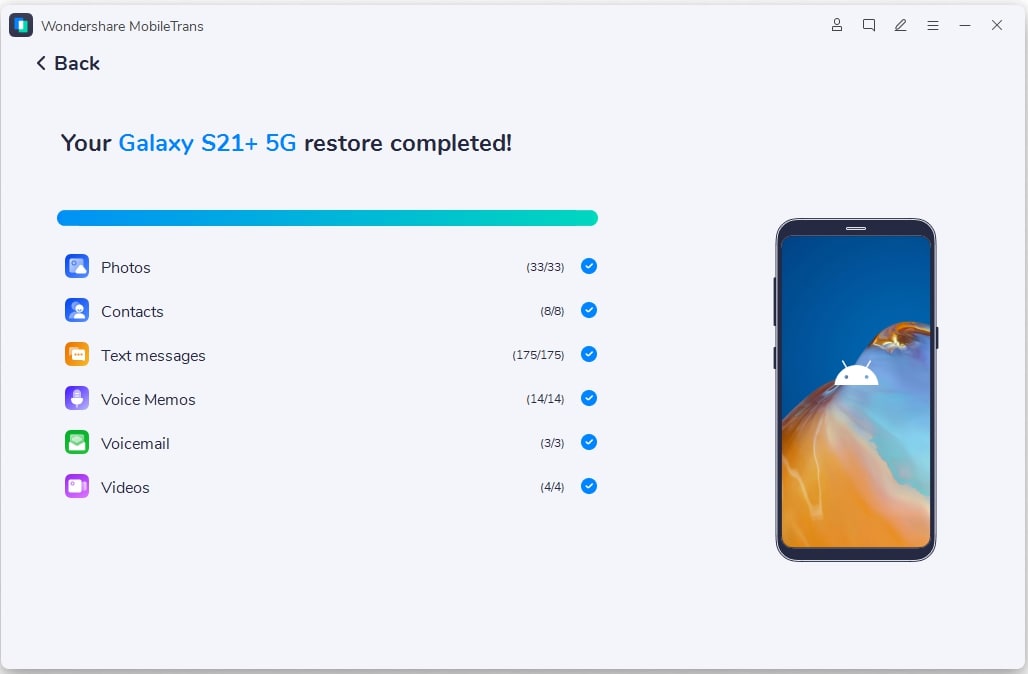
Step 1. Head to the Phone To Phone tab > Connect Pixel and iPhone > Choose Data > Press Start.

Step 2. When the selected data is transferred successfully, you will receive a confirmation screen.



Way 2. Sync with Google Drive
You can transfer data from an iPhone to a Pixel after setup easily through Google Drive. This process keeps your important data, like multimedia and files, in the cloud safely. Once uploaded, your Pixel phone can easily access and download this saved data with the same account. The following steps will guide you through uploading your iPhone data and accessing it on Pixel:
Step 1. Go to Google Drive on your iPhone > Press + > Upload Files.
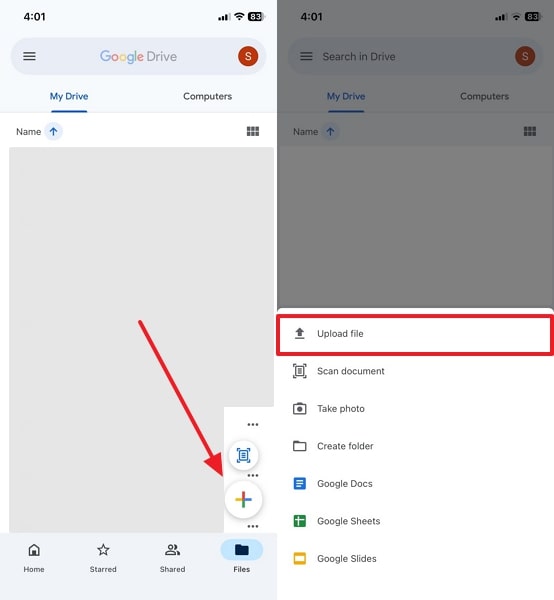
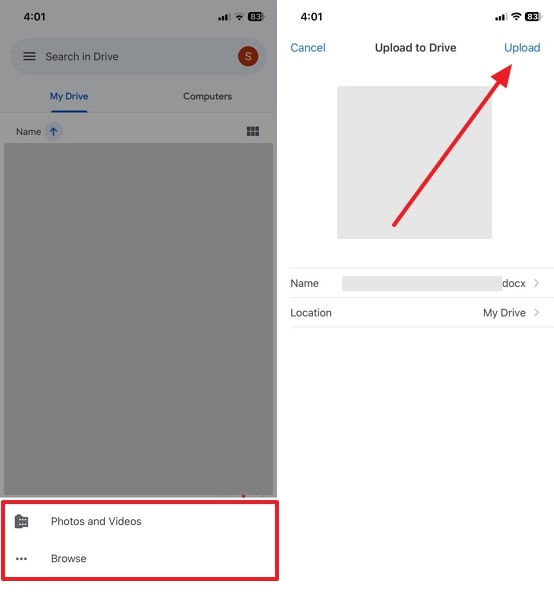
Step 2. Tap Photos and Videos / Browse > Select the file you want to upload > Press Upload.
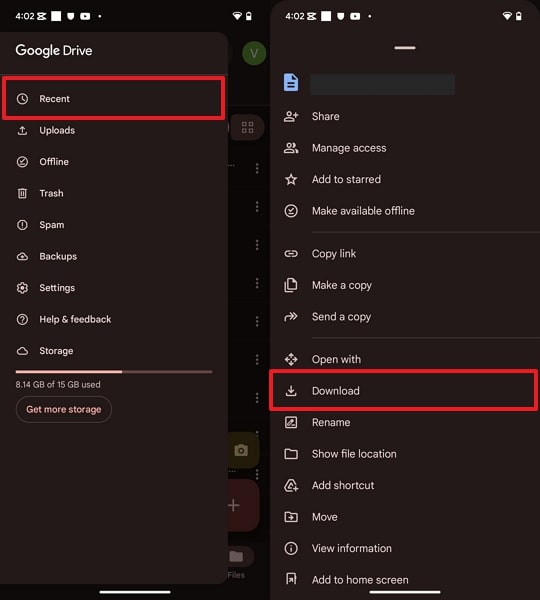
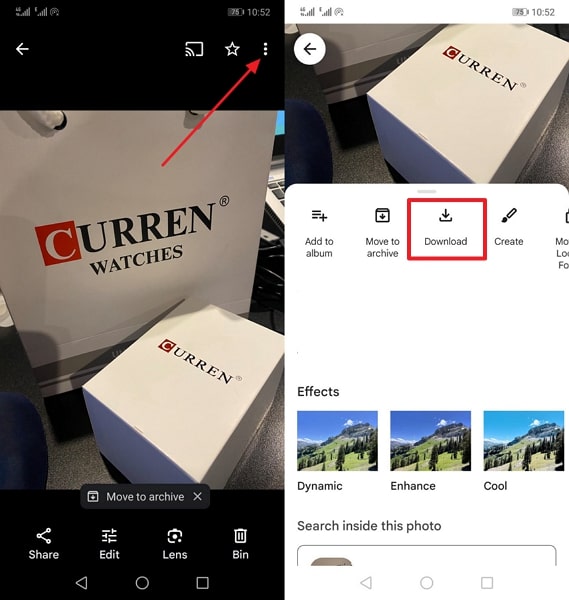
Step 3. On your Pixel, access the same account and go to Recent > tap Three Dots > Download.
Way 3. Transfer via Google Photos
This platform is another way to transfer data from an iPhone to a Pixel after setup. It backs up your pictures and videos to your Google account automatically. You can access them easily on your Pixel by signing in with the same account. Plus, this method helps you keep your photos and videos protected and ready to view on your new phone. Adhere to the given steps to move your multimedia using this approach:
Step 1. Tap the Profile icon on your iPhone app > Google Photos Settings > Backup > Backup toggle.
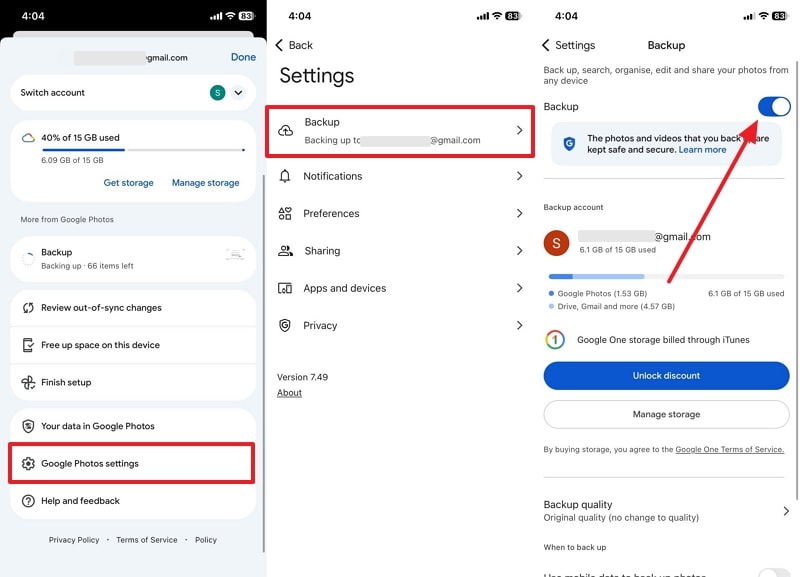
Step 2. Sign in with the same account on Pixel > Choose Photo > Tap Three Dots > Download.
Way 4. Move via iTunes/Finder
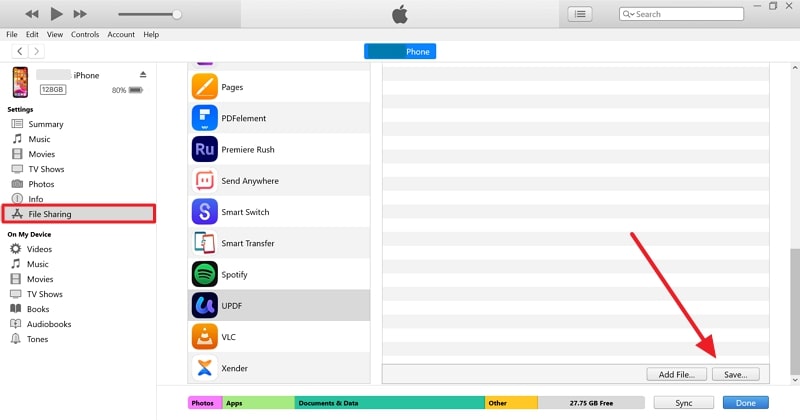
It is a dependable way to transfer data from an iPhone to a Pixel after setup. The solution lets you create a complete backup of your iPhone on your computer safely. Here, you can copy and move selected files to your Pixel manually. This method keeps your data protected during transfer and works well without internet access. You can head to the following guide to migrate data between phones through your computer:
Instructions. Connect both Phones to the PC > Open iTunes > File Sharing > Choose App > Select Data > Save > Choose your Pixel location to export.
Way 5. Use Instant Communication Apps
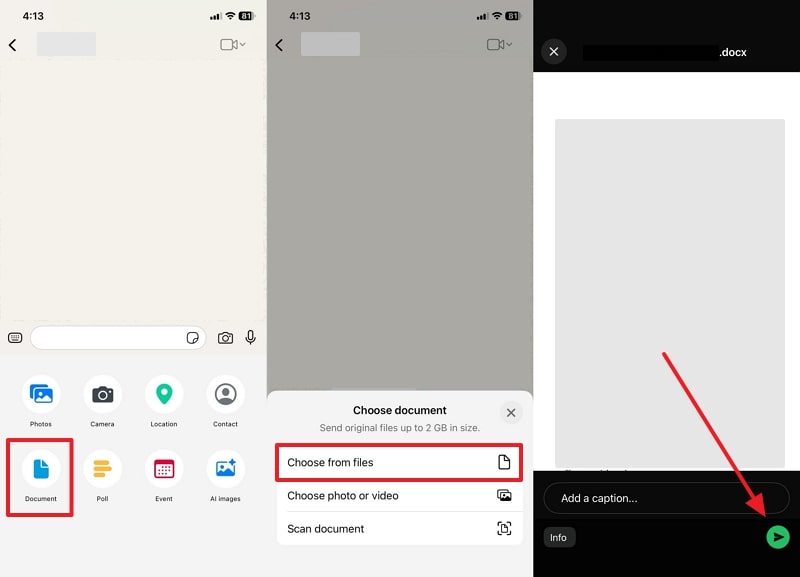
Instant messaging apps like WhatsApp allow you to transfer data from an iPhone to a Pixel after setup. You can send files, along with multimedia, directly through chats without effort. It also lets you share multiple items instantly, making file movement simple and fast. Once you open the same chat on your Pixel, you can easily download received files. Let's explore the steps below to perform this process:
Step 1. Access WhatsApp's chatting screen > Press + > Document > Choose From Files > Send.
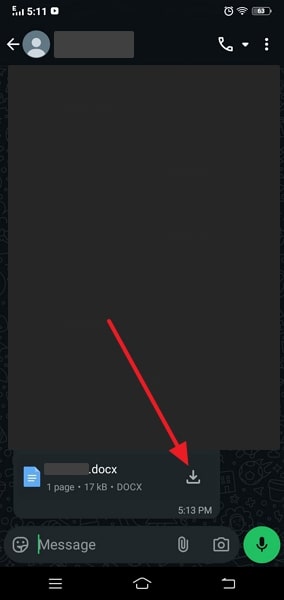
Step 2. Open your WhatsApp Chat on your Pixel and tap the Download icon.
Way 6. Try Email
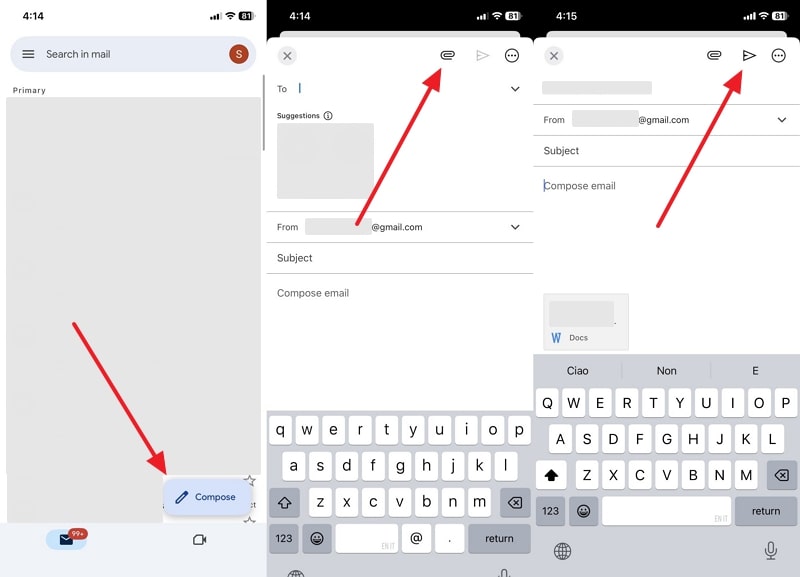
Platforms like Gmail also offer a quick way to transfer data from an iPhone to a Pixel after setup. You can attach and send multimedia or documents directly through your inbox. Once sent, files can be easily downloaded on your Pixel anytime. It's a flexible choice for moving specific files securely without connecting cables or using external apps. Thus, go through the given steps to migrate your iPhone data using this method:
Step 1. Tap Compose on your iPhone's app > Select the Attachment icon > Choose File > Tap Send.
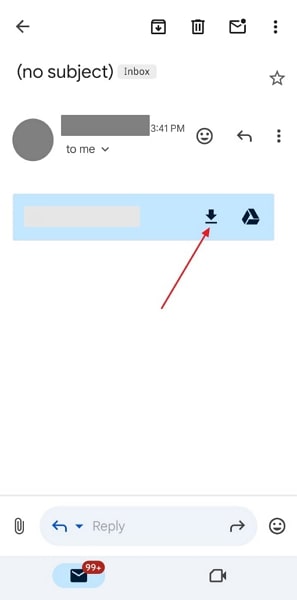
Step 2. On your Pixel, access the received email and tap the Download icon.
Conclusion
To conclude, you have discovered several methods to transfer data from an iPhone to a Pixel after setup. Still, some methods may limit file size or require internet access. For a fast, safe, and easy transfer experience, MobileTrans is highly recommended. It helps users transfer 20+ data types from one phone to another after setup without losing any important information.