


 TL;DR:
To securely transfer Duo Mobile to a new phone, the most seamless approach is utilizing the built-in Duo Restore feature via Google Drive or iCloud Keychain, provided you still have access to your old device with cloud backups previously enabled.
● If you are transferring a work or school account, or if you have already lost your old phone, Duo Restore will not work and you must manually re-enroll the new device through your organization's Duo Self-Service web portal or IT department.
● For a direct local migration without relying on cloud backups, you can use the in-app Export Accounts tool to generate a one-time QR code on your old device and scan it with your new phone.
● Once the migration is complete and you have tested your logins, you must manually remove the old phone from your trusted devices list to ensure authentication codes are strictly limited to your new hardware.
Ask AI for a summary
 ChatGPT
 Perplexity
 Gemini
 Claude
 Grok
Grok
An upgrade to a sleek new phone feels amazing, until you realize all your logins and security codes live inside Duo Mobile. It's a free application that stores your two-factor authentication codes, and it's one of the important apps on your device. If it isn't moved correctly, you might risk losing access to critical accounts, work logins, or online banking details.
Even without a clear process, a short lapse could put you out of service or force you through complicated recovery procedures. To get sorted, go through the article thoroughly and learn how to transfer Duo Mobile to a new phone, either Android or iPhone.
Before you start: Keep the old phone available and unlocked when using Restore or QR export. For a lost or damaged phone, prepare to contact your organization administrator for manual re-enrollment.
In this article
-
- Method 1: Duo Restore with Cloud Backup (When Enabled by Your Organization)
- Method 2: Export Accounts via QR Code from the old phone (Old Phone Required)
- Method 3: Manual Re-Enrollment with IT or an Administrator
- Method 4: Re-Enrollment Through Your Organization Portal
- Method 5: What MobileTrans Can and Cannot Do
Part 1. How to Transfer Duo Mobile to a New Phone [Tested Ways]
For the safest, simplest approach on how to move Duo to a new phone, head to the following section for workable methods:
Method 1: Duo Restore with Cloud Backup (When Enabled by Your Organization)
If you've enabled Duo Restore on your old device, this approach offers a far more seamless way to transfer accounts. Despite re-enabling or scanning every QR code, let the app automatically pull down your secure cloud backup to your new phone. For an instant restore, your device must have previously backed up with iCloud Keychain or Google Drive. To do so, follow the tutorial for Duo Restore with cloud backup:
On Android
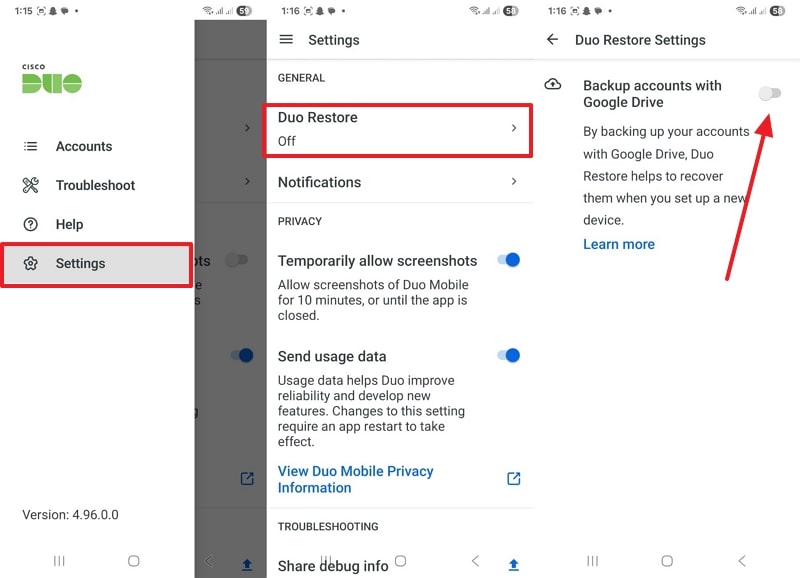
Step 1. Open Duo Mobile on the old phone > Settings > Duo Restore > Toggle Backup Accounts with Google Drive and complete the process.
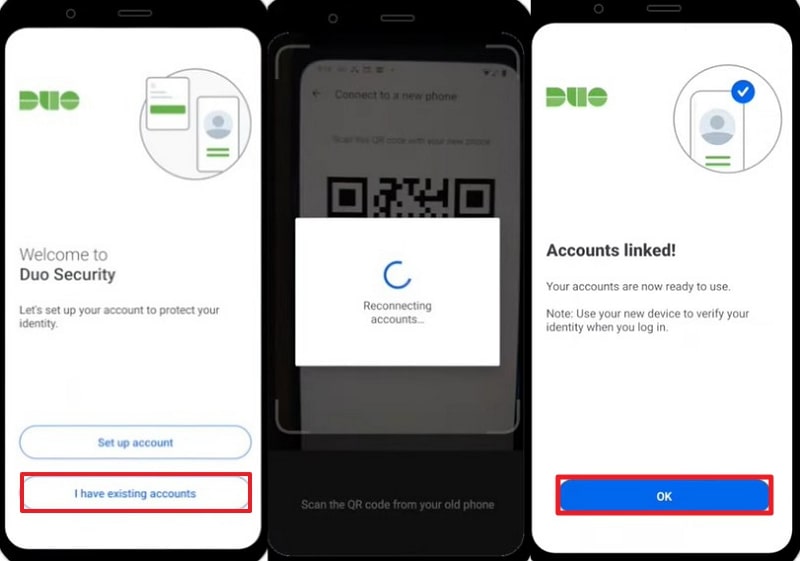
Step 2. On new device> Tap I Have Existing Accounts > Choose the same Google account > View QR code on old phone from settings > Scan QR code > Press OK to restore.
On iPhone
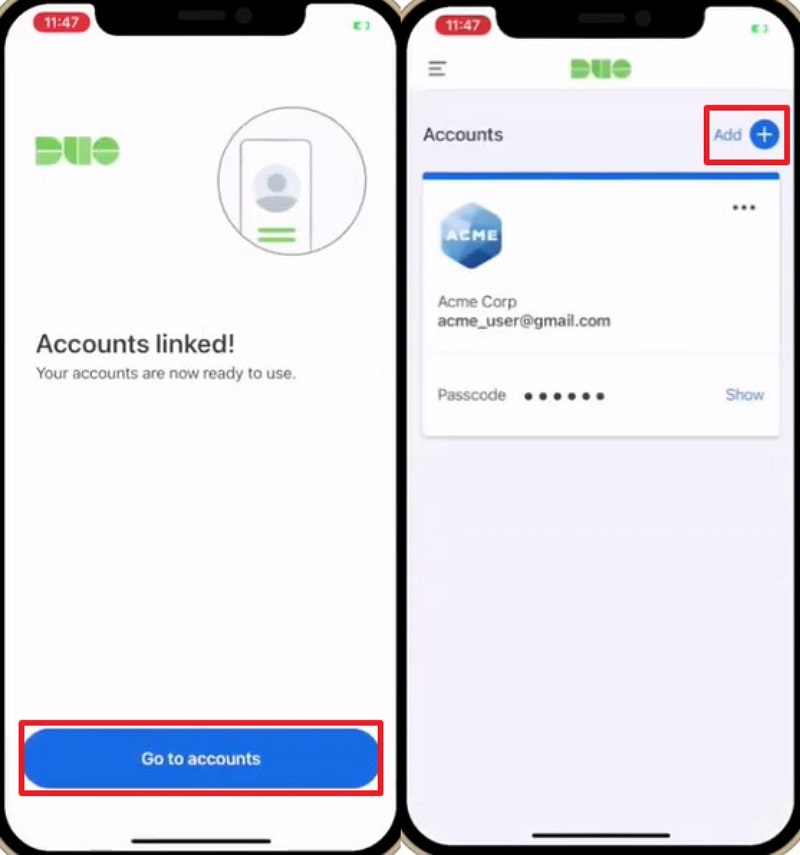
Instructions: Backup to iCloud on old device > Setup new iPhone by restoring backup > Open Duo Mobile > Continue > Go to Accounts, and your accounts will automatically appear. You can also add new accounts by tapping the "Add" button.
Method 2: Export Accounts via QR Code from the old phone (Old Phone Required)
For a more hands-on approach, you can export your account via QR code and learn how to move Duo Mobile to a new phone. This method allows you to move your Due Mobile accounts by generating a one-time QR code on your old phone and scanning it. Follow the tutorial and transfer the Duo account via QR code:
Step 1. Install Duo on new phone > Access Accounts tab on old device > Tap on Device Options > Choose the Export Accounts > Follow-on screen instructions.
Step 2. Access Duo on new phone > Tap on Add Account > Scan the QR code from old device > Verify account transfer on new device.
Method 3: Manual Re-Enrollment with IT or an Administrator
Most organizations, especially schools, require you to manually re-enroll a new device for security purposes. When you treat your phone as a brand-new setup, the organization makes sure no one can simply copy your Duo accounts. It further gives you a chance to verify that only the accounts you need are added to the new phone. Adhere to the tutorial and understand "how to move Duo to a new phone" through manual re-enrollment:
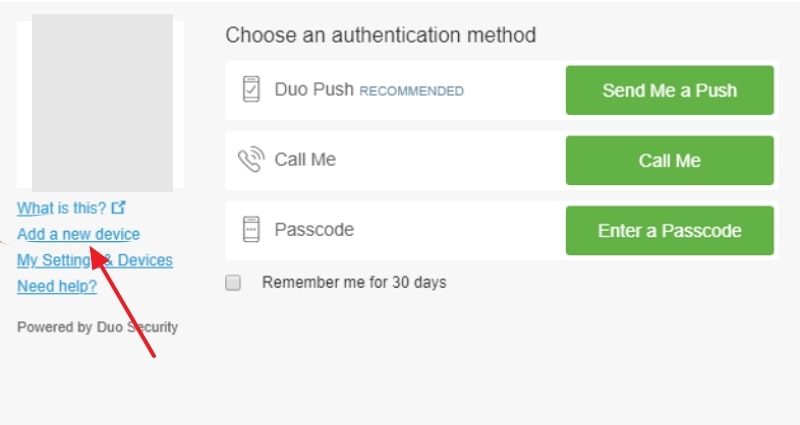
Step 1. Access your school portal > Enter credentials to authenticate with Duo > Press Add a New Device. Next, verify your account via Text Message or Voice Call.
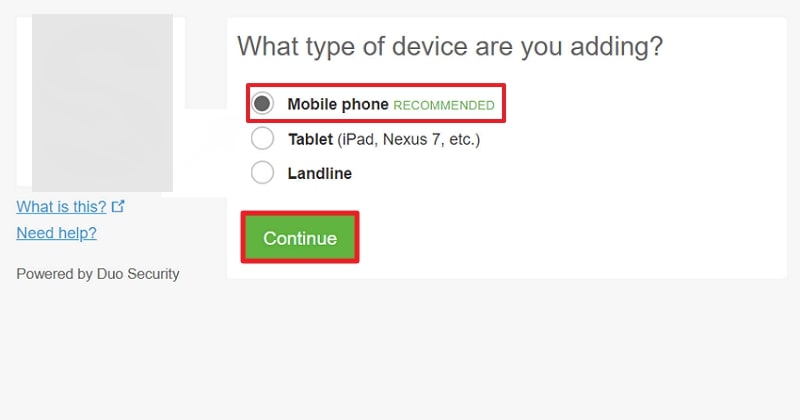
Step 2. Choose Mobile Phone option on setup > Enter your number > Check confirmation box > Press Continue.
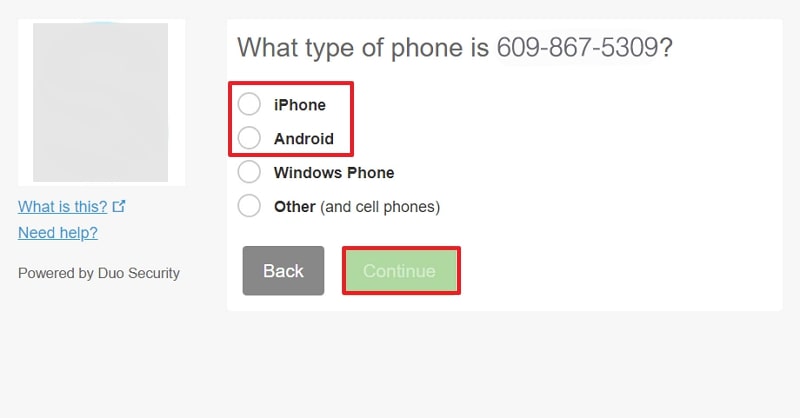
Step 3. Lastly, select the device type and hit Continue.
Method 4: Re-Enrollment Through Your Organization Portal
When your organization offers the Duo Self-Service portal, you've been given the most convenient way for "how to transfer a Duo account to a new phone." Instead of emailing or calling IT every time you change phones, you can add or remove devices right from the web dashboard. In simple words, users get self-service speed without sacrificing corporate or school policies over permissions. Explore the provided tutorial and learn how to manage accounts through self-service portals:
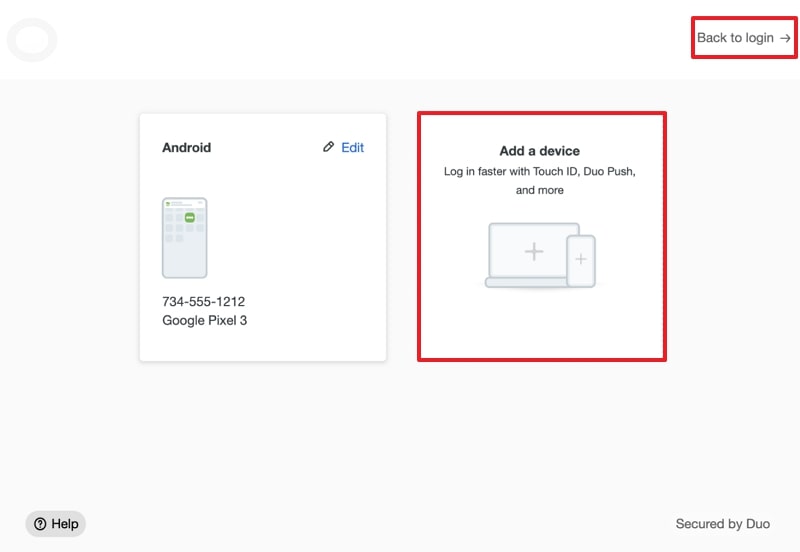
Step 1. Enter the organization's Duo self-service portal > Navigate to Device Management > Press the Manage Devices option > Choose Mobile in device type.
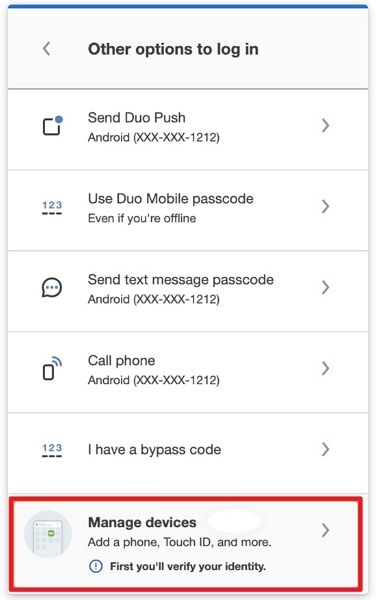
Step 2. Now, edit your previously added mobile details or Add a Device. Scan the QR code displayed on the PC > Confirm your organization's Duo account appears in Duo mobile > Click the Back to Login/Logout option.
Method 5: What MobileTrans Can and Cannot Do
MobileTrans is another good choice for you to move Duo Mobile to a new phone. This app can transfer phone data between two mobile devices across Android and iOS systems. It can migrate apps with app data, and other types of data like contacts, messages, photos, video, music, and more. It is an all-in-one solution for data transfer when switching phones.
Key Features
- Migrate Apps Between Android and iOS: This software transfers apps and their data seamlessly between Android and iOS devices, ensuring your data remains intact.
- Transfer Phone Data: It migrates 18+ types of data, including contacts, messages, photos, video, music, and more, between two phones.
- Move iCloud Data to Android: It migrates contacts and other iCloud backups straight to your Android devices without needing an iPhone in between.
- Safe & Secure: The data transferred is end-to-end encrypted and will not be uploaded to the cloud, preventing third-party access.




To make the upgrade smoother, adhere to the provided tutorial and move Duo Mobile from one phone to another:
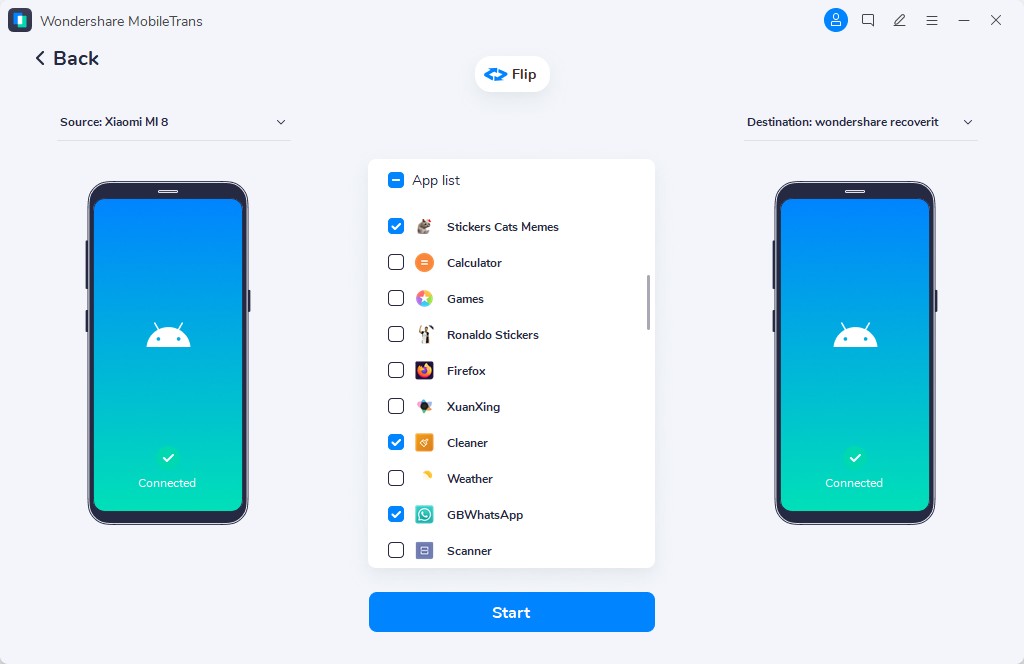
Step 1. Install MobileTrans on PC/Mac > Choose Phone Transfer > Select App to App feature > Connect both phones to the software.
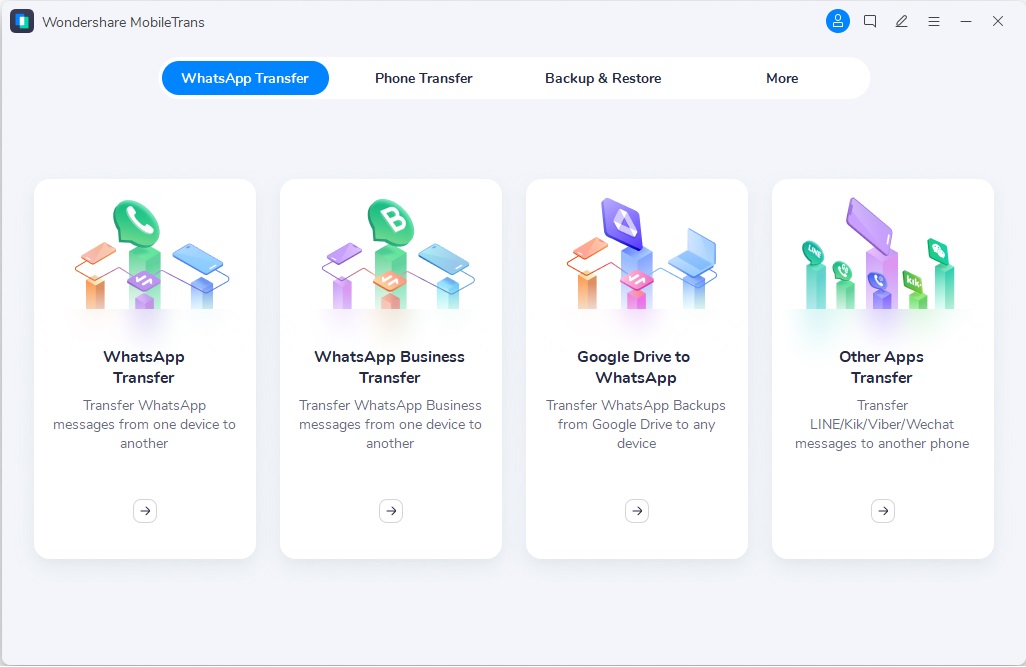
Step 2. Specify Source and Destination devices > Select all data > Press the Start button. Do not disconnect your phones until the transfer completes.
Part 2. Secure Your Accounts After Transferring Duo Mobile [Expert Tips]
Once you've mastered "how to transfer Duo account to new phone," explore the expert tips below and strengthen your security settings:
- Double-Check All Accounts: After the transfer completes, access each app or online service that uses Duo Mobile to verify that its codes generate correctly. Do not simply assume that everything came across; test logins for important services such as banking or work accounts.
- Remove Old Devices from Your Account: Even after you move Duo Mobile to your new phone, the old device might remain listed as a trusted login method. It is important to remove them from your old phone to make sure only your new phone can generate authentication codes.
- Toggle Device Encryption and Screen Locks: Since your new phone may contain even more sensitive data, ensure its full-disk encryption is enabled. This way, if someone gets your phone, they won't be able to access your Duo Mobile codes or personal information.
- Update Backup and Recovery Options: Take a moment to review and update the backup email addresses and recovery phone numbers associated with your online accounts. Now, even if something ever goes wrong, such as losing your phone, you will have a smooth path back in.
- Secure Backup Codes: When your account provides backup and recovery codes, store them in a secure password manager or keep an offline copy. Besides this, do not use them in your email or on a note-taking app that could be compromised under any uncertain condition.
Conclusion
In conclusion, your task for "how to transfer Duo Mobile to a new phone" is much simplified with built-in options such as Duo Restore or Self-Service Portal. Besides this, it is important to take a few minutes and test each protected account after migration for assurance that everything works well. While Duo Mobile handles your two-factor accounts, MobileTrans allows you to transfer apps, media, and other valuable data.
FAQs
-
Q: Will my Duo account codes work immediately after transferring?
A: The codes and push notifications will show immediately on your new phone when you transfer your Duo accounts via Duo Restore. With the majority of personal accounts, you can sign in without any additional steps.
-
Q: What happens if I've already lost my old phone?
A: You will have to reach out to the IT department of your organization or its Duo Self-Service Portal and re-activate your account on the new phone. Plus, you'll no longer be able to use Duo Restore without the old phone, so you have to re-enroll. Thus, re-enrollment is the only way out for "how to move Duo to a new phone" without an older one.
-
Q: Is transferring Duo to a new phone secure?
A: Definitely, your data remains end-to-end encrypted and secured when you transfer your Duo Mobile account via Duo Restore or Self-Service Portal. These approaches are designed by Duo specifically to keep your two-factor credentials secure during migration.










