


 TL;DR:
You can safely transfer data from a Google Pixel to a new phone using ecosystem-specific apps, cloud backups, or desktop software depending on the target device's operating system.
● Select your wireless transfer method based on the destination device: use Move to iOS for iPhones, Samsung Smart Switch for Samsung models, and Quick Share (requires Android 6.0+) or Google Drive Backup for migrating to other Androids.
● Cross-platform offline transfers from a Pixel to an iPhone require a computer using iTunes or Finder for manual USB file copying, or a desktop tool like MobileTrans to migrate 18+ data types directly via a wired connection.
● Cloud-based restorations through Google Drive automate the transfer of apps, contacts, and configuration settings to a new Android device, but strictly require authenticating the exact same Google account and process slower than direct peer-to-peer connections.
Ask AI for a summary
 ChatGPT
 Perplexity
 Gemini
 Claude
 Grok
Grok
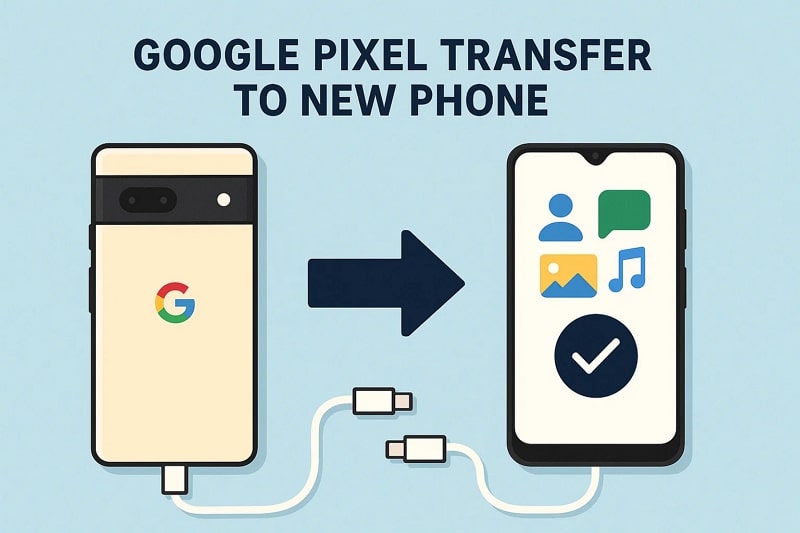
The excitement of getting a new phone is unbeatable, but keeping your old phone intact is just as important. From photos to messages and apps, you might want to transfer everything, but don't know how. Hence, this guide will introduce you to simple ways for transferring your Google Pixel to a new phone. By the end, you'll get to know how to easily back up data for easy access in the future.
In this article
Part 1. [Table] Comparing 8 Methods for Google Pixel Transfer to New Phone
To know which solution is best for transferring Google Pixel to a new phone, review the given comparison table:
|
Method |
Setup Required |
Wireless/Offline |
Ease of Use |
Speed |
|
App install & PC/Mac |
Wired (USB) |
Very simple |
Super Fast |
|
|
App on an Android phone |
Wi-Fi direct |
Simple |
Fast |
|
|
App |
Wired/Wireless |
Easy |
Fast |
|
|
Google account |
Wireless (cloud) |
Automated |
Moderate |
|
|
Email account |
Wireless (internet) |
Manual |
Slow (per file) |
|
|
Cloud app/account |
Wireless (cloud) |
Easy |
Moderate |
|
|
Built-in (6.0+ phones) |
Wireless P2P |
Easy |
Fast |
|
|
USB cable |
Offline |
Manual |
Fast |






Part 2. How to Google Pixel Transfer to New Phone
For a seamless data transfer method, review the listed steps for Pixel transfer to a new phone with a simple guide:
Way 1. MobileTrans
Supported Transfer Direction: Pixel to Android, Pixel to iPhone
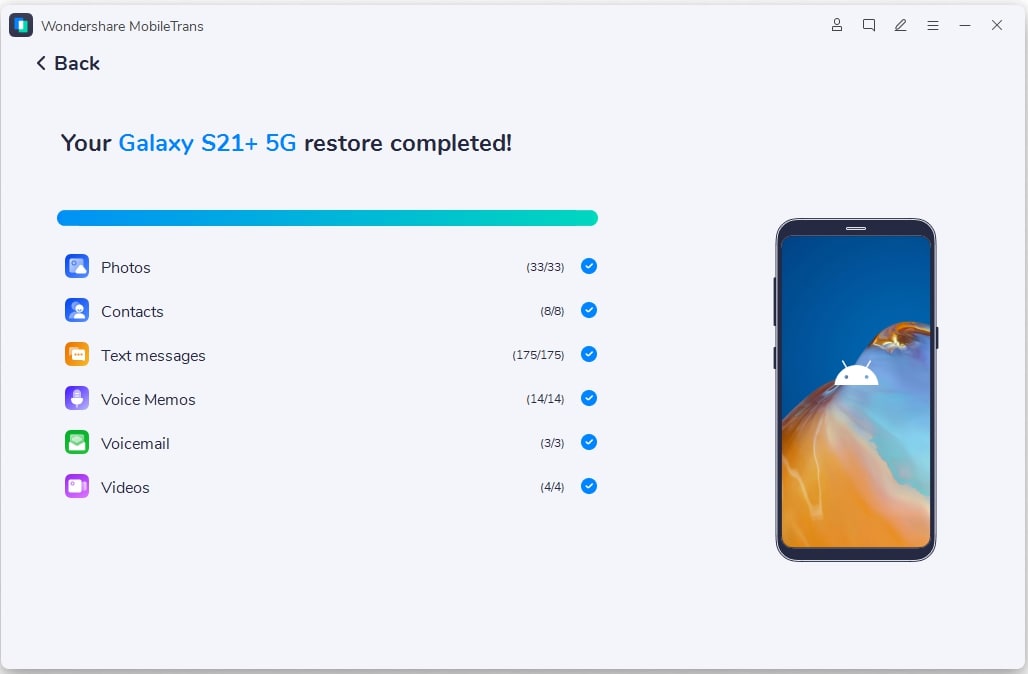
Being the simplest and fastest option of all, MobileTrans allows you to move 18 plus data types across devices. This includes photos, videos, contacts, and more since it offers support for 6000 plus mobile devices running on Android and iOS systems.
Users can also move the iCloud data to Android in simple and guided steps, which makes it an ideal option for beginners. To know how you can use this tool for Google Pixel transfer to new phone, review the given guide:
Step 1. Connect both phones and head to the Phone to Phone module.

Step 2. Determine the source and target devices. Choose the data types and pick the Start button.

Step 3. Wait until the tool completes the process. Disconnect devices and review the data received on the new phone.

Way 2. Move to iOS
Supported Transfer Direction: Pixel to iPhone
For the Google Pixel transfer to a new phone, users can also opt for the Move to iOS app if they want to share data with iOS devices. This application transfers contacts, text messages, photos, videos, calendar, and even WhatsApp messages. It achieves this by building a proprietary Wi-Fi connection and limiting the use of physical wires. One can move data easily via simple guided steps given below:
Step 1. From the Quick Start screen on iPhone, choose the Set Up With Another Device option. Set the iPhone.
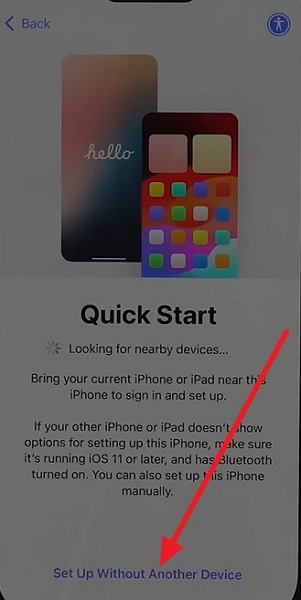
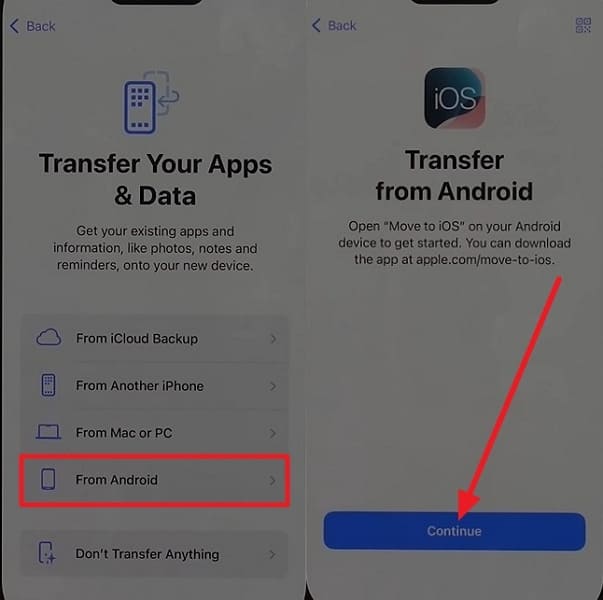
Step 2. Connect both devices to the same Wi-Fi network > Choose From Android > Pick the Continue button.
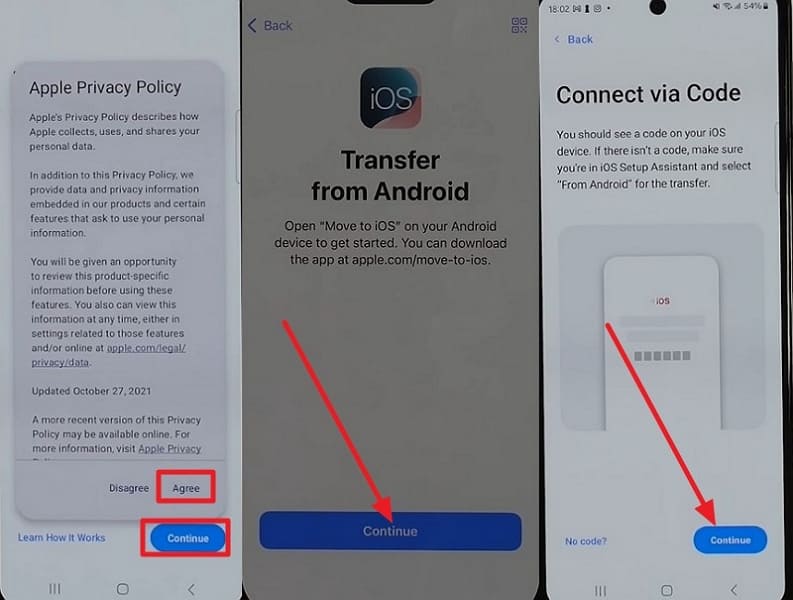
Step 3. Agree to the terms on Android > Choose Continue With Wi-Fi option > Press Continue to connect via code.
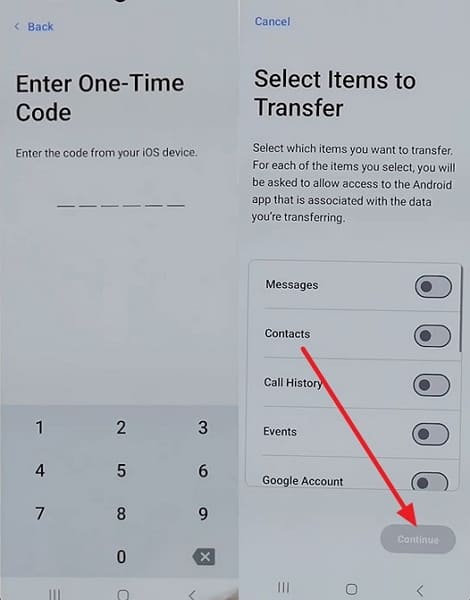
Step 4. Enter the code from the iPhone to the Enter One-Time Code screen. Pick the required data types and hit the Continue button.
Way 3. Samsung Smart Switch
Supported Transfer Direction: Google Pixel to Samsung Devices
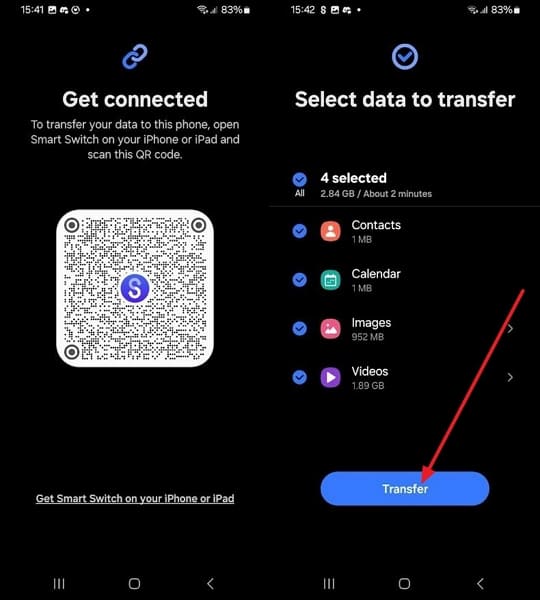
Smart Switch is another reliable option for Pixel transfer to new phones, mainly for Samsung devices. The process is simple, with clear instructions and options for cable or wireless transfer. Besides, Smart Switch keeps your data safe by transferring it directly between devices instead of using the cloud. You can choose how to connect, USB cable, Wi-Fi, or even select which data types to move, as shown:
Step 1. Choose the Transfer Wirelessly option on the iPhone and access the QR code scanner.
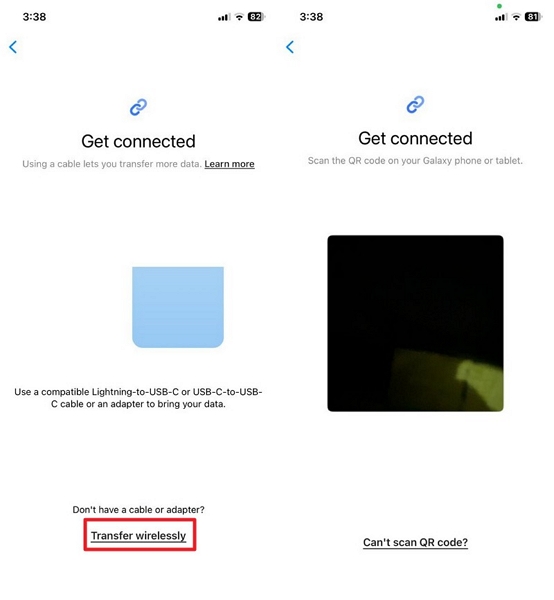
Step 2. Pick the Receive On This Phone option on Android > Choose iPhone/iPad > Wireless.
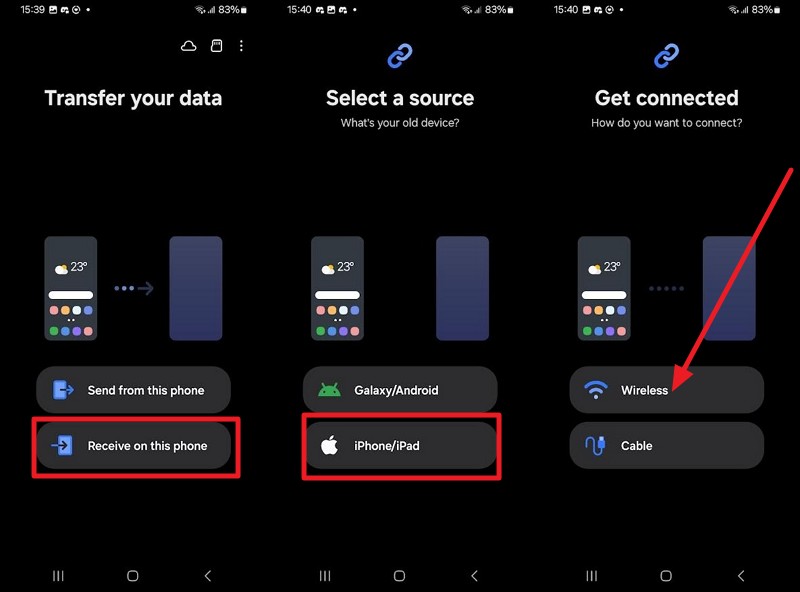
Step 3. Access the QR code screen, scan it from your iPhone. Select the data types and hit the Transfer button.
Way 4. Google Drive Backup
Supported Transfer Direction: Pixel to Android
As the reliable choice, Google Drive Backup ensures a complete and secure way to save your Pixel data before switching devices. It automatically logs applications, contact data, text and multimedia messages, call history, configuration settings, etc. When the other device is authenticated using the same Google account, the data is restored immediately. The transfer is performed without using cable-based connections or additional configuration procedures, as shown below:
Step 1. Choose System > Backup > Back up to Google Drive > Back Up Now option.
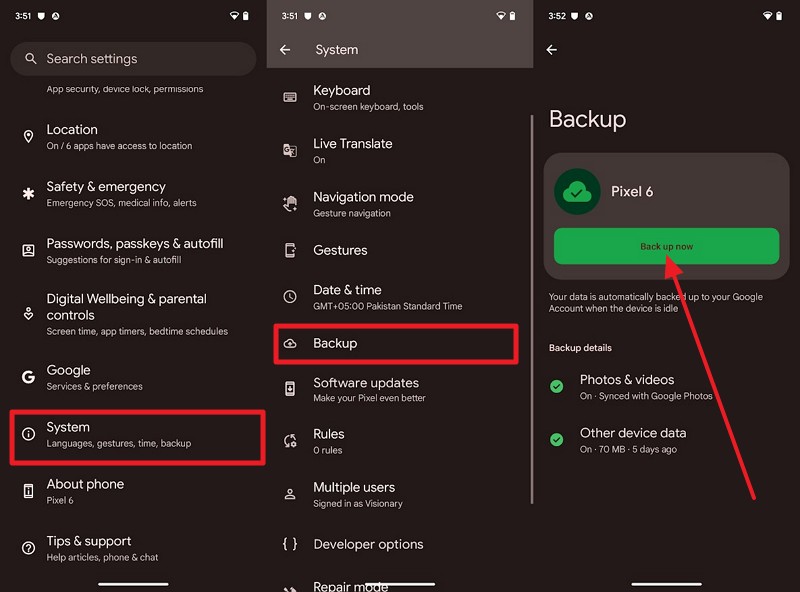
Step 2. Set up the new device > Select Can't Use Your Old Phone? or Restore from Cloud Backup option when prompted.
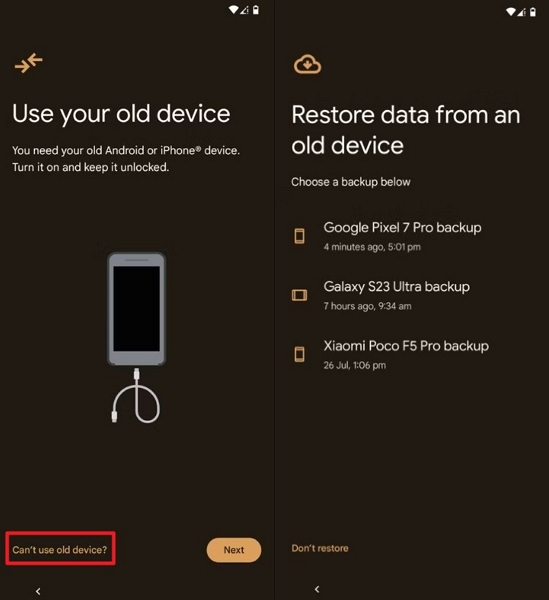
Step 3. Log in with the same Google account. Choose the most recent backup from your Pixel and hit the Restore button.
Way 5. Email
Supported Transfer Direction: Pixel to Android, Pixel to iPhone
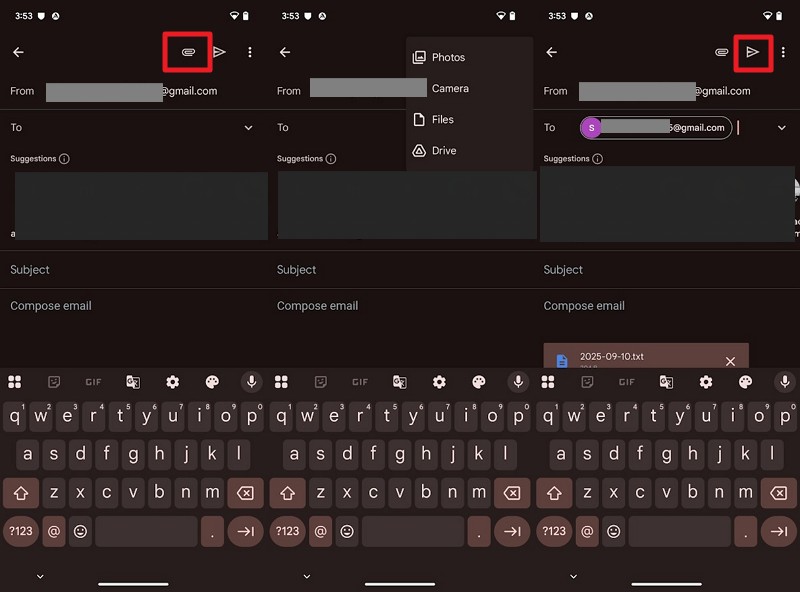
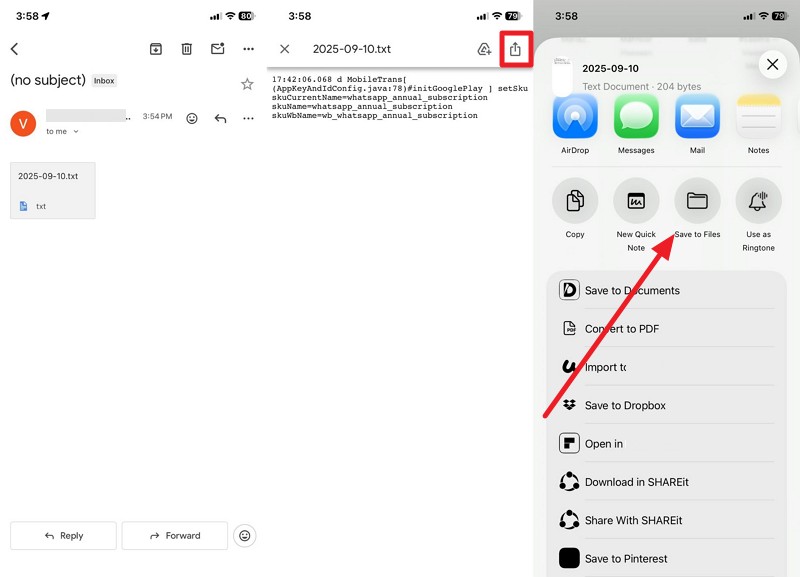
To make transferring the Google Pixel to a new phone possible, email is another simple solution for you. This is a universal way to share data between different devices, and it does not require any cables or any other complex arrangement. Users just need to attach pictures, documents, or contact files and send them to a self-directed destination or an alternate destination, as illustrated below:
Step 1. Press Compose > Choose Attach File icon > Pick the file type > Upload the data > Enter receiver ID > Hit the Send icon.
Step 2. Press the received data > Tap the Share icon > Choose the Save to Files option.
Way 6. Cloud Services
Supported Transfer Direction: Pixel to Android, Pixel to iPhone
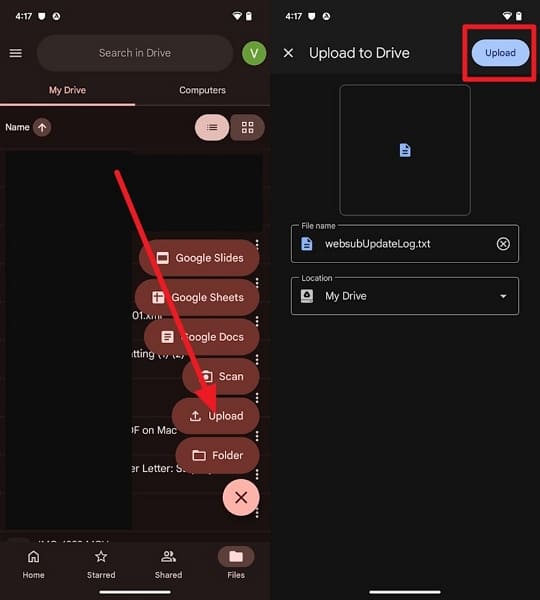
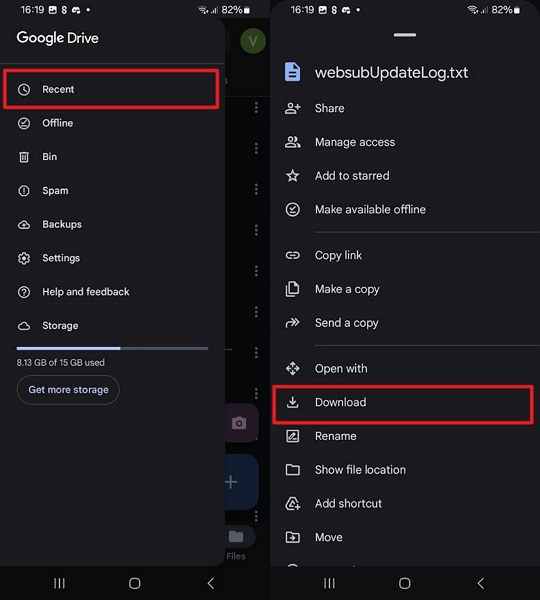
Users can also use cloud services like Google Drive or Google Photos for Pixel transfer to new phone. They will automatically save apps, contacts, photos, and settings in the background to ensure that your data is safe. You can selectively restore files to your new phone even when you have lost or damaged your old phone. Besides, cloud services are cross-platform and can process huge media collections with ease, as illustrated:
Step 1. Tap + icon to choose the Upload option on Google Drive. Import the media and pick the Upload button.
Step 2. Go to the Recent tab on the new Android > choose the uploaded file > Download.
Way 7. Quick Share
Supported Transfer Direction: Pixel to Android
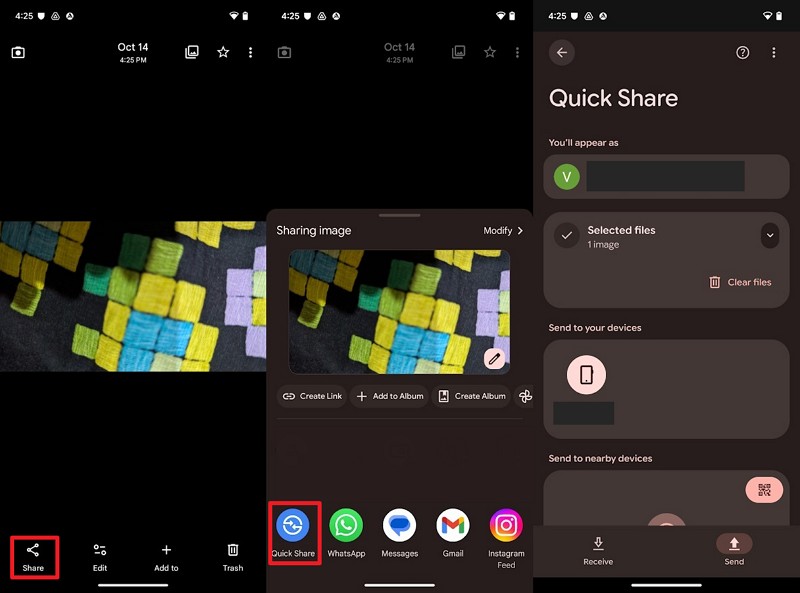
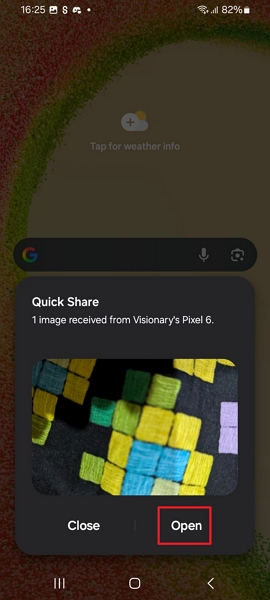
Previously known as Nearby Share, Quick Share offers a fast and effortless way to transfer data between Google Pixel and other devices without internet or cables. The system uses peer-to-peer Wi-Fi and Bluetooth technologies to transfer images, videos, documents, and application links at a faster speed. In terms of its usage, adhere to the simple guide for Google Pixel transfer to new phone:
Step 1. Choose the Share icon, pick the Quick Share option, and select the device.
Step 2. Accept the invitation on the new device and choose the Open option.
Way 8. Manual Transfer via USB
Supported Transfer Direction: Pixel to Android, Pixel to iPhone
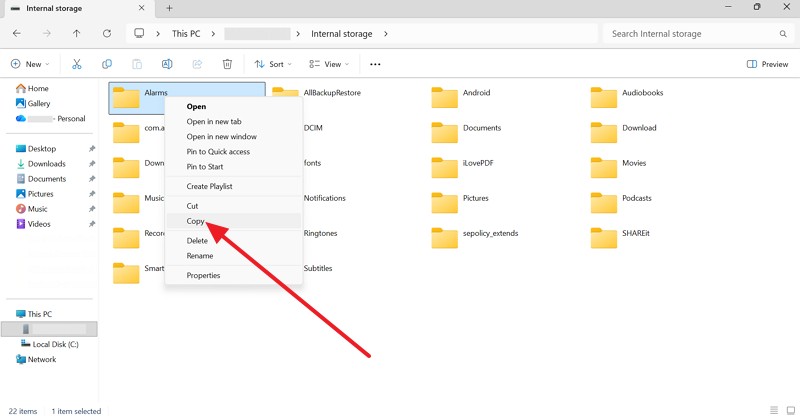
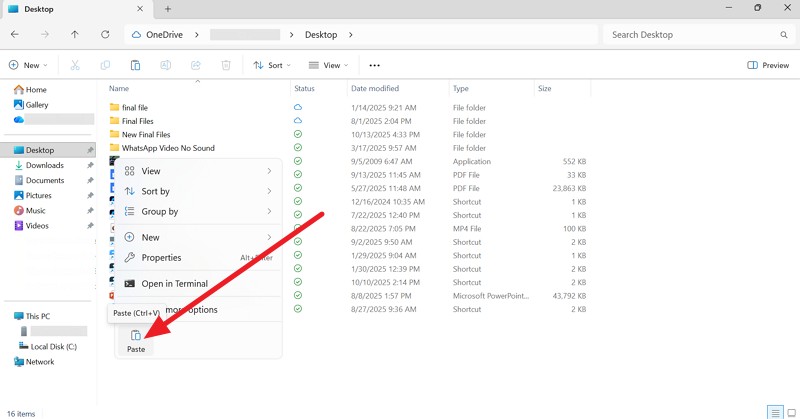
For those who prefer hands-on control, manual transfer via USB is a reliable option. It lets you move files directly between devices without the internet. When transferring from one Pixel to another Android, it is a simple plug and copy. However, for Pixel to iPhone, you will need iTunes or Finder to complete the process smoothly. Go through these instructions if you want to move data from Pixel to another Android:
Step 1. Connect your Pixel with a computer > Copy the data by right-clicking on it from the Pixel's Internal storage.
Step 2. Choose the new phone > Paste the copied data by right-clicking on it.

Conclusion
Summing up, if you want simple solutions for transferring your Google Pixel to a new phone, this guide has given 8 simple solutions. So, review the detailed guide along with the transfer direction to pick the right one for you. However, we suggest you use MobileTrans as the solution is highly compatible, supports multiple data types, and can also be used for data backup and restoration.










