



 TL;DR:
iOS 27 enables iPhone 11 and newer models to natively create, customize, and export media slideshows as permanent video files directly within the Photos app.
● Initiate the process via the Three Dots menu inside any album, selection, or collection, but be aware that playback strictly follows the existing library or album order and must be rearranged prior to generating the slideshow.
● The Customize menu offers specific controls for individual slide durations, transition styles, and soundtracks, though using DRM-protected Apple Music tracks may block the Share > Save Video export function.
● Creating a slideshow requires all selected iCloud media to be fully downloaded to the device beforehand and consumes significant additional storage by generating a new video file, making local computer backups via MobileTrans a recommended prerequisite for devices with low space.
Ask AI for a summary
 ChatGPT
 Perplexity
 Gemini
 Claude
 Grok
Grok
Until now, users required external software to construct a permanent slideshow. Apple Photos displayed images sequentially but failed to export files, forcing creators into iMovie or third-party editors. iOS 27 solved that problem completely.
The native application now features custom transitions, duration adjustments, soundtrack integration, and a direct export button. Learn how to make a slideshow on iPhone, and discover solutions for missing settings or playback errors.
In this article


Part 1. What Is New for iPhone Slideshows in iOS 27?
Before you learn how to create a slideshow on an iPhone, review this section to understand what changed in iOS 27. Apple has expanded Photos slideshows with new customization controls and the ability to save a slideshow as a video.
Create a Slideshow from Any Album or Photo Selection
iOS 27 provides advanced slideshow customization controls. Users can adjust transition styles and set custom durations for both the entire project and individual photos. These new options replace previous automatic playback limits with precise personal control.
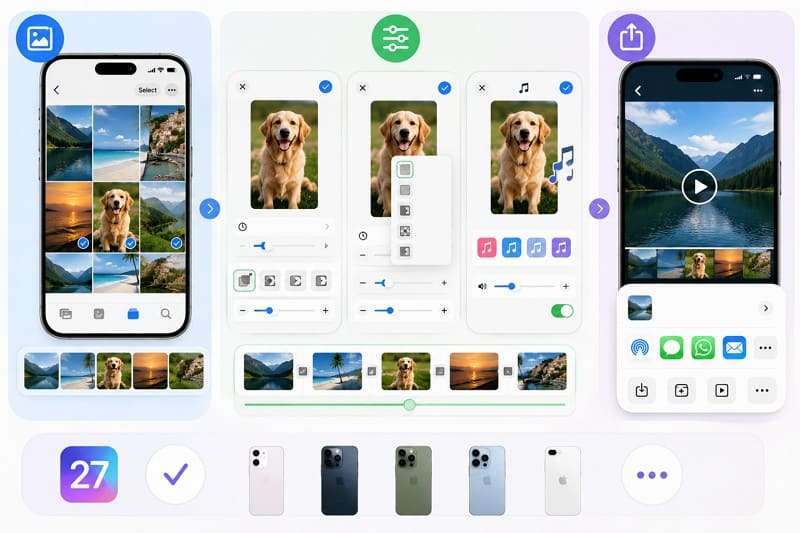
Customize Transitions, Slide Duration, and Music
iOS 27 also introduces direct video export inside the Photos app. Apple specifically lists “Save any slideshow as a video in Photos” among its iOS 27 Photos improvements. Users can export finished slideshows as videos for simple sharing rather than keep them trapped inside Photos.
Since these updates are standard system improvements rather than exclusive AI requirements, every device compatible with iOS 27 from the iPhone 11 and SE (2nd generation) onward gets full access.
Part 2. How to Make a Slideshow on iPhone with iOS 27?
3 separate paths lead to the same editor, making how to make a photo slideshow on an iPhone simple. Choose albums, specific files, or complete collections to build your sequence. Each method opens the same custom settings in a minute. This section explains each and guides you on how to create slideshows in real time.
Method 1: Create a Slideshow from a Photo Album
Albums are the easiest starting point because the order and contents are already set. You don't need to select images one at a time, and Apple documents the basic flow on its support pages. However, the album’s own order becomes the slideshow order, so rearrange it beforehand. Once set, follow these steps to learn how to make a photo slideshow on iPhone:
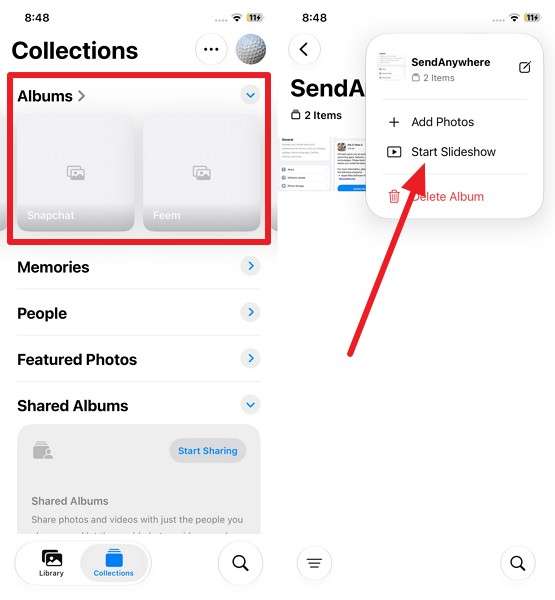
Instructions. Open Photos > Albums > Choose the album > Press Three Dots > Select Start Slideshow.
Method 2: Create a Slideshow from Selected Photos and Videos
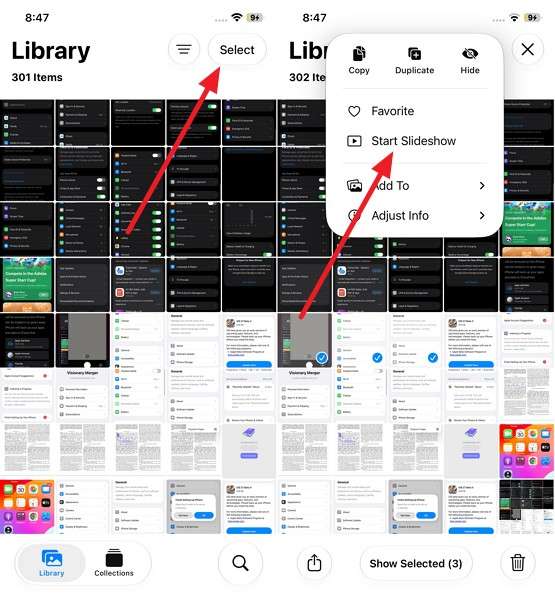
Hand-picking files provides precise control beyond standard albums. Videos mix with stills, and playback follows precise library sequence rather than manual arrangement. Use this method to construct highlight reels from months of captures. As for the guide on how to make a photo slideshow on iPhone, here are the directions:
Instructions. Go to Library > Select > Three Dots > Choose images and videos > Three Dots > Start Slideshow.
Method 3: Create a Slideshow from Your Photo Library or Collection
Collections group photos automatically by day, month, trip, or person. Using pre-made groups skips manual selection entirely for quick birthday montages. The trade-off is precision, because the system decides what belongs there. If you seek to use this option, here is how to do a slideshow on iPhone:
Note: Photos rebuilds collections as your library grows, so check the contents rather than assuming.
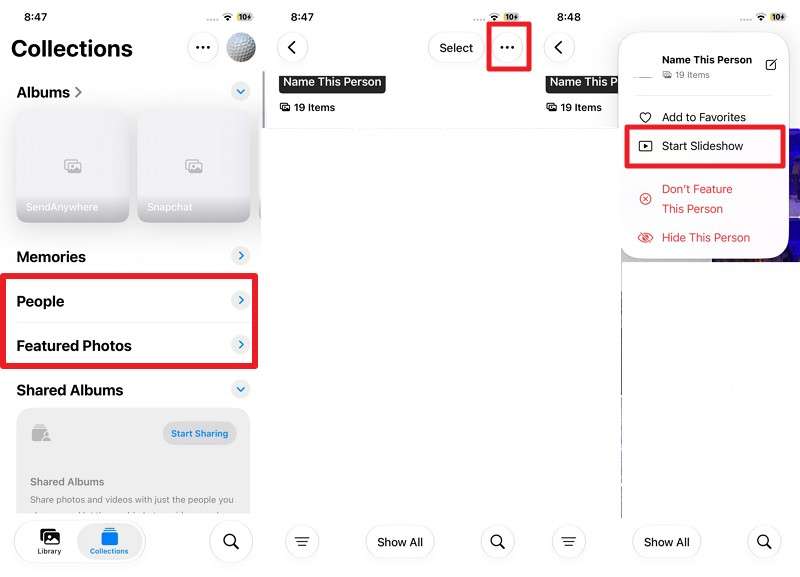
Instructions. Tap Collections > People or Features Photos > Select > Three Dots > Start Slideshow.






Part 3. How to Customize a Photo Slideshow on iPhone?
While some search for “how do you do a slideshow on iPhone,” others want to know more about slideshow customization. Pause the slideshow and tap Customize to access its editing options. From there, you can adjust transitions, duration, background music, and other available slideshow settings.
- Change the Slideshow Transition: Open the slideshow controls and choose Customize > Transition & Duration to change how photos transition from one to another. iOS 27 adds direct transition controls that weren't available for these quick slideshows before.
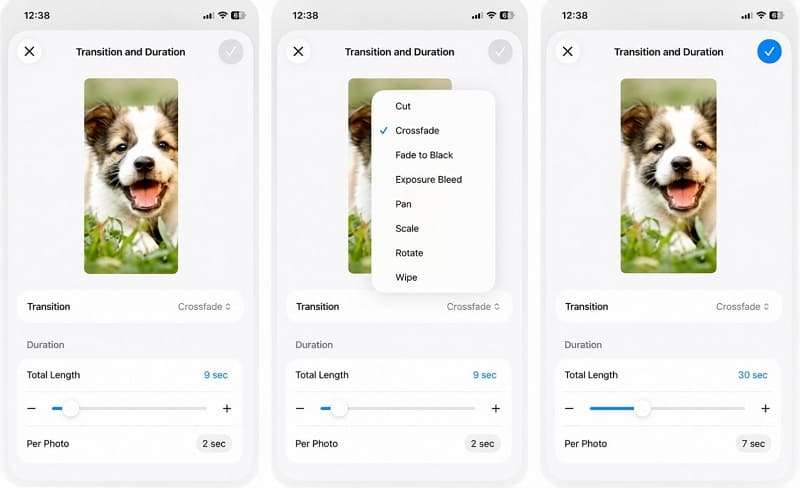
- Adjust How Long Each Photo Appears: Under Customize > Transition & Duration, change the duration to control how long individual photos stay on screen.
- Add or Change Background Music: Open Customize > Music and use Choose Song to select music for the slideshow. You can also turn music off for silent playback. Available music options may vary, and some protected Apple Music tracks may not work when exporting the slideshow as a video.
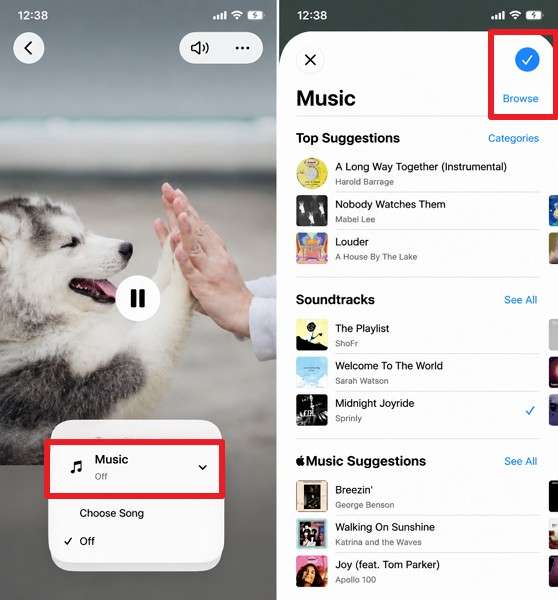
- Preview the Slideshow Before Saving: Play the finished slideshow once to check its pacing, transitions, photo selection, and music before saving it as a video.
Part 4. How to Save and Share an iPhone Slideshow
Previously, iPhone slideshows were mainly designed for playback rather than permanent video creation. iOS 27 changes that by letting you save finished slideshows as videos. This gives users searching how to make a photo slideshow iPhone a reusable file they can keep, share, or watch later.
Save the Slideshow as a Video
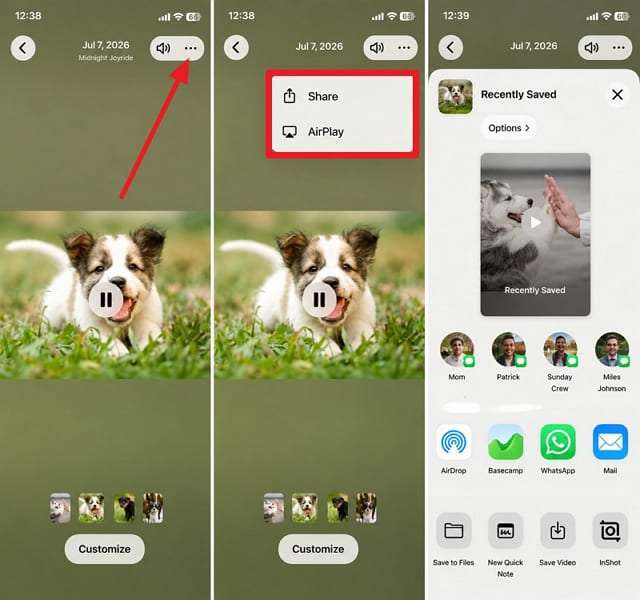
iOS 27 lets users save a slideshow as a video in Photos, preserving its transitions, timing, and other customizations. Open the Three Dots > Share > Save Video to export the finished slideshow. Unlike Mac Photos, iPhone doesn't offer explicit 480p, 720p, or 1080p export controls. However, you can adjust available settings such as orientation and aspect ratio before saving the slideshow as a video.
Share the Slideshow Through Messages, AirDrop, or Social Media
Once your slideshow is ready, open Three Dots > Share to access the Share Sheet. From there, you can share it directly through AirDrop, Mail, WhatsApp, or other compatible apps without saving it first. Alternatively, choose Save Video to keep a copy in your Photos library for later sharing or editing.
Part 5. Back Up Slideshow Photos and Videos with MobileTrans
Exported video files consume substantial storage without shrinking your original photos. This disk pressure hits hard when space runs low. So, after you know how to create slideshows on iPhone, this section highlights the importance of backing up photos, videos, and slideshows.
Why Back Up Photos Before Managing Your iPhone Library
Freeing up iPhone storage may involve deleting photos and videos you no longer need. When you use iCloud Photos, deleting an item on one device also removes it from other devices using the same Apple Account. Deleted items remain in Recently Deleted for 30 days before permanent removal. Keeping a separate backup provides additional protection before clearing your library.
Back Up iPhone Photos and Videos to a Computer with MobileTrans
MobileTrans-Backup & Restore lets you back up iPhone photos, videos, and other supported data to a computer over USB without relying on cloud storage. It supports more than 18 data types and keeps the original content on your iPhone during backup. When needed, you can selectively restore supported data from a MobileTrans backup without performing a full factory reset or replacing unrelated content.
The tool can also back up and restore supported social app data, including WhatsApp and WhatsApp Business. It also offers options to transfer data from apps such as LINE, Viber, and Kik. For WhatsApp, you can export conversations as readable PDF or HTML files. Together, these capabilities make MobileTrans a practical option for protecting important conversations, media, and slideshow content.
Key Features
- Whole-Library Backup: Back up your supported iPhone photos, videos, and other selected data to a computer in a single backup session.
- No Cloud Required: Store the backup locally on your computer, avoiding the need to purchase additional cloud storage for large media libraries.
- Selective Restore: Choose the supported data you want to restore instead of restoring the complete MobileTrans backup to your device.
- Smart AI Cleanup: Identify duplicate, large, low-value, or unnecessary WhatsApp media, helping you review and reduce unwanted backup content.
- Broad Device Compatibility: MobileTrans supports a wide range of iPhone and Android devices, including iPhone 17, iOS 27, and recent Android versions.
Guide to Back Up Your Photo Library to a Computer
While you learn how to make a slideshow on your iPhone, back up the photo library with MobileTrans through this guide:
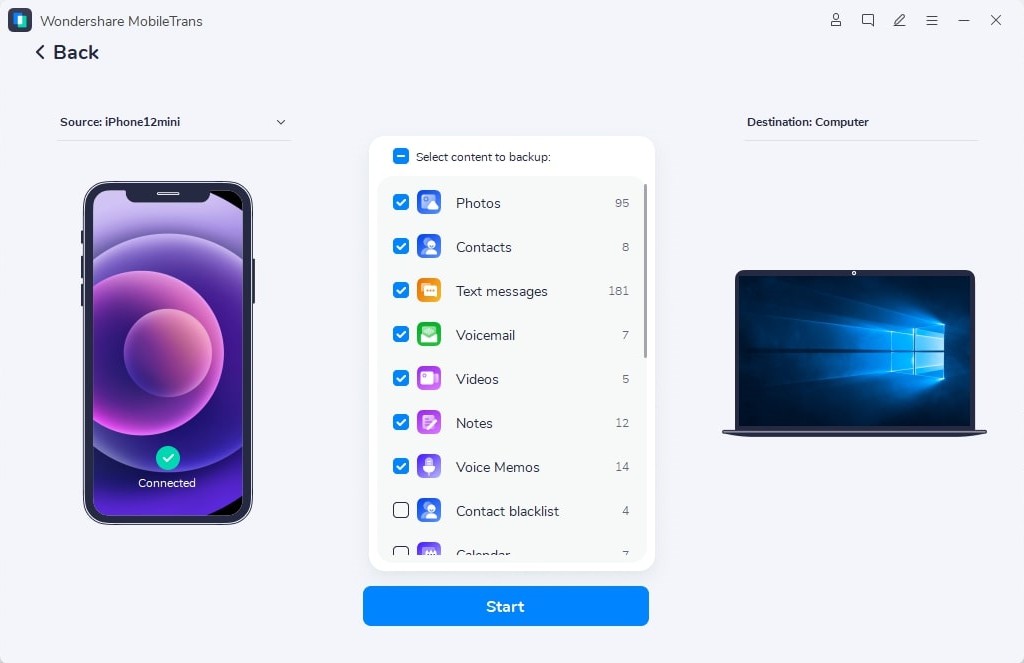
Step 1. Launch MobileTrans and go to Backup & Restore > Backup.
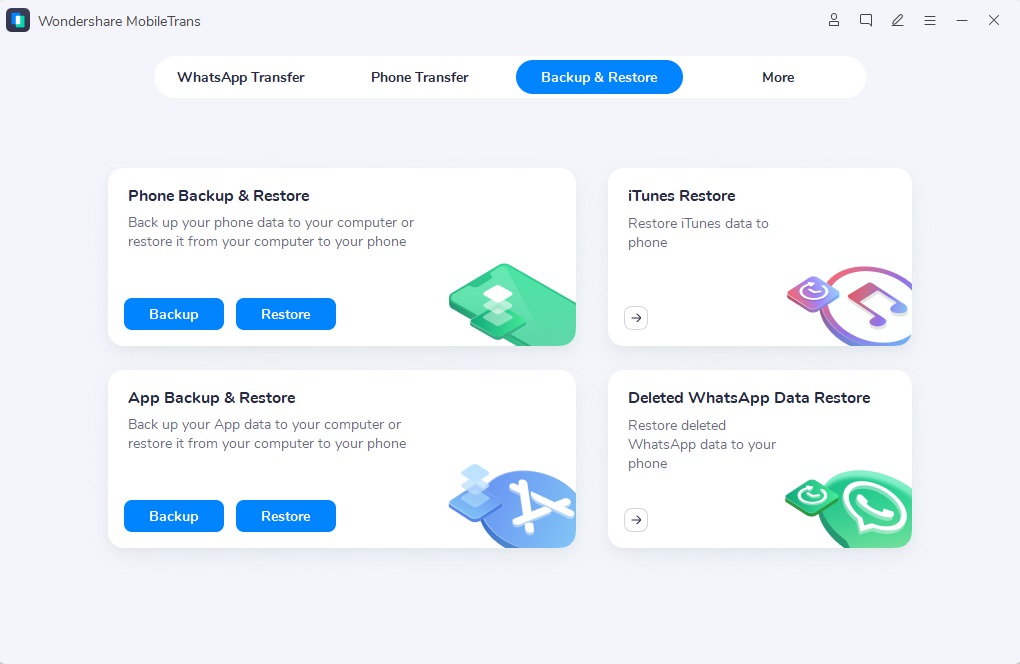
Step 2. Unlock the iPhone, attach it, choose data types, and press Start.
Part 6. What To Do If iPhone Slideshow Is Not Working
With your original photos and videos safely backed up, the next step is troubleshooting problems that may interrupt slideshow creation or playback. Even if you know how to make a slideshow on your iPhone, unexpected issues can still affect the process. The table below covers common slideshow problems, their likely causes, and practical solutions.
| Problem | Cause | Solution |
| Start Slideshow Option Does Not Appear | The device is not running iOS 27, or the required photos are not selected. | Update to iOS 27 and select the photos or album before opening the slideshow options. |
| Slideshow Does Not Include All Selected Photos | Some selected iCloud photos or videos have not fully downloaded to the iPhone. | Connect to a stable network, download the missing originals, and then create the slideshow again. |
| Background Music Is Missing | The selected song is unavailable, incompatible, or cannot be used with the slideshow. | Choose another available soundtrack or compatible song and confirm that media volume is turned up. |
| Slideshow Cannot Be Saved as a Video. | The iPhone lacks enough available storage, or the selected music prevents video export. | Free some storage or replace incompatible music, then use Share > Save Video again. |
| Saved Slideshow Takes Too Much iPhone Storage. | Exporting creates an additional video file alongside the original photos and videos. | Move or back up the exported video elsewhere, then delete the local copy if you no longer need it. |
Conclusion
Mastering how to make a slideshow on iPhone transforms static camera rolls into polished, shareable videos. iOS 27 adds direct export tools, transition controls, and custom music options inside Photos. You can also share finished slideshows directly or save them as videos for later use. Meanwhile, backing up your library with MobileTrans helps protect important photos and videos before you manage or export your projects.
FAQ
-
Can an iPhone slideshow include both photos and videos?
Yes, select them together, and both play in sequence, with video clips running at their own length rather than the slide duration you set. That can throw off pacing if a long clip sits in the middle. It is one reason people asking how to do a slideshow on iPhone prefer the manual selection method.
-
Can you use your own music in an iPhone photo slideshow?
Yes, from your music library. Apple Music subscribers can choose from the full catalog, but tracks need to be downloaded for offline use, or playback will stop when the connection drops. DRM-protected songs may not survive an export, so test a short slideshow before building a long one around a licensed track.
-
Where are slideshow videos saved on an iPhone?
In the Photos app itself. An exported slideshow lands in Recents as a standard video file and syncs through iCloud Photos like anything else you shoot, so it appears on your other Apple devices. There is no separate slideshow folder to look in.
-
What is the difference between an iPhone slideshow and a Memory movie?
You create a slideshow by selecting the photos, music, transitions, and timing you want. In contrast, Apple automatically creates a Memory movie around meaningful people, places, or events. Memory movies include automatically selected music and visual styles, while slideshows provide more direct control over the content and presentation.










