


 TL;DR:
The MobileTrans App is the most capable tool for transferring diverse data types from Android to iPhone 17 without a factory reset, while Apple's official Move to iOS is the standard choice exclusively for devices in the initial setup phase.
● Move to iOS securely migrates essentials like messages and WhatsApp history directly, but it functions solely during the iPhone configuration process and mandates a full device reset if skipped previously.
● MobileTrans provides selective file migration and transfer speeds up to 30 MB/s through a secure local hotspot, making it ideal for heavy transfers despite its limited free usage options.
● Google Drive serves as a wireless cloud backup method for users moving standard media and documents, though it strictly imposes a 15GB free storage cap and cannot migrate internal application data.
Ask AI for a summary
 ChatGPT
 Perplexity
 Gemini
 Claude
 Grok
Grok
Multiple users face challenges when shifting personal files, photos, and contacts from their old Android phones to the iPhone 17. The entire process often feels confusing because both platforms work differently, causing doubts and delays. That is why finding the best app to transfer data from Android to iPhone 17 becomes important. So, this article will help you move data quickly and enjoy your new iPhone 17 without any stress.
In this article
Part 1. Factors to Consider While Choosing the Best App to Transfer Data to iPhone 17
When you're trying to send data from one phone to another, the right tool makes it all effortless. Below, you will discover a few factors that ensure your transfer is safe and effortless:
- Compatibility: The Android-to-iPhone transfer app must fully support iPhone 17 and your current Android version. So, always check for any updates in the apps, as the older version of the software creates problems in the transfer process.
- Data Types Supported: A good app should move photos, videos, messages, and contacts without skipping important items. Thus, ensure it handles different file types, as incomplete transfers can cause serious inconvenience.
- Speed of Transfer: Such apps should also move files quickly and save time when shifting large amounts of data. Slow apps can delay setup and make the iPhone experience less enjoyable.
- Security: Users should choose an app that ensures their private information remains safe during transfer between devices. Apps without security may risk your files being accessed or lost unexpectedly.
- Customer Support: Select a transfer app that provides guides, tutorials, or instant customer help. Good support means you resolve errors quickly and continue transferring without long, unnecessary delays.
Part 2: 5 Best Apps to Transfer Data from Android to iPhone 17 with One Click
Switching devices becomes smoother when reliable tools make the migration process easier and effortless for users. So, the following parts will help you discover the top 5 Android to iPhone data transfer apps:
1. MobileTrans App (Android / iOS)
Best For: Best for quick, secure, and hassle-free phone-to-phone transfers across Android, iOS, and multiple brands.
MobileTrans is highly recommended as the best app for transferring Android to iPhone 17 quickly. It allows users to move multiple types of phone data, including multimedia, music, and contacts, effortlessly. This app ensures complete cross‑platform flexibility, supporting transfers from Android to iOS, iOS to iOS, and more. It offers a fast transfer speed of up to 30 MB/s to save time while handling large files efficiently.
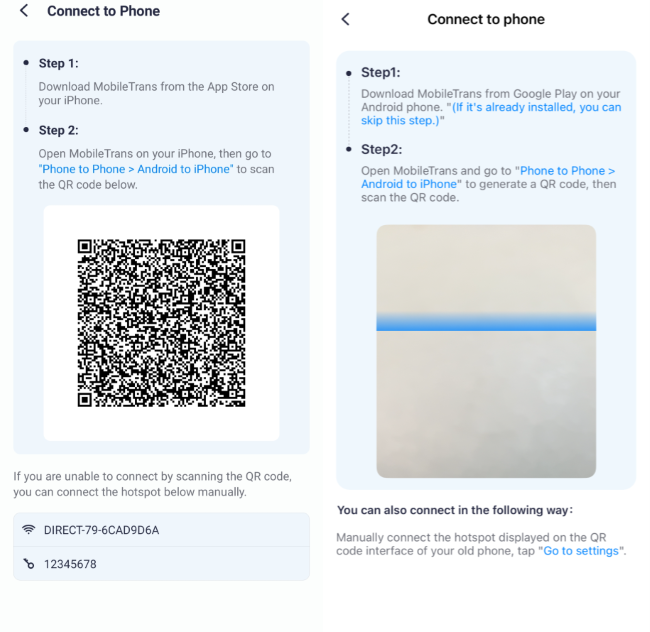
Moreover, the app consumes zero mobile data by creating a secure local hotspot during file migration. A QR code scanning option allows instant and safe connection for smooth migration without extra cables. MobileTrans guarantees strong privacy protection, ensuring your files remain secure while moving between devices. Additionally, the file transfer feature is quite simple, supporting Word, Excel, PowerPoint, PDF, and many document formats.
Key Features
- No File Limit: Handles transfers of large files and high volumes of data without restrictions.
- Selective Transfer: Allows choosing specific files or data categories to transfer instead of the entire data.
- WhatsApp Transfer: Even lets you migrate WhatsApp data, including chats and media files, safely between devices.






Review the step-by-step guide given below to understand how to use this app to transfer data from Android to iPhone 17:
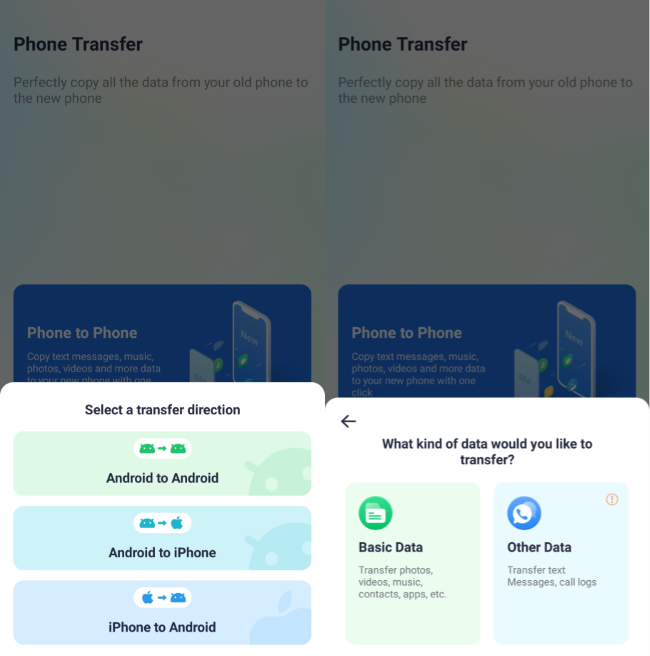
Step 1. Access MobileTrans on Android and tap Phone to Phone > Android to iPhone > Basic Data > Choose Data > Send.
Step 2. On iPhone, press Phone to Phone > Android to iPhone > Scan QR Code and transfer data.
When you want a complete solution, we also recommend trying the desktop version of MobileTrans. Its phone-to-phone transfer feature simplifies data movement by supporting 18+ data types. The tool is also compatible with 6,000+ mobile devices and supports effortless migration between Android and iOS. With one click, MobileTrans guarantees safe and quick data movement across all smartphone models.
2. Move to iOS (Android)
Best For: For first-time iPhone users who want a simple transfer method during phone setup.
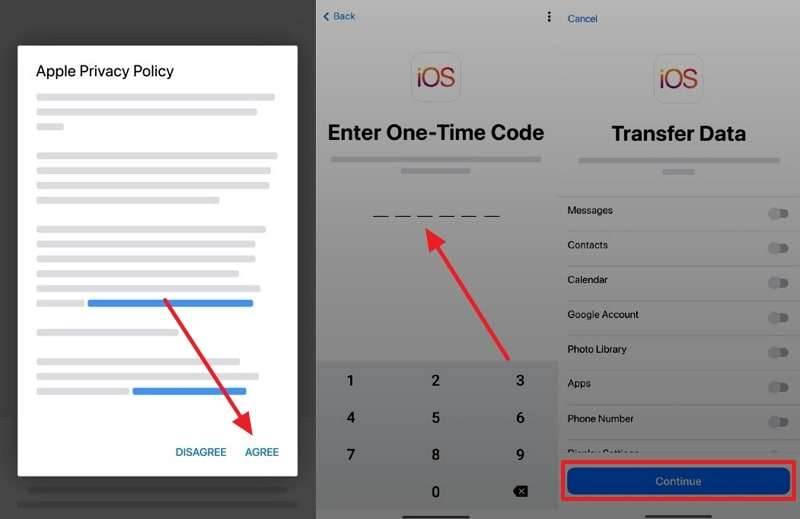
Move to iOS is Apple's official app to migrate from Android to iPhone 17 and make switching much simpler. It securely transfers contacts, messages, multimedia, calendars, mail accounts, and even WhatsApp data. However, this solution only works while setting up your new iPhone, not after initial configuration. Thus, go through the guidelines below to understand how you can utilize this app:
Step 1. While setting up the iPhone, tap From Android > Continue > Receive 6-Digit Code.
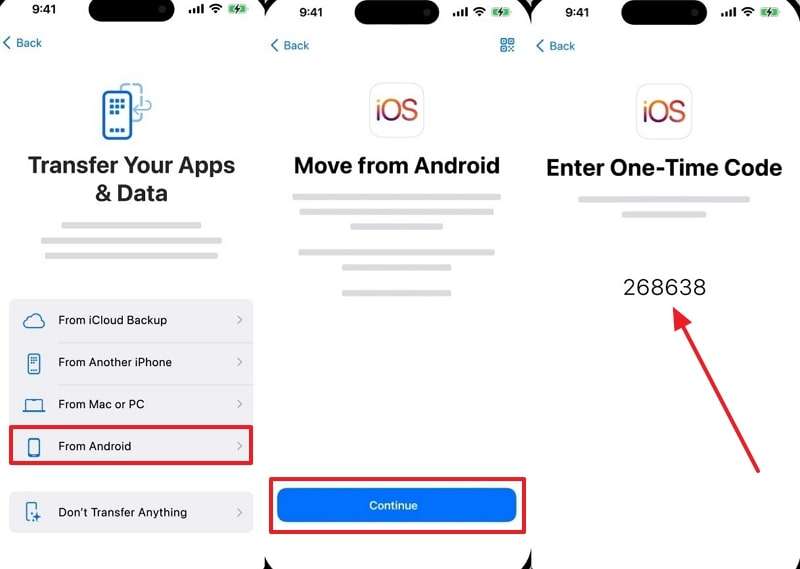
Step 2. On your Android, press Agree > Enter 6-Digit Code > Enable required data types toggle > Tap Continue.
3. Google Drive (Android / iOS)
Best For: Users preferring cloud storage to back up and restore files across Android and iPhone.
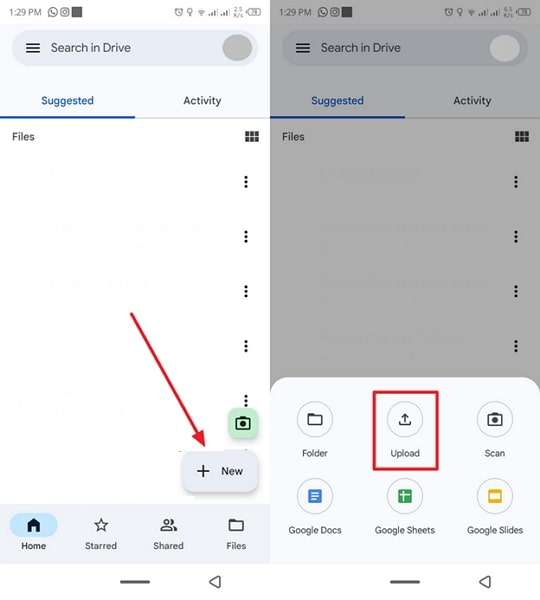
Google Drive is another reliable application to transfer data from Android to iPhone 17, especially for essentials. It helps back up photos, videos, contacts, and documents to cloud storage with ease. Once saved, you can sign in on iPhone and restore everything instantly without cables. Anyway, adhere to the following steps to move your desired data from one phone to another by backing up to Google Drive:
Step 1. Access Google Drive on Android and tap + > Upload and upload your desired data.
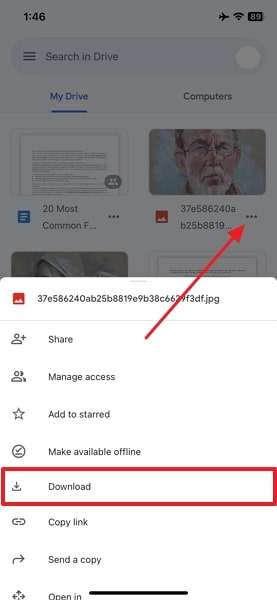
Step 2. After accessing the same account on your iPhone, tap Three Dots > Download.
4. InShare (Android / iOS)
Best For: For needing fast, cross-platform sharing of photos, videos, apps, and large files.
InShare is one of the best apps for transferring data from Android to iPhone 17. It transmits files faster, at speeds equivalent to up to 40Mb/s, much faster than Bluetooth connections. Apart from that, InShare also includes a native file manager to organize and share content effortlessly. To learn how to use this advanced app, head to the given steps below and move data effortlessly:
Step 1. On your Android InShare app, tap the Send > Choose desired data > Send button.
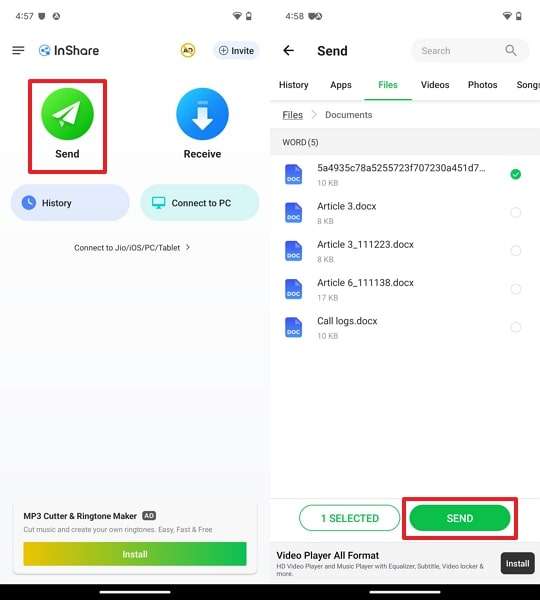
Step 2. Launch the app on your iPhone and press Connect To Android > Scan QR Code from Android to receive data.
5. Smart Transfer: File Sharing (Android / iOS)
Best For: Ideal for transfers of contacts, photos, videos, and music using secure activation codes.
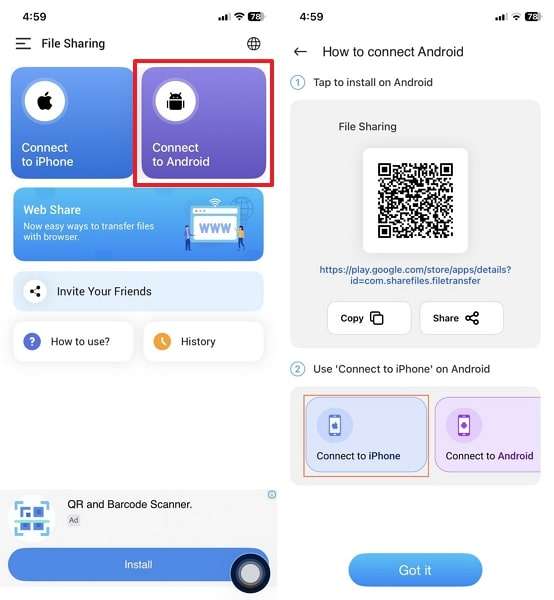
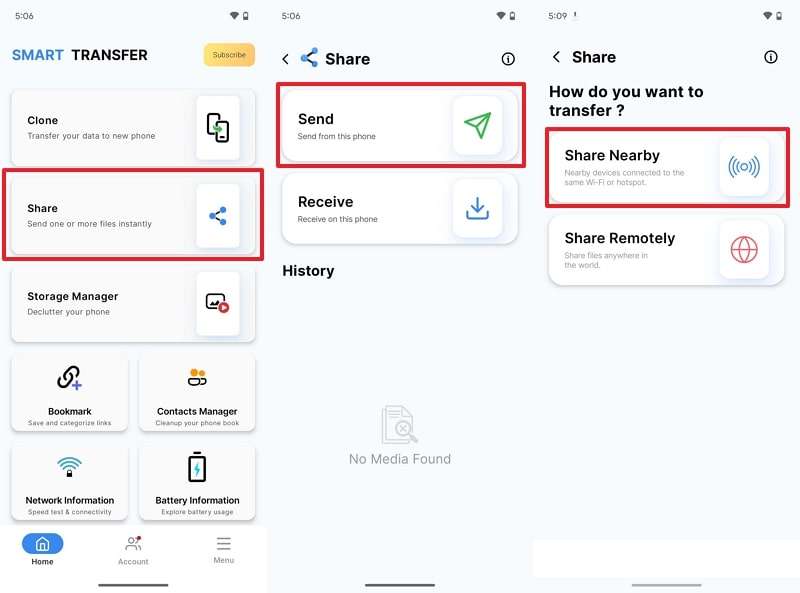
Among the available Android-to-iPhone data transfer apps, Smart Transfer also supports cross-platform transfers using activation codes. The app handles multiple content types such as contacts, photos, videos, music, reminders, and calendar events. It transfers files over a hotspot or Wi-Fi without losing quality. So, take guidance from the given steps to find out how to use this dedicated app to move your desired app between 2 phones:
Step 1. Run the app on your Android and choose Share > Send > Choose Data > Share > Share Nearby to access Scan QR Code.
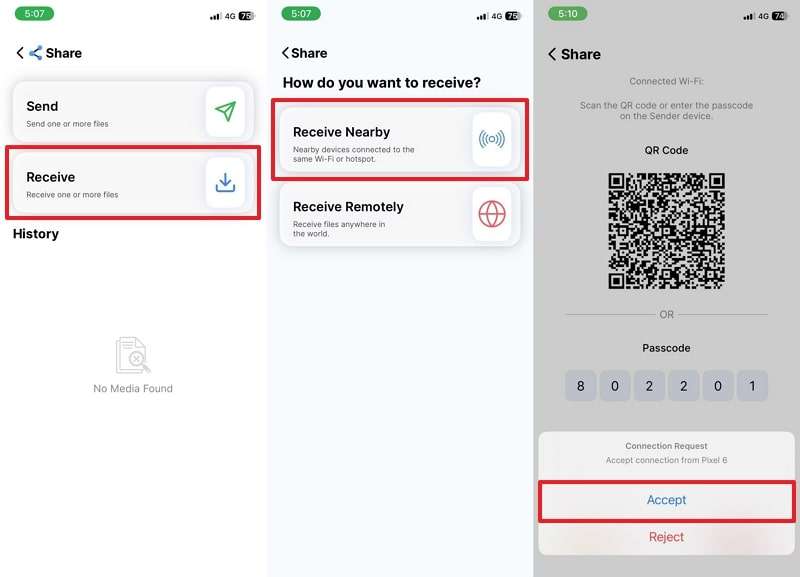
Step 2. On your iPhone's app, tap Receive > Receive Nearby > Scan QR Code > Accept.
Conclusion
In summary, this article covered the top apps to transfer data from Android to iPhone 17 quickly and safely. Each app has unique strengths for handling files, contacts, messages, and media. While varying in speed and compatibility, these solutions make switching phone systems less stressful.
For a powerful, hassle-free experience that supports many data types with strong privacy, the MobileTrans App remains the best app to transfer data from Android to iPhone 17.










