



 TL;DR:
Resolve OPPO Clone Phone transfer failures by verifying ColorOS compatibility, preventing background task restrictions, or utilizing MobileTrans for seamless cross-platform data migration.
● Successful native transfers require the target device to run ColorOS and the sending phone to operate on Android 6 or higher with inactive Google Play services.
● To prevent the clone process from freezing midway, users must disable battery optimization, turn off VPNs, explicitly grant storage permissions, and keep both device screens unlocked.
● MobileTrans serves as a reliable alternative for users facing repeated native app errors or requiring cross-platform support, offering offline migration of over 18 data categories across iOS and Android without local hotspot limitations.
Ask AI for a summary
 ChatGPT
 Perplexity
 Gemini
 Claude
 Grok
Grok
The excitement of switching to a new phone can quickly turn stressful. Many users rely on apps to move contacts and other data between devices. However, the process sometimes fails, leaving people frustrated. One common problem is when the OPPO Clone Phone is not working, which can stop data transfer. In this guide, we will explain easy solutions and quick steps to fix every block without hassle.
In this article

Part 1. Why OPPO App Cloner or Phone Clone Might Fail on Your Device
Switching devices should feel easy, but sometimes the app stops working. So, this part lists the top reasons why the OPPO app cloner is not working on your device:
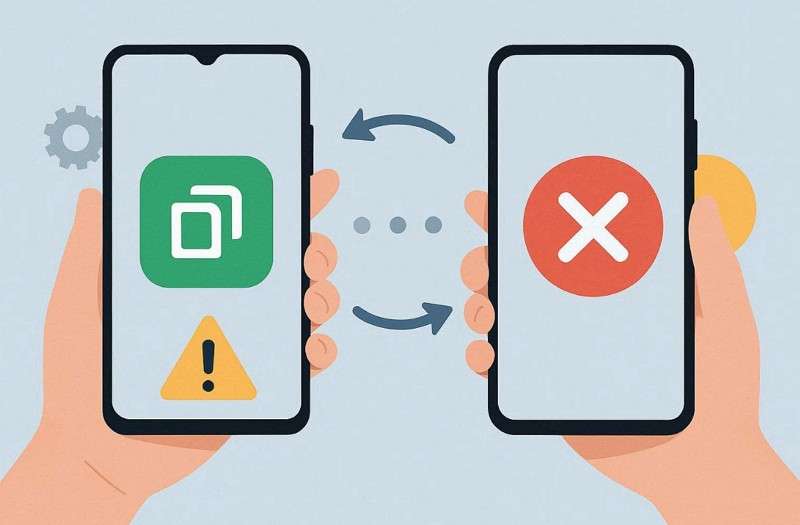
- Old Software: An outdated system on the sender phone rejects new clone commands. The receiver lacks a matching version, so data packs bounce back without being fully loaded.
- Permission Denied: Your app cannot access contacts or storage if permissions are restricted. Without permission, it fails to copy messages and other essential data.
- Network Problems: A weak connection disrupts communication between phones. Thus, unstable networks lead to incomplete or failed cloning of all content.
- App Glitch: Temporary bugs can cause the clone process to freeze or crash. This issue also prevents files from moving and causes errors during the operation.
- Compatibility Issue: Some phones cannot run the app because their system version is outdated. Incompatible devices fail during transfer, resulting in errors and halting file movement.
Part 2. 4 Ways to Resolve OPPO App Cloner Not Working Across Devices
When the clone app stops working, finding solutions becomes very important for a smooth transfer. Below, you will find multiple fixes to resolve issues like the OPPO A5s app cloner not working:
Way 1. Check Compatibility and Permissions
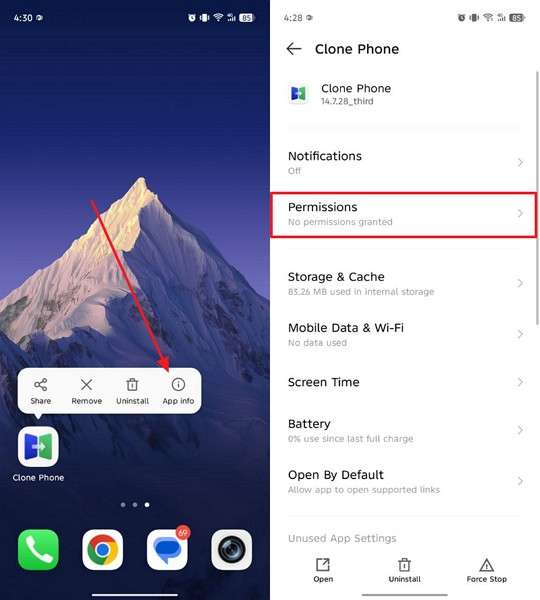
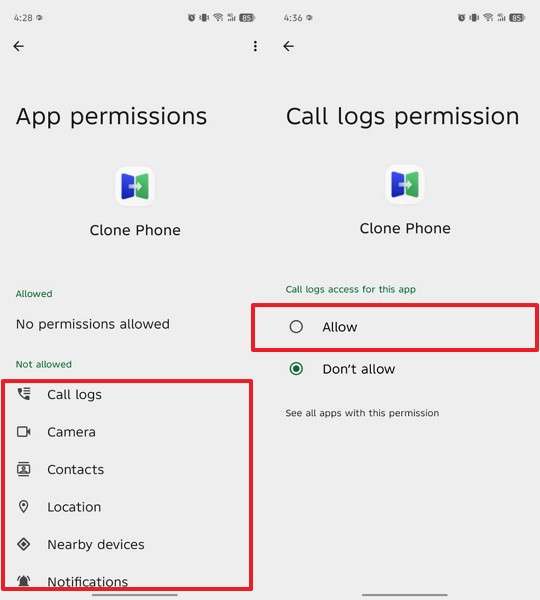
Before starting, ensure both phones support the app’s required system version. New phone needs OPPO with ColorOS for smooth handoff every time. Old phone runs Android 6 or higher without Google Play services active. Plus, ColorOS 6+ on sender pairs best with the target version clean. Besides, confirm all permissions, including storage and contacts, on both phones. So, go through the steps below to check the app’s permissions:
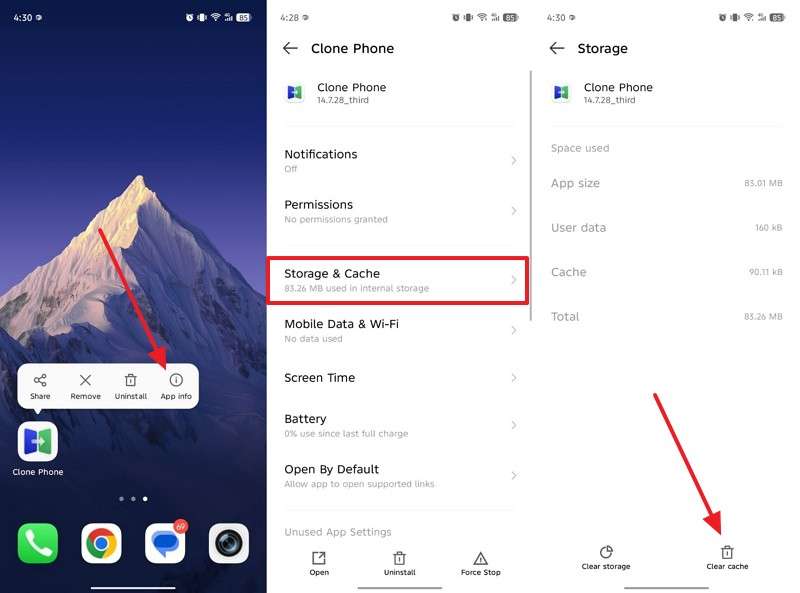
Step 1. Press the app’s icon and tap App Info > Permissions.
Step 2. Tap the category you want to enable, then tap Allow.
Way 2. Fix Connection and Network Issues
You should also ensure both phones are placed close together for a b, stable connection. In addition, turn off VPN and ad blockers that break the local hotspot fast. Apart from that, switch data saver off to free up background network usage.
It is also recommended to keep screens active and the clone app running in the foreground. These steps prevent interruptions and reduce errors, especially when the OPPO app cloner is not working.
Way 3. Restart, Clear Cache, Reinstall
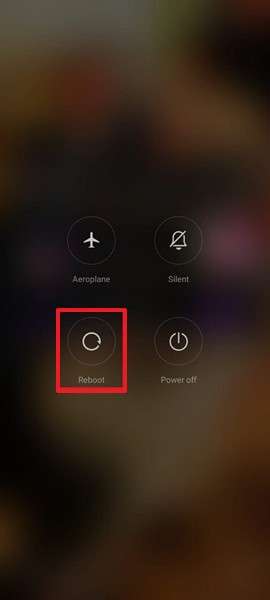
Restart clears hidden bugs that prevent the OPPO phone clone from working during data migration. This wipes out temp glitches blocking the data path from start to end. Beyond that, clearing the cache removes old junk files, so the app runs clean without prior mess. If the issue persists, reinstall your app to get the latest fixes and avoid corrupt code blocks. Let's explore how to perform these solutions:
Restart: When you press the Power key for 5 to 10 seconds, tap Reboot.
Clear Cache: Navigate to App Info > Storage & Cache, then tap Clear Cache.
Reinstall:
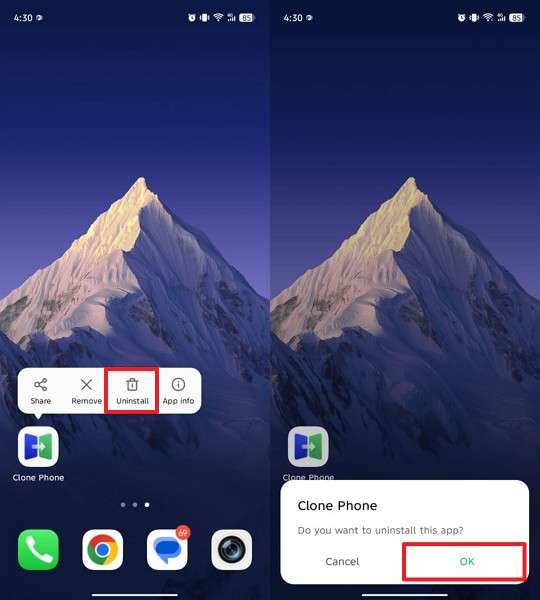
Step 1. As you press the OPPO Phone Clone app icon, tap Uninstall > OK.
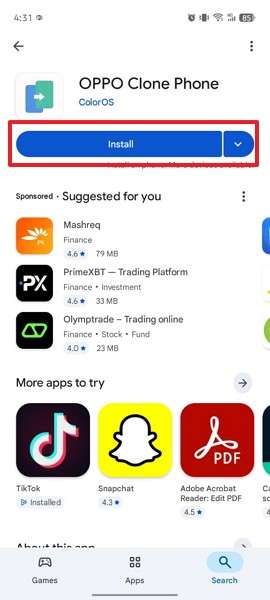
Step 2. Search for the app on the Google Play Store > press the Install button.
Way 4. Power-Saving and Screen-Off Issues
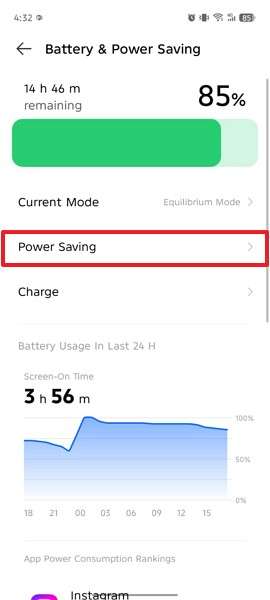
Power-saving modes can limit background activity and stop apps from running. Therefore, disabling battery optimization ensures the clone app works without interruptions. You should also keep the screen on to prevent the app from pausing during data transfer. Anyhow, adhere to the following steps to turn off the power saving mode on your phone:
Step 1. Go to your device’s Settings > Battery & Power Saving.
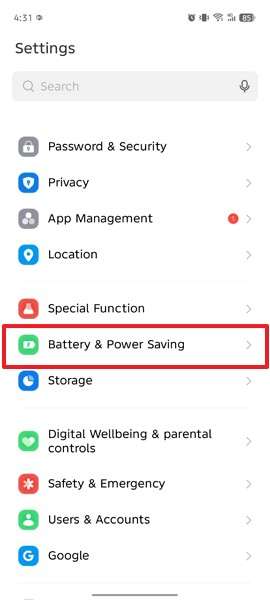
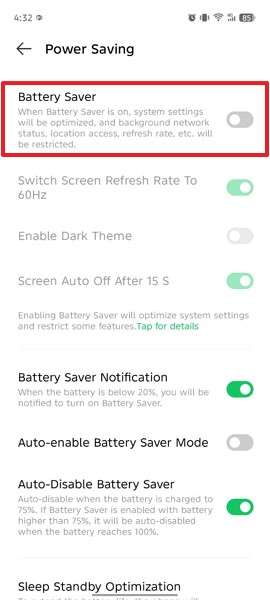
Step 2. Access the Power Saving section to move forward.
Step 3. Tap the Battery Saver toggle to turn it off.
Part 3. Better Than OPPO Clone App: Use MobileTrans to Transfer Data
Switching phones fails when the OPPO Clone Phone is not working, so MobileTrans is ideal. It steps in as the top pick for speed, beating others by 96%. Plus, the tool ensures secure transfers with military-grade encryption, protecting all your data. Before data migration, users can also select specific data from their old phones, in addition to moving everything. MobileTrans also transfers data between Android and iPhone without losing quality.
Key Features
- Offline Transfer: Transfers data without internet or an online account.
- Wide Support: Works with 6000+ Android and iOS devices across many brands worldwide.
- Movie Transfer: Transfers 8 full movies per hour with no loss of quality.
- Photo Speed: Sends 6500 photos per hour between 2 phones without hassle.
- App Migration: Migrates apps with related data, avoiding manual reinstallation steps.






Part 4. MobileTrans vs OPPO Clone App: The Easiest Way to Move Data
Choosing the proper transfer option matters when repeated failures slow down phone setup. The following comparison table helps users decide which solution offers stability and flexibility:
| Feature | MobileTrans | OPPO Clone App |
| Transfer Speed | Very fast with optimized parallel transfer | Slower on large data |
| Internet Required | No internet needed | Requires a local hotspot |
| Cross-Platform Support | Android to Android, Android to iPhone, iOS to Android, iOS to iOS | Mainly Android or iPhone to OPPO |
| Device Compatibility | Supports 6000+ Android and iOS devices | Limited to supporting other Android brands |
| Selective Transfer | Allows choosing specific data types | Allows but limited |
| Data Types Supported | 18+ types, including apps and app data | Limited data categories |
| App Migration | Moves apps with in-app data | Apps often require reinstallation |
| Security | Uses b encryption during transfer | Basic local transfer security |
| Stability | Works even when clone apps fail | Prone to interruptions and errors |
| Phone to Computer | Supports phone and computer transfers | No computer transfer support |
Based on overall performance, MobileTrans clearly stands out as the better option. So, you can review the given guide to use MobileTrans for an effortless data migration process:
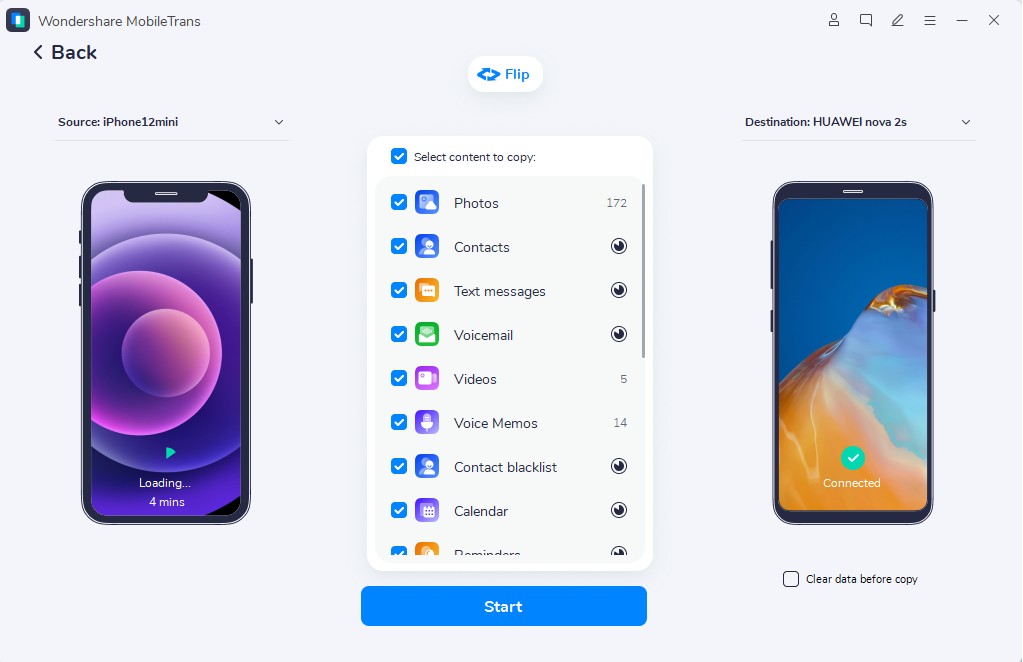
Step 1. When you access Phone to Phone > Link your phones > Select your desired Data > Press Start.

Step 2. Data transfer begins automatically, with real-time progress shown during the process.
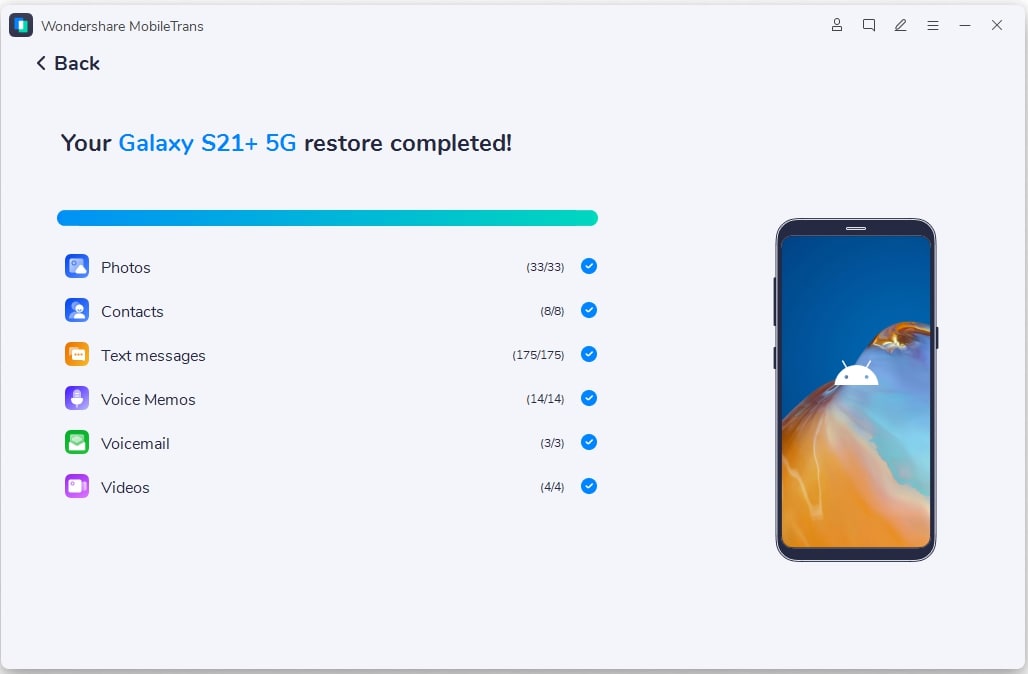
Step 3. After completion, a success screen confirms that all selected content was moved.
Conclusion
In conclusion, clones fail when the OPPO Clone Phone is not working, wasting time and risking data loss. Therefore, phone switching becomes stressful when data transfer fails, and files remain stuck. This guide explains the causes and checks to restore smooth device-to-device communication. When this native app fails repeatedly, MobileTrans becomes necessary for fast, flexible transfers everywhere.
FAQs
-
Why does the OPPO Clone Phone stop transferring midway?
Transfers stop when screens lock or when power-saving mode restricts background activity. Incoming calls or notifications can also interrupt the ongoing transfer process. Therefore, keeping phones active effectively prevents mid-transfer failures. -
Is a factory reset required if the OPPO Clone Phone keeps failing?
A factory reset is usually unnecessary and should remain the last troubleshooting option. Most failures result from settings conflicts rather than severe system damage. Thus, trying basic fixes first saves time and avoids data loss. -
Is there an option if the OPPO Clone Phone fails repeatedly?
Repeated failures indicate deeper compatibility issues affecting stable data migration processes. So, using MobileTrans offers a reliable alternative with broader device and platform support. It ensures smooth transfers even when native tools stop working.










