



 TL;DR:
For transferring data to the OPPO A6 Pro 5G, MobileTrans is the most comprehensive tool for cross-platform migrations, while the official OPPO Clone Phone app is best for direct, offline device-to-device setups.
● MobileTrans supports offline transfers for over 6,000 iOS and Android devices, moving 18+ data types including apps and WhatsApp chats at speeds up to 30 MB/s.
● The OPPO Clone Phone app migrates data directly from older Android or iPhone models via a QR code without internet, but requires both devices to remain physically close.
● Cloud-based methods like Google Backup and Google Drive demand an active internet connection and share a 15 GB free storage limit, whereas email transfers are strictly restricted to 25 MB per message.
Ask AI for a summary
 ChatGPT
 Perplexity
 Gemini
 Claude
 Grok
Grok
When upgrading phones, many fear losing cherished photos and important chats. As a new device, the OPPO A6 Pro 5G deserves a smooth and safe start. Starting fresh sounds exciting, but losing personal data can cause stress and confusion. Many users want clear, straightforward guidance that's easy to follow. This guide explains easy ways to transfer personal information without confusion or fear.
In this article

Part 1. Real-Life Use Cases to Transfer Data to OPPO A6 Pro 5G
Real situations help users understand why moving data matters during phone upgrades. These examples show common needs when setting up OPPO A6 Pro 5G:

- New Phone: Buying a new device requires moving contacts and other data for daily use. Without proper transfer, people feel disconnected and must rebuild information.
- Phone Loss: Losing a phone can cause panic because essential files and contacts are lost. People need a straightforward way to restore saved data without stress quickly.
- Old Damage: When old phones break, users rush to save data before it disappears forever. Fast action helps protect users' memories stored in the damaged device.
- Better Speed: New OPPO offers faster performance, making data transfer an essential first step. Starting fresh with old data helps users enjoy improved features more every day.
- Storage Full: Limited space on old phones pushes users to shift data elsewhere safely. Moving files to the new OPPO allows phones to run better and keeps storage free.
Part 2. One-Click Solution to Shift Your Data to OPPO A6 Pro 5G Without Hassle
When users seek an effortless solution, MobileTrans stands out for its one-click data migration. This tool moves data 96% quicker than others on average. For video migration, it can send eight movies per hour without waiting long. In addition, MobileTrans can easily transfer 6500 photos per hour for extensive collections. Additionally, this dedicated program supports data transfer for 6,000+ iOS and Android devices, including OPPO A6 Pro 5G.
Key Features
- Offline Transfer: Works without internet connections to reduce the risk of online exposure.
- App Migration: Transfers installed applications while preserving settings and saved data.
- Data Types: Covers 18+ data variety, including messages and music in one go.




Guide to Shift Your Data to OPPO A6 Pro 5G via MobileTrans
Take guidance from the tutorial given below to migrate your old phone data to the new OPPO A6:
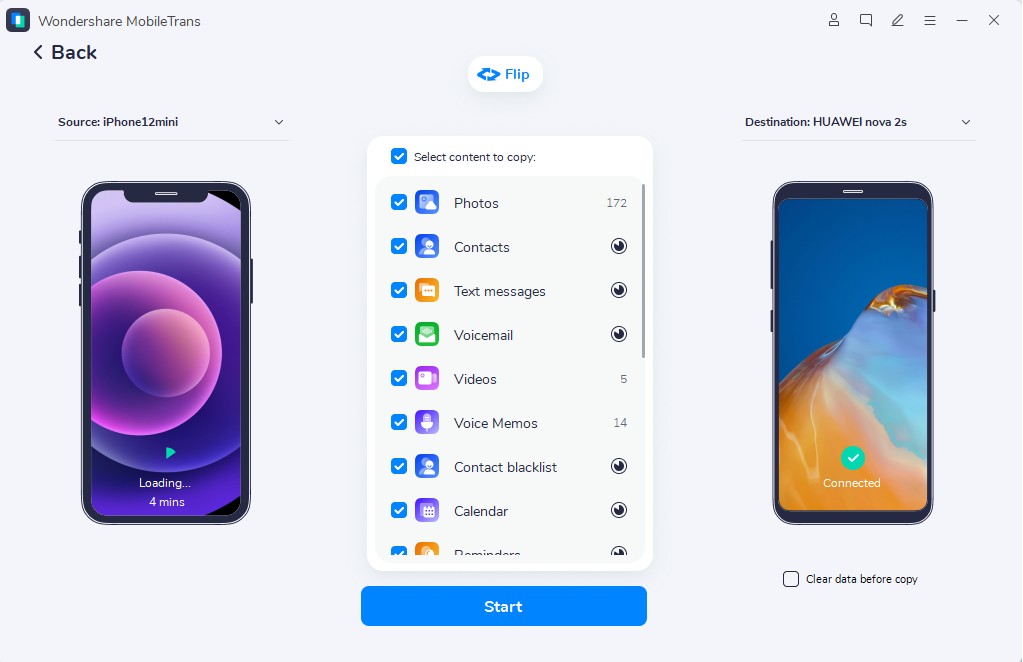
Step 1. Go to the Phone to Phone tab > Connect both old and new smartphones > Select Data to move to OPPO A6 Pro > Click Start.

Step 2. The program will initiate migrating your selected data to your OPPO A6 Pro.
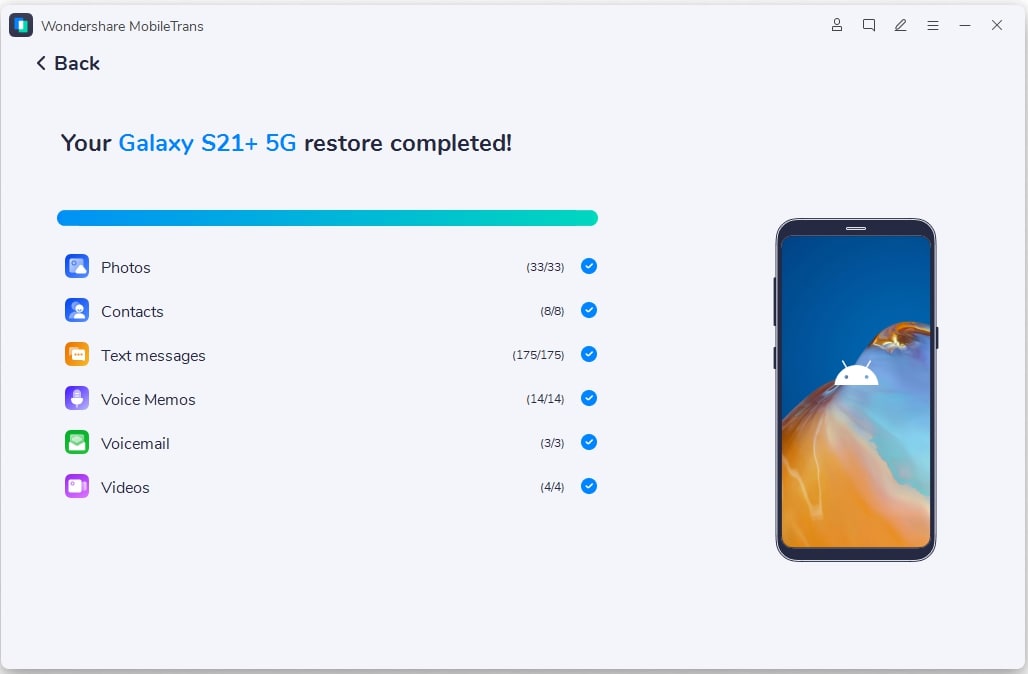
Step 3. When your phone receives all the data, you will see a confirmation display.
You can also use the MobileTrans App for shifting data to new phones like the OPPO A6 Pro 5G. It transfers all content at 30 MB/s and does not require mobile data. You can even move WhatsApp chats and stickers without missing anything important. The fast speed beats Bluetooth by 200 times for big files and sends a 1GB video in just 30 seconds.
Part 3. Alternate Step-by-Step General Ways to Move Files to OPPO A6 Pro 5G
Some users prefer familiar options that do not require new apps or downloads. So, the following six general methods help move files to OPPO A6 Pro 5G using everyday actions:
Method 1: OPPO Clone Phone
It serves as OPPO's official tool for safe phone data switches—the feature copies every bit from old phones to the OPPO A6 Pro 5G. You scan a QR code to connect devices in seconds. In addition, users enjoy zero data costs with no internet needed ever. It even keeps everything private and complete, hassle-free. Anyhow, follow the steps below to move data using this official app:
Step 1. On your OPPO A6 Pro, open the app > Tap This Is The New Device > Other Android to display the QR code.
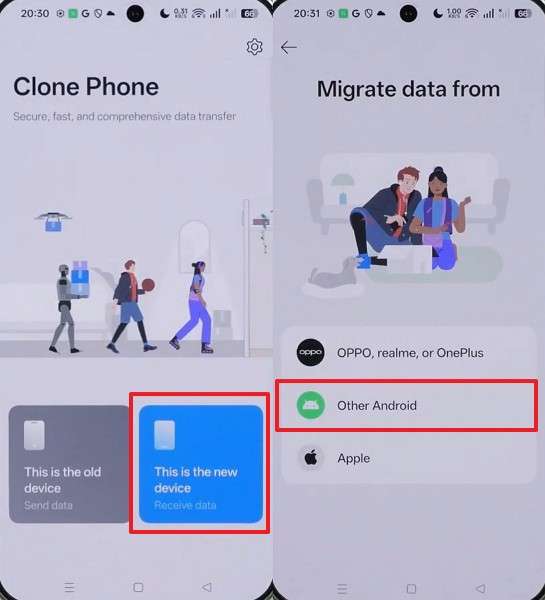
Step 2. In the app on your old phone, tap Scan the QR Code to link both devices.
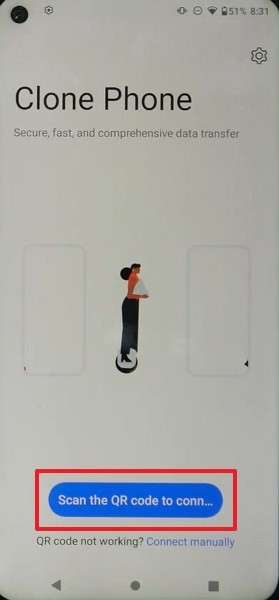
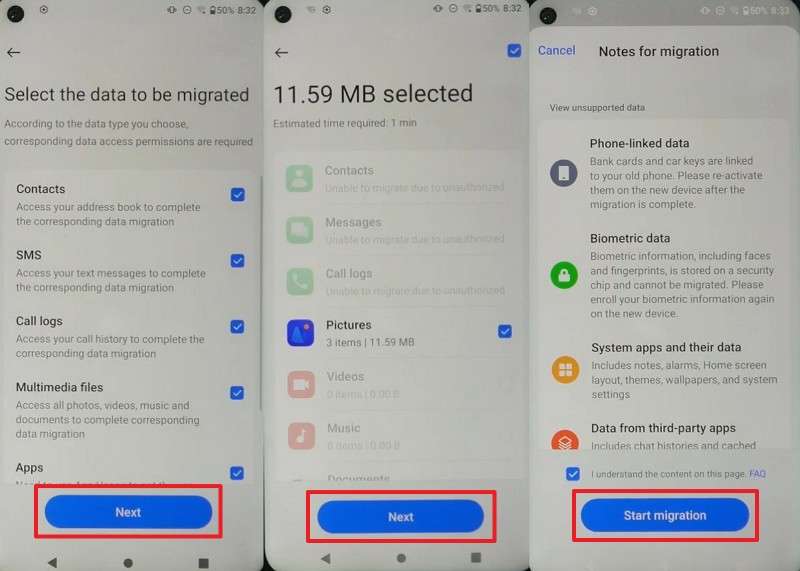
Step 3. Once connected, select the data you want > Press Next > Next > Start Migration to begin transferring.
Limitations
- Requires both phones to be physically close for successful data transfer.
- Large files may still take longer despite optimization, leading to occasional delays.
Method 2: Restore Google Backup
In addition, Google Backup automatically saves contacts and settings from old phones. Therefore, you restore them on the OPPO A6 Pro 5G during initial setup. The cloud securely stores data until you need it back. Plus, it covers photos via Google Photos and messages through sync. Hence, go through the guide to restore your backup on your new OPPO:
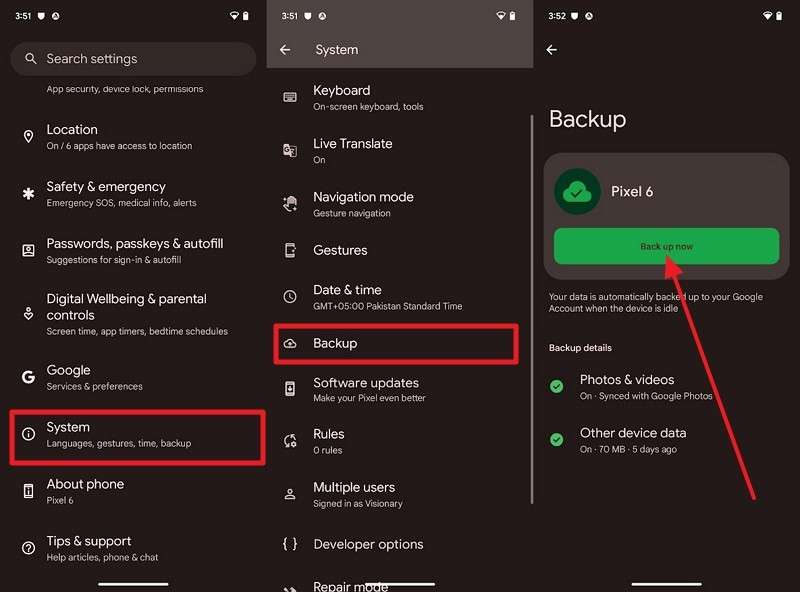
Step 1. Navigate to the old phone’s Settings > System > Backup > tap Back Up Now.
Step 2. During setup on your new OPPO A6 Pro, tap Next > Can’t Use Old Device? > Sign in with the same Google account.
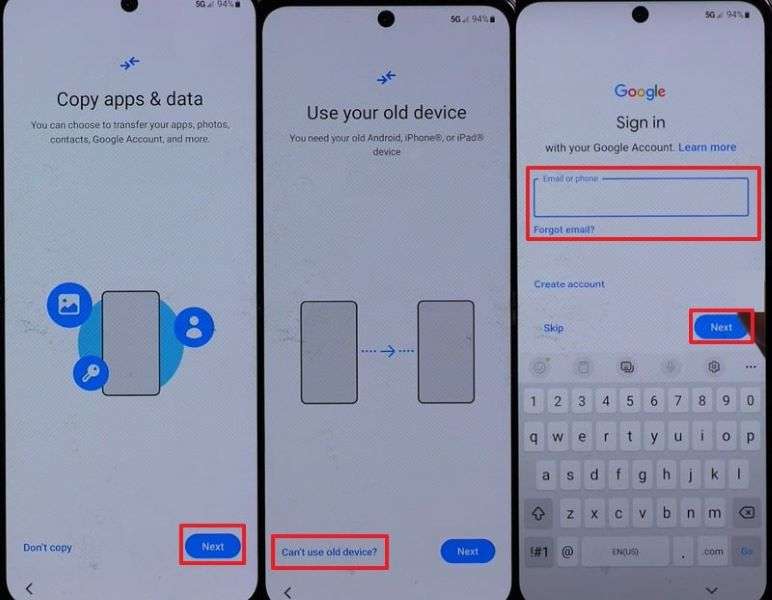
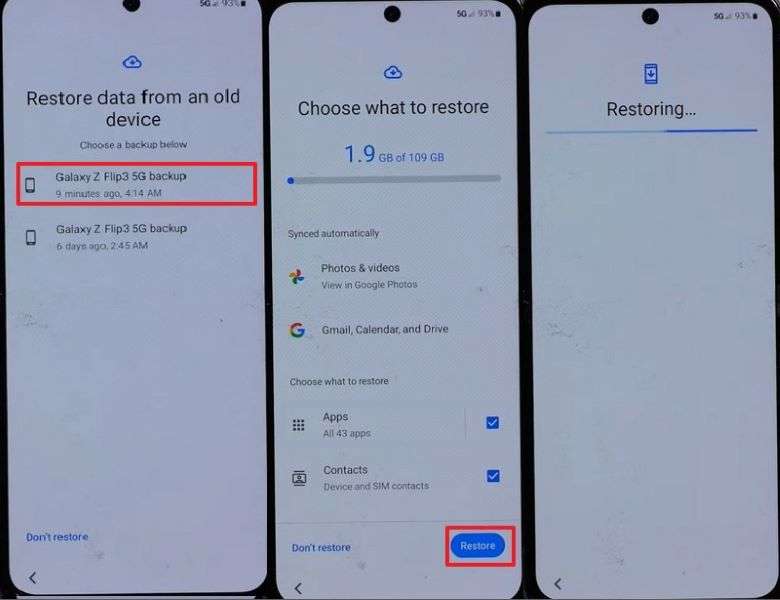
Step 3. Locate your latest backup > Select the Data to transfer > Tap Restore to complete migration.
Limitations
- Requires a Google account linked to the old phone beforehand
- Free space limited to 15 GB without a paid upgrade.
Method 3: OPPO Share / Nearby Share / Quick Share
This method uses wireless sharing to move files quickly between nearby devices. It supports multiple data types, such as photos and videos, without requiring cables or an internet connection. Alongside, the feature works across compatible devices, maintaining file quality and structure. Moreover, with just a simple tap, you can approve file transfers with b privacy protection. So, let’s discover how you can transfer data to the new OPPO A6 Pro 5G:
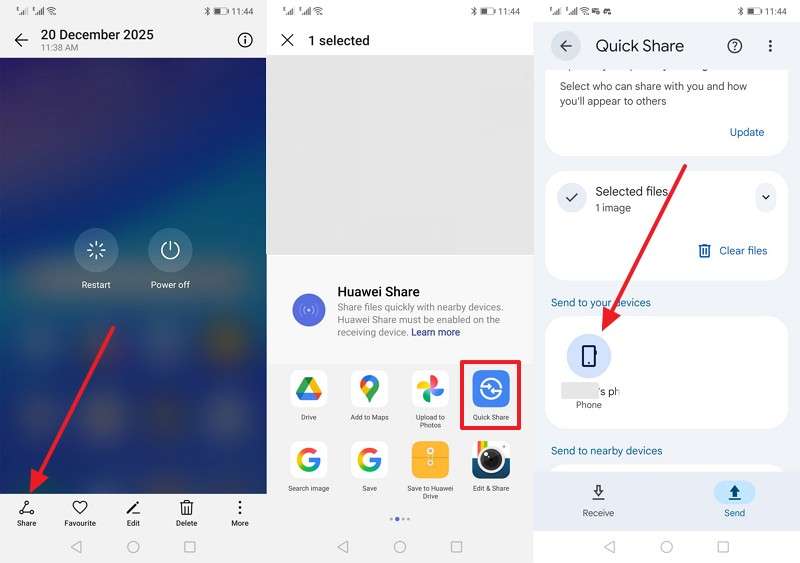
Step 1. When you select the data for transferring, tap Share > Quick Share > Nearby OPPO.
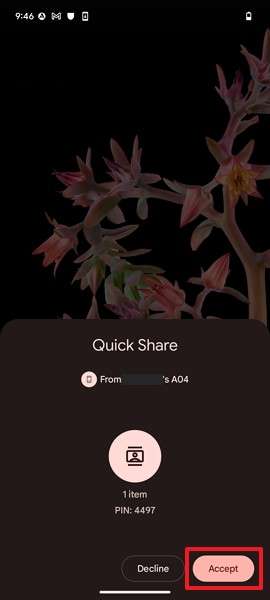
Step 2. Once your OPPO shows a prompt, press the Accept button.
Limitations
- Large files may transfer slowly, depending on signal strength and distance.
- Some apps or system files cannot be moved using this method.
Method 4: Using Google Drive
Google Drive also stores files in the cloud for access anywhere. You can transfer data from your old phone to the OPPO A6 Pro 5G later. Additionally, it handles all your multimedia files and other documents, with up to 15 GB of free storage. Furthermore, the Share Link feature lets others receive content without physically connecting phones. Review the steps below to move data through this cloud storage:
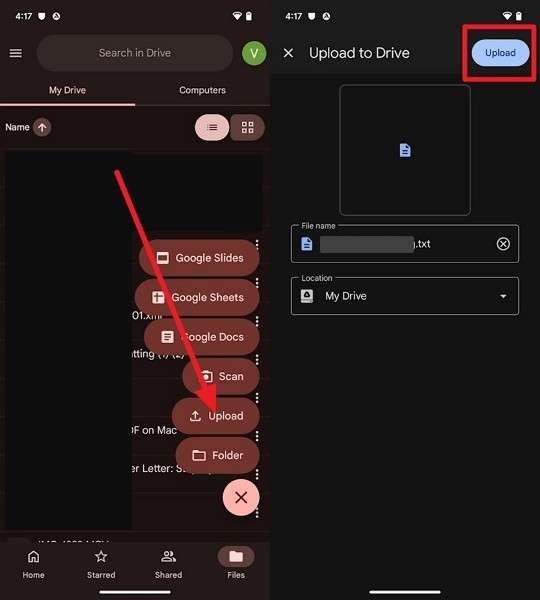
Step 1. Tap + on your sending device’s Google Drive > Upload > Select the desired data > Press Upload.
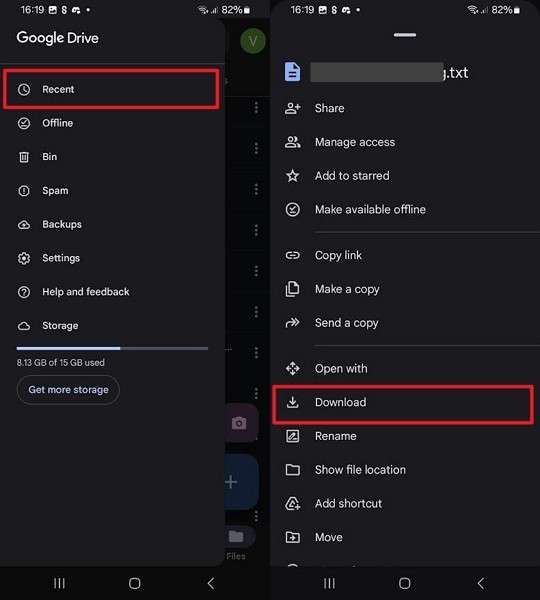
Step 2. On your OPPO, sign in to the same Google Drive account > Access Recent > Tap Three Dots > Download to retrieve the files.
Limitations
- The internet is required for every upload and download step.
- Slow speeds on weak connections delay large-file transfers.



Method 5: Manual Transfer - USB Cable from Computer
You can also use a USB cable to link the computer for data migration to the OPPO A6 Pro 5G. In this method, users can copy their desired multimedia or files from PC folders. Plus, File Explorer shows phone storage like a USB drive. Alongside that, no internet connection is required for safe offline file transfers. Thus, you can follow the steps below to move data from your PC:
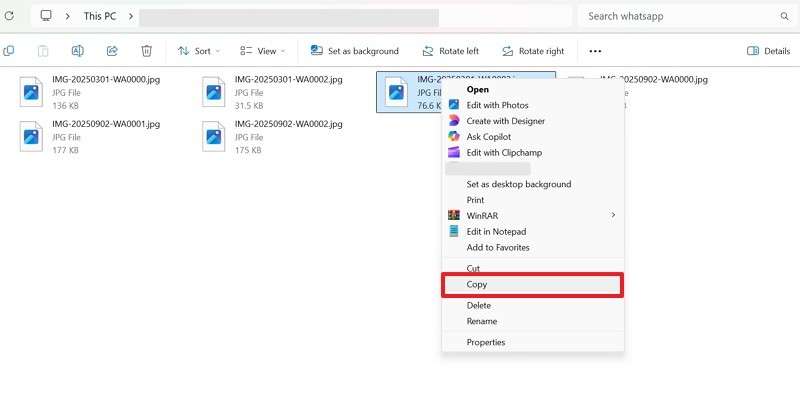
Step 1. Connect your OPPO A6 Pro to the computer > Right-click the files you want > Select Copy.
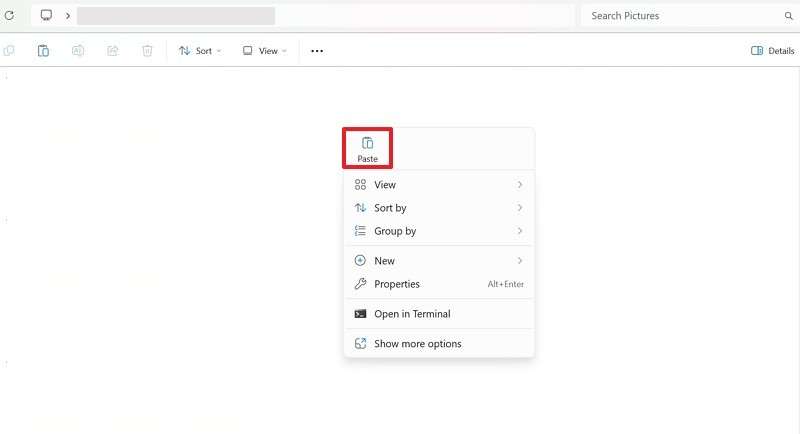
Step 2. Open your OPPO’s storage on the PC > Right-click inside the folder > Choose Paste to transfer the files.
Limitations
- Requires a physical USB cable and a computer for every transfer.
- Users must organize files themselves; no automatic sorting is provided.
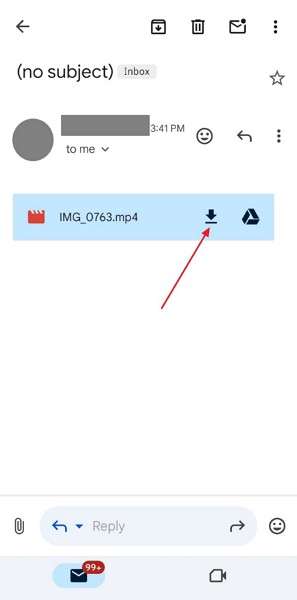
Method 6. Use Email to Move Data
Email also lets you send small files, such as photos from your old phone, quickly. Recipients attach those items and then download them straight from the inbox on OPPO A6 Pro 5G. This free service operates with famous platforms like Gmail. Also, full access remains available across various devices without requiring any additional apps. Hence, adhere to the steps below to use email for data migration:
Step 1. On your old device, choose specific data > Tap Share > Gmail > Add OPPO’s email address > Press Send.
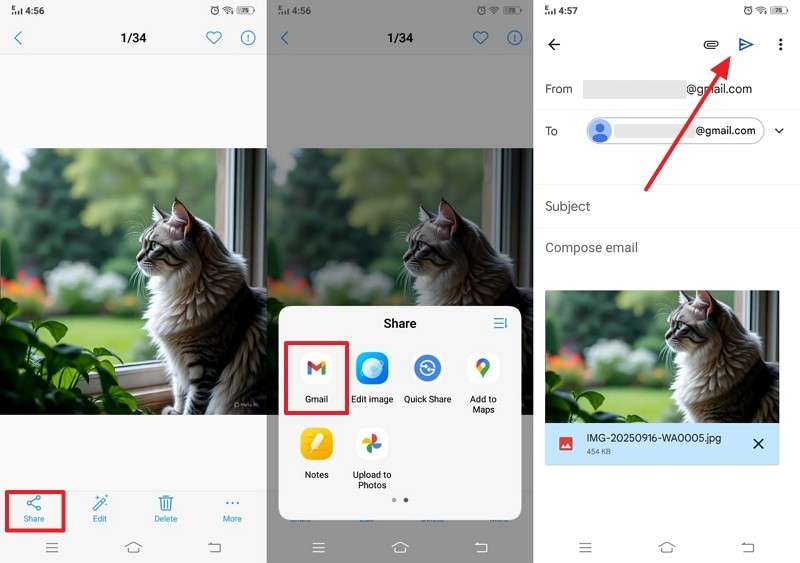
Step 2. As you receive the file on your new phone, tap the Download icon.
Limitations
- Size limits attachments to 25 MB per email.
- Email clutter builds with multiple small files.
Part 4. Which Way Works Best? Comparing Data Transfer Methods to OPPO A6 Pro 5G
After exploring various data shift options, users need to identify apparent differences to make an informed choice. The table below compares speed, data types, and limits across all methods discussed:
| Method / Feature | Speed | Ease of Use | Device Support | Internet Needed | Data Limit | Security |
| MobileTrans | Very fast | One-click transfer | 6000+ iOS and Android devices | No | None | End-to-end encrypted |
| OPPO Clone Phone | Fast | QR scan setup | Android/iPhone to OPPO devices only | No | Phone storage-based | Local encrypted Wi-Fi |
| Google Backup | Medium | Account login | Android devices with a Google account | Yes | 15 GB free | Google Cloud Encryption |
| Nearby Share | Fast | Tap to share | Nearby Android devices | No | No fixed limit | Encrypted local transfer |
| Google Drive | Slow | Upload and download | Any device | Yes | 15 GB free | Google Cloud Encryption |
| USB Cable | Medium | Drag and drop | Any USB-supported device | No | No limit | Direct wired transfer |
| Very slow | Attach and send | Any email service | Yes | 25 MB per email | Email service encryption |
Thus, MobileTrans clearly leads for the OPPO A6 Pro 5G due to unmatched device support and full data coverage. So, you should download and use MobileTrans now for effortless data migration.
Conclusion
To sum up, choosing the right way keeps your data safe on OPPO A6 Pro 5G during upgrades. Each method fits different needs, like quick files or complete copies. Simple steps make switches easy for everyone without tech worries. Therefore, you avoid losing photos or other data forever. Yet, busy lives demand fast, sure data moves. For complete phone-to-phone transfers, pick MobileTrans now.
FAQs
-
Can I transfer media files only without moving apps or messages?
Yes, selective transfer options let you move only photos, videos, or music files. This saves time and avoids unnecessary data being copied to the new device. It is useful when storage or internet bandwidth is limited. -
Does transferring data affect the OPPO A6 Pro 5G battery performance?
Some methods may drain the battery during long transfers, especially wireless ones. So, connecting to power or using faster tools reduces battery impact efficiently. Tools like MobileTrans optimize energy use while moving large amounts of data. -
How long does it take to transfer large files to the OPPO A6 Pro 5G?
Transfer speed depends on the method and file size being moved. Large videos or backups may take longer than photos or documents. Yet, faster tools like MobileTrans can significantly reduce the overall transfer time.










