



 TL;DR:
You can transfer WhatsApp from an iPhone to an OPPO device during the initial phone setup using the official Android migration tool, or use third-party applications to merge chat histories across platforms.
● The official migration method requires a USB-C connection and Android 12 or later during the new OPPO setup, but it overwrites existing messages and lacks chat preview capabilities.
● MobileTrans and the Mutsapper app are best suited for users who need to migrate WhatsApp Business accounts or merge transferred data with existing OPPO chats without data loss, supporting systems up to iOS 27 and Android 16.
● Exporting via email or text is only recommended for offline record-keeping, as this method saves conversations as readable files and cannot restore them directly into the OPPO WhatsApp application history.
Ask AI for a summary
 ChatGPT
 Perplexity
 Gemini
 Claude
 Grok
Grok
Switching phones makes the iPhone to OPPO WhatsApp transfer an essential step for many users. Your chats contain personal memories, work notes, and daily life conversations. Many people feel nervous about moving data because they fear losing messages and photos. This guide explains each step in simple terms so that anyone can follow without hassle.
In this article

Part 1. Importance of iPhone to OPPO WhatsApp Transfer
Switching to a new OPPO phone raises questions about how to keep your WhatsApp chats safe. Below, you will explore a few use cases of why you should transfer WhatsApp from iPhone to OPPO:
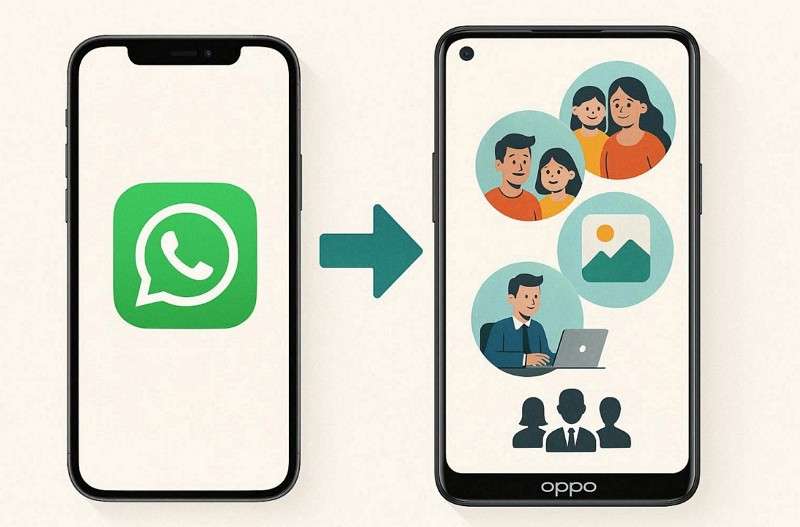
- Family Bonds: Family groups share daily updates and photos on WhatsApp. Losing these chats breaks the close connection with loved ones at home.
- Work Tasks: Business teams use WhatsApp daily for quick notes and file sharing. Missing these messages slows down projects and client updates on time.
- Friend Memories: Friends share fun videos and old photos in group chats. Forgetting these moments erases happy moments from past gatherings.
- School Notes: Students regularly share study tips and homework links in class groups. Dropping these files hurts learning and exam prep for the year.
- Health Records: Doctors send advice and medicine reminders via private WhatsApp chats. Without them, tracking health progress becomes challenging and risky daily.
Part 2. Understanding the Challenges of Moving WhatsApp from iPhone to OPPO
After learning the importance, common problems appear during the phone change process. Thus, knowing these issues helps plan better for migrating chats between phones:
- System Differences: iPhones and OPPO phones use different OS and storage methods. This makes it challenging to move chats directly without proper guidance or tools.
- Data Loss: WhatsApp contains valuable messages and media that can be deleted. Users risk losing essential files during the chat transfer from one phone to another.
- File Compatibility: iPhone backups are not compatible with OPPO devices. This causes errors or unreadable files if not handled carefully during migration.
- Security Risks: Using incorrect methods may expose chats to hackers or cause data leaks. Ensuring a safe transfer of WhatsApp chats from iPhone to OPPO protects personal and sensitive information.
- Time Consumption: Large chat histories take time to migrate between phones. Thus, slow transfers may frustrate users or lead to repeated attempts to succeed.
Part 3. How to Transfer WhatsApp from iPhone to OPPO [Official Method]
The official method uses native setup to move chats securely during phone switching. It lets you move your messaging app's chats and settings during new phone setup. You are only required to connect devices via a USB-C cable and scan the QR code for a quick start. Plus, this free option is only available on Android 12 or later. So, adhere to the steps given below to transfer WhatsApp from iPhone to OPPO:
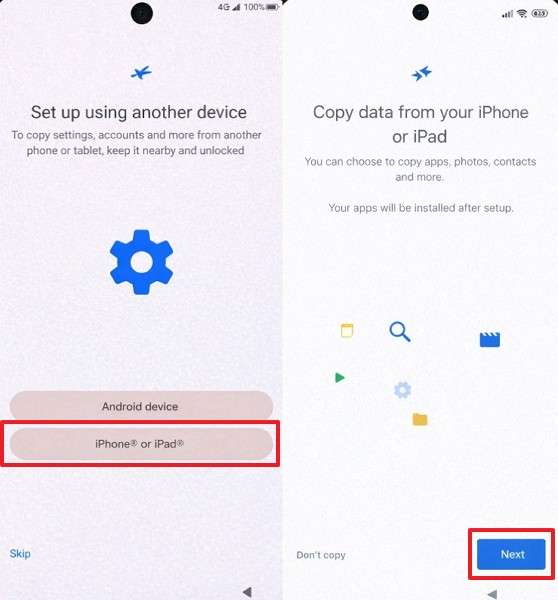
Step 1. During your OPPO setup, tap iPhone or iPad > Connect to Wi-Fi> Sign in to your Google Account > Tap Next.
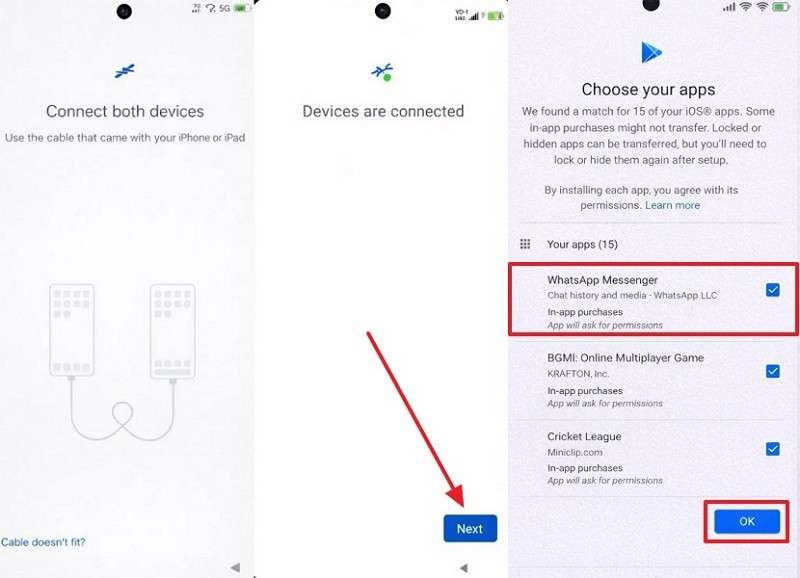
Step 2. Connect your iPhone and OPPO via a USB cable > Tap Trust > Enter iPhone’s Passcode > Tap Apps > WhatsApp Messenger > OK.
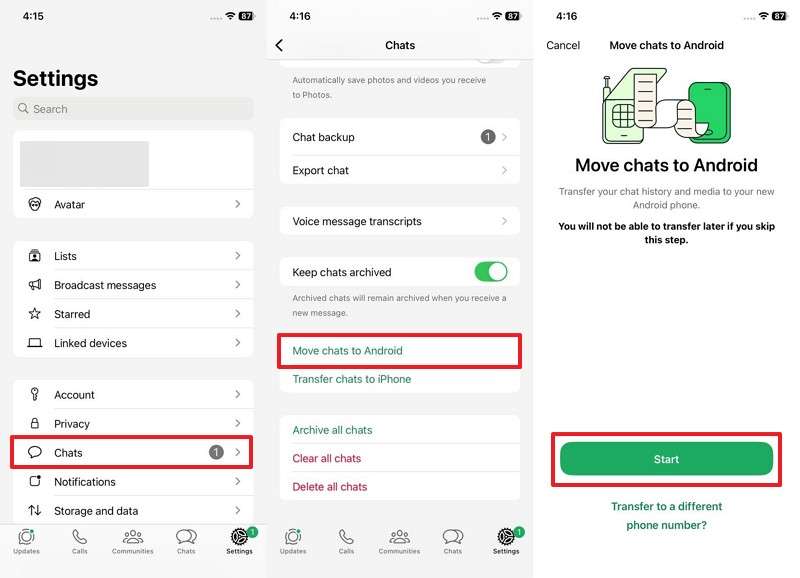
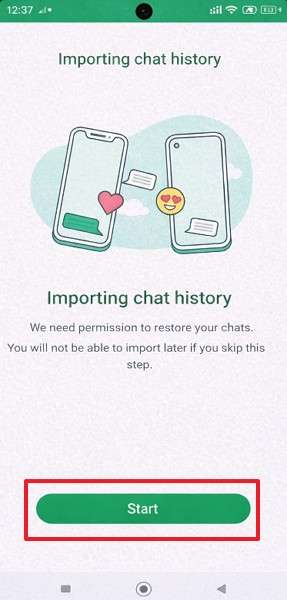
Step 3. On your iPhone, access WhatsApp’s settings > Chats > Move Chat To Android > Start > Enter password > Complete OPPO setup.
Step 4. Open the WhatsApp app on your OPPO, log in with the same number, then press Start to migrate WhatsApp.
Limitations
- Does not allow previewing chats before restoring on an OPPO device.
- Requires a wired connection, which may fail due to cable or port issues.
Part 4. Other Efficient Ways to Move WhatsApp to OPPO Without Losing Data
Many times, the official method is limited, and users need simpler options for moving chats. So, these three approaches help transfer WhatsApp from iPhone to OPPO without loss:
1. MobileTrans
Among the top options, MobileTrans lets users safely transfer WhatsApp chats from an iPhone to an OPPO. You can use it to move almost all types of data, including chats and attachments. Besides, the tool fully supports the latest iPhone 17 model for effortless WhatsApp migration. Moreover, it works well with iOS 27 and Android 16 systems without any issues. While moving data, users can even select specific data instead of moving everything.
Key Features
- Device Support: Works with over 6000 iOS and Android phones for easy transfers.
- Business Account: Handles WhatsApp Business messages across phones without data loss.
- Merge Option: Offers a "Transfer and Merge" feature to blend new data with existing data.




Detailed Guide to Move WhatsApp to OPPO Using MobileTrans
Review the following guide to migrate your messaging app data via MobileTrans:
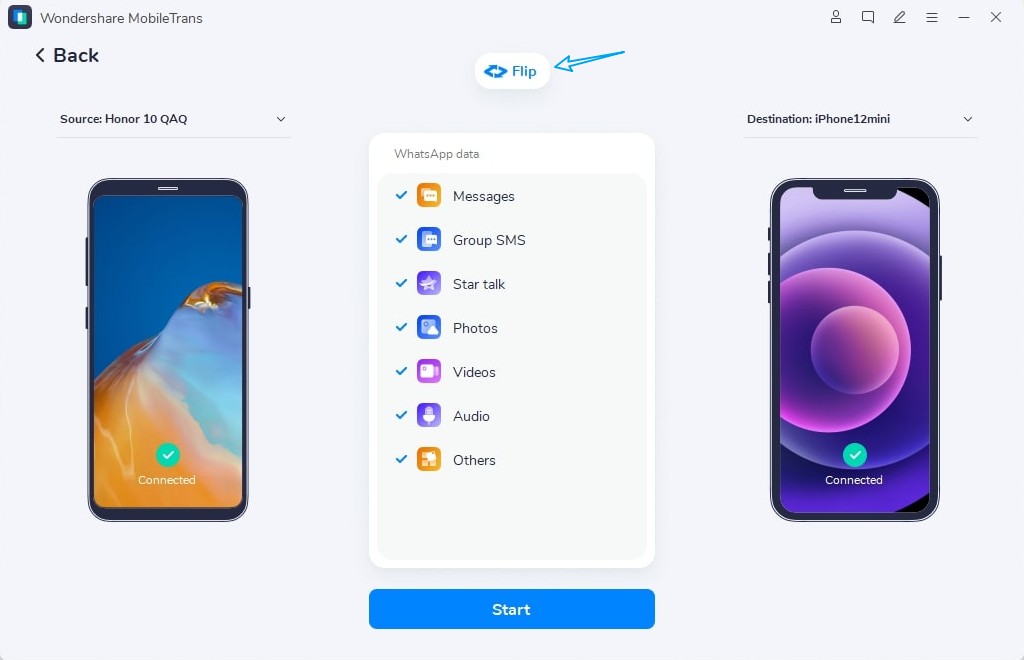
Step 1. Go to the App Transfer > WhatsApp > Transfer & Merge > Attach both Phones > Select WhatsApp Data > Hit Start.
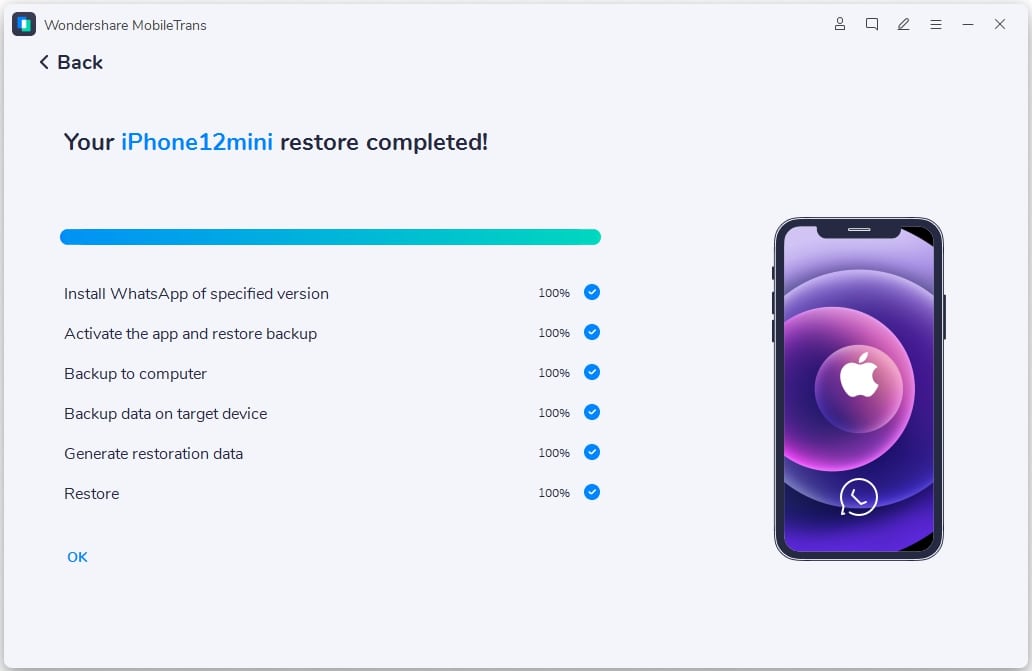
Step 2. Once the transfer completes, verify that all selected chats and files have been moved.
2. Mutsapper App
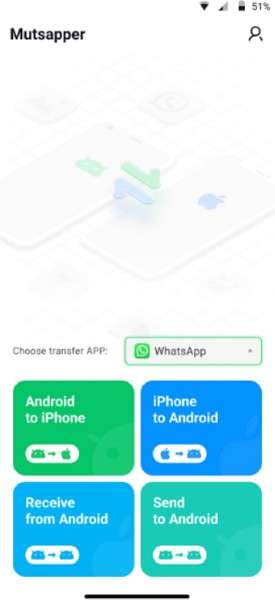
The Mutsapper app also makes iPhone-to-OPPO WhatsApp transfers smooth across different phone types. It can move 10 data types, including chats and voice notes, between 2 phones. Alongside, users merge new data with existing data on the target device. This app can shift WhatsApp and Business data without losing old chats. Thus, go through the steps below to understand how to use this app:
Step 1. As you open the app on both phones, tap the iPhone-to-Android direction.
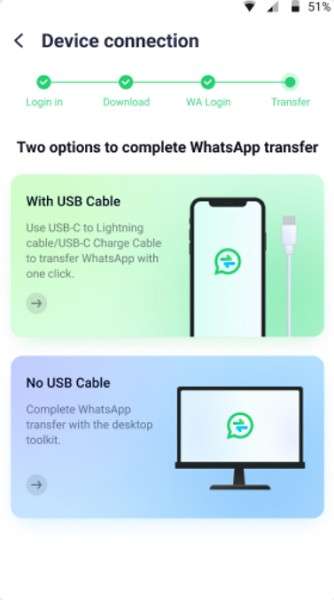
Step 2. Choose a USB Cable and connect both phones to proceed.
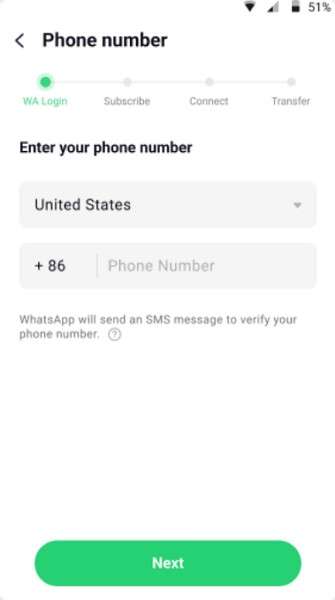
Step 3. Log in to your WhatsApp account with the same number on your iPhone.
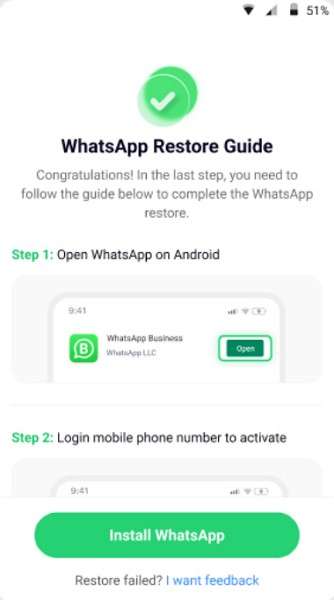
Step 4. Adhere to the displayed guide to move and restore WhatsApp on your OPPO.
3. Email / Text Export (Chats as Files, Not In‑App History)
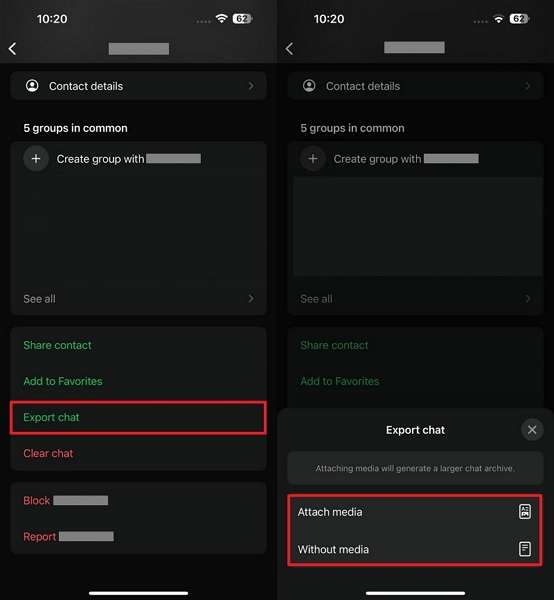
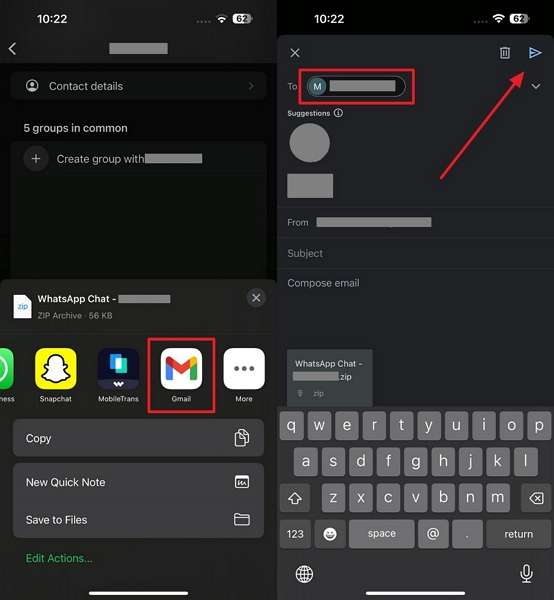
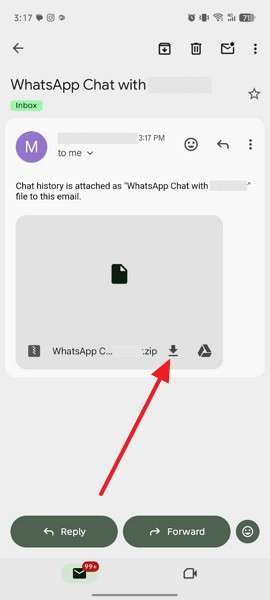
Email or text export saves WhatsApp chats as readable files rather than in the app history. It supports sharing conversations via email or messages for simple record-keeping. Users can also export text and media together, making offline access easier anytime. It helps transfer WhatsApp chats from iPhone to OPPO by preserving them as shareable documents. Hence, let's dive below to find out how you can export chats to your OPPO:
Step 1. Access a specific chat’s contact screen > Tap Export Chat > Attach Media/Without Media.
Step 2. Press the Gmail platform > Add your OPPO email address > Tap the Send button.
Step 3. When you receive the email on your OPPO, tap the Download icon.
Conclusion
To conclude, switching phones now feels easy, with clear steps for transferring WhatsApp from iPhone to OPPO. You learned why chats matter and common issues during the move process. Plus, official and simple methods always keep messages and notes safe. Alongside this, you should choose the best approach for your needs and quick results. So, MobileTrans stands out when you need full support without any hassle.



FAQs
-
Will old chats merge with new messages on OPPO?
Not every method supports merging old and new chats during migration. Some transfers overwrite existing messages, causing confusion or data loss issues. Yet, choosing MobileTrans allows merging chats without deleting existing chats on OPPO. -
What happens if the transfer stops midway?
Interrupted transfers can cause incomplete chats or missing media files on an OPPO device. Restarting the process may be necessary to ensure all conversations move forward. So, always keep both phones charged to avoid interruptions during transfer sessions. -
Is it safe to delete WhatsApp from an iPhone after transfer?
Only delete WhatsApp after confirming all chats and media appear on OPPO. You should check recent and old conversations to help avoid permanent data loss. Apart from that, keeping backups temporarily ensures recovery if any chat or file is missing later.










