



 TL;DR:
Transferring WhatsApp data from an OPPO to an iPhone requires using the Move to iOS app during initial device configuration or utilizing a PC-connected tool like MobileTrans to bypass setup restrictions.
● The official Move to iOS method wirelessly transfers complete chat histories for free, but it strictly requires a full factory reset of the target iPhone and a shared Wi-Fi connection.
● MobileTrans allows users to merge standard or Business WhatsApp data directly onto an already-configured iPhone without deleting existing files, though both devices must remain connected to a computer.
● Alternative options do not integrate chats into the new iPhone app; companion linking offers temporary access that disconnects after 14 days of OPPO inactivity, and export features only generate external TXT or ZIP archives.
Ask AI for a summary
 ChatGPT
 Perplexity
 Gemini
 Claude
 Grok
Grok
Many people switch from an OPPO phone to an iPhone for better features and design. Yet, they worry about losing WhatsApp chats with family photos and work notes. Nonetheless, when you transfer WhatsApp from OPPO to iPhone, your messages remain safe and ready. Thus, in this guide, you will explore easy steps to move data without stress or hassle. It also focuses on clear choices and standard limits you should know beforehand.
In this article

Part 1. Top 4 Ways to Transfer WhatsApp from OPPO to iPhone Seamlessly
Multiple quick and easy solutions are available to move WhatsApp chats without any trouble. Hence, this part shares four ways so that users can pick the best one for a quick and complete data shift:
Method 1. Official Free Method: Move to iOS [Requires Factory Reset]
This official option lets users move chats and even settings during the iPhone setup. The process copies chats, media files, and voice notes in full, at no extra cost. Plus, both phones need to connect to the same Wi-Fi network for a smooth connection and complete backup. Anyway, you can go through the following steps to transfer WhatsApp from OPPO to iPhone:
Step 1. During your iPhone setup, tap From Android > Continue to get the One-Time code.
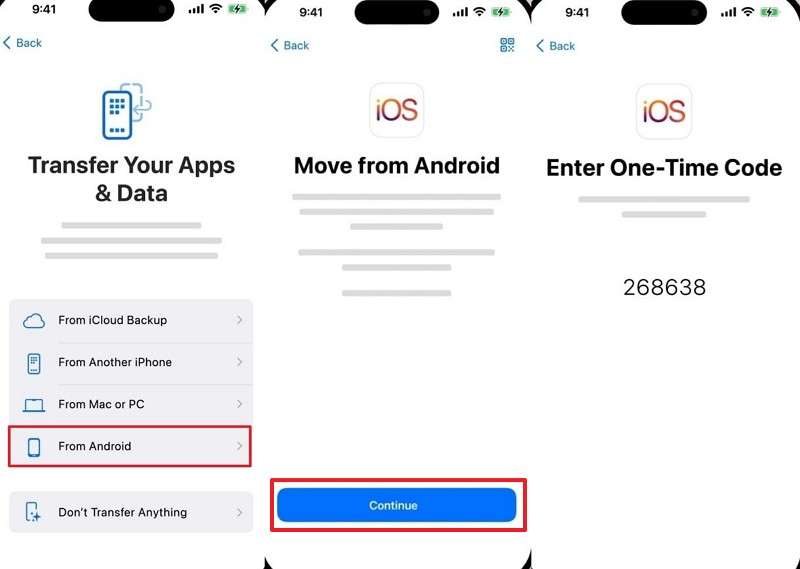
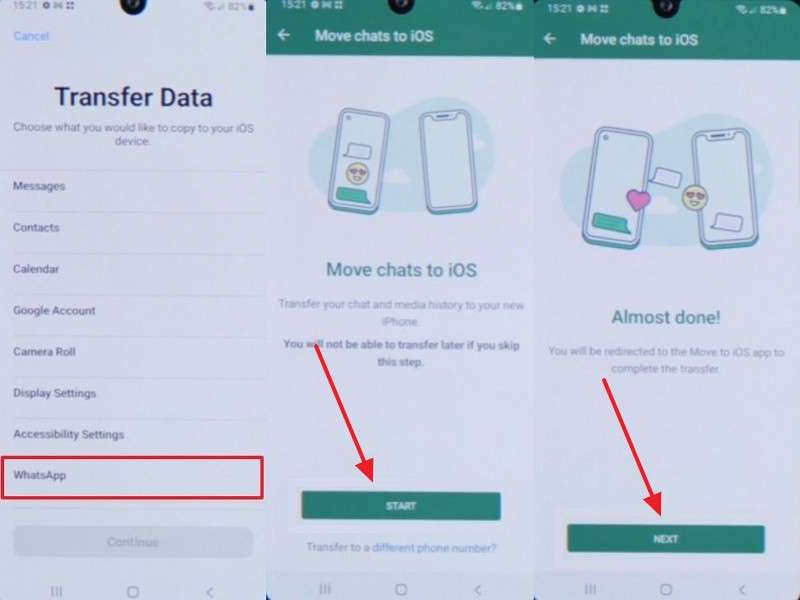
Step 2. On your OPPO’s Move to iOS app, enter the received code > Tap WhatsApp > Start > Next.
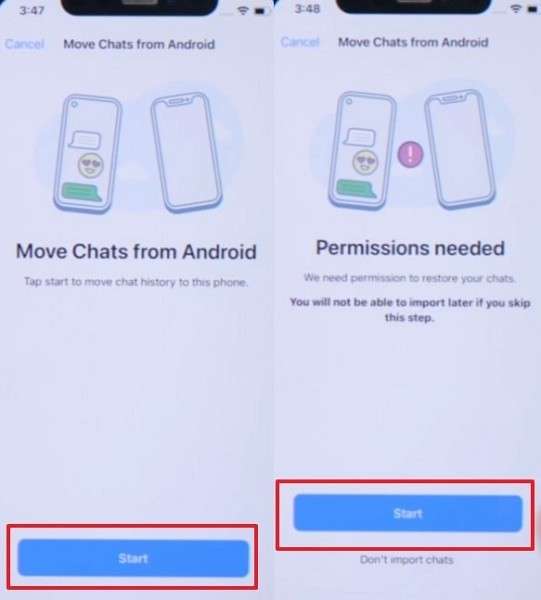
Step 3. Upon setting up your iPhone, install and launch WhatsApp, then log in with the same number, and tap Start to import chats.
Cons
- Requires a factory reset, which deletes existing data on the iPhone.
- Limited control over selecting specific chats for moving only manually.
Method 2. MobileTrans - One Click Transfer [Recommended]
MobileTrans simplifies transferring WhatsApp from an OPPO phone to an iPhone with a single click. This dedicated tool supports over 6000 iOS and Android devices, including OPPO devices. You can move messages, photos, and videos in one go. Besides, it focuses on fast data migration while preserving all chat data. Additionally, MobileTrans supports the latest Android 16 and iOS 27 to ensure full compatibility.
Key Features
- Business Support: Lets you securely move WhatsApp Business chats between devices.
- Merge Data: New and old WhatsApp data combine on the device without deletion.
- Multiple Apps: LINE, Kik, and Viber messages can also be transferred to new devices.






Guide to Transfer WhatsApp from OPPO to iPhone via MobileTrans
Adhere to the given steps to find out how you can move WhatsApp or WhatsApp Business data using this tool:
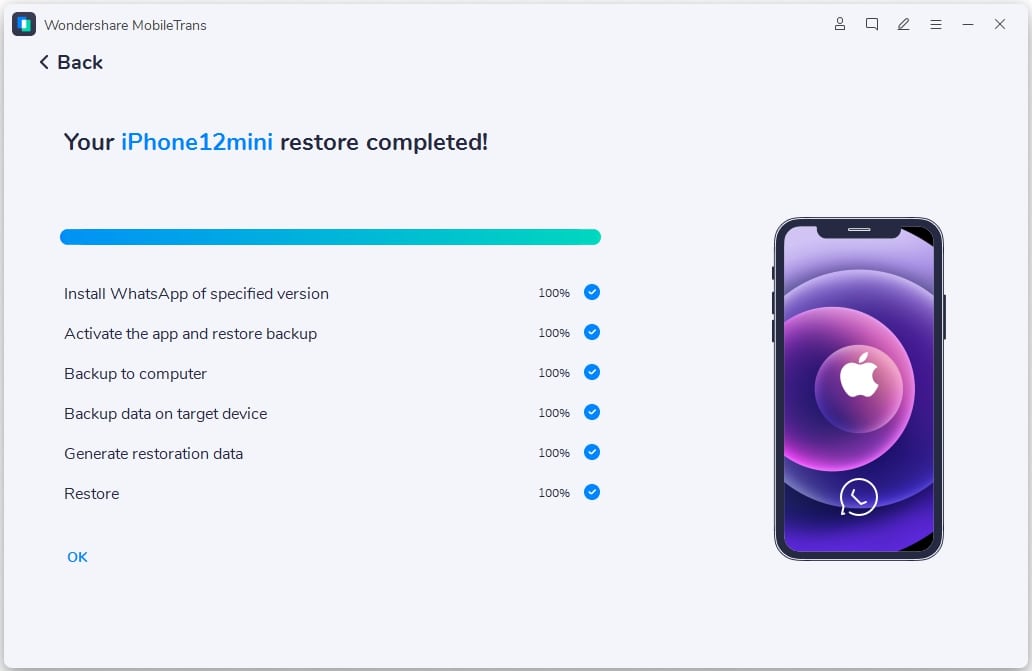
Step 1. Access the tool’s App Transfer > WhatsApp > Transfer & Merge > Connect both Phones > Choose WhatsApp Data > Click Start.
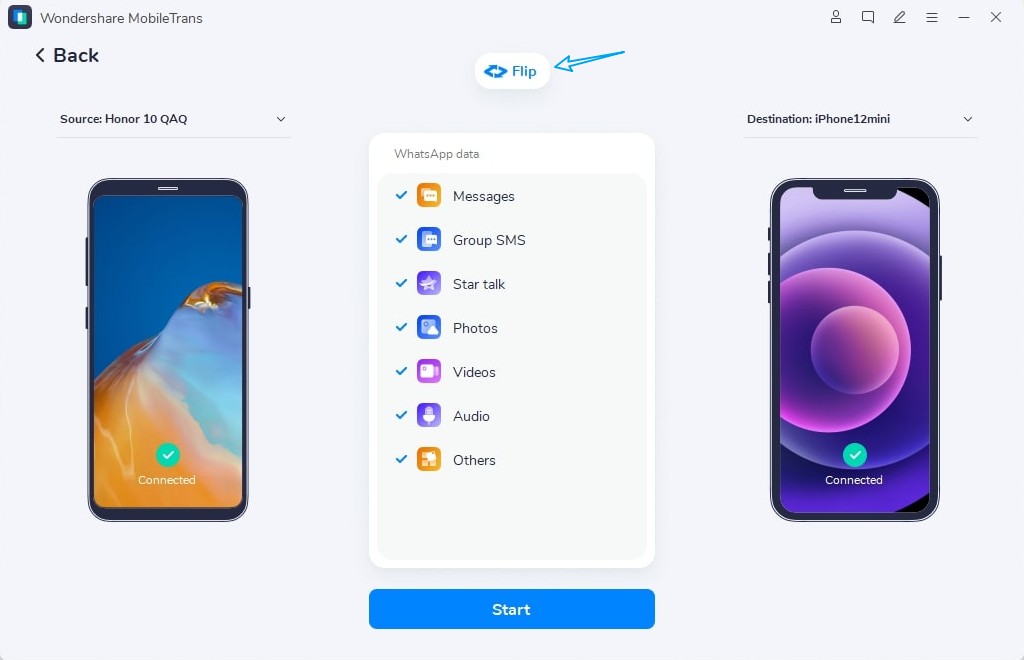
Step 2. After the transfer is complete, check to ensure all selected chats and files have been moved.
Cons
- Requires a computer to perform the transfer, limiting mobility for some users.
- Both phones must remain connected for the process to succeed.
Method 3. Companion / Linked Device (Temporary Access Only)
This method easily links OPPO as a companion device to the main iPhone screen. The feature now lets you access chats without a full data copy. You read old messages and send replies from a secondary iPhone. Additionally, the setup requires scanning a QR code for the quick pair process. So, take guidance from the steps below to link your WhatsApp to your iPhone:
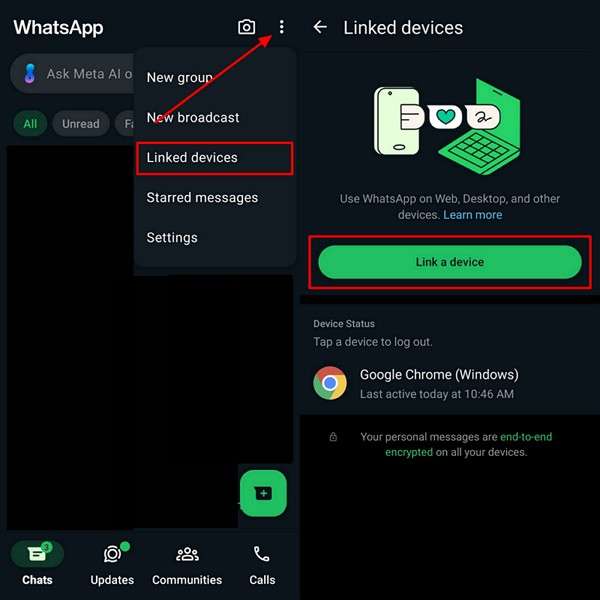
Step 1. On your OPPO, open WhatsApp > tap Three Dots > Linked Devices > Link a Device.
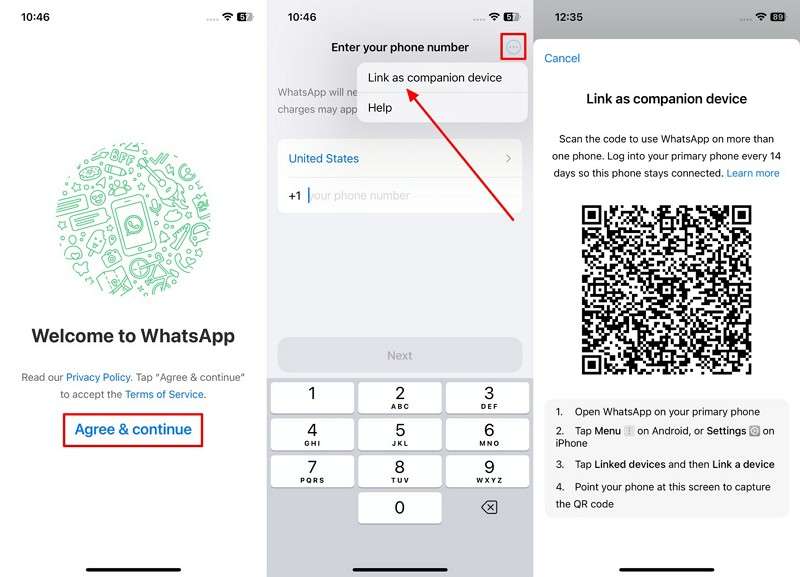
Step 2. Run the newly installed WhatsApp > Tap Agree & Continue > Three Dots > Link As Companion Device > Scan QR.
Cons
- Live location sharing does not work on companion or linked devices.
- Access ends automatically if the OPPO remains inactive for 14 days.
Method 4. Export Chats as Files (For Archiving, Not In‑App Use)
It allows saving WhatsApp chats as text or media files for a personal archive. Users can also choose "Include media" or "Without media" in exported files. You can email or cloud-upload exports to access them securely from anywhere. Plus, the exported chats cannot be restored to WhatsApp for in-app use again. Hence, review the steps below to transfer WhatsApp from OPPO to iPhone using this approach:
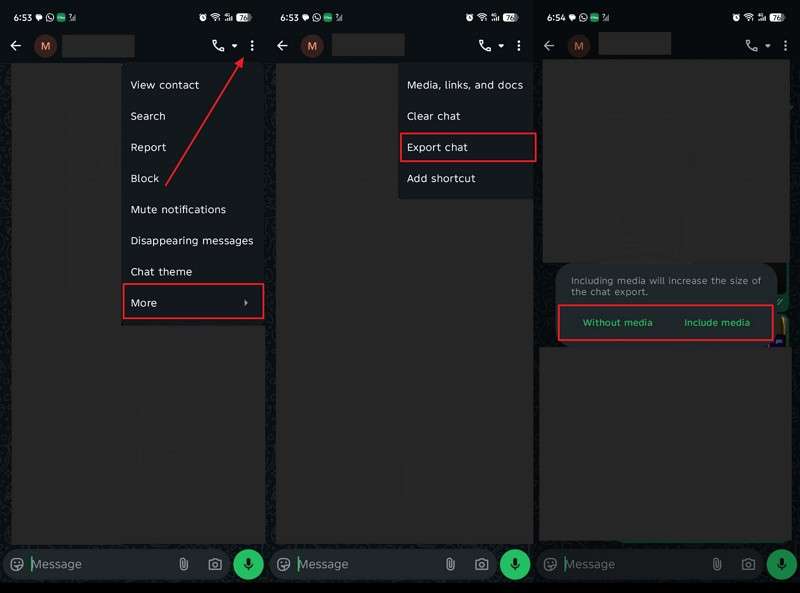
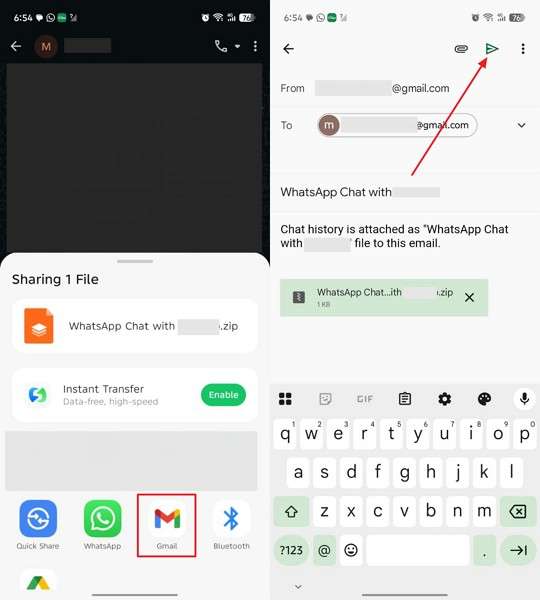
Step 1. When you access the specific chat, tap Three Dots > More > Export Chat > Without Media/Include Media.
Step 2. Choose the Gmail platform > Enter the iPhone email address > Tap Send.
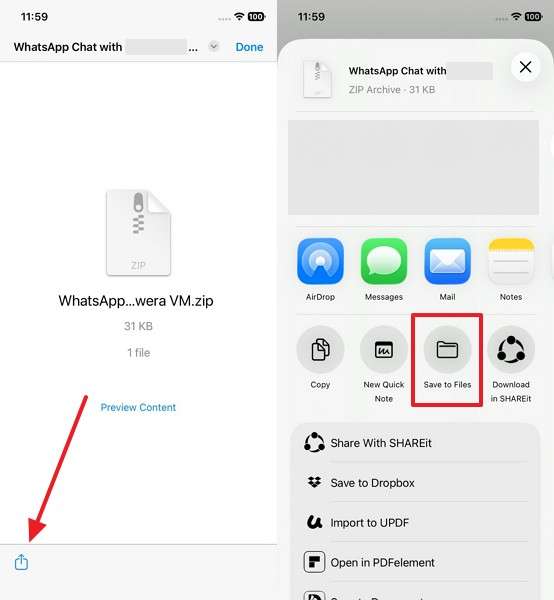
Step 3. Open the received exported chat on your iPhone > Tap Share > Save To Files.
Cons
- Limited to file formats like TXT or ZIP for message storage.
- Cannot merge exported chats with existing WhatsApp data on the new phone.
Part 2. Pick the Best Method to Transfer WhatsApp from OPPO to iPhone [Tabular Comparison]
After exploring the top methods, a clear comparison of features and limitations makes choosing safe. This section helps you decide which method works best for your WhatsApp transfer needs:
| Feature | Move to iOS | MobileTrans | Linked Device | Export Chats |
| Permanent Data Transfer | Full during setup only | Complete with a merge option | Temporary access only | Archive files, no app use |
| Needs Factory Reset | Required; clears all data | None, keeps old files safe | None, simple QR link | None, save files |
| One-Click Ease | Multi-step setup process | Single button, quick start | QR scan, instant pair | Manual export per chat |
| PC Required | Direct phone to phone | Needs a computer connection | Direct phone to phone | Phone, email, or cloud |
| Works After Setup | Set up phase only | Anytime post setup, easy | Anytime with an active primary phone | Anytime, manual export |
| Speed for Large Chats | Slow, Wi-Fi dependent | Fast, one-click processing | Instant, no copy needed | Slow, builds big zip files |
Therefore, MobileTrans excels with complete data preservation and one-click simplicity. It also merges old and new chats, making the WhatsApp transfer effortless. So, download MobileTrans now for effortless data migration.
Conclusion
In conclusion, you now know four clear ways to handle data moves between phones. Each fits different needs, like speed or full chat keep during shifts. Also, choosing the right approach depends on convenience and data preservation needs. Therefore, when you want to transfer WhatsApp from OPPO to an iPhone, a dedicated solution is required. For a fast, effortless transfer without losing messages, use MobileTrans today.
FAQs
-
Does transferring WhatsApp affect my account verification?
No, your WhatsApp number and verification remain the same during transfers. You must log in to the new iPhone using the same number. Always follow the transfer steps carefully to avoid temporary account verification issues. -
How long does it take to transfer WhatsApp data?
Time depends on chat size and the transfer method used. Large chats or videos can increase the processing time in some solutions. Yet using MobileTrans reduces transfer time by quickly and efficiently handling extensive chat histories. -
Can I transfer WhatsApp from an OPPO to an iPhone without Wi-Fi?
It isn't easy to move WhatsApp data without a stable Wi-Fi connection. Some methods may fail or take longer if Wi-Fi is weak. Nonetheless, using a dedicated tool like MobileTrans ensures a safer, faster transfer without relying on Wi-Fi.










