



 TL;DR:
Secure your FIFA World Cup 2026 media against device damage or loss by implementing the 3-2-1 rule, combining automatic off-site cloud sync with stable local PC transfers.
● Use MobileTrans for local PC backups to selectively save 18+ data types without overwriting existing files, enabling cross-platform restoration for devices running up to Android 17 and iOS 27.
● Enable automatic same-day uploads via iCloud Photos or Google Photos to ensure immediate off-site availability, noting that Google Photos limits backup control to specific device folders on Android.
● Transfer heavy match footage manually via USB cable for faster stability, allocating adequate storage space since one hour of 4K video consumes 20 to 30 GB compared to 4 to 8 GB for 1080p.
Ask AI for a summary
 ChatGPT
 Perplexity
 Gemini
 Claude
 Grok
Grok
The memories of the FIFA World Cup will stay with fans for years. From exciting match moments to BTS's energetic performance, your phone is probably filled with photos and videos you never want to lose. However, accidental deletion, phone damage, or storage issues can put these memories at risk.
That is why it's important to back up your FIFA World Cup 2026 photos and videos on the cloud or PC. Thus, this guide explains what you need to save and the best way to back up.
In this article

Part 1. Why You Should Back Up FIFA World Cup Memories After the Tournament
If you wonder why you should back up your World Cup match-day photos, review the mentioned reasons:
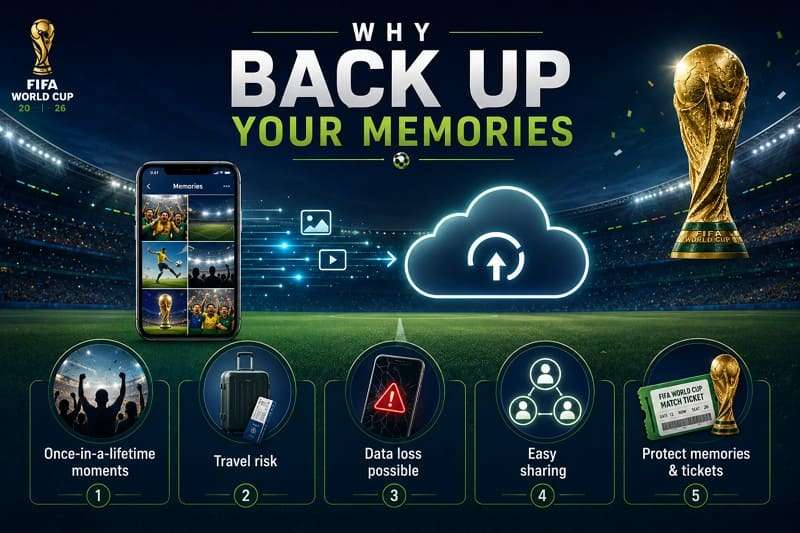
- World Cup Memories Are Special: For many fans, the FIFA World Cup is a once-in-a-lifetime experience with unforgettable moments. This is why a backup will ensure your photos and videos stay safe even if the phone is lost or reset.
- Travel Can Put Your Phone at Risk: Fox Sports says that the FIFA World Cup 2026 will be the largest event in history, with over 5 million spectators across 104 matches. Consequently, your device can be damaged or lost if it falls or is crowded into a stadium or other public venue, or on public transit. You can save all your matches' content if you maintain a cloud or local copy of your data on the same day.
- Files Can Be Lost Over Time: Photos and videos stored in a single location can disappear due to device failure, account issues, or accidental deletion. So, when you have multiple copies, you can keep the original FIFA World Cup memories with you for years.
- Backups Make Sharing Easier: When you save and organize files after tournaments, it helps you quickly find important moments later. You can seamlessly share data among peers or create highlight videos and social media posts, without searching through thousands of files.
- Protect Valuable Memorabilia: Tickets, fan passes, signed items, and other data can be scanned or photographed for safety. Thus, digital local or cloud copies prevent important memories and provide documentation if the original items are lost or damaged.
Part 2. What FIFA World Cup Content Should You Save
When you try to save your World Cup 2026 videos to your PC, review the mentioned bullets to know which data you need to back up:
- Match day photos and videos.
- Watch party photos and videos.
- Travel photos, tickets, and passes.
- Team merchandise and group photos.
- Screenshots and match schedules or scores.
Part 3. Best Ways to Back Up FIFA World Cup Photos and Videos
Whether you want to back up your World Cup watch-party videos or photos the same day or a day later, this section is for you. Get to know the simple and effective local and cloud backup options to pick the one that suits your needs:
Method 1. One-Click Phone-to-PC Backup Solution [MobileTrans]
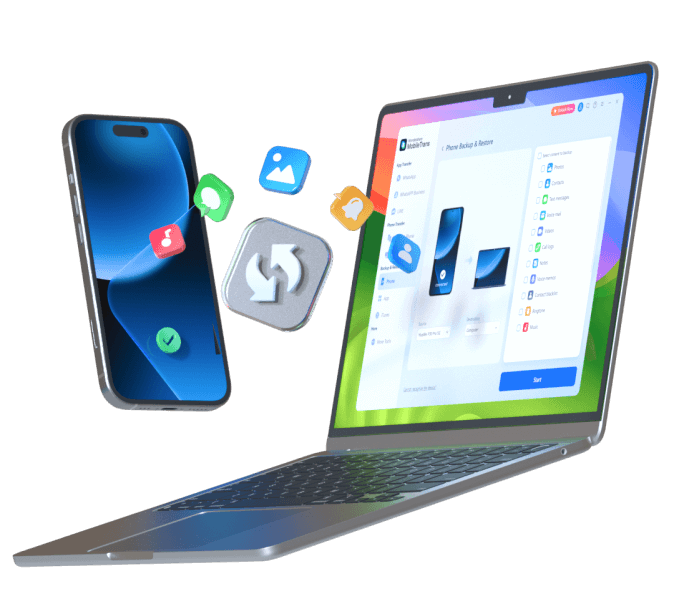
If you want to keep a selective local copy of FIFA World Cup 2026 data, use the MobileTrans Backup & Restore tool. This tool lets you back up 18+ data types for iPhone and Android, in just 2-3 simple steps. In addition, you can use it to back up WhatsApp and WhatsApp Business data or export them as PDF/HTML files.
Key Features
- High Compatibility: The tool supports Android 17 and iOS 27 and is accessible on 1-5 mobile devices with 1 PC in all plans.
- Restore to Any Phone: Users can restore the backup to Android or iPhone and choose which data to restore.
- No Overwrites: Whether you create a backup or restore it using MobileTrans, it claims not to overwrite the existing phone data.
- Review Backup Location: Since the tool needs no learning curve, you can later preview the created backup to verify accuracy.
- Restore iTunes Backups: Users can also use this tool to restore the iTunes backup on any phone in just a few taps.




Guide to Back Up FIFA World Cup 2026 Data with MobileTrans
To know how you can back up your World Cup match-day photos using MobileTrans, here is the detailed guide:
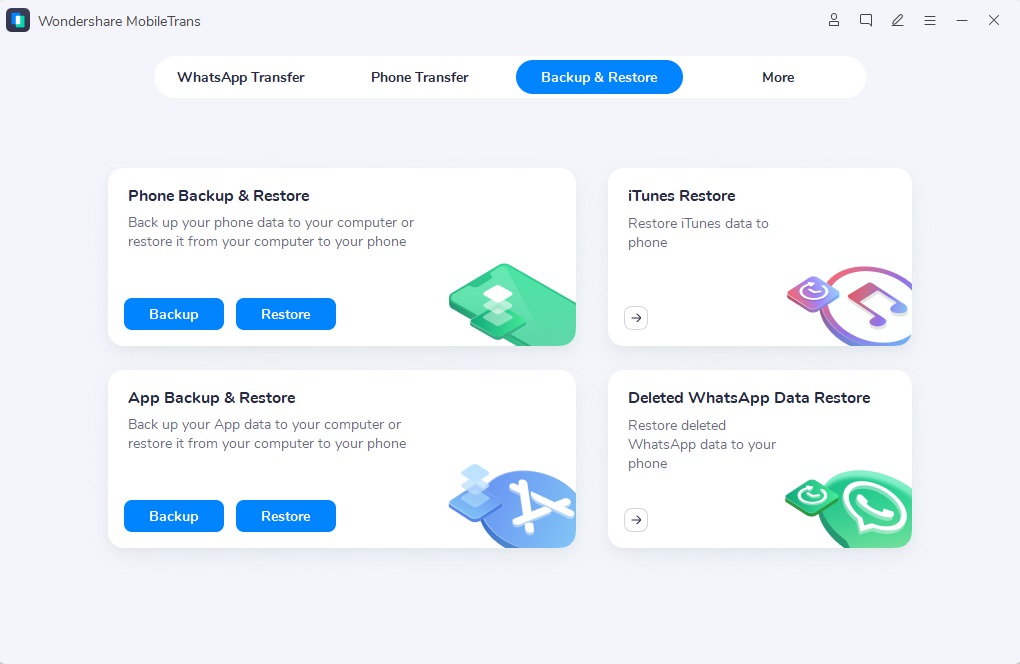
Step 1. Go to the Backup & Restore section, select the Phone tab, then tap the Backup button.
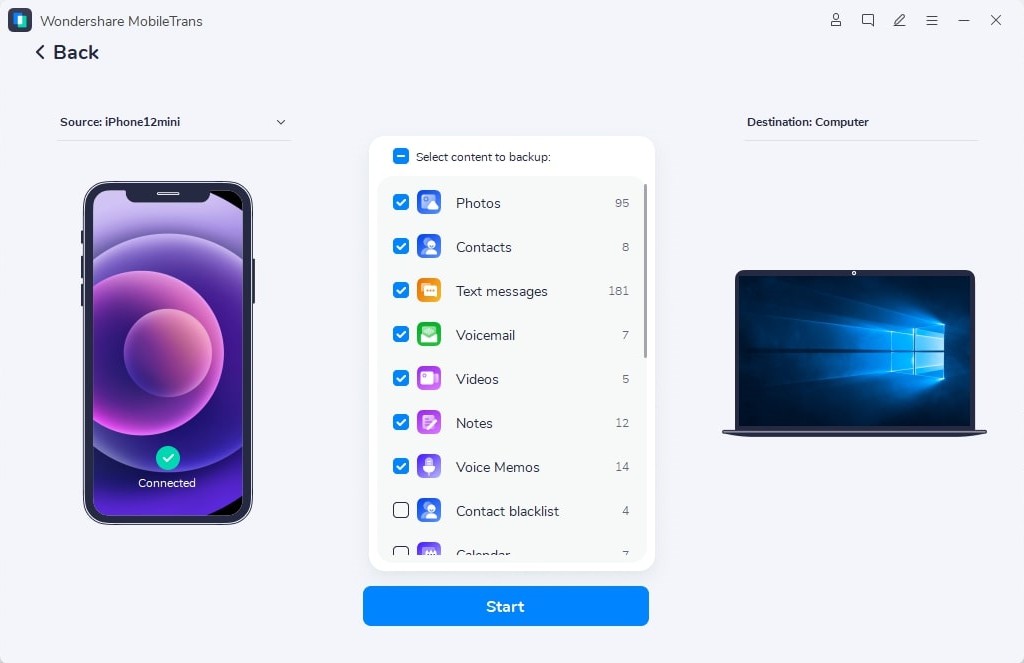
Step 2. Select the FIFA World Cup data you want to save and tap Start.
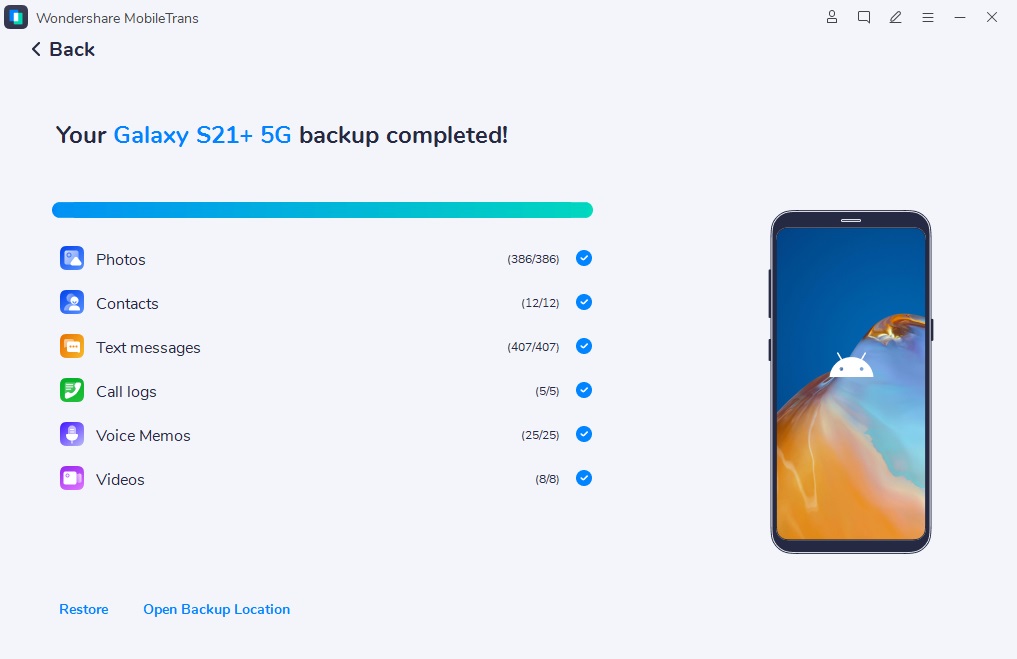
Step 3. When the backup is generated, tap Open Backup Location to preview.
Why Use a Dedicated Backup Tool?
A dedicated desktop tool, such as MobileTrans, is the best option for saving your World Cup 2026 videos to your PC. This is because you can choose what types of FIFA World Cup data you want to save. Unlike cloud options, you can also preview the created backup and restore it to any device, without having connectivity or device limitations.

Method 2. Cloud-Based Backup (Automatic)
If you want to back up your World Cup match-day photos on the same day, cloud backup options can help. Thus, here are the 2 options that you can consider as an Android or an iPhone user:
1. Google Photos (Android & iPhone)
This backup method automatically uploads your World Cup photos and videos to the cloud, so you can later access them on any device. In addition, the app organizes images and videos by date and location, and you can easily search and share them.
While they remain safe online, you can't control which images or videos to back up, unlike with MobileTrans. Nonetheless, here is how you can perform this action on Android and iPhone to save the camera roll:
Note: On Android, you can only choose which device folders (Camera, WhatsApp, Screenshots, etc.) are included in backup.
For Android
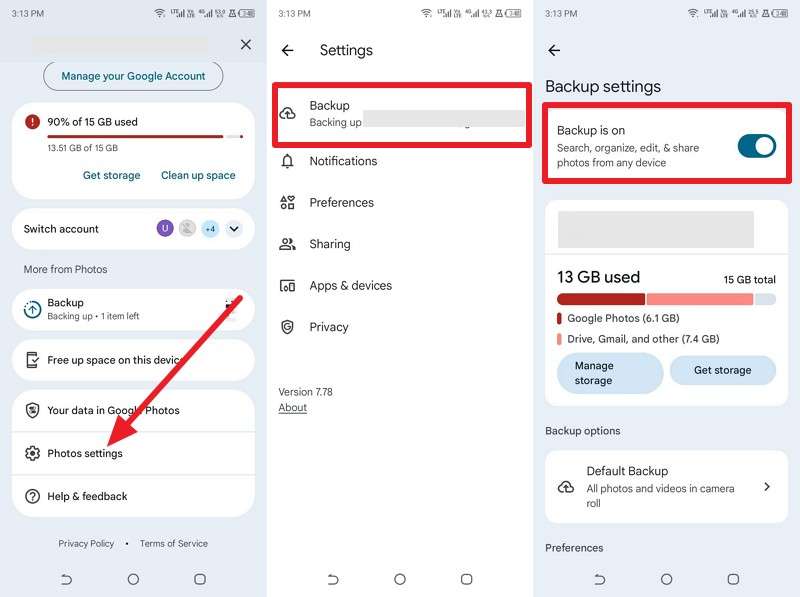
Step 1. Tap the Profile icon, choose Photo Settings > Backup Up, and enable Backup Is On.
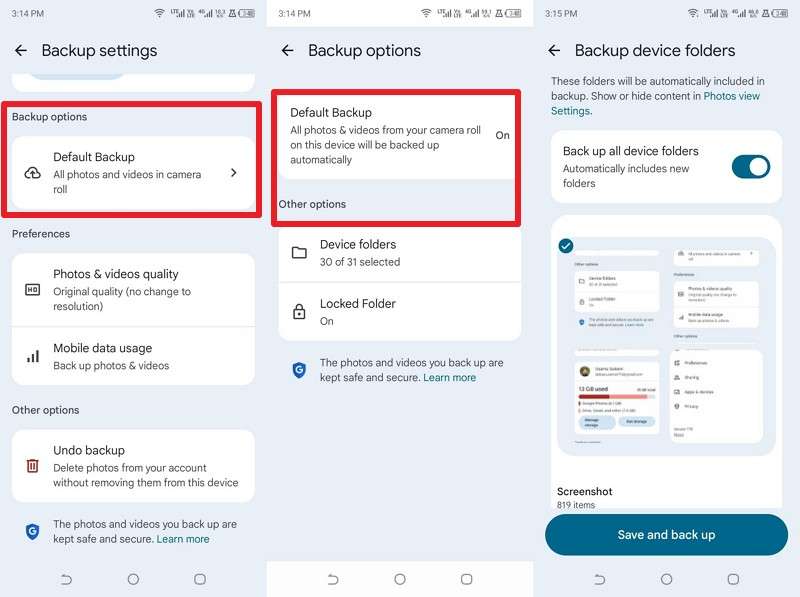
Step 2. You can also go to Backup Options. Choose Default Backup or Other Options to pick a specific folder.
For iPhone
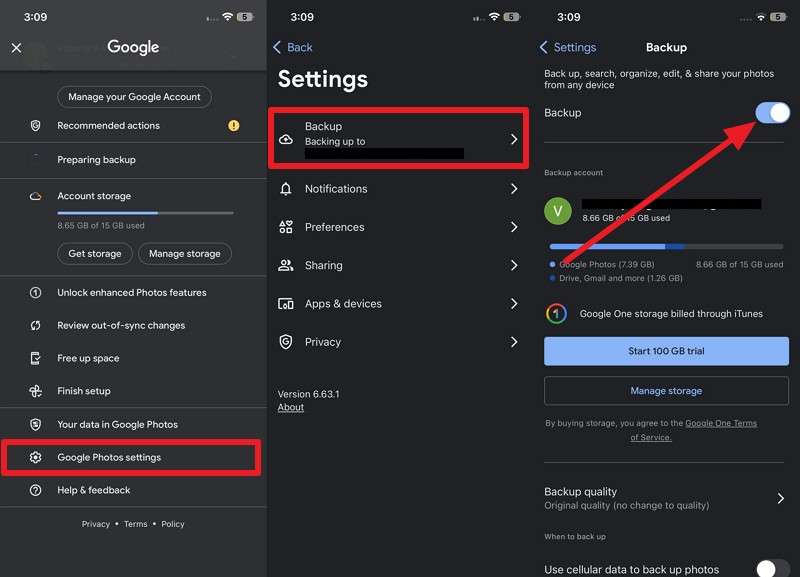
Instructions. Choose the Profile icon, then tap Google Photos Settings. Select Backup to enable it.
2. iCloud Photos (iPhone Only)
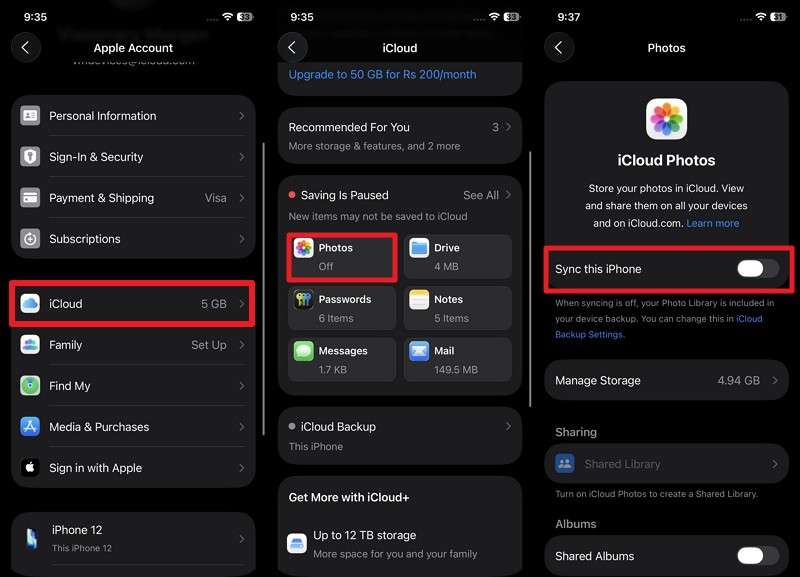
As another cloud option to archive your World Cup 2026 memories, you can use the iCloud Photos option as an iPhone user. This backup option automatically uploads new content to iCloud and keeps the original quality. Once enabled, you can easily access memories from an iPhone, iPad, Mac, or the web. Hence, the FIFA World Cup data remains safe if the listed steps are followed in detail:
Instructions. Tap on Apple ID > iCloud > Photos option. Toggle the Sync This iPhone option.
When Cloud Storage Is the Better Choice
Cloud storage is the best option to back up your World Cup match-day photos. This is because it can keep the data secure even if the phone is lost or damaged. In addition, they organize your files automatically and help you find and reuse the World Cup memorabilia years later.
Method 3. Transfer Files Directly Using a USB Cable
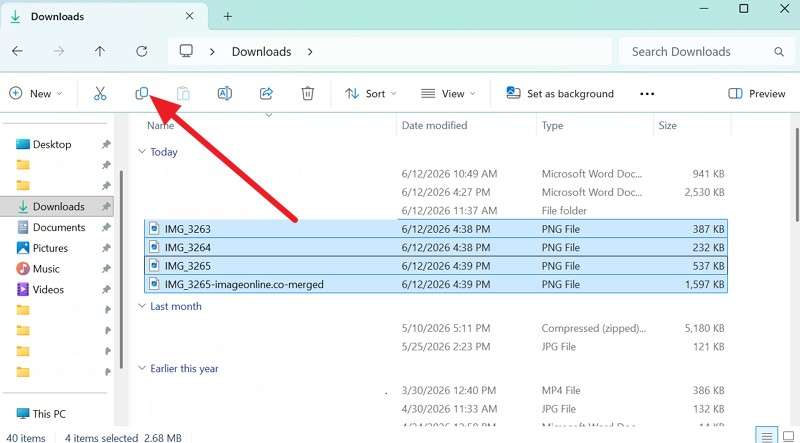
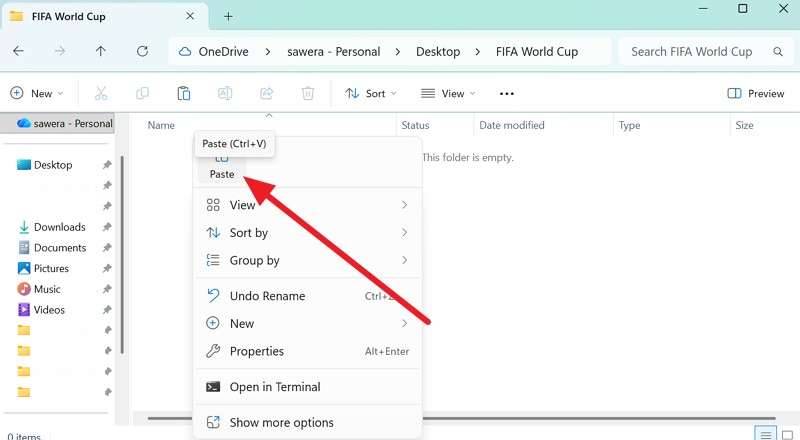
To back up your World Cup watch-party videos, users can also use the USB cable method, which does not require an internet connection. You can move large 4K videos and match-day photos from your phone to a computer or external drive. In addition, it's a faster and more stable method than many cloud uploads, and is guided ahead:
Step 1. Connect the phone (Android or iPhone) via USB cable. Copy the World Cup data from the main phone.
Step 2. Create a new folder on the PC and paste the copied data.
Pros and Limitations of Manual Transfers
If you choose to save your World Cup 2026 videos to your PC, know its mentioned perks and pitfalls:
Part 4. Best Practices for Storing FIFA World Cup Memories Long-Term
So far, you know how to back up your World Cup match-day photos using cloud and local backup options. So, when you choose the right method to save the data, follow the mentioned practices:
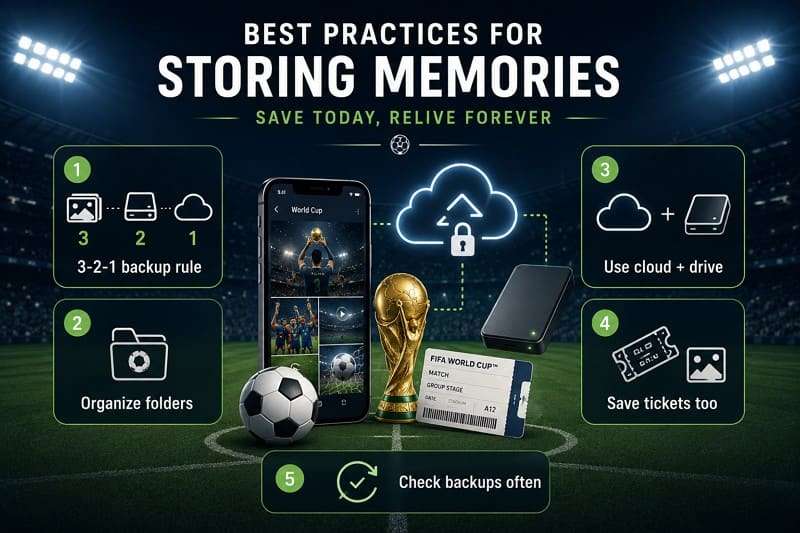
- Follow the 3-2-1 Backup Rule: Keep 3 copies of your World Cup photos and videos, including a laptop, an external drive, and cloud storage. In addition, use 2 different storage types and keep 1 copy off-site for full protection against loss.
- Create a World Cup Folder System: Make one folder named “FIFA World Cup 2026 Memories” for all the media when you use the USB-based PC backup option. There, sort files by match, date, and types for easy later access.
- Mix Local Drive and Cloud Storage: Always store one backup on an external SSD or HDD for fast local access. Furthermore, use cloud storage for automatic sync and remote access from any device.
- Save More Than Just Photos: It's advised to back up tickets, passes, wristbands, and scanned memorabilia, too. In this case, you can use MobileTrans to create a selective, local backup in bulk that you can also preview.
- Check and Update Backups: Regularly open files to ensure FIFA World Cup photos and videos are not corrupted. Additionally, update the storage when you upgrade the devices to keep your archive safe and up to date.
Conclusion
To sum up, data loss is possible during the FIFA World Cup, mainly when you travel daily or are in crowded places. Thus, this guide has explained how to back up your FIFA World Cup 2026 photos or other memories with cloud and local backup options. So, as you follow the 3-2-1 backup rule, MobileTrans Backup & Restore is the preferred choice for selective backups you can preview and restore to any device.
FAQs
-
What is the safest way to back up World Cup 2026 photos?
The safest method is to use the 3-2-1 rule and mix cloud storage, an external drive, and a PC option. For PC and local backup, you can use the MobileTrans Backup & Restore tool to ensure you keep the selective backup even if one storage fails. -
How much storage do I need for World Cup videos?
It depends on the quality, as 4K videos can take several GB per hour. Roughly, one hour of 4K video consumes between 20 GB and 30 GB (H.264 compression), while 1080p takes about 4 GB to 8 GB. -
How often should I back up my World Cup photos and videos?
It's best to back up photos and videos on the same day as the match or after the match. Thus, this approach will reduce the risk of losing photos, videos, and other memories.










