



 TL;DR:
Choosing between the iPhone Duo and Galaxy Z Fold 8 for the easiest data migration depends primarily on your current smartphone, as staying within the same ecosystem allows direct native transfers, whereas crossing platforms introduces strict post-setup limitations and unsupported purchase transfers.
● The Galaxy Z Fold 8 provides greater post-setup flexibility by allowing Smart Switch to import supported data without a system restart, while the iPhone Duo requires a complete factory wipe to use the Move to iOS tool after initial configuration.
● Cross-platform migrations to either foldable will fail to transfer paid App Store or Google Play purchases, require switching tied wearables like the Apple Watch, and lack an official native route for moving WhatsApp Business data from Android to iPhone.
● Users transferring from Android to an already configured iPhone Duo must use a third-party application like MobileTrans to bypass Apple's factory reset requirement and to successfully migrate unsupported WhatsApp Business data.
Ask AI for a summary
 ChatGPT
 Perplexity
 Gemini
 Claude
 Grok
Grok
Switching to a new foldable involves more than comparing displays, cameras, and hardware. In an iPhone Duo vs Galaxy Z Fold 8 comparison, the migration experience also depends on your current phone and ecosystem. Both devices offer built-in transfer tools, but moving between Apple and Android may require extra steps for certain data.
This guide compares how both phones handle photos, messages, WhatsApp, apps, passwords, eSIMs, and cloud data. It also explains post-setup transfers and how MobileTrans can offer another migration option when built-in tools don't meet your needs.
In this article

Part 1. iPhone Duo vs Galaxy Z Fold 8: Which Offers the Easier Switch?
For iPhone Duo vs Samsung Galaxy Z Fold 8, the switching experience depends largely on your current phone and the data you need to move. Both offer dedicated migration tools, but their support differs across same-ecosystem and cross-platform transfers. The table below compares their key migration options, including WhatsApp, apps, passwords, eSIMs, cloud data, and post-setup transfers.
|
Switching Factor |
iPhone Duo |
Galaxy Z Fold 8 |
Better Option |
|
Same Ecosystem Migration |
Quick Start provides direct iPhone-to-iPhone migration |
Smart Switch handles Galaxy and Android migration |
Tie |
|
Cross Platform Migration |
Move to iOS or app-free transfer from supported Android 17 devices |
Smart Switch handles supported transfers from iPhone |
Depends on source |
|
Post Setup Transfer |
Manual methods remain available, but Move to iOS requires initial setup |
Smart Switch can transfer supported data after setup |
Galaxy Z Fold 8 |
|
WhatsApp Transfer |
Supported from Android through Apple’s migration process |
Supported from iPhone through WhatsApp’s required transfer process |
Tie |
|
App Transfer |
Matching free apps can be downloaded from the App Store |
Smart Switch can identify and match compatible apps |
Tie |
|
Paid Purchases |
App Store purchases remain tied to Apple accounts |
Google Play purchases remain tied to Google accounts |
Neither |
|
Passwords and Passkeys |
iCloud Keychain data transfers between Apple devices |
One UI 9 supports eligible passwords and passkeys from iPhone |
Depends on source |
|
eSIM Transfer |
Supported Android eSIMs can transfer with compatible devices and carriers |
Eligible iPhone eSIM information can transfer through One UI 9 |
Depends on carrier |
|
Cloud Data |
iCloud data remains accessible, while Google accounts can be added separately |
Google and Samsung cloud data returns after account sign-in |
Depends on source |
|
Reset Requirement |
Move to iOS requires initial setup or an iPhone reset |
Smart Switch can run without resetting an existing Galaxy |
Galaxy Z Fold 8 |
The practical takeaway from Galaxy Z Fold 8 vs iPhone Duo depends largely on the phone you are switching from. Quick Start handles iPhone-to-iPhone migration, while Move to iOS supports switching from Android to iPhone. Smart Switch supports transfers from Android and iPhone to Galaxy. After setup, Smart Switch provides more transfer flexibility, while WhatsApp, apps, passwords, eSIMs, and cloud data depend on compatibility and the migration route.






Part 2. Switching from iPhone: iPhone Duo or Galaxy Z Fold 8?
For existing iPhone users, the destination determines how migration works. Moving to iPhone Duo keeps the process within Apple's ecosystem through Quick Start. switch from iPhone to Galaxy Z Fold 8 moves the transfer across ecosystems, with Smart Switch handling supported data.
Move from iPhone to iPhone Duo with Quick Start
Apple’s Quick Start uses your current iPhone to set up iPhone Duo and transfer data directly or through iCloud. Direct migration keeps both devices occupied until the transfer finishes. With iCloud, apps and data can continue downloading in the background while you use the new iPhone. Quick Start also carries over supported settings and account information. To complete the migration, follow these steps:
- Step 1. Connect the old iPhone to Wi-Fi, enable Bluetooth, unlock it, and place the powered-on iPhone Duo nearby.
- Step 2. Tap Continue on the old iPhone, then wait for the animation to appear on iPhone Duo.
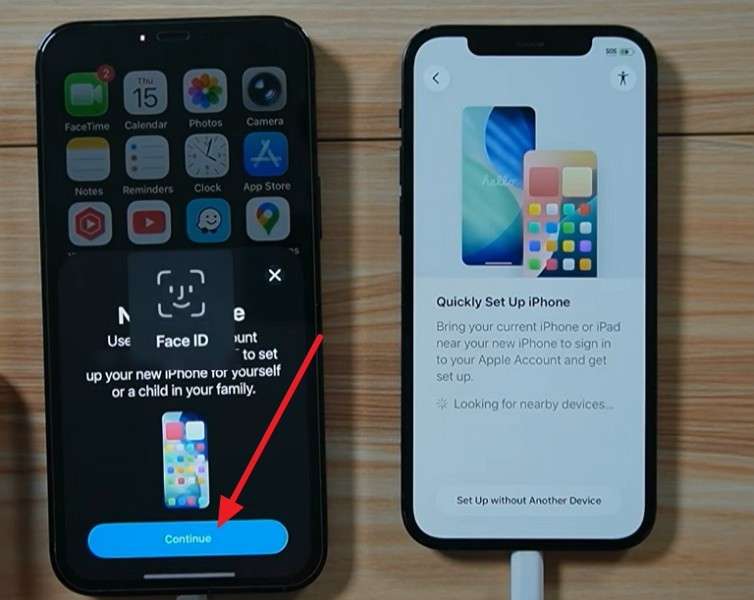
- Step 3. Scan the animation with the old iPhone > Select Set Up for Me > Enter your old iPhone passcode on iPhone Duo > Tap Continue.
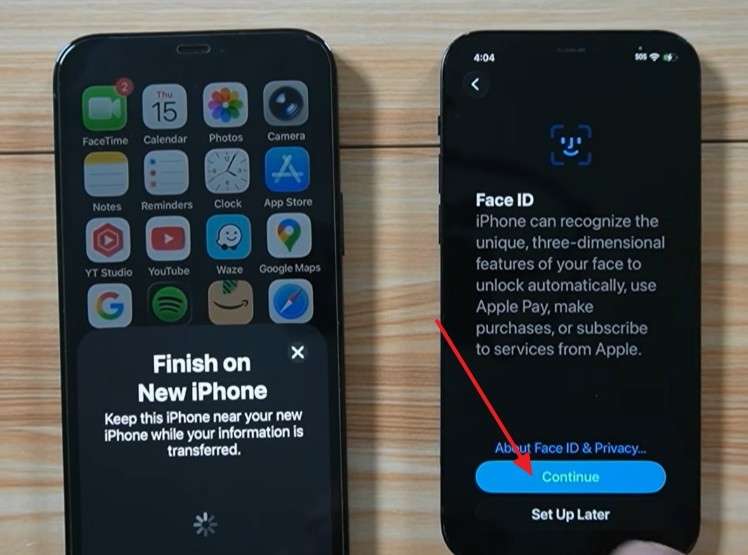
- Step 4. Choose Transfer from iPhone or Download from iCloud. For direct migration, select Transfer from iPhone > Continue > Tap Agree to confirm the terms > Press Continue.
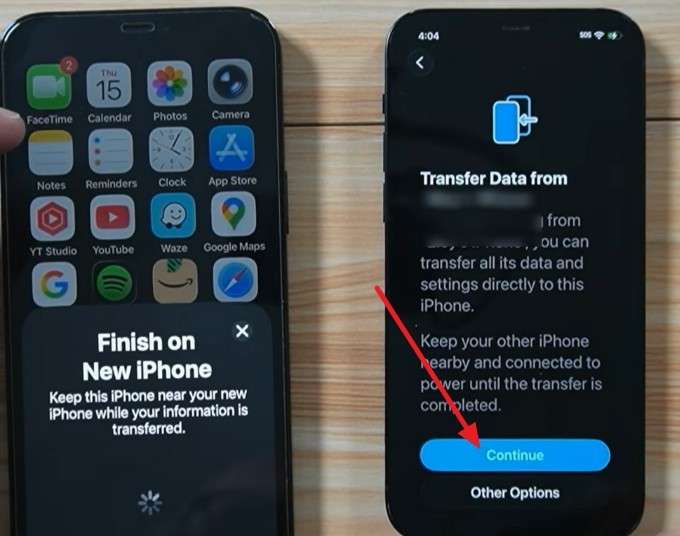
- Step 5. Keep both iPhones near each other and connected to power until the migration finishes.
Move from iPhone to Galaxy Z Fold 8 with Smart Switch
For anyone comparing Galaxy Z Fold 8 vs iPhone Duo, Smart Switch provides a direct way to move supported data from iPhone to Galaxy. With One UI 9, you can start a wireless transfer on the Galaxy Z Fold 8 and scan the displayed QR code using the iPhone's Camera app, without installing Smart Switch on the iPhone. Since transferred data varies by device and connection method, follow these steps:
- Step 1. Open Smart Switch on the Galaxy Z Fold 8 and tap Receive On This Phone > iPhone/iPad > Wireless as the source.
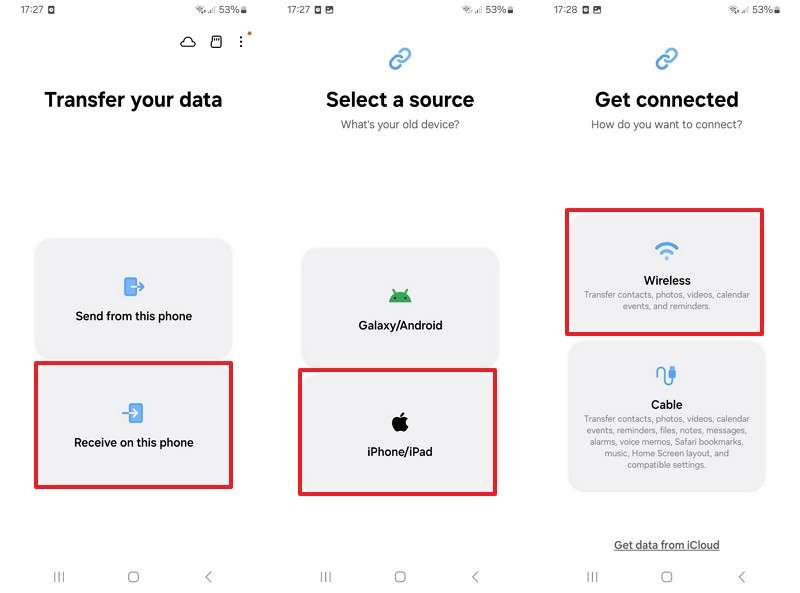
- Step 2. Open the Camera app on the old iPhone and scan the QR code. Press Join > Choose data on the Galaxy Z Fold 8 > Tap Transfer.
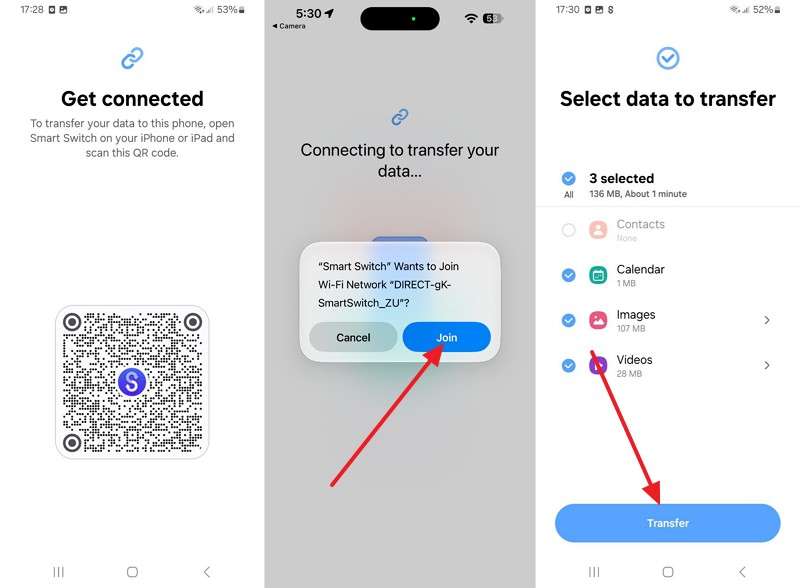
- Step 3. Wait for the transfer to finish, then review the imported data on the Galaxy Z Fold 8 before removing anything from the old iPhone.
Part 3. Switching from Android: iPhone Duo or Galaxy Z Fold 8?
Android users can either stay within the same ecosystem or move across platforms when choosing their next foldable. The Galaxy Z Fold 8 uses Smart Switch for supported Android transfers, while users switch from Android to iPhone Duo can use Apple’s available migration methods. Here is how each route works:
Move from Android to iPhone Duo with Apple Transfer Tools
Apple provides two ways to move supported Android data during iPhone setup. Compatible Android 17 or later devices can use Transfer without App, which connects both phones by scanning a QR code. Other supported Android devices can transfer through Move to iOS. These options give users comparing iPhone Duo vs Samsung Galaxy Z Fold 8 a clearer view of Apple’s migration process. Here is how each method works:
Option 1: Transfer from Android 17 Without Installing an App
- Step 1. Turn on the iPhone Duo and continue setup until you reach Transfer Your Apps & Data > From Android > Transfer Without App.
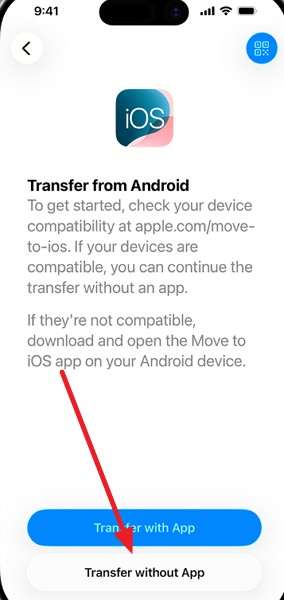
- Step 2. Use the Android phone's camera to scan the QR code displayed on the iPhone Duo.
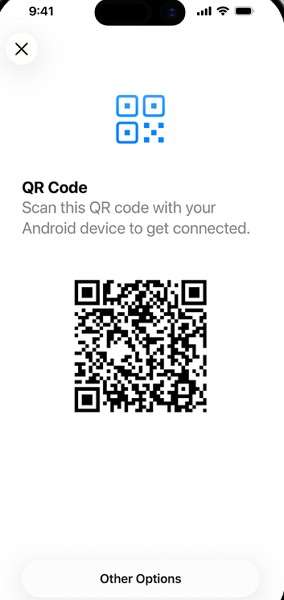
- Step 3. Follow the prompts > Select the data to transfer > Transfer the eligible eSIM if supported by your device and carrier.
- Step 4. Keep both phones nearby and connected to power until the transfer finishes.
Option 2: Transfer with Move to iOS
- Step 1. Select From Android > Transfer With App on iPhone Duo. On Android, choose Continue with Wi-Fi > Select iPhone Duo under Devices on Wi-Fi.
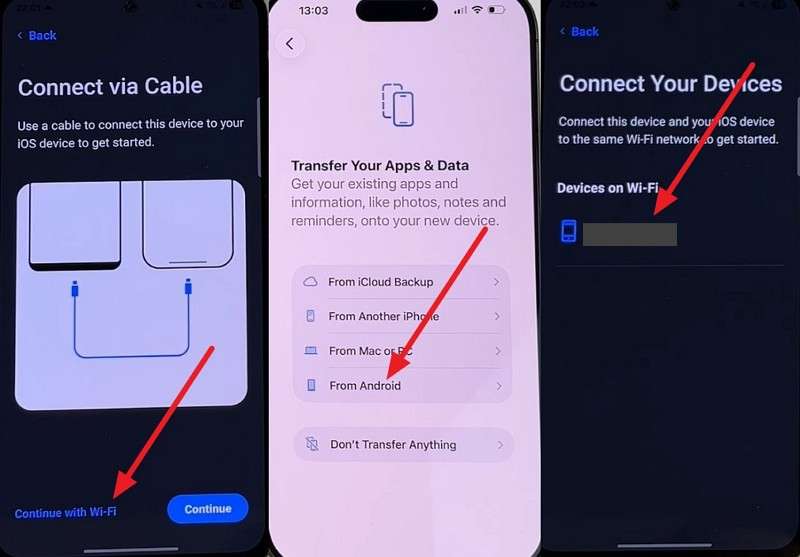
- Step 2. Get the transfer code on iPhone Duo > Open Move to iOS on Android > Continue > Enter the code displayed on iPhone Duo.
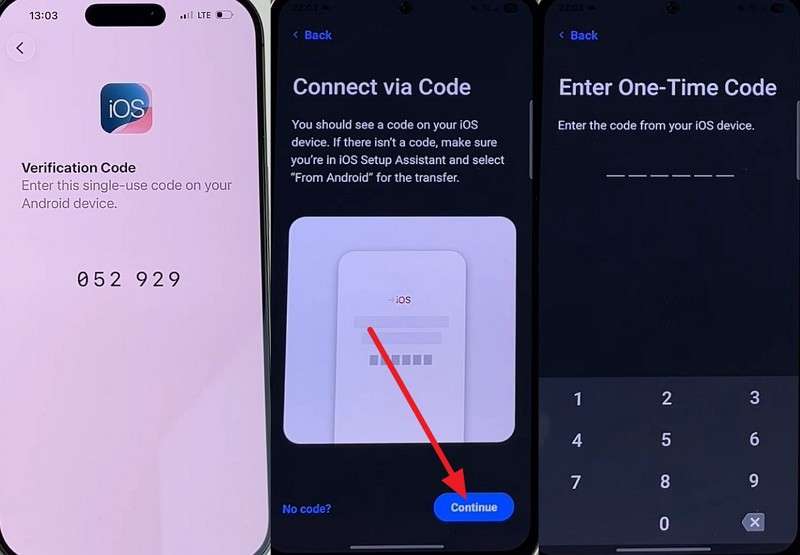
- Step 3. Select the data to transfer on Android > Continue > Keep both devices nearby and connected to power until the loading bar on iPhone Duo finishes.
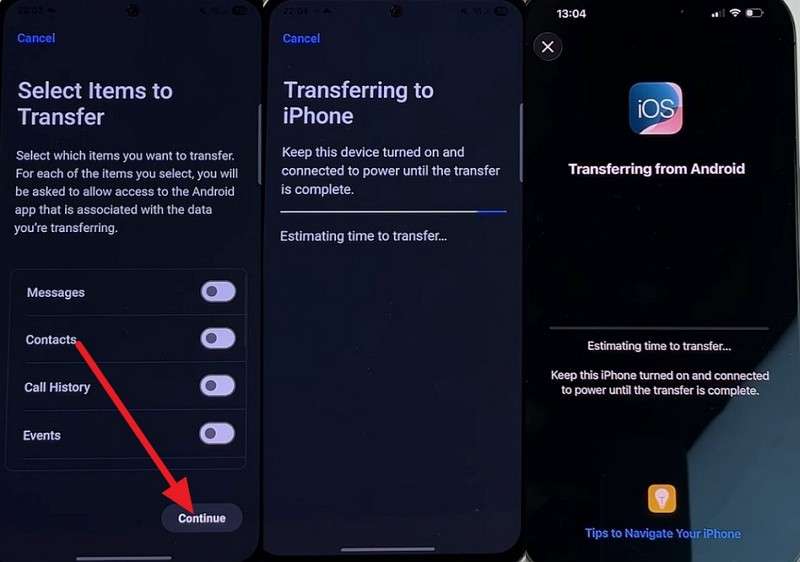
Move from Android to Galaxy Z Fold 8 with Smart Switch
Samsung supports both wireless and USB cable transfers through Smart Switch, although available content varies by source device and connection method. Data already synced to a Google account works differently because Smart Switch doesn't copy it directly. Instead, supported synced information becomes available after you sign in to the same Google account on the Galaxy Z Fold 8. To complete the Smart Switch migration, follow these three steps:
- Step 1. Open Smart Switch on both phones. On the old phone, choose Wireless to access the scanner.
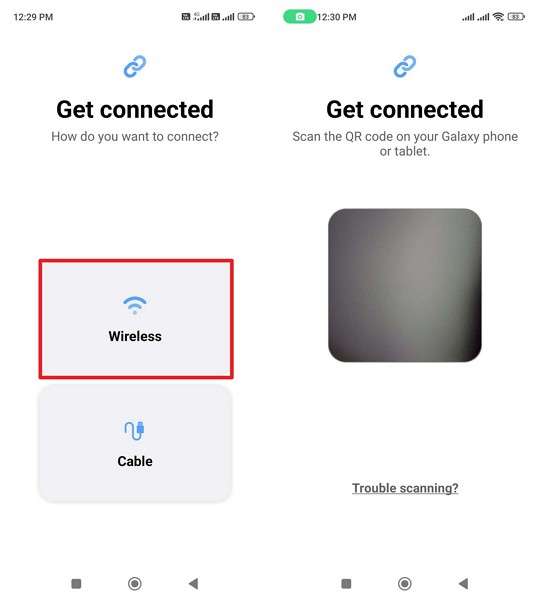
- Step 2. On the Galaxy Z Fold 8, tap Receive On This Phone, then select Galaxy/Android.
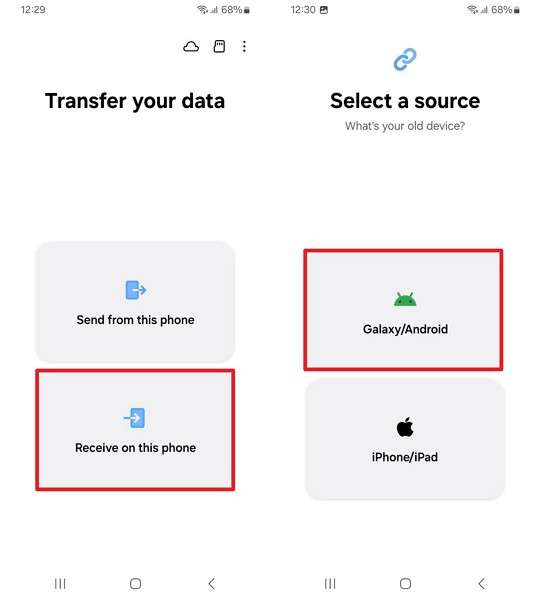
- Step 3. Tap Wireless > Scan the QR code > Select the required data types > Press Next.
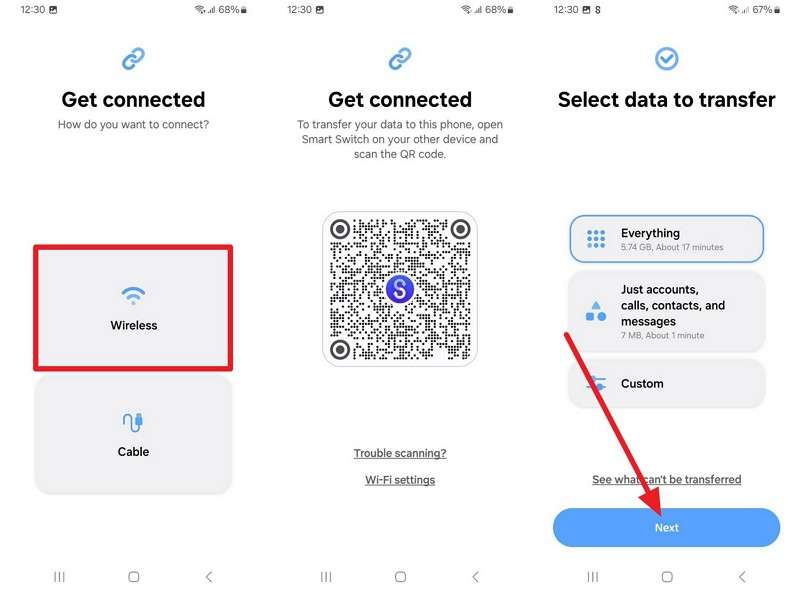
Note: Smart Switch transfers supported data to Galaxy devices. It does not serve as a general migration tool for transferring data to other Android brands.
Part 4. What Data May Not Transfer Directly Between iPhone and Android?
If you're switch from Samsung to iPhone Duo or moving from iPhone to Galaxy Z Fold 8, some data needs extra attention. Standard migration tools can handle many common items, but purchases, app-specific data, WhatsApp Business, wearables, and local files may not transfer completely. Check these items before erasing your old phone to avoid losing important data or access:
|
Data or Service |
To iPhone Duo |
To Galaxy Z Fold 8 |
What to Know |
|
WhatsApp Business |
No official Android-to-iPhone transfer route |
Android to Android migration is supported |
Cross-platform Business migration has additional limitations |
|
Paid Apps and Purchases |
Android store purchases do not transfer |
App Store purchases do not transfer |
Purchases generally remain tied to the original store |
|
App Specific Data |
Availability varies by app and developer support |
Transfer depends on the individual app |
Cloud-synced data is usually easier to restore |
|
Wearables |
Apple Watch works within the Apple ecosystem |
Current Galaxy Watches work within Android |
Switching ecosystems may require changing your wearable |
|
Local Media and Files |
Some files may require manual or cloud transfer |
Unsupported files may need separate transfer |
Check locally stored content before wiping the old phone |
Part 5. Which Phone Makes Post-Setup Data Transfer Easier?
Post-setup options can also shape the switching experience in iPhone Duo vs Galaxy Z Fold 8. Smart Switch remains available after Galaxy setup, while iPhone Duo places more limits on full Android migration. Here is how each device handles transfers after setup:
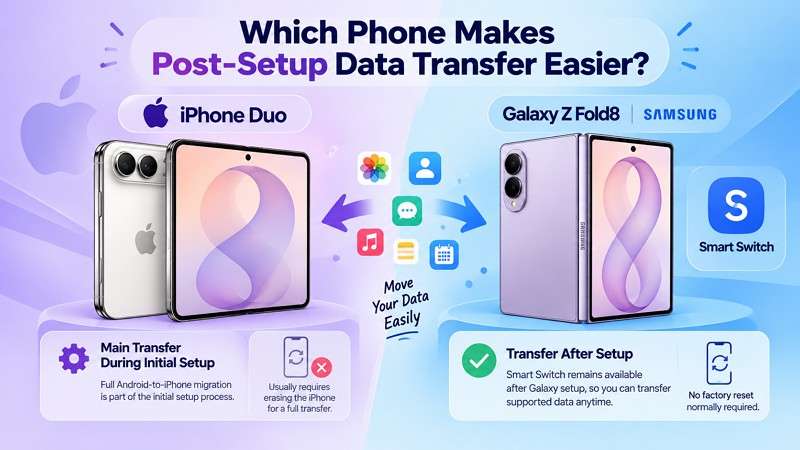
Galaxy Z Fold 8 Supports Native Transfers After Setup
Smart Switch can still receive supported data after the Galaxy Z Fold 8 is set up. This helps if you have skipped the initial transfer or later discover missing contacts, photos, messages, or other content. You can run another supported transfer without normally resetting the Galaxy first.
iPhone Duo Has More Restrictions After Setup
For users who switch from Android to iPhone Duo, Move to iOS is primarily designed for initial setup. Once setup is complete, using full migration requires erasing the iPhone and starting again. Selected content, including contacts, calendars, mail, and photos, can still be transferred later through accounts, cloud services, or individual apps.
Part 6. How MobileTrans Helps You Switch to Either Foldable
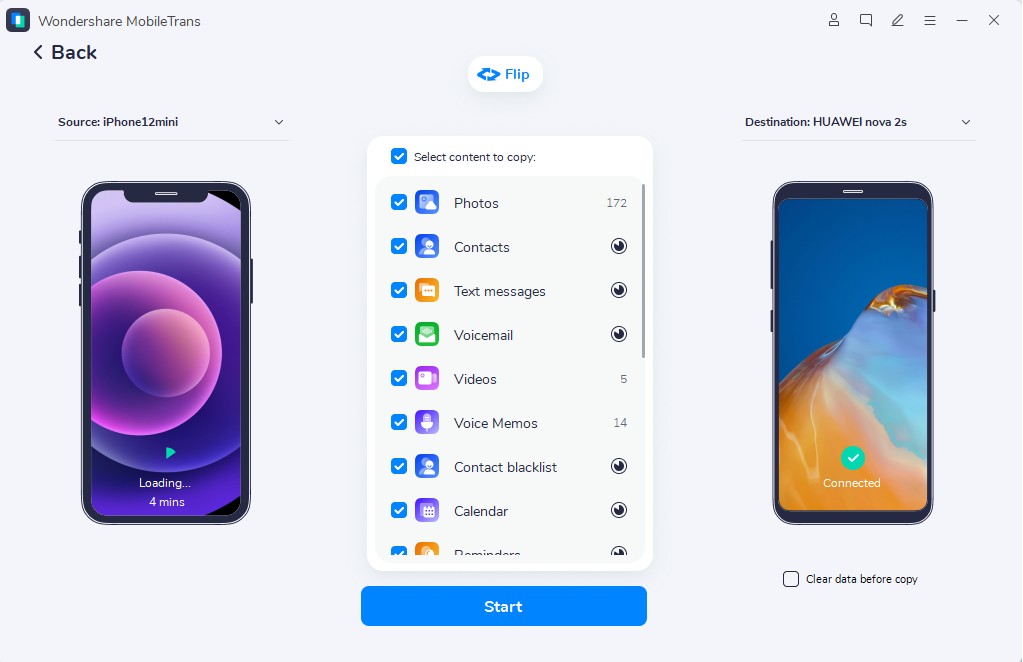
Built-in migration tools may not cover every switching scenario in an iPhone Duo vs Samsung Galaxy Z Fold 8 move. MobileTrans provides an alternative for Android to iPhone, iPhone to Android, and same-platform transfers. Its MobileTrans-Phone Transfer feature connects both phones to a computer, identifies the source and destination devices, and lets you select the supported data you want to transfer.
MobileTrans supports 18+ data types, although availability varies by device and transfer direction. It can also move supported Android data to an iPhone that has already been set up, helping you avoid resetting the device to use Move to iOS. For messaging data, MobileTrans-WhatsApp Transfer provides a separate workflow for supported WhatsApp and WhatsApp Business transfers between Android and iPhone.
Key Features of MobileTrans
- iCloud Backup Restoration: Accesses an iCloud backup and restores supported content to a compatible destination device without requiring the original iPhone.
- Selective Backup and Restore: Backs up supported phone data to a computer and lets users choose specific content when restoring it later.
- Google Drive to Phone Transfer: Imports supported data from Google Drive to a compatible phone, offering another way to move cloud-stored content.
- WhatsApp Backup Management: Creates local WhatsApp backups on a Windows PC or Mac, keeping chat data available outside regular cloud backup services.
- WhatsApp Chat Export: Exports WhatsApp conversations to readable PDF or HTML files for easier viewing, printing, or archiving on a computer.
Guide to Transfer Phone Data with MobileTrans
For an iPhone Duo vs Samsung Galaxy Z Fold 8 switch, MobileTrans supports both transfer directions and lets you select the data to move. Follow these steps to complete the transfer:
- Step 1. Set up MobileTrans > Select Phone Transfer > Phone to Phone > Connect Samsung and iPhone Duo.

- Step 2. Use Flip to set the source and destination devices > Choose data types > Press Start to move data to the target phone.
Part 7. iPhone Duo vs Galaxy Z Fold 8: Which Should You Choose for an Easier Switch?
The easier choice in iPhone Duo vs Samsung Galaxy Z Fold 8 depends on what you need from the migration, not simply your current phone. Some users may prioritize keeping Apple settings intact, while others need greater post-setup flexibility or an easier cross-platform route. Use the situations below to match each phone with your migration priorities:
|
If You Need To... |
Better Fit |
Reason |
|
Preserve Your Existing Apple Setup |
iPhone Duo |
Quick Start carries supported data and settings directly from your previous iPhone. |
|
Bring More iPhone Data and Settings to Android |
Galaxy Z Fold 8 |
One UI 9 Smart Switch supports additional data from compatible iPhones. |
|
Switch from Android Without Installing Move to iOS |
iPhone Duo |
Compatible Android 17 devices can use Apple's app-free transfer method. |
|
Transfer Missing Data After Initial Setup |
Galaxy Z Fold 8 |
Smart Switch can receive supported content without restarting setup. |
|
Use Another Route When Native Tools Fall Short |
Either |
MobileTrans supports selected transfers between Android and iPhone. |
Verdict: iPhone owners have the more direct same-ecosystem route to iPhone Duo, while Android owners can stay within Android by moving to Galaxy Z Fold 8. For cross-platform moves, check the transfer method, supported data, and post-setup limits before choosing a route.
Conclusion
For iPhone Duo vs Galaxy Z Fold 8, the migration experience depends on your current device and the data you need to move. Quick Start simplifies iPhone-to-iPhone transfers, while Move to iOS supports Android-to-iPhone migration. Smart Switch handles supported Android and iPhone data on Galaxy. Before switching, check apps, purchases, WhatsApp, passwords, eSIMs, and any data that needs separate handling.
MobileTrans offers another option when Apple's or Samsung's built-in tools don't meet your needs. It supports selected transfers between Android and iPhone in both directions, including situations that require greater post-setup flexibility.
FAQs
-
Is iPhone Duo or Galaxy Z Fold 8 easier to switch to from iPhone?
iPhone Duo offers direct migration through Quick Start, keeping supported data within Apple's ecosystem. Galaxy Z Fold 8 uses Smart Switch, while some Apple-specific apps, purchases, and services require separate handling. -
Which is easier to switch to from Android?
Galaxy Z Fold 8 provides a more direct Android migration route through Smart Switch, keeping users within the Android ecosystem. iPhone Duo requires Apple’s Android migration tools when moving across ecosystems. -
Can I transfer data after iPhone Duo or Galaxy Z Fold 8 is already set up?
Yes. Smart Switch supports transfers after Galaxy setup, while Move to iOS generally requires erasing a configured iPhone. MobileTrans can transfer supported data to an already set-up iPhone without Move to iOS. -
Which phone is easier for transferring WhatsApp and eSIM?
Neither is universally easier. Both support eligible WhatsApp and eSIM transfers, but requirements vary by direction, device, and carrier. Check compatibility before switching, especially for cross-platform WhatsApp and eSIM migration.










