


 TL;DR:
The most effective way to transfer photos from a phone to a laptop wirelessly is by using ecosystem-specific tools like AirDrop for iPhone-to-Mac or Quick Share for Android-to-Windows, as both maintain original image quality and can operate independently of an internet connection.
● Cloud platforms (iCloud Photos, Google Photos, Google Drive) and email services allow cross-platform sharing between any mobile device and PC/Mac, but they strictly depend on internet access and enforce limits such as iCloud's 5GB free storage cap or Gmail's 25MB attachment ceiling.
● Messaging applications like WhatsApp provide convenient cross-device synchronization via desktop apps but automatically compress files during the transfer, making them unsuitable for users who need to retain original high-definition details.
● If wireless constraints like slow network speeds for large albums or cloud storage limits become bottlenecks, reverting to a wired USB solution like MobileTrans provides offline, full-resolution exports across all major operating systems, though its free version restricts key features.
Ask AI for a summary
 ChatGPT
 Perplexity
 Gemini
 Claude
 Grok
Grok
With users taking so many photos every day, keeping them on phones can easily take up space. Many people want easier ways to back up pictures and view them later, anytime. That's why learning how to transfer photos from phone to laptop wirelessly becomes essential today. It saves time, avoids clutter, and keeps memories safe in larger storage. Thus, this guide will show you several simple methods for smooth, safe photo sharing.
In this article
Part 1. Why Transfer Photos from Phone to Laptop Wirelessly
Migrating photos wirelessly is not just about comfort, as it also meets many daily needs. Below, we will explore a key reason why people prefer this option for saving and securing their pictures:
- Backup Safety: Moving photos to a laptop ensures they remain secure even if your phone gets lost. This method protects memories and essential work files by creating a reliable second storage location.
- Work Sharing: Professionals can quickly show images on laptops during meetings without hassle. It improves teamwork by making photos available across devices in offices or remote settings.
- Study Projects: Students need images for assignments and reports stored safely on laptops. Transferring allows quick movement of pictures from phone to PC for learning needs.
- Better Editing: Photo editing tools work better on laptops and offer features unavailable on phones. It lets images move instantly, so editing software can provide improved results within seconds.
- File Organization: Photos become easier to arrange into folders, ensuring memories stay sorted according to events. Learning how to transfer pictures from phone to computer wirelessly helps organize libraries.
Part 2. How to Transfer Photos from Phone to Laptop Wirelessly - 7 Solutions
Various simple ways are available to move your pictures between devices without hassle. So, this section provides the top 7 ways to learn how to transfer photos from phone to laptop without a cable:
Solution 1. Cloud Services
Transfer Direction: Android/iPhone to PC/Mac
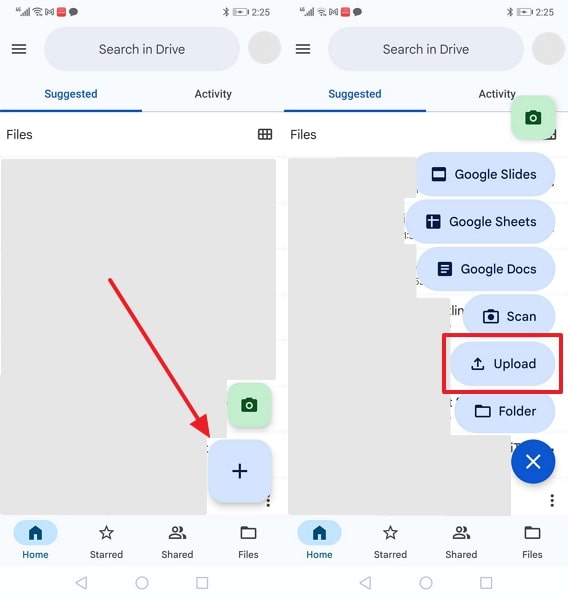
Cloud services like Google Drive make moving photos easier by offering safe online storage options. You can upload pictures once and view them anytime from any connected device you use. Plus, automatic backup also ensures photos stay secure even if your phone is lost or broken. Users can access the following steps to find out how to transfer files from a phone to a laptop without a cable through a cloud service:
Step 1. On your phone's Google Drive App, tap + > Upload and upload your desired photos.
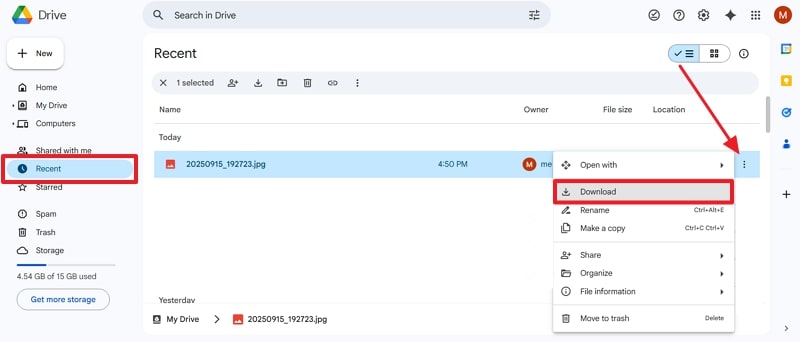
Step 2. After accessing the same account on your laptop, click the Recent tab > Three Dots > Download option.
Solution 2. Quick Share
Transfer Direction: Android to Windows PC
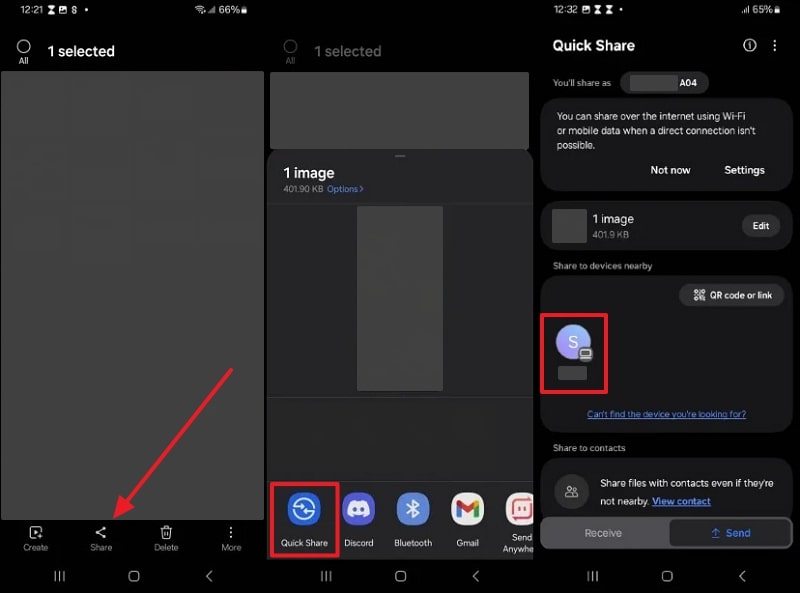
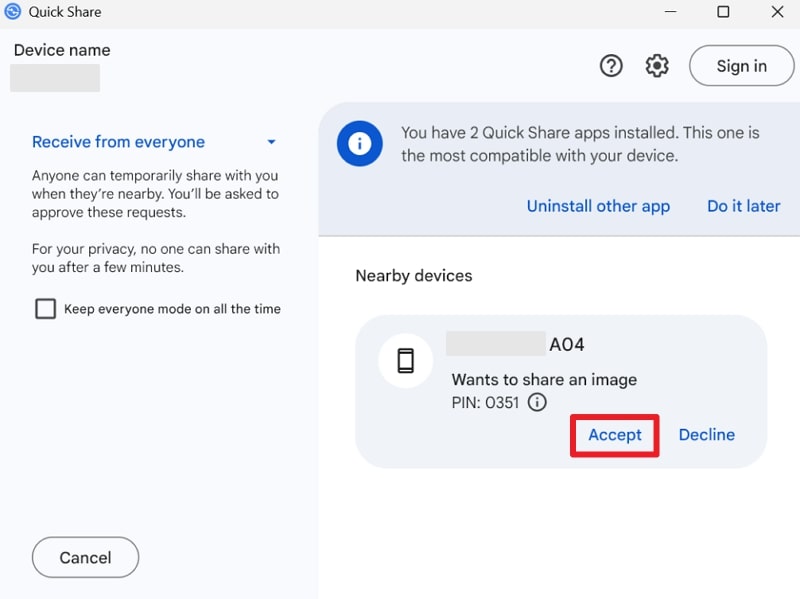
Quick Share is a handy feature that lets Android and Windows users send photos wirelessly. It transfers files quickly using Wi-Fi Direct or Bluetooth while keeping photos in full original quality. Users can share multiple images or large albums at once, even with up to 5 devices. Thus, adhere to the steps below to learn how to transfer files from phone to laptop without a cable:
Step 1. On your Android, select the image and tap Share > Quick Share > Target PC.
Step 2. When you receive a message on your Quick Share desktop app, click the Accept button.
Solution 3. Email
Transfer Direction: Android/iPhone to PC/Mac
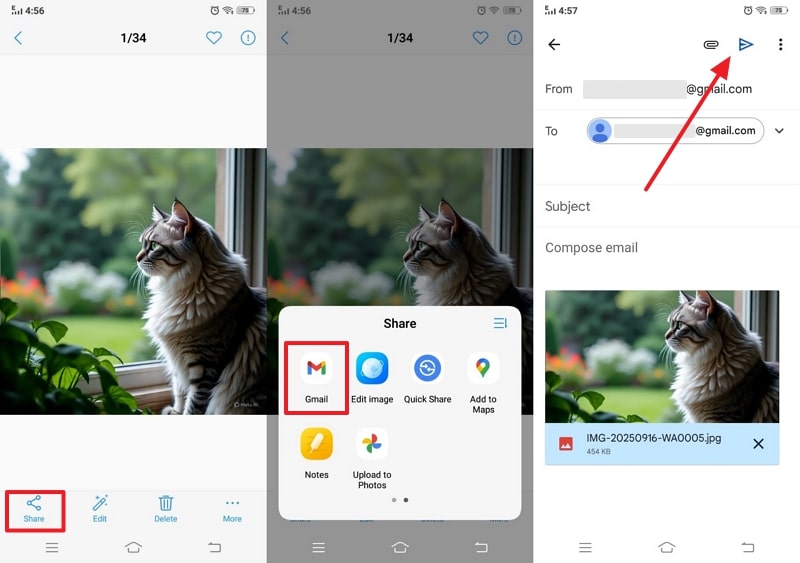
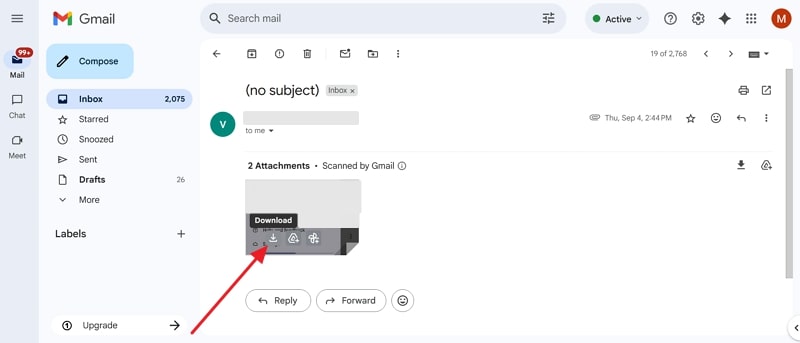
There are also email services, such as Gmail, in which you can send photos. You can attach images up to 25 MB and send them instantly without trouble. Recipients can preview attached pictures in their browser or download them with one click. Photos stay safely stored in your Gmail inbox, ready to open whenever you need. Thus, let's explore how to transfer pictures from Android to PC without a USB:
Step 1. Upon selecting the photos, press Share > Gmail > Add Your PC's Gmail > Send button.
Step 2. As you receive an email on your computer, click the Download icon to save the photo.
Solution 4. Messaging Apps
Transfer Direction: Android/iPhone to PC/Mac
Messaging apps like WhatsApp let users link their accounts to laptops or desktops using WhatsApp Web or Desktop. Photos received or sent appear instantly on the larger screen for preview and quick download. Since WhatsApp already stores shared files in chats, transferring photos wirelessly feels simple. So, review the given steps below to understand how to transfer photos from Android to PC without a USB:
Step 1. Press the Attachment icon on your WhatsApp chat screen and tap Gallery > Select Photos > Send.
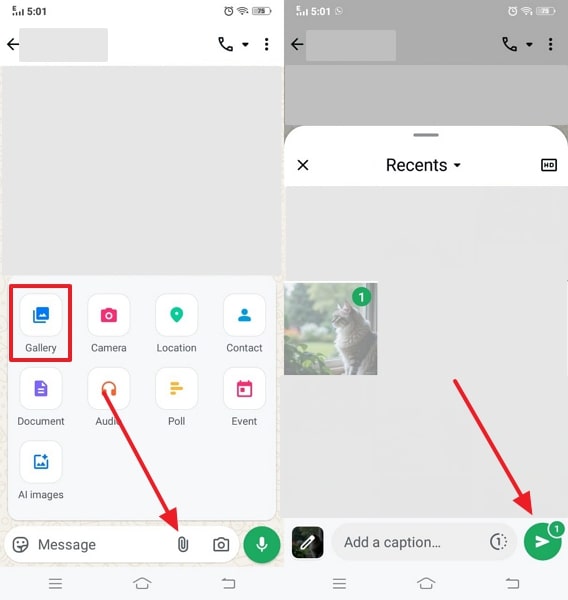
Step 2. After accessing the photos on either your WhatsApp Web or desktop, click on them.
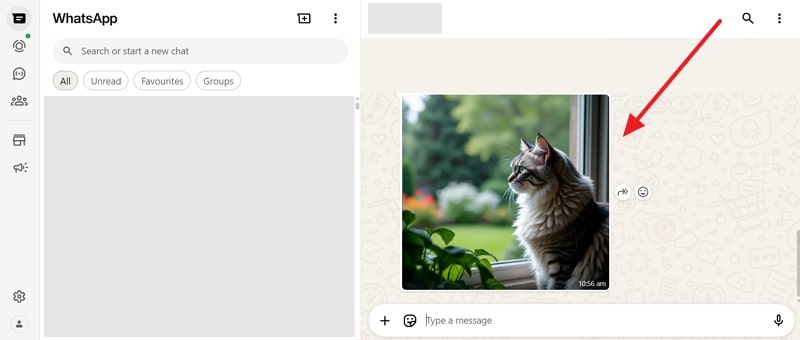
Step 3. Following that, press the Download icon to export it.

Solution 5. iCloud Photos
Transfer Direction: iPhone to PC/Mac
iCloud Photos offers Apple users an effortless way to keep images synced across all their devices. Every photo taken uploads instantly to the cloud and appears on devices using the same Apple ID. However, free storage is 5GB, and larger photo collections may require upgrading storage plans. Anyway, go through the steps below to find out how to transfer photos from iPhone to PC without a USB:
Step 1. On your iPhone's settings, head to the Apple Account and tap iCloud > Photos > Sync This iPhone Toggle.
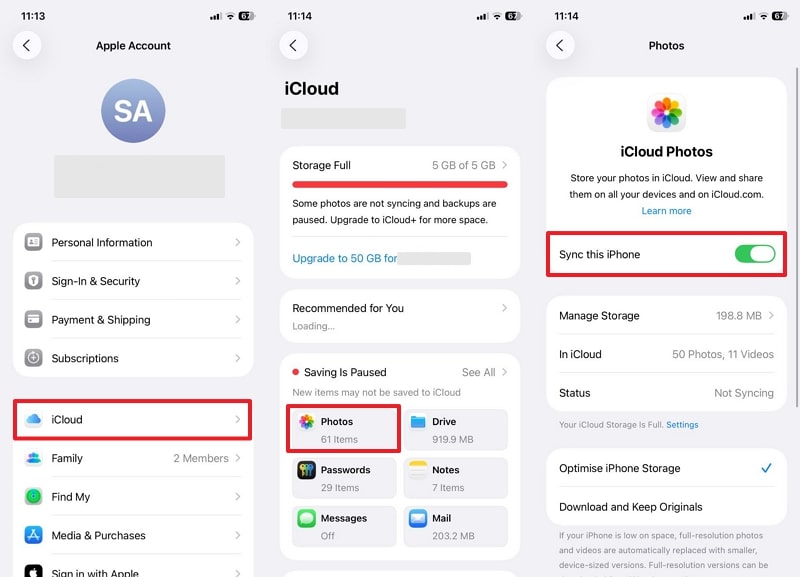
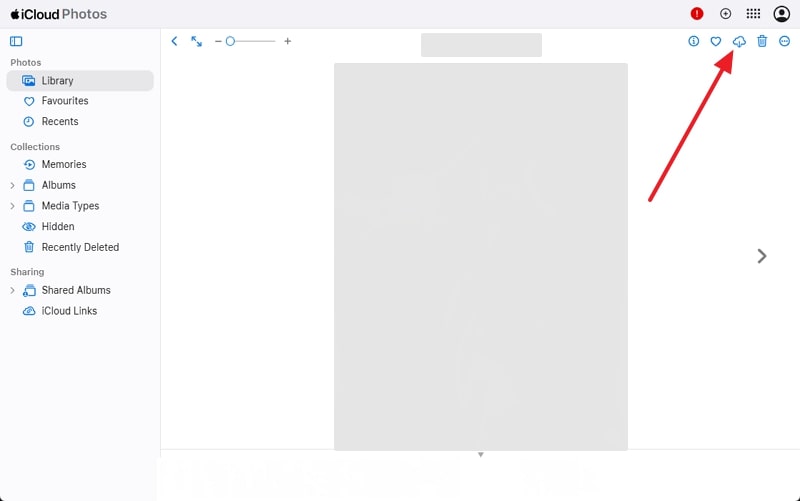
Step 2. Afterward, sign in to the same iCloud account on your computer and click the Photos app.
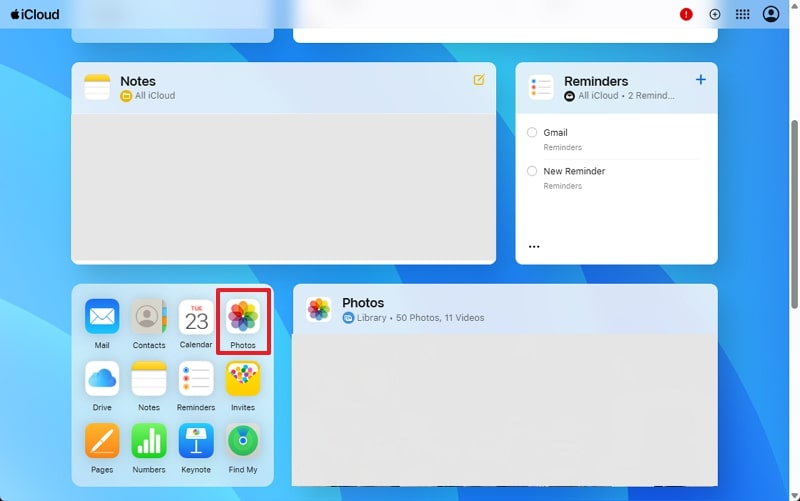
Step 3. Once you select your desired image, press the Download icon to save it.
Solution 6. AirDrop
Transfer Direction: iPhone to Mac
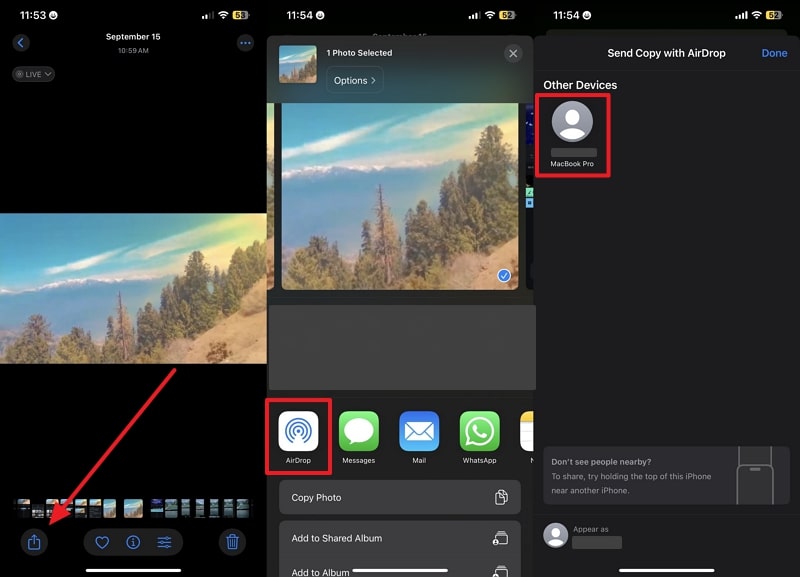
AirDrop also gives Apple users a fast and private way to share photos between devices wirelessly. Photos transfer at full resolution, keeping original quality and details intact without unwanted compression. You can send single pictures or large albums quickly, saving time during bulk sharing. It works without internet by creating a direct Wi-Fi link, even in offline places. Take guidance to learn how to transfer photos from phone to laptop wirelessly:
Step 1. When you select the photo on your iPhone, tap the Share icon > AirDrop > Mac.
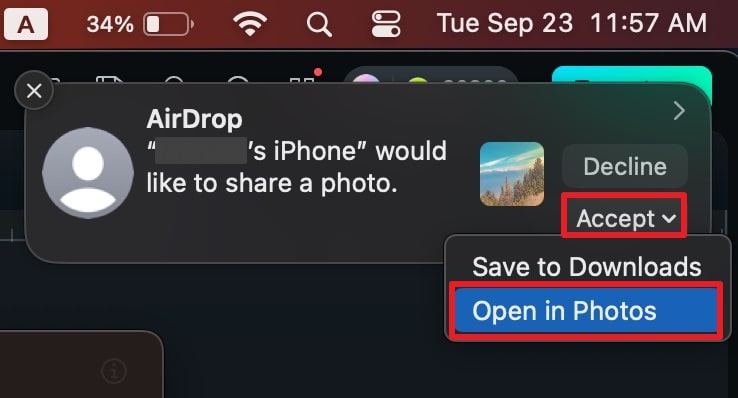
Step 2. As you receive a pop-up on your Mac, press the Accept > Open in Photos option.
Solution 7. Google Photos
Transfer Direction: Android/iPhone to PC/Mac
Google Photos also has an effortless sharing option for pictures between various devices. Users can open Google Photos on laptops or phones to view or download files. Plus, smart search helps find images by object or event quickly without scrolling endlessly. Sharing is simple too, with links or albums easily sent to friends and family. To understand how to transfer photos from phone to laptop without a cable, follow the given steps:
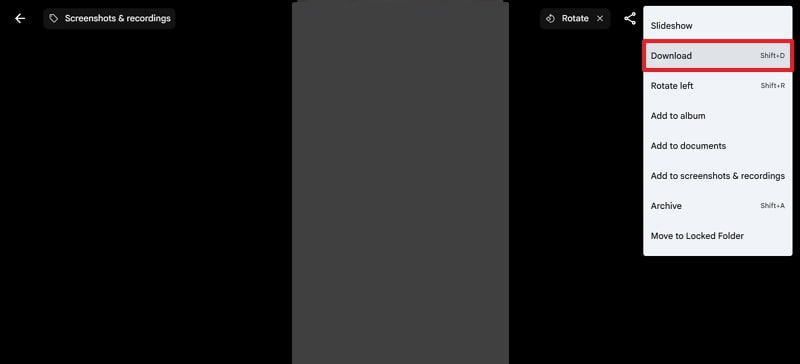
Step 1. On your Google Photos app, tap the Profile icon > Backup > Backup Photos and Videos on This Device Automatically toggle.
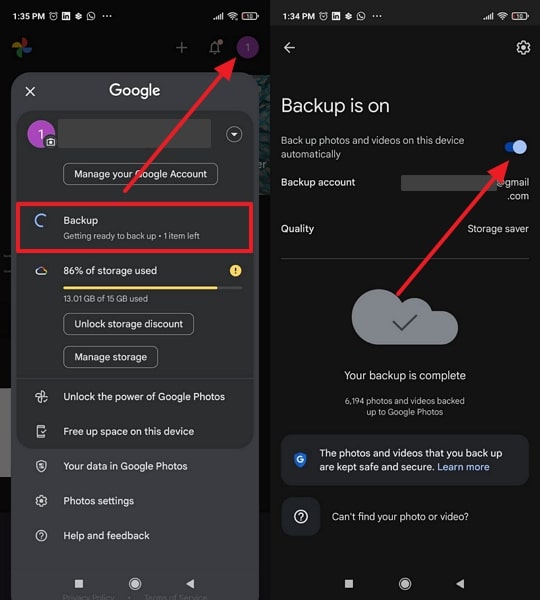
Step 2. Upon accessing the same Google Photos on your laptop, select the image and click the Three Dots > Download option.
Part 3. Limitations of Wireless Methods to Transfer Photos from Phone to Laptop
While wireless methods are helpful, they still have restrictions that affect speed and reliability. Thus, this part covers some drawbacks to help you decide whether to use them or look for alternatives:
- Slow Speed: Wireless transfers work more slowly than cables, especially when moving large albums. It makes users search for faster ways when learning how to transfer pictures from phone to computer wirelessly.
- File Size: Many wireless services add restrictions on attachment size, limiting how many photos can be moved together. This can frustrate users who want to send many HD photos without splitting files.
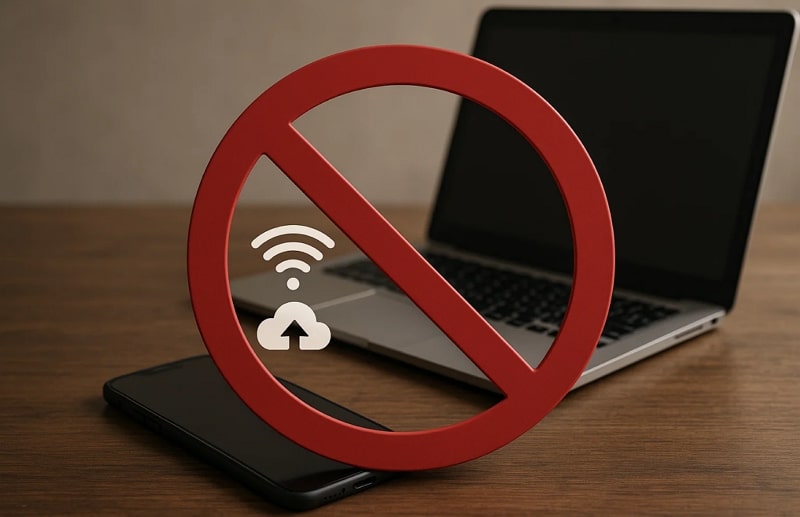
- Internet Dependency: Cloud and email transfers usually need the internet, making offline movement impossible. Without reliable signals, photos remain stuck until users connect properly to Wi-Fi or mobile data.
- Limited Storage: Cloud platforms provide only basic free storage, requiring subscriptions for larger libraries. This limit quickly becomes difficult when handling thousands of HD images.
- Quality Loss: Messaging apps compress files during transfer, lowering clarity compared to direct wired sharing. While quick, this reduces detail in precious photos shared over family or work chat groups.
Part 4. Want Full-Quality and Faster Transfers for Quick Access? Use MobileTrans
Apart from learning how to transfer photos from phone to laptop without a cable, many users still seek ways to move photos without any limitations. To cater to these needs, MobileTrans provides a smooth way to export photos and files from your phone to a PC.
It supports 5+ data types, allowing you to select your desired pictures to your computer. Plus, the software works without Wi-Fi or mobile data, perfect for offline transfers anytime.
Key Features
- Safe & Secure: Transfers without overwriting or deleting old files, keeping everything secure always.
- Strong Compatibility: Compatible with Android, iOS, Windows, and Mac, supporting nearly all major devices.
- Photo Backup: Lets you store photos safely on your computer, avoiding accidental phone loss.
- Fast Transfer: Move photos far quicker than Bluetooth or messaging, saving valuable time.
- Selective Export: Choose specific files or folders for export, avoiding unnecessary photo transfers.
- Full Quality: Transfer the original photos with full quality. Not losing a pixel.




After exploring its features, review the given steps to find out how you can use this dedicated tool to migrate your phone's photos:
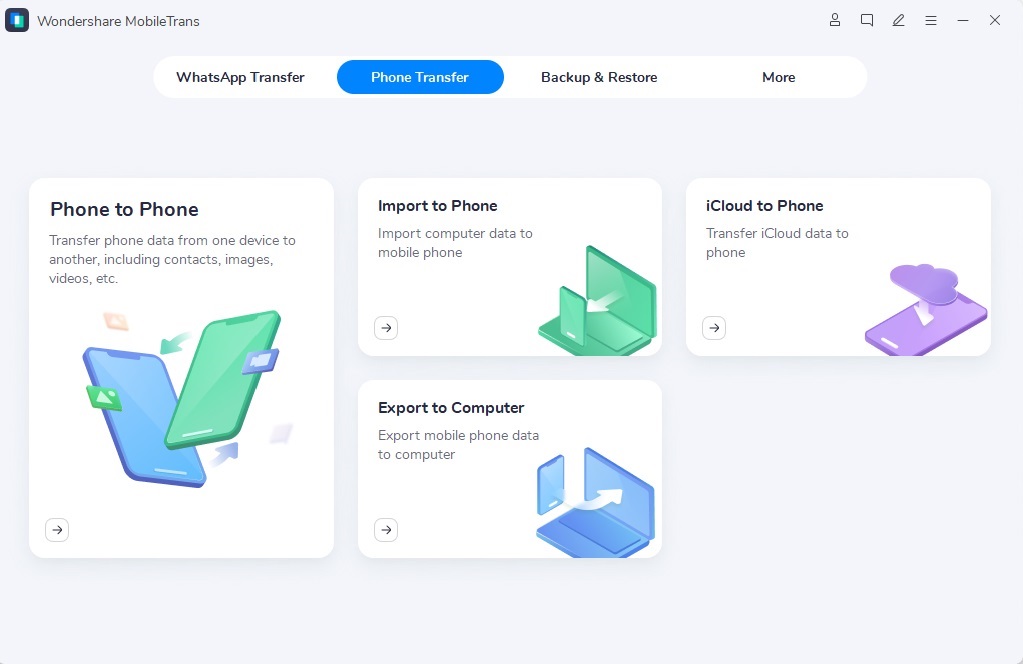
Step 1. On MobileTrans, head to the Phone to PC tab and connect your smartphone to the computer via a USB cable.
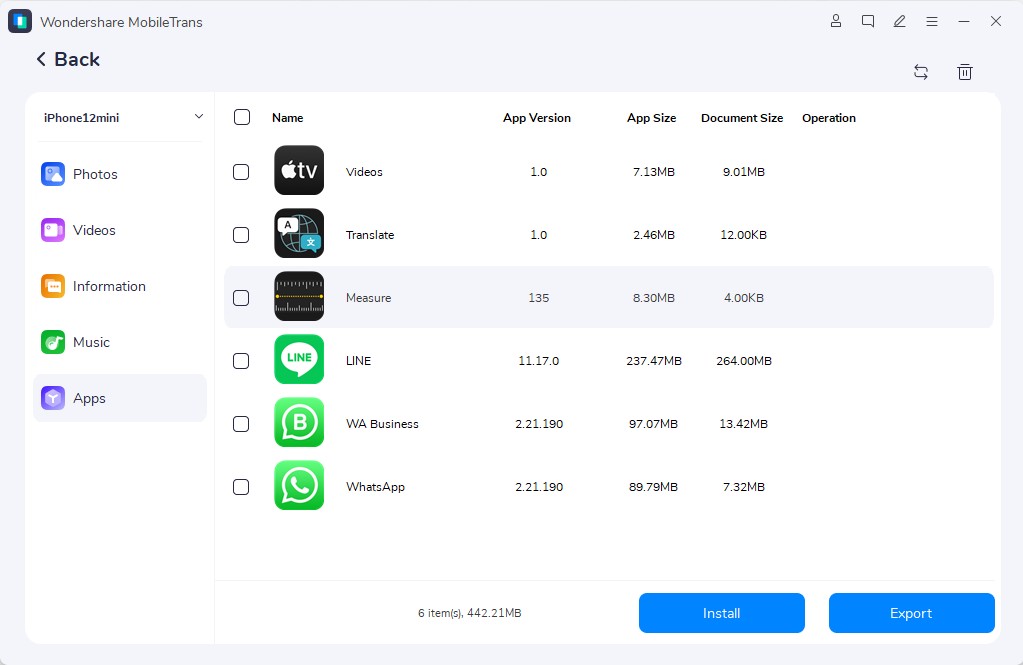
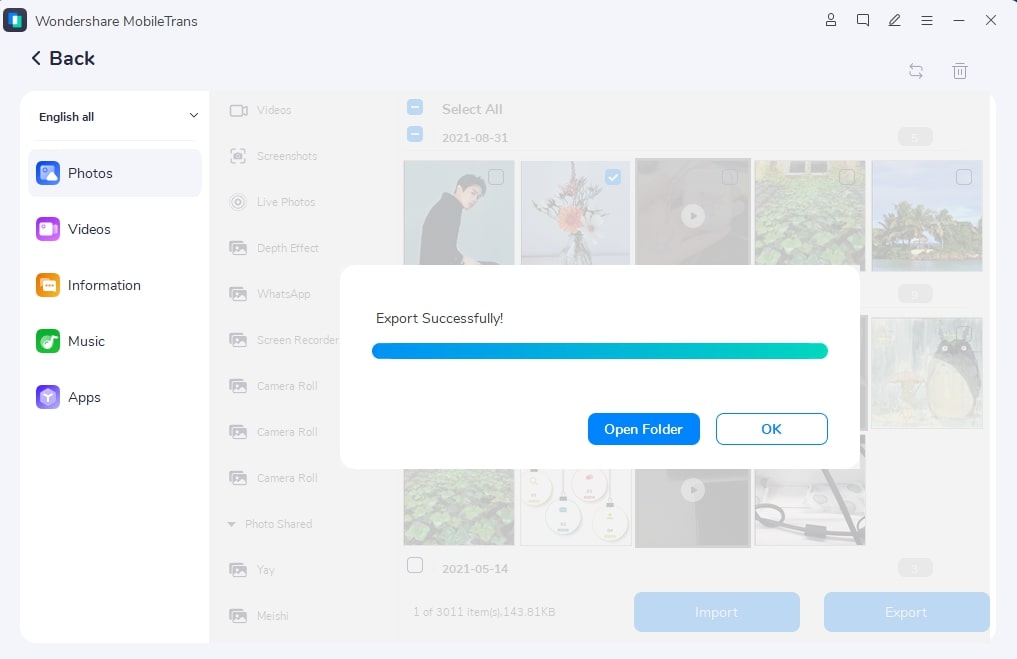
Step 2. Once connected, access and select your preferred photos and hit the Export button.
Step 3. Upon exporting, click the Open Folder button to access and view the saved photos.
Conclusion
In summary, learning how to transfer photos from phone to laptop wirelessly helps keep memories safe and accessible. This article has explored several quick and easy ways to help you migrate pictures without a cable. However, users may face issues like storage caps or compression during large transfers. So, when you want full quality, no size limits, and offline safety, MobileTrans becomes the best option.










