


 TL;DR:
Because Signal's encryption keys are tied to your specific operating system, you cannot officially transfer message history from iPhone to Android and must either start fresh, archive chats via Signal Desktop, or attempt an unsupported transfer using third-party software.
● A fresh Signal installation on Android automatically retains your profile, contacts, and active group memberships via your phone number, but all previous message histories, media files, blocked users, and custom settings are permanently lost.
● Linking your iPhone to the Signal Desktop application before switching devices creates a secure secondary viewing archive on your computer, allowing you to retain access to important conversations without physically transferring the data to your new Android phone.
● While third-party migration tools like MobileTrans offer a potential method to move local app data, these unauthorized solutions carry inherent risks of exposing encrypted messages and have an unpredictable success rate that fluctuates based on Signal's frequent security updates.
Ask AI for a summary
 ChatGPT
 Perplexity
 Gemini
 Claude
 Grok
Grok
"I'm switching from iPhone to Android, but I can't lose my Signal messages. They contain important work conversations and family photos. How do I transfer Signal from iPhone to Android without losing everything?"
This is a common problem many users face. When you want to transfer Signal from iPhone to Android, the process isn't as simple as other apps. Signal prioritizes security and privacy. This means direct message transfer between different operating systems is limited. Many people discover this only after they've already switched devices.
Fortunately, switching platforms doesn't have to be difficult. Setting up Signal on your Android phone is straightforward, and there are methods to help retain key messages during the move.
This guide will show you how to transfer Signal messages from iPhone to Android. We'll cover official methods and third-party solutions. You'll learn the best practices for Signal transfer from iPhone to Android.
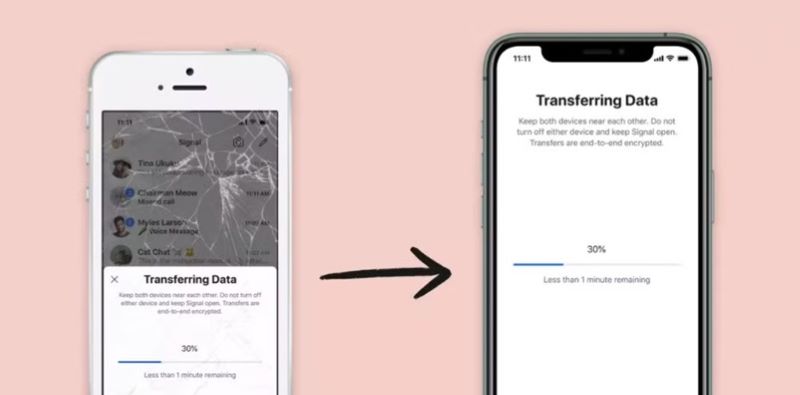
In this article
Part 1: Is it possible to move Signal messages from an iPhone to an Android device?
Unfortunately, Signal doesn't support direct message transfer between iOS and Android. This is by design, not a limitation. Signal uses end-to-end encryption for all messages. Signal's end-to-end encryption protects your privacy by linking encryption keys to your specific device and operating system. Since these keys don't work across different platforms, chat transfers from iPhone to Android aren't natively supported.
Signal's official stance is clear about this limitation. They prioritize security over convenience. Your message history stays locked to your original device. This means when you want to transfer Signal chats from iPhone to Android, the official app won't help you. You'll start fresh on your Android device with no previous conversations.
Part 2: What Happens When You Switch Devices?
What happens to your Signal data when you move from iPhone to Android:
- Message History Disappears: All your previous conversations vanish. You cannot transfer Signal messages from an iPhone to an Android directly.
- Contacts Remain: Your Signal contacts will still be there. The app finds them through your phone number.
- Groups Stay Active: You remain in all Signal groups. But you lose the chat history in those groups.
- Media Files Lost: Photos, videos, and documents from old chats disappear. They don't transfer to your new Android device.
- Settings Reset: All your Signal preferences go back to default. You need to configure them again.
- Profile Stays: Your Signal profile picture and name remain the same. These are linked to your phone number.
- Blocked Users Reset: Your blocked contacts list gets cleared. You need to block unwanted users again.
- Disappearing Messages: Settings for disappearing messages reset to default. You must set them up again for each conversation.
Part 3: Step-by-Step: Setting Up Signal on Your New Android Device
Getting started with Signal on Android is quick and simple. It only takes a few minutes, and all you need is your phone number plus access to SMS or a voice call to verify it.
The setup process will create a fresh start for your Signal experience. You won't see any old messages, but you'll be ready to communicate securely.
To transfer Signal from your iPhone to an Android device, you'll need to start with a fresh installation.
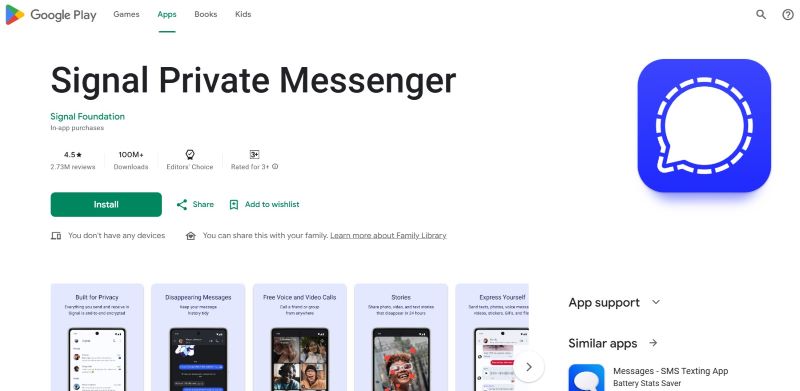
Step 1: Open the Google Play Store. Search for "Signal Private Messenger" and install it. Open the app after installation completes.
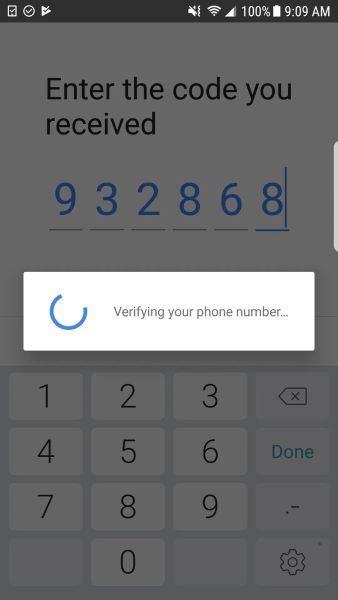
Step 2: Enter the phone number. Make sure it is the same as you used on your iPhone. After getting the verification code, type it into the app to link your phone number with your Android device.
Step 3: Choose a profile photo. Add your name so your contacts can identify you. Signal checks your contact list for other users. Once setup is complete, you’re ready to start chatting.
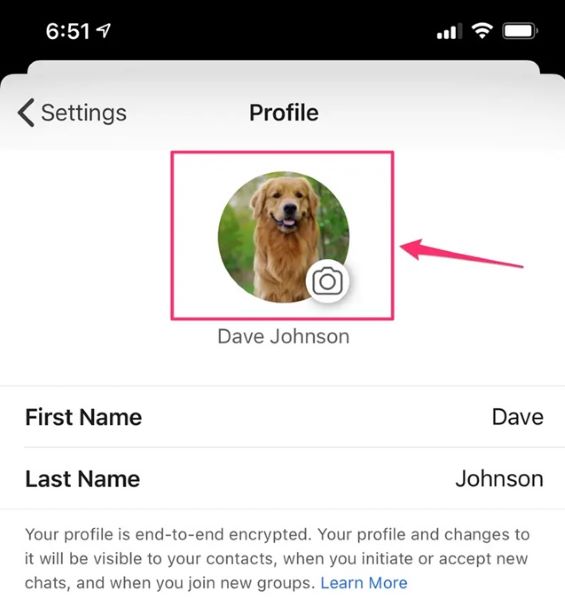
NOTE: Remember, this is a fresh start - no old messages will appear.
Part 4: MobileTrans: Best Workaround to Preserve Important Messages
MobileTrans by Wondershare offers a solution for users who need to preserve important messages. Yes, that’s right! This third-party tool can help transfer Signal chats from iPhone to Android in certain scenarios. While it's not officially supported by Signal, many users find it helpful for backing up crucial conversations.
MobileTrans works by creating local backups of app data. It then attempts to restore this data on the new device. The success rate varies depending on Signal's current version and security updates. This tool represents one of the few options available when you want to transfer Signal messages from iPhone to Android.
The tool is particularly useful for business users or families with important shared media. However, remember that using third-party tools always carries some risk. Signal's security model doesn't officially support this type of transfer. Always back up your data before attempting any transfer process.
Why Use MobileTrans for Signal Transfer:
- Keeps Message History: Tries to preserve your Signal chats during the transfer.
- Transfers Media Files: Moves photos, videos, and documents along with messages.
- Easy to Use: Designed for non-tech users with a simple interface.
- Supports Multiple Apps: Lets you transfer data from other messaging apps too.
- Handles Batches: Moves multiple chats at once to save time.
- Works Across Platforms: Built to transfer Signal from iPhone to Android smoothly.




Steps:
Step 1: Download MobileTrans on your computer. Install the software and launch it. Connect both your iPhone and Android device to the computer using USB cables. Choose "App to App Transfer" from the main menu. Select your iPhone as the source device and Android as the target device. The software will scan both devices for available apps and data.
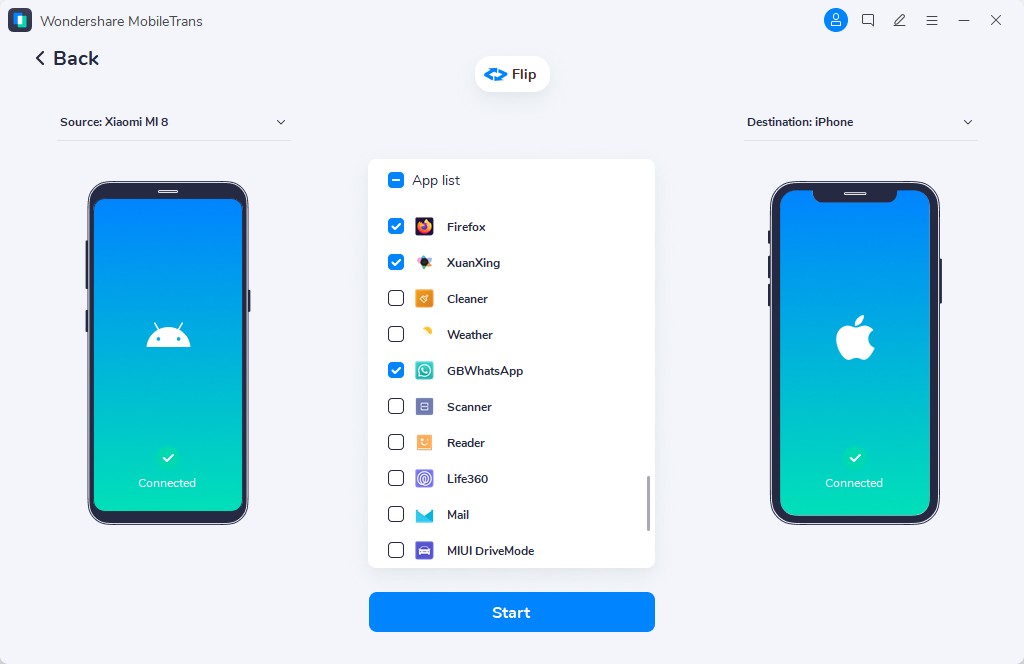
Step 2: The tool identifies apps on your iPhone that have counterparts on the Google Play Store and automatically starts installing them on your Android device.
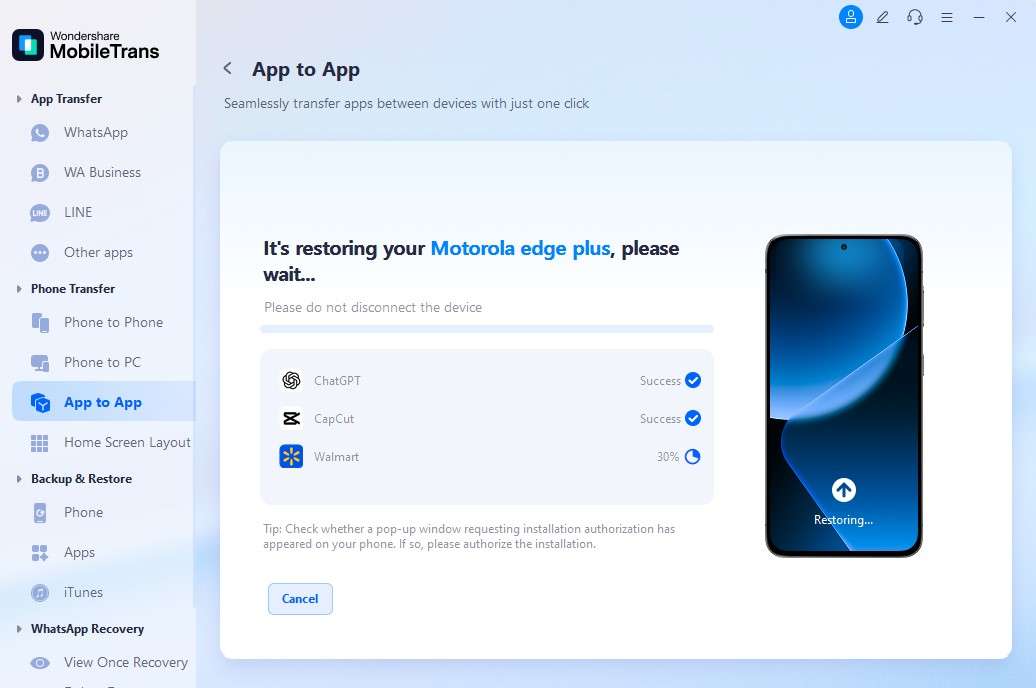
Step 3: Click "Start Transfer" to begin the process. Keep both devices connected during the transfer. The time required depends on the amount of data. Don't disconnect devices until the process completes successfully.

Part 5: BONUS: How to Link your iPhone to Signal Desktop Before Switching
Linking your iPhone to Signal Desktop before switching can help preserve some access to your messages. While this doesn't directly transfer Signal from iPhone to Android, it gives you a backup viewing option. You can still access conversations on your computer even after switching phones.
This method is particularly useful for important work conversations or family group chats. Once you link Signal Desktop, your computer becomes a secondary access point. This helps bridge the gap while you set up Signal on your new Android device.
Step 1: Download Signal Desktop from the official Signal website. Install it on your computer.
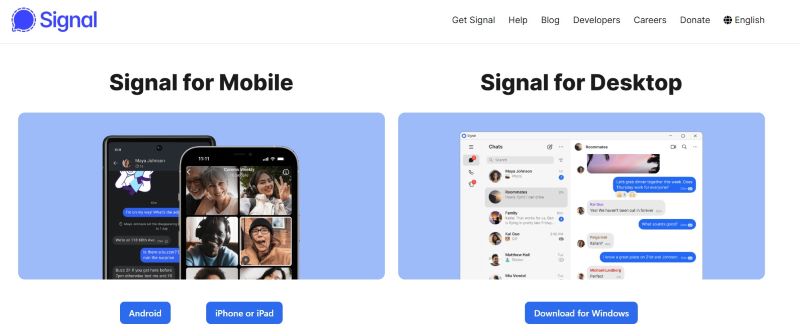
Step 2: Open the application after installation. You'll see a QR code on the screen waiting for device linking.
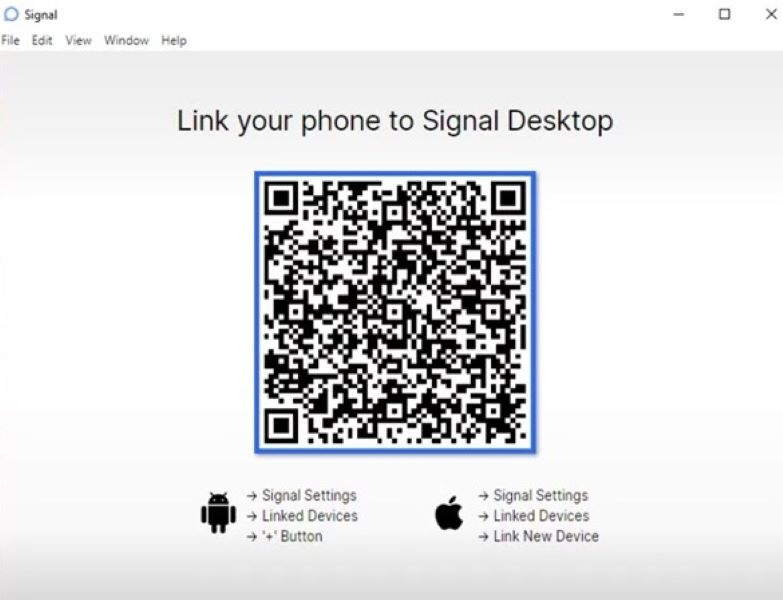
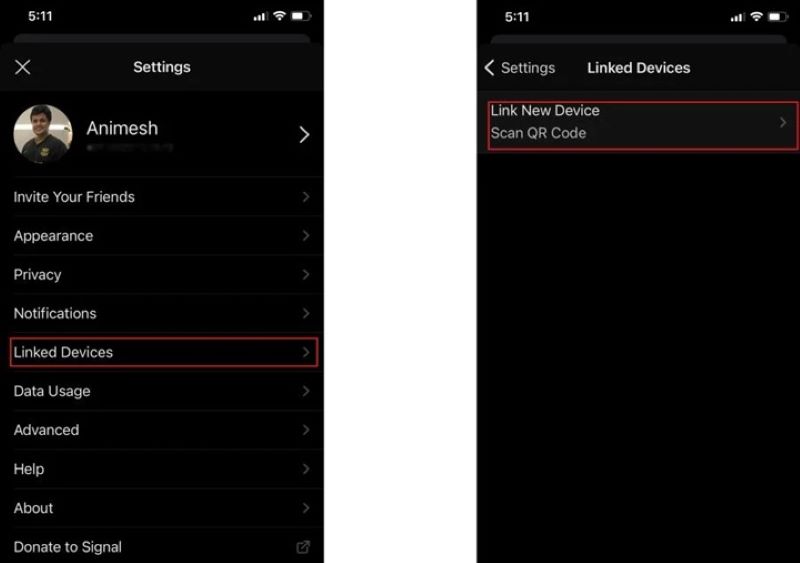
Step 3: Open Signal on your iPhone. Go to Settings > Linked Devices > Link New Device, and scan the QR code displayed on your computer screen. Your iPhone will link to Signal Desktop successfully.
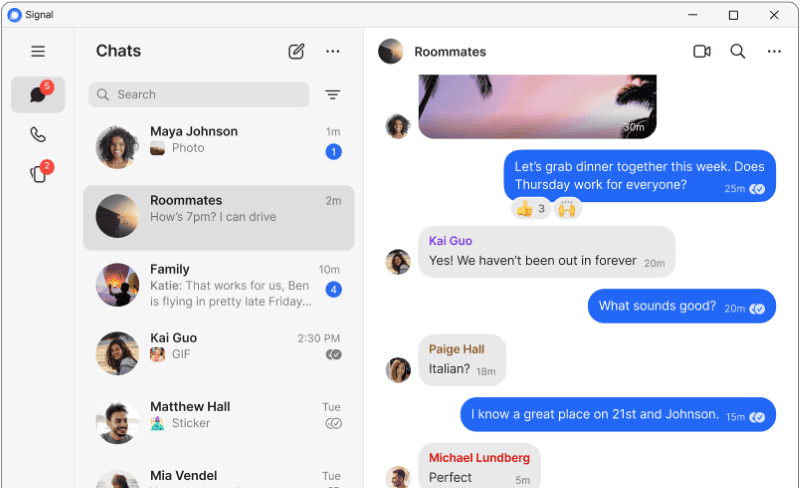
Step 4: Check that your conversations appear on Signal Desktop. You can now view and respond to messages from your computer. This link remains active even after you switch to Android, giving you continued access to message history.
Part 6: Pro Tips: Transfer Signal chats
Here are expert tips to make your Signal transition smoother and help preserve what matters most:
- Export Media First: Save key photos and videos to your camera roll.
- Screenshot Info: Capture chats with addresses or phone numbers.
- Note Group Details: Write down group names and members.
- Use Signal Desktop: Link it to keep some chat history.
- Tell Contacts: Let people know you're switching devices.
- Save Contacts: Export your Signal contact list separately.
- Pick the Right Time: Switch when you can set things up calmly.
- Test Tools First: Try MobileTrans with non-essential data.
Conclusion
Moving from iPhone to Android presents unique challenges for Signal users. The app's security-first approach means you cannot directly transfer Signal messages from iPhone to Android through official channels. This design choice protects your privacy but creates inconvenience during device switches.
Several workarounds exist to help with this transition. Setting up Signal fresh on Android is the most reliable method. Tools like MobileTrans offer potential solutions for preserving messages, though success isn't guaranteed. Linking Signal Desktop before switching provides ongoing access to conversation history. Each method has trade-offs between convenience and security.
FAQ
-
Q: Can I directly transfer Signal messages from iPhone to Android using Signal's official features?
A: No, Signal does not provide any official way to transfer messages between iOS and Android devices. This limitation exists because of Signal's end-to-end encryption design. The encryption keys are tied to your specific device and operating system. When you switch platforms, these keys cannot be transferred or converted. Signal prioritizes security over convenience, which means starting fresh on your new Android device. Your message history will not appear on the new device through any official Signal method.
-
Q: Will I lose all my Signal data when switching from iPhone to Android?
A: You will lose your message history, media files, and conversation threads when you transfer Signal from iPhone to Android. However, some elements remain intact. Your Signal profile, including your display name and profile picture, stays connected to your phone number. You remain in all Signal groups you previously joined, though the chat history in those groups disappears. Your contact list rebuilds automatically when Signal scans your phone's contacts. Settings and preferences are reset to default values and need reconfiguration on your Android device.
-
Q: Are third-party tools like MobileTrans safe and reliable for transferring Signal data?
A: Third-party tools like MobileTrans are not officially supported by Signal and carry inherent risks. While some users report success with these tools, the reliability varies significantly. Signal's frequent security updates often break compatibility with third-party transfer methods. Using these tools may compromise Signal's security model and could potentially expose your encrypted messages. The success rate is unpredictable and depends on Signal's current version and your device's configuration.










