


 TL;DR:
Transferring Signal messages securely requires using the app's built-in device-to-device migration tool for same-platform upgrades, while switching between Android and iPhone lacks official support and necessitates third-party software like MobileTrans.
● For iPhone-to-iPhone or Android-to-Android upgrades, use Signal's official transfer feature during the initial setup on the new device, which requires keeping the active old phone nearby to match on-screen pairing codes.
● Moving chat history across different operating systems relies entirely on external tools like MobileTrans, a workaround that carries the risk of altered message formatting and incomplete media file transfers.
● Android users can alternatively perform offline migrations by generating a local backup file from the app settings and transferring it via Quick Share, Nearby Share, or physical storage to restore during the new device setup.
Ask AI for a summary
 ChatGPT
 Perplexity
 Gemini
 Claude
 Grok
Grok
Getting a new phone is exciting. Isn’t it? But moving your Signal messages can be tricky. Many people worry about losing their chat history when they switch phones. The good news is that you can transfer Signal messages to a new phone easily.
Signal is a secure messaging app. It keeps your messages private and safe. When you get a new device, you need to know how to transfer Signal messages to it properly. This ensures you don't lose any messages or media files. But there are different methods that work for different situations. This guide will help you solve these issues.
In this article
Part 1: What are Signal Messages?
Signal messages are private text messages sent through the Signal app. The Signal app is a secure messaging platform that protects your conversations. Signal messages use end-to-end encryption technology for maximum security. This means only you and the person you message can read these Signal messages.
No one else can see your Signal messages, not even the Signal company itself. The app also supports voice calls, video calls, and file sharing through Signal messages.
Signal messages are stored directly in your phone's memory. This is very different from other messaging apps like WhatsApp or Telegram. Your Signal messages don't automatically save to cloud storage services. The Signal app keeps all Signal messages on your device only. This makes Signal messages extremely secure and private.
However, this also makes it harder to transfer Signal messages to a new phone. When you switch phones, you need special methods to move your Signal messages. Regular cloud backups won't include your Signal messages because they stay local.
Part 2: Is it Possible to Transfer Signal Messages to a New Phone?
Yes, you can transfer Signal messages to a new phone. However, the process has some limits. You can only transfer between phones of the same type easily. For example, transferring Signal messages to a new iPhone works well from an old iPhone. Similarly, transferring Signal messages to a new Android phone works from old Android phones.
Cross-platform transfers are much harder. Moving from iPhone to Android or Android to iPhone is not simple. Signal doesn't support direct cross-platform transfers. You might lose some message history in these cases. The methods in this guide will help you transfer Signal messages to a new phone in most situations.
Part 3: How to Transfer Signal Messages to a New Phone?
Moving your Signal messages needs the right approach. Different methods work for different phone types. Some methods are faster while others are more reliable. Choose the method that fits your situation best.
The success of the transfer depends on several factors. The type of your old and new phones matters most. The Signal app versions also affect the transfer process. Sometimes, you may face issues such as Signal transfer to a new phone not working or slow transfer problems.
Method 1: Use MobileTrans for Quick Transfer
MobileTrans is a third-party app transfer tool. It helps move data between different phones quickly. The app supports Signal message transfers in many cases. It works for both Android and iPhone transfers. MobileTrans can handle cross-platform transfers, too.
This method offers several advantages for Signal users. It can transfer Signal messages to a new iPhone from Android phones. It also helps transfer Signal messages to a new Android device from an iPhone. The process is usually faster than manual methods.
MobileTrans handles the technical details automatically.
MobileTrans helps you in these ways:
- Transfers messages between different phone types
- Keeps message formatting and media files intact
- Works faster than manual backup methods
- Supports multiple messaging apps at once




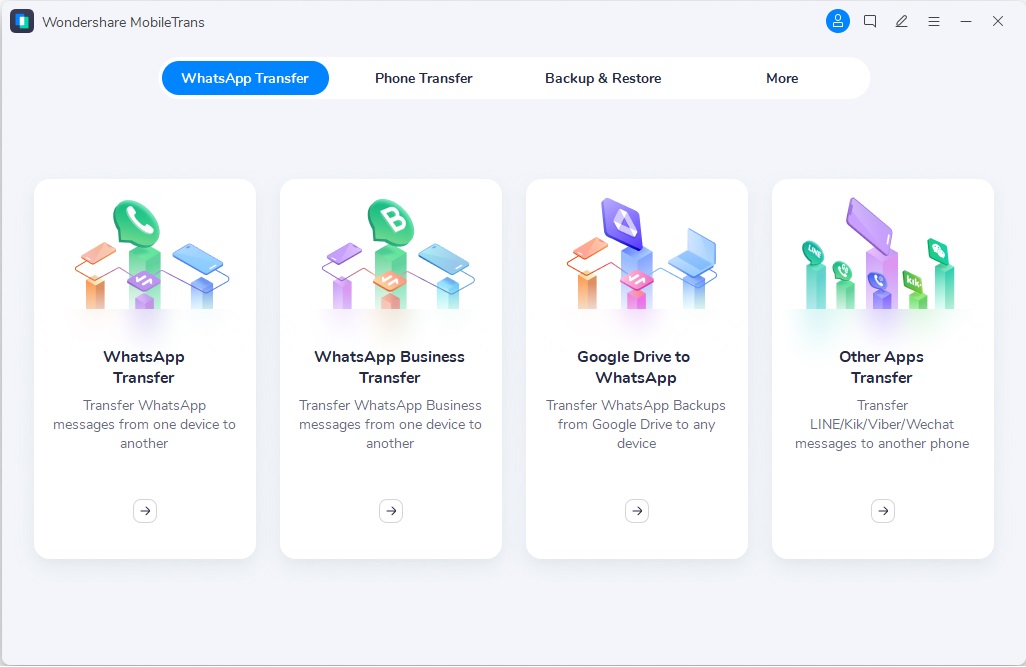
Step 1: Open MobileTrans on your computer, select "Phone Transfer" followed by "App to App," then connect both devices.
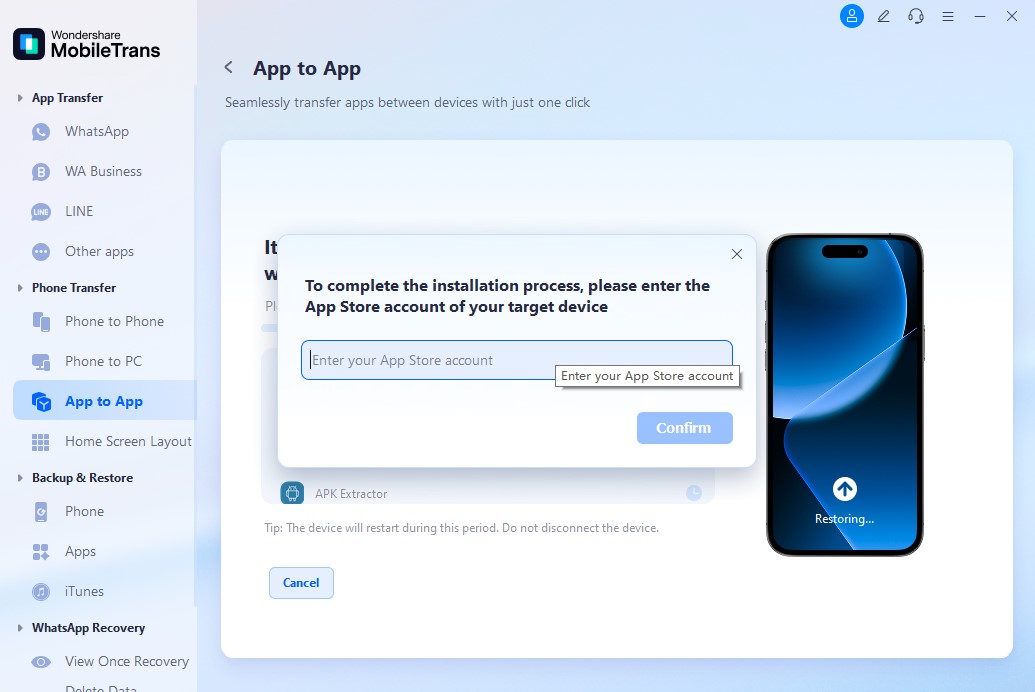
Step 2: Start the installation by signing in with your Apple App Store ID. This enables the system to securely access your list of apps.
Step 3: The app will start sending Signal data and installation files to your iPhone. Keep the devices connected and wait for the process to complete.
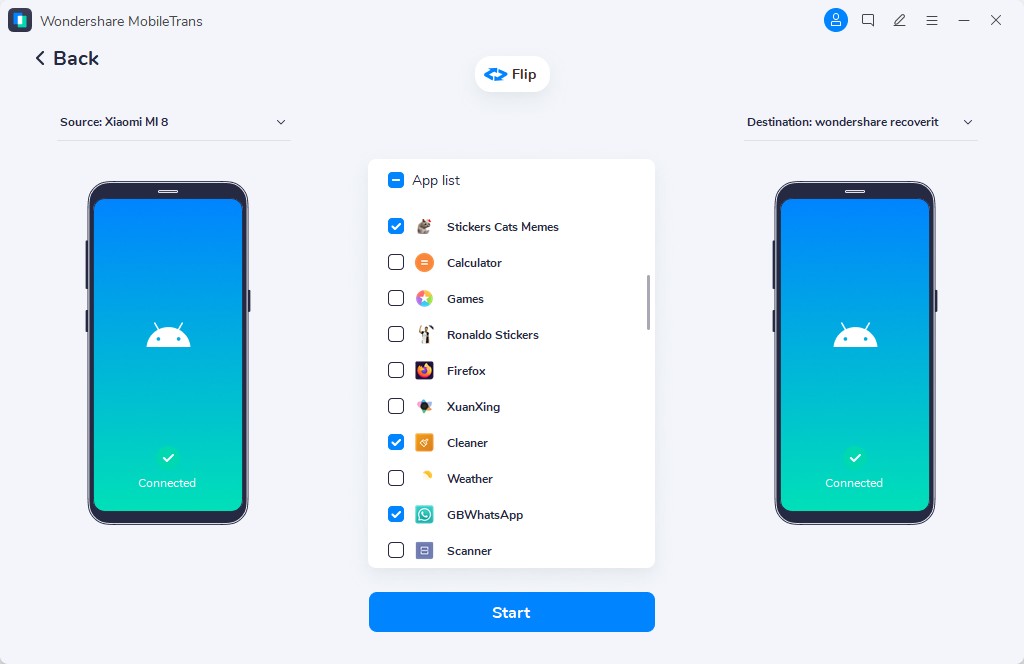
Step 4: Within a few minutes, the apps will show up on your phone’s Home Screen.

Method 2: Use Signal's Built-In Transfer Feature (Android to Android or iPhone to iPhone)
Signal has a built-in transfer feature for same-platform moves. This works when you transfer Signal messages to new Android from old Android. It also works to transfer Signal messages to new iPhone from old iPhone. The feature uses device-to-device connection for security.
This official method is the most reliable option. Signal was designed specifically for message transfers. It maintains all encryption and security features. The transfer includes all messages, media, and settings. However, it only works between phones of the same type.
Signal's built-in transfer helps by:
- Maintaining full message encryption during transfer
- Including all media files and attachments
- Preserving message timestamps and formatting
- Working without internet connection requirements
Step 1: Install Signal on your new phone, but don't set it up yet. Keep your old phone nearby with Signal still working. On your new phone, open Signal. Choose "Transfer from Android/iOS device" during setup. On your old phone, go to Signal Settings and tap "Transfer account."
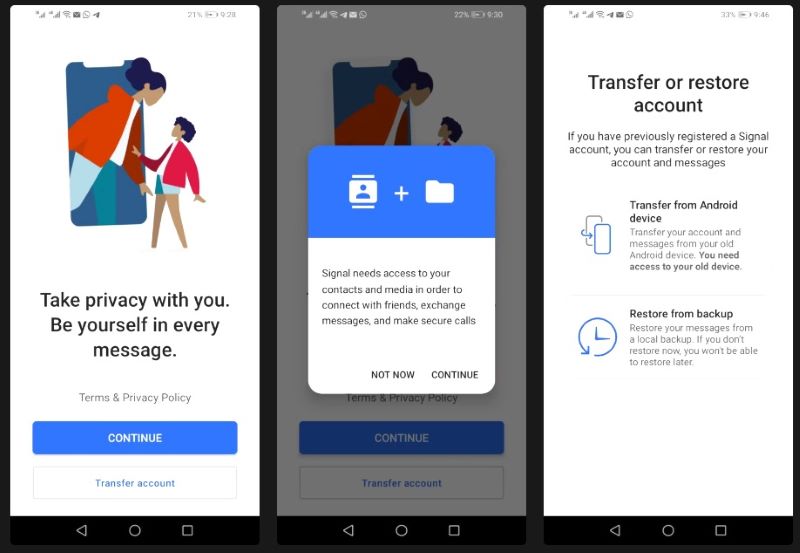
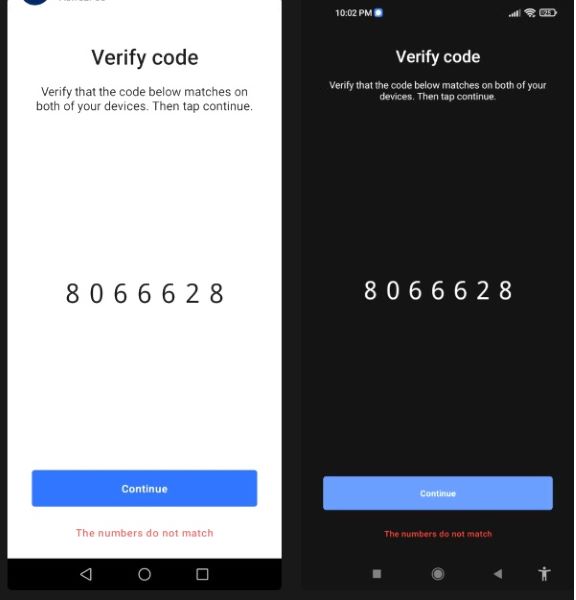
Step 2: Follow the on-screen instructions to connect both phones. When prompted, confirm that the pairing codes on both devices match. If they do, tap "Continue" to proceed.
Method 3: Use Android's Quick Share or Nearby Share
Android phones have built-in sharing features like Quick Share. These can help transfer Signal messages to new Android devices. The method works by sharing Signal backup files directly. It's useful when Signal's built-in transfer fails.
This method is free and uses Android's native features. It doesn't require additional apps or software. The transfer happens directly between Android phones. Quick Share or Nearby Share handles the file transfer process.
Android sharing features help with:
- Direct phone-to-phone file transfers
- No need for internet or cloud storage
- Works with Signal backup files
- Fast transfer speeds over local connection
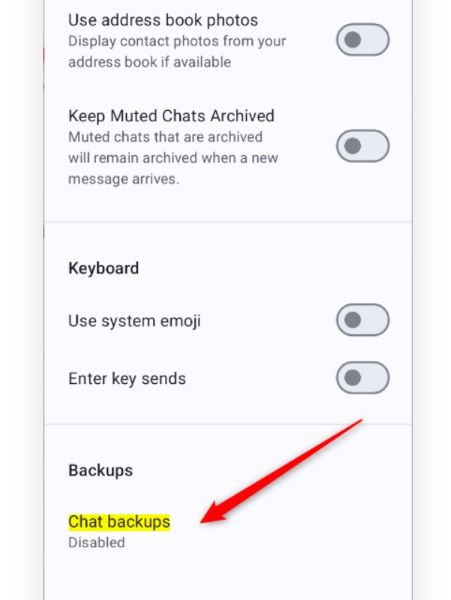
Step 1: On your old Android phone, create a Signal backup from Settings > Chats > Chat backups. Note the backup file location.
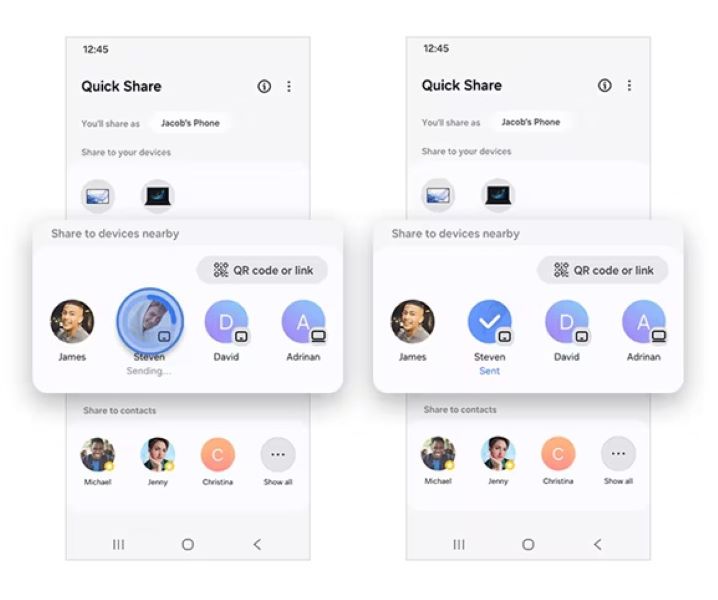
Step 2: Use Quick Share or Nearby Share to send the backup file to your new phone. Make sure both phones have these features enabled. On your new phone, install Signal and restore from the backup file during the setup process.
Method 4: Restore from Local Backup (Android Only)
Android Signal creates local backup files automatically. You can use these to transfer Signal messages to new Android phones. The backup files contain all your message history. This method works well for Android-to-Android transfers.
Local backups are created on your phone's storage. They include messages, media, and settings data. You need to manually move these files to your new phone. The restoration process happens during Signal setup on the new device.
Local backup restoration provides these benefits:
- Complete message history preservation
- Includes all media and file attachments
- Works without internet connectivity
- Free method using Signal's built-in features
Step 1: On your old Android phone, go to Signal Settings > Chats > Chat backups. Create a backup and note where it's saved. Copy the backup file to your new Android phone using USB transfer, SD card, or file sharing apps.
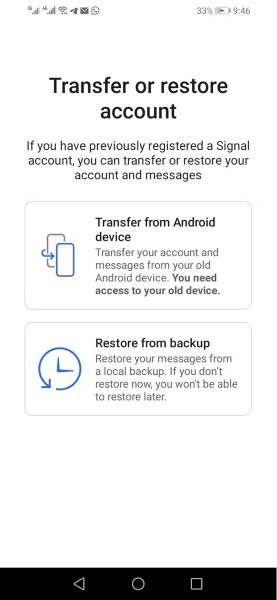
Step 2: Install Signal on your new phone and choose "Restore from backup" during setup. Select your backup file to restore messages.
Part 4: Signal Transfer to New Phone Not Working? Try These Tips
Sometimes the transfer process doesn't work smoothly. You might encounter various issues during the process. Signal transfer to a new phone not working can happen for several reasons. Here are common solutions to fix transfer problems:
- Check that both phones have the latest Signal app version installed
- Ensure both devices have enough battery power during the transfer process
- Verify that your phones are connected to stable WiFi networks
- Clear the Signal app cache and data before starting the transfer process
- Restart both phones and try the transfer process again
- Check if your phone storage has enough free space for messages
- Disable battery optimization for the Signal app during transfer
Conclusion
Learning how to transfer Signal messages to a new phone saves your chat history. The process varies depending on your phone type. Same-platform transfers work best with Signal's built-in features. Cross-platform transfers need third-party tools like MobileTrans.
Remember that Signal prioritizes security over convenience. This makes transfers more complex than other messaging apps. Plan your transfer carefully and choose the right method. With the right approach, you can successfully transfer Signal messages to a new phone.
FAQs:
-
Q: Can I transfer Signal messages from iPhone to Android?
A: Direct transfer from iPhone to Android is not officially supported by Signal. The app doesn't have built-in cross-platform transfer features. However, third-party tools like MobileTrans can help with this process. The success rate varies depending on your phone models and Signal versions. Some message formatting might change during cross-platform transfers. Media files may not transfer completely in all cases. It's best to back up important conversations separately before attempting cross-platform transfers.
-
Q: Why is my Signal transfer to the new phone slow?
A: Signal transfer to a new phone slow? This happens due to several factors. Large message histories take more time to transfer completely. Poor WiFi connection speeds can slow down the process significantly. Background apps using network resources cause transfer delays. Old phone hardware might process data slowly during transfers. The transfer method you choose also affects speed significantly. Built-in Signal transfers are usually faster than third-party methods. Clear other apps and ensure a good network connection for faster transfers.
-
Q: What happens if the Signal transfer to a new phone is not working?
A: When the Signal transfer to a new phone is not working, try several solutions. First, check that both phones have the latest Signal app versions. Restart both devices and clear the Signal app cache completely. Ensure both phones have stable internet connections throughout the process. Check if your new phone has enough storage space. Disable battery optimization for Signal on both devices temporarily. Try different transfer methods if one doesn't work properly. Contact Signal support if problems persist after trying all solutions.










