


 TL;DR:
You can safely transfer all your Telegram chats, groups, and media to a new phone without data loss because your account history automatically syncs from Telegram's cloud servers as soon as you log in with your existing phone number.
● Logging in with the same phone number is the most efficient, free transition method for most users, provided you have a stable internet connection and can receive the mandatory verification code via SMS, phone call, or the active Telegram app on your old device.
● If you want to transfer all application settings and login status offline without using cellular data, you can use the MobileTrans app, though this requires a paid software purchase and only supports specific phone models.
● When backing up critical conversations for permanent offline storage, you must use the Export Chat History feature, which is limited to exporting one chat at a time as isolated files rather than integrating the data into the new app interface.
Ask AI for a summary
 ChatGPT
 Perplexity
 Gemini
 Claude
 Grok
Grok
This is a common worry many users face when switching devices.
Moving to a new phone can be stressful. You want to keep all your messages, photos, and contacts safe. Telegram makes this process easier than you think. There are several ways to transfer Telegram to new phone without losing your precious chat history.
The good news is that how to transfer Telegram to new phone is simple. You can use built-in features or third-party apps. This guide will show you four proven methods.
Each method works for different situations. Let's learn how to move Telegram to a new phone safely.
In this article

Part 1: Can I Transfer Telegram to a New Phone Without Losing Chat History?
You can easily move Telegram to a new phone without losing your chats. Since Telegram stores messages on its cloud servers, your conversations remain secure—even if your old phone is gone. The trick is knowing how to access them on your new device.
Transferring your Telegram data is straightforward. Your account syncs across devices, so all your chats, groups, and channels will show up on the new phone. In most cases, the whole process takes just a few minutes.
Part 2: Which is the Best Method to Transfer Telegram? A Quick Comparison
Different methods work better for different users. Some people want the easiest option. Others need to transfer everything at once. The best method depends on your specific needs and technical comfort level.
Here's a detailed comparison of each method. This will help you choose the right approach for how to transfer Telegram from one phone to another. Look at the cost, time, and what each method actually transfers to make the best choice.
Quick Recommendations:
- New phone users: Choose Same Number Login (Method 2) - it's free and works perfectly
- Complete transfer needed: Use MobileTrans (Method 1) if budget allows
- Important chat backup: Export Chat History (Method 3) for permanent records
- Using both phones: Multiple Devices (Method 4) for seamless transition
|
Method |
Difficulty |
What Transfers |
Best For |
Limitations |
|
MobileTrans |
Easy |
All app data, settings, and login status |
Complete phone switch, keeping everything identical |
Requires software purchase, works with limited phone models |
|
Same Number Login |
Very Easy |
All chats, media, contacts, groups |
Most users, quick setup, any phone type |
Need access to phone number for verification |
|
Export Chat History |
Medium |
Individual chat conversations and files |
Backing up important chats, legal records |
Only exports one chat at a time, files are not integrated |
|
Multiple Devices |
Easy |
Real-time message sync across devices |
Gradual transition, using both phones temporarily |
Uses more battery, requires internet on both phones |
Part 3: 4 Quick Methods to Transfer Telegram
Now let's explore each method in detail. Each approach has different steps and requirements. Choose the one that fits your situation best.
The methods range from automatic transfers to manual exports. Some work instantly while others take more time. All methods are safe and won't harm your data.
Method 1: Use the MobileTrans App to App Transfer
MobileTrans is a popular app transfer tool. It moves apps and data between phones automatically. This method works great when you want to transfer everything at once.
This tool is ideal for transferring Telegram to a new phone using the same number. It replicates the entire app, keeping all your settings, preferences, and login status just as they were.
Why use this method:
- Transfers all app data automatically.
- Works between different phone brands.
- Keeps all settings and preferences.
- A comprehensive phone transfer solution.
- No internet needed. Use zero cellular data.






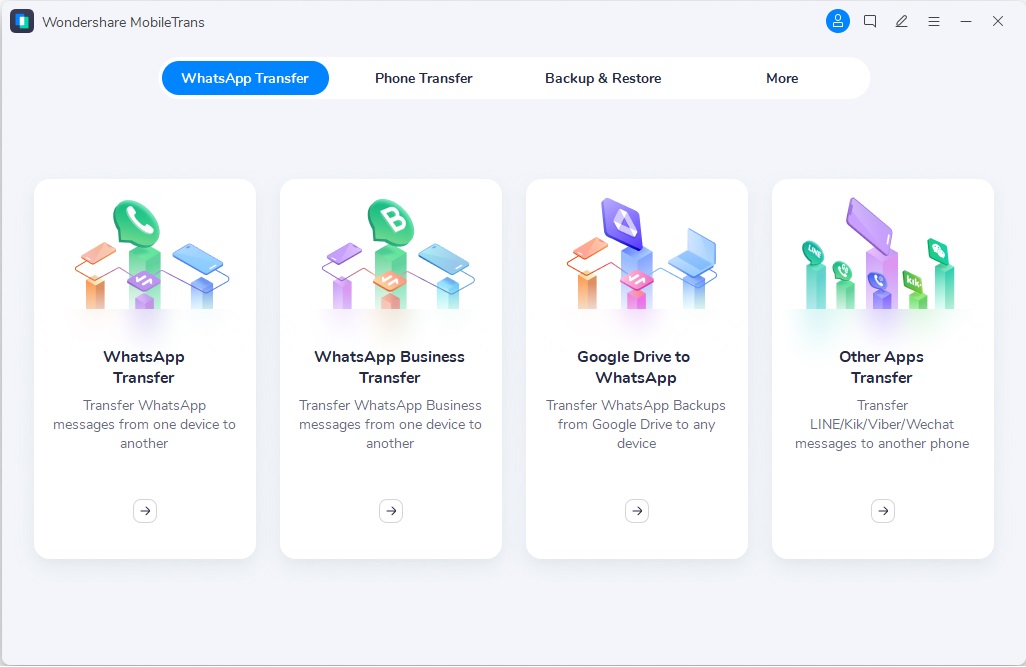
Step 1. Download MobileTrans on PC. Go to the "Phone Transfer" section. Select "App to App". Connect both devices to begin the transfer.
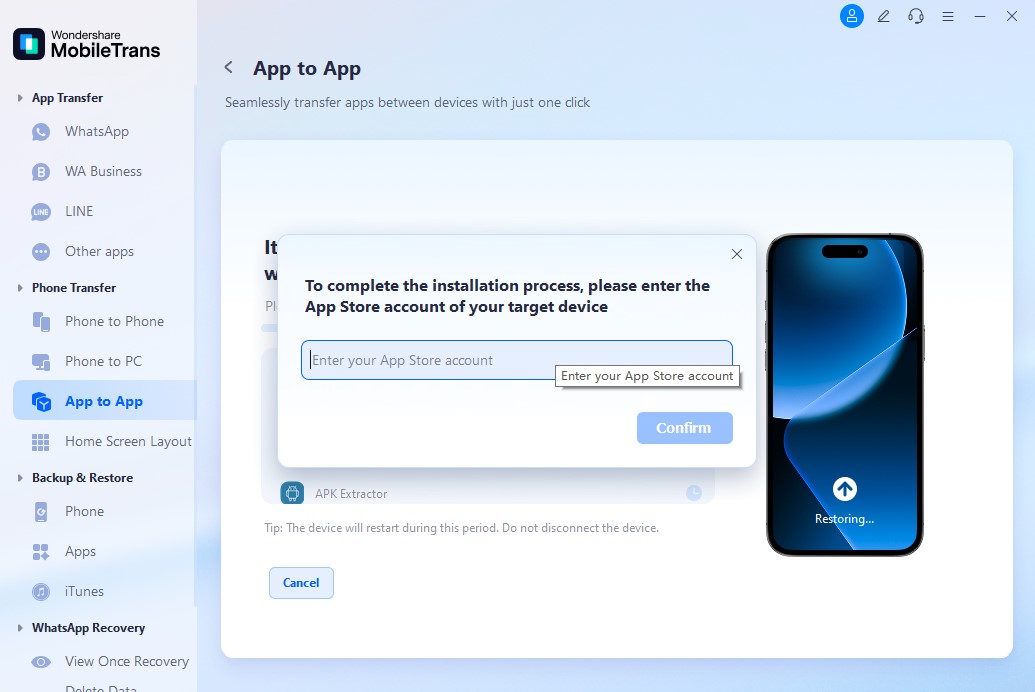
Step 2. Sign in with your Apple App Store ID to start the installation. This ensures your app list is securely retrieved for setup.
Step 3. The app will start sending data and installation files to your iPhone. Keep both devices connected and wait while the process completes.

Method 2: Sign in to Telegram Account Using the Same Number
This is the most common way to transfer Telegram chats to a new phone. It uses Telegram's built-in cloud sync feature. Your phone number unlocks your Telegram account.
This method works because Telegram saves everything online. When you log in with the same number, all data appears instantly. It's the fastest way to access your chats on a new device.
Why use this method:
- Completely free and built-in
- Works on any device type
- Restores everything automatically
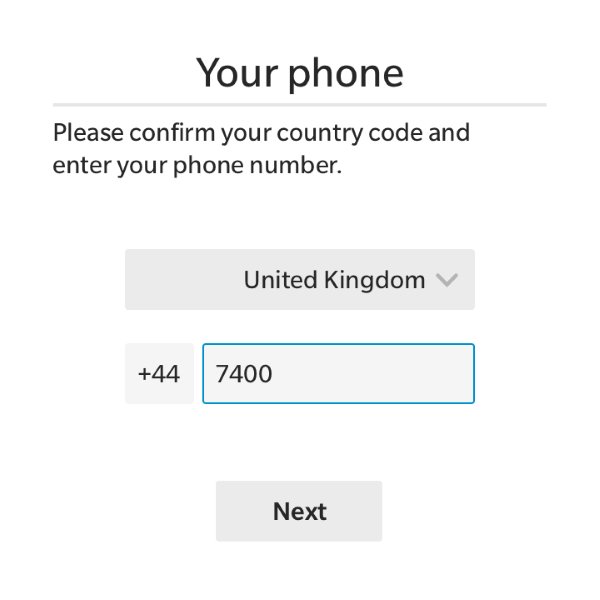
Step 1. Install Telegram on your new phone. Enter your phone number when prompted. Look for the verification code in your SMS or on your old phone, then type it into the Telegram app on your new device.
Step 2. Wait for sync to complete. All your chats and media will appear automatically.
Method 3: Use the Export Chat History Option
Sometimes you want to save specific chats permanently. The export feature lets you do this easily. It creates backup files you can store anywhere.
This method is perfect for important conversations. You can export chats as files before switching phones. Then you can view them anytime, even without Telegram installed.
Why use this method:
- Creates permanent backup files
- Works for individual or group chats
- Includes all media and documents
Step 1. Open Telegram and go to the chat you want to export. Tap the three dots menu. Select "Export Chat History." Choose what to include in the export file.
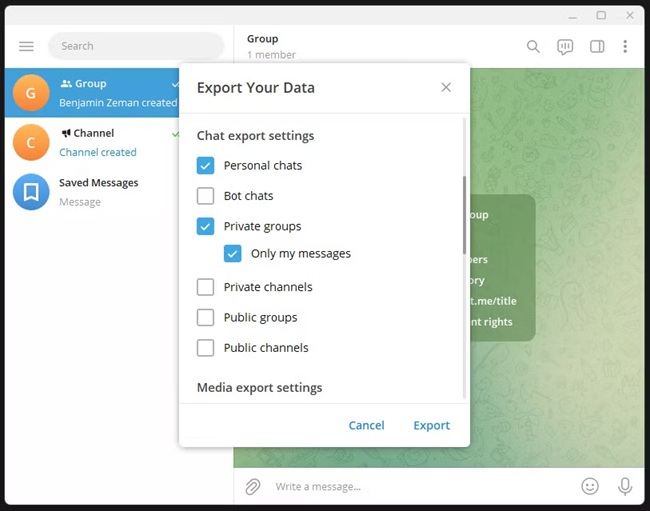
Step 2. Save the exported file to cloud storage. Download it on your new phone when needed.
Method 4: Use Telegram on Multiple Devices
Telegram lets you use the same account on multiple devices. This means you can have it on both phones at once. Your messages sync between all devices in real-time.
This approach is great for gradual transitions. You can use both phones for a while. All messages appear on both devices instantly. It's like having a backup that updates itself.
Why use this method:
- Use both phones simultaneously
- Real-time message synchronization
- No data transfer needed
Step 1. Keep Telegram running on your old phone. Install Telegram on the new phone. Log in with the same number on both devices. Both will stay connected.
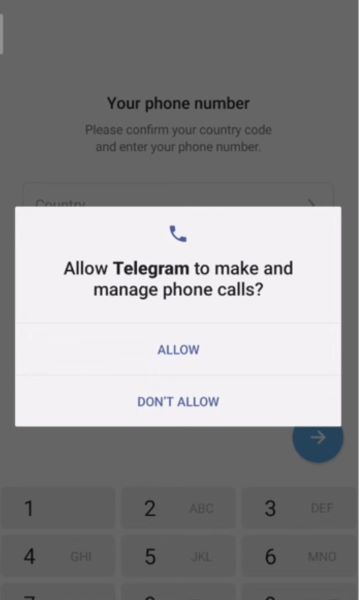
Step 2. Use either phone as needed. Messages sync automatically between them.
Part 4: Pro Tips to Transfer Telegram and Other Apps to a New Phone
Before you start the transfer process, prepare properly. Good preparation makes everything go smoothly. These tips will help you avoid common problems and save time.
- Back up your old phone completely before starting any transfer process
- Make sure both phones have stable internet connections throughout the process
- Keep your old phone nearby until you confirm everything has been transferred correctly
- Write down important chat information in case you need it later
- Clear storage space on your new phone to make room for Telegram data
- Update Telegram to the latest version on both devices before transferring
- Export important chats separately as an extra safety measure
- Test the new installation thoroughly before wiping your old phone
Conclusion
Learning how to transfer Telegram to new phone doesn't have to be scary. The methods in this guide work for almost every situation. Whether you want automatic transfer or manual control, there's an option for you.
The easiest method is logging in with the same number. It works instantly and costs nothing. For complete app transfers, MobileTrans handles everything automatically. The export option gives you permanent backup files you can keep forever.
Remember to test everything before removing Telegram from your old phone. Make sure all your important chats and files are transferred correctly. Once you confirm everything works, you can enjoy Telegram on your new device with confidence.
FAQ
-
Q: Will I lose my Telegram chats when switching to a new phone?
A: No, you won't lose your Telegram chats when switching phones if you follow the right steps. Telegram stores all your messages on cloud servers, so they're safe even if your old phone breaks. When you log in with the same phone number on your new device and are connected to the internet, all your chats will automatically be downloaded to your device.
-
Q: Can I use Telegram on both my old and new phones at the same time?
A: Yes, you can definitely use Telegram on multiple devices simultaneously, including your old and new phones. Telegram allows unlimited device connections with the same account, and all messages sync in real-time across all devices. When someone sends you a message, it appears instantly on both phones. Your read receipts and message status also sync between devices, so you won't miss any conversations or accidentally read messages twice.
-
Q: What should I do if the verification code doesn't arrive on my new phone?
A: If you don't receive the verification code on your new phone, there are several solutions you can try: Check if you entered your phone number correctly, including the country code; Wait a few minutes, as SMS delays are common; If you still don't get the code, try requesting it again through the app. Telegram also offers alternative verification methods - you can receive the code as a phone call instead of SMS. If you have Telegram installed on another device, the code might appear there as a message. As a last resort, you can contact Telegram support through their website, but this process takes longer and requires identity verification.










