



 TL;DR:
To transfer WhatsApp Business from Android to iPhone Duo, you must use a dedicated computer-based tool like MobileTrans because Apple's Move to iOS app and Google Drive backups exclusively support the standard WhatsApp application.
● While messages, call logs, and media files will migrate successfully, Business-specific features including catalogs, labels, quick replies, and automated messages do not transfer and must be manually recreated on the destination device.
● The migration process does not require a factory reset of the iPhone Duo, allowing you to use a Transfer & Merge mode to retain existing iOS data or restore directly from an Android Google Drive backup if the original phone is unavailable.
● Keep the source Android phone untouched and securely backed up to a Google Account until you have activated the Business profile on the iPhone and successfully verified all imported conversations.
Ask AI for a summary
 ChatGPT
 Perplexity
 Gemini
 Claude
 Grok
Grok
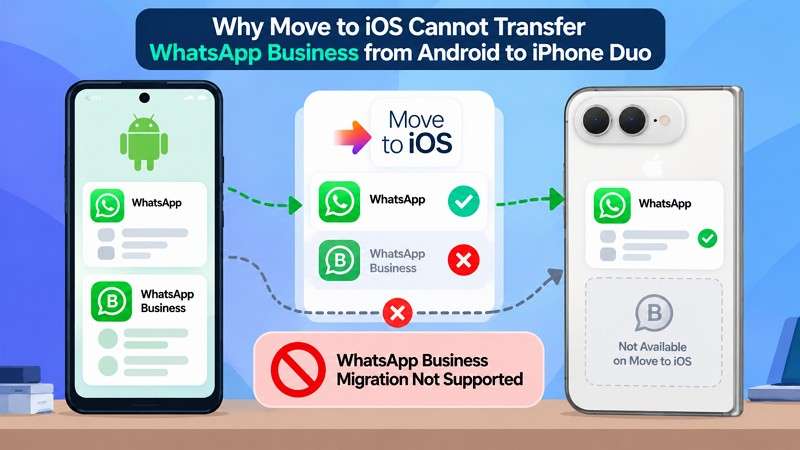
Apple’s setup transfer may show WhatsApp, but that option only supports the standard app. WhatsApp Business is excluded from Android-to-iPhone chat migration, so customer conversations, media, and other business data do not move through the usual setup process.
Google Drive backups also cannot be restored directly through WhatsApp Business on iPhone because iOS uses iCloud for WhatsApp backups. To transfer WhatsApp Business from Android to iPhone Duo, MobileTrans provides a dedicated cross-platform transfer option. This guide explains the preparation, MobileTrans steps, supported data, and common transfer issues.
In this article


Part 1. Why Move to iOS Cannot Transfer WhatsApp Business from Android to iPhone Duo
If you are trying to move WhatsApp Business to iPhone Duo, the issue is not a missed setting on the new iPhone. Apple supports transferring regular WhatsApp messages and media from Android during setup. However, WhatsApp states that Android-to-iPhone chat migration is currently unavailable for WhatsApp Business.
This means the WhatsApp option shown during Apple’s migration process applies to the standard app, not WhatsApp Business. As a result, Business chats and related data cannot move through the normal Move to iOS route.
Why a Google Drive Backup Cannot Restore Directly on iPhone Duo
At this point, you might ask: how to move WhatsApp Business from Android to iPhone Duo? The problem is that an Android cloud backup does not provide a direct restore route on iOS. WhatsApp Business uses each platform’s native backup system, with Android backups tied to your Google Account and iPhone restores using iCloud. WhatsApp confirms that its iPhone restore process looks for an iCloud backup instead.
Why Common Workarounds Are Not Full WhatsApp Business Transfers
When you transfer WhatsApp Business to iPhone Duo without Move to iOS, some common workarounds may seem useful but don't provide a complete Business-to-Business migration. The following limitations explain why these methods fall short:
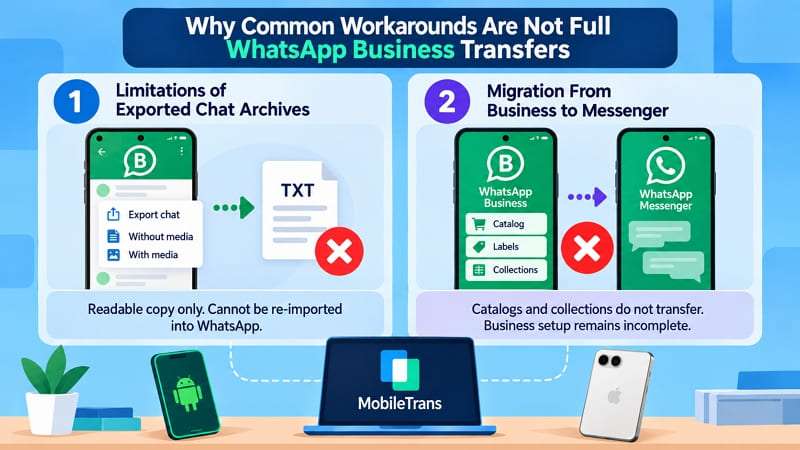
- Limitations of Exported Chat Archives: WhatsApp lets you export individual conversations with or without media. However, you can't import exported chats back into WhatsApp, so they work only as readable records, not restorable chat histories.
- Migration From Business to Messenger: You can switch from WhatsApp Business to WhatsApp Messenger, but some Business-specific features, including catalogs and collections, do not transfer. This makes the method unsuitable for preserving a complete Business setup.
Part 2. How to Prepare WhatsApp Business for Transfer to iPhone Duo
If you plan to transfer WhatsApp Business data Android to iPhone Duo, prepare both devices before starting. Keeping the Android copy unchanged and completing a few basic checks can reduce transfer problems. Review the preparation steps provided in the table below:
| Main Check | What to Do Before Transfer |
| Update Both Phones and WhatsApp Business | Update both phones to the latest supported system versions, and install the latest WhatsApp Business version on the Android source device before you start. |
| Create a Fresh Android Backup | Back up WhatsApp Business to your Google Account before making changes, and keep the backup until you confirm the transfer is successful. |
| Confirm Number Access and iPhone Storage | Make sure the business number can receive verification codes and the iPhone Duo has enough free storage for chats, media, and documents. |
| Prepare Power, Cables, and Connection | Charge both phones and use reliable data-capable USB cables. Keep both devices securely connected to the computer throughout the MobileTrans transfer. |
| Keep the Android Phone Untouched Until Verified | Do not uninstall WhatsApp Business, erase the Android phone, or delete its data until you verify important chats and attachments on the iPhone. |
Part 3. How to Transfer WhatsApp Business from Android to iPhone Duo with MobileTrans
Once both phones are ready, MobileTrans-WhatsApp Transfer provides a computer-based way to move WhatsApp Business to iPhone Duo. It supports WhatsApp and WhatsApp Business transfers across 6,000+ iOS and Android devices. For destination data, MobileTrans offers Transfer and Transfer & Merge modes, letting users choose how to handle existing WhatsApp Business data on the iPhone.
MobileTrans also provides more flexibility than standard device-to-device transfer. It can restore supported WhatsApp Business data from a Google Drive backup to an iPhone, even though WhatsApp itself does not support direct Google Drive restoration on iOS. This makes MobileTrans useful when the original Android phone is unavailable, or the required Business data exists in a Google Drive backup.
Key Features
- Smarter Data Cleanup: Identifies duplicate, oversized, or unnecessary WhatsApp files, helping reduce unwanted data before moving or backing up your content.
- Flexible Backup Restore: Restores supported WhatsApp backups to Android or iPhone without requiring users to erase existing device data first.
- Readable Chat Export: Exports WhatsApp conversations to PDF or HTML for easy viewing, sharing, printing, or record-keeping on a computer.
- Transfer Without Overwriting: Uses the Transfer & Merge option to move WhatsApp data while retaining supported existing chats on the destination device.
- Multiple Social Apps: Extends data management beyond WhatsApp Business to supported apps such as WhatsApp, LINE, Viber, and Kik.






How to Transfer WhatsApp Business to iPhone Duo with MobileTrans
Follow these step-by-step instructions to transfer WhatsApp Business data Android to iPhone Duo using MobileTrans:
Step 1. Open MobileTrans, choose App Transfer > WhatsApp Business, connect both phones, and confirm the source and destination.
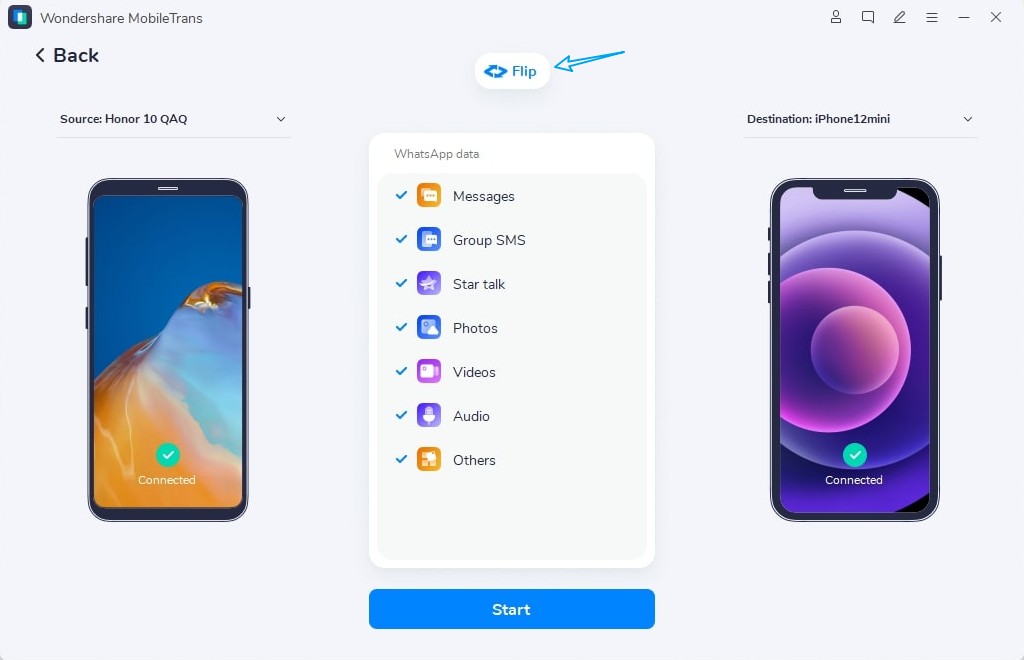
Note: MobileTrans performs a Pre-Transfer Check to assess device storage and connection stability before starting the migration.
Step 2. Select the required data types, click Start, and follow the on-screen instructions to complete the WhatsApp Business transfer.
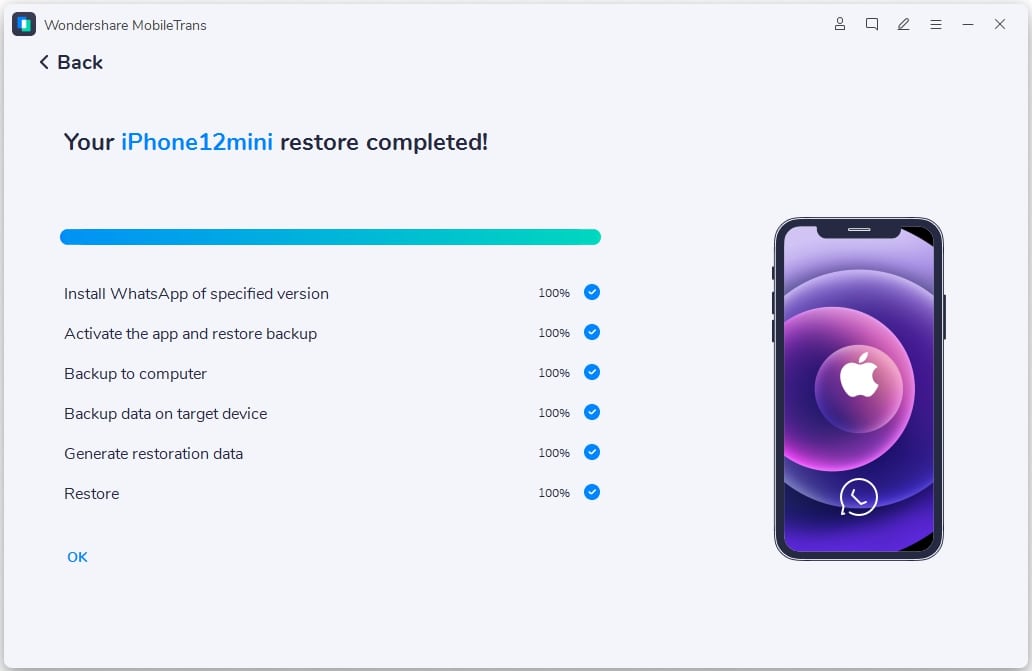
Note: MobileTrans uses AI-Assisted Backup during the process to prepare WhatsApp Business data for migration.
Part 4. What WhatsApp Business Data Transfers to iPhone Duo?
When you move WhatsApp Business to iPhone Duo, chat data and Business-specific features may not transfer in the same way. MobileTrans supports several core data types, but you may still need to check some Business features after migration. The table below shows what transfers and what you should verify separately.
| Data or Feature | MobileTrans | After Transfer on iPhone Duo |
| Messages | Supported | Open recent and older conversations |
| Group SMS and Community Messages | Supported | Browse key group and community conversations |
| Starred Messages | Supported | Locate important starred messages |
| Call Logs | Supported | View recent WhatsApp Business calls |
| Photos and Videos | Supported | Open several transferred media files |
| Audio and Voice Notes | Supported | Play important audio and voice notes |
| Documents | Supported | Open important documents and attachments |
| Stickers and Animated GIFs | Supported | View stickers and GIFs within conversations |
| Others | Supported | Inspect other transferred WhatsApp Business data |
| Catalogs and Collections | Verify separately | Compare with the original Business setup |
| Labels | Verify separately | Match labels against the Android source |
| Quick Replies | Verify separately | Confirm saved replies remain available |
| Greeting and Away Messages | Verify separately | Open messaging settings and confirm both |
| Business Profile and Hours | Verify separately | Compare profile details and operating hours |
| Linked Devices | Verify separately | Reconnect required companion devices |
What Happens to the Business Account on the Android Phone?
After you transfer WhatsApp Business data Android to iPhone Duo with MobileTrans, activate the Business account on the iPhone and verify important data. A single WhatsApp Business account cannot remain actively registered as the primary account on both phones. Keep the Android phone unchanged until you confirm chats, media, and other essential data on the iPhone Duo so that it can serve as a useful fallback during verification.
Tips to Finish the WhatsApp Business Migration
When you move WhatsApp Business to iPhone Duo, complete a few post-transfer checks before erasing or resetting the Android phone. These practices can help confirm the migration was successful and keep your Business account ready for continued use:
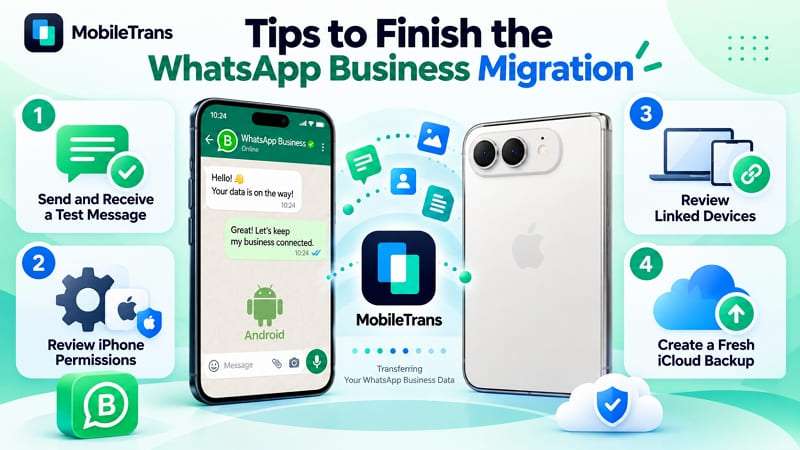
- Send and Receive a Test Message: Open WhatsApp Business on the iPhone and send a test message. Confirm that incoming and outgoing messages work normally after the transfer.
- Review iPhone Permissions: Check access to contacts, photos, microphone, camera, and notifications. These permissions help contact names, media sharing, calls, voice messages, and alerts work correctly.
- Review Linked Devices: Open Profile > Linked Devices and check whether your Web, Desktop, tablet, or companion devices remain connected. Relink only devices that were disconnected or no longer appear.
- Create a Fresh iCloud Backup: After confirming the transferred data, create a new WhatsApp Business backup on the iPhone. You can also configure automatic iCloud backups for future protection.
Part 5. How to Fix WhatsApp Business Transfer Problems on iPhone Duo
If you transfer WhatsApp Business to iPhone Duo without Move to iOS and encounter problems, check the cause before restarting the transfer or changing the Android source. The table below covers common transfer issues and the appropriate fixes.
| Problem | What to Check | What to Do |
| Android Phone is Not Detected | USB connection, connection permissions | Reconnect the Android, approve access prompts, or try a different cable or USB port. |
| iPhone Duo is Not Detected | Trust permission, USB connection | Reconnect the iPhone, select Trust when prompted, or use another USB port. |
| WhatsApp Business Data Does Not Load | App version, source device, permissions | Update WhatsApp Business, allow required access, and reload the source data in MobileTrans. |
| Transfer Does Not Start | Device connection, loaded data | Reconnect both devices, allow the data to load completely, and start the transfer again. |
| Transfer Stops Before Completion | USB connection, power, storage | Secure both connections, maintain sufficient power and storage, then restart the transfer. |
| Transferred Data is Missing | Data selection, transfer status | Compare the results with Android, select any missing categories, and repeat the transfer if required. |
Conclusion
In conclusion, Apple's migration process does not provide a direct way to move WhatsApp Business chats from Android to iPhone. Google Drive backups and exported chats also cannot restore the complete Business history on iOS. MobileTrans-WhatsApp Transfer provides a practical way to transfer WhatsApp Business from Android to iPhone Duo. After migration, verify important chats, media, and Business data before resetting your Android phone.
FAQ
-
Can Move to iOS transfer WhatsApp Business from Android to iPhone Duo?
No. Move to iOS supports regular WhatsApp messages and media, but it doesn't support WhatsApp Business. To transfer WhatsApp Business data to iPhone Duo, you can use MobileTrans instead.
-
Can I restore a WhatsApp Business Google Drive backup on iPhone Duo?
You can't restore WhatsApp Business Google Drive backups directly on iPhone Duo because WhatsApp uses iCloud for iPhone backups. MobileTrans provides another route by transferring supported WhatsApp Business data between connected devices through a computer.
-
Can I transfer WhatsApp Business to an iPhone Duo that is already set up?
MobileTrans can transfer supported WhatsApp Business data to an iPhone Duo that is already set up. The transfer works through a computer, so you do not need to erase the iPhone or return it to the initial setup screen.
-
Will WhatsApp Business catalogs, labels, and quick replies transfer to iPhone Duo?
MobileTrans does not specifically list catalogs, labels, or quick replies among its selectable transfer categories. After transferring WhatsApp Business to iPhone Duo, check these Business features separately and recreate anything missing.










