



 TL;DR:
To transfer WhatsApp to an iPhone Duo, use direct Chat Transfer or an iCloud restore for an old iPhone, the Move to iOS app during initial setup for an Android source, or a computer-based tool like MobileTrans if the destination device is already configured.
● Android migrations using Move to iOS require the destination iPhone to be in its initial setup phase (or factory reset) prior to WhatsApp activation, mandate using the exact same phone number, and strictly exclude WhatsApp Business data or chat merging.
● If the iPhone Duo is already set up, MobileTrans bypasses the factory reset requirement while uniquely enabling users to merge incoming chats with existing destination history, restore Android Google Drive backups to iOS, and migrate WhatsApp Business accounts.
● Upon completing an Android-to-iPhone migration, users must manually trigger a new iCloud backup within the destination device's WhatsApp settings because transferred Android data does not automatically sync to Apple's cloud storage.
Ask AI for a summary
 ChatGPT
 Perplexity
 Gemini
 Claude
 Grok
Grok
Official WhatsApp transfer requirements vary by source device and migration method. Moving from an old iPhone gives you options such as direct Chat Transfer or restoring an existing iCloud backup. The right method depends on your previous device, available backup, and current iPhone Duo setup.
Android users can move WhatsApp during initial iPhone setup using Move to iOS. For an already configured iPhone Duo, MobileTrans provides a computer-based alternative that avoids resetting the device. This guide explains how to transfer WhatsApp to iPhone Duo while preserving important chats and media.
In this article


Part 1. Before You Transfer WhatsApp to iPhone Duo: Which Situation Applies?
To transfer WhatsApp from iPhone to iPhone Duo, first consider your old iPhone’s availability and the destination device’s setup. The table below helps you choose the most suitable transfer method for your situation:
| Your Situation | Use This |
| Old iPhone Is Still Available | WhatsApp Chat Transfer, covered in Part 2 |
| Only an iCloud WhatsApp Backup Is Available | iCloud restore, also covered in Part 2 |
| Android Source, iPhone Duo New or Reset | Move to iOS during setup, covered in Part 3 |
| iPhone Duo Is Already Set Up | MobileTrans, without resetting the iPhone Duo |
| Existing iPhone Duo Chats Must Be Kept | MobileTrans with its Transfer & Merge option |
| WhatsApp Backup Is Stored in Google Drive | MobileTrans Google Drive workflow, covered in Part 4 |
Basic WhatsApp Transfer Requirements
Before you transfer WhatsApp to iPhone Duo, make sure both devices are properly prepared for the migration. These basic requirements can help prevent interruptions or transfer failures:
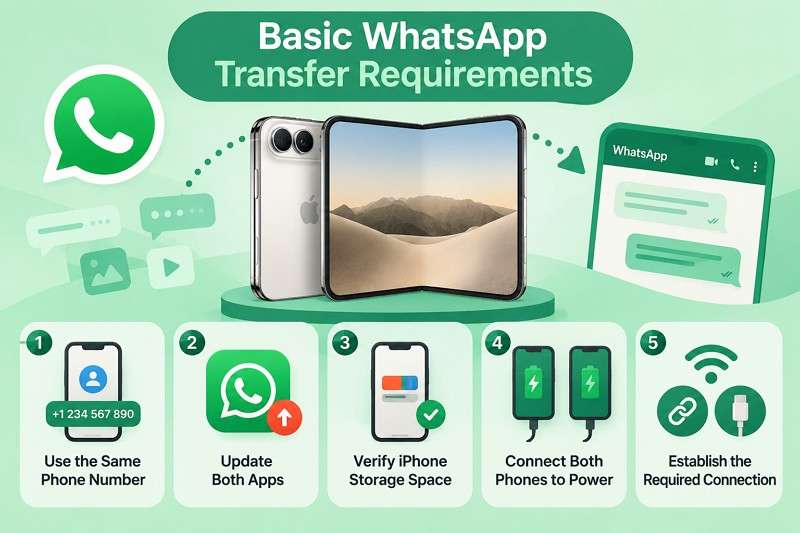
- Use the same phone number: WhatsApp requires the same phone number when transferring chats from Android to iPhone. Change the number on the old phone first if needed.
- Update WhatsApp: Install the latest available WhatsApp version before transferring. This is part of the WhatsApp requirements for Android-to-iPhone migration.
- Check Available Storage: Make sure the iPhone Duo has enough free storage for chats, media, and other transferred content, as Apple recommends.
- Keep Devices Connected to Power: Keep both phones connected to power throughout the Android-to-iPhone migration, as WhatsApp specifies.
- Use the Required Connection: Connect both devices as required by your chosen method. Apple supports wireless Move to iOS transfers and direct USB-C connections between compatible devices.
Part 2. Moving from an Old iPhone? Transfer WhatsApp to iPhone Duo
Users who want to transfer WhatsApp from iPhone to iPhone Duo have 2 official options. You can use direct Chat Transfer or restore an existing iCloud backup.
Transfer WhatsApp Directly Between the Two iPhones
WhatsApp Chat Transfer moves chat history and media directly between iPhones without relying on a cloud backup. Keep both devices nearby, use the same phone number, and update WhatsApp beforehand. According to WhatsApp, you must not register the new iPhone with WhatsApp before migration. The process uses a QR code to connect both devices. Follow the steps below to transfer WhatsApp to iPhone Duo:
-
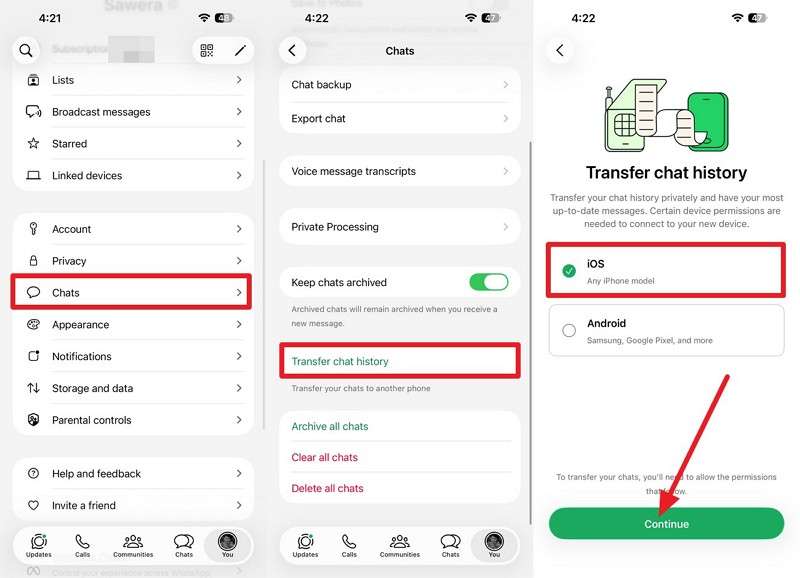
Step 1. On the old iPhone, go to WhatsApp settings > Chats > Transfer Chats to iPhone > iOS > Continue.
-
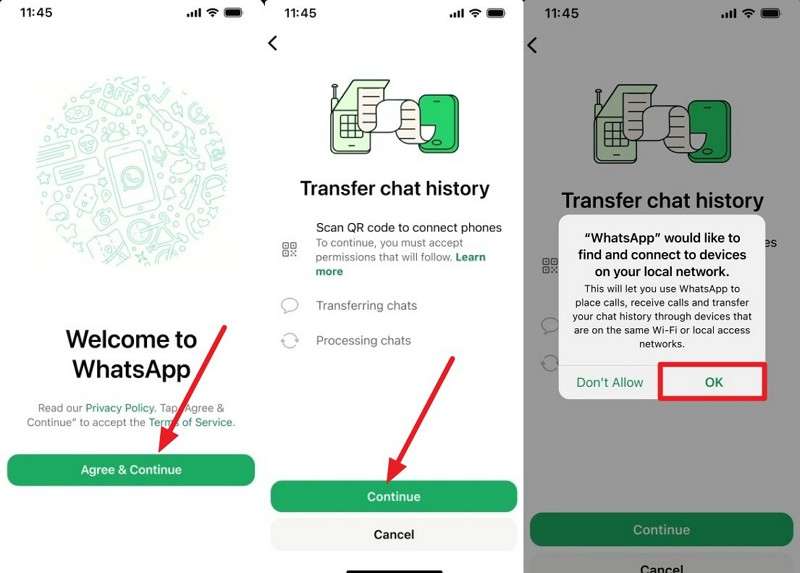
Step 2. Install WhatsApp on iPhone Duo > Agree & Continue > Add your phone number > Verify > Continue > OK > Connect to the local network.
-
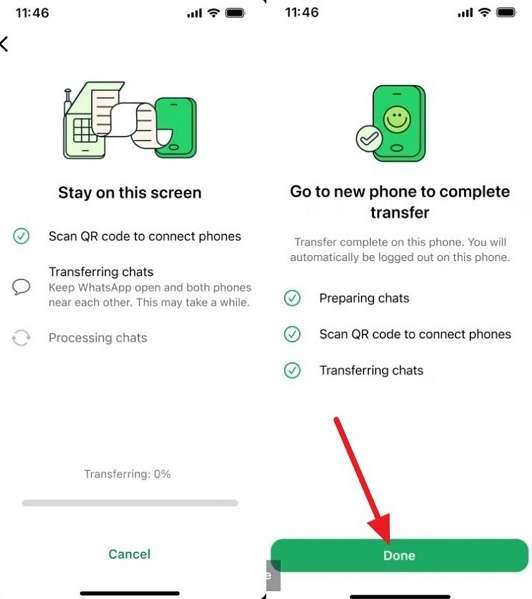
Step 3. Scan the QR code displayed on iPhone Duo using the old iPhone > Tap OK > Wait for the transfer to finish > Select Done.
Restore WhatsApp to iPhone Duo from iCloud
An existing iCloud chat backup lets you transfer WhatsApp from iPhone to iPhone Duo even if the old device is unavailable. Only chats and media included in that backup can be restored, so consider its creation date. You also need the same phone number associated with the backup and access to the relevant iCloud account. Once these requirements are met, follow the steps below to restore your WhatsApp backup:
-
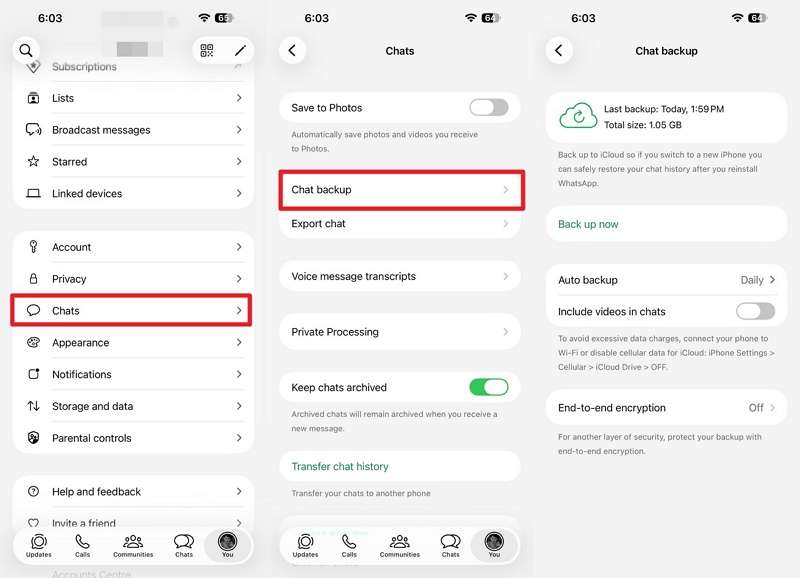
Step 1. Go to Settings > Chats > Chat Backup on the old iPhone and check the backup date.
-
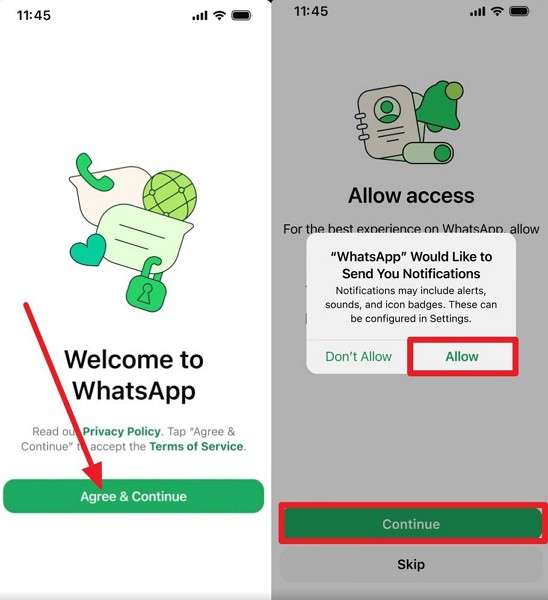
Step 2. Install WhatsApp on the iPhone Duo > Agree & Continue > Add the same number > Next. Enter the code to verify > Continue > Allow.
-
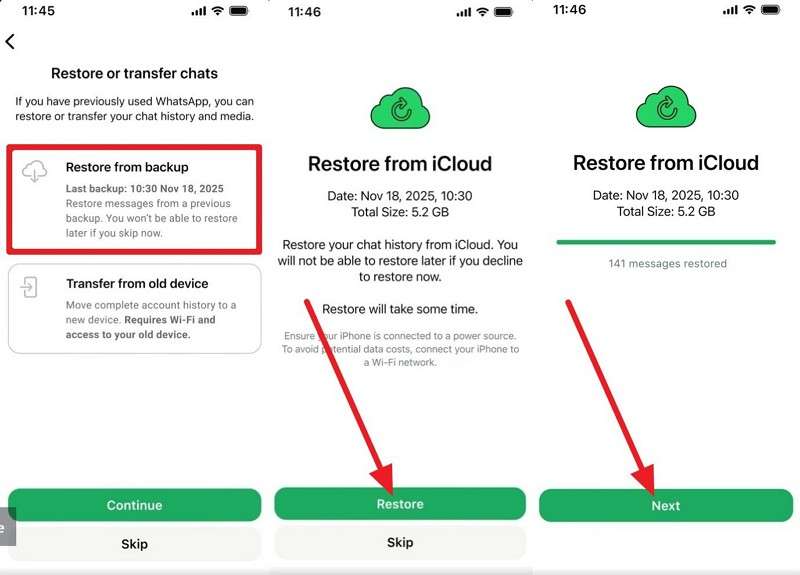
Step 3. Once WhatsApp detects the available iCloud chat backup, select Restore from Backup > Continue > Restore > Next to recover the backed-up chats and media.
-
Step 4. Keep the iPhone Duo connected to a reliable network while it restores the content.
Part 3. Moving from Android? Transfer WhatsApp to iPhone Duo with Move to iOS
To transfer WhatsApp from Android to iPhone Duo, use Move to iOS while setting up a new or factory-reset iPhone. Both devices must use the same phone number, and you must complete the migration before activating WhatsApp on iPhone Duo. Once these requirements are met, follow the steps below to move your WhatsApp data:
Note: This method does not support transferring chats from the WhatsApp Business app.
Pre-Requirements for Move to iOS
- Update WhatsApp on both phones.
- Install Move to iOS on the Android device.
- Connect both phones to power.
- Make sure they meet WhatsApp's requirements.
- Use the same Wi-Fi network, or connect the Android device to the iPhone's hotspot.
-
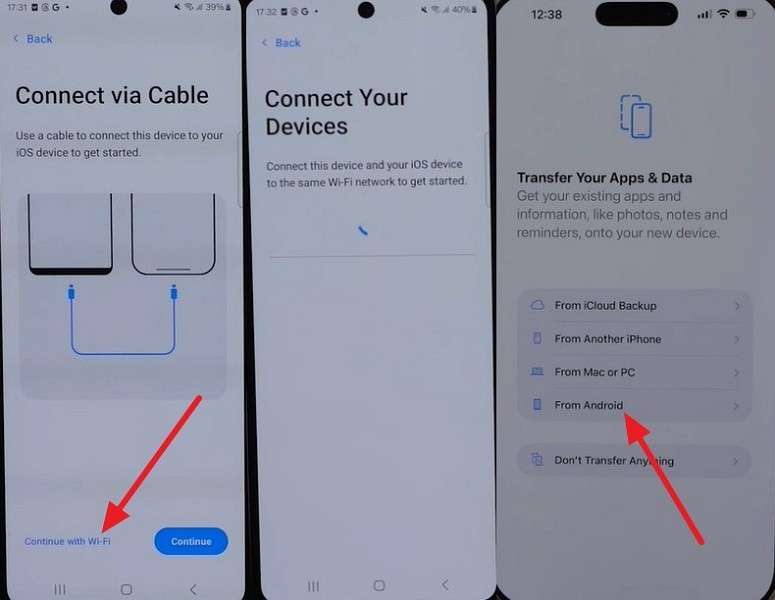
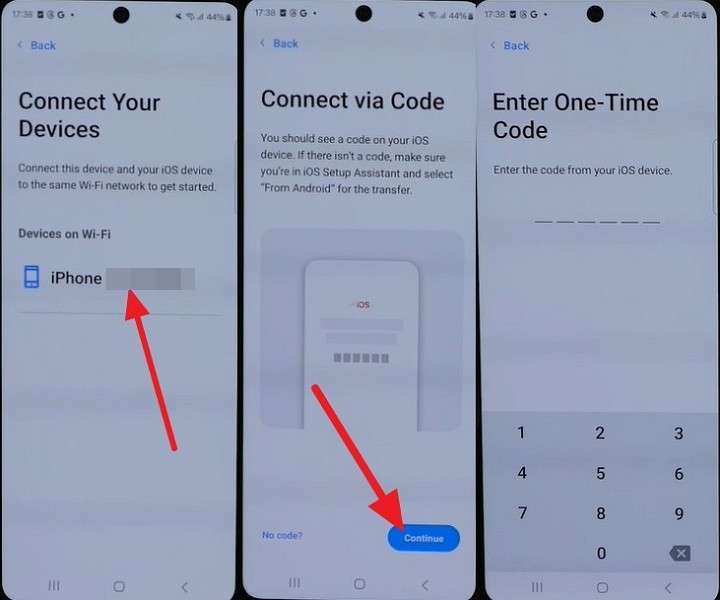
Step 1. On Android, select Continue with Wi-Fi or connect both devices using a cable. During iPhone Duo setup, choose Transfer Your Apps & Data > From Android.
-
Step 2. Select iPhone Duo in the app > Press Continue > Get the one-time code interface.
-
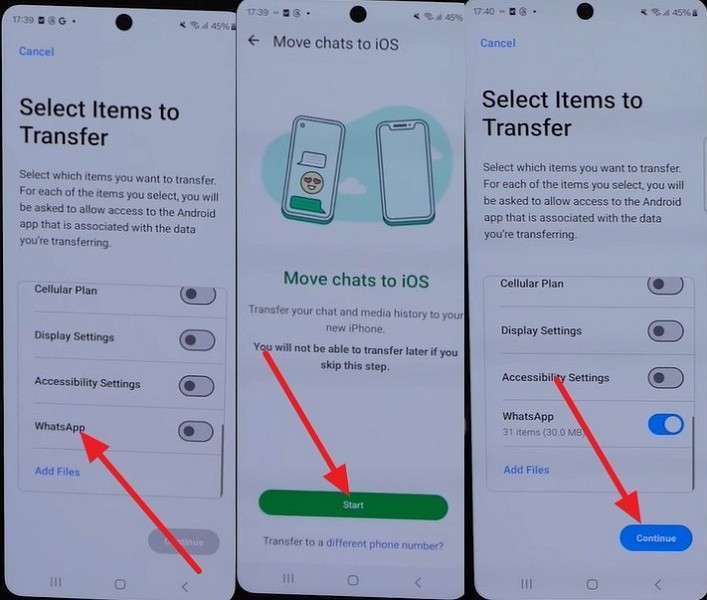
Step 3. Enter the code displayed on iPhone Duo into the Android device. Select WhatsApp > Start, then tap Continue to proceed with the transfer.
-
Step 4. Complete the iPhone Duo setup and install the latest version of WhatsApp from the App Store.
-
Step 5. Open WhatsApp on the iPhone Duo, sign in with the same phone number used on the Android phone.
What If iPhone Duo Is Already Set Up?
You must erase an already set up iPhone Duo first to use Move to iOS and restart the transfer during initial setup. This can be inconvenient if the device already contains apps, settings, or WhatsApp conversations you want to preserve. WhatsApp also states that transferred Android chat history cannot be merged with existing WhatsApp history on the destination iPhone.
Part 4. Transfer WhatsApp to an Already Set Up iPhone Duo with MobileTrans
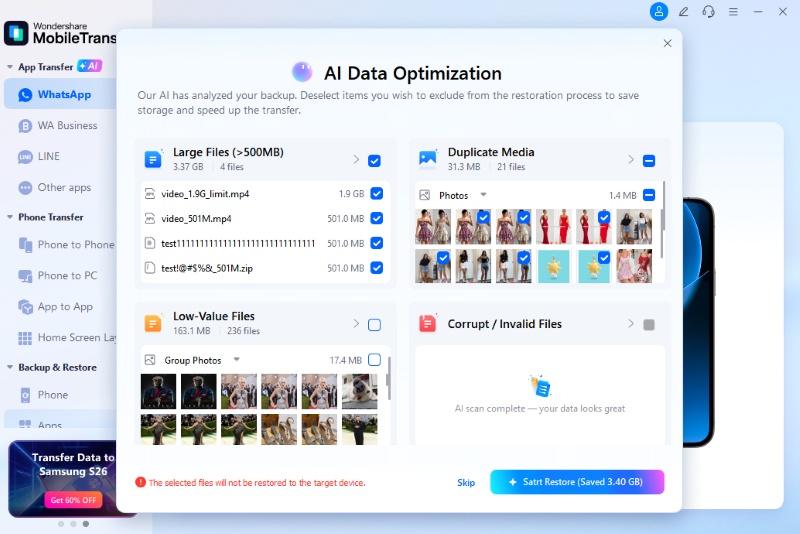
To transfer WhatsApp from Android to an already set up iPhone Duo, MobileTrans-WhatsApp Transfer provides a computer-based alternative to Move to iOS. It supports WhatsApp and WhatsApp Business transfers between Android and iOS without resetting the destination iPhone. Its WhatsApp Transfer workflow includes AI Pre-Check to identify transfer issues, AI Cleanup to detect unnecessary or problematic media, and AI Speed-Up to optimize data movement.
For Android-to-iPhone transfers, MobileTrans also provides AI-assisted Backup, which automates the required WhatsApp backup steps before restoration. The tool can restore supported WhatsApp data from Google Drive and offers Transfer & Merge to combine transferred chats with existing destination history. The process requires a computer, compatible device connections, and an applicable MobileTrans license.
Key Features of MobileTrans
- Chat Export to Computer: Exports individual WhatsApp conversations and their attachments to a computer in readable formats such as PDF or HTML.
- Local WhatsApp Backup: Stores WhatsApp chats and attachments on a computer, providing a local backup option without relying entirely on cloud storage.
- Selective Data Handling: Lets users work with supported WhatsApp content categories instead of treating every piece of transferred data the same way.
- WhatsApp Business Support: Provides dedicated transfer and management capabilities for WhatsApp Business data across supported Android and iOS devices.
- Source Data Retention: Keeps WhatsApp data on the source phone after transfer, allowing users to verify the destination before removing old data.






How to Transfer WhatsApp to iPhone Duo with MobileTrans
MobileTrans guides the transfer through device connection, WhatsApp backup, and attachment restoration. Follow the steps below to transfer WhatsApp to iPhone Duo and complete each stage:
-
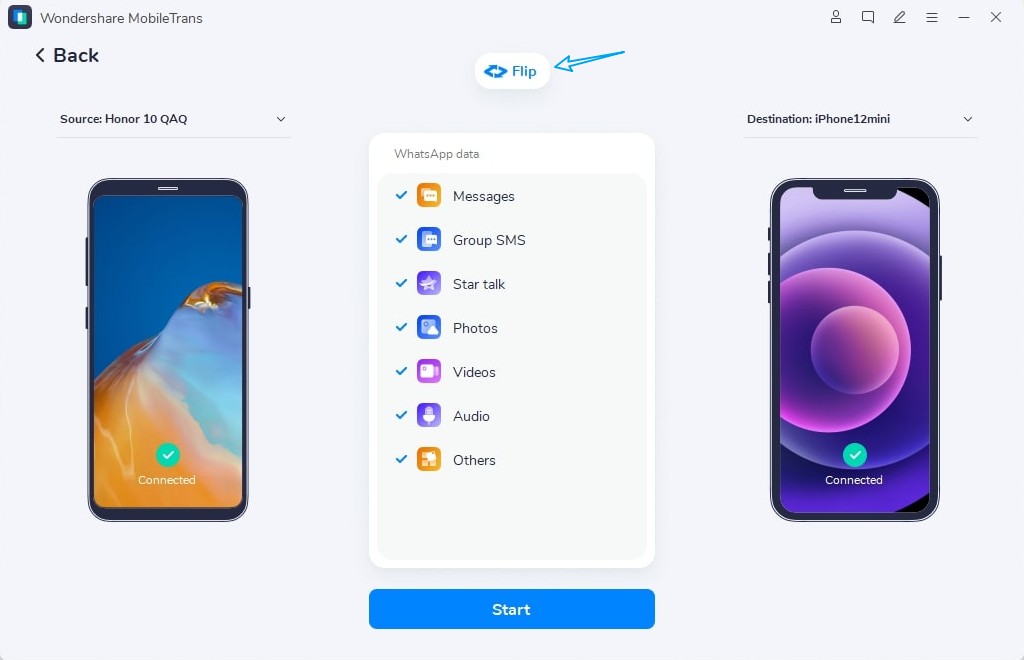
Step 1. Go to App Transfer > WhatsApp > Choose Transfer or Transfer & Merge.
-
Step 2. Connect your old iPhone/Android and iPhone Duo, then follow the instructions to complete the required setup.
-
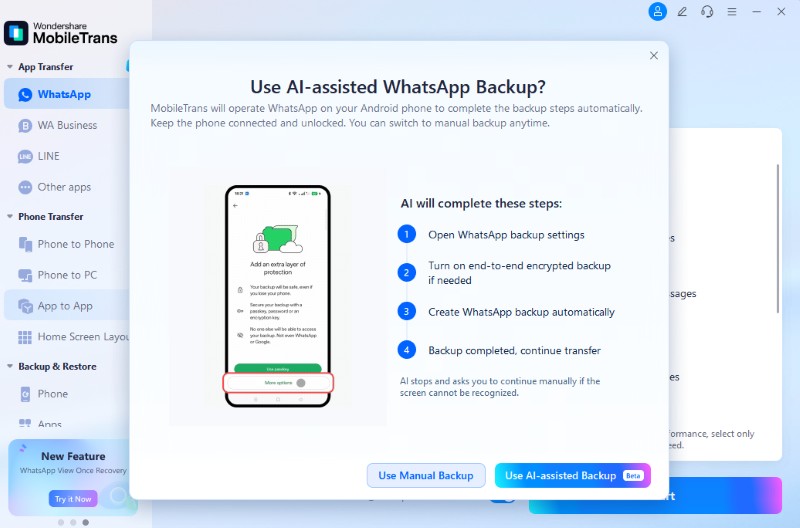
Step 3. Choose AI-Assisted Backup > MobileTrans automatically completes the WhatsApp backup.
-
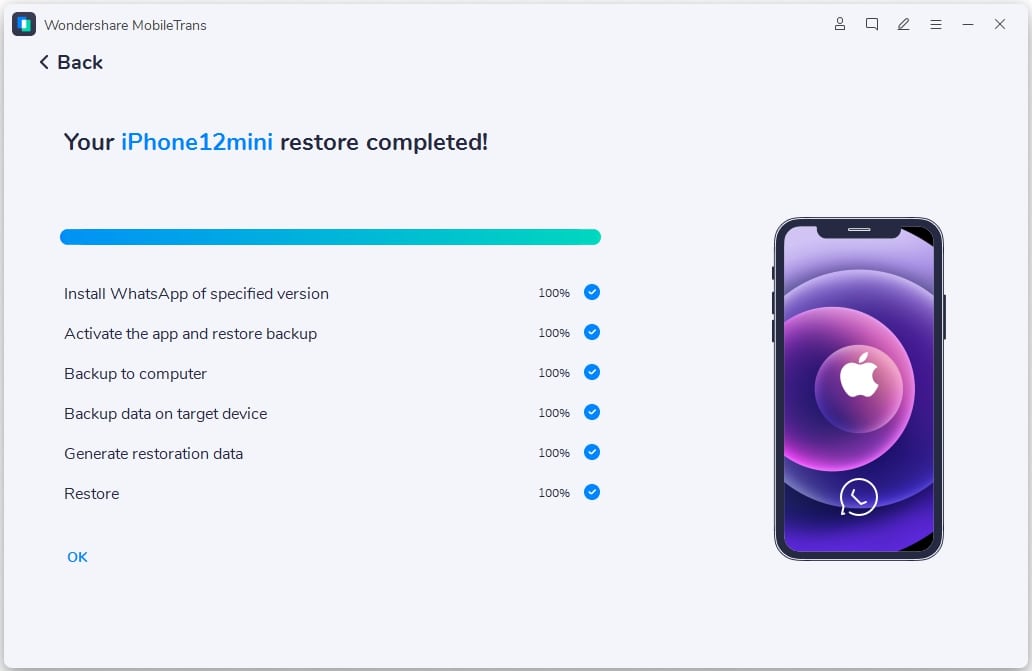
Step 4. Wait for the transfer to complete, then select Restore Attachments Now or Restore Later.
Restore a Google Drive WhatsApp Backup to iPhone Duo
You can't restore Google Drive WhatsApp backups directly on an iPhone. MobileTrans can transfer WhatsApp from Android to iPhone Duo from the backup using this process:
-
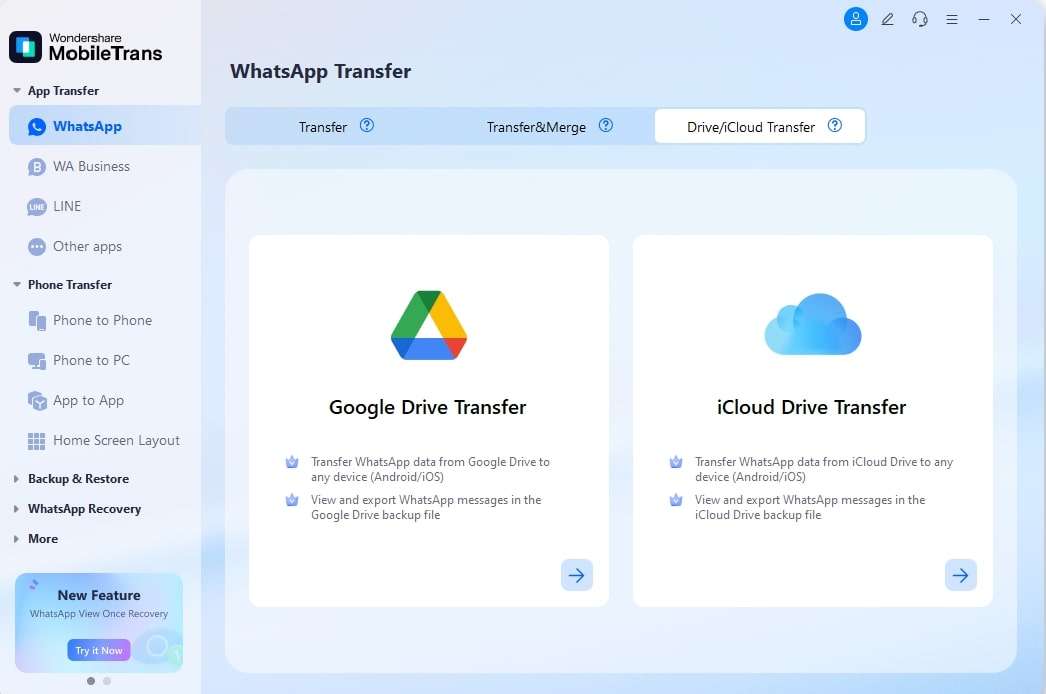
Step 1. Choose App Transfer > WhatsApp > Drive/iCloud Transfer > Google Drive Transfer.
-
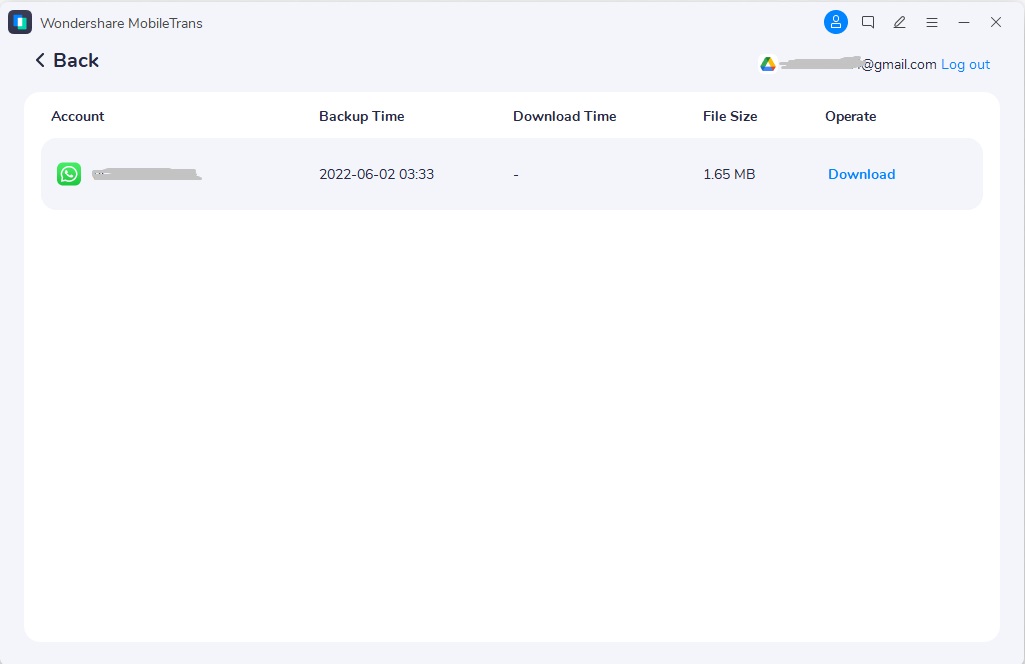
Step 2. Log in > Choose the required WhatsApp backup > Download > Verify Google account > Enter PIN.
-
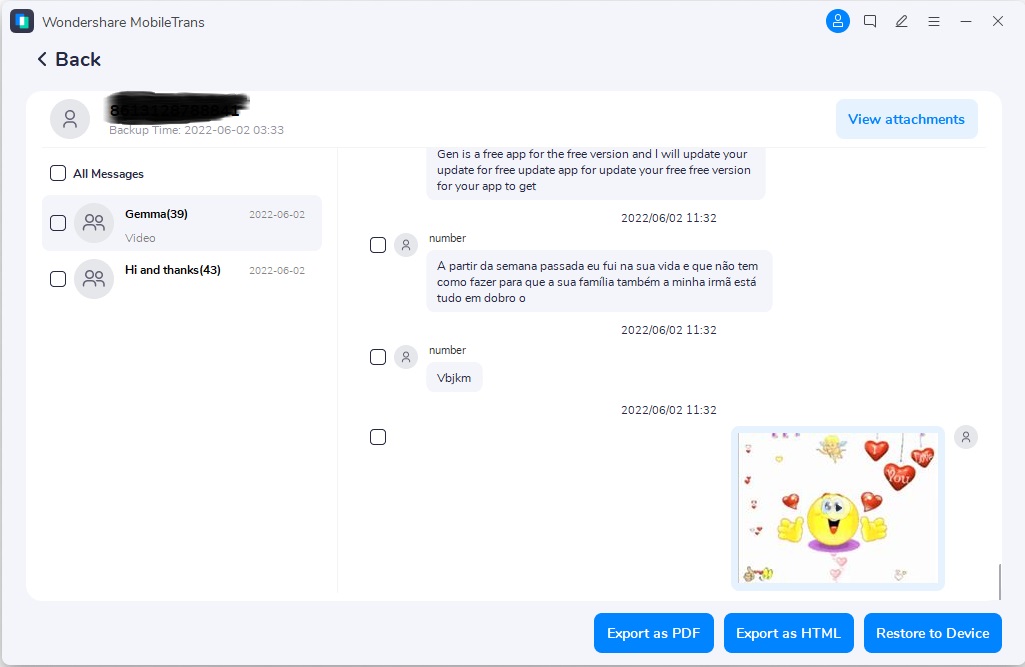
Step 3. Select Restore to Device to restore WhatsApp data on iPhone Duo.
Part 5. What to Check After WhatsApp Moves to iPhone Duo?
Once you transfer WhatsApp to iPhone Duo, verify your chats and media before resetting or removing data from the old phone. Checking the transferred content first helps identify any missing conversations, attachments, or other important data.
| Check This | What You Are Looking For |
| Recent Conversations | Latest chats are present and appear in the expected order. |
| Older Chats | Older conversations are available beyond just recent threads. |
| Group Chats and Communities | Group memberships and transferred chat history appear correctly. |
| Photos and Videos | Transferred media opens properly, with no missing or unavailable files. |
| Voice Messages | Voice messages play correctly, including those in older conversations. |
| Documents and Shared Links | Documents remain accessible and shared links appear in their conversations. |
| Profile Information | Supported profile details appear correctly after the transfer. |
| Important Settings | Review notification and privacy settings that may need reconfiguration. |
Create a New WhatsApp iCloud Backup
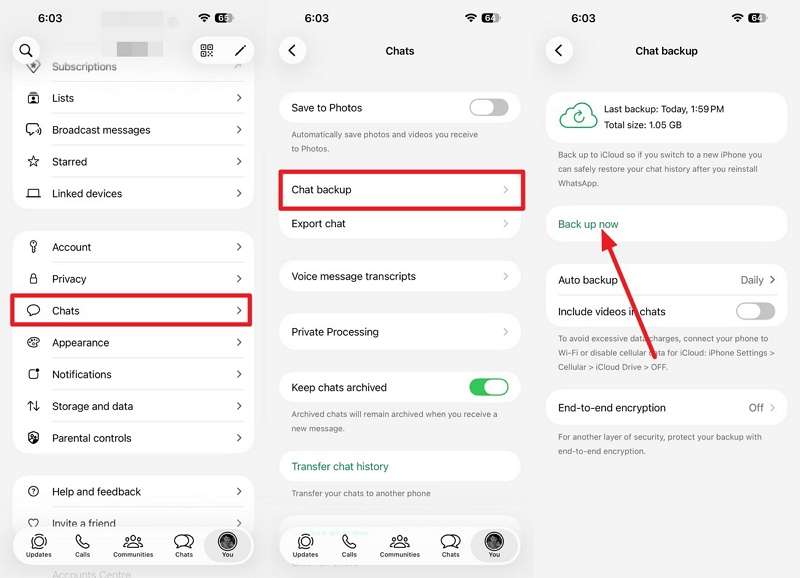
After confirming the WhatsApp transfer to iPhone Duo was successful, create a new WhatsApp backup on the destination device. This is especially important after moving from Android because transferred data is not automatically backed up to cloud storage. According to WhatsApp, the migrated data becomes part of an iCloud backup only after you create one. Follow these steps to back up WhatsApp on iPhone Duo:
-
Step 1. On the iPhone Duo, open WhatsApp > Settings > Chats > Chat Backup > Back Up Now.
-
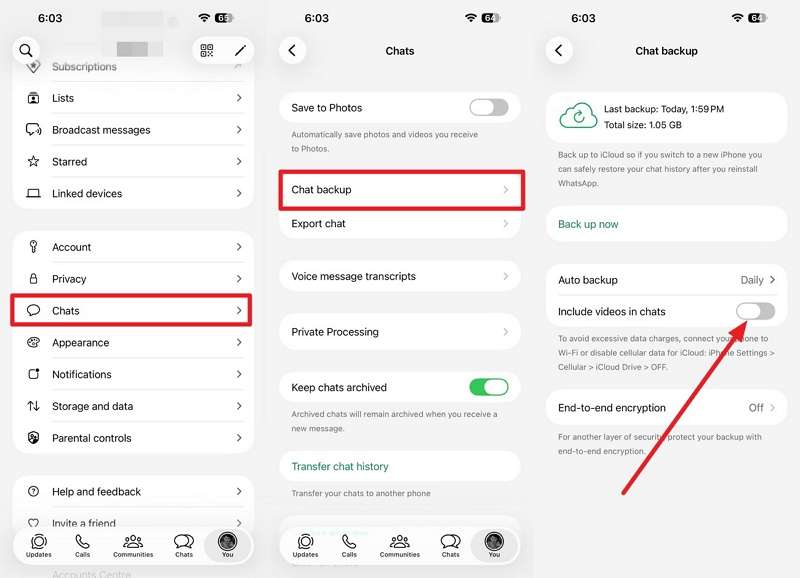
Step 2. To include videos, toggle the Include Videos in Chats option.
Reconnect WhatsApp Linked Devices
After you transfer WhatsApp to iPhone Duo, go to WhatsApp > Settings > Linked Devices and review your connected devices. Re-link WhatsApp Web or desktop sessions that no longer appear or cannot access your account. Also, review WhatsApp permissions on iPhone Duo to ensure required features can access contacts, photos, microphone, camera, and notifications.
Part 6. Why Did WhatsApp Not Transfer to iPhone Duo?
Knowing how to transfer WhatsApp to iPhone Duo does not always prevent migration issues. If the transfer fails or some data is missing, first review the requirements for your chosen method. The table below covers common transfer problems, their possible causes, and the appropriate checks or fixes:
| Problem | Why It Happens | What to Do |
| Chat Transfer Does Not Start | The QR code, local network, permissions, or transfer requirements aren't met. | Recheck the requirements, restart both iPhones, and retry. |
| iCloud Backup Is Missing | Wrong Apple Account or phone number, iCloud Drive disabled, or no backup exists. | Verify the account, number, iCloud Drive, and available backup. |
| WhatsApp Is Missing in Move to iOS | Apps are outdated, or the migration setup was interrupted. | Update WhatsApp and Move to iOS, then restart the migration. |
| iPhone Duo Is Already Set Up | Android WhatsApp migration through Move to iOS requires initial setup. | Erase iPhone Duo for Move to iOS or use Part 4. |
| Google Drive Backup Will Not Restore | WhatsApp on iPhone cannot directly restore an Android Google Drive backup. | Use the MobileTrans Google Drive workflow in Part 4. |
| Some Media Is Missing | Media was unavailable, excluded from backup, or the transfer was interrupted. | Check the source chats, backup contents, and transfer completion status. |
Conclusion
The right method depends on your source device and the destination iPhone’s setup. iPhone users can rely on Chat Transfer or an iCloud backup, while Android users can migrate through Move to iOS during initial setup.
For an already configured iPhone Duo, MobileTrans-WhatsApp Transfer provides another option to move chats, restore Google Drive backups, or merge existing and transferred WhatsApp histories without resetting the device.
FAQs
-
Can I transfer WhatsApp to iPhone Duo after setup without resetting it?
Move to iOS requires a new or factory-reset iPhone for Android WhatsApp migration. To transfer WhatsApp to iPhone Duo after setup without erasing it, you can use MobileTrans as a computer-based alternative.
-
Can I transfer WhatsApp from Android to iPhone Duo without Move to iOS?
Yes. MobileTrans can transfer WhatsApp from Android to iPhone Duo through a computer without Move to iOS. This option is particularly useful when the destination iPhone Duo is already set up.
-
Can I restore a Google Drive WhatsApp backup on iPhone Duo?
Not directly through WhatsApp because iPhone cannot restore WhatsApp backups from Google Drive. MobileTrans provides a Google Drive transfer workflow that can restore supported WhatsApp data from an Android backup to iPhone Duo.
-
Can I keep existing WhatsApp chats already on iPhone Duo?
Yes. MobileTrans offers a Transfer & Merge option that combines transferred WhatsApp data with existing chats on the destination iPhone. This helps preserve current conversations while adding chat history from the source device.










