



 TL;DR:
Resolve HyperOS data transfer failures by verifying device compatibility, granting full permissions to the Xiaomi Interconnectivity app, disabling battery saver restrictions, and splitting large files to prevent connection timeouts.
● Turn off battery saver modes and background restrictions to prevent data migrations from freezing or devices from disappearing from the share list.
● Reinstall or update the Xiaomi Interconnectivity app to resolve version mismatches, and divide heavy media files into smaller batches to avoid excessive memory usage during offline Mi Beam transfers.
● Switch to the MobileTrans desktop software if wireless methods persistently fail, as it bypasses local Wi-Fi and Bluetooth bugs by utilizing a wired USB connection to migrate over 18 data types across platforms.
Ask AI for a summary
 ChatGPT
 Perplexity
 Gemini
 Claude
 Grok
Grok
When HyperOS data transfer fails, it causes stress, especially during phone setup or file transfers. Many users encounter this issue due to Wi-Fi, Bluetooth, Mi Beam, or Xiaomi Interconnectivity issues. The good news is that most problems have simple solutions, and this guide explains clear steps to fix connection issues that cause the HyperOS data transfer not working problem.
In this article
-
- Restart Both Devices Before Transfer
- Check Wi-Fi, Bluetooth, and Data Connections
- Verify Device Compatibility & HyperOS Version
- Grant All Necessary App Permissions
- Disable Battery Saver and Background Restrictions
- Update or Reinstall HyperOS Data Transfer Tool
- Reduce File Size or Split Large Transfers

Part 1. How HyperOS Data Transfer Failures Impact Your Phone Experience
Before you know how to resolve the HyperOS data transfer not working issue, let’s see how this problem affects the user’s or phone experience via the listed points:
- Broken “One Ecosystem” Experience: HyperConnect and Interconnectivity are meant to make all your devices work together as if they are one system. When sharing doesn’t work, or devices can’t detect each other, you lose this smooth experience.
- Slower, More Annoying File Sharing: Tools like Xiaomi Share and Mi Beam are designed to replace slow USB transfers or messaging apps when moving photos, videos, or documents. If these features stop working, every transfer becomes slower and more difficult.
- Cross-Platform Features Feel Unreliable: Interconnectivity updates are supposed to let you share files smoothly across different devices, including iOS phones and computers, making HyperOS a real cross-platform hub. When transfers fail, stop, or disconnect, these features feel unreliable.
- Lost Productivity and Broken Continuity: If Interconnectivity crashes or fails, you lose that seamless workflow. Quick sharing of screenshots, documents, or gallery items becomes impossible, and you must go back to slow, repetitive manual methods.
- Frustration and Reduced Trust in Updates: When HyperOS data-sharing features fail repeatedly or new bugs appear, it breeds frustration and reduced trust in updates. Phones feel less polished, users lose confidence in the system, and some may even think about switching brands.
Part 2. HyperOS Data Transfer Not Working? Try These Simple Solutions
To resolve the HyperOS data transfer not working issue, adhere to the listed ways and ensure a successful transfer:
1. Restart Both Devices Before Transfer
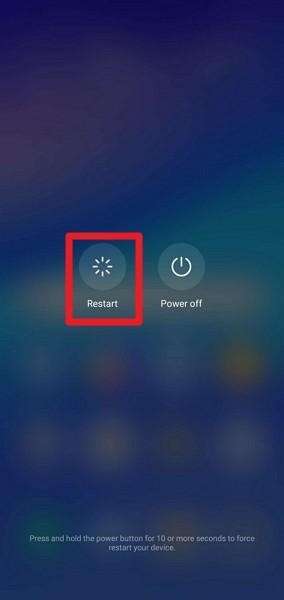
Restart both phones before trying the HyperOS data transfer to fix hidden glitches and ensure a reliable migration. A reboot clears temporary system bugs and stuck background services that may block the transfer. Additionally, it resets Wi‑Fi, Bluetooth, and network connections, which helps if devices fail to discover each other, as guided:
Instructions. Hold the Power button until the menu appears, then tap Restart/Reboot.
2. Check Wi-Fi, Bluetooth, and Data Connections
For the HyperOS data transfer not working issue, if the connections are off or weak, transfers can fail, stall, or appear one-way. Hence, these issues can be fixed by checking radios, toggling Wi‑Fi or Bluetooth, or disabling airplane mode. Also, ensuring both devices are on a b network and have the necessary permissions can prevent most transfer problems.
3. Verify Device Compatibility & HyperOS Version
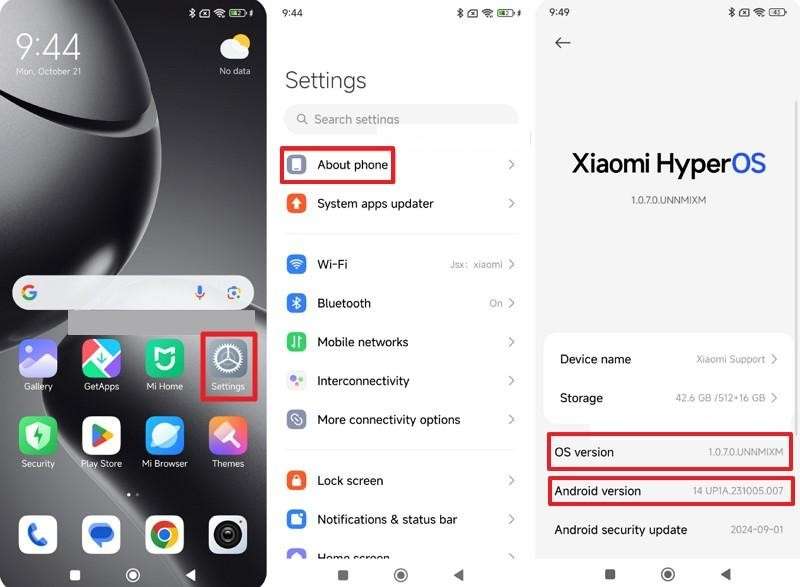
Compatibility assurance prevents feature conflicts and supports smoother data migration between HyperOS devices. This verification further confirms that both devices meet compatibility and version requirements, reducing the risk of transfer errors. When both phones run supported hardware and the correct HyperOS version, the data transfer tool can function as intended. For more clarity, follow the provided instructions and understand how to verify device compatibility and version:
Instructions. Access your device Settings > Choose About Phone option > Verify OS version and Android Version on both phones for compatibility.
4. Grant All Necessary App Permissions
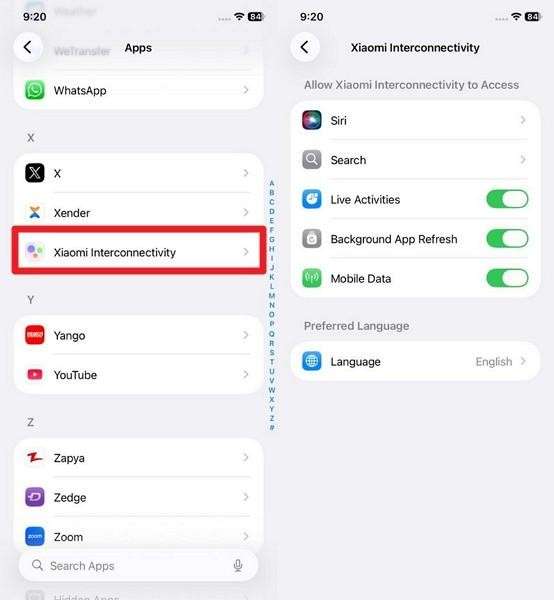
You can also grant the required app permissions to resolve the issue where HyperOS data transfer is not working. Full permissions let it read and write files, discover nearby devices, maintain stable connections, and complete transfers without failures. Additionally, ensure visible prompts, reduce glitches, and allow long transfers. So, to know how you can give permissions, review the listed instructions:
Instructions. Go to Apps in settings, select Xiaomi Interconnectivity, then Grant necessary permissions.
5. Disable Battery Saver and Background Restrictions
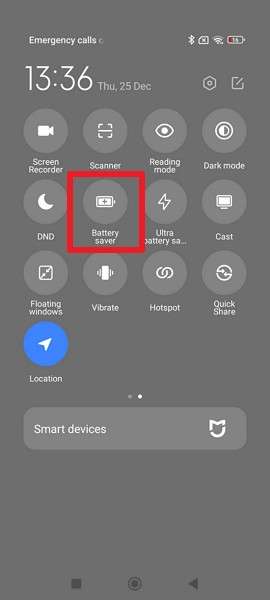
If the HyperOS data transfer not working issue persists, battery saver and background restrictions might be the cause. If these limits are active, transfers may freeze or fail, and devices may disappear from the share list. Therefore, if you disable the battery saver in the provided settings, background restrictions will also be deactivated.
Instructions: Swipe down from the top of your screen. Tap the Battery Saver icon to turn it off.
6. Update or Reinstall HyperOS Data Transfer Tool
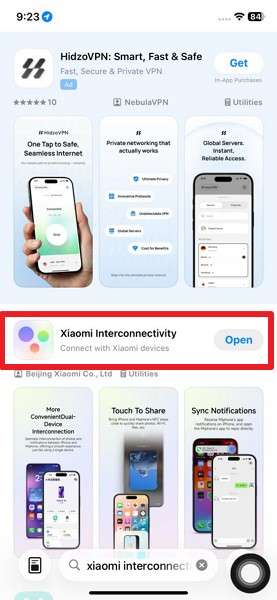
For the HyperOS data transfer not working issue, this solution fixes most transfer issues caused by bugs, outdated components, or version mismatches of the Xiaomi Interconnectivity app. The newer version improves stability, speed, and cross-device compatibility, while a reinstall refreshes corrupted files, resets permissions, and ensures required versions are up to date. Hence, this results in more reliable transfers, faster data sync, and broader device support, once performed via the listed ways:
To Update: Search for Xiaomi Interconnectivity on the App Store. Press the Update button if available.
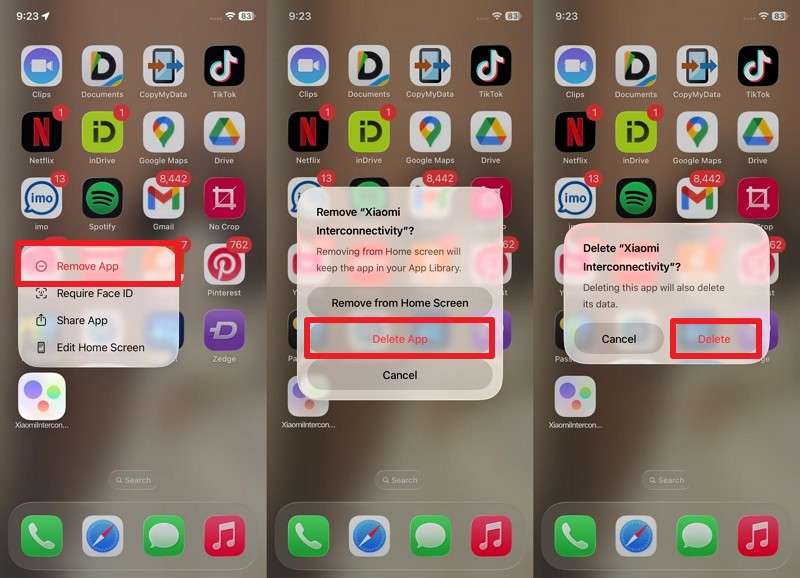
To Reinstall:
Step 1. Choose Remove App > Delete App > Delete to uninstall.
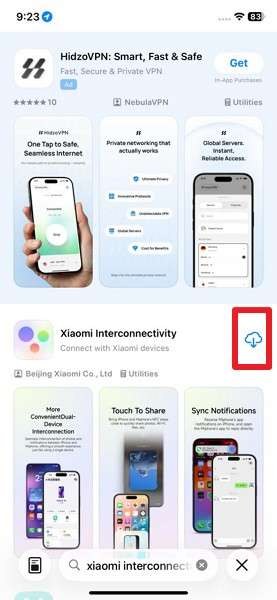
Step 2. Press the Cloud-like icon on the App Store to reinstall.
7. Reduce File Size or Split Large Transfers
Smaller data batches transfer faster and reduce the risk of HyperOS data transfer not working or connection timeouts. When you split files into smaller groups or compress heavy media, you ensure more stable, smoother transfers.
Precisely, this approach also makes it easier to monitor progress and recover quickly if a batch fails. It even prevents excessive battery or memory usage on either device, allowing you to repeat the process until completed.
Part 3. How to Complete HyperOS Data Transfer When It Fails with MobileTrans
When the HyperOS data transfer issue persists, it's better to opt for an alternative transfer solution like MobileTrans. Its Phone Transfer feature lets you transfer 18+ data types, including photos, videos, and chats, to 6,000+ Android devices. While it takes the hassle out of connecting via NFC or Bluetooth, the tool offers a secure connection to a PC via USB and lets you choose the data types you want to migrate.
Key Features
- App Transfer: Unlike Mi Share or Mi Beam, this tool lets you transfer apps from Android to iPhone or Android devices without connectivity issues.
- iCloud Data Transfer: Users can also share iCloud data with Android, with no additional setup required.
- Cross-Platform Data Move: MobileTrans supports cross-platform data transfer between devices, such as Android to iOS, iOS to iOS, or iOS to Android.
- Share Data to Computer: Users can share 5 types of data from the computer to mobile devices with MobileTrans.
- Secure and Intuitive: With no cloud updates or Wi-Fi-based transfers, the tool offers military-grade encryption and an intuitive interface, making it ideal for beginners.






Guide to Move Data with MobileTrans When HyperOS Data Transfer Is Not Working
Rather than dealing with the HyperOS data transfer not working issue, adhere to the listed ways and learn how MobileTrans makes data sharing seamless:
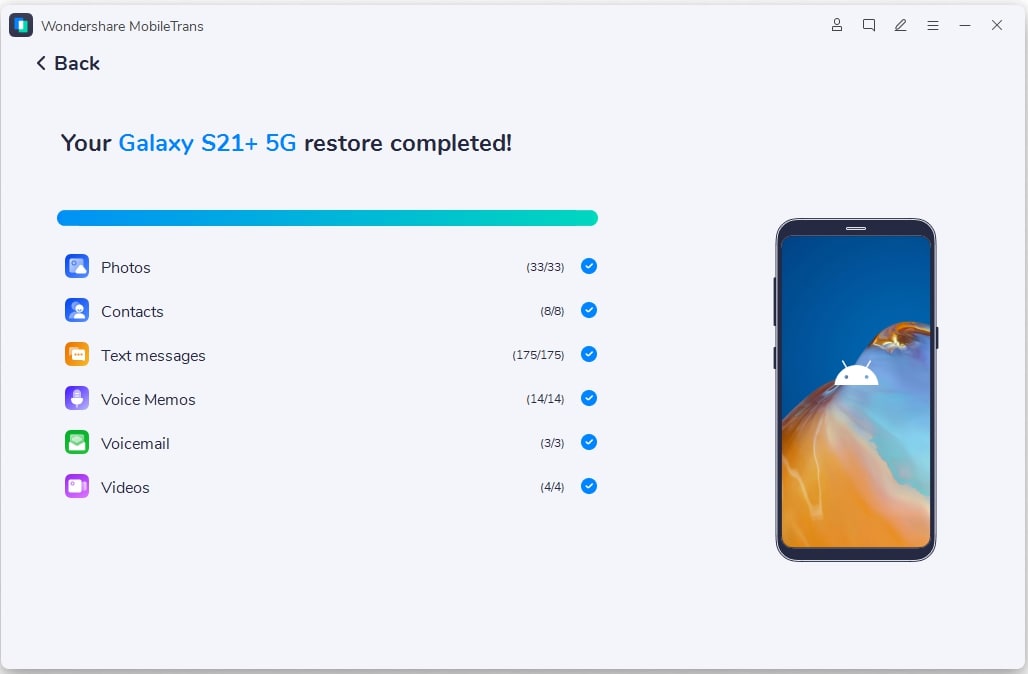
Step 1. Go to the Phone-to-Phone tab in the tool. Connect devices to start the process.

Step 2. Use the Flip icon to determine devices. Pick the data types and press the Start button.

Step 3. Do not disconnect the phone. Wait until the data is moved from one phone to another.
Conclusion
To wrap up, this article has addressed how a broken HyperOS data transfer affects the phone experience. Not just that, possible fixes to address the issue have been identified, so review and decide which one is effective. If the problem persists, using MobileTrans is recommended, as the tool reduces the hassle of NFC- or Wi-Fi-based connections.
FAQs
-
Is HyperOS data transfer secure?
Yes, HyperOS transfer uses local device connections, so files never pass through the cloud. Therefore, personal information stays safe, reducing the risk of data leaks during device migration. -
How long does a typical transfer take?
Transfer time depends on file size, number of apps, and the speed of the device connection. As a result, large photos, videos, or apps may take longer to transfer, even with Mi Beam. -
Does HyperOS data transfer work offline?
Yes, offline transfers work over local Wi-Fi or Bluetooth connections without Wi-Fi or mobile data. Thus, you can move files anywhere, even without an internet connection, using Mi Beam or similar tools.










