



 TL;DR:
The most efficient way to transfer contacts to the POCO M7 Pro 5G is by using MobileTrans to selectively migrate data, though built-in alternatives like Google Account sync, ShareMe, and VCF files offer reliable cloud or offline solutions.
● MobileTrans facilitates cross-platform transfers for over 6,000 Android and iOS devices, enabling users to move specific numbers, retain contact groups, and automatically merge duplicate entries.
● For users lacking internet access or cables, the ShareMe app utilizes QR code scanning for direct device-to-device migration, while VCF files or SIM card exports allow you to maintain original contact details offline.
● Contacts imported directly to the POCO M7 Pro 5G save to the local phone storage by default, meaning users who require continuous backup protection should utilize the Google Account sync method instead.
Ask AI for a summary
 ChatGPT
 Perplexity
 Gemini
 Claude
 Grok
Grok
The POCO M7 Pro 5G brings fresh speed and style to daily phone use. Yet many users face a significant issue after buying it. They need to transfer old phone numbers safely. As we all know, losing contacts hurts work and family links right away. So, this guide shows easy paths to bring them across without hassle. You can keep every detail safe on your new device with just a few steps.
In this article

Part 1. Importance of Transferring Contacts to POCO M7 Pro 5G
Moving contacts to POCO M7 Pro 5G sets up your phone right from day one. This step keeps daily life smooth without losing numbers or stress. Below, you will find a few essential points of migrating your contacts:
- Easy Communication: Moving contacts ensures you can call or message friends without delays. Having all numbers ready avoids searching for information and saves time.
- Business Continuity: For work, transferring contacts keeps client and colleague details accessible. Missing contacts may cause missed calls, affecting tasks and professional reputation.
- Easy Organization: All contacts in one place help you manage numbers efficiently and clearly. You can sort, edit, or remove duplicates without wasting extra time.
- Smooth Transition: Contact transfer makes switching from old devices effortless for users. So, you can start using the POCO M7 Pro immediately without any confusion.
- Data Backup: Migrating contacts acts as a backup, preventing permanent loss of numbers. This ensures essential phone numbers remain available even if the old phone fails.
Part 2. MobileTrans: The Best Option to Transfer Contacts to POCO M7
MobileTrans is the top pick for transferring contacts to the POCO M7 Pro. It moves contacts across devices without losing names, emails, groups, or notes. Moreover, the tool even merges duplicate contacts, keeping your address book clean and organized. While transferring to PC or MobileTrans, you can choose specific numbers without moving the entire contacts list. In addition, you can even retain contact groups and ensure all categories remain intact after transfer.
Key Features
- Data Types: Moves 18+ data types, like text and photos, between phones fast.
- File Compatibility: Compatible with vCard, Outlook, and other formats for easy importing/exporting.
- Device Support: Handles over 6,000 Android and iOS devices with ease.
- Secure Transfer: Uses military-grade encryption to protect contacts and files on POCO M7 Pro.
- No Limits: Transfer unlimited contacts and files without restrictions on your phone.






Guide to Transfer Contacts to POCO M7 via MobileTrans
After exploring the top features, go through the steps to move contacts to Xiaomi POCO M7:
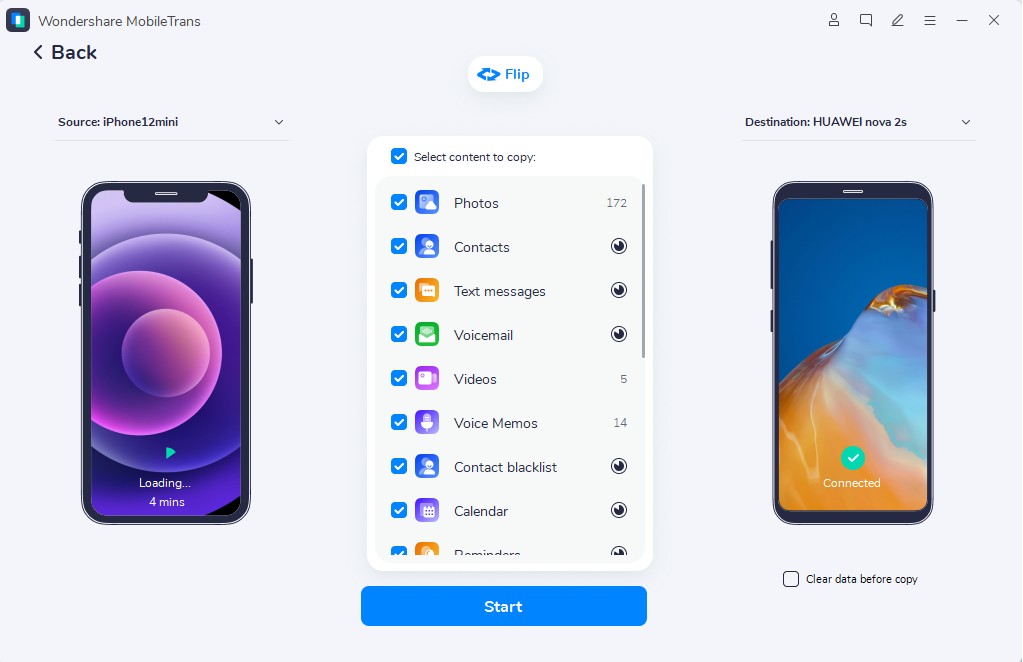
Step 1. Access MobileTrans’s Phone to Phone > Connect both phones > Choose Contacts > Press Start.

Step 2. You will then see a real-time progress screen showing the contact transfer to the POCO M7.
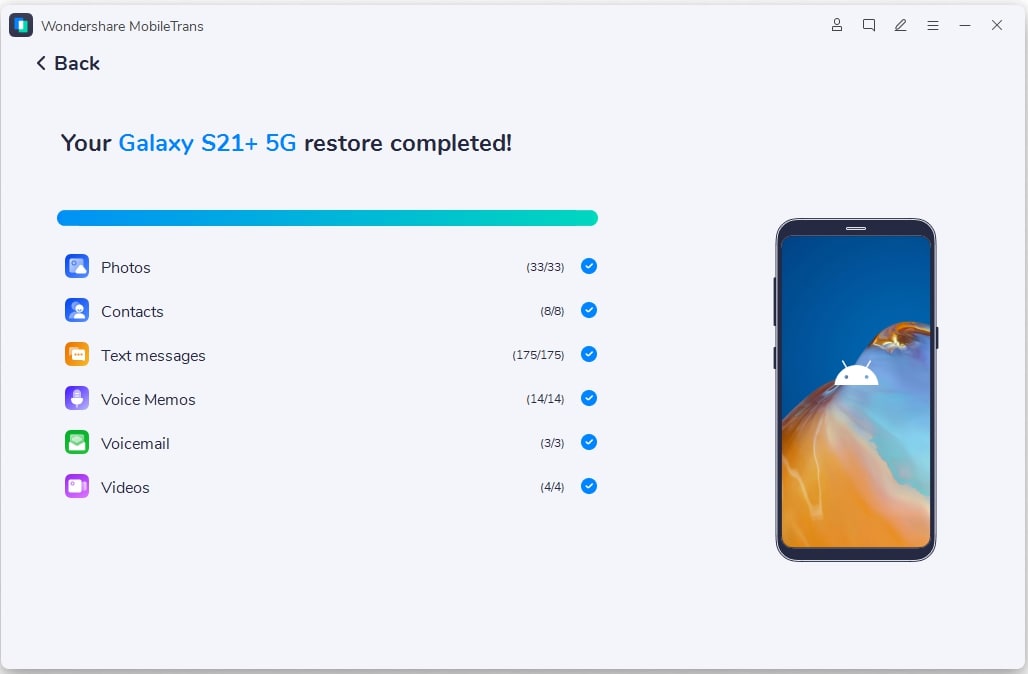
Step 3. When the process is completed, the tool shows a confirmation message.
Part 3. Alternative 6 Ways to Move Contacts to POCO M7 Without Errors
In addition to the recommended methods, users may prefer alternative ways to move contacts without confusion. Multiple methods keep numbers and saved notes steady, so your new phone works smoothly. So, this part shares six extra, safe ways to move contacts onto POCO M7 without mistakes:
1. Use ShareMe or Mi Mover
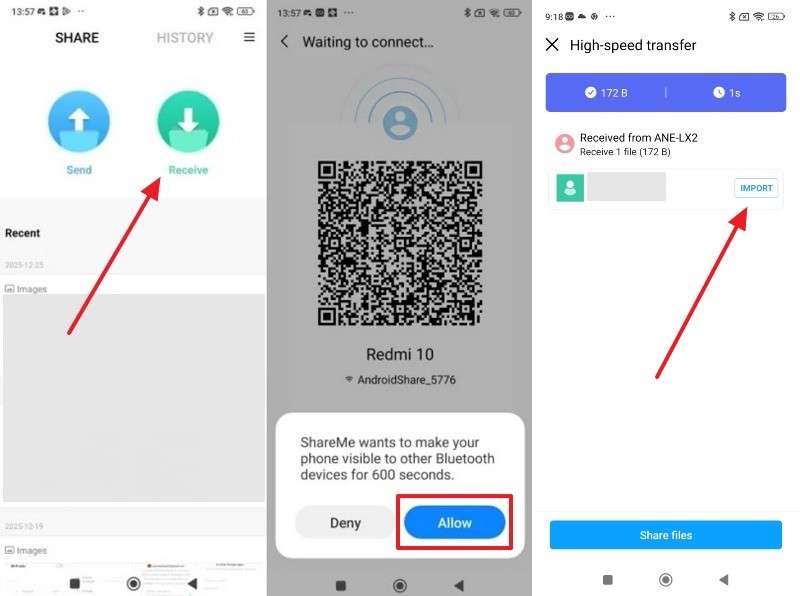
Apps, like ShareMe, allow fast file sharing between Android phones without cables. It helps migrate large contact files to the POCO M7 Pro 5G efficiently. Plus, there is no internet requirement, keeping all data private at every step of every share now. Apart from contacts, you can also move other phones' data, including photos and documents. So, you need to go through the given steps to use the ShareMe app to move contacts:
Step 1. On the sending device, tap Send > Contacts > Contact Number to access the scanner screen.
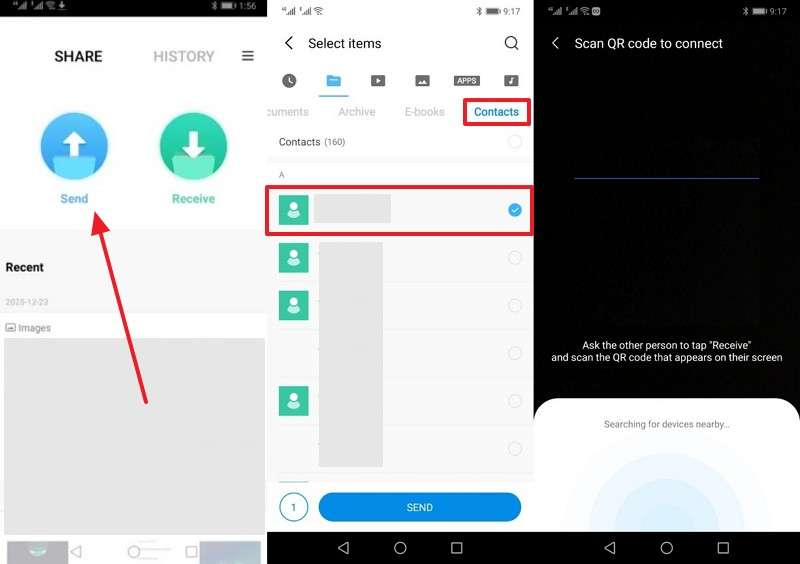
Step 2. On the receiving phone, choose Receive > Scan the QR code > Tap Allow > Import to receive the contact.
2. From SIM Card to Device [Import/Export contacts]
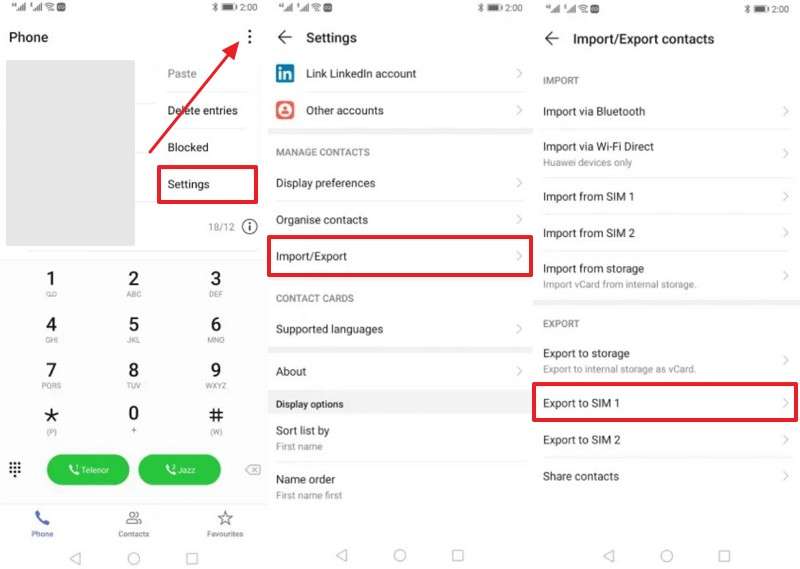
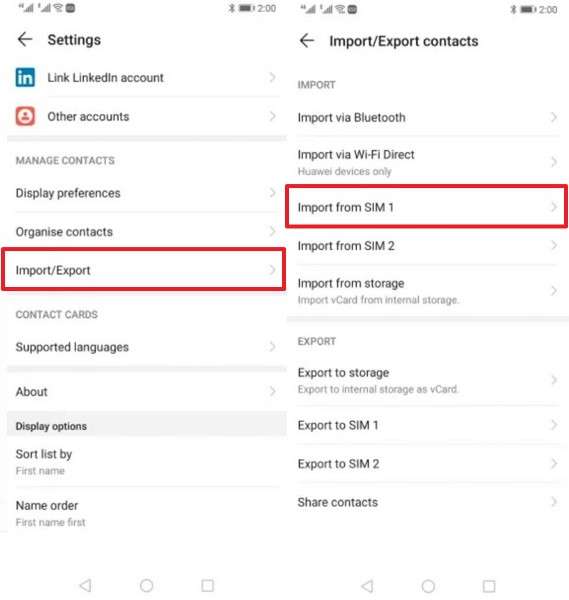
SIM cards also let you export contacts from old phones as files first. Then import them straight to new devices without apps or cables needed. POCO M7 users can access settings to start exporting contacts in seconds. This method keeps names, numbers, and notes intact during every shift. Moreover, it helps prevent data loss when switching devices or resetting a phone. Anyhow, adhere to the steps below to transfer contacts using this method:
Step 1. Tap Three Dots > Settings in your Contacts app on your sending phone> Choose Import/Export > Export To SIM.
Step 2. On your POCO M7 Pro, insert the SIM card > Access Contact’s app settings > Press Import/Export > Import From SIM.
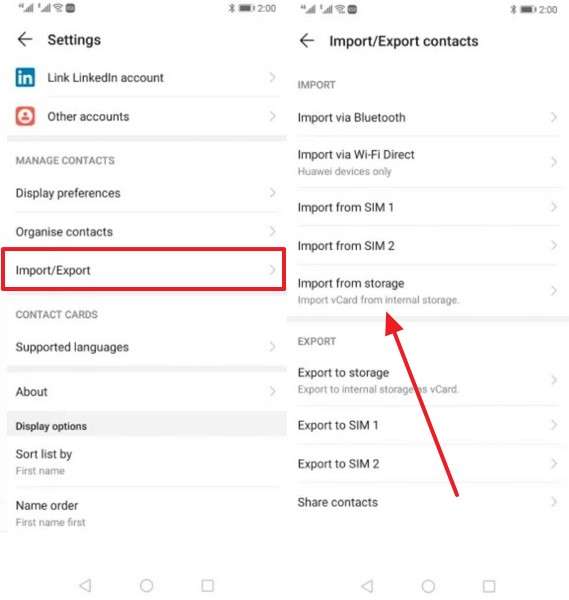
Method 3. From Another Phone (via VCF File)
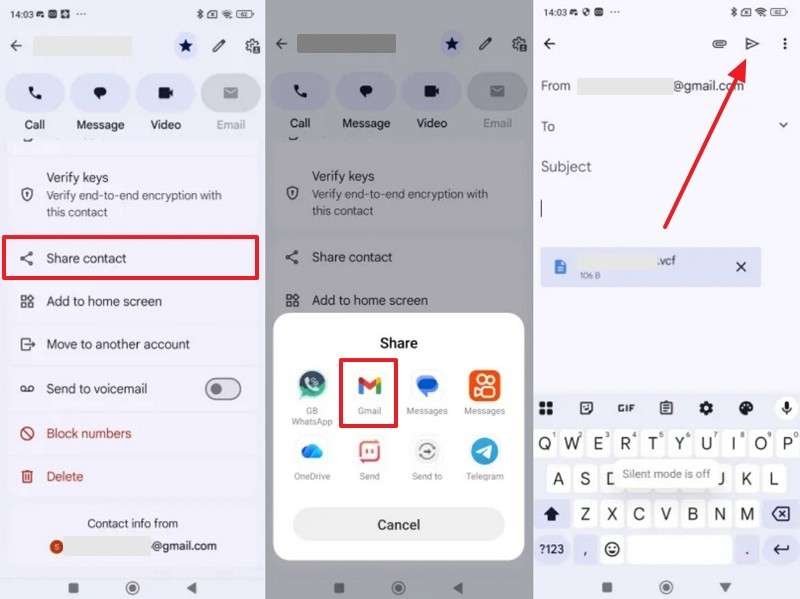
VCF files also enable exporting contacts from one phone into a single portable file. This format keeps names, numbers, and emails together without changing original contact details. The file can be shared using email platforms without hassle. Once received, contacts are imported into the Contacts app on the POCO M7 Pro. Besides, it works offline and helps users control which contacts move. So, let’s explore how you can move contacts:
Step 1. Choose your preferred contact on the sending phone > Tap Share Contact > Gmail > Press Send.
Step 2. When you download the VCF file from POCO M7's email, open Contacts> Settings> Import/Export > Import From Storage.
4. Syncing from Google Account
This method also stores contacts online and keeps them up to date across all devices. After signing in with the same Google Account on POCO M7s, contacts appear without manual transfer. Moreover, any changes made on one device sync automatically to others using the same account. Plus, this method provides continuous backup protection, keeping numbers safe even if phones are lost. Hence, review the steps given below to sync your contacts between phones:
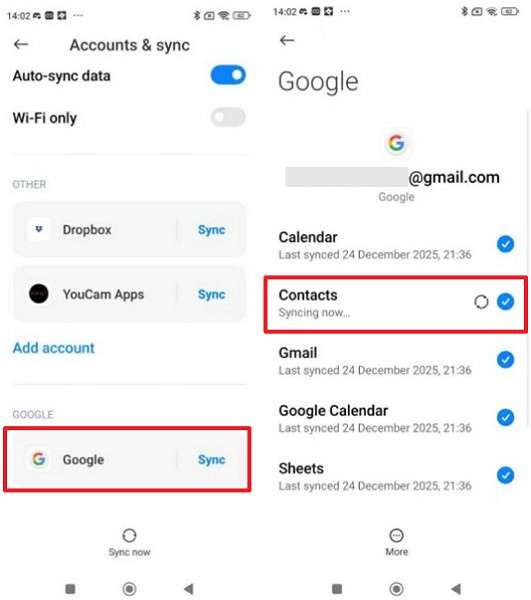
Step 1. On your sending device settings, tap Account & Sync > Google > Tick the Contacts option.
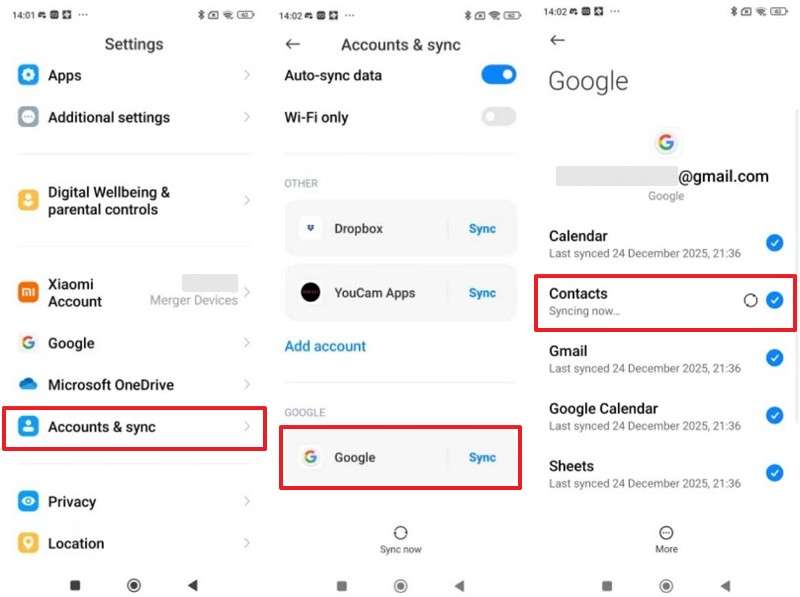
Step 2. On the POCO M7, go to Settings> Account & Sync > Google > Enable Contacts.
5. Via Messaging App
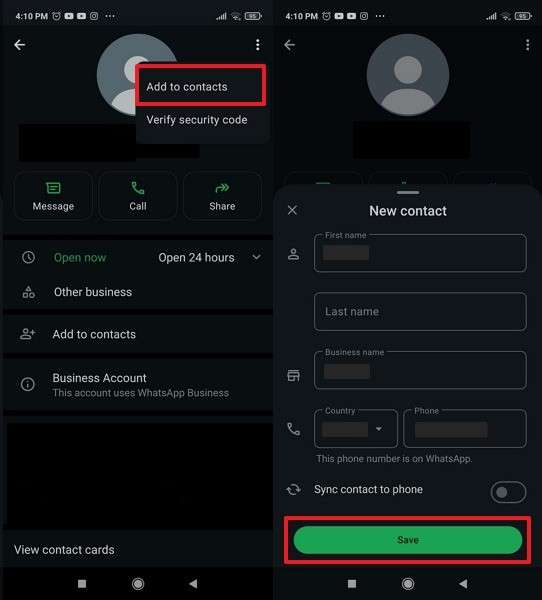
Users can also share contacts via apps like WhatsApp from old to new phones. This instant method keeps all details, including names and numbers, safe every time. You can even select either a single or multiple contacts based on their preferences. Thus, you can follow the given steps to migrate contacts to POCO M7 using the messaging app:
Step 1. As you tap the Attachment icon, tap Contact to select your desired contact, then press Send.
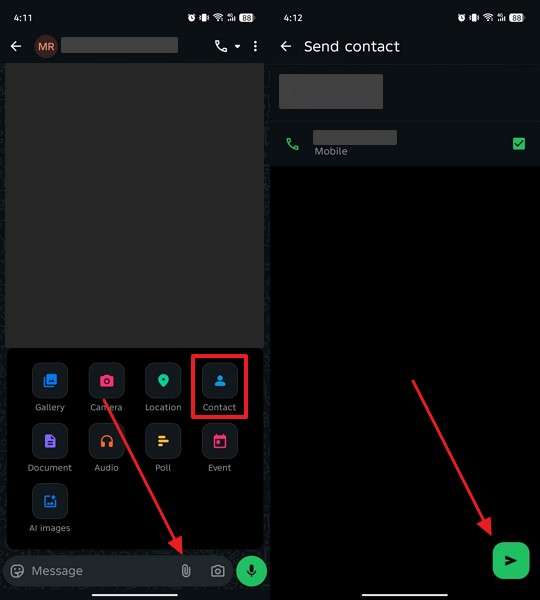
Step 2. When you open the received contact on POCO M7, tap Three Dots > Add to Contacts > Save.
6. From Computer to POCO
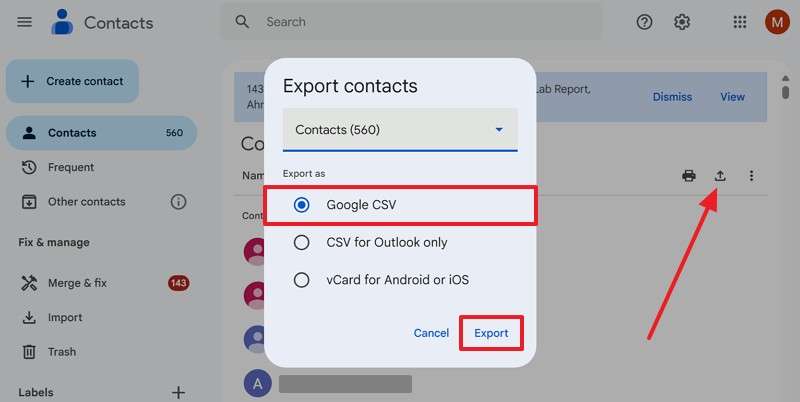
Using a computer allows for better control and visibility when managing contact files. Contacts can be stored, edited, or organized before moving them onto the Xiaomi POCO M7’s Google account. Plus, this method supports file formats like VCF for smooth importing later. Anyhow, let’s explore how you can move your contacts using a PC:
Step 1. Access your old phone’s “Google Contacts” > Click Export icon > Google CSV > Export.
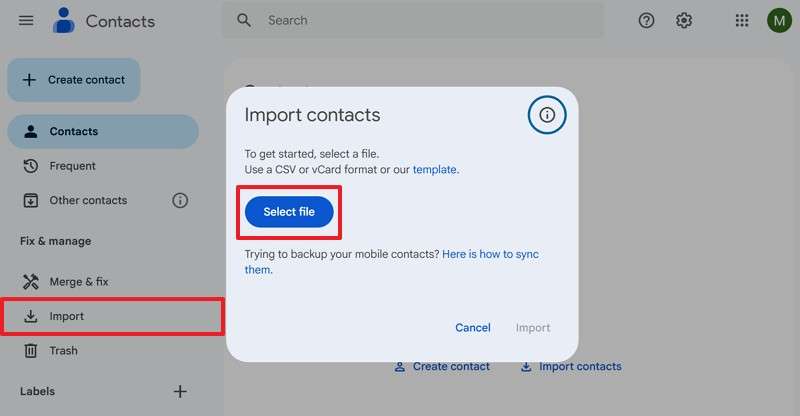
Step 2. Head to the POCO M7 Pro’s Google Contacts > Press Import > Select File to upload the downloaded file.
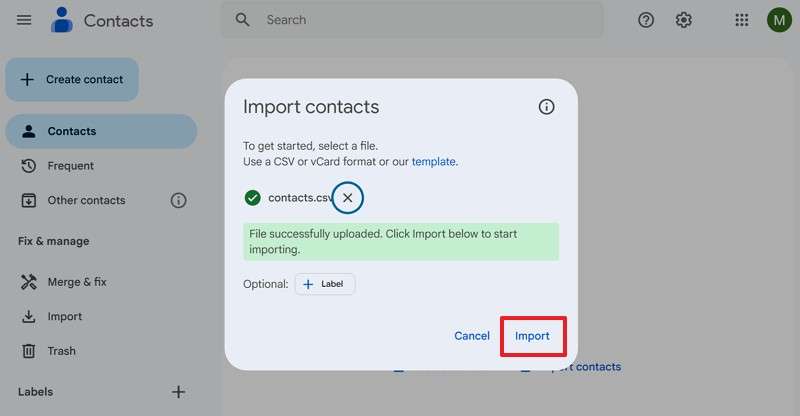
Step 3. Once uploaded, press the Import button to transfer them.
Conclusion
To conclude, transferring contacts correctly helps users avoid lost numbers and start using their phones. This guide explained several simple ways to ensure the smooth movement of contacts between devices. Plus, each method fits different needs, offering flexibility and control during phone switching. Yet, choosing the right approach saves time and keeps communication running without breaks. For fast, effortless transfers on the POCO M7 Pro 5G, MobileTrans remains the smartest choice.
FAQs
-
Does the contact transfer method change based on the POCO M7 price?
Contact transfer methods remain the same regardless of the POCO M7 Pro price or storage size chosen. All phones use similar settings, accounts, or files for moving contacts safely. Budget or premium models support these contact options without limiting essential features for users. -
Can I move only selected contacts instead of transferring all numbers?
You can choose specific contacts using VCF files or selective transfer tools like MobileTrans. This avoids moving unnecessary numbers and keeps address books organized. Plus, selective transfer works well when sharing business contacts only between devices. -
Where are contacts stored after importing them on POCO M7 devices?
Contacts are saved in phone storage after import, unless settings specify otherwise. Users can later move contacts to accounts like Google if needed for backup purposes. Thus, checking the storage choice prevents confusion when contacts seem to be missing.










