

![How to Transfer Data Safely to POCO F7 [Top 6 Ways]](https://mobiletrans.wondershare.com/images/images2026/poco-f7-1.jpg)

 TL;DR:
For complete device migration to the POCO F7, MobileTrans is the recommended method because it supports offline, cross-platform transfers of 18 distinct data types, including apps and WhatsApp chats, using end-to-end encryption.
● Before initiating the transfer process, ensure both phones are charged above 50-70%, install available software updates, and disable screen timeouts to prevent background interruptions.
● For users who prefer built-in tools, ShareMe and Quick Share allow fast wireless sharing of local media and files, but the devices must remain in close physical proximity to avoid dropped connections.
● Cloud-based migrations utilizing Google Backup or Google Drive require sufficient available storage space and depend heavily on internet connection speeds, making them slower for large file restorations compared to direct USB cable or PC connections.
Ask AI for a summary
 ChatGPT
 Perplexity
 Gemini
 Claude
 Grok
Grok
When you switch to the new POCO F7, moving your data becomes essential. You want your essential photos and all other data to stay safe and easy to reach. Many people forget this step and end up losing important information during setup. Yet, you can move everything effortlessly with a bit of care and the proper process. So, this guide explains different ways to migrate your data without hassle.
In this article

Part 1. POCO F7 Overview: Why Transferring Data Matters for New Users
The Xiaomi POCO F7 is a powerful value‑flagship phone built for speed and reliability. It runs Android 15 with HyperOS 2, delivering a clean daily experience. You also get a Snapdragon 8s Gen 4 chip, 12 GB of RAM, and fast UFS 4.1 storage. A large 6500 mAh battery and a 120Hz AMOLED display make it perfect for gaming and productivity.
When upgrading to this phone, data transfer becomes a necessity. It lets you carry your photos and apps without losing personal memories. A proper data transfer method helps the device perform at its best from the first day. It also ensures that settings and app preferences remain consistent across both phones.
Part 2. Quick Checklist for Safe Data Migration to POCO F7
Before moving files, a simple checklist helps new users avoid mistakes and stress. So, this section prepares devices so that data arrives safely on the POCO F7 Pro:
- Charge Devices: Keep both phones charged above 50-70% to prevent interruptions during data transfer. A low battery may cause connection drops, delaying your migration.
- Update Software: Install all available updates on both phones before starting the transfer. It improves compatibility and prevents crashes when copying your information.
- Backup Data: Make a complete backup of your old phone using a cloud service or a local backup. In the event of a migration error, you can restore your files.
- Screen Active: Increase the screen timeout and disable battery-saving mode to keep the transfer running continuously. Active screens prevent background stops that could interrupt copying progress during data migration.
- Review Apps: Remember that banking or note apps might save data online. Log in again later to access this content once the new phone setup finishes.
Part 3. 6 Best Methods to Transfer Data from Old Phone to POCO F7
When moving to the new POCO F7 5G, you have several safe data transfer options. Thus, the following part covers six ways to move personal data from an older phone:
1. MobileTrans
MobileTrans supports transferring 18+ data types like messages, photos, music, and videos. You can even move apps between devices without reinstalling them manually one by one. Plus, it supports over 6000 devices, making it ideal for Android and iOS users alike. MobileTrans’s selective transfer feature lets users choose specific content before starting the process. Military‑grade encryption keeps your files safe, giving complete protection during migration to POCO F7 GT.
Key Features
- High Speed: Performs data migration at industry‑leading transfer rates for faster completion times.
- Broad Compatibility: Supports Android 4.6 and newer 16 operating system versions.
- Quality Preserve: Keeps original photo and video quality without compression or loss.
Guide to Transfer Data from Old Phone to POCO F7 via MobileTrans
Review this step-by-step tutorial to find out how you can move data to the POCO F7:






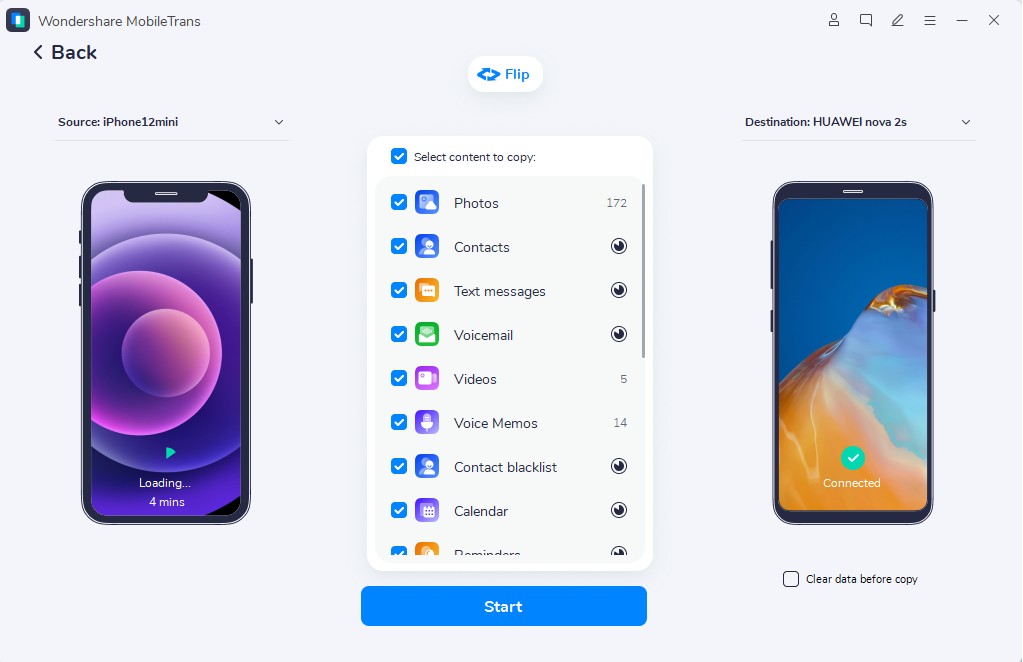
Step 1. Select Phone to Phone > Connect both devices > Select your desired Data > Press Start.

Step 2. The screen will show live progress as data moves to your POCO F7 device.
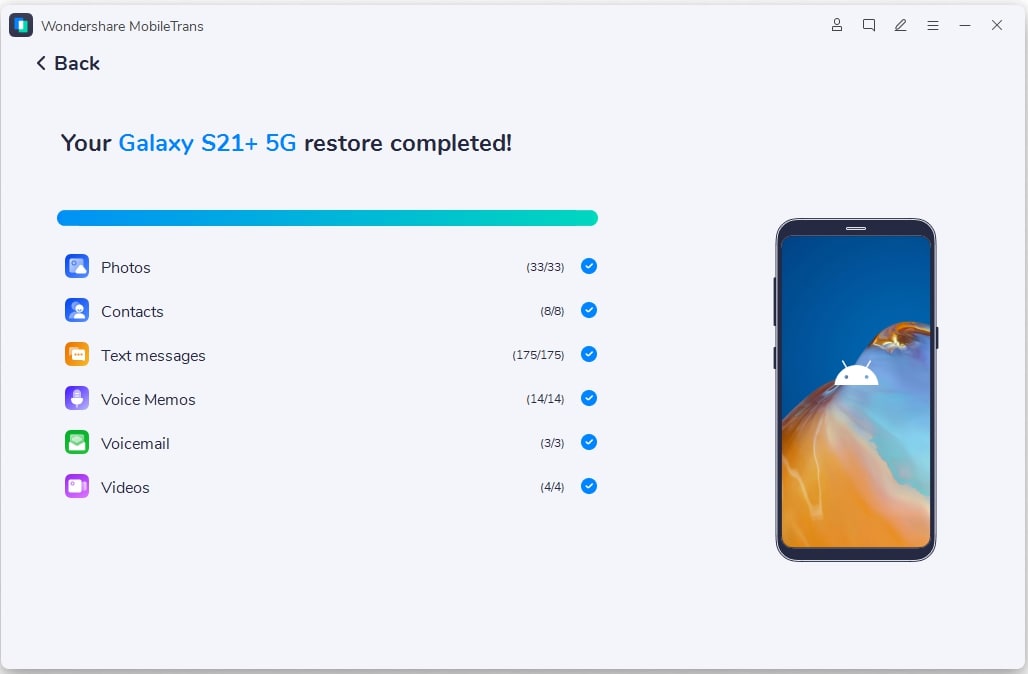
Step 3. After the process completes, a success message will appear confirming the transfer.
2. Mi Mover/Share Me
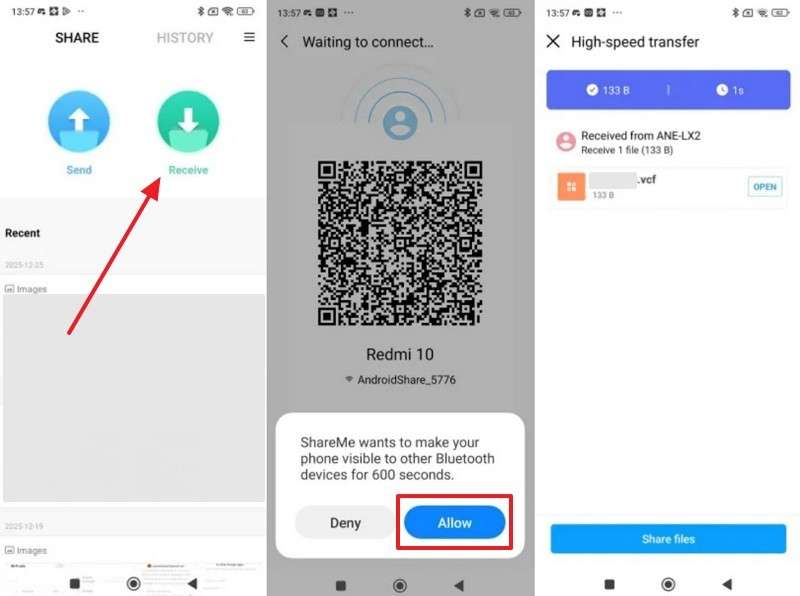
You can also use apps like ShareMe that enable fast wireless file sharing across devices. It allows wireless sharing of photos and documents without using the internet. Interrupted transfers can resume instantly without restarting the process. With support for large files, it ensures reliable data transfer to the POCO F7 5G. So, go through the steps below to migrate your data using this app:
Step 1. On the source phone, tap Send > Data File to open the QR scanner screen.
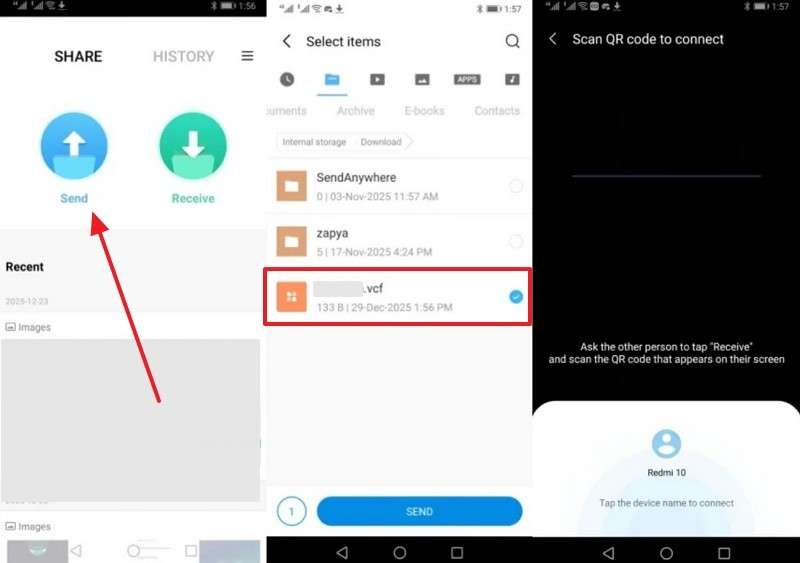
Step 2. On the target device, select Receive > Scan QR Code > Allow to accept the data file.
Cons
- Requires devices to be close together, which can sometimes make long-distance transfers difficult.
- File organization may feel basic compared to advanced management tools.
3. Google Backup & Setup
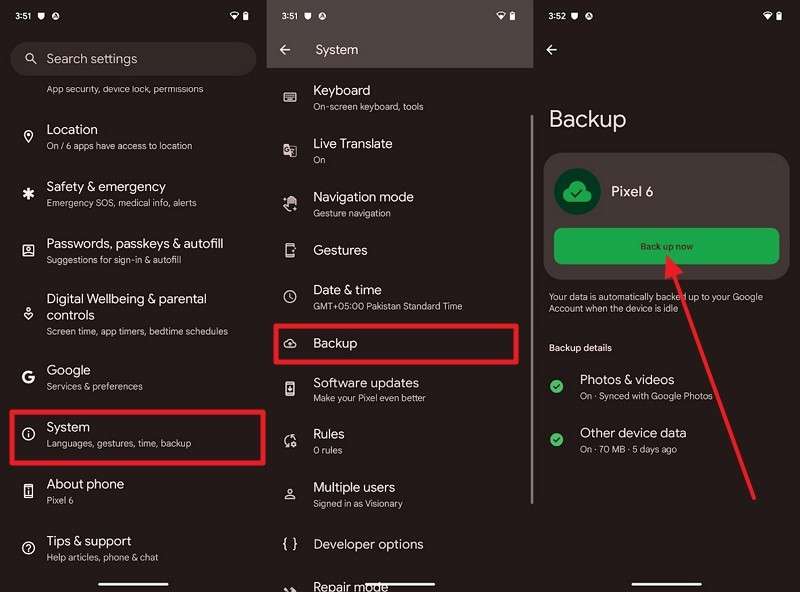
This solution also helps users move their data to new devices. It automatically saves contacts and even app data in a secure cloud. During the initial setup, users can restore everything onto the new phone effortlessly. Plus, this process ensures a smooth transition without having to transfer each item manually again. Anyhow, take guidance from the steps to move the backup data to Xiaomi POCO F7:
Step 1. On your old phone, go to Settings > System > Backup > Back Up Now to save your data.
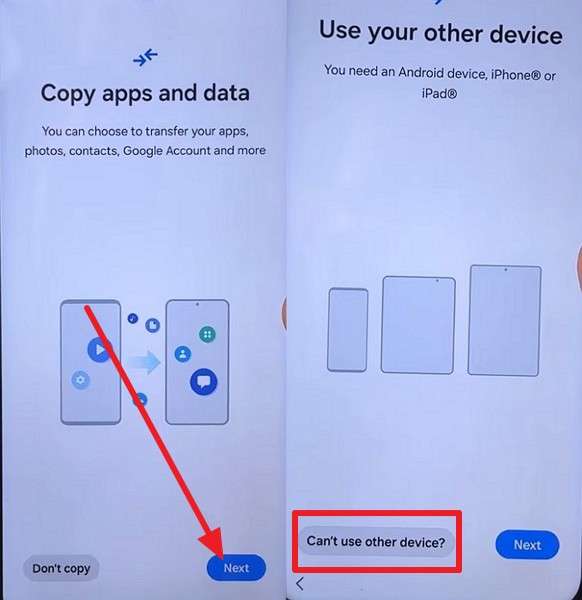
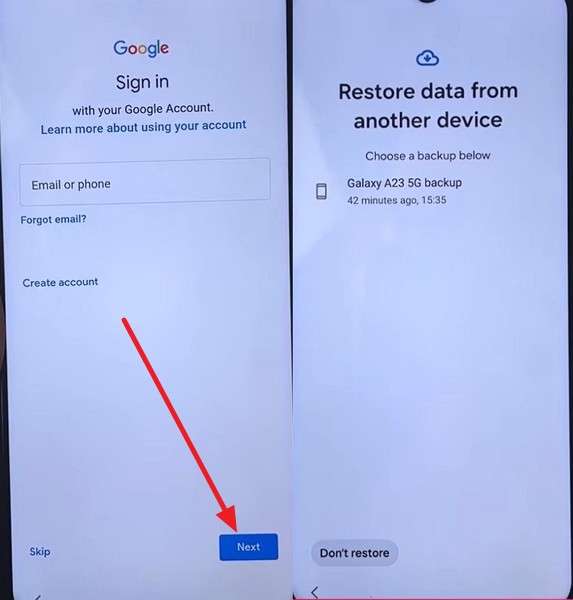
Step 2. During setup on your new POCO F7, tap Next > Can’t Use Other Device? and sign in with the same Google account.
Step 3. Locate your most recent backup > select the Data you want, then tap Copy > Done to complete the migration.
Cons
- Users must remember their Google credentials to access stored backup files.
- Restoring large files can take a long time, depending on connection speed.
4. Google Photos/Drive
Google Photos and Drive make storing and transferring personal files easy anytime, anywhere. They automatically back up multimedia and documents to cloud storage online. Users can access or download their data from any connected phone or computer. Moreover, sharing options allow for fast file transfers without physical connections or cables. Thus, you can follow the guide given below to transfer your data to the new POCO F7 Pro:
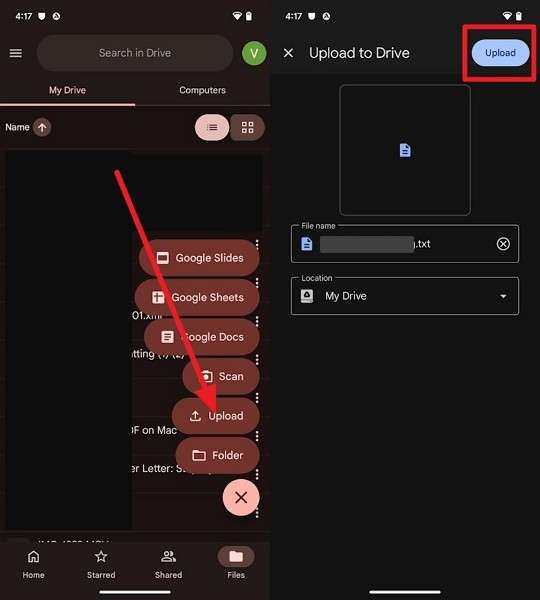
Step 1. On the source device, open Google Drive > Tap + > Upload > Select your data > Press Upload.
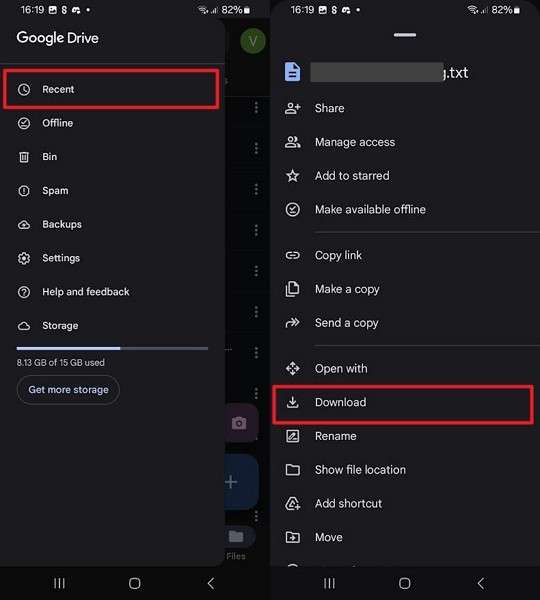
Step 2. On your POCO F7, open the same Google Drive account, go to Recent > Three Dots > Download to retrieve your files.
Cons
- Free storage space is limited, forcing users to purchase additional cloud storage.
- Offline access is limited unless specific files are manually marked for download.
5. Quick Share
This native feature also allows instant file transfers between nearby Android devices. It automatically detects nearby phones and connects them via fast wireless technology. Moreover, users can send photos and files within seconds across supported devices. It helps move data to the POCO F7 GT conveniently with effortless performance and reliability. Anyhow, let’s find out how you can migrate your data through this native feature:
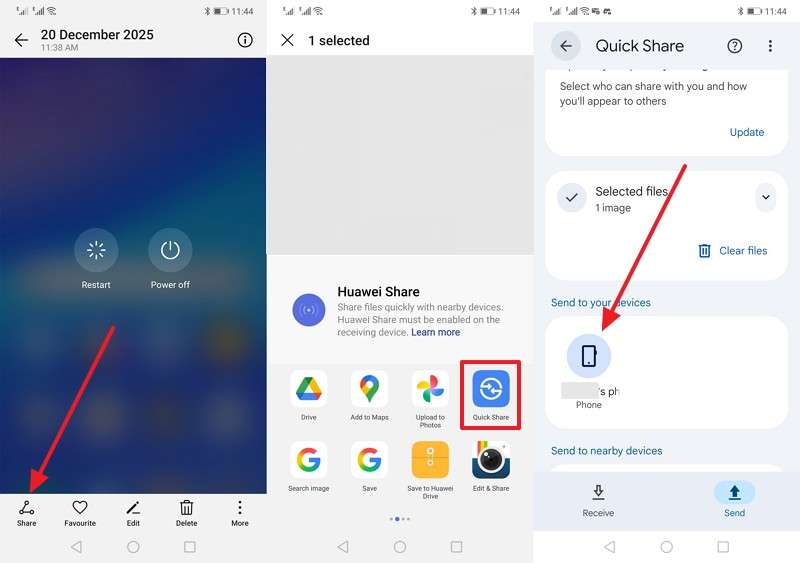
Step 1. Open your desired data > Tap Share > Quick Share > Nearby POCO F7.
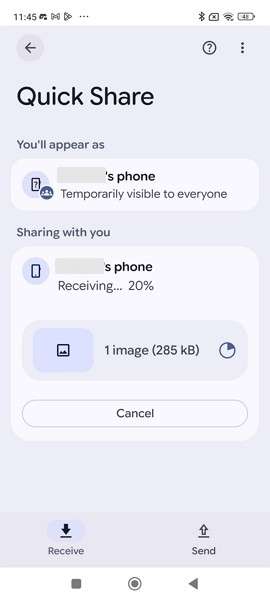
Step 2. Once you accept the request on your POCO F7, you will start receiving the data.
Cons
- The connection may drop suddenly if the devices move too far apart.
- Dependent on compatible software versions, older devices may not function.
6. USB Cables & PC
Using USB cables with a computer provides a direct, reliable transfer method. It allows copying multiple file types, including media and essential documents. This method does not require an internet connection, ensuring complete privacy during file transfer. Besides, users can even manage folders or organize data on the computer. Therefore, go through the steps below for an effortless migration for your POCO F7 5G:
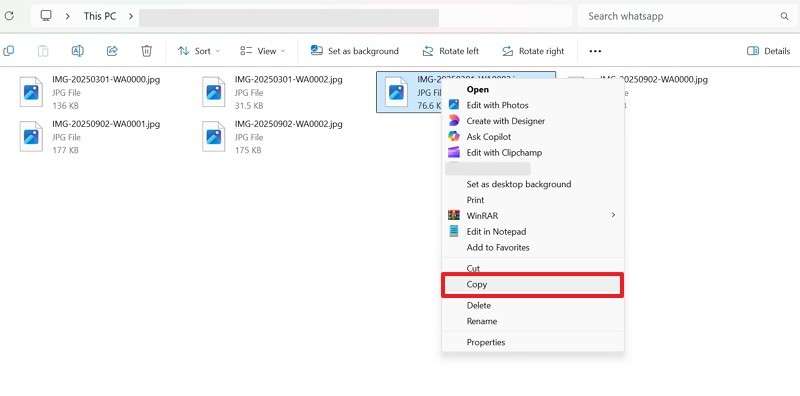
Step 1. Connect your old smartphone to the computer > Right-click the Data > select Copy.
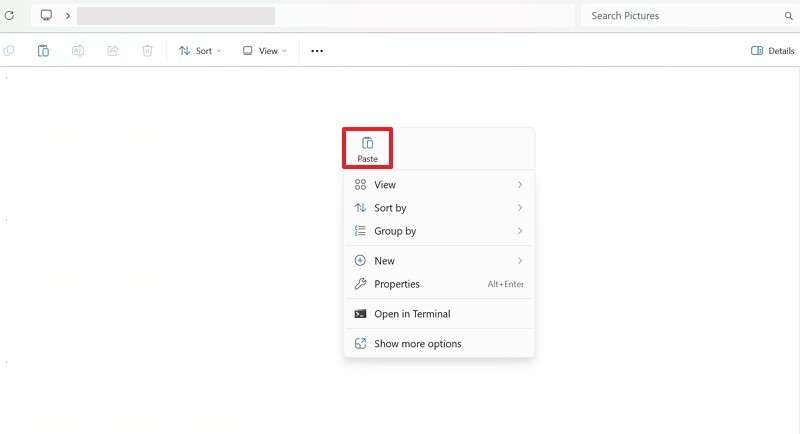
Step 2. Open your POCO F7’s storage on the PC > Right-click in the folder > choose Paste to transfer.
Cons
- Cable damage or a poor connection can interrupt transfer and corrupt data.
- Takes longer to organize files manually compared to automated transfer tools.
Part 4. POCO F7 One-Way Transfer: Compare All Methods for Speed and Safety
When choosing the best way to move data, speed and safety matter most. In this section, you will explore all the methods discussed in this guide through this comparison table:
| Criteria | MobileTrans | Share Me | Google Backup | Google Photos/Drive | Quick Share | USB Cables & PC |
| Speed | Very Fast | Moderate | Slow | Moderate | Fast | Moderate |
| Safety | High (encrypted) | Medium | High | Medium | Medium | High |
| Ease of Use | Very Easy | Easy | Easy | Easy | Easy | Moderate |
| Offline Use | Yes | Yes | No | No | Yes | Yes |
| Data Coverage | 18+ data types are supported | Limited (media, files) | Basic (contacts, apps) | Media | Media, files | Files, media |
| Cross‑Platform | Yes | Yes | Limited | Yes | No | Yes |
| Reliability | Excellent | Good | Good | Good | Fair | Good |
| Security Type | End‑to‑end encryption | Local only | Cloud encryption | Cloud encryption | Local only | Local connection |
| Best For | Full phone migration | Quick local sharing | Google users | Photo backup | Nearby Androids | Manual transfers |
Hence, MobileTrans stands out as the easiest and fastest way to transfer your desired data to the Xiaomi POCO F7.
Conclusion
In summary, transferring data to your new POCO F7 ensures all important files stay safe. This article has explored several quick and easy methods to help you move data. Every technique offers benefits, but choosing one that balances speed and safety is essential. Moreover, smooth migration prevents data loss and saves valuable time. For the fastest and simplest transfer experience, MobileTrans remains the perfect choice today.
FAQs
-
Can I transfer WhatsApp data to POCO F7 without losing chats?
You can move WhatsApp messages using cloud backup or device migration apps. Ensure both phones are connected to Wi‑Fi and fully charged before starting. Some third-party tools, like MobileTrans, also allow for safe direct WhatsApp transfers. -
Does the POCO F7 price affect available transfer options?
No, the POCO F7 price does not influence which transfer tools you can use. Every option listed works regardless of device model variant or purchased memory size. Just ensure your phone runs the latest firmware for smooth performance and accurate recognition. -
Does transferring data affect the POCO F7 battery life?
Data migration may drain the battery due to extended screen-on time and active connections. Keep both devices charged above 50-70% to prevent sudden shutdowns or interruptions. Plus, using tools like MobileTrans reduces unnecessary battery drain with faster, optimized transfers.










