



 TL;DR:
To securely transfer data to a new Redmi K90 or K90 Pro, use a direct USB cable connection during the Android setup for fast, offline migration, or utilize MobileTrans via PC for cross-platform iOS transfers and WhatsApp chat migration.
● Before starting, charge both devices above 50%, disable the old phone's screen lock to prevent interruptions, and manually back up banking and 2FA apps because standard migration tools may skip secure login credentials.
● For wireless device-to-device migration, Xiaomi's native Mi Mover app utilizes a direct Wi-Fi connection to move contacts and media without internet access, though it is less stable than wired methods for extremely large file volumes.
● Google Backup and Restore is compatible with all Android devices but is strictly limited to the initial device setup phase, requires a stable internet connection, and only restores application lists and settings rather than full local application files.
Ask AI for a summary
 ChatGPT
 Perplexity
 Gemini
 Claude
 Grok
Grok
When you buy a new Redmi K90 or K90 Pro, you're excited and need to transfer your data securely. However, many users experience data loss during the transfer, including photos, contacts, messages, and apps. With the proper steps, you can switch to Redmi K90 / K90 Pro without losing any important files. Therefore, this ultimate guide explains how to safely transfer your old phone’s content to the new device.
In this article

Part 1. Prepare Old Device Before Switching to Redmi K90/K90 Pro
As you decide to switch to Redmi K90 / K90 Pro, make sure you prepare the listed points beforehand:
| Prerequisites | What To Do | Why It Matters |
| Charge and Update | Charge the phone to 50% or more and install pending system/app updates. | Prevents shutdowns and reduces transfer bugs from outdated software |
| Clean and Free Space | Delete junk/duplicates and uninstall unused apps. | Speeds up backups/transfers and prevents clutter from being copied to the K90/K90 Pro. |
| Back Up Key Data | Back up contacts, photos, messages, and WhatsApp to the cloud or PC. | Protects critical data if the live transfer fails or is incomplete. |
| Sign In and Sync | Ensure Google/Xiaomi accounts are signed in, and sync is complete. | Makes it easy for the K90/K90 Pro to pull contacts, calendar, and app data. |
| Secure and Note Settings | Disable screen lock during the transfer, and note the Wi‑Fi and 2FA details. | Reduces interruptions and ensures a smooth login on the new device. |
Part 2. Quickest Way to Switch to Redmi K90/K90 Pro Using MobileTrans
Before you look for simple ways to switch to a Redmi K90 / K90 Pro, give MobileTrans Phone-to-Phone Transfer a try. This tool lets you move 18+ file types to 6,000+ Android devices. It implies that users can share messages, contacts, photos, videos, and other data with no extra skills needed. Users can selectively choose which data to share, maintaining complete control over the process.
Key Features
- Computer-to-Phone Transfer: This tool allows users to transfer almost 5 types of data from a PC to Android devices.
- Move iCloud Data: You can also use it to transfer iCloud data to Android with no additional setup required.
- App Transfer: Other than 18-plus data types, you can also use MobileTrans to move app data from Android to iPhone/Android.
- Batch Selection Facility: It allows you to select multiple data types and choose the source and target devices via the Flip function.
- Cross-Platform Data Sharing: Unlike other tools, MobileTrans excels at moving data from Android to iOS, Android to Android, or Android to a computer.






Guide to Switch to Redmi K90 / K90 Pro with MobileTrans
To know how to switch to Redmi K90 / K90 Pro with MobileTrans, review the given guide for clarity:
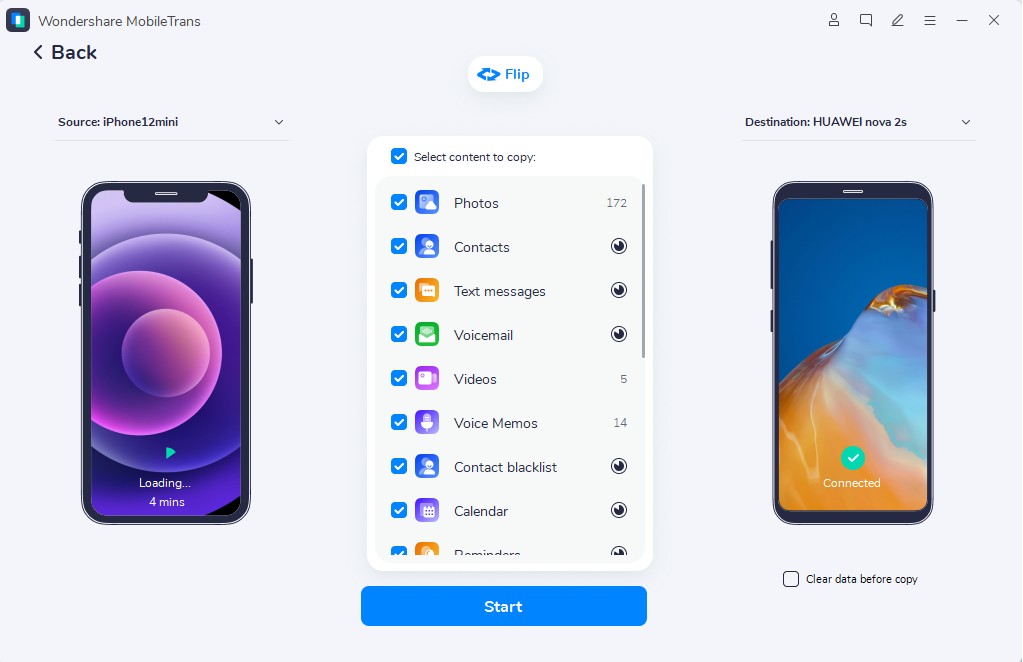
Step 1. Select the Phone to Phone tool, then connect the devices with it.

Step 2. Use the Flip icon to choose source and target phones. Select the data to move, then press the Start button.

Step 3. This will start the process, which you can preview. Please wait until it ends and don't disconnect.
Use Cases of MobileTrans: How It Simplifies Your Phone Data Transfer
The following points further highlight why MobileTrans is the best option for switching to the Redmi K90 / K90 Pro. Moreover, understand the types of situations it addresses to ensure data transfer is safe, fast, and hassle-free.
| Use Case | What You Use It For |
| Full Android → Redmi Clone | Move contacts, SMS, media, and most apps from an old Android to K90/K90 Pro in one go. |
| iPhone → Redmi Switch | Bring contacts, photos, videos, and some app data from iOS to K90/K90 Pro. |
| WhatsApp‑Heavy Users | Transfer WhatsApp/WhatsApp Business chats and media to the new Redmi. |
| No/Slow Internet | Use a PC and a USB drive to transfer large datasets to K90/K90 Pro. |
| Selective Transfer | Copy only chosen data types (for example, contacts + photos) instead of everything. |
Part 3. Other Easiest Ways to Move Data When Switching to Redmi K90/K90 Pro
For users who want to switch to the Redmi K90 / K90 Pro, this section offers 5 simple solutions, along with a detailed guide.
1. Mi Mover (Xiaomi’s Tool)
Mi Mover suits Redmi K90 and K90 Pro because it is Xiaomi’s own phone copy tool made for Mi and Redmi phones. It works well with MIUI and HyperOS and supports contacts, messages, call history, photos, videos, music, apps, and files in one process. Additionally, it uses a direct Wi-Fi link, so no cable or internet is needed, and large files move fast, as guided below:
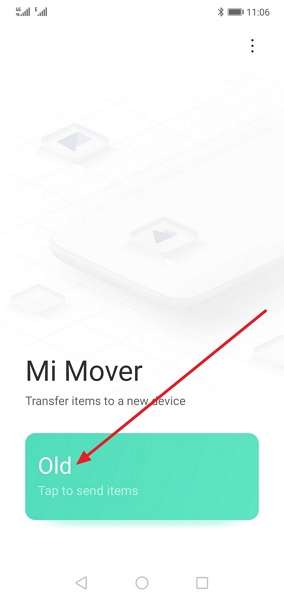
Step 1. Select the Old option on the phone you want to move data from.
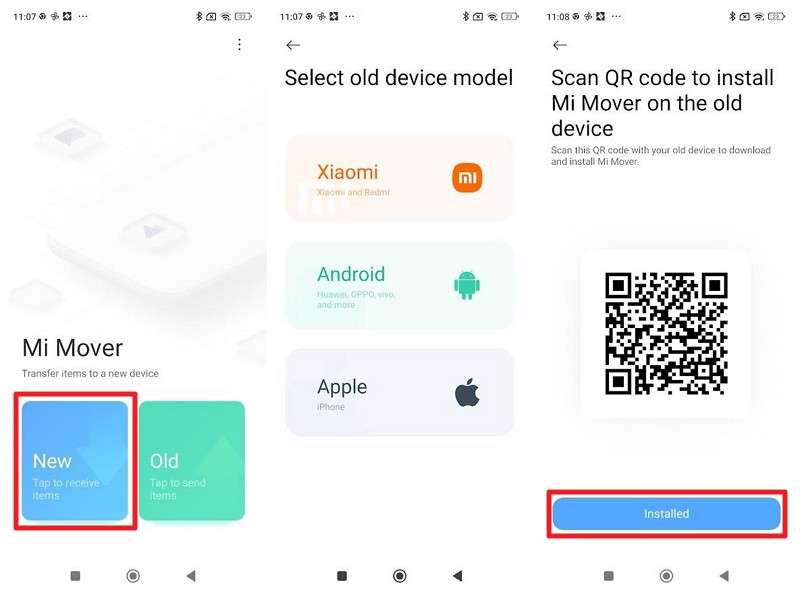
Step 2. Press the New option, then select the old device model. Scan the code or choose Installed if already installed.
Step 3. Once the connection is established, select the phone, choose Data, and press Next to receive the data.
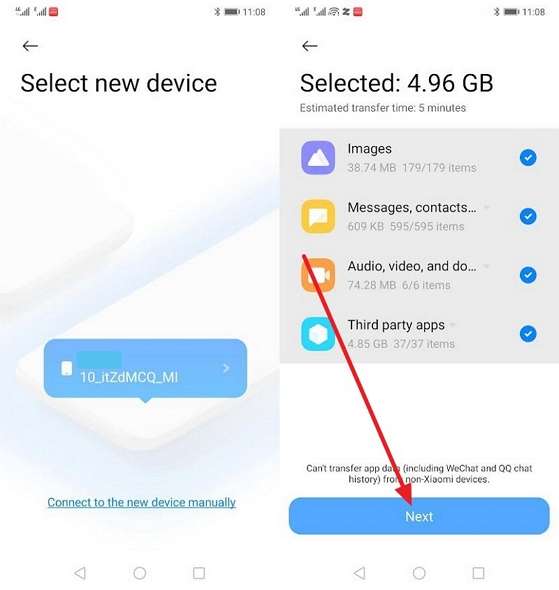
Step 4. Enable the listed options > Tap Send, then wait for data sharing to complete.
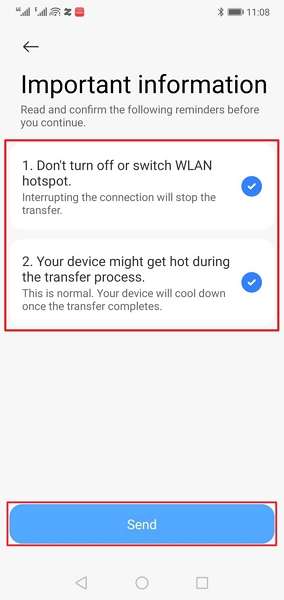
2. Google Backup & Restore
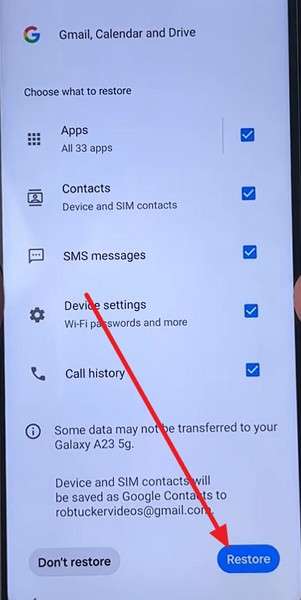
To switch to the Redmi K90 / K90 Pro, Google Backup and Restore offers an easy, future-ready way. It's built into Android's setup, so you sign in and choose restore from Google backup. It brings back apps, call history, SMS, Wi-Fi passwords, and many settings. Also, contacts, photos, calendar, and Drive data appear after signing in. This method works across all Android brands and future phones and is easy to perform via the given steps:
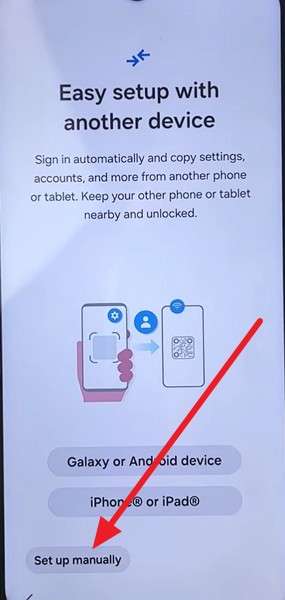
Step 1. On the setup screen of a new phone, select Set Up Manually. Connect to Wi-Fi.
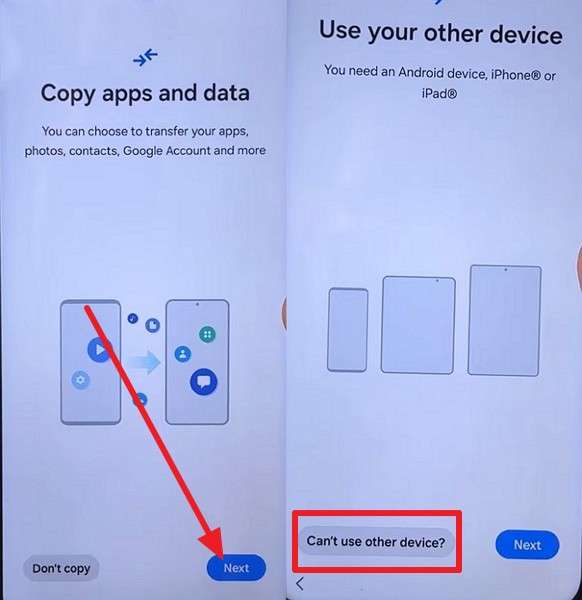
Step 2. Press Next on the Copy Apps and Data screen and tap Can’t Use Another Device.
Step 3. Enter the Google Account details and pick the required Google backup.
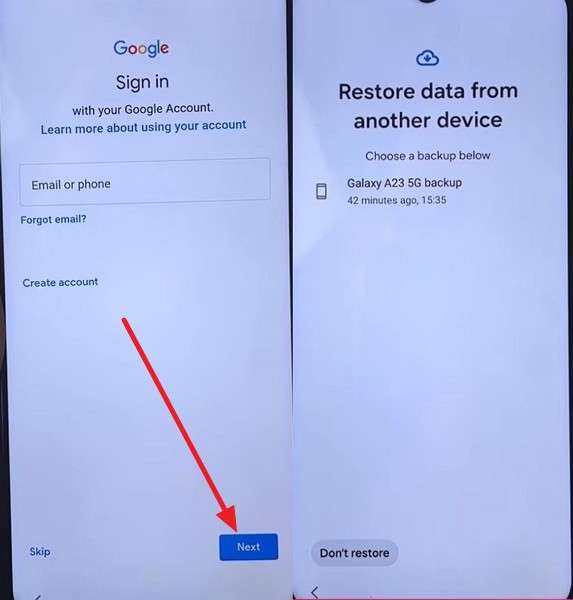
Step 4. Select the data types, then press the Restore button.
3. Cable Transfer During Android Setup
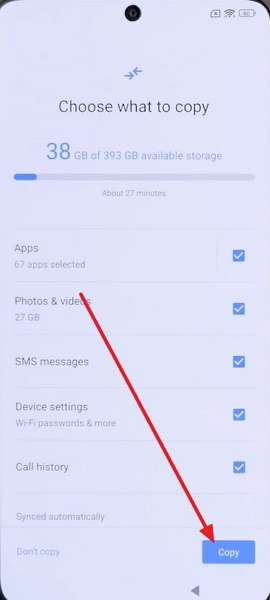
It's another solution to switch to the Redmi K90 / K90 Pro, since cable avoids Wi-Fi issues and transfers large apps, photos, and videos more quickly. The wired link stays stable and rarely breaks during large transfers. Also, Android setup guides you step by step and lets you choose apps, photos, messages, and settings to copy. Plus, more data types move at once, which reduces manual setup later, as instructed:
Prerequisites:
- Ensure both phones have sufficient battery life or remain connected to power.
- Use a compatible USB cable to connect both phones.
- Connect to Wi-Fi to enable future app downloads from the Play Store.
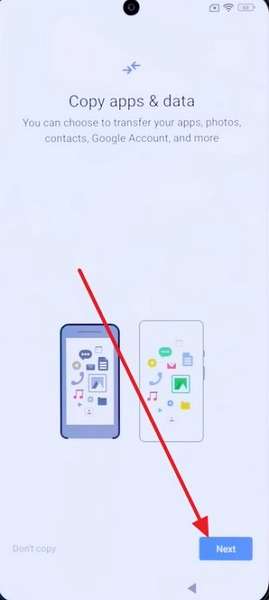
Step 1. On the Copy apps & data screen, tap Next as you follow the on-screen prompts.
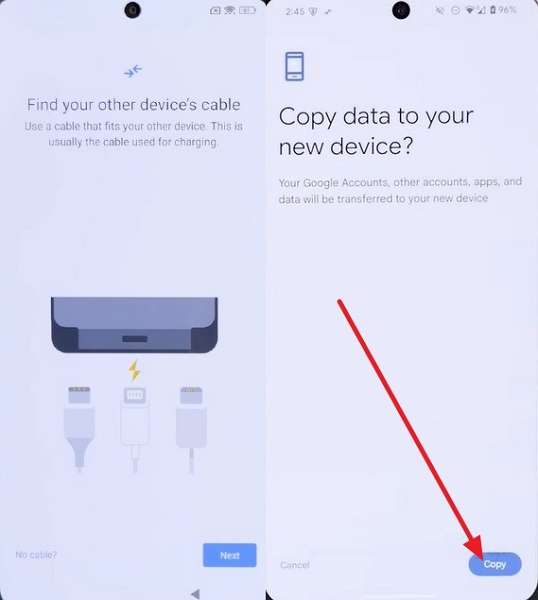
Step 2. Plug the USB cable into the old phone, then the other end into the new phone. Tap Copy on the old device.
Step 3. Your new phone will scan the old one. Choose the apps, photos, messages, and other data to transfer.
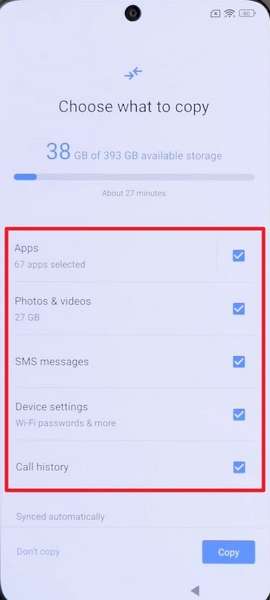
Step 4. Tap Copy, then finish the remaining setup steps; the transfer will happen in the background.
4. Cloud Sync for Photos & Files
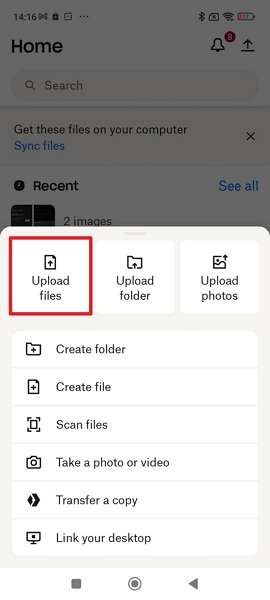
Options like Dropbox are better alternatives to switch to the Redmi K90 / K90 Pro. Photos and documents uploaded from the old phone appear on the new phone after signing in. Hence, files also stay accessible from a PC or browser, and Cloud copies protect memories if the old phone is lost or wiped. Besides, Dropbox adds extra backup support if other transfer methods fail, as shown below:
Step 1. Tap the + icon on the old phone, select Upload Files, choose the file, then tap Upload.
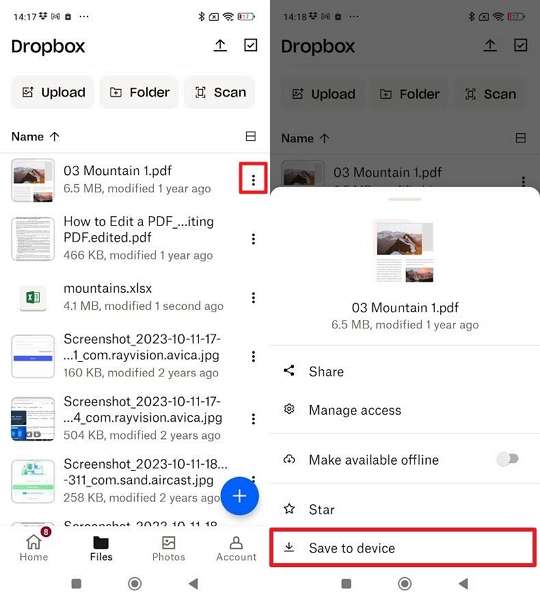
Step 2. Sign in using the same credentials on the new phone. Locate files, press Three Dots, and choose Save to Device.
5. Third‑Party Transfer Apps
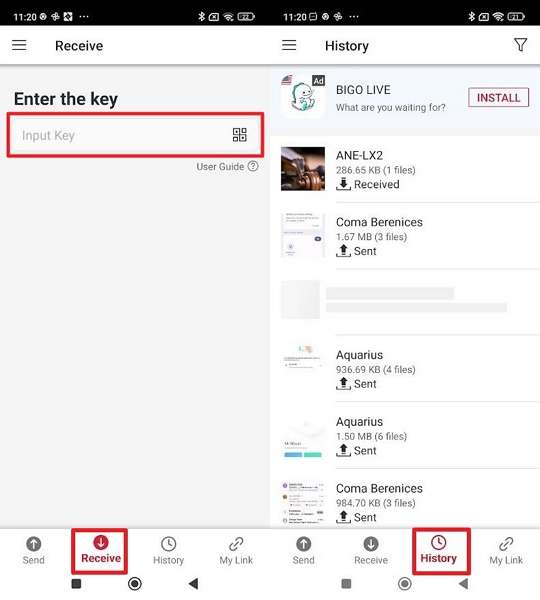
To switch to a Redmi K90 / K90 Pro, apps like Send Anywhere work across Android, iOS, PCs, and many other systems, which helps with older phones and iPhones. Files move directly between devices over Wi-Fi, so large photos, videos, and folders transfer quickly without using the cloud. Additionally, can choose specific files instead of a complete phone copy, as guided in the mentioned steps:
Step 1. Go to the Send tab on the old phone, select the data, and press Send to get the PIN.
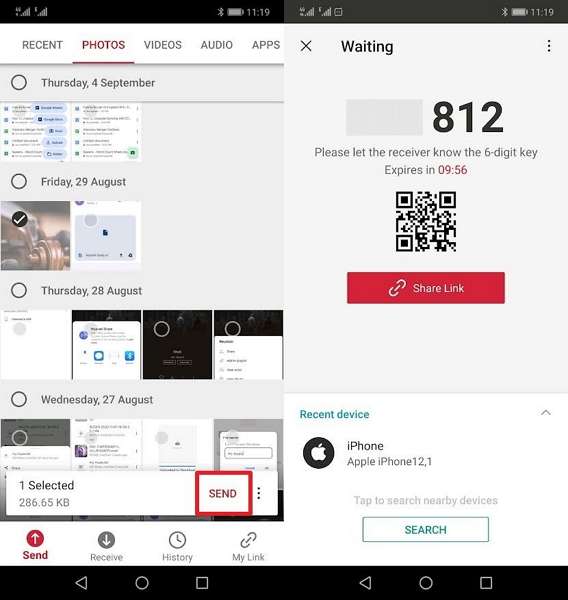
Step 2. On Redmi K90 / K90 Pro, pick the Receive tab, enter the PIN, and locate files within the History tab.
Switch to Redmi K90 / K90 Pro: All Methods Compared Side by Side
If you want to know which method is best to switch to Redmi K90 / K90 Pro, review the given table:
| Methods | Ease Of Use | Data Coverage | Speed & Stability | Cross-platform Support | Privacy & Control |
| MobileTrans | Guided PC and phone workflow | Contacts, SMS, media, many apps, WhatsApp, etc. | Fast and stable via USB | Android ↔ Android, Android ↔ iOS | Local PC backup with encryption options |
| Mi Mover | Simple QR-based transfer | Contacts, SMS, media, supported apps, etc. | Fast Wi-Fi, weaker for large amounts of data | Android/iPhone → Xiaomi/Redmi | No cloud use, no PC backup |
| Google Backup | Built into setup | Apps list, settings, limited chat data, etc. | Internet-dependent and slower | Android devices | Encrypted cloud, limited local control |
| Cable Transfer | The setup wizard guided | Apps, SMS, media, settings, etc. | Very fast and stable | Android → Android | Mostly offline, minimal cloud |
| Cloud Sync | App-based sync | Photos, documents, videos, etc. | Speed depends on the internet | All platforms | b cloud backup |
| Send Anywhere | Code or QR-based | Files and folders only | Fast on b Wi-Fi | Android, iOS, PC, Mac, Web | Encrypted, but no full backup |
MobileTrans is the best overall option for switching phones. It offers wide data coverage, fast USB transfers, cross-platform support, and b local backup control.
Part 4. Expert Tips for Smooth Data Transfer to Redmi K90/K90 Pro
To ensure you get an effortless and hassle-free switch to Redmi K90 / K90 Pro, follow the given tips:
| Tip | What To Do | How It Helps |
| Use Two Methods | Combine Google/Mi Mover with a cloud or PC backup for photos/docs. | Gives a fallback if one transfer is incomplete or fails. |
| Back Up Critical Apps | Manually back up WhatsApp, banking, 2FA, and email before switching. | Protects logins and chats that system tools may skip. |
| Clean The Old Phone First | Delete junk and unused apps, update system and key apps. | Smaller, cleaner data copies faster with fewer errors. |
| Stabilize Both Devices | Charge above 50%, keep screens on, and avoid heavy use during transfer. | Prevents disconnections and app kills mid‑migration. |
| Verify Before Reset | On K90, check the gallery, messages, chats, and files, then factory‑reset the old phone. | Ensures nothing important is missing before wiping. |
Conclusion
To wrap up, if you want to know how to switch to Redmi K90 / K90 Pro, review this guide to find solutions. Here, we have reviewed 5 practical, straightforward ways that offer a one-tap solution for moving data. Since basic ways need setup and installation, tools like MobileTrans offer convenience with selective data sharing.
FAQs
-
Will my apps work the same on Redmi K90 / K90 Pro?
Most apps work the same on the Redmi K90 and K90 Pro today, though there are a few issues. However, some secure apps may require a fresh login or additional security checks at times. -
Are system updates required before or after the switch?
System updates are not required before the switch, but they help improve stability on the new phone. You should check updates after setup to get fixes and better app support on Redmi. -
Will my photos lose quality after the switch?
Photos retain their original quality on the Redmi K90 and K90 Pro after transferring from an old phone. Plus, tools like MobileTrans and cloud sync do not reduce photo size or clarity at any time.










