



 TL;DR:
For an optimal data transfer to the Redmi Note 15, MobileTrans offers the most reliable cross-platform migration via USB, while Mi Mover provides a fast wireless alternative strictly optimized for Android-to-Xiaomi setups.
● MobileTrans is best suited for complete brand switches, iOS-to-Android migrations, or retrieving data from broken devices, permitting selective transfer of over 18 data types through a secure PC bridge connection without internet requirements.
● Mi Mover utilizes a local Wi-Fi hotspot for convenient, cable-free sharing but restricts users to broad data categories and experiences slower transfer speeds when handling large media files compared to wired alternatives.
● Google Backup & Sync restores fundamental Android settings and app lists exclusively during the initial device setup phase via cloud servers, whereas manual PC transfers grant total offline control for copying specific files directly to internal storage.
Ask AI for a summary
 ChatGPT
 Perplexity
 Gemini
 Claude
 Grok
Grok
A sudden switch to a new phone feels exciting, but data transfer can be stressful. When you buy Redmi Note 15, your photos, videos, contacts, and apps matter most. The loss of a single file may destroy the experience, and slow speed, errors, or simply a failed transfer may occur during setup.
Nevertheless, with an appropriate technique, you can reproduce all of this safely and quickly. Therefore, this guide shows easy ways to transfer data to the Redmi Note 15 without trouble. Review them in detail so your new phone feels complete from day one.
In this article

Part 1. Keep Everything Safe: Importance of Data Transfer to Redmi Note 15
If you have decided to transfer data to the Redmi Note 15, the listed point shows how this action is helpful for data preservation:

- Keep Your Memories Safe: Years of photos, videos, and screenshots are important to you in your old phone. Once transferred to Redmi, your special occasions will also be preserved in your new phone and can be backed up in Mi Cloud.
- Avoid Loss of Contacts and Messages: Every contact, call history, and chat holds personal and work details. A proper transfer keeps names, numbers, and messages complete, so you stay in touch and never miss calls or essential talks.
- Save Time and Effort: Without a transfer, you must reinstall apps, sign in to accounts, and set options one by one. Hence, data transfer moves apps, accounts, and settings in one go, so the Redmi Note 15 feels familiar from day one.
- Protect Important Files: In addition to fundamental data, your phone often contains PDFs, notes, and work files. Thus, transfer keeps these documents safe, organized, and easy to find on the Redmi Note 15, without loss during the switch.
- Keep Security and Privacy Safe: Official tools or third-party tools such as MobileTrans, Mi Mover, or Mi Cloud transfer data via secure links. This protects private photos, passwords, and bank details from leaks or unsafe networks.
Part 2. Compare Methods to Transfer Data to Redmi Note 15 [Quick Decision]
To have a quick overview of all the methods to transfer data to the Redmi Note 15, review the given table for easier decision-making:
| Methods | Speed | Data Types | Cross-Platform | Selective Transfer | Best For |
| MobileTrans | Swift (USB) | 18+ types | Android to Android, limited iOS scenarios | Complete control (choose exact data) | Complete migration to Redmi Note 15 |
| Mi Mover | Fast (Wi-Fi) | Contacts, messages, calls, photos, videos, music, apps, and some app data | Mostly Android to Xiaomi | Limited (broad categories) | Quick transfer between Xiaomi phones |
| Google Backup & Sync | Slow (cloud) | Contacts, call history, device settings, app list, SMS, Wi-Fi networks | Any Android | No (all or nothing) | Restoring basic data during setup |
| Restore Google Backup | Slow (cloud) | Contacts, call history, SMS, app list, supported app data, device settings | Any Android | Yes | Recovering essential data after sign-in |
| Manual File Transfer – PC | Fast (USB) | Photos, videos, music, documents, downloads | Any phone to PC to Redmi Note 15 | Complete control (choose files or folders) | Moving specific files only |
| Via Mobile Transfer Apps – Send Anywhere | Fast (Wi-Fi Direct or Internet) | Photos, videos, music, documents, any files | Android, iOS, PC, Mac | Complete control (choose files) | Quick sharing of selected files |
Part 3. 6 Solutions to Transfer Files to Redmi Note 15
Despite the quick review, if you want to understand how to transfer data to the Redmi Note 15 in detail, follow the details provided. Learn how official, third-party, and basic methods support data transfer and which is best.
1. MobileTrans
Among many third-party tools, MobileTrans is considered the best for transferring data to the Redmi Note 15. The Phone to Phone feature allows you to transfer 18+ data types, such as photos, contacts, messages, and videos. Along with Redmi, it offers significant support for almost 6000+ Android phones for effortless data transfer. With an intuitive interface and guided steps, beginners and professionals can move data in 3 simple steps.
Key Features
- Selective Share Facility: Users can choose which data they want to move from one device to another.
- Secure and No Complex Setup: With military-grade encryption, the tool requires no cloud updates or Wi-Fi-based transfers to make sharing seamless.
- Cross-Platform Share: You can decide whether to share data from Android to Android, Android to iOS, or iOS to Android.
- Transfer Data from Computer: One can share almost 5 types of data from a computer to Android or iOS devices via a secure USB connection.
- Move Apps Across Devices: In addition to fundamental data, you can transfer multiple apps to a new device without affecting data integrity or settings.






Simple Tutorial to Transfer Data to Redmi Note 15 With MobileTrans
If you have decided to transfer data to the Redmi Note 15 with this tool, review the mentioned steps and see how it works:
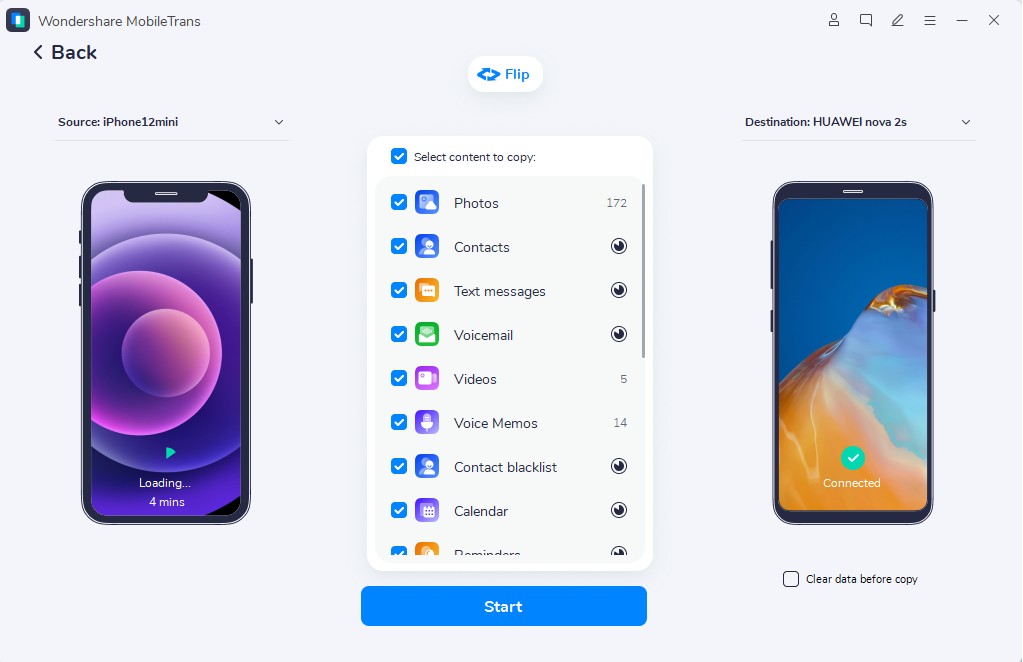
Step 1. Select the Phone to Phone Transfer tool, then connect the devices.

Step 2. Choose the source and target ones with the Flip icon. Select the data to move, then click Start.

Step 3. Review the process and don't disconnect until it ends.
Smart Use Cases Where MobileTrans Makes Phone Switching Effortless
Other than simple ways to transfer data to Redmi Note 15, here are some situations where this tool excels:
| Use Case | How MobileTrans Helps | Best For |
| Same OS upgrade (Android → Android / iOS → iOS) | Moves all data (contacts, messages, photos, videos, music, documents, apps) from old to new phone without losing anything. | Users moving from Android to iPhone or iPhone to Android. |
| Switching brands (e.g., Samsung → Xiaomi, iPhone → OnePlus) | Works across brands (Samsung, Xiaomi, OPPO, OnePlus, Huawei, iPhone, etc.), so data moves smoothly regardless of manufacturer. | Upgrading to a new phone of the same brand or switching between Android/iOS devices. |
| App & App Data Migration | Transfers installed apps and their data (games, settings, logins) so you don’t lose progress or have to log in again. | Moving games, banking apps, social media, and other apps with saved data. |
| Large Media & File Transfer | Moves photos, 4K videos, music, PDFs, and other large files quickly over USB without quality loss. | Moving a full gallery, music library, or work files to the new phone. |
| Selective Data Transfer | You can choose exactly what to move (e.g., only contacts + WhatsApp, not apps or photos) instead of “all data.” | Moving only essential data and leaving behind clutter. |
2. Try Mi Mover
To transfer data to a Redmi Note 15, this app uses a direct Wi-Fi link between the two phones, so it stays fast, stable, and secure without an internet connection or cables. The setup is simple, data remains private, and most apps keep their data, which saves time and effort. Plus, you can move contacts, messages, photos, videos, files, and many apps in one step, as shown below:
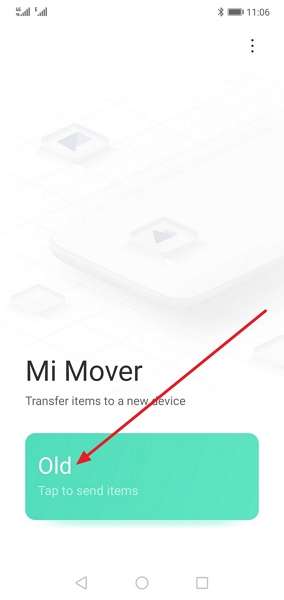
Step 1. Select the Old button from which you want to move data.
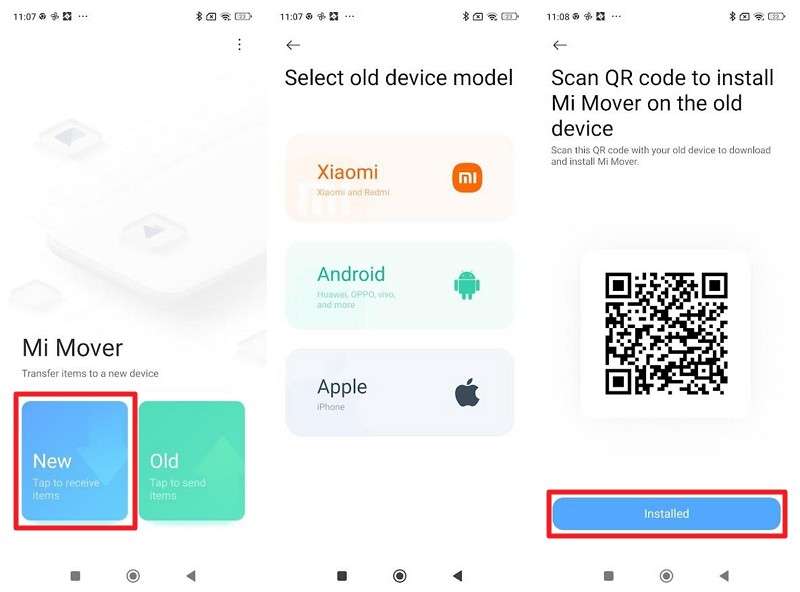
Step 2. Choose New on Redmi > Pick the old device model > Press Installed if the app is there on the old phone.
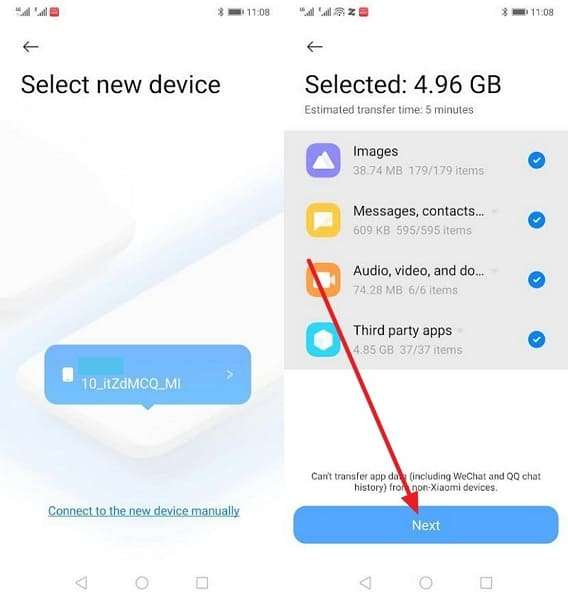
Step 3. Select the new device as it appears. Choose the data types and tap Next.
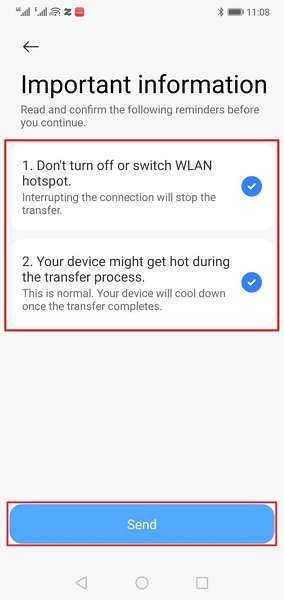
Step 4. Enable the 2 options provided, then press Send. Wait for the app to complete the process.
3. Use Google Backup & Sync (For Cloud-Based Data)
It's another way to transfer data to the Redmi Note 15, since it saves important phone data to your Google account and restores it during setup. It moves contacts, messages, apps, app data, and settings without cables or extra apps, and works across all Android brands. Additionally, your data remains secure on Google servers even if the old phone is lost or reset, and can be reviewed in given ways:
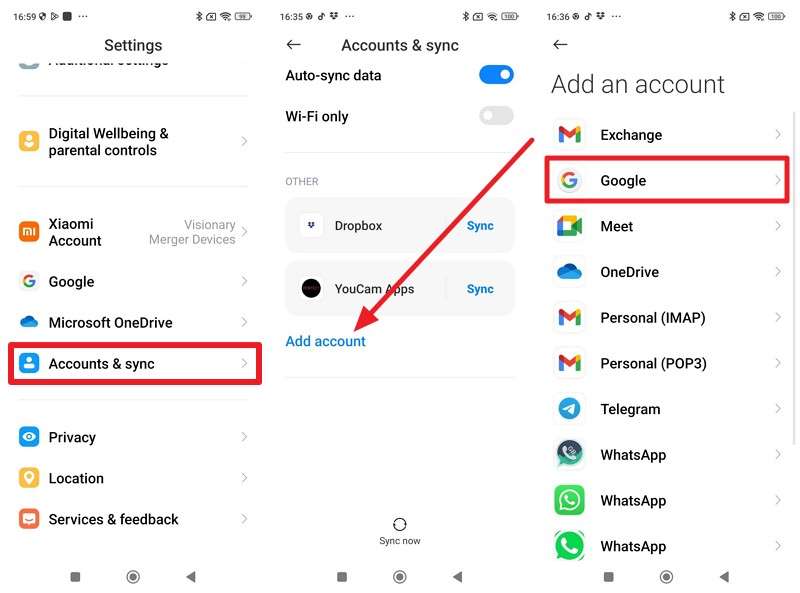
Step 1. After setting up, in the Redmi Note 15 settings, tap Accounts & Sync > Add Account > Google.
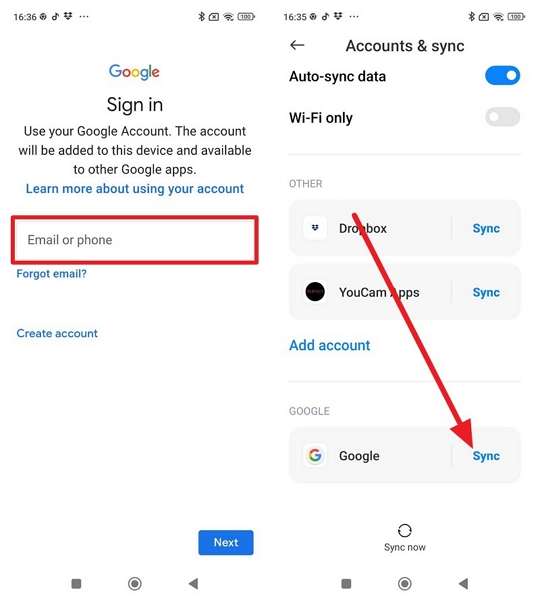
Step 2. Sign in with your account. Tap the Sync button next to the Google Account as you set up.
4. Restore Your Google Backup
If you're wondering how to transfer data to a Redmi Note 15, this is a simple way to restore essential Android data. After you sign in with the same Google account, the phone restores supported data without cables or extra tools. It helps your new phone feel familiar from the start by restoring contacts, messages, apps, and basic settings during setup, as guided:
Step 1. Choose Set Up Manually on the setup screen > Connect to Wi-Fi.
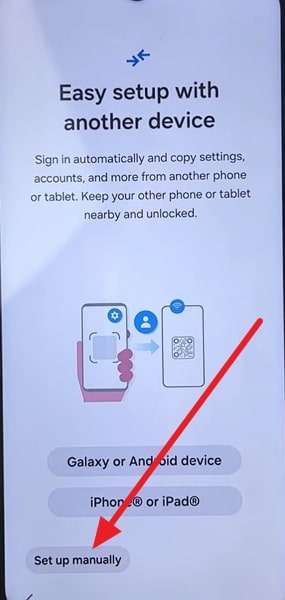
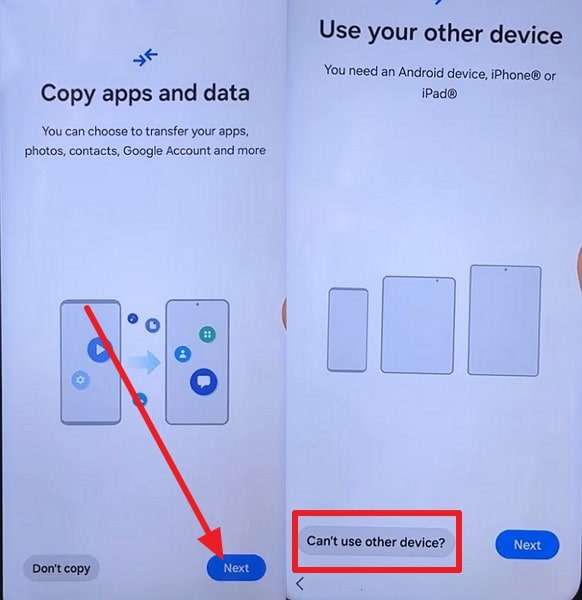
Step 2. Press Next on the Copy Apps and Data screen. Choose the " Can't Use Another Device option.
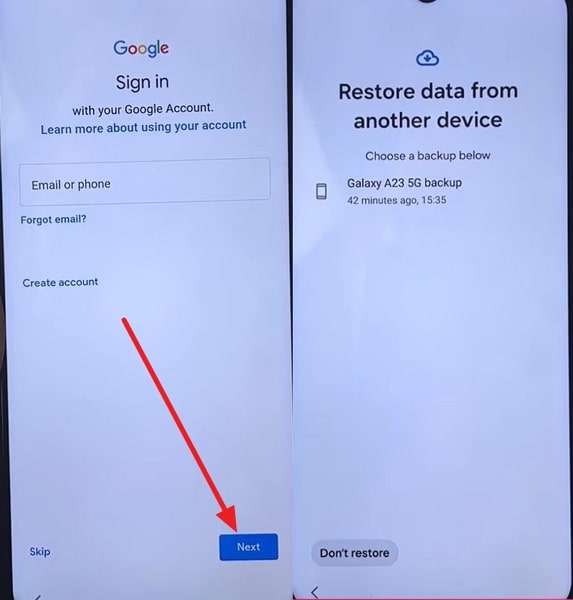
Step 3. Sign in to your Google Account, press Next, and choose the backup.
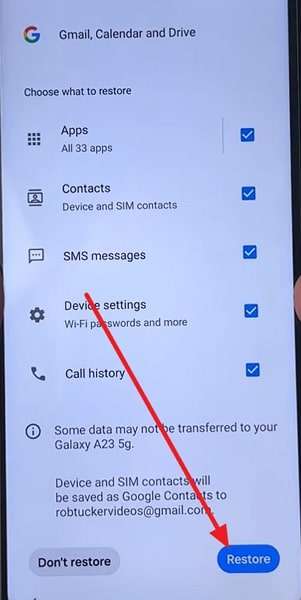
Step 4. Select the Next button, choose the data types, and then select Restore.
5. Manual File Transfer (For Specific Files)
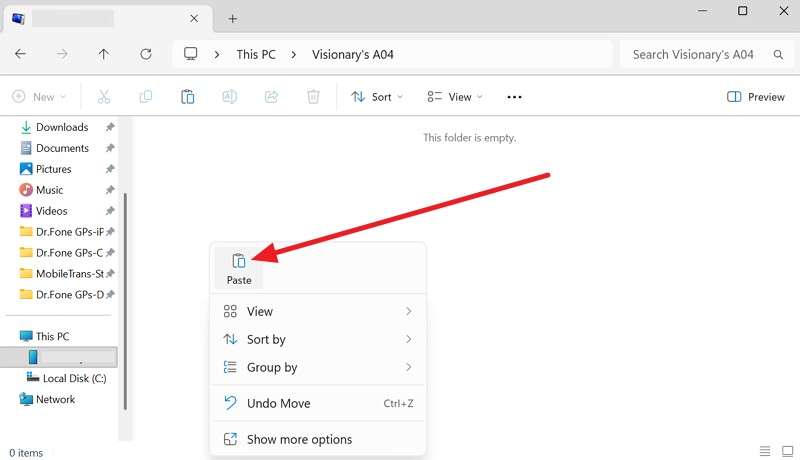
Manual file transfer is a simple way to transfer data to the Redmi Note 15 when you want complete control. This method does not require an internet connection, cloud, or any extra apps, and works with any phone brand. Hence, it suits large files, makes file sorting easy, and keeps a local backup on the computer. You connect both phones to a computer with a USB cable and copy only the files you need, as illustrated:
Step 1. Go to the Internal Storage of the old phone > Copy the data.
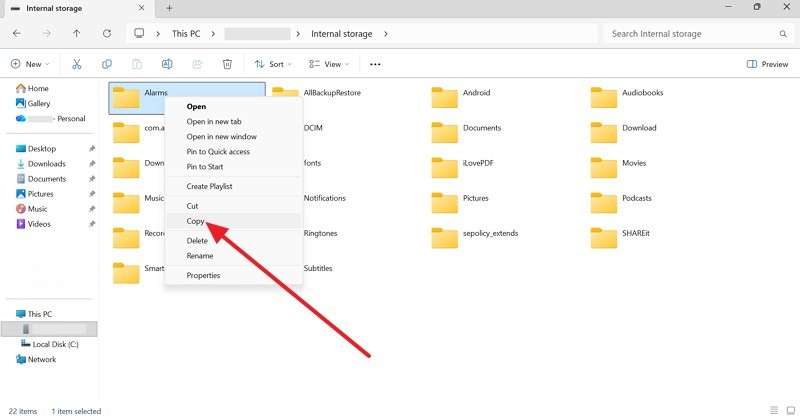
Step 2. Connect the Redmi 15 device > Paste the files to the desired folders.
6. Via Mobile Transfer Apps
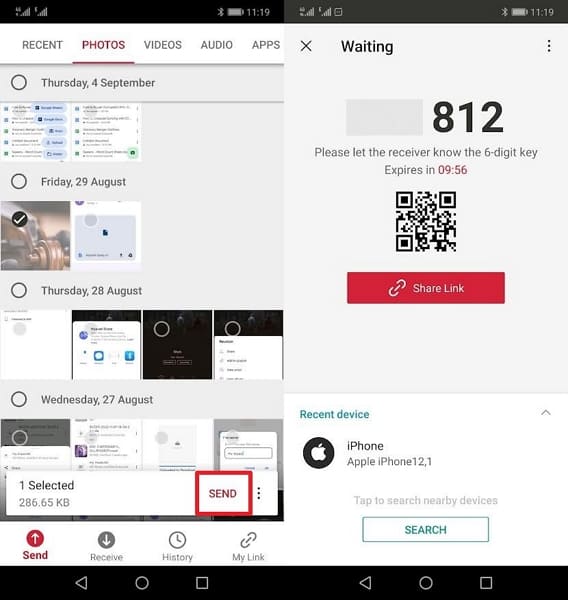
Send Anywhere is a simple way to transfer data to the Redmi Note 15 without cables. It uses a direct wireless link with a short key or QR code and works across Android, iPhone, and PC. Additionally, the app remains secure and flexible, making it ideal for quick file moves or selective transfers. To know how you can use it to move data, review the listed steps:
Step 1. Go to the Send tab > Choose data from the old phone > Press Send to receive the Input Key.
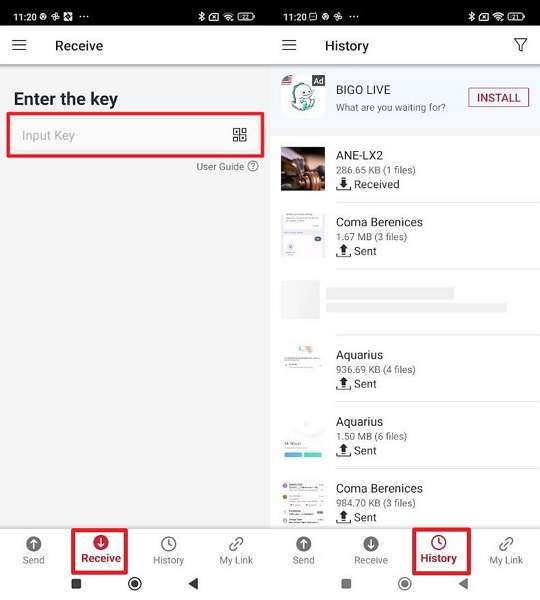
Step 2. Enter the key on the Redmi Note 15, then get the file from the History tab.
Part 4. How MobileTrans Outperforms Mi Mover for Redmi Note 15
Aside from basic methods, if you have decided to use apps to transfer data to the Redmi Note 15, you might be confused about Mi Mover and MobileTrans. To make decisions easier, this section compares both apps to help you choose the best option for your data transfer needs:
| Feature | MobileTrans | Mi Mover |
| Transfer Method | USB cable using a PC as a bridge | Phone-to-phone local Wi-Fi hotspot |
| Speed | Very fast and stable, especially for large files | Fast for small data, slower for large transfers |
| Data Types | Contacts, messages, call logs, photos, videos, music, apps, documents | Contacts, messages, call logs, photos, videos, music, apps, and some app data |
| Cross-Platform | Android to Android, with limited iOS transfer scenarios | Mainly supports Android on Xiaomi devices |
| App Data & Logins | Transfers many apps, but secure apps require re-login | Transfers apps, but some data may be lost |
| Selective Transfer | Complete control over specific data types and files | Limited to broad categories |
| Works With Any Brand | Yes, supports all Android brands | Optimized for Xiaomi devices only |
| Internet Required | No internet required | No internet, but a local Wi-Fi hotspot is required |
| Ease of Use | Very simple with guided steps and stable connections | Simple, but stability depends on signal strength |
| Best For | Complete and reliable migration when switching phones | Quick and basic transfers between Xiaomi phones |
Hence, the table demonstrates that MobileTrans is a more straightforward solution than Mi Mover because it requires no cloud updates and no Wi-Fi-based transfer. Not just that, it enables users to transfer data to Redmi Note 15 or any brand device without slow transfer speeds for larger files.
Conclusion
To wrap up, if you want to know how to transfer data to the Redmi Note 15, this guide has listed 5 basic solutions to try. So, review them and their given guidelines to decide which one is ideal and easier to perform. If your preference is apps, dive into the Mi Mover and MobileTrans comparison to learn why MobileTrans is a recommended choice.
FAQs
-
Can I transfer data if my old phone is broken?
Yes, unlike other tools and apps, MobileTrans can move data from an old, broken phone to the Redmi Note 15. It allows you to move contacts, messages, photos, and files safely, regardless of whether the device is broken. -
Is it safe to transfer sensitive data?
Compared to other apps, MobileTrans moves data directly between phones with encryption, keeping passwords, photos, and messages entirely safe. It does not upload your information to unknown servers, protecting your privacy during every transfer process. -
How long does data transfer take?
Time depends on file size, phone speed, and method, but MobileTrans transfers data reliably. Even with large files such as videos, apps, and photos that may take longer to transfer, MobileTrans guarantees they will be transferred in seconds.










