



 TL;DR:
Users upgrading to the Xiaomi 15, 15 Pro, or Ultra can securely migrate their data by choosing MobileTrans for comprehensive cross-platform and WhatsApp transfers via PC, or Mi Mover for direct wireless device-to-device copying.
● Before initiating any migration, charge both devices above 60 percent, disable battery savers, and independently back up critical applications like 2FA, banking, and WhatsApp to prevent verification lockouts.
● Mi Mover is best suited for cable-free transfers between existing MIUI devices over a Wi-Fi hotspot, but it cannot automatically migrate third-party chat histories and may restart if the network band switches.
● Cloud restoration via Google Account is convenient during the initial device setup, but varying cross-brand compatibility and a 15 GB free storage limit make manual USB connections more reliable for moving large media files.
Ask AI for a summary
 ChatGPT
 Perplexity
 Gemini
 Claude
 Grok
Grok
The abrupt change to a new Xiaomi 15, 15 Pro, or Ultra may seem thrilling, but it can also be upsetting if it becomes difficult to transfer data. The loss of photos, contacts, messages, or apps during the process is a concern for many users. Fortunately, it is possible to transfer data to Xiaomi 15 / 15 Pro / Ultra using the appropriate tools and procedures. This tutorial demonstrates how to transfer all vital files to the new device using the most suitable approach.
In this article

Part 1. Seamless Switch: Why Moving Complete Data to Xiaomi 15/15 Pro/Ultra Matters
Reviewing the given reasons, before you find out how to transfer data to Xiaomi 15 / 15 Pro / Ultra, it is necessary to know why this transfer is essential:
- Keep Your Digital Life Safe: With this transfer, users can move all contacts, messages, photos, videos, and documents to their new Xiaomi 15, 15 Pro, or Ultra. This way, you will not lose anything vital, and hence your data will remain intact and ready to be accessed.
- Keep App Data: Some apps save chat history, game progress, work files, and notes. Hence, you can continue using them without having to start from scratch on your new phone.
- Faster Setup: This transfer also reduces the need to reinstall apps, add contacts, or manually customize settings. Tools like MobileTrans or Android device migration can copy most of your old setup in a single process.
- Familiar Phone Experience: With this, wallpapers, layouts, ringtones, and some settings carry over to your new device. As a result, the Xiaomi 15 feels familiar from the first day, unlike a blank phone.
- Business and Security Continuity: As you opt for this transfer, apps for work, email, banking, and 2FA stay ready for use. This prevents lockouts, verification problems, and delays with essential accounts.
Part 2. Get Ready First: Prepare Before Transfer to Xiaomi 15/15 Pro/Ultra
To transfer data to Xiaomi 15 / 15 Pro / Ultra, ensure to follow the given prerequisites before you adhere to any solution:
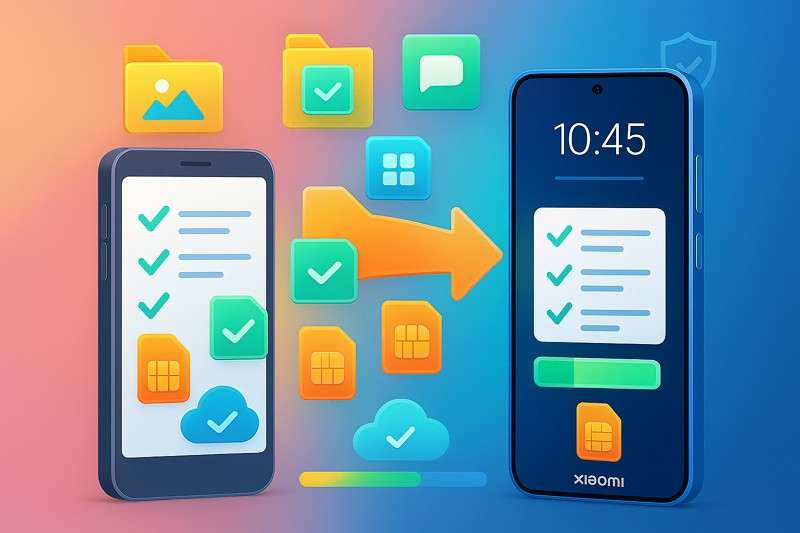
- Charge both the old phone and Xiaomi 15/15 Pro/Ultra to at least 50% battery.
- Back up essential data on the old phone to avoid loss.
- Install the required device migration app on both phones, if needed.
- Free up enough storage on the new Xiaomi 15 phone for all data.
- Keep SIM cards ready if contacts or messages link to them.
- Close unnecessary apps on the old phone to avoid interruptions.
Part 3. Step-by-Step Solutions to Transfer Data to Xiaomi 15/15 Pro/Ultra
If you want to transfer data to the Xiaomi 15 / 15 Pro / Ultra, this section offers 6 simple, effective methods to try:
Method 1: MobileTrans - One Click Solution (Recommended)
With support for 18+ types, MobileTrans Phone-to-Phone Transfer is a reliable option. The tool lets you transfer messages, contacts, photos, videos, and other data from one phone to another. Additionally, users can benefit from support for 6,000+ mobile devices, making it easy to choose the device they want to move data to.
Key Features
- Export Data from Computer to Phone: You can share 5 types of data from a computer to Android devices, such as Xiaomi.
- Cross-Platform Transfer: Unlike other phone transfer tools, it supports cross-platform transfer from Android or iOS to a computer.
- iCloud Transfer: Users can also use this innovative tool to move data from iCloud to Android without any technical skills.
- App Transfer: In addition to fundamental data, MobileTrans allows you to transfer apps from Android to iPhone/Android.
- Selective Transfer: This phone transfer tool also lets you choose which data you want to move, with the option to clear it before copying.
Guide to Move Data to the Xiaomi 15 / 15 Pro / Ultra with MobileTrans
The following steps explain how you can transfer data to the Xiaomi 15 / 15 Pro / Ultra in a few taps with MobileTrans:
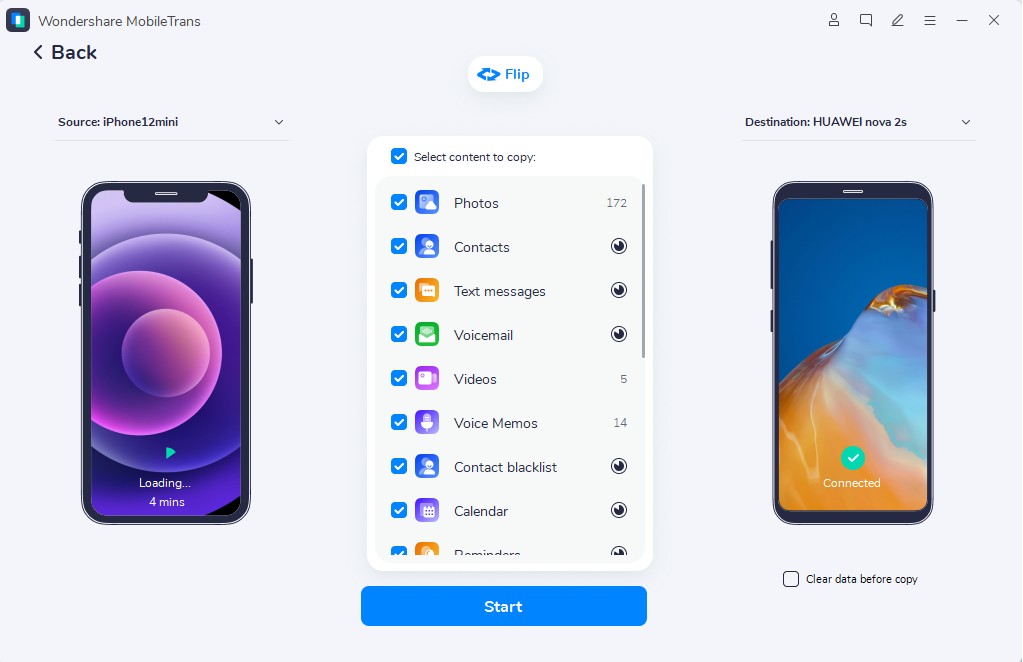
Step 1. Within the Phone Transfer tab, choose the Phone to Phone function.

Step 2. Determine the source and target devices using the Flip icon > Select the data types > Press the Start button.

Step 3. Please wait for the tool to complete the data transfer, and do not disconnect until it finishes.






Method 2: Using Mi Mover
To transfer data to the Xiaomi 15 / 15 Pro / Ultra, Mi Mover helps you copy most of your old phone content to a new one. Moreover, it is compatible with MIUI and Xiaomi gadgets and can transfer SMS, call history, home-screen setup, photos, videos, and other information. The transfer is quick over a direct Wi-Fi hotspot with no cables or computers, as follows:
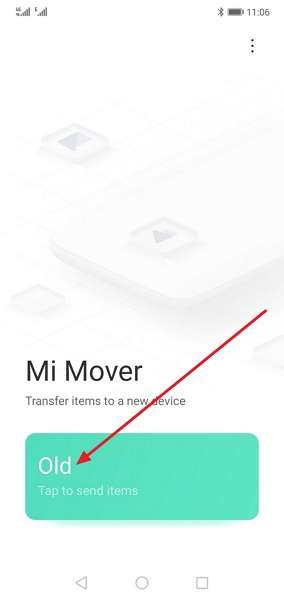
Step 1. Install the app on both phones, then select the Old option on the old one.
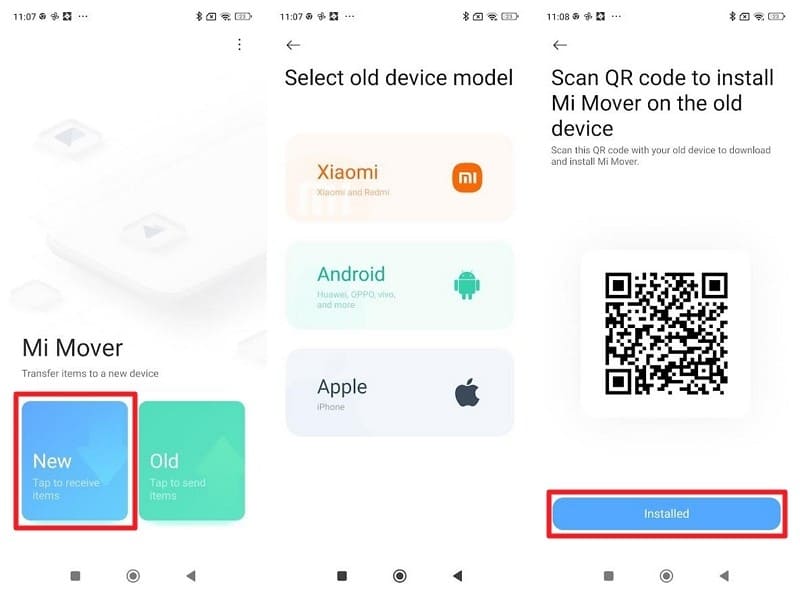
Step 2. Select New on Xiaomi 15 and identify the old device model. Press Installed if the app is on an old phone.
Step 3. Choose the New device as it appears on the old one. Select the data types, then press Next.
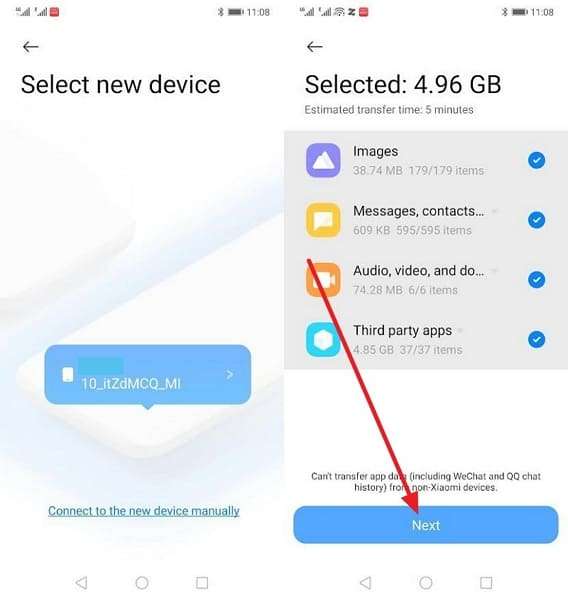
Step 4. Enable the given options, then click the Send button to receive the data for the Xiaomi 15.
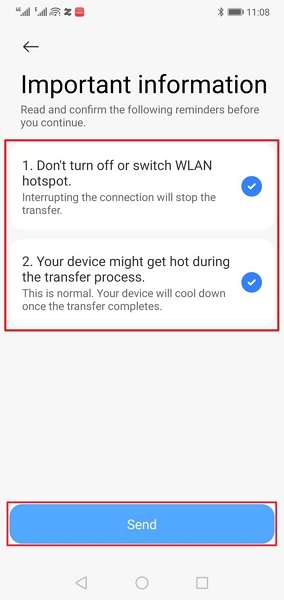
Cons
- Chat apps like WhatsApp and LINE require separate backups to restore.
- A Wi‑Fi hotspot may fail when switching bands, causing the process to restart.
Method 3: Google Account Sync/Restore Google Backup
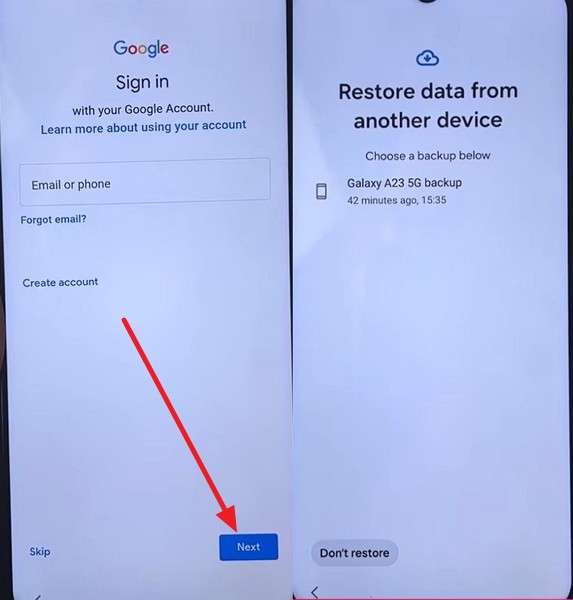
It is also a safe alternative for transferring data to the Xiaomi 15/15 Pro/ 15 Ultra. It works on nearly all Android devices and is available during setup without any extra software or hardware. Besides, all the backup data remains encrypted on Google servers, so it is safe, and you can select which backup or apps to restore. So, to restore the Google Backup, review this tutorial for better clarity:
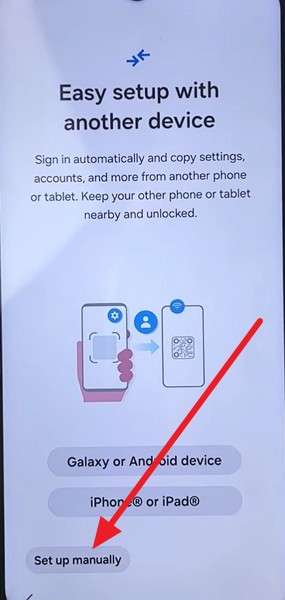
Step 1. Continue setting up the new Xiaomi 15: Select Set Up Manually, then Connect to Wi-Fi.
Step 2. Press Next and select the Can’t Use Other Device option.
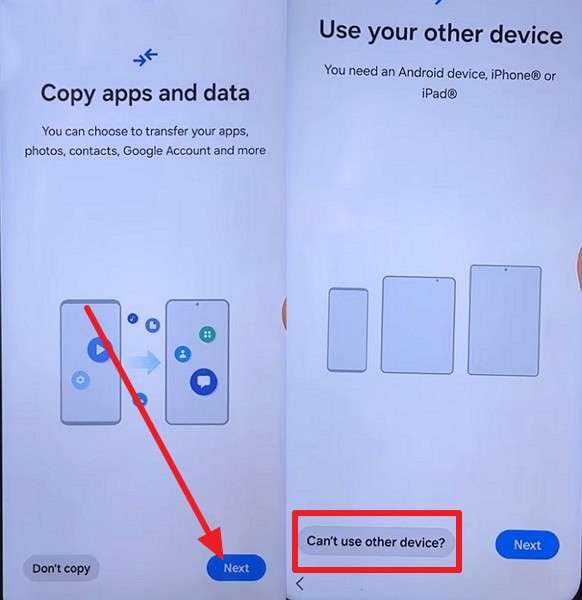
Step 3. Enter the Google Account ID and passcode to pick Next. Choose the backup to restore.
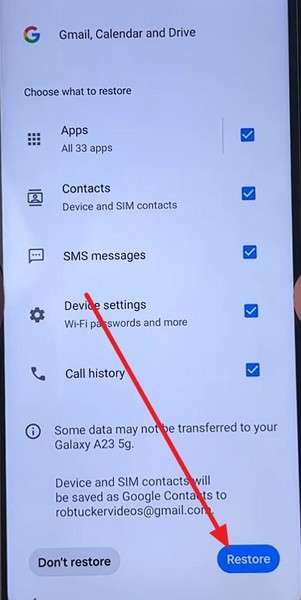
Step 4. Select the data you want to restore, then press the Restore button and continue setup.
Cons
- Restores vary across brands, so some data may not work on Xiaomi 15.
- Old device backups can be automatically deleted if the device remains inactive.
Method 4: Using Third-Party Apps (e.g., Send Anywhere)
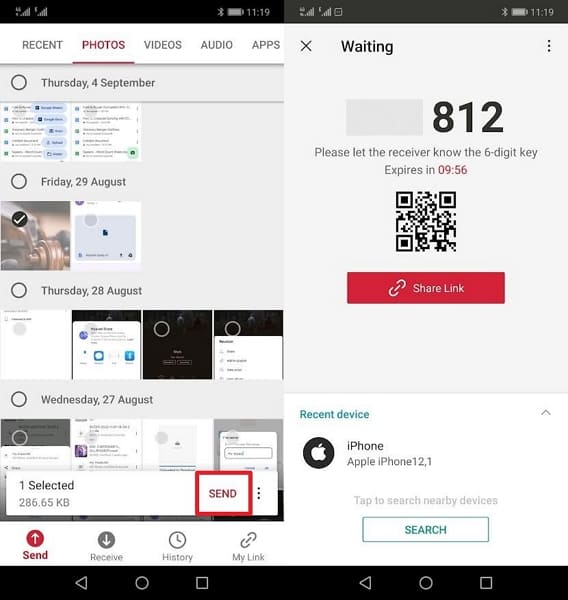
You can also use apps like Send Anywhere to transfer data to the Xiaomi 15 / 15 Pro / Ultra. It handles large files and folders without compression, so photos, videos, and documents stay in full quality. Moreover, transfers go directly between devices using a key or QR code, without cloud accounts. This method works well for extra files that system tools do not cover, and is easy to perform via the given steps:
Step 1. Choose the data and press the Send button to get the input key on the old phone.
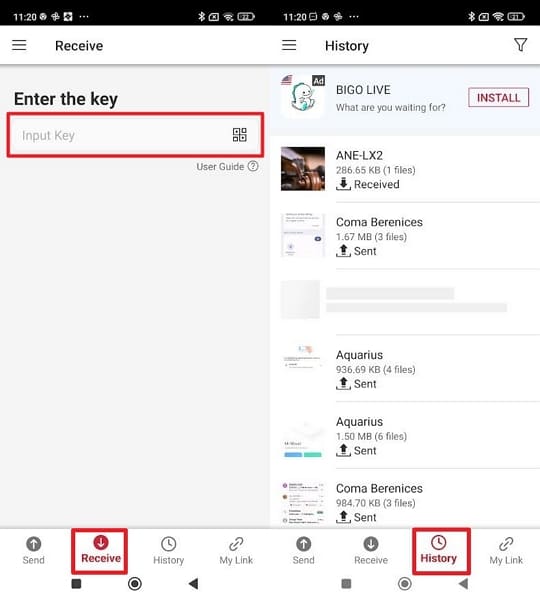
Step 2. On Xiaomi, go to the Receive tab, enter the key, and then retrieve the file in the History tab.
Cons
- Transfers can be slow or fail on weak networks, needing a restart sometimes.
- Users must trust third‑party service security, which some reviewers doubt.
Method 5: Use Google Drive as a Data Bridge
To transfer data to the Xiaomi 15/15 Pro/ 15 Ultra smoothly, Google Drive is a flexible option. It works on Android, iOS, and the web, so you can upload from any device and download to a Xiaomi 15 using the same account. You can select specific folders or files instead of copying everything. Plus, the files stay safe in Google's cloud with encryption and recovery options, once shared via the given details:
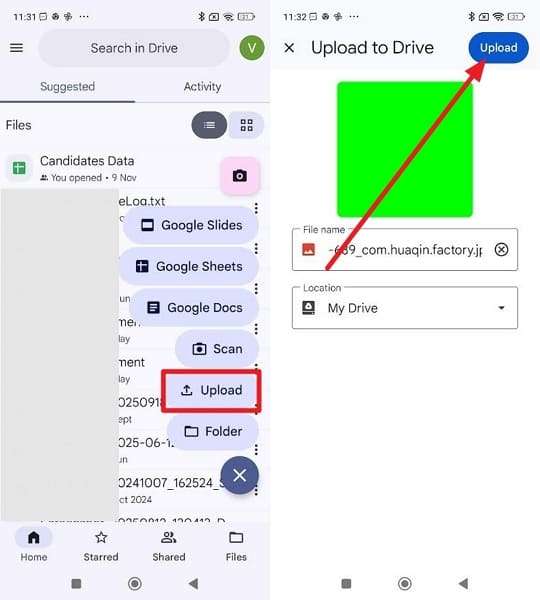
Step 1. Tap the + icon, then choose Upload, then browse for the file. Pick the Upload option on the old phone.
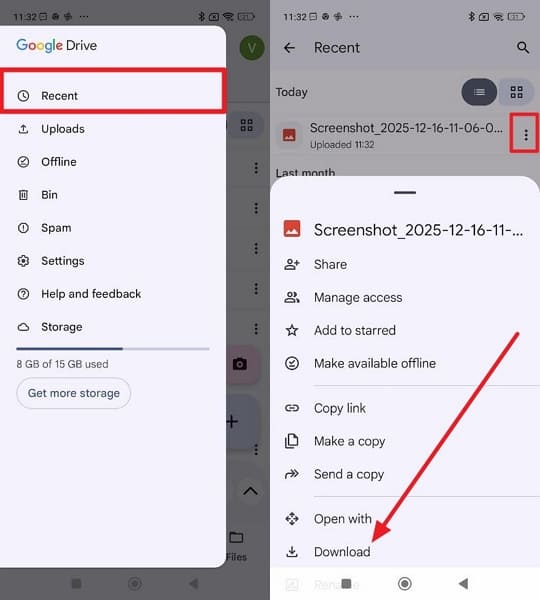
Step 2. Head to the Recent tab on your Xiaomi device. Press the Three Dots icon on the uploaded file, then select Download.
Cons
- Large-file uploads and downloads are slow over standard connections.
- Google Drive offers only 15 GB of free storage for syncing data.
Method 6: Manual Transfer (USB/PC)
The manual data transfer process to the Xiaomi 15/15 Pro/ 15 Ultra is also possible, as it is rapid, stable, and within your control. Cables are faster than Wi-Fi or the cloud for transferring large files, such as photos, videos, and music. Besides, you can select folders to copy, maintain a complete replica on your PC, and transfer the same information to an alternative device as follows:
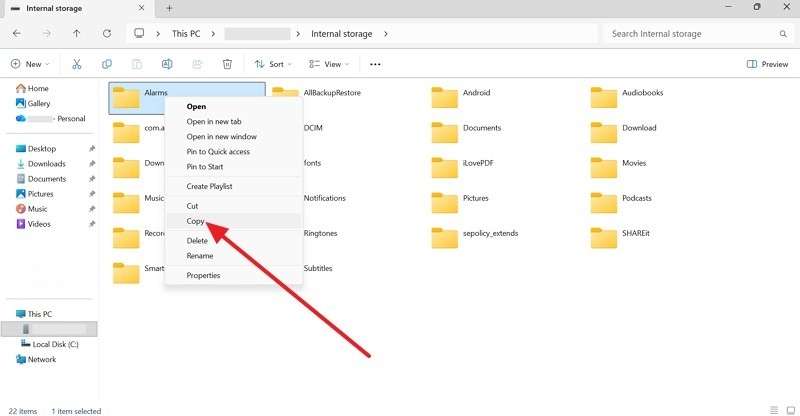
Step 1. Connect the old phone to the PC and copy the data from the Internal Storage.
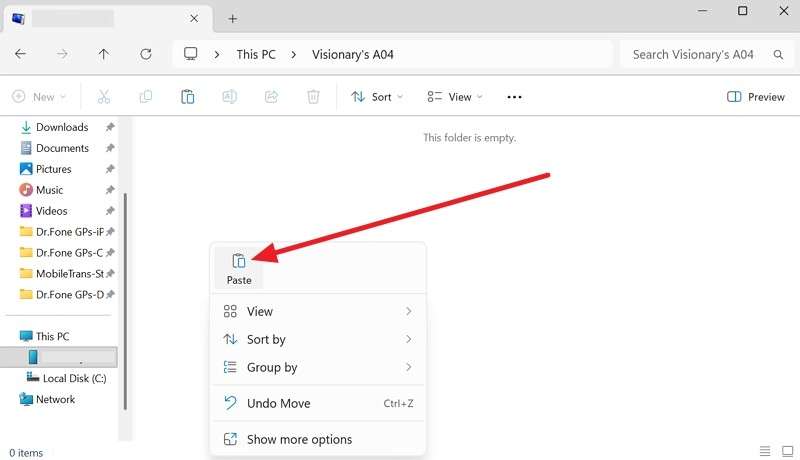
Step 2. On the connected Xiaomi 15, paste the data to the desired folder.
Cons
- Transfers can fail due to cable, port, driver, or MTP issues.
- You need a PC/Mac and a USB‑C cable; a phone alone cannot work.
Part 4. What Makes MobileTrans the Top Choice for Xiaomi 15/15 Pro/Ultra Transfers
The listed points show why MobileTrans is by far the best solution to transfer data to the Xiaomi 15 / 15 Pro / Ultra:
- Move almost everything from the old phone, including contacts, messages, photos, videos, and apps.
- Transfer WhatsApp or Business chats fully, including media, documents, and conversation history.
- Work offline or with slow internet, using a USB connection between phones and a PC.
- Move only selected items, such as photos or messages, rather than the entire phone's data.
- Create a full backup of the computer for extra safety and future recovery.

Part 5. Expert Tips for Xiaomi 15/15 Pro/Ultra Data Transfer
When you decide to transfer data to Xiaomi 15 / 15 Pro / Ultra, follow the tips given below for ease:
| Tip | What To Do | How It Helps |
| Combine Methods | Use the MobileTrans tool, along with a manual backup (PC or cloud), for photos and documents. | Reduces the risk of data loss if one method skips apps or files. |
| Secure Critical Apps | Back up WhatsApp, banking, 2FA, and email separately before the full transfer. | Ensures essential logins, codes, and chats remain safe. |
| Clean And Update | Remove junk or duplicates, move large media to a PC or the cloud, and update the system and apps. | Smaller, cleaner data transfers faster with fewer errors. |
| Keep Devices Stable | Charge above 60%, keep screens on, disable battery savers, and avoid heavy use. | Prevents disconnects, app crashes, or interruptions during transfer. |
| Verify Before Wipe | Check gallery, messages, chats, and apps on the new Xiaomi phone, then back up again. | Confirm all data is safe before erasing or selling the old phone. |
Conclusion
To sum up, if you want to transfer data to the Xiaomi 15/15 Pro/ 15 Ultra, this guide has outlined 6 simple solutions. So, review them and their given guide to see which one suits your needs and expertise. If you don't want to install additional apps or set up the phone, MobileTrans is recommended for selective and effortless data transfer.
FAQs
-
Will my chat history transfer automatically?
MobileTrans can safely transfer WhatsApp and other chats without losing messages during the transfer process. In contrast, some apps require a separate backup or export to fully restore chats on the Xiaomi 15, 15 Pro, and Ultra. -
Do I need both phones at the same time?
Direct transfer tools require both phones to be online and connected throughout the data transfer process. Additionally, cloud backup methods allow the old phone to upload first, and the Xiaomi 15 can restore it later easily. -
How long does the transfer take?
Unlike other options, MobileTrans transfers large files quickly, depending on file size and type, delivering faster overall results. Transfers over Wi-Fi or the cloud may take longer and depend on network speed and stability.










