



 TL;DR:
Resolve Mi Phone Transfer failures by placing devices 10–30 cm apart, disabling VPNs, clearing the Mi Mover app cache, and transferring data in smaller batches to prevent wireless hotspot overloads.
● Failed transfers in Mi Mover cannot be resumed, so you must restart the entire process with both phones kept idle, unlocked, and charged above 50–60%.
● The native tool cannot move app chat histories automatically and may halt transfers for specific apps restricted by Android or MIUI security policies.
● For persistent wireless failures or switching operating systems, MobileTrans provides a selective transfer alternative that bypasses local hotspot issues via a direct USB connection.
Ask AI for a summary
 ChatGPT
 Perplexity
 Gemini
 Claude
 Grok
Grok
Imagine you just bought a new Xiaomi phone and want to move all your data from the old device. You try Mi Phone Transfer, but it does not work, leaving photos, contacts, messages, and apps stuck on the old phone. This situation can cause frustration, especially if you need essential files quickly.
Fortunately, many common problems have simple solutions, and this guide addresses a few of them. So, review the failures with the Mi Phone transfer not working, and start using the new phone quickly with the listed simple steps.
In this article
-
- Keep Devices Close Together During Transfer
- Avoid Using Devices During the Transfer Process
- Restart Both Devices Before Starting Transfer
- Check Wi-Fi Network Stability on Both Devices
- Disable VPNs and Background Network Heavy Apps
- Transfer Smaller File Batches to Avoid Overload
- Clear Mi Mover App Cache
- Update Mi Mover and System Software

Part 1. Understanding Common Mi Phone Transfer Failures
If you wonder why Mi Phone transfer is not working, here are some data transfer problems that follow patterns you can notice and prevent:
| Problem Type | What Typically Goes Wrong | Likely Cause |
| Connection Drops | "Connection interrupted" appears in Mi Mover, or devices stop seeing each other mid-transfer | Weak or unstable Wi Fi Direct or hotspot connection |
| Transfer Stuck or Never Finishes | The progress bar remains frozen for long periods, and large transfers never complete. | Excessive data size, device overheating, or low battery |
| Partial Data Only | Some photos or apps transfer, but SMS, call logs, or folders are missing | Mi Phone Transfer does not support every data type |
| App Compatibility Errors | Transfer starts but stops when reaching specific apps or system data | Certain apps are restricted by Android or MIUI security policies |
| App Data and Chats Were Lost | Apps reinstall but open as new with no previous history | App chats and data require separate in-app or cloud backups |
Part 2. How to Fix Mi Phone Transfer Not Working Problems Quickly
To address the issue of the Mi Phone transfer not working, review 9 simple and effective fixes. Identify which option resolves this issue to restore data transfer functionality in mere seconds.
1. Keep Devices Close Together During Transfer
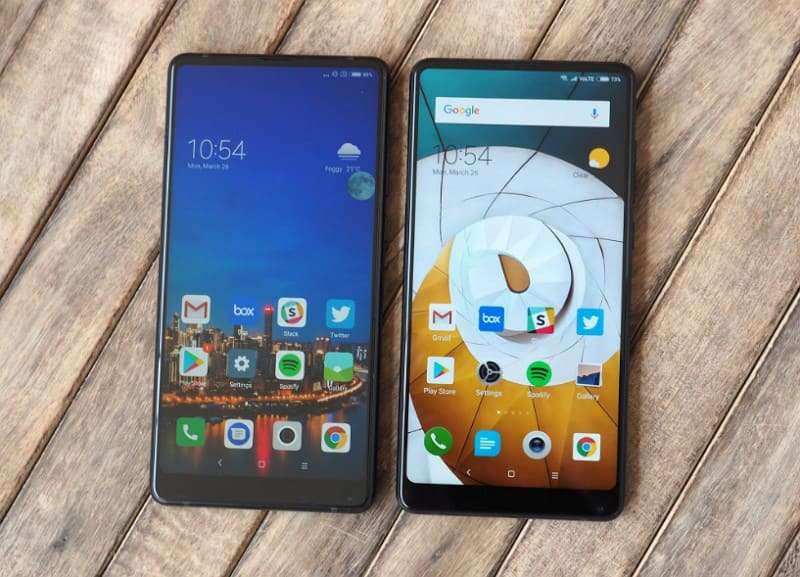
Please make sure both Mi Phones are close, as the tool uses a direct Wi-Fi hotspot and Bluetooth link between them, not home Wi-Fi or mobile data. When phones are far apart, the Wi-Fi signal weakens, and Bluetooth may disconnect. Additionally, nearby networks or walls can disrupt the connection, causing "not working" or "connection interrupted" errors. So, place the phones side by side, about 10–30 cm apart, to get a b signal.
2. Avoid Using Devices During the Transfer Process
For the issue where Mi Phone Transfer isn't working, don't use the phone during the transfer. This is because Mi Mover needs complete control of Wi-Fi, Bluetooth, and system power. When you use apps, games, or video, the system may pause Mi Mover in the background, slow the phone, or disrupt Wi-Fi and Bluetooth connectivity. So, keep both phones idle, unlocked, and closed, with Mi Mover open, and battery above 50–60%.
3. Restart Both Devices Before Starting Transfer
Prolonged use of many apps can cause these services to become unstable, leading to "not working" or "connection interrupted" errors. Therefore, restart both Xiaomi phones before Mi Phone Transfer, as this clears minor system issues and resets Wi-Fi, Bluetooth, and hotspot services. Additionally, it stops problematic apps, frees memory, refreshes network connections, and applies pending updates, once performed via the listed instructions:
Step 1. Press and hold the Power button until the restart options appear.
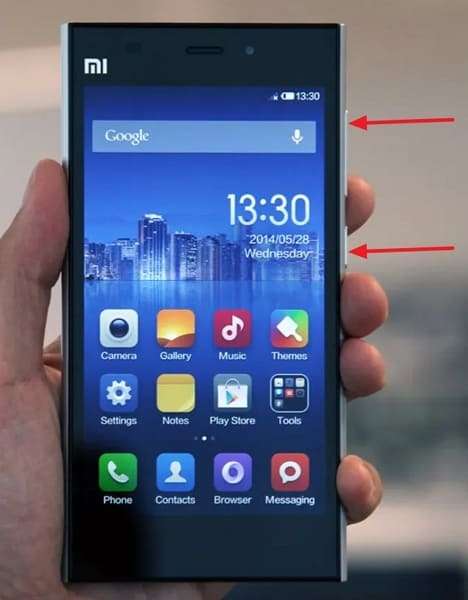
Step 2. Select the Reboot option, then wait as the screen goes black to restart.

4. Check Wi-Fi Network Stability on Both Devices
If the Mi Phone transfer not working issue persists, check the wireless connection stability on both Xiaomi phones before Mi Phone Transfer. This is because Mi Mover relies on a direct device-to-device hotspot connection rather than regular Wi-Fi, and system instability can cause "Not Working" or stuck transfer issues. A stable local connection helps both phones pair easily, keeps the hotspot link active, reduces drops, and supports smoother data transfer.
5. Disable VPNs and Background Network Heavy Apps
For the Mi Phone transfer not working issue, know that VPN can interfere with local device connections. Not just that, heavy apps like games, video, or cloud sync can slow the network or overload the phone. Turning off these apps frees Wi-Fi, CPU, and memory and prevents Mi Mover from shutting down. So, to know how to disable VPN and close background apps, review the given instructions:
To Disable VPN
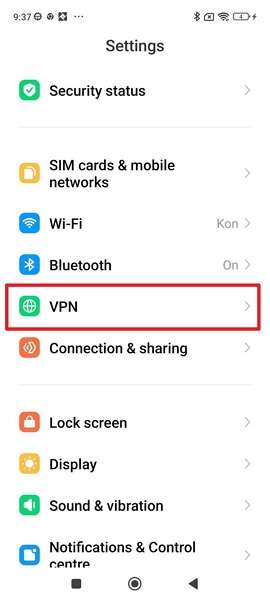
Step 1. Go to Settings to select the VPN option.
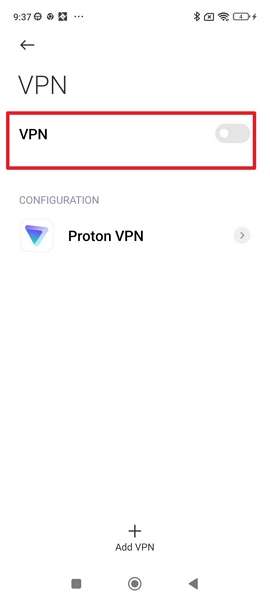
Step 2. Toggle off the VPN option.
To Close Background Apps
Step 1. Press the button next to Home.
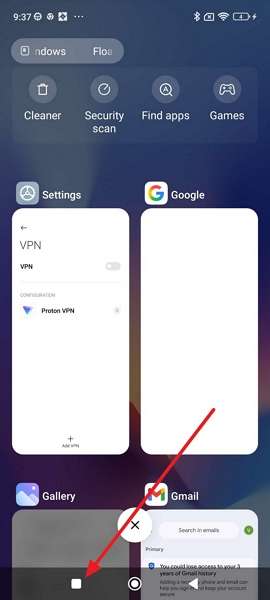
Step 2. Choose the X icon to close all unnecessary apps. You can also Slide Right to specific ones.
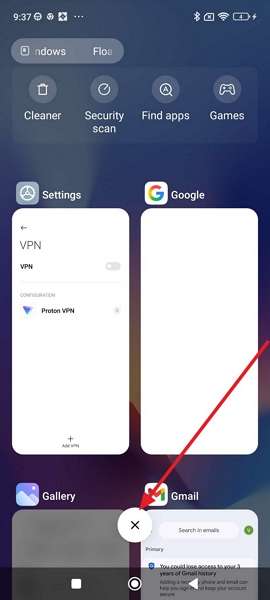
6. Transfer Smaller File Batches to Avoid Overload
Large transfers can overload memory, the Wi-Fi hotspot, and system power, causing freezes or "connection interrupted" errors in Mi Mover. So, send the data step by step: contacts first, then photos, videos, and apps. This keeps the connection stable, prevents crashes, works better on older phones, and makes it easy to retry only the failing part.
7. Clear Mi Mover App Cache
To resolve the issue where the Mi Phone transfer is not working, clear the Mi Mover app cache. This is because old or damaged temporary files can cause connection errors, crashes, or "Mi Mover Abnormal" problems. As you perform via the given guidelines, it removes harmful files, resets the transfer state, and lets Mi Mover start clean with stable Wi-Fi and Bluetooth. Additionally, this step is safe and does not delete personal data.
Step 1. From the Apps settings, choose Manage Apps > Mi Mover.
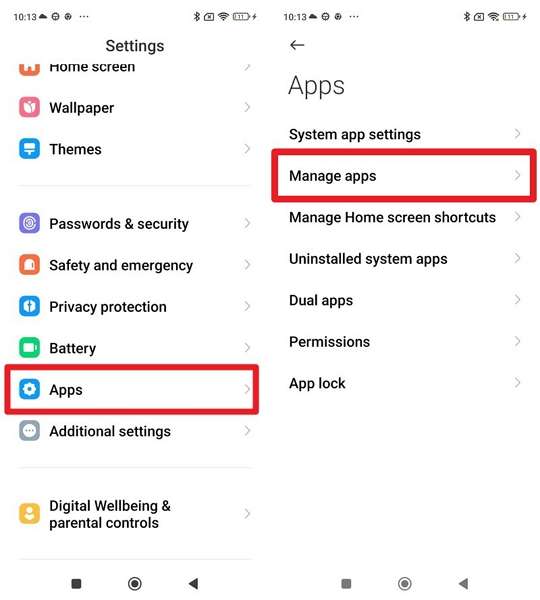
Step 2. Press Clear Data on the App Info screen. Choose the Clear Cache from the pop-up.
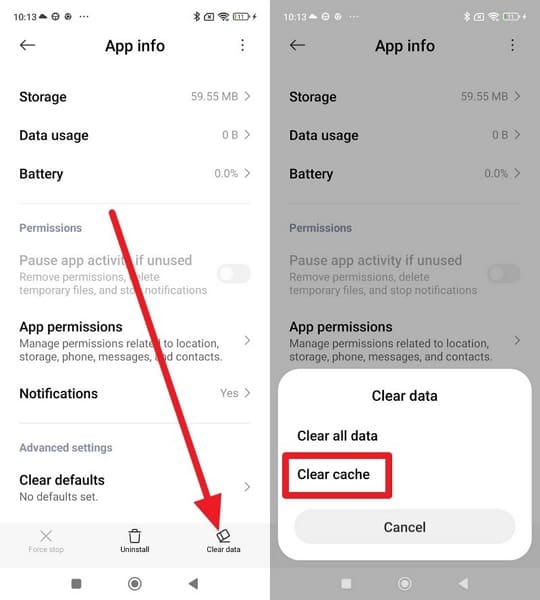
8. Update Mi Mover and System Software
If you still face the Mi Phone transfer not working issue, update Mi Mover and the system software on both Xiaomi phones. Old versions often have bugs or compatibility issues that cause “not working” or “connection interrupted” errors. Therefore, updates fix known problems and improve Wi-Fi and Bluetooth stability. Plus, it ensures both phones work well together, even on different models or MIUI versions, as guided below:
Update App
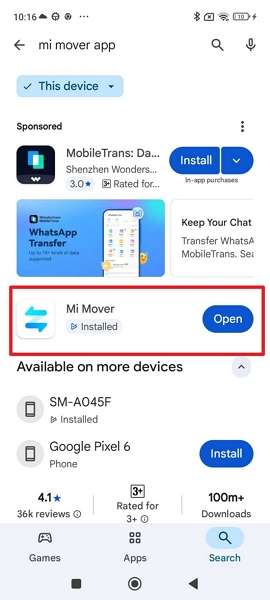
Step 1. Type the Mi Mover app in the Play Store’s search bar.
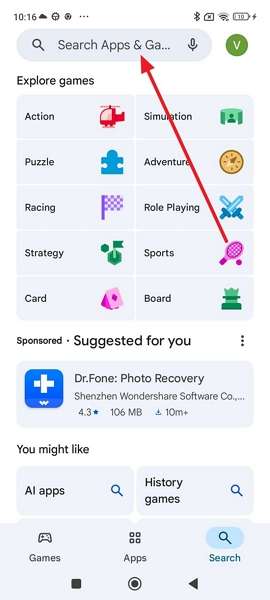
Step 2. Press the Update button next to the app if it's available.
Update System
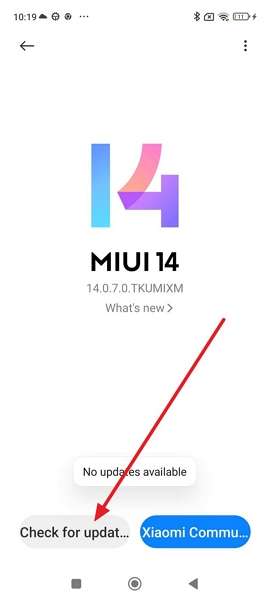
Step 1. Go to About Phone and choose MIUI Version.
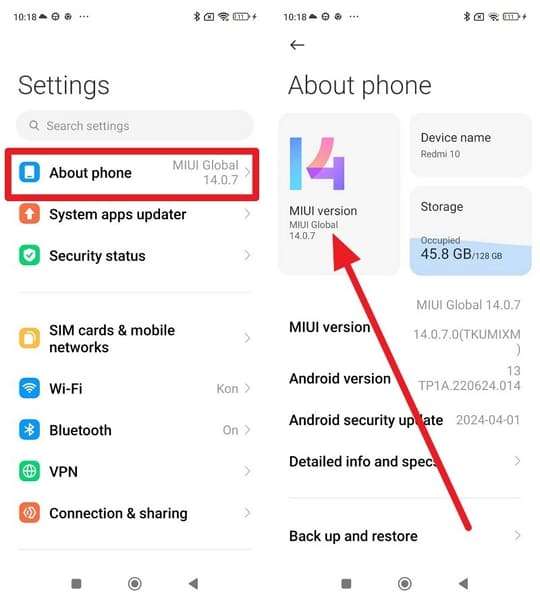
Step 2. Select Check for Updates, then install any available system updates.
Part 3. MobileTrans: The Trusted Phone Transfer Solution for Successful Mi Transfers
When no fix resolves the issue of Mi Phone transfer not working, it's better to look for an innovative alternative like MobileTrans. With support for 6000+ Android devices, this tool lets you transfer 18+ data types to a new phone. With the ability to selectively choose, users can move images, videos, messages, contacts, and so on.
Key Features
- Cross-Platform Transfer: Unlike Mi sharing, this tool lets you move data from Android to iOS, from Android to a computer, or from iOS to iOS.
- Move iCloud Data: One can also use it to share iCloud data with Mi phones, with no complex setup needed.
- Share Apps: Users can also share apps between Android and iOS devices with no interruptions or failed transfers.
- Secure and straightforward: The entire process is guided along with military-grade encryption, and the tool requires no cloud updates or Wi-Fi-based transfers for user erasure.
- Move Data to Computer: MobileTrans also lets you transfer 5 types of data from a computer to Android or iOS in a few seconds.






Simple Guide for Successful Mi Transfers with MobileTrans
If you are still facing the Mi Phone transfer not working issue, learn how MobileTrans makes it seamless for you in 3 simple guided steps:
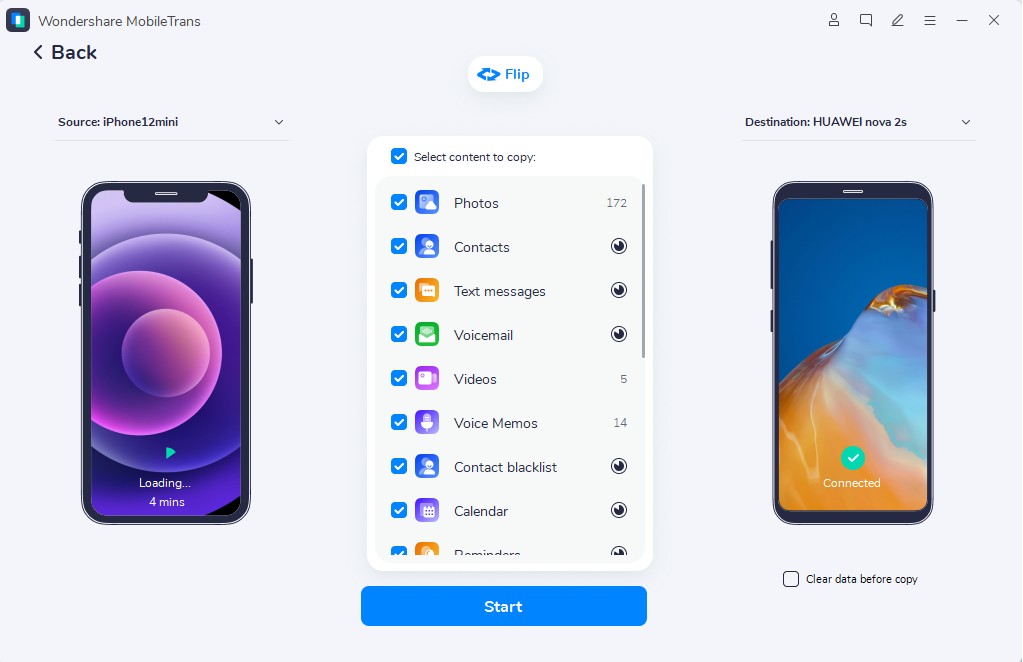
Step 1. Select the Phone Transfer tab, then go to the Phone to Phone feature > Connect your devices.

Step 2. Confirm the Mi device’s position via the Flip icon. Select the data types, then press Start.

Step 3. You can also choose Clear Data Before Copy. Once it starts, wait for the transfer to conclude.
Use Cases of MobileTrans for Phone-to-Phone Data Transfer
Rather than pondering how to resolve the Mi Phone transfer not working issue, give MobileTrans a try. To further know how it's the best option, adhere to some of its use cases given below:
| Use Case | What It Does | Best For |
| Switching OS (Android to iOS) | Transfers contacts, photos, videos, messages, call history, apps, and more between Android and iPhone. | Users moving from Android to iPhone or iPhone to Android. |
| App & App Data Transfer | Copies installed apps and their data (including some non‑store apps) from the old phone to the new one. | Keeping games, settings, and app logins after switching phones. |
| Large Media & Files | Transfers high‑resolution photos, 4K videos, music, documents (PDF, Word, etc.), and other large files quickly over USB. | Moving a full media library (gallery, music, videos) without quality loss. |
| Cross‑Brand Transfer | Works between different brands (e.g., Samsung, Xiaomi, OPPO, OnePlus, Huawei, iPhone, etc.) regardless of manufacturer. | Switching from any Android brand to another or to an iPhone. |
| Selective Data Transfer | Let's you choose exactly which data types (contacts, messages, photos, etc.) to transfer, not just “all data.” | Moving only essential data (e.g., contacts + WhatsApp) without unnecessary files. |
Conclusion
To wrap up, this article has addressed the issue of Mi Phone transfer not working in detail. So, review the solutions discussed in this guide and learn how they can help you restore the transfer functionality. When simple fixes fail, an ideal solution like MobileTrans is recommended, letting you move data selectively across Mi or other OS versions.
FAQs
-
Is Mi Mover safe for my personal data?
Yes, Mi Mover transfers files directly between phones without uploading them to any cloud server. However, connection drops can cause incomplete transfers, so always check that all data moved successfully. -
Can I resume a failed transfer on Mi Mover?
No, Mi Mover usually requires restarting the transfer from the beginning after any failure occurs. You must restart the process to ensure all files are fully transferred to the new phone. -
What is the better alternative if Mi Mover keeps failing?
MobileTrans is a reliable tool that supports all phones and safely transfers all data types. It avoids Wi-Fi or Bluetooth issues and makes transfers faster, smoother, and less likely to fail.










