



 TL;DR:
Xiaomi HyperOS utilizes local wireless frameworks like HyperConnect to migrate user files directly between devices, requiring HyperOS 2.1 for cross-account synchronization and HyperOS 3 for one-way NFC sharing to iPhones.
● The native migration system successfully transfers media, documents, and APKs, but intentionally excludes banking profiles, encrypted app tokens, DRM-protected content, and hardware-specific configurations like fingerprint data.
● Device pairing requires active Wi-Fi and Bluetooth via Mi Share for Xiaomi-to-Xiaomi setups, NFC via Mi Beam for sharing with other Android devices, and the Xiaomi Interconnectivity app over Wi-Fi for iPhones interacting with pre-HyperOS 3 builds.
● Transfers frequently stall due to mismatched regional ROM builds, pre-2.1 cross-account restrictions, or Wi-Fi Direct channel drops during bulk media moves, making alternatives like MobileTrans necessary to bypass local network failures and migrate complex app data.
Ask AI for a summary
 ChatGPT
 Perplexity
 Gemini
 Claude
 Grok
Grok
While a new Xiaomi smartphone represents a strategic upgrade, the actual value of the transition depends on the preservation of existing assets. Essential data, ranging from contacts and communication records to applications, must be transferred with precision. Xiaomi HyperOS data transfer addresses this imperative by providing a systematic, secure framework that ensures data continuity and accuracy.
It serves as a foundational capability within the Xiaomi ecosystem, purpose-built to deliver a dependable transfer experience. With that in mind, the guide below provides an in-depth review of this transition for all new Xiaomi users.
In this article

Part 1. Xiaomi HyperOS Data Transfer Basics
Xiaomi HyperOS data transfer is built around the idea of keeping your digital life continuous when switching devices. Instead of treating each device as an island, Xiaomi uses HyperConnect and system-level tools to move data between devices. This aligns with HyperOS 2.1's description of a bug-fix and refinement update that improves the underlying transfer experience.
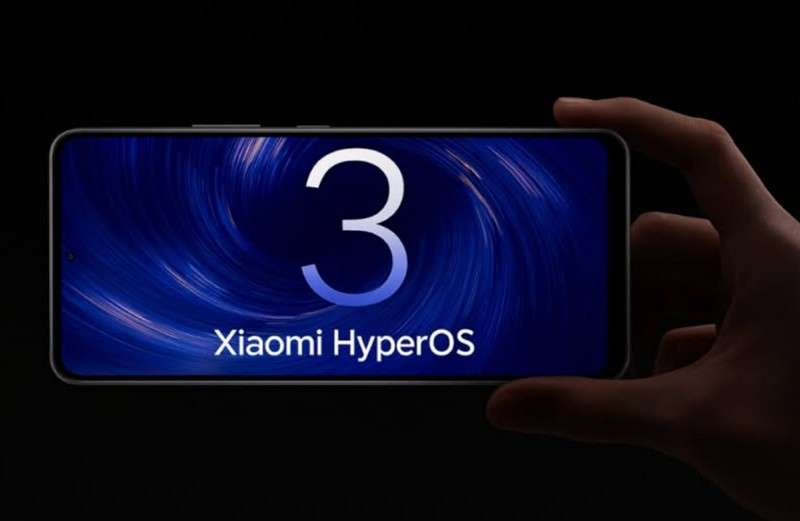
At a practical level, the core purpose of HyperOS data transfer is to make the switch almost “plug-and-play.” HyperOS 3 expands Xiaomi HyperConnect with better cross-account file transfer and broader platform support. The platform gap between devices disappears with this update, which enables file transfer between Apple products. Notably, Xiaomi has established itself as a frontrunner in developing comprehensive connected environments that compete with Apple's AirDrop.
Xiaomi HyperOS Data Transfer: Phones and OS Compatibility
For the data migration process, first evaluate devices and operating system compatibility to ensure uninterrupted migration:
| Data Transferring Aspects | Updated Capabilities |
| Data Transfer Layer | Transfer in HyperOS 2.1 is handled via Xiaomi HyperConnect (device linking). |
| Cross-Account Xiaomi Devices | HyperOS 2.1 expands Xiaomi HyperConnect to support transfers between devices signed in with different Xiaomi accounts. |
| Same-Account Xiaomi Phones | Devices on the same Xiaomi account with HyperOS 2.0 or newer can use HyperConnect for faster migration. |
| HyperOS Version Requirement | Enhanced transfer features, including cross-account file sharing and connection pop-ups on supported phones. |
| Supported Xiaomi Phone Families | All Xiaomi 14 and 15 series devices, along with their eligible models, are receiving HyperOS 2.1 and the latest versions. |
| Cross-Platform Direction | Allows touch-to-share and fast transfer with Android and Apple devices for all sorts of data. |
| Facilitated Target Devices | ● Phones officially updated with HyperOS (including HyperOS 2.0/2.1/3.x) ● The Xiaomi series ranges from 13/14/15. ● Redmi Note 13/14 series and supported POCO models. |
Part 2. Xiaomi HyperOS Data Transfer: What Data Moves and What Stays
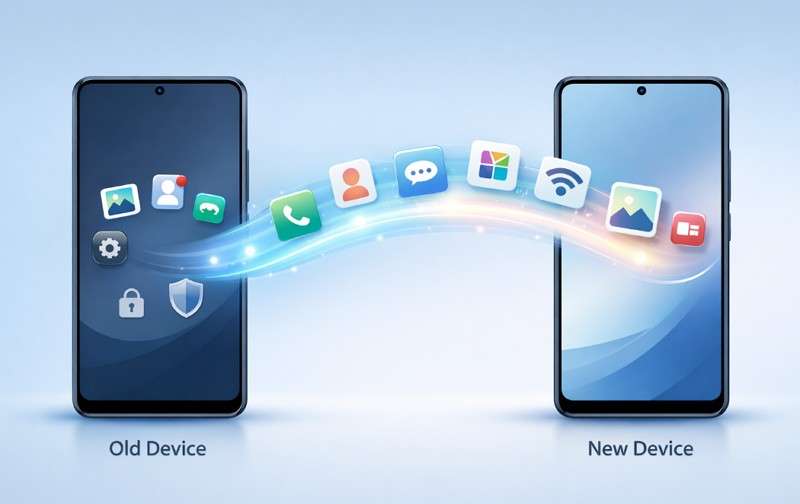
Analysis shows that Xiaomi HyperOS data transfer moves most user-visible content, but not all hidden system data. The following section thereby reveals what data you can typically move and what types need to be re-added manually:
What Data Typically Moves
- Photos and videos from the gallery, including albums and camera folders.
- Music, downloads, documents, and other user files are stored in internal storage folders.
- APK installation files for apps, allowing apps to be reinstalled on the new device.
- Shared wallpapers, images, PDFs, and compressed folders.
- Files transferred through Xiaomi Interconnectivity between Xiaomi and iPhone devices.
- Shared notes, exported contacts as VCF files, and calendar files, if manually selected as files.
What Usually Does Not Transfer
The listed items are intentionally excluded or only partially synced when moving to a new HyperOS device:
- Bank and payment app data (stored cards or UPI profiles), which must be reset and re-verified.
- Most app sign-ins and tokens for secure apps don't allow their encryption keys to be cloned.
- Hardware-specific system settings, such as fingerprints, face unlock data, and Bluetooth pairing keys.
- DRM-protected media and some subscription content that is tied to the original device or requires re-authorization.
- OS-level logs, debugging traces, and low-level configuration reserved by Xiaomi for installation.
Part 3. Xiaomi HyperOS Data Transfer: Switching to Other Phones Made Simple
After gaining a basic understanding of Xiaomi HyperOS data transfer, if you want to move data between devices, this section has you covered with 3 simple ways.
1. Xiaomi to Xiaomi Phone Move
Prerequisites
- Enable Mi Share in Settings > Connection & Sharing on both devices.
- Turn on Bluetooth and Wi‑Fi so Mi Share can connect devices.
- Keep devices physically close and visible within Mi/Xiaomi Share for connection.
- Keep screens on and unlocked to confirm incoming file prompts.
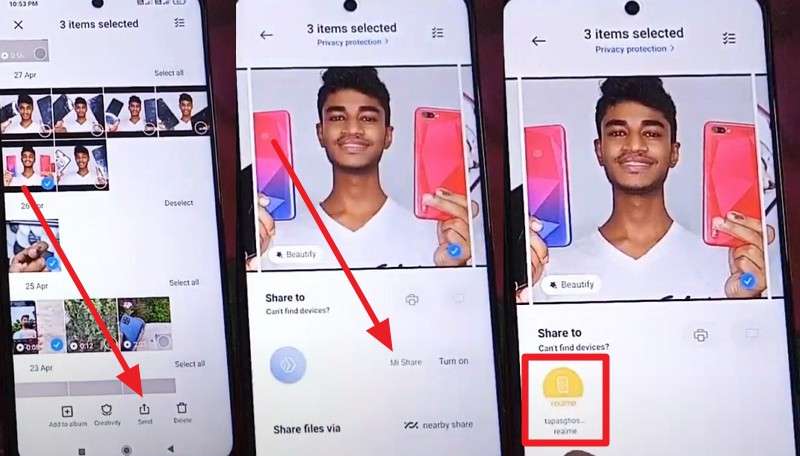
Mi/Xiaomi Share is Xiaomi's fast, wireless tool for sharing specific files and media between Xiaomi devices. It supports Wi‑Fi Direct and Bluetooth, so transfers happen quickly without the internet, making Xiaomi HyperOS data transfers seamless. It also supports some partner brands, but works best for smooth Xiaomi-to-Xiaomi transfers. Plus, Mi/Xiaomi Share is built into HyperOS/MIUI, easy to enable, and simple to use, as guided:
Step 1. Choose the Share icon on the media you want to share. Pick the Mi/Xiaomi Share option from the menu.
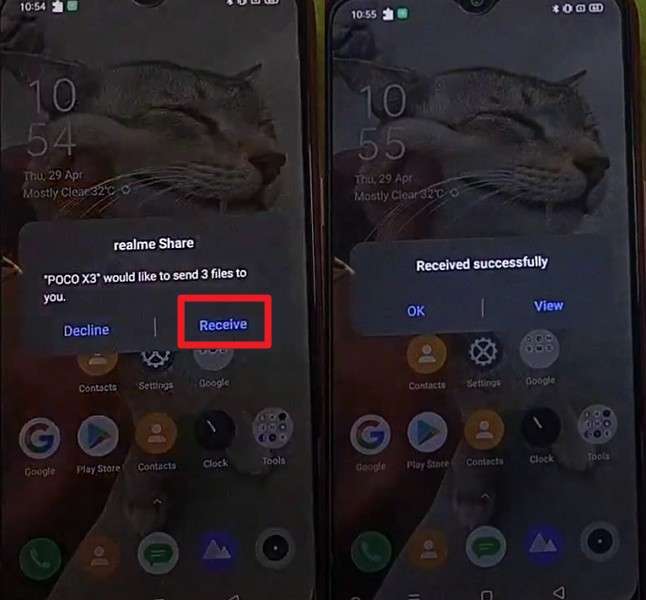
Step 2. Select the receiver's device, then choose the Receive option.
2. Xiaomi to Android Phone Move
Before You Start
- Both Android models support Mi Beam sharing.
- Turn on Bluetooth, Wi-Fi, and NFC on both phones.
- On Xiaomi, go to Settings > Connection & Sharing > NFC, then enable the toggle.
- Unlock phones, keep them close, and disable Airplane Mode and Battery Saver.
- Ensure the receiving phone has sufficient battery and free storage.
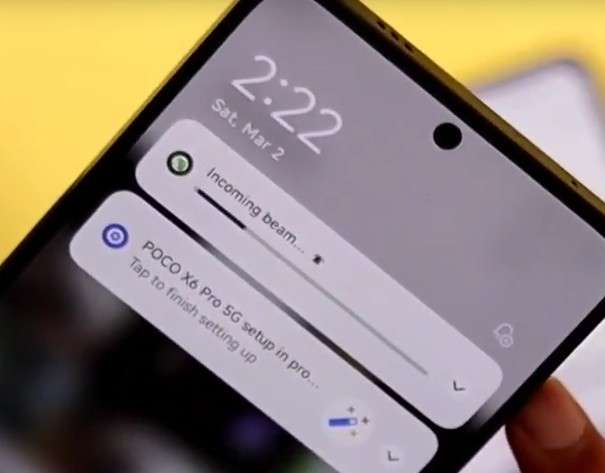
For Xiaomi HyperOS data transfer, Mi Beam is ideal because it stays fast, simple, and built into Xiaomi phones. It works without an internet connection and uses a local wireless link, so file transfer remains possible anywhere. Additionally, speed remains much higher than with standard Bluetooth, which helps with large photos, videos, and apps. Thus, it supports smooth transfer between Android phones supporting NFC, as guided below:
Step 1. Tap the Share icon on the media, then select Mi Beam from the pop-up menu.
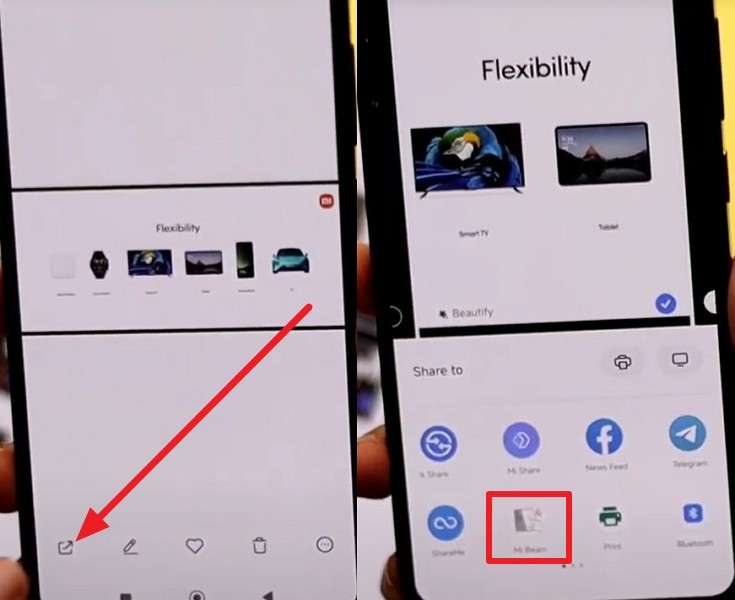
Step 2. Bring your other Android device close to the Xiaomi device. You will get an incoming notification on your phone.
3. Xiaomi HyperOS Data Transfer to iPhone
When it comes to Xiaomi HyperOS, data transfer between Xiaomi and iPhone devices for file and content sharing is one-way. It functions the same way as Android devices and lets Xiaomi and iPhone users share files quickly with a simple tap. NFC instantly pairs devices, so no search or QR scan is needed. This method works on both Xiaomi and iPhone devices without apps, cables, or the cloud, and is available only in HyperOS 3.
No Mi Beam? Here’s How Older Xiaomi Phones Can Share Files
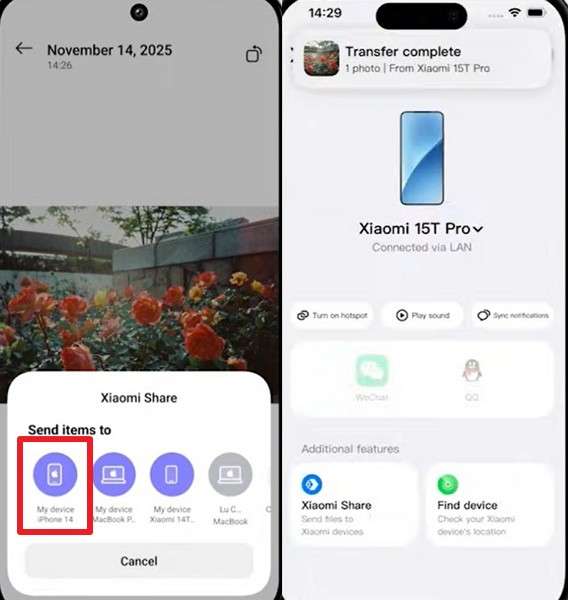
On older HyperOS versions, you can use Xiaomi Share and Interconnectivity to transfer files to an iPhone. However, this only works if the phone supports HyperConnect and a compatible HyperOS version. While being a better option for Xiaomi HyperOS data transfer, the transfers happen over Wi‑Fi or Bluetooth by selecting the iPhone from a list, not by NFC tap, as guided below:
Prerequisites For Xiaomi Interconnectivity:
- Install the Xiaomi Interconnectivity app on the iPhone.
- Your Xiaomi must have Interconnectivity, HyperConnect, or Xiaomi Share options available and enabled.
- Keep Wi‑Fi and Bluetooth on, and stay signed in to your Xiaomi account.
- Connect both devices to the same Wi‑Fi network or to the same Xiaomi hotspot.
- Ensure VPN or firewall does not block local device discovery.
Step 1. Select media files, press Share, then choose Xiaomi Share.
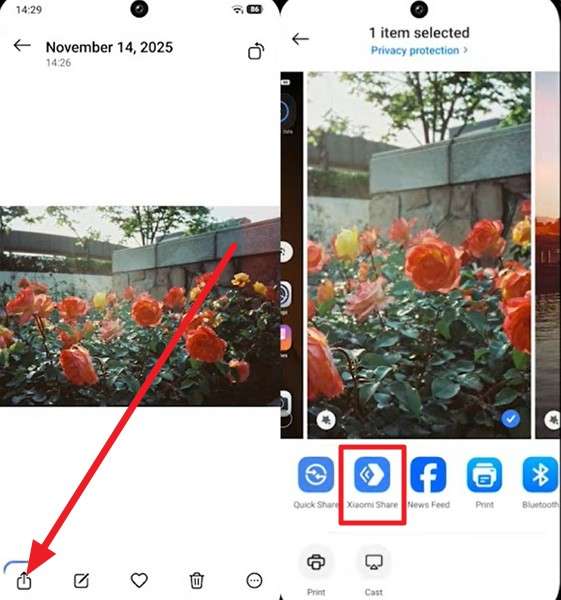
Step 2. Pick the iPhone from the sharing menu. You will receive data immediately.
Part 4. Xiaomi HyperOS Data Transfer: Frequent Transfer Failures Explained
Even with updates, Xiaomi HyperOS data transfers can sometimes encounter unexpected issues, causing the process to be disrupted. Considering this, a few transfer failures are discussed that demand attention to ensure a reliable experience:
- ROM/Region Build Incompatibility Between Devices: Transfers may stall or fail when devices run different regional HyperOS builds, such as China ROM and EU ROM. HyperConnect services can remain invisible across mismatched regional frameworks.
- Mi Account or HyperConnect Sync Status Conflicts: If Xiaomi accounts are not fully synced or are temporarily restricted, HyperConnect discovery may fail, preventing devices from pairing or showing as available transfer targets.
- Cross-Account Transfer Restrictions on Older HyperOS Builds: HyperOS versions below 2.1 lack stable cross-account transfer permissions, causing transfer pop-ups to disappear or cancel automatically after connection.
- Wi-Fi Direct Channel Instability During Large Transfers: Large video libraries and bulk media transfers may fail due to Wi-Fi Direct channel drops, resulting in partial transfers without clear error messages.
- NFC or Proximity Pairing Failure: If NFC, Bluetooth, or device proximity services are disabled, tap-to-pair transfers may not initiate even when Mi Share or Mi Beam appears enabled.
Part 5. When Connections Fail: MobileTrans Supports Xiaomi HyperOS Data Transfer
Given Xiaomi HyperOS data transfer failures, MobileTrans offers simple, guided operations with remarkably faster speeds. The program supports over 6000 mobile devices running both Android and iOS. It even supports direct device-to-device transfers, so most content moves in a single session instead of manual copying. Transfers data between Android and iOS in all directions (Android to Android, Android to iOS, and vice versa), making switching ecosystems easier.
Key Features
- Wide Data-Type Coverage: It can move more than 18 file types, including photos and other everyday data categories.
- Supports App Data Transfer: The program also facilitates app data and document transfers, helping recreate the phone’s working environment.
- iCloud to Android Migration: Can log in to iCloud and pull synced content directly into an Android phone in one process.
- Security and Privacy Models: Uses end-to-end encryption with a local connection focus, so data does not pass through third-party servers.
- Diverse Range of Platform and OS Support: Supports Android 4.6 and above, iOS 6 and later (including iOS 26), and Windows or macOS.






Comprehensive Guide to Transfer Data Between Devices
Follow the provided guidelines to migrate most of your content, minimizing the risk of data loss or transfer failures:
Step 1. Install MobileTrans > Access Phone Transfer > Select Phone to Phone> Connect the Phones.

Step 2. Select Source and Destination devices > Tick Clear Data Before Copy > Choose data type > Press Start button.

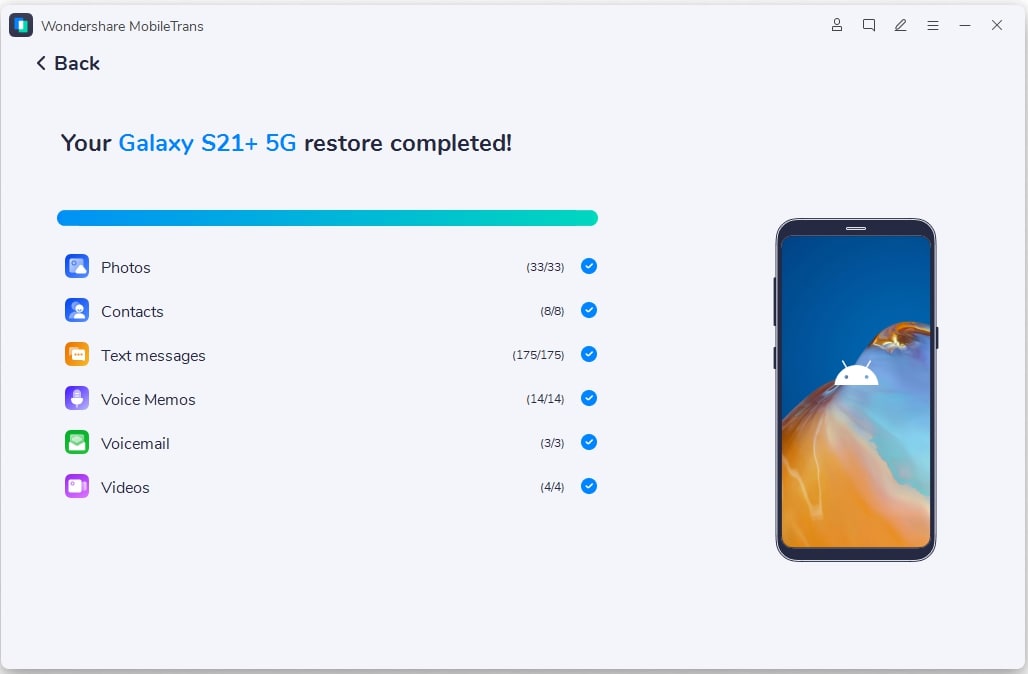
Step 3. Do not disconnect devices. Wait for the transfer complete prompt. Check all transferred content.
Conclusion
In conclusion, the new Xiaomi HyperOS data transfer feature is an indispensable asset for users seeking a secure migration across devices. With associated potential transfer interruptions or compatibility issues, MobileTrans can serve as a reliable alternative. It delivers claims of 96% faster transfer speeds than competing tools, with support for many data types and migration paths.
FAQs
-
Does HyperOS Data Transfer work for cloud backups?
HyperOS data transfer primarily uses direct device-to-device migration and local wireless sharing. It does not replace cloud backups but complements Xiaomi Cloud and Google Drive for restoring accounts, synced data, and device history when needed. -
Can Xiaomi HyperOS Data Transfer move data from non-Xiaomi devices?
Indeed, it supports transfers from other Android devices, but some app-specific data might not be completely transferable due to OS differences. Given this, users may need to manually reinstall certain apps or download MobileTrans to transfer data without risk of loss. -
What should I do if the transfer process gets interrupted?
During Xiaomi HyperOS data transfers, if the transfer is interrupted, restart it, because it usually resumes. To minimize the risk of repeated interruptions, ensure both devices are fully charged and have sufficient storage capacity. For repeated failures, use a professional migration app, such as MobileTrans, to provide a more stable data transfer experience.










