


 TL;DR:
You can save WhatsApp Business statuses, which natively expire after 24 hours, by utilizing built-in iOS and Android screen capture tools or by deploying the WeLastseen app to download high-quality media and monitor expired content.
● Native methods using specific button combinations (Power + Volume Up for iPhone, Power + Volume Down for Android) or built-in screen recording provide immediate capture but inherently reduce the original image and video quality.
● The WeLastseen Status Tracker circumvents the 24-hour limit by saving photos, videos, and voice notes locally for offline access, requiring you to link your WhatsApp account and authorize File Manager permissions.
● Capturing and repurposing statuses from other contacts carries inherent privacy risks, necessitating explicit consent from the owner before you download or share their content.
Ask AI for a summary
 ChatGPT
 Perplexity
 Gemini
 Claude
 Grok
Grok
WhatsApp Business has become a vital tool for small businesses and companies to promote their brands and connect with customers. This business messaging app offers a standout feature called “Status”, which enables them to share upcoming updates and promotions. Suppose you invest time creating statuses for your products, which goes wasted because customers cannot save them.
This situation commonly occurs since this messaging app does not offer a built-in feature to capture or save statues. Therefore, learning how to save status on WhatsApp Business can serve as a future reference and retain valuable content. Thus, this article will provide ways to save WhatsApp status and its other practical benefits.
In this article

Part 1. Benefits of Saving Others' Status on WhatsApp Business
There are various benefits of saving a status on WhatsApp Business, such as you can keep an eye on new products, promotions, and more. Learn the benefits of learning how to save status in WhatsApp Business by exploring the following points:
- Better Shareability: You can save statuses from the WhatsApp Business app and share them with your friends on various platforms. It will increase the likelihood of spreading the word and shareability on multiple platforms.
- Offline Accessibility: When you save the WhatsApp Business status of others, you won't need to worry about the 24-hour expiration time. Moreover, these saved statuses are reminders for future references, which you can access without internet connectivity.
- Seamless Collaboration: When you understand how to save status from WhatsApp Business, you and your team can brainstorm ideas on utilizing the saved status. Your company can also save the statuses as marketing archives for future use.
- Inspirational Content: WhatsApp Business statuses can help you understand your marketing competition as you can identify trends and strategies. Saved statuses, such as crochet designs and new baking hacks, can inspire users.
- Competition Analysis: Your company can stay updated about its competition's promotional statuses. Saving them serves as a competitive edge that will improve your company's performance.
Part 2. The Most Superior Solution to Learn How to Save Status on WhatsApp Business
After going through the significant benefits of why you should save a status, let’s learn about a superior approach to how to save the WhatsApp Business status. The best tool for this purpose is WeLastseen, which can save your status without any hassle. Moreover, this tool can take screenshots of images and video status from both WhatsApp and WhatsApp Business apps.
Furthermore, you can directly share the captured statuses on multiple social media platforms to reach people and potential customers. You can also easily save any type of video or image status in the finest quality without interruptions.
Key Features
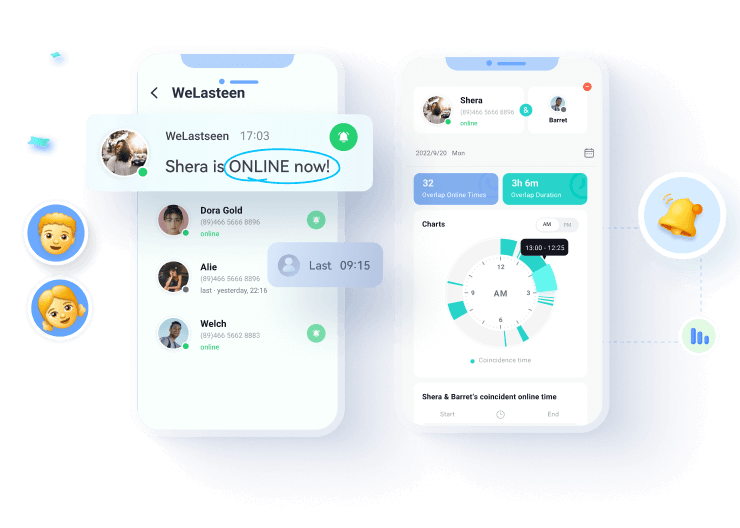
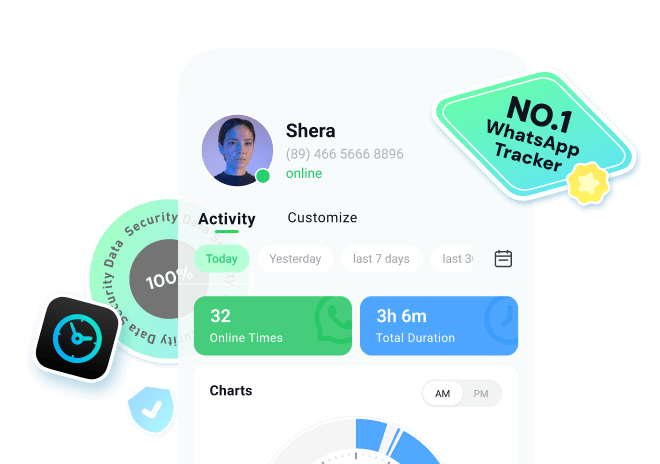
- Analysis of Online Status: This provides an in-depth usage report and detailed contact activity with graphs and charts.
- Instant Notifications: You can get quick notifications on everyone’s activity as soon as someone comes online or goes offline.
- Lag-free Experience: You can get quick notifications on everyone’s activity when someone comes online or goes offline.
- Battery Efficient: This WhatsApp status saver and activity tracker is pretty battery efficient, which means it doesn’t affect your battery life like other apps.





Comprehensive Guide to Save WhatsApp Business Status Using WeLastseen
After introducing WeLastseen's capabilities, let's follow the steps to save statuses and share them online.
Step 1. Access the Status Saver Feature and Provide Authorization
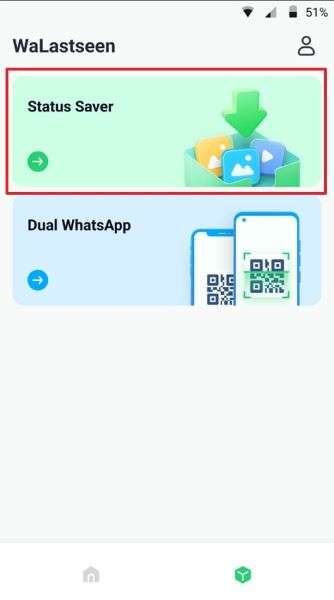
After installing and opening the WeLastseen app on your mobile device, head to the “Toolbox” tab at the bottom of the screen. Press the “Status Saver” option to proceed to the next “Permission Guide” screen. Grant them the necessary permissions from here by tapping the “Authorize” button.
Step 2. Choose the Desired WhatsApp location and Save the Status
Afterward, it opens the “File Manager” on your phone, where you have to pick out a folder where the WhatsApp Business statuses are saved. Once you’ve accessed the folder, tap “Use This Folder” to proceed to the next screen. Press the “WhatsApp” icon at the top right corner and choose the “WhatsApp Business” option. Now, tap the “Save” icon at the end to save the desired status on your device.

New Feature: Status Tracker!
Now you can monitor WhatsApp statuses in real time — even after they disappear. See and save any tracked person’s photos, videos, and voice notes beyond 24 hours.


Follow the tutorial to know how to see expired WhatsApp status, because it's not about breaking rules but about accessing content responsibly:
Step 1. Enter Status Tracker and Add Target Contact
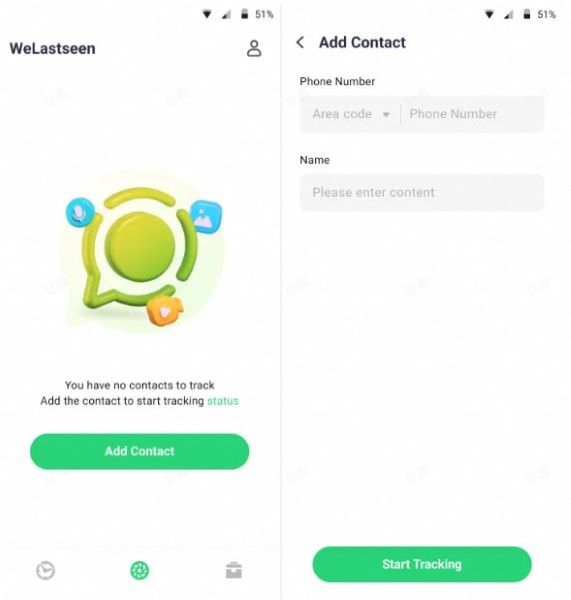
At first, access the "Status Tracker" tab from the bottom and press the "Add Contacts" button to enter further details. Once done, hit the "Start Tracking" button to begin viewing the status for the added contact.
Step 2. Connect Your WhatsApp Account and Monitor Status
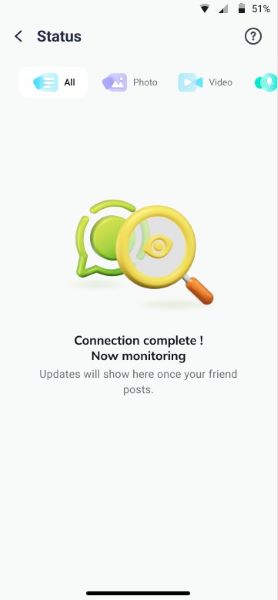
Later, tap the "Link" option to connect your WhatsApp account and access the monitoring dashboard.
Step 3. Review Expired Statuses and Download Them
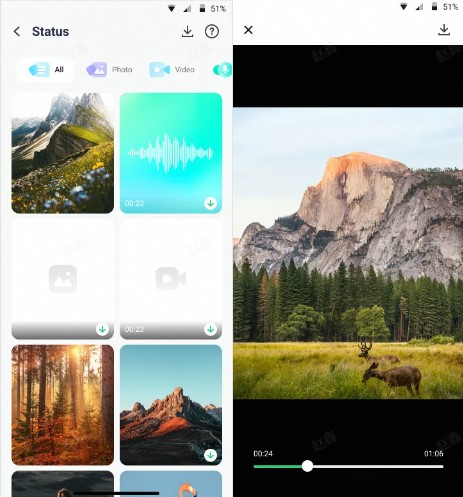
After this, you'll be able to view all the current and expired statuses uploaded by the user after making a connection. Next, press the "Download" icon to select the statuses and export them via the "Save" button.
Part 3. Native Methods to Explore How to Save Status on WhatsApp Business
After learning how to save various statuses from your WhatsApp Business using the WeLastseen app, let’s look at the more native methods. Both Android and iPhone have in-built features for taking screenshots and recording screens.
1. For iPhone
Users can take screenshots of their product status on the iPhone device and capture promotional videos. To learn how to save status on WhatsApp Business on iPhone, follow the instructions:
1. Screenshots
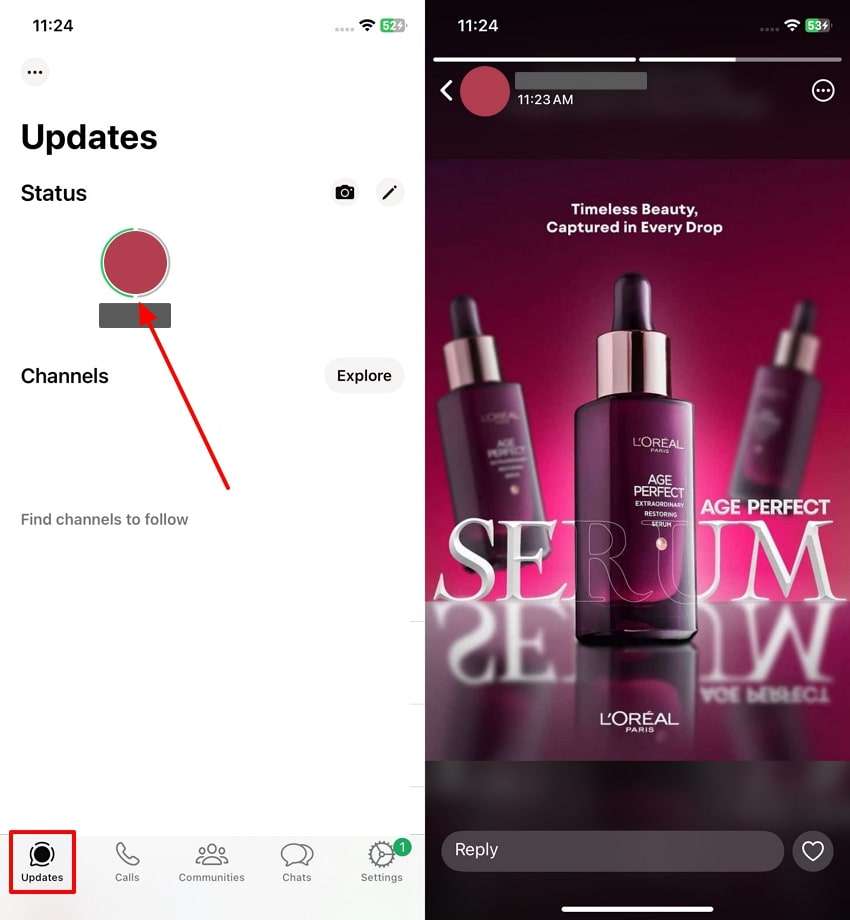
Instructions: Head to the WhatsApp app on your iPhone and tap the “Updates” icon to access the statuses. Now, press the desired one. When the story opens on your phone, hold down both the “Power” and “Volume Up” buttons to take a screenshot.
2. Screen Recording
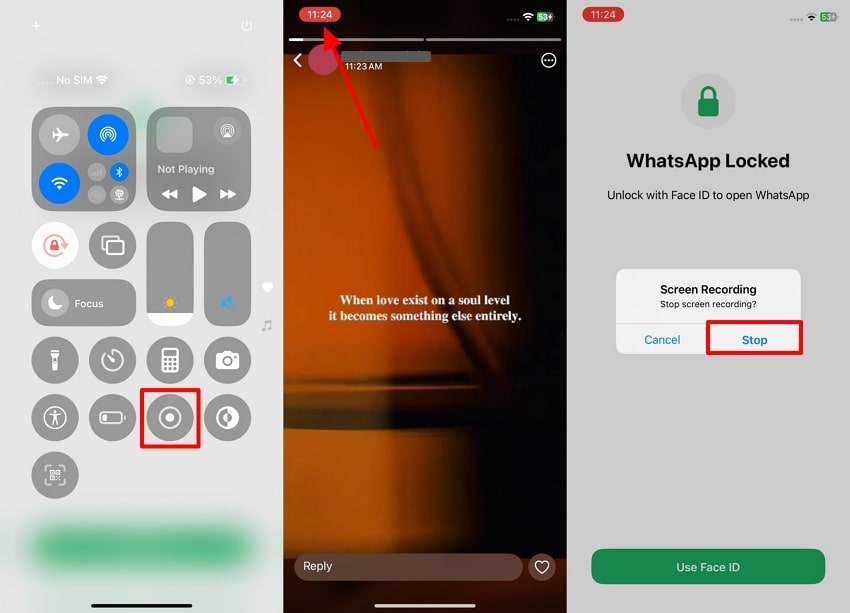
Instructions: To record the screen on your iPhone device, swipe down the mobile screen and tap the “Screen Record” icon. After that, open the WhatsApp Business story that you want to store on your device. When recorded, press the recording time at the top left corner to open the “Screen Recording” dialog box. From here, hit the “Stop” option to stop the recording process.
2. For Android
Android users can also capture images and record screens without any hassle. So, we have provided you with comprehensive instructions that you can follow and learn how to save WhatsApp Business status.
1. Screenshots
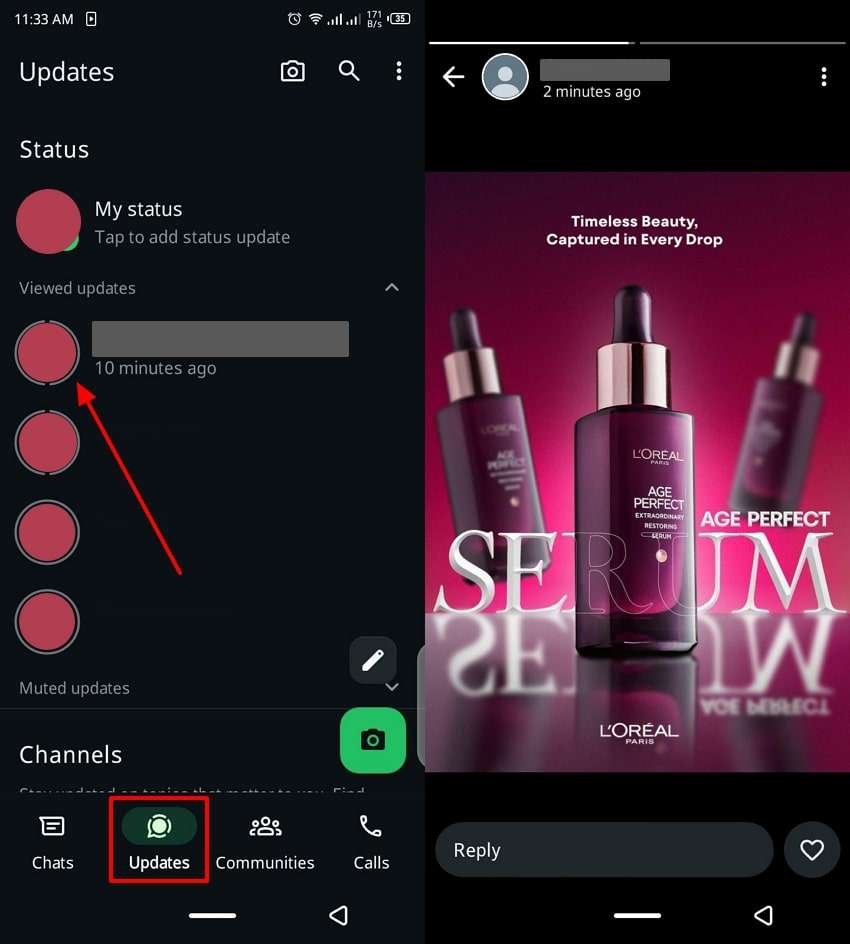
Instructions: Access the WhatsApp app on your Android device and head to the “Updates” tab. From here, tap the suitable status and open the story on your phone. When it opens, hold down both the “Power” and “Volume Down” buttons on your phone to take a screenshot.
2. Screen Recording
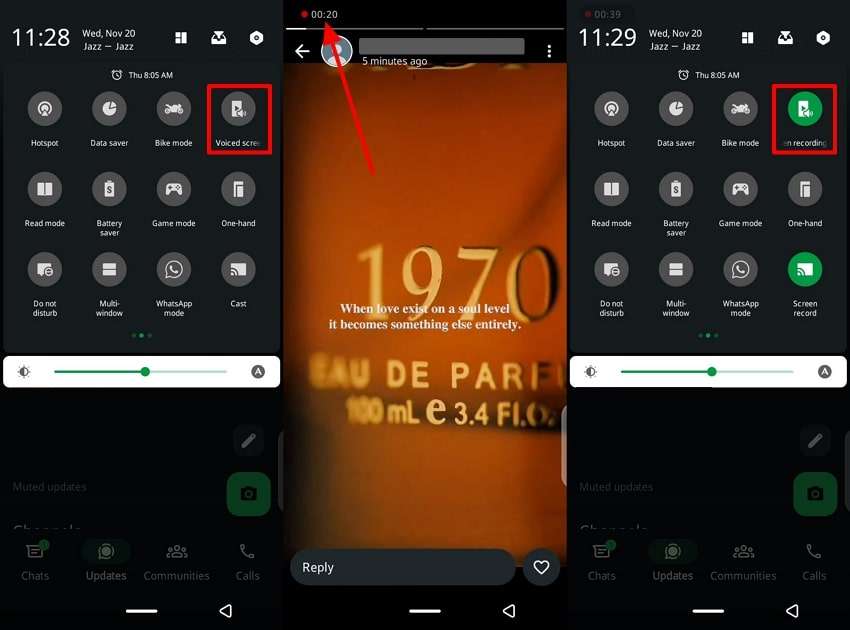
Instructions: Scroll down the Android phone screen to reveal various options and tap the “Screen Recording” icon. Next, head to the desired WhatsApp Business status and record the story, where you can view the recording time at the top left. Afterward, scroll down the screen and hit the “Screen Recording” icon to stop the recording.
Conclusion
Ultimately, we learned that businesses need to spread the word about their brand through promotional statuses on WhatsApp Business. Therefore, we looked at the native methods for directly taking screenshots and recording screens on Android and iPhone mobile devices. However, learn how to save status on WhatsApp Business using the WeLastseen app to get quality results.
This tool can seamlessly access all the statuses on your WhatsApp Business and let you share them on different social media platforms. You can also track down view on your status and record everyone's online activity.
FAQs
-
Q1. Can I save a status directly from WhatsApp Business?
There is no direct way to capture statuses from WhatsApp Business as there is no built-in feature for that. However, you can utilize the direct methods of capturing videos and screens using your iPhone and Android phones. Moreover, the best way to capture status is to use the WeLastseen app, which can help you save any story you want. -
Q2. Are there privacy concerns when saving someone else’s status?
There are various privacy concerns related to saving someone else's status. To avoid violating their privacy, you must ask their permission before capturing a screenshot of their story. Furthermore, if you want to share their status, get proper consent from the source. -
Q3. Is it possible to save high-quality statuses?
Taking screenshots and recording the status may reduce its quality. Therefore, utilizing the WeLastseen app can help you achieve high-quality statuses without a hassle.