



 TL;DR:
For transferring data to the OPPO Reno15 or Reno15 Pro, use MobileTrans for comprehensive, cross-platform offline migration via PC, or select OPPO Clone Phone for wireless Android-to-OPPO transfers.
● MobileTrans requires a computer connection to operate but provides encrypted, offline transfers for over 6000 Android and iOS devices, supporting 18+ data types including full WhatsApp chat history.
● OPPO Clone Phone enables wireless, QR-code-based data migration without internet consumption, strictly requiring the target device to be an OPPO phone and both devices to remain in close physical proximity.
● Google's Copy Apps & Data feature is restricted solely to the initial phone setup phase requiring an active cable and internet connection, while manual cloud transfers via Google Drive are limited by a 15 GB free storage cap.
Ask AI for a summary
 ChatGPT
 Perplexity
 Gemini
 Claude
 Grok
Grok
The shift to a new phone feels exciting yet slightly stressful for many users. Users' desire to keep every memory and essential file safe remains the same. OPPO Reno15 makes this experience smoother with features that support quick data setup. However, finding the right way to move old data remains confusing for many people. Hence, this guide explains simple, secure ways to transfer everything hassle-free.
In this article

Part 1. Quick Comparison of Data Transfer Methods to OPPO Reno15/Reno15 Pro
Choosing the correct transfer method depends on data coverage and security. So, this comparison helps you understand which option best suits your needs and situation:
| Feature / Method | MobileTrans | OPPO Clone Phone | Google “Copy Apps & Data” | Google Account Sync | Cloud Storage | Manual File Copy | SIM/VCF for Contacts |
| Internet Required | No | No | Yes | Yes | Yes | No | No |
| Transfer Speed | Very Fast | Fast | Moderate | Slow | Depends on the Internet | Manual | Slow |
| Data Types Supported | 18+ (Photos, Apps, Messages, etc.) | Most Common | Apps, Files, Settings | Contacts, Calendar, App Data | Files, Photos, Docs | Photos, Videos, Docs | Contacts Only |
| Cross-Platform Support | Yes | Yes | Yes (Android only) | Yes | Yes | Yes | Limited |
| Security Level | High (Encryption) | Medium | High | High | High | Low | Low |
| Device Compatibility | 6000+ Devices | OPPO Only | Android Devices | All Android Devices | All Devices | All Devices | All Devices |
| Data Selection Option | Yes | Yes | Limited | Limited | Yes | Full Manual | Limited |
Part 2. 7 Top Ways to Move Everything Fast to OPPO Reno15/Reno15 Pro
There are several easy ways to transfer all your data without losing anything important. In this part, you will discover the top 7 methods to move data to OPPO Reno15 Pro:
1. MobileTrans
This advanced program allows transferring data between Android and iPhone without any compatibility issues. Moreover, MobileTrans transfers data faster than most tools without lag or slowdown. While migrating, it even lets you choose only the files you want to transfer to your OPPO Reno15. Plus, the tool protects all transferred data using military‑grade end‑to‑end encryption. In addition, it even moves app data between devices to retain usage continuity.
Key Features
- Broad Compatibility: Supports over 6000 different devices, including the latest OPPO Reno15.
- Offline Transfer: Works without an internet connection or cloud storage, keeping data completely private.
- Data Types: Migrate 18+ data types, including multimedia and contacts, between phones.




Guide to Move Everything to OPPO Reno15/Reno15 Pro Using MobileTrans
Go through the given detailed guide to move your preferred data to OPPO Reno15 Pro:
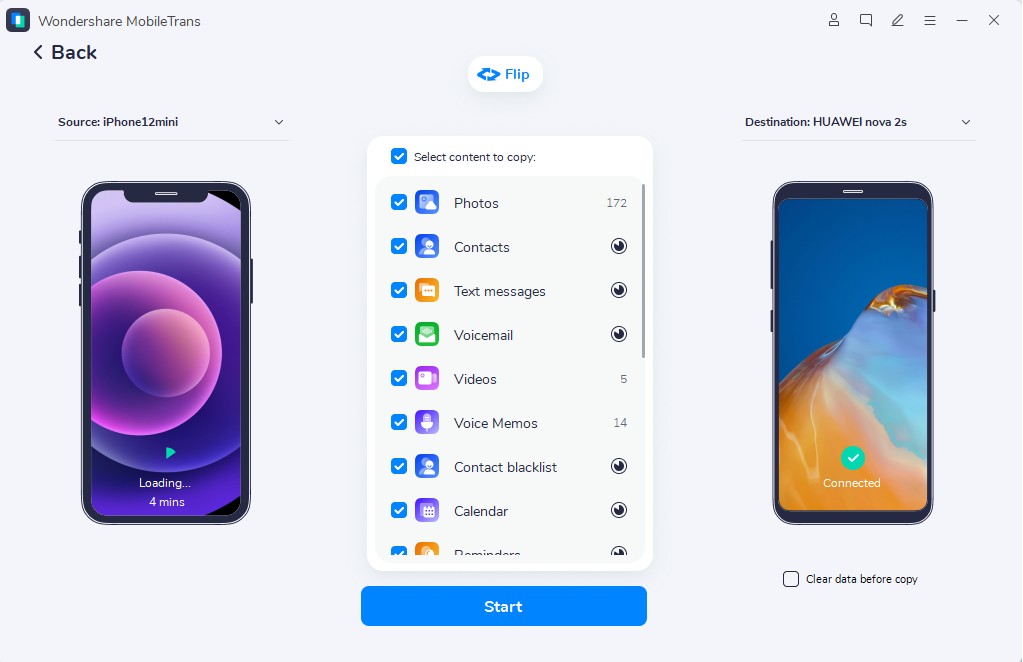
Step 1. Open Phone to Phone > Attach both phones to the PC > Select your desired Data Plan> Tap Start.

Step 2. A live progress bar will appear, showing data being transferred to your OPPO Reno15.
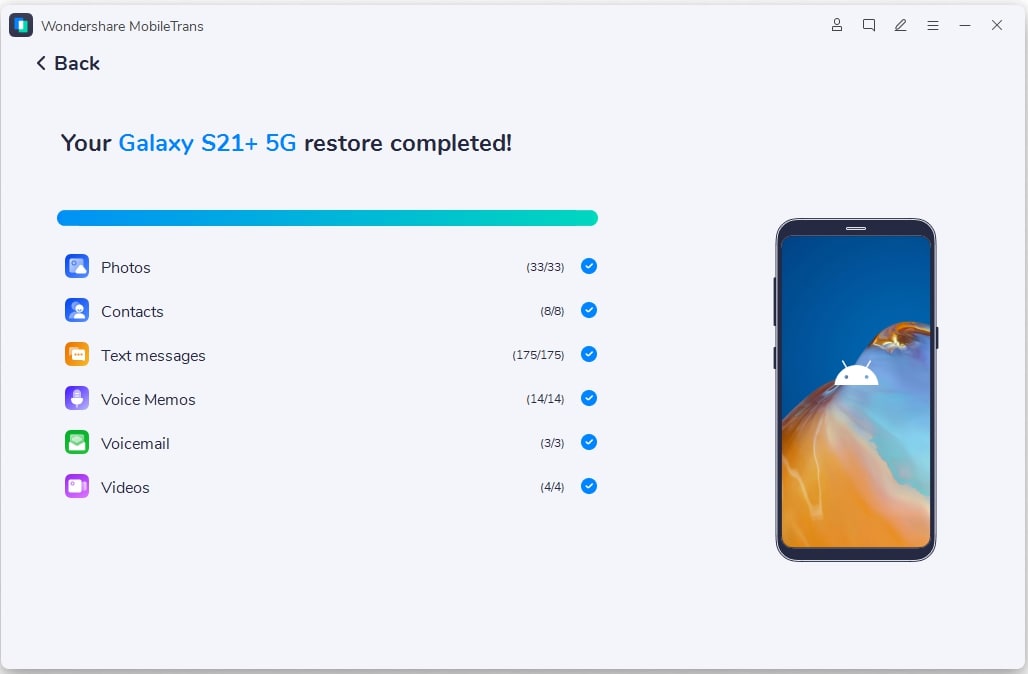
Step 3. Once the transfer finishes, a confirmation message will pop up verifying successful completion.
Cons
- Requires a computer connection, which may be inconvenient for some users.
- The free version offers fewer transfer options than the full version.
2. Using OPPO Clone Phone
OPPO Clone Phone is a native data-transfer app for OPPO users that enables effortless data transfer. It transfers almost all types of data, such as contacts and apps, without cables. The app connects two phones via a QR code without using mobile data. It ensures point‑to‑point transfer, keeping privacy secure during the entire process. Thus, follow the given steps to transfer your data to OPPO Reno15:
Step 1. On your OPPO Reno15, open the app > Tap This Is The New Device > Other Android to view the QR code.
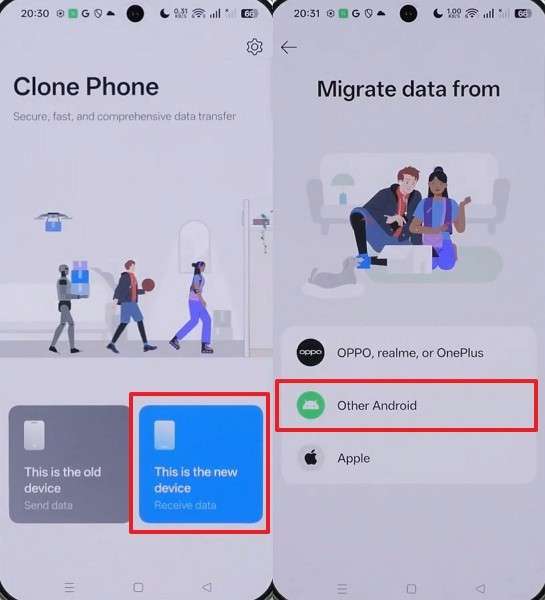
Step 2. Access the app on your old phone > Tap Scan the QR Code to link both devices.
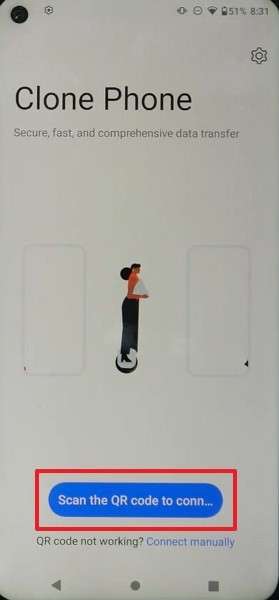
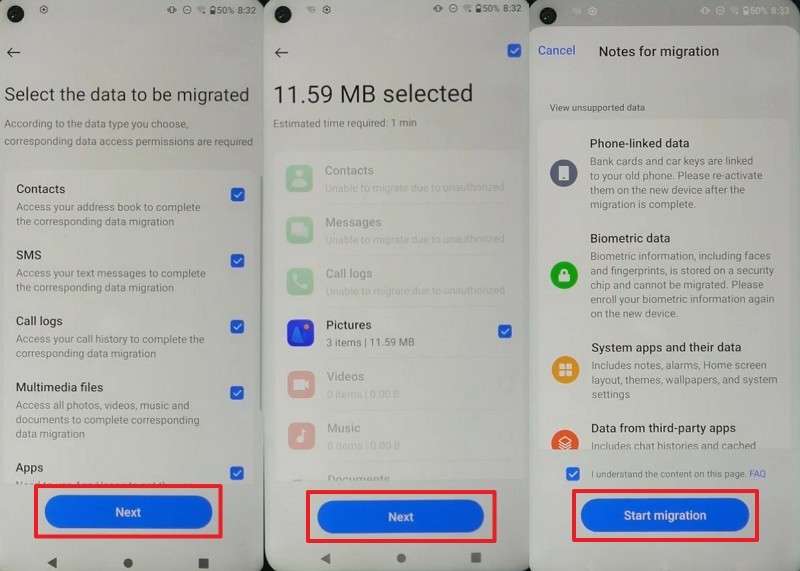
Step 3. Once connected, select the data you want > Press Next > Next > Start Migration to begin transferring.
Cons
- Users cannot transfer data to non‑OPPO phones using this application.
- Requires both phones to stay close together through the process.

3. Android Setup: Google "Copy Apps & Data."
The Google "Copy Apps & Data" feature helps users move data during phone setup. This process uses your Google account to restore most previous device information. It requires an active internet connection for effortless operation. Users can select which apps and settings to copy to the OPPO Reno15 Pro. Therefore, let’s dive below to first back up your data and restore it:
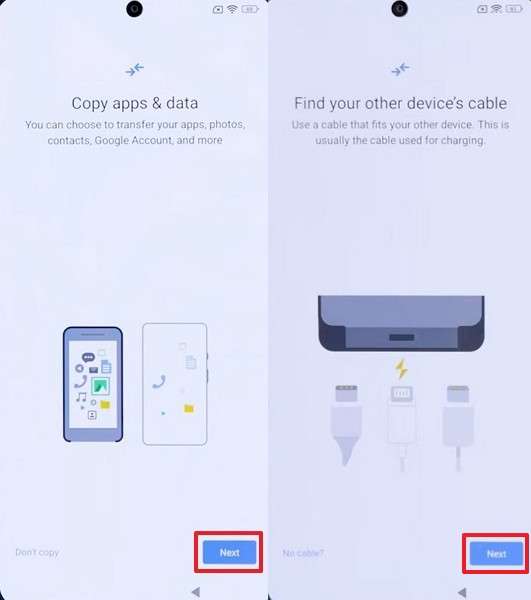
Step 1. While setting up your new OPPO Reno15, tap Next > Next and connect your old phone via a cable.
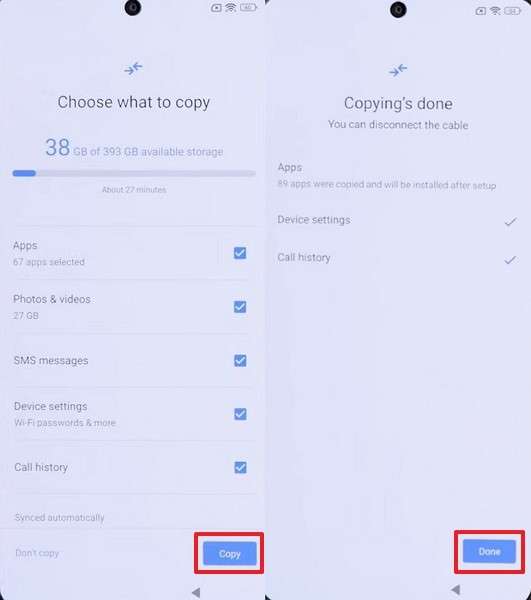
Step 2. When your old phone data appears on the new OPPO Reno15, select Data > Tap Copy > Done to finish migration.
Cons
- Only works during initial setup; cannot transfer data afterward.
- An internet connection is required, resulting in slow transfer if the network is weak.
4. Google Account Sync (Contacts, Calendar, Some App Data)
This feature also helps keep your personal data up to date and accessible across devices. It automatically saves contacts and even calendar events to your linked account. Besides, Google Sync ensures all essential information appears when signing in and enabling a new device. It reduces manual effort by syncing everything securely through your cloud storage connection. Review the following steps to move the synced data on the OPPO Reno15:
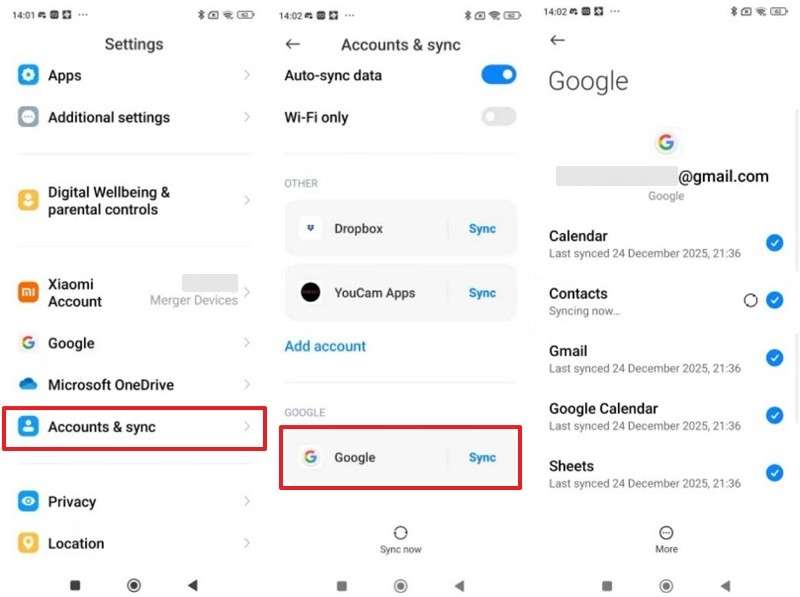
Step 1. Access Settings on your old phone > Tap Account & Sync > Google > Choose data you want to sync.
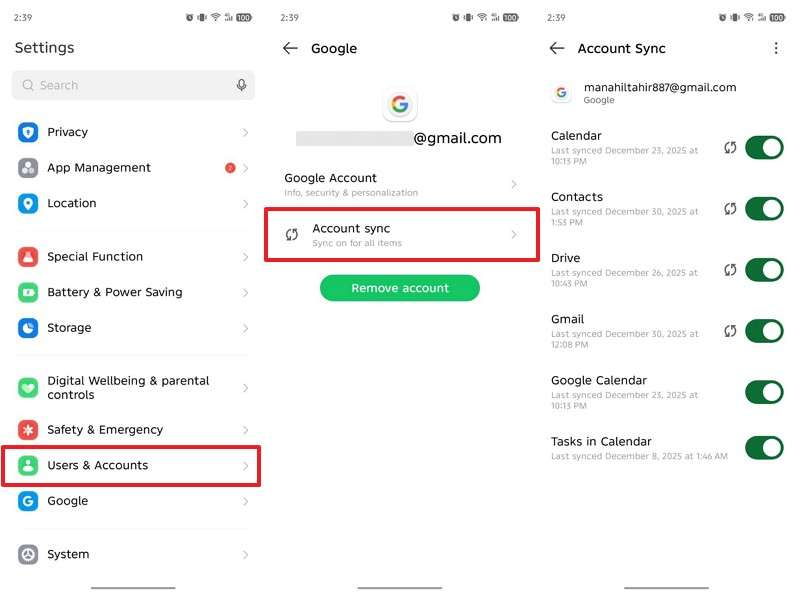
Step 2. On your OPPO Reno15, tap Settings > Users & Accounts > Google > Account Sync, then enable the toggle to get data.
Cons
- Requires continuous access to a Google account, which some users may avoid.
- Sync delays can occur if the connection is weak or unstable.



5. Transfer Data via Cloud Storages
Cloud storage platforms like Google Drive make storing and transferring data simple. They keep your files accessible anytime, allowing quick downloads on your new device. This method secures important photos and backups through encrypted online storage systems. Users can choose what to upload, saving only what matters the most. So, let’s explore how you can upload and download data to OPPO Reno15 Pro:
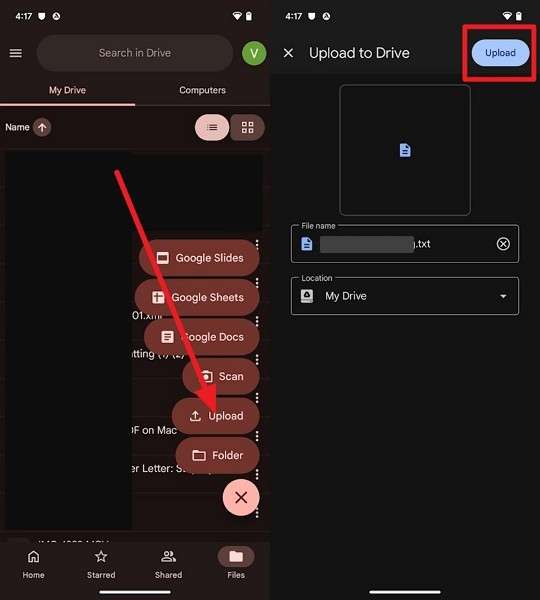
Step 1. On your old device, launch Google Drive, then tap + > Upload. Select the files you want to move, then press Upload.
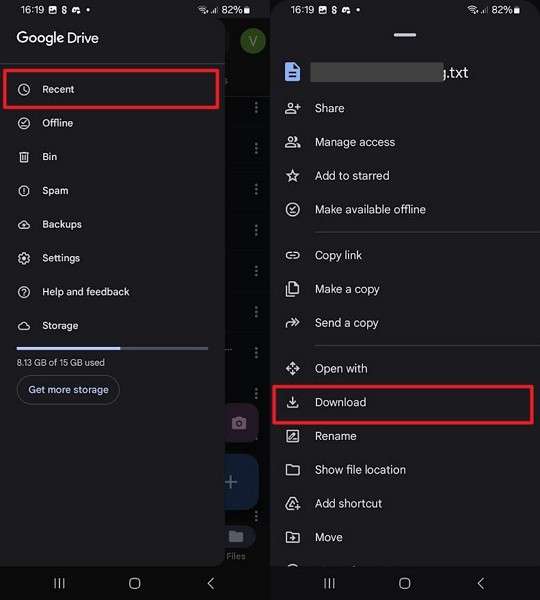
Step 2. On your OPPO Reno15, use the same Google Drive account to open Recent > Three Dots > Download to get your files.
Cons
- The 15 GB free storage limit may require users to upgrade to paid plans for larger file backups.
- A manual download is needed on a new device after uploading files.
6. Manual File Copy (Photos, Videos, Documents)
Manual file copy lets users move data between devices manually. It requires connecting the old device to a computer to copy the necessary data and paste it into the OPPO Reno15. Users can also organize files before transferring them to ensure proper placement. This method works offline, without relying on the internet or cloud services. Hence, take guidance from the steps below to transfer data in this way:
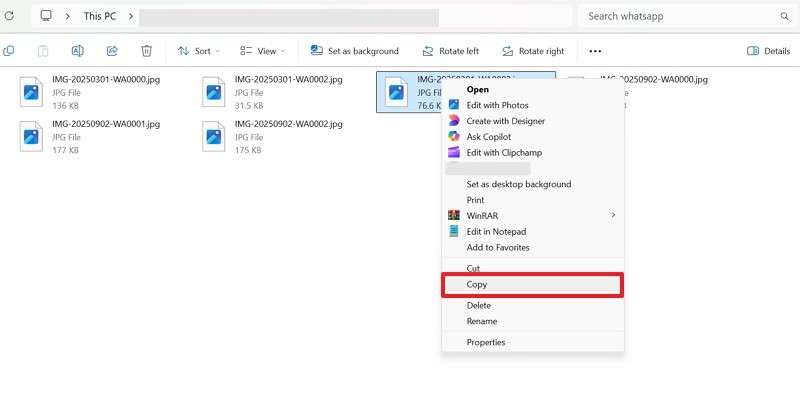
Step 1. When you connect both phones to the PC, access the old phone storage > Right-click on the data > Choose Copy.
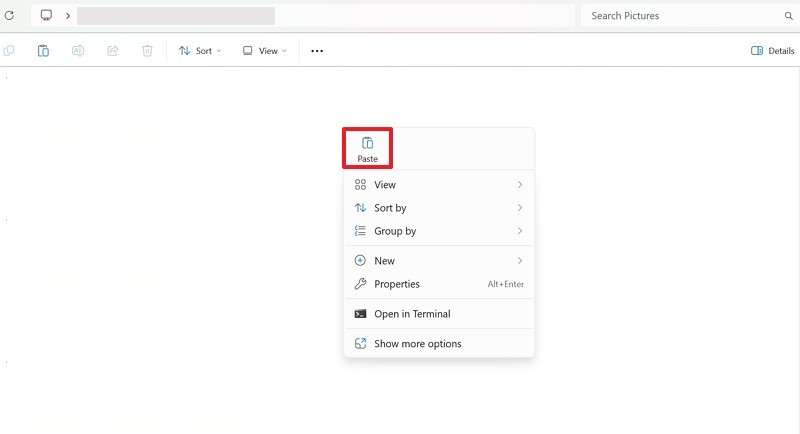
Step 2. Navigate to the OPPO Reno15 storage > Right-click an empty area > Select Paste.
Cons
- Takes more time since files must be selected and copied manually.
- Increases the chances of forgetting essential folders or hidden app data.
7. SIM/VCF for Contacts
Using SIM or VCF files lets you transfer contacts between phones without apps. Contacts can be exported from the old device into a SIM card or as VCF files. This method works offline, requiring no internet connection for transferring numbers. It also supports multiple contacts at once, saving time during the migration process. Thus, you can review this guide to move your desired contacts using the SIM card:
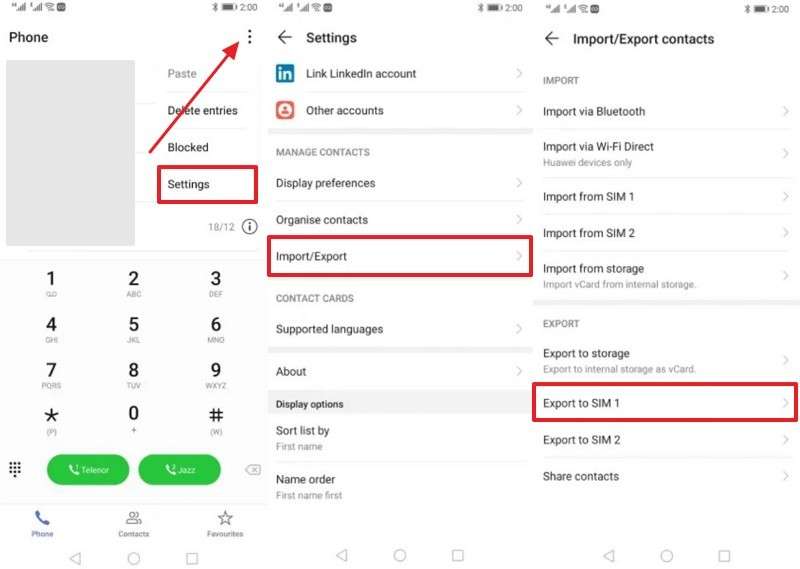
Step 1. On your old phone, open Contacts > Three Dots > Settings > Import/Export > Export to SIM.
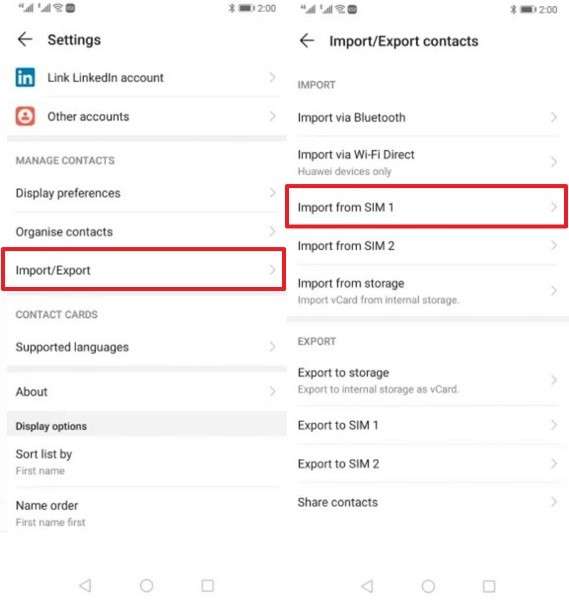
Step 2. Insert the SIM card into your OPPO Reno15, go to Contacts > Settings > Import/Export > Import from SIM to transfer them.
Cons
- Limited storage on SIM cards restricts how many contacts can be moved.
- Manual exporting and importing can be confusing for some users.
Part 3. Why MobileTrans Is Better Than General Transfer Methods
MobileTrans stands out from traditional transfer methods by simplifying every step. After reviewing all options, this part explains why it stands out compared to standard approaches:
- Faster Transfers: It moves large data batches quickly, without delays or long waits. Also, speed matters when having a new phone and reducing stress during the first use.
- Wider Support: MobileTrans supports a wide range of device brands and models, rather than limiting users. This flexibility helps people switch phones without worrying about compatibility at any time.
- Selective Control: Users choose exactly which moves to copy, rather than unthinkingly copying everything during transfer. It saves time and effort when setting up new devices during initial phone setup.
- b Security: MobileTrans uses advanced encryption to protect sensitive data during transfer. This ensures privacy by preventing someone’s access to files at any step.
- Offline Mode: The process does not rely on the internet or cloud platforms. It improves privacy while keeping data inside your devices during the entire operation.
Conclusion
Moving data to a new phone feels easier when the steps are clear and straightforward. You have discovered practical options to transfer data while keeping files safe. Choosing the correct method depends on overall speed and personal needs. For a smooth setup of the OPPO Reno15, careful planning helps avoid stress and losses in the early stages. When a complete and secure transfer is required, MobileTrans is the most dependable choice.
FAQs
-
Does data transfer delete anything from my old phone after the copy is complete?
No, transferring files copies data while leaving everything on your previous device intact. You can check both phones to confirm files exist after the successful transfer. Plus, always back up important files first before beginning to avoid overwriting issues. -
How long does data transfer usually take on average?
Transfer time depends on data size and overall device performance. Wireless methods may take longer, while offline options often finish much faster. Yet, planning before starting helps reduce waiting time and avoids interruptions. -
Can I transfer WhatsApp chats to my OPPO Reno15?
You can move WhatsApp messages between devices using professional data transfer software. Among the best tools, MobileTrans helps transfer full chat history and media without missing any data. It ensures your WhatsApp remains updated and accessible exactly like on your previous device.










