


 TL;DR:
Switching to a new phone often means moving important data such as contacts, photos, videos, messages, and app data.
MobileTrans makes phone-to-phone transfer easier by helping users transfer data across iOS and Android devices in just a few steps. It also supports WhatsApp transfer, backup, and restore, making it a convenient solution for users who want a faster and simpler way to manage mobile data.
Ask AI for a summary
 ChatGPT
 Perplexity
 Gemini
 Claude
 Grok
An iPhone with Face ID problems after a screen repair still unlocks with a passcode. However, Stolen Device Protection blocks certain security changes when biometric authentication is unavailable. This guide explains why the issue occurs, how to restore facial recognition, and how to turn off Stolen Device Protection without Face ID when Apple allows it.
By default, a passcode can disable protection at a recognized familiar location. Elsewhere, restoring Face ID or repairing the TrueDepth camera is necessary. Before service, MobileTrans helps back up or transfer contacts, photos, and messages from your accessible iPhone.
In this article
Part 1. Face ID Not Working with Stolen Device Protection: Why Does It Happen?
For a Face ID not working Stolen Device Protection issue, first identify whether facial recognition is failing or Apple's security restrictions require biometric authentication. Review the following causes and match them to your symptoms to determine which fix to try in Part 2:
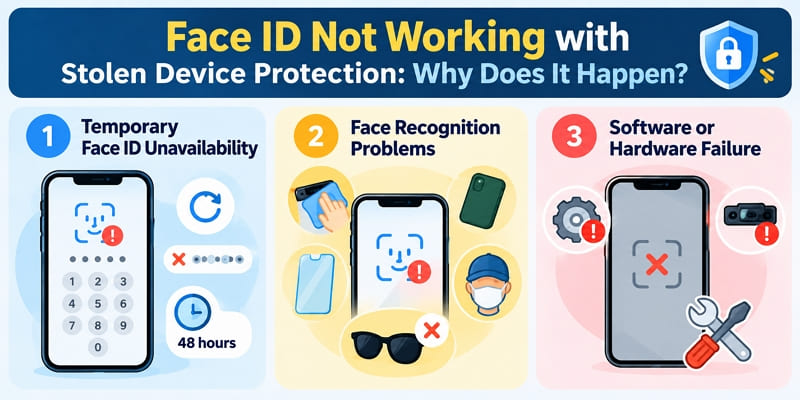
Temporary Face ID Unavailability: iOS requires a passcode after restarting, after 5 unsuccessful face matches, or when the iPhone has not been unlocked for more than 48 hours. Face ID normally works again after entering the correct passcode.
Face Recognition Problems: A smudge, case, or screen protector covering the TrueDepth camera can prevent recognition. A partly covered face, unsuitable angle, or incorrect distance also affects Face ID. Infrared-blocking sunglasses interfere with recognition, while Face ID with a Mask does not support sunglasses.
Software or Hardware Failure: An iOS bug can temporarily disrupt Face ID. A damaged TrueDepth camera, repeated setup failures, or a replacement camera without completed Repair Assistant calibration can also prevent facial recognition.
How the Require Security Delay Setting Affects the Passcode
When Face ID is not working, the Require Security Delay setting determines whether you can turn off Stolen Device Protection without Face ID. The selected option, Away from Familiar Locations or Always, controls when biometric authentication and a Security Delay are required. The table below explains these requirements:
| Require Security Delay | At a Familiar Location | Anywhere Else |
| Away from Familiar Locations (Default) | Passcode alone at a recognized familiar location | Face ID twice, separated by a one-hour Security Delay |
| Always | Face ID twice, separated by a one-hour Security Delay | Face ID twice, separated by a one-hour Security Delay |
Note: With the default setting, returning to a recognized familiar location can end the one-hour Security Delay early. However, Apple confirms that mandatory Face ID authentication cannot be bypassed using a passcode.
Part 2. How to Fix Face ID Not Working with Stolen Device Protection
For a Face ID not working with Stolen Device Protection issue, restoring facial recognition is the first step when biometric authentication is required. Since Apple does not allow passcode alternatives for certain protected actions, follow these fixes to restore Face ID before changing security settings:
Fix 1. Remove Camera Obstructions and Improve Face Recognition
Face ID recognition problems often occur when the TrueDepth camera cannot clearly detect your face. According to Apple's Face ID troubleshooting guide, camera obstructions, incorrect face positioning, and certain sunglasses can interfere with recognition. Face ID with a Mask also requires portrait orientation and does not support sunglasses. Follow these checks to improve recognition before changing any settings:
| Check | What to Do |
| Camera Area | Clean the notch or Dynamic Island area and remove any case or screen protector obstructing the TrueDepth camera. |
| Face Visibility | Keep your eyes, nose, and mouth visible. Remove sunglasses that block infrared light. |
| Distance | Hold your iPhone approximately 10–20 inches (25–50 cm) from your face. |
| Orientation | Landscape Face ID works on iPhone 13 or later with iOS 16 or newer. Face ID with a Mask requires portrait orientation. |
Fix 2. Force Restart the iPhone and Update iOS
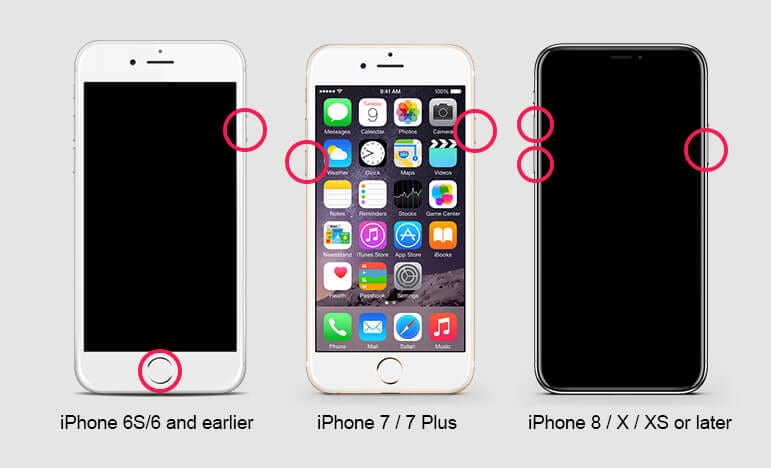
When Face ID fails despite a clear camera view, software glitches or outdated iOS can cause recognition problems. A force restart helps resolve temporary issues without erasing personal data, while updating iOS provides the latest bug fixes and improvements. According to Apple's force restart guide, the button combination depends on your iPhone model. If you cannot turn off Stolen Device Protection without Face ID, follow these steps:
Force Restart Your iPhone:
iPhone 8 and Later (Including Face ID Models): Quickly press and release Volume Up, then Volume Down. Next, hold the Side (Power) button until the Apple logo appears, then release it.
iPhone 7 and iPhone 7 Plus: Press and hold the Volume Down and Side (Power) buttons together until the Apple logo appears, then release both buttons.
iPhone 6s, iPhone SE (1st Generation), and Earlier: Press and hold the Home and Side (Power) buttons simultaneously until the Apple logo appears. On older models, use the Top button instead.
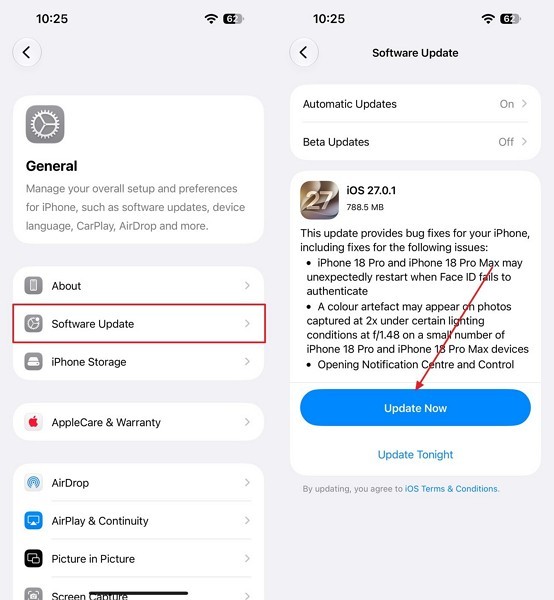
Update Your iOS Firmware
Instructions. Open Settings > General > Software Update. If an update is available, tap Update Now and test your Face ID again.
Fix 3. Check Face ID Settings and Appearance Options
After updating iOS, check whether Face ID is enabled for the features requiring authentication. On iPhone 12 or later, Face ID with a Mask supports facial recognition while wearing a mask. However, Stolen Device Protection restricts certain changes to Face ID enrollment.
If you cannot turn off Stolen Device Protection without Face ID, review the following settings to identify recognition problems. Adding an alternate appearance requires successful biometric authentication when Stolen Device Protection restrictions apply.
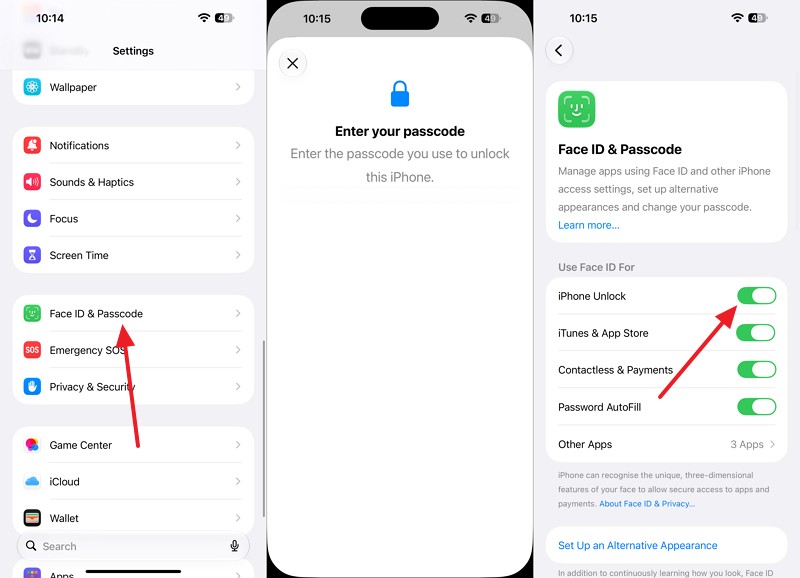
Step 1. Open Settings > Face ID & Passcode, enter your passcode, and confirm iPhone Unlock and other required features are enabled.
Step 2. If you wear a mask, enable Face ID with a Mask and follow the setup instructions. Select Add Glasses to register your clear or prescription glasses when needed.
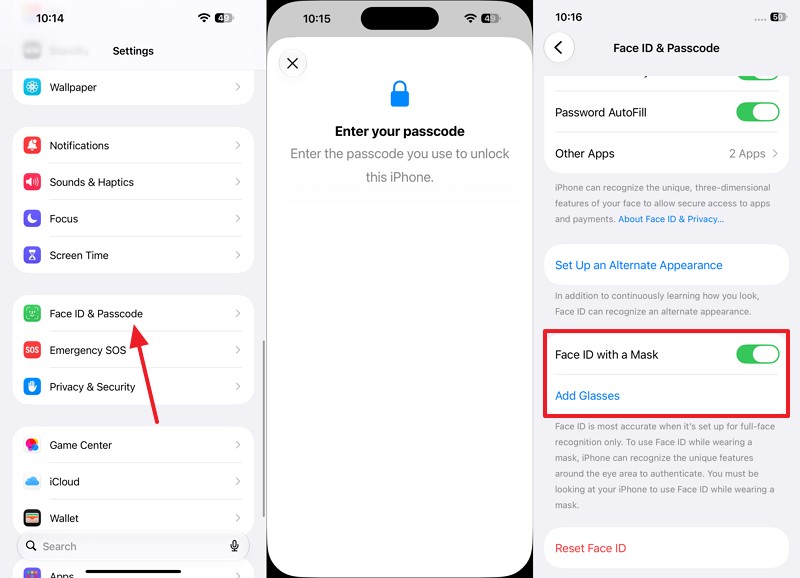
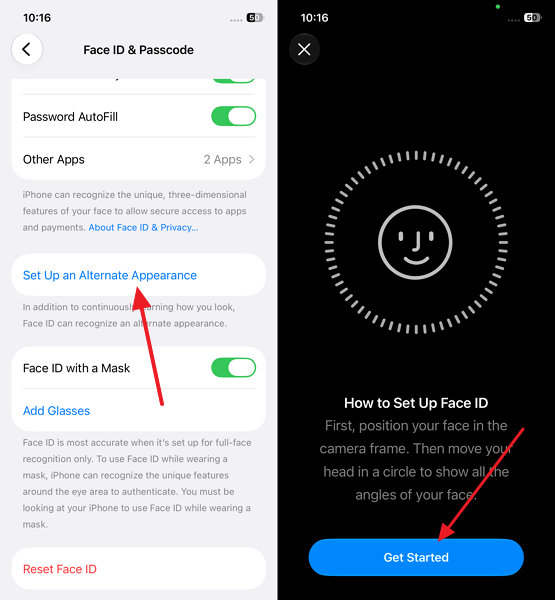
Step 3. Select Set Up an Alternate Appearance > Get Started if significant changes in your appearance affect recognition and biometric authentication is available.
Fix 4. Reset and Set Up Face ID Again When Allowed
If Face ID still fails after checking its settings, resetting it can resolve enrollment-related problems. According to Apple's Face ID troubleshooting guide, users can reset and configure Face ID again when other fixes fail. However, Stolen Device Protection restricts adding or removing Face ID, requiring biometric authentication and a Security Delay when its additional security requirements apply.
For a Face ID not working with Stolen Device Protection issue, follow these steps only when your iPhone permits Face ID changes. If mandatory biometric authentication blocks the reset, proceed to hardware diagnosis instead of attempting re-enrollment.
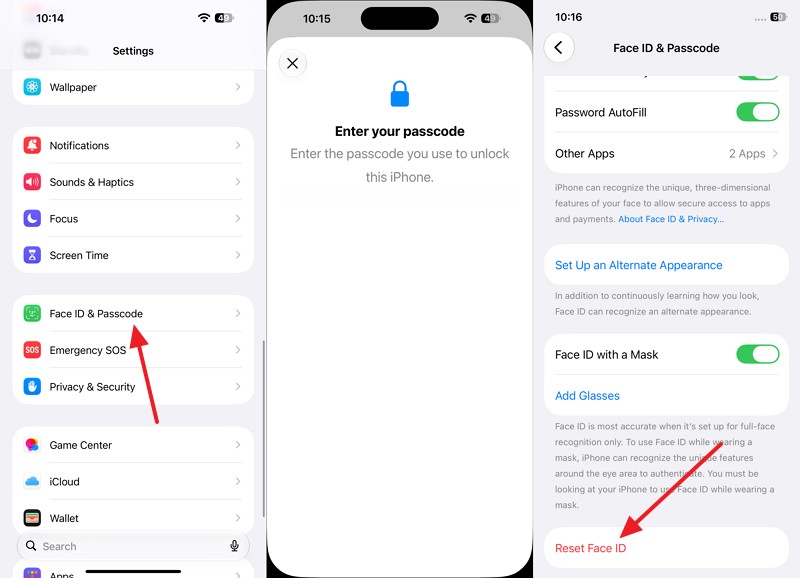
Step 1. Open Settings > Face ID & Passcode, enter your passcode, and tap Reset Face ID if Stolen Device Protection permits the change.
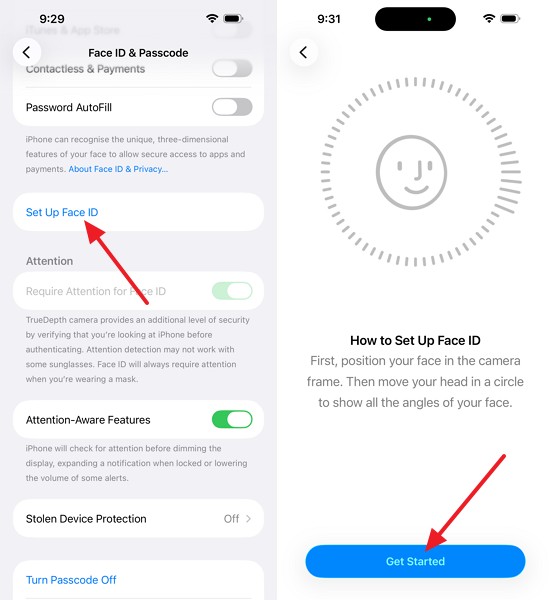
Step 2. Tap Set Up Face ID > Get Started and complete both facial scans by following the on-screen instructions.
Step 3. Test Face ID after setup. If enrollment repeatedly fails or a TrueDepth camera warning appears, contact Apple Support for diagnosis.
Fix 5. Complete an Unfinished TrueDepth Camera Repair
After a camera repair, incomplete calibration can prevent Face ID from working. According to Apple's Repair Assistant guide, Face ID cannot unlock the iPhone, authorize payments, or access apps until calibration finishes. Repair Assistant requires a supported iPhone, Wi-Fi, updated iOS, and over 20% battery. To resolve the Face ID not working Stolen Device Protection issue after repair, follow these troubleshooting steps:
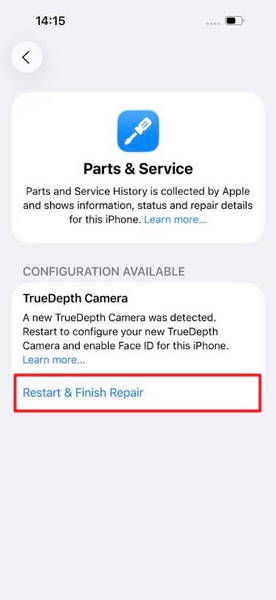
Step 1. Open Settings > General > About > Parts & Service History and look for Finish Repair beside Front/TrueDepth Camera.
Step 2. Tap Restart & Finish Repair to launch Repair Assistant, then follow the on-screen calibration instructions.
Step 3. If calibration fails, check your Wi-Fi connection, battery level, and iOS version. Restart the iPhone and retry. Contact the repair provider or Apple if the issue persists.
Part 3. How to Turn Off Stolen Device Protection Without Face ID
If Face ID remains unavailable, disabling Stolen Device Protection depends on your familiar location and Security Delay settings. For a Face ID not working Stolen Device Protection issue, Method 1 explains passcode use at familiar locations, while Method 2 covers disabling protection after restoring Face ID.
Method 1. Use a Passcode at a Recognized Familiar Location
When Face ID is unavailable, you can turn off Stolen Device Protection using your passcode at a recognized familiar location. According to Apple's Stolen Device Protection guide, this option works when Away from Familiar Locations is selected.
However, the Always setting requires biometric authentication and a Security Delay regardless of location. To resolve the Face ID not working Stolen Device Protection issue, follow these steps to disable protection using your passcode at a recognized familiar location:
Step 1. At home, work, or wherever you regularly use the iPhone, go to Settings > Face ID & Passcode.
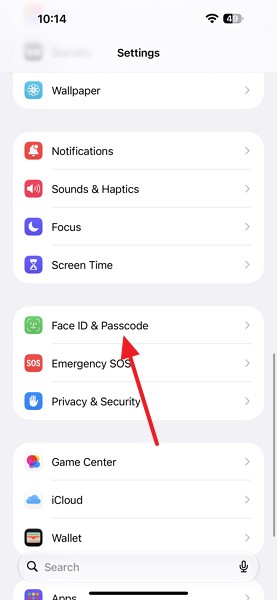
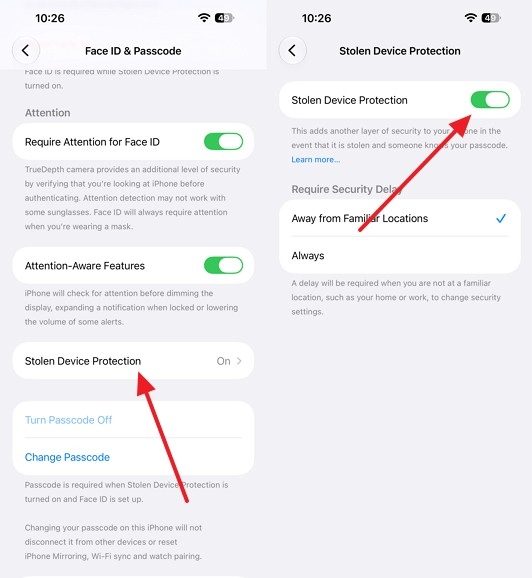
Step 2. Enter your passcode, select Stolen Device Protection, and turn it off. Confirm with your passcode if prompted.
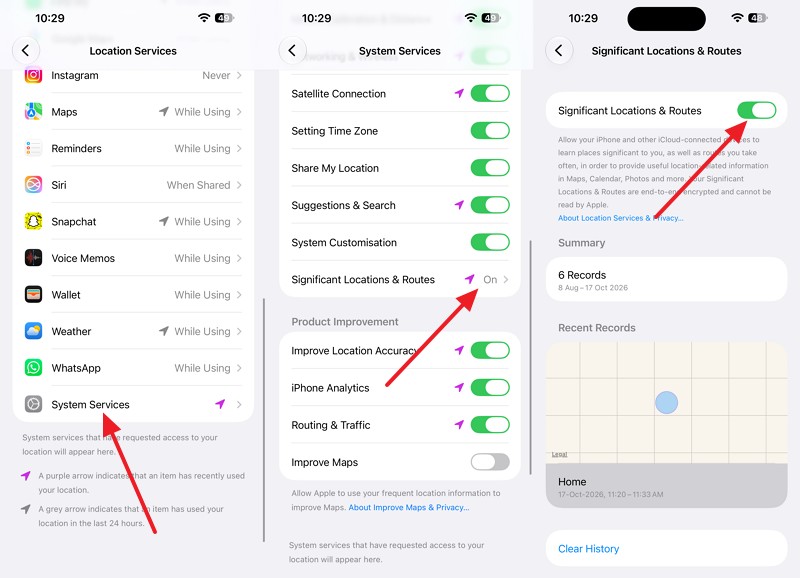
Step 3. If iOS still asks for Face ID, confirm Settings > Privacy & Security > Location Services > System Services > Significant Locations & Routes is on.
Method 2. Disable Protection After Restoring Face ID
Outside recognized familiar locations, or when Always is selected, turning off Stolen Device Protection requires working Face ID. According to Apple's Stolen Device Protection guide, the Security Delay involves an initial Face ID check, a one-hour wait, and a second authentication.
With the default setting, returning to a familiar location can end the delay early. Once facial recognition is restored, follow these steps to complete the required security checks and disable protection:
Step 1. Go to Settings > Face ID & Passcode, unlock the menu with your passcode, and select Stolen Device Protection.
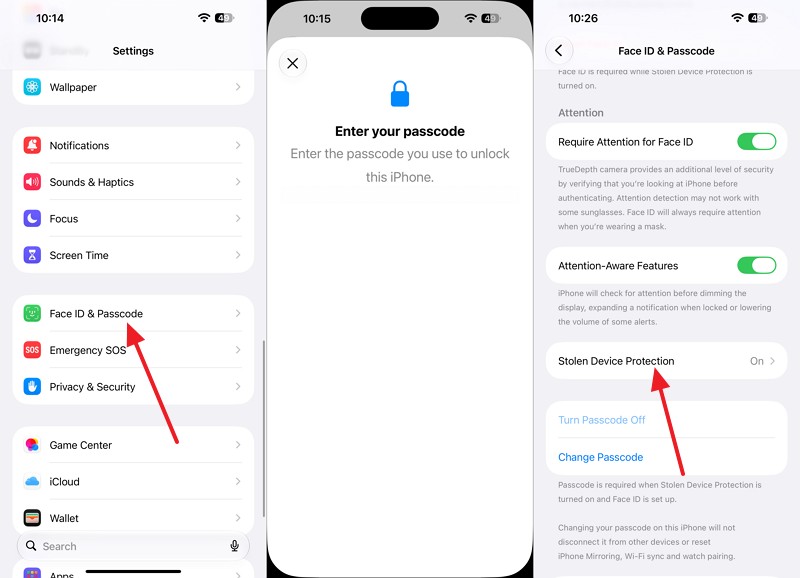
Step 2. Turn off Stolen Device Protection, complete the first Face ID authentication, then tap Start Security Delay > Done.
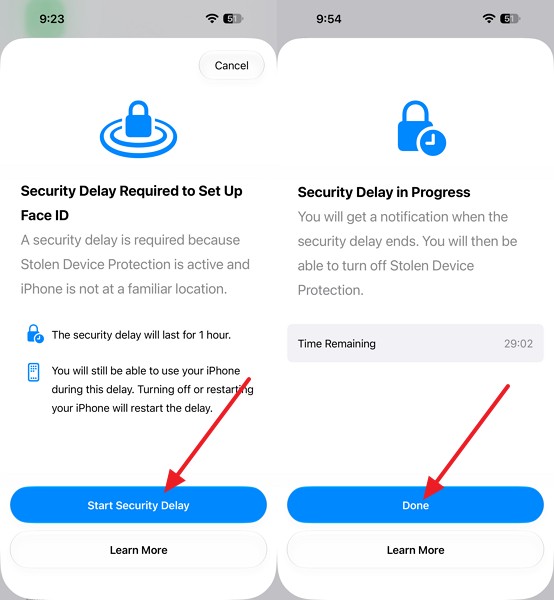
Step 3. After the Security Delay ends, return to Settings > Face ID & Passcode > Stolen Device Protection and complete the second Face ID authentication to disable protection.
Part 4. What If Face ID Still Doesn’t Work and Stolen Device Protection Remains Enabled?
If Face ID remains unavailable and your passcode cannot disable Stolen Device Protection, professional repair is the next option. For a Face ID not working Stolen Device Protection issue, follow these two steps to diagnose the TrueDepth camera and prepare your iPhone for service.
Get Apple Support for Persistent TrueDepth Camera Problems
Repeated Face ID setup failures or a “Face ID has been disabled” alert can indicate a TrueDepth camera problem requiring professional service. Apple’s Face ID alert guide recommends trained technicians because the camera system contains laser components that require careful handling.
If troubleshooting and calibration fail, contact Apple or an Apple Authorized Service Provider for diagnosis. You can arrange service through Apple’s iPhone repair page. A technician can assess the camera and determine whether repair or replacement is necessary.
Prepare Your iPhone for Repair or Replacement
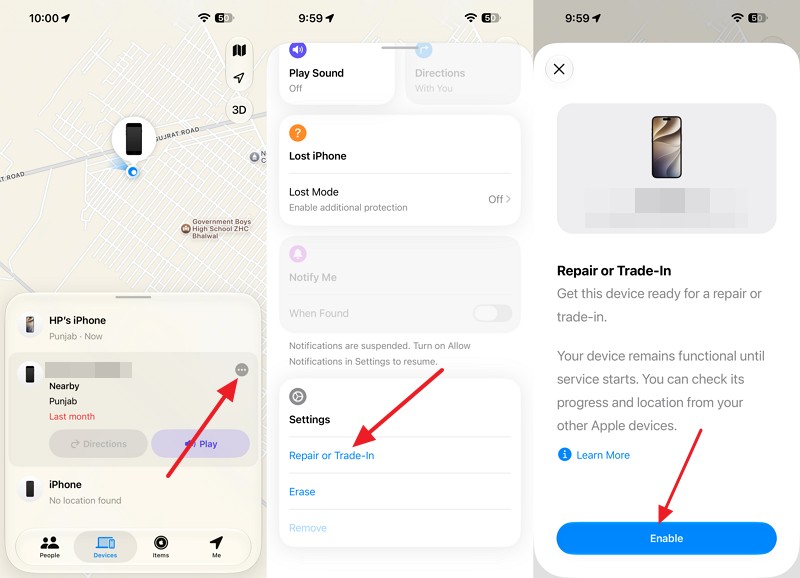
Before your appointment, back up important data using iCloud or a computer, as recommended in Apple’s service preparation guide. On iOS 27 or later, Ready for Repair or Trade In lets you prepare an eligible iPhone for service while keeping Find My enabled.
This option is useful when Face ID is unavailable, and Stolen Device Protection prevents you from turning off Find My. Follow the steps below to prepare your iPhone for repair:
On Find My App
Instructions. Open the Find My app and select the problematic iPhone > More > Repair or Trade In > Enable.
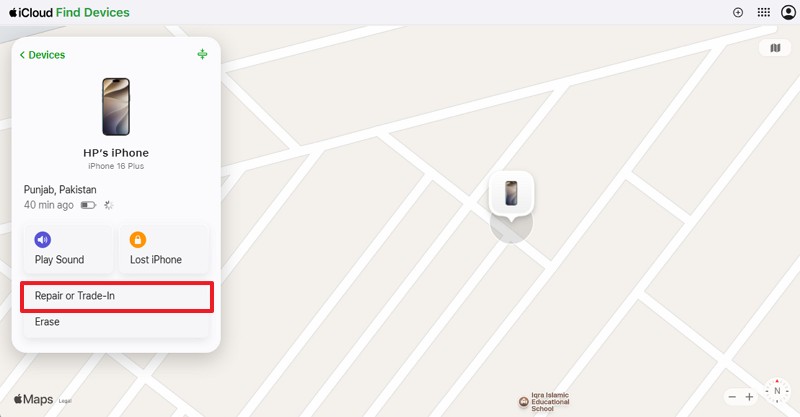
On Find My Website
Step 1. Open Find My on another device or go to icloud.com/find.
Step 2. Select the iPhone > Proceed with the Repair or Trade In option.
Pro Tip. Back Up or Transfer Accessible Data with MobileTrans
Before repairing or replacing an iPhone affected by a Face ID not working Stolen Device Protection issue, protecting important files helps prevent data loss. MobileTrans offers a practical solution for transferring contacts, photos, videos, messages, and other supported data to another smartphone. Its Phone Transfer feature lets users select the data they want to move, making it useful when switching devices.
Beyond phone transfers, MobileTrans provides a Backup & Restore feature for saving supported iPhone data directly to a Windows PC or Mac. Users can select specific data types instead of backing up everything. The software also supports previewing and selectively restoring data from existing MobileTrans backups without requiring a factory reset. This provides greater control over preserving personal files before repair or replacement.




Key Features
Phone-to-Computer File Export: Export supported photos, videos, music, and other files from an iPhone to a computer for easier storage, access, and management.
iTunes Backup Restoration: Preview existing iTunes backups, select the required data, and restore supported files to another smartphone without restoring the entire backup.
WhatsApp Backup and Transfer: Back up WhatsApp and WhatsApp Business conversations, including supported attachments, and transfer chat histories between iOS and Android devices.
18+ Data Types and 6,000+ Devices: Supports over 18 data categories and 6,000 smartphone models, providing broad compatibility for backups, restoration, and device migration.
iOS 27 Compatibility: Supports iOS 27, including WhatsApp and WhatsApp Business transfers, for users migrating data to a compatible replacement iPhone.
Guide to Transfer Your iPhone Data Using MobileTrans
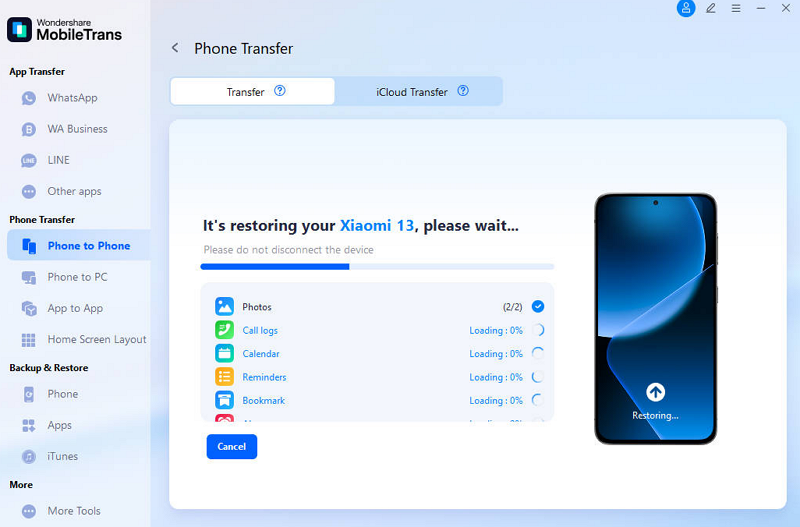
If you cannot turn off Stolen Device Protection without Face ID, MobileTrans can help transfer accessible data to another phone before repair. Follow these three steps to move your important files to a replacement device:
Step 1. Pick Phone Transfer > Phone to Phone, then connect both phones to the computer and tap Trust on the original iPhone.
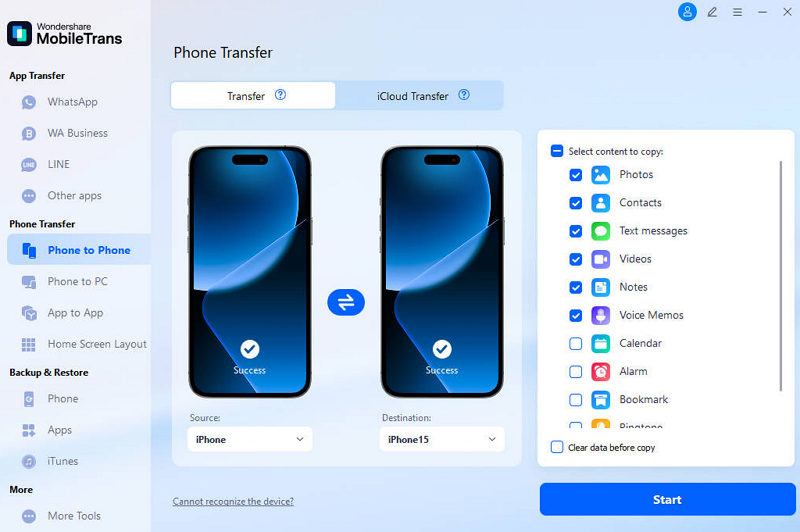
 safe & secure


Step 2. Confirm the original iPhone is the source, then tick the required data types such as Contacts, Photos, Videos, and Messages.
Step 3. Click Start and keep both phones connected until the transfer completes.
Conclusion
Face ID problems result from camera obstructions, software glitches, or incomplete calibration. Meanwhile, Stolen Device Protection adds biometric authentication requirements for sensitive security changes. The documented way to turn off Stolen Device Protection without Face ID is through a recognized familiar location under the default setting. Otherwise, restore Face ID or seek professional repair. Before service, use MobileTrans to back up or transfer accessible iPhone data.