



 TL;DR:
Switching to a new phone often means moving important data such as contacts, photos, videos, messages, and app data.
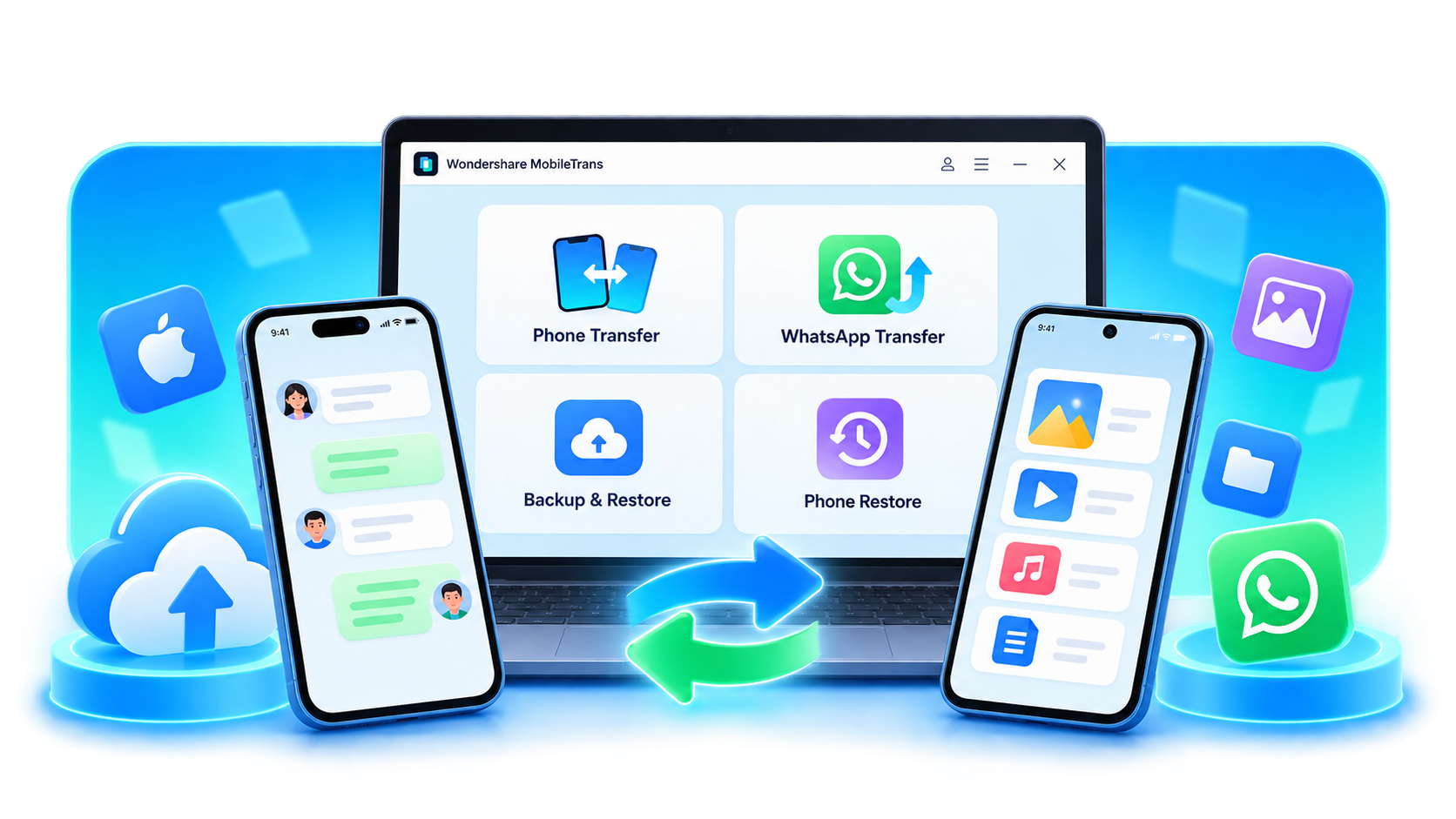
MobileTrans makes phone-to-phone transfer easier by helping users transfer data across iOS and Android devices in just a few steps. It also supports WhatsApp transfer, backup, and restore, making it a convenient solution for users who want a faster and simpler way to manage mobile data.
Ask AI for a summary
 ChatGPT
 Perplexity
 Gemini
 Claude
 Grok
Grok
Your phone feels unusually warm, drains its battery quickly, or uses more data than expected. While these issues can indicate suspicious activity, they often have harmless causes. Learning how to check if your phone is hacked involves reviewing account activity, unfamiliar apps, permissions, and security alerts.
Both iPhones and Android phones face risks from unauthorized access, malware, and monitoring. However, their security settings differ. This guide explains where to look and what to check on each device. If you're switching phones, MobileTrans can help transfer selected data to your new device.
In this article
Part 1. What Are the Warning Signs That Your Phone Is Hacked?
Start by identifying the warning signs that could indicate unauthorized access to your phone. Unfamiliar account logins are stronger indicators than battery drain or overheating, which often have harmless causes. To identify Android or iPhone hacked signs, review the following warning signals and what they could mean:
| Warning Sign | What to Look For | What It Could Mean |
| Unknown Sign-Ins | Unfamiliar devices, login alerts, or unexpected verification codes. | Someone could have accessed your account. |
| Suspicious Activity | Messages, purchases, or password changes you didn't make. | Possible unauthorized account access. |
| Unknown Apps or Profiles | Unrecognized apps, VPNs, or device management profiles. | Potential unwanted software or unauthorized device management. |
| Camera or Mic Activity | Camera or microphone indicators appearing unexpectedly. | An app could be accessing sensitive permissions. |
| Battery or Data Drain | Unusual overheating, rapid battery drain, or excessive data usage. | Unexpected background activity that needs investigation. |
| Pop-Ups or Redirects | Fake virus alerts or repeated browser redirects. | Potential phishing attempts, scam websites, or unwanted software. |
Important: These signs don't always mean your phone is hacked. A compromised Apple or Google Account doesn't necessarily indicate someone has gained access to your phone's operating system. Apple warns that browser pop-ups claiming your iPhone has a virus are often scams. Review your account activity and device settings to identify potential security threats.
Part 2. How to Check If Your iPhone Is Hacked
To understand how to know if my iPhone is hacked, start by reviewing your Apple Account for unfamiliar devices or suspicious sign-ins. Next, check installed apps, privacy permissions, and sharing settings for unauthorized access. Follow these steps to investigate potential security threats without erasing your iPhone:
Check Your Apple Account for Unrecognized Devices
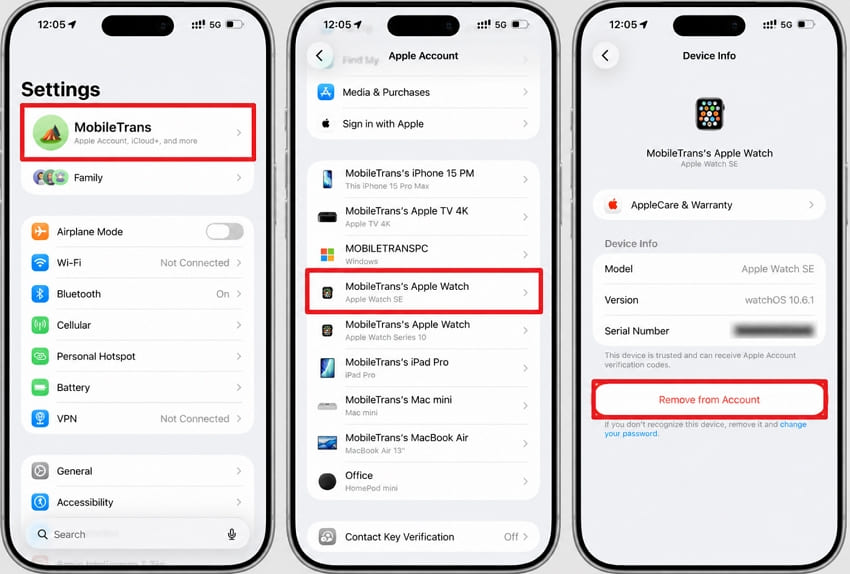
Start by checking which devices are connected to your Apple Account. Unfamiliar devices, unexpected verification codes, or unauthorized purchases could indicate someone has accessed your account. Apple's compromise checklist explains how to identify suspicious activity and secure your information. Follow these steps to review your connected devices, account security, and purchase history:
Check Your Device List
Instructions. Go to Settings > [Your Name] > Select any unknown device > Tap Remove from Account.
Review Your Security Details
Step 1. Access Settings > [Your Name] > Sign-In & Security > Two-Factor Authentication.
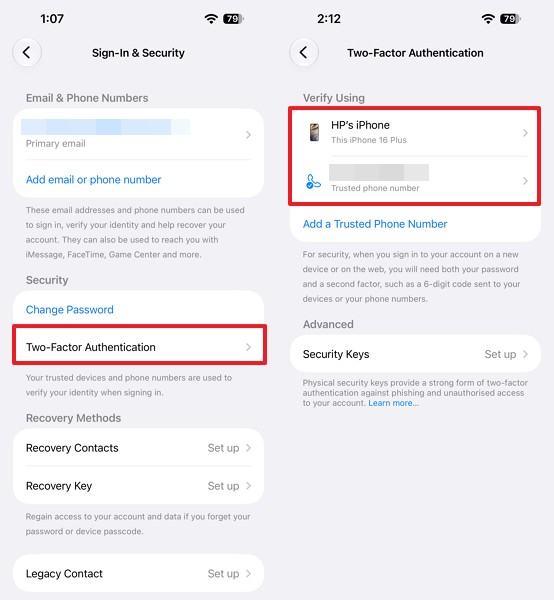
Step 2. Check your trusted phone numbers and account details, and make sure two-factor authentication is enabled.
Step 3. If you find an unfamiliar device or account change, follow Apple's account security steps.
Check Your Purchase History
Step 1. Open the App Store, tap your Profile picture, and select Apps & Purchase History.
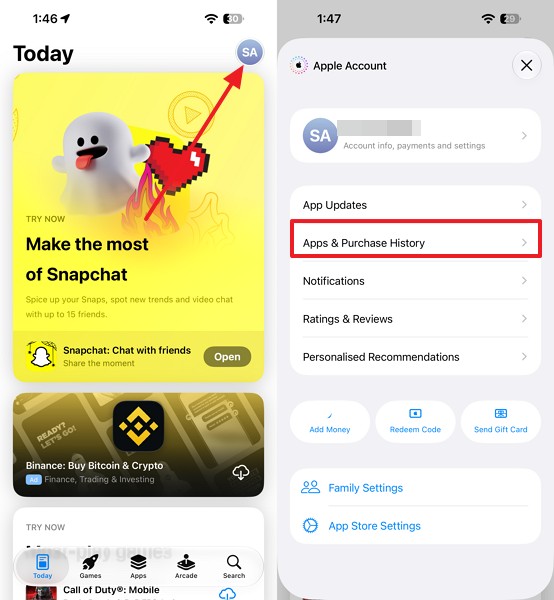
Step 2. Look for unfamiliar purchases or charges.
Look for Unknown Apps and Configuration Profiles
Checking unfamiliar apps and configuration profiles is another way to understand how to tell if my iPhone is hacked. Profiles can modify device settings without appearing as regular apps. According to Apple's profile guidance, organizations can use them to manage device settings and access certain information.
Before removing profiles from a work or school iPhone, consult your administrator. Follow these steps to review installed apps, configuration profiles, and VPN settings for suspicious activity:
Review Installed Apps
Step 1. Check the apps on your Home Screen, or swipe left past all Home Screen pages to open the App Library and view installed apps.
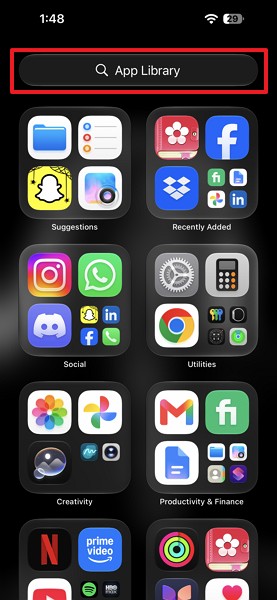
Step 2. Browse the apps or use the search field to find anything unfamiliar.
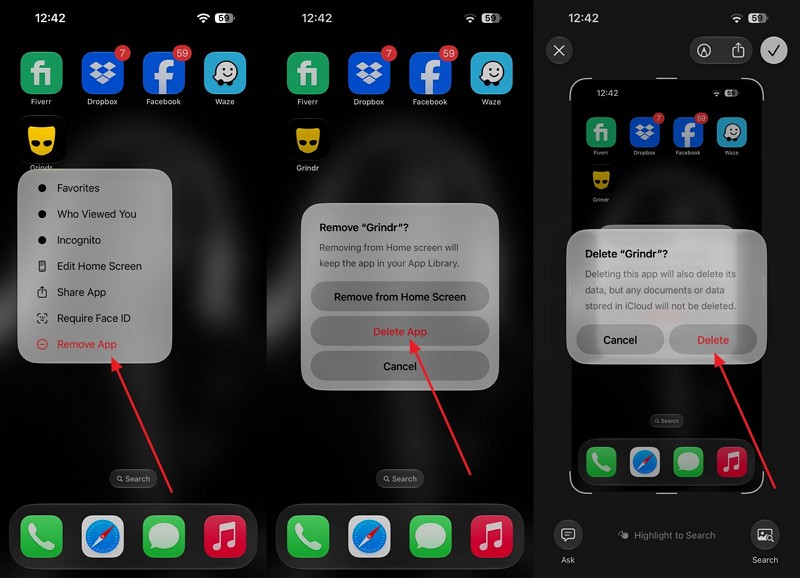
Step 3. Choose the app you don't recognize and choose Remove App > Delete App > Delete.
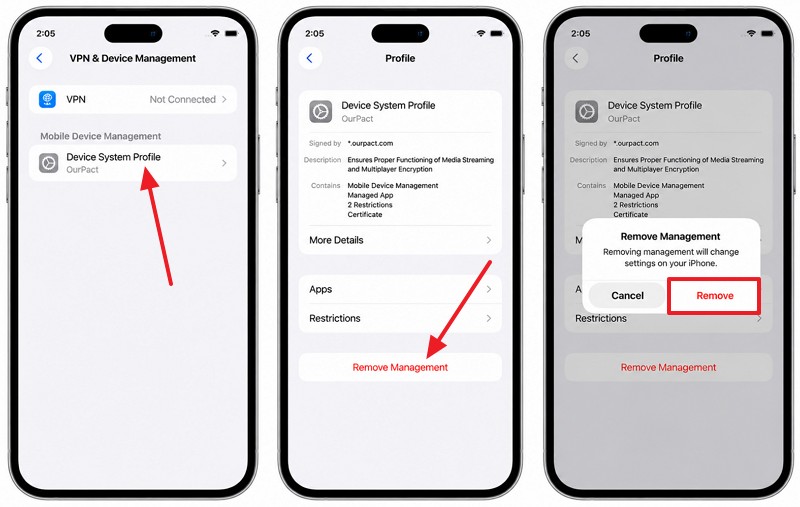
Check Configuration Profiles
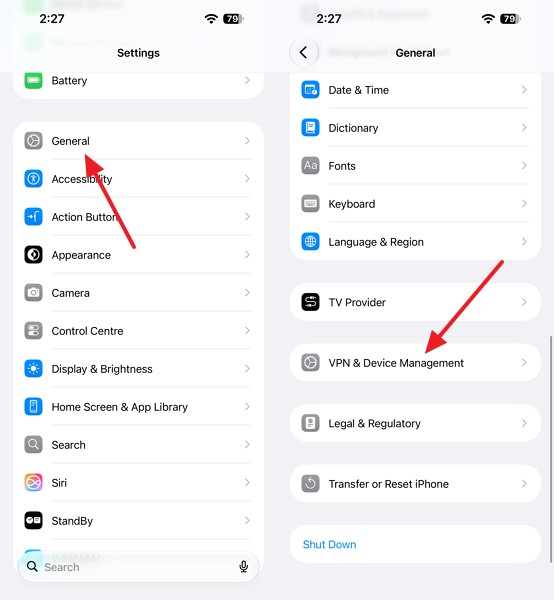
Step 1. Open Settings > General > VPN & Device Management.
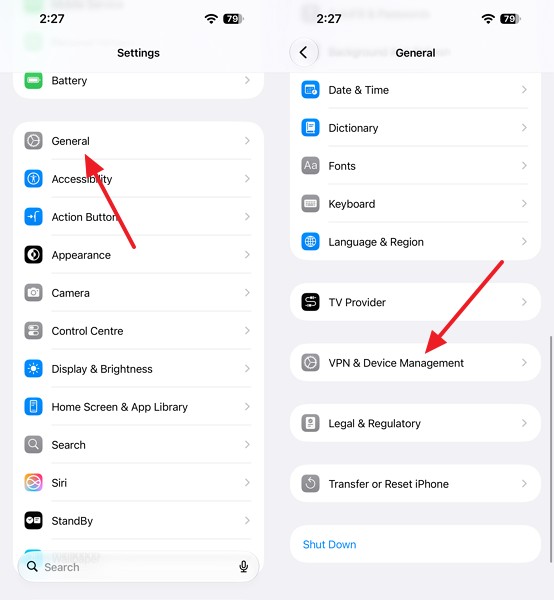
Step 2. Select any installed profile and review its details. If no profiles appear, no device management profiles are installed.
Step 3. To remove one, select the profile > Remove Management > Remove > Enter your passcode > Restart your iPhone.
Inspect VPN and Security Settings
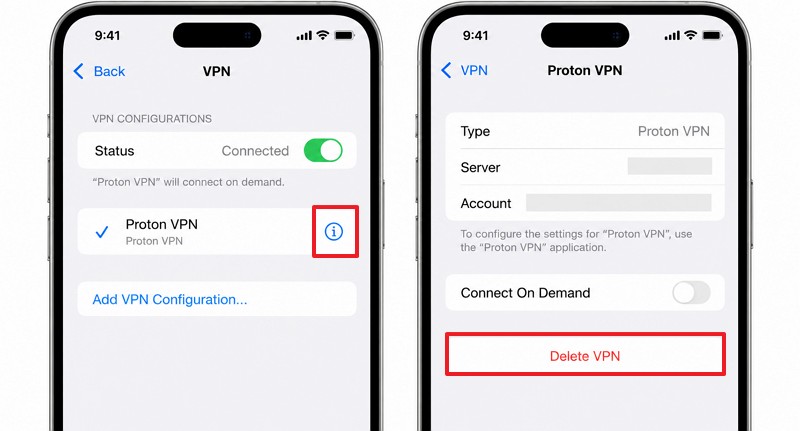
Step 1. Open Settings > General > VPN & Device Management > VPN and review the configured VPN connections for unfamiliar or suspicious entries.
Step 2. To delete the VPN, choose i > Delete VPN, and delete its associated app.
Review Camera, Microphone, and App Privacy Activity
Some apps can access your camera, microphone, or personal data without your knowledge. According to Apple's privacy indicator guide, an orange dot indicates microphone use, while a green dot indicates camera use, with or without the microphone. Apple's App Privacy Report displays app access to sensitive information and network activity from the past seven days.
However, the report only collects data after activation and cannot detect malware directly. To understand how to know if my iPhone is hacked, follow these steps to review app permissions and recent privacy activity:
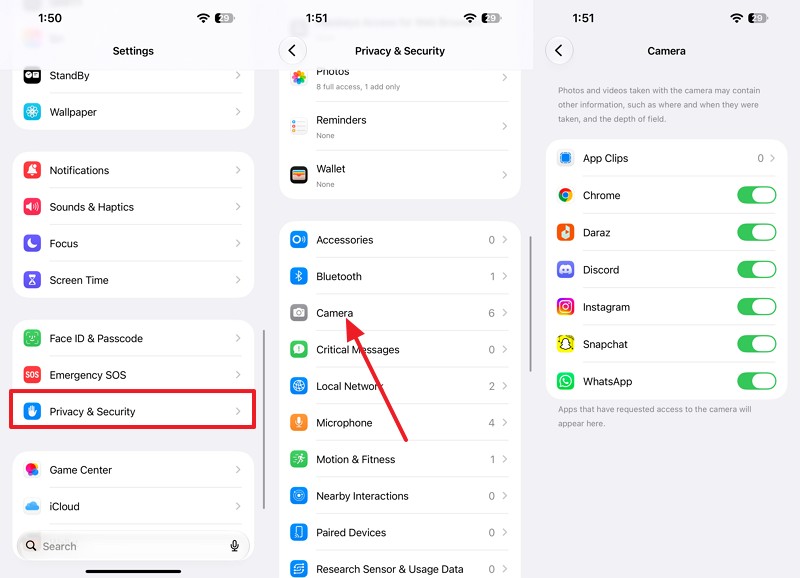
Check Camera and Microphone Access
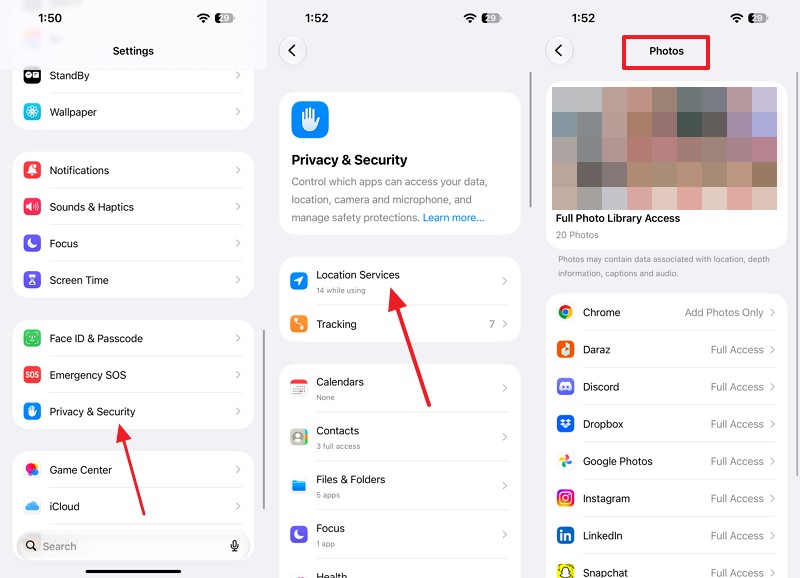
Instructions. Open Settings > Privacy & Security > Camera. Review apps > Return and open Microphone > Turn off permissions that aren't needed.
Review Other Permissions
Instructions. Under Privacy & Security, check Location Services, Contacts, and Photos. Remove access from apps that don't need your information.
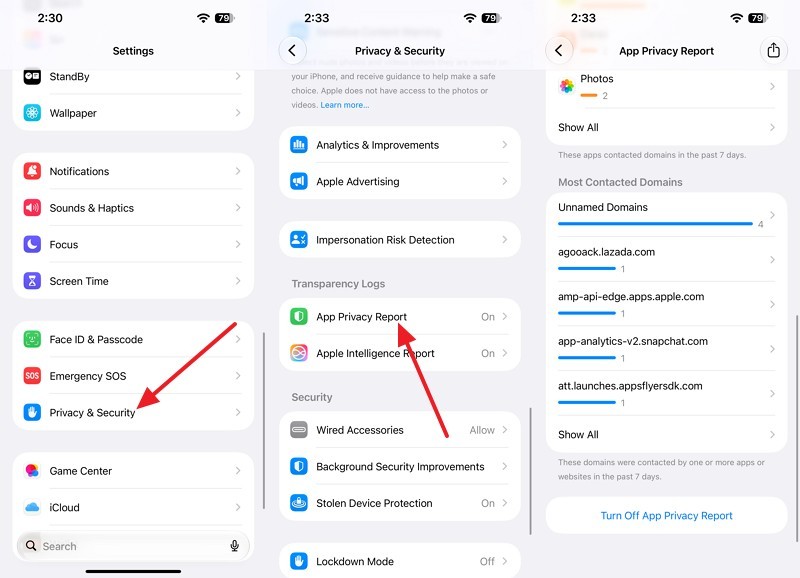
Enable App Privacy Report
Step 1. Go to Settings > Privacy & Security > App Privacy Report and tap Turn On App Privacy Report.
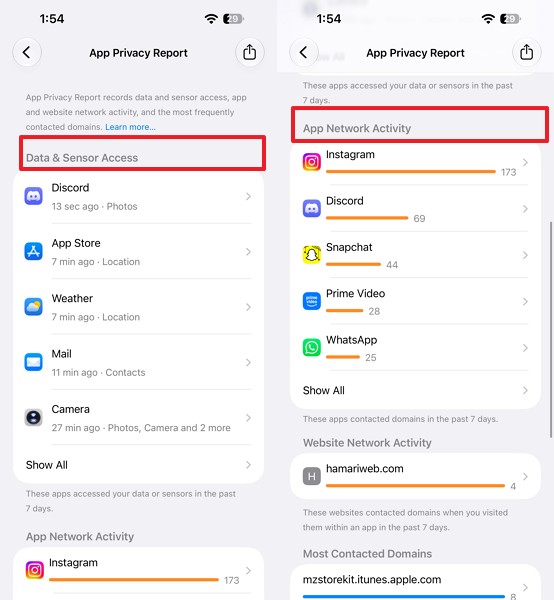
Step 2. Once data appears, review Data & Sensor Access and App Network Activity for unexpected behavior.
Identify Unexpected Camera or Microphone Use
If an orange or green indicator appears unexpectedly, open Control Center to identify which app recently accessed your microphone or camera. Review its permissions and disable unnecessary access.
Use Apple Safety Check to Review Sharing and Access
Someone can access your location or shared information without directly controlling your iPhone. Apple's Safety Check, available on iOS 16 and later, helps you review sharing settings, app permissions, and account security. To understand how to tell if my iPhone is hacked and identify unwanted access, Safety Check provides two options for reviewing and restricting information sharing:
| Mode | What It Does | When to Use It |
| Manage Sharing & Access | Reviews sharing with people and app permissions, allowing you to remove specific access. | When you want to stop unwanted sharing while keeping other permissions unchanged. |
| Emergency Reset | Quickly stops supported sharing with people and resets app privacy permissions, then helps review account security. | When you feel unsafe and need to restrict access to your information immediately. |
Apple's safety guidance warns that others might notice changes to your sharing settings. Choose the Safety Check option that best suits your situation. Follow these steps to review and manage sharing permissions and account access:
Step 1. Choose Settings > Privacy & Security > Safety Check > Manage Sharing & Access for individual checks.
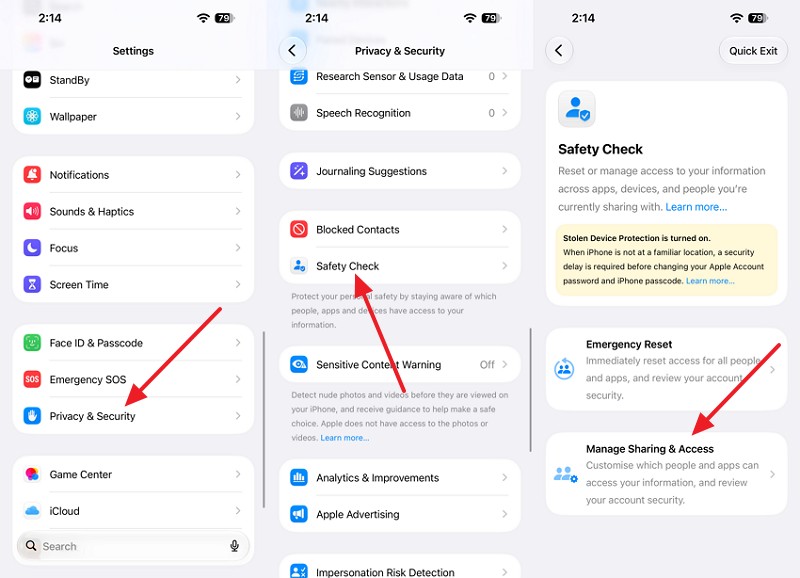
Step 2. Add passcode or Face ID > Continue > Check People > Continue > Go to the Apps section.
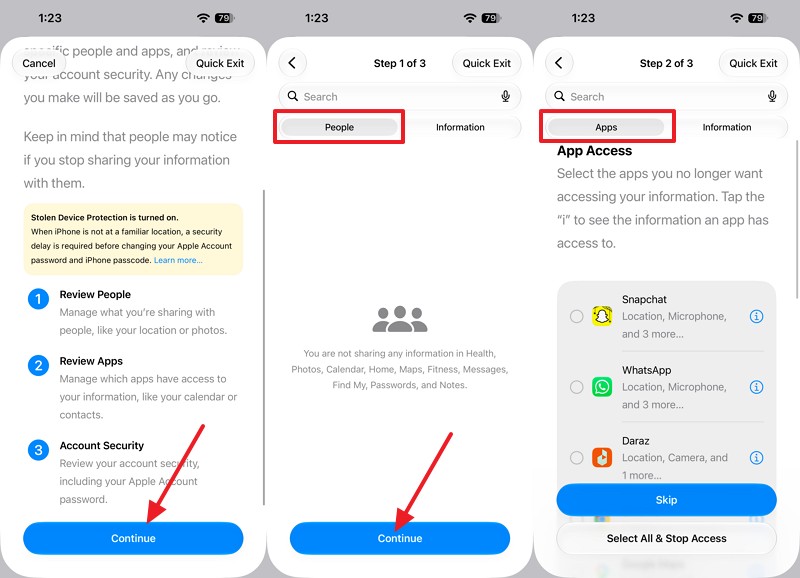
Step 3. Stop sharing information or remove permissions you no longer want to allow.
Step 4. Otherwise, select Emergency Reset > Start Emergency Reset to stop supported sharing immediately.
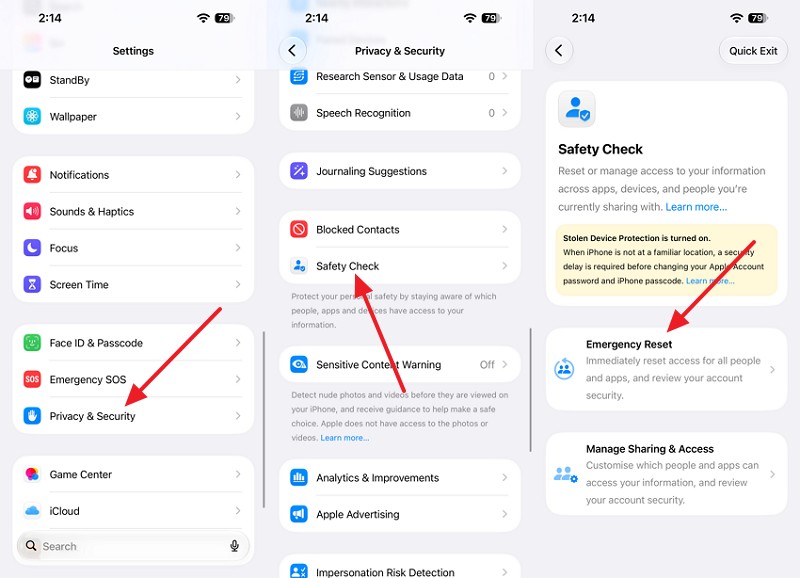
Step 5. Authenticate > Start Emergency Reset > Reset People & Apps > Reset.
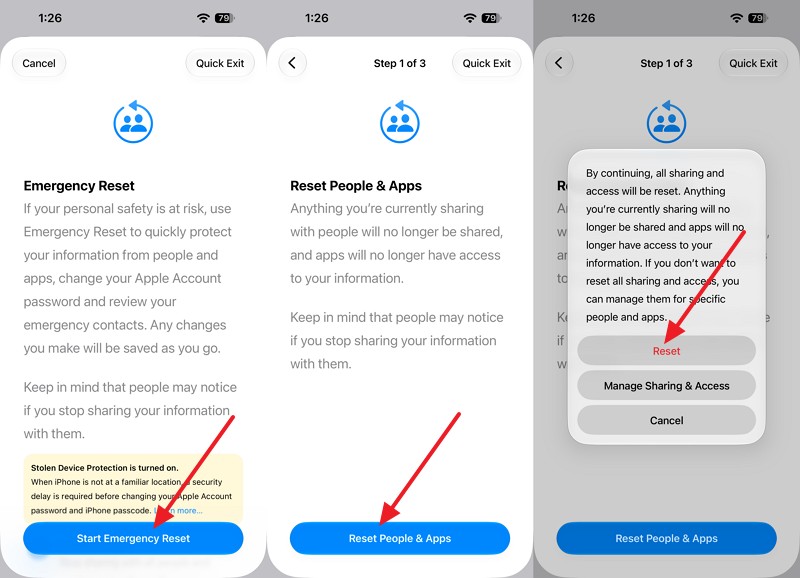
Step 6. Reopen Safety Check to verify your sharing and account settings.
Part 3. How to Check If Your Android Phone Is Hacked
Beyond iPhone hacked signs, Android users should also review installed apps, security alerts, and Google Account activity for suspicious behavior. Follow these steps using Google Pixel settings, which can vary across Android devices:
Scan for Harmful Apps with Google Play Protect
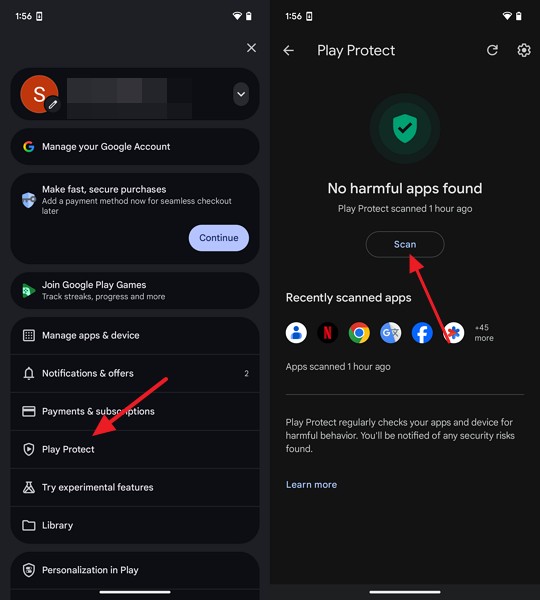
Google Play Protect scans apps from Google Play and other sources for potential threats. You should also review accessibility permissions, as Google warns that apps with this access can read your screen and interact with other apps. However, a clean scan doesn't rule out compromised accounts or hidden threats. To understand how to check if your phone is hacked, follow these Android security checks:
Confirm Play Protect Is Enabled
Instructions. On the Play Protect screen, tap the Settings icon. Make sure Scan Apps with Play Protect is turned on.
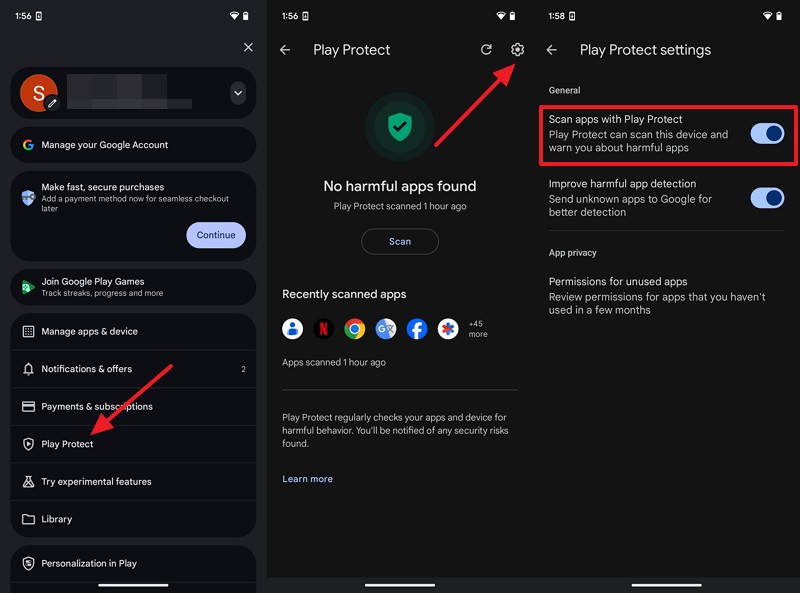
Run a Play Protect Scan
Instructions. Open the Play Store, tap your Profile picture, select Play Protect > Scan > Review any warnings.
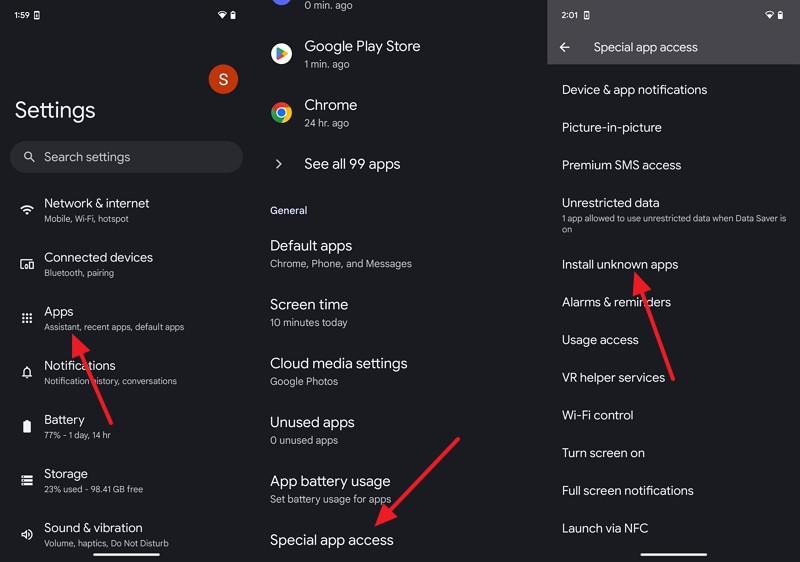
Check Apps Allowed to Install from Unknown Sources
Step 1. Go to Settings > Apps > Special App Access > Install Unknown Apps.
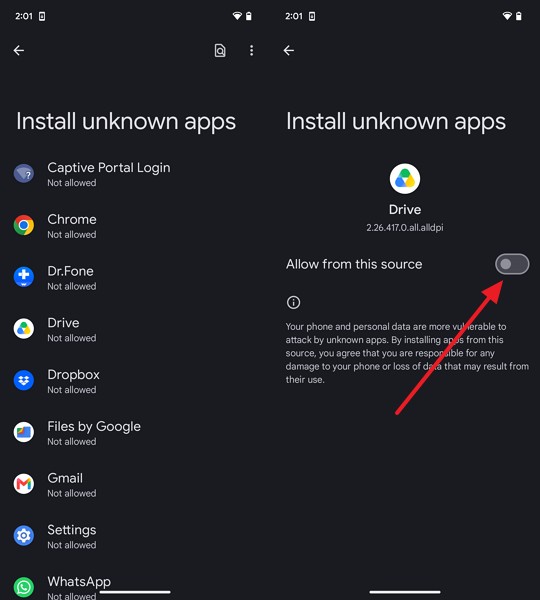
Step 2. Review each listed app and disable Allow from This Source if the permission isn't necessary.
Review Accessibility Access
Step 1. Open Settings > Accessibility and look for Downloaded Apps or Installed Apps, depending on your device.
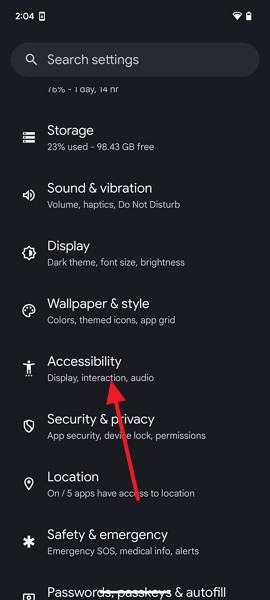
Step 2. Select each listed app and review whether its accessibility service is enabled. Disable access for unfamiliar or unnecessary apps.
Step 3. To remove a suspicious app, go to Settings > Apps > See All Apps > Select the App > Uninstall > OK.
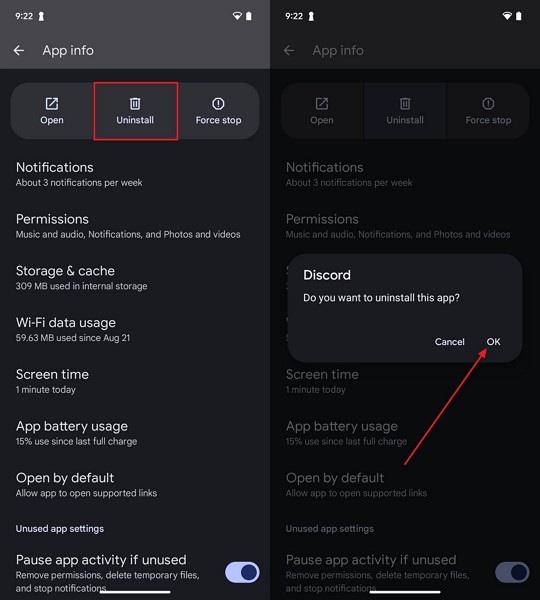
Check Device Administrator Apps
Instructions. Open Settings > Security & Privacy > More Security & Privacy > Device Admin Apps. Review apps with administrator privileges and investigate anything unfamiliar.
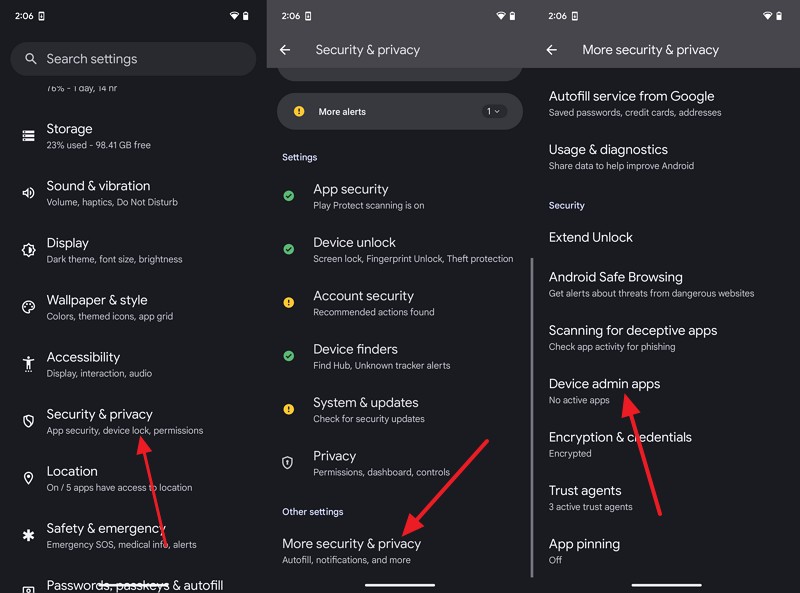
Check Google Account Activity and Connected Devices
Unfamiliar sign-ins, changed recovery details, or unknown devices could indicate unauthorized Google Account access. Google's hacked account guide recommends reviewing security events, connected devices, and account settings. You can also check recent Gmail activity, including IP addresses and approximate locations. However, VPNs and mobile networks can affect location accuracy. To understand how to check if your phone is hacked, follow these steps:
Check Connected Devices
Step 1. On a trusted device, visit myaccount.google.com and select Security & Sign-In.
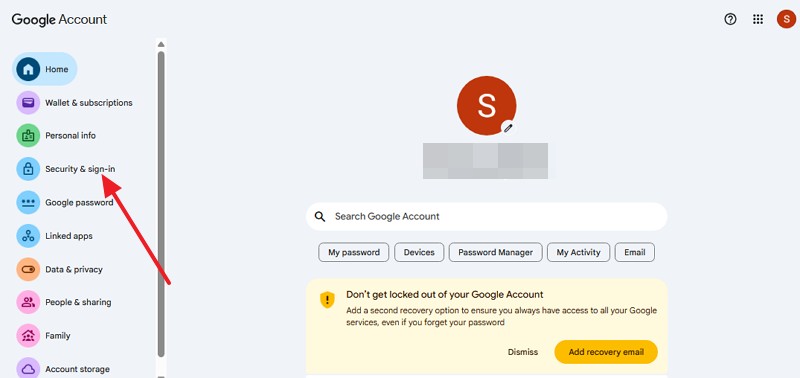
Step 2. Scroll down > Your Devices > Manage All Devices.
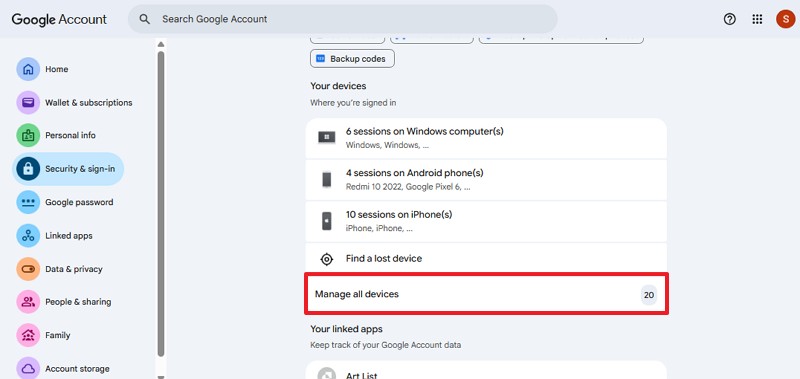
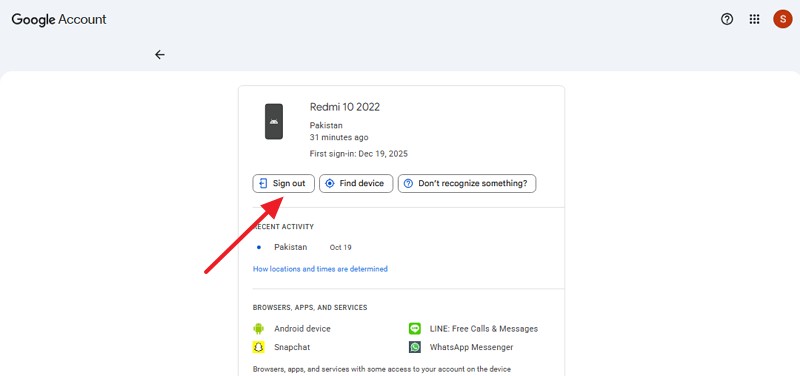
Step 3. Review the list of active smartphones, tablets, and computers.
Step 4. If you find a device you don't recognize, tap on it and select Sign Out.
Check Recent Security Activity
Step 1. On the same Security tab, look for the Recent Security Activity settings.
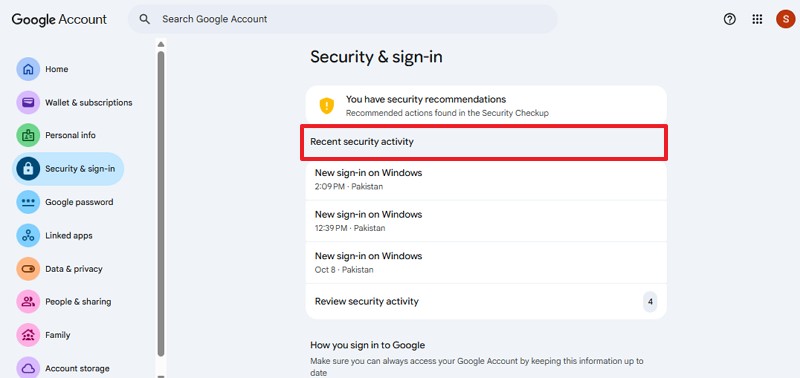
Step 2. Review recent sign-ins, password changes, or modifications to your recovery email/phone number.
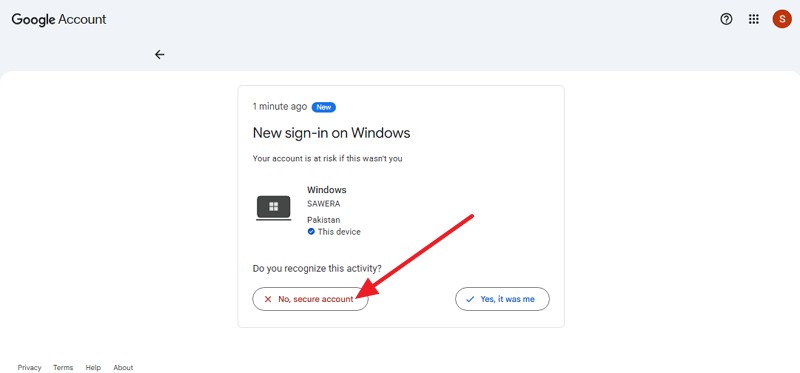
Step 3. If anything looks suspicious, tap it and select No, Secure Account to lock out unauthorized access and change your password.
Audit Connected Apps & Permissions
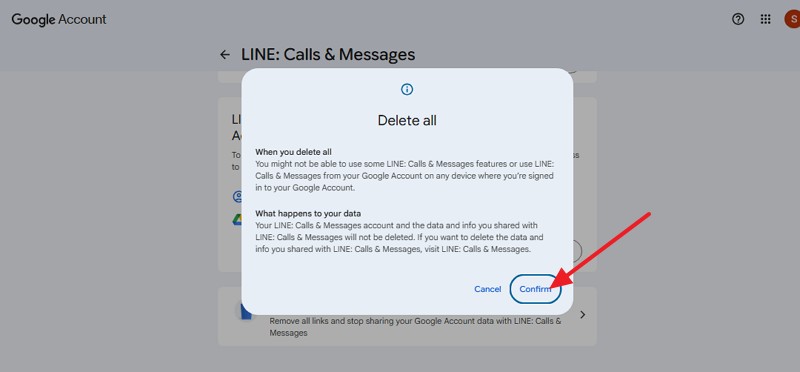
Step 1. Go to Google Account Permissions to view apps and websites with access to your data.
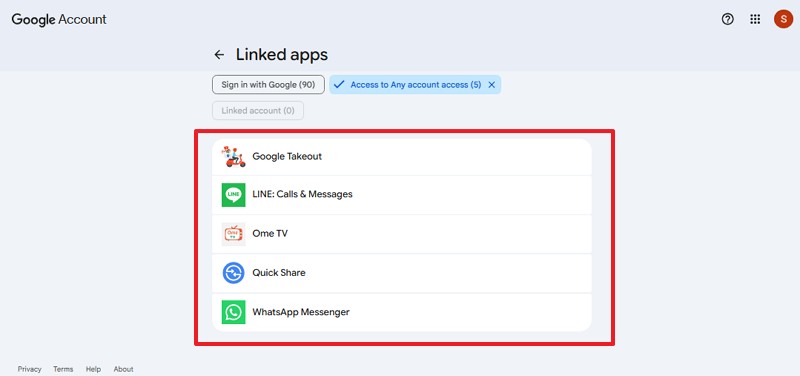
Step 2. Revoke access for anything unfamiliar by choosing Delete All > Confirm.
Part 4. What to Do If Your Phone Has Been Hacked
Once you've confirmed unauthorized access while learning how to check if your phone is hacked, secure your accounts before changing device settings. The next steps depend on whether someone accessed your accounts, installed suspicious software, or modified security settings. Follow these steps to protect your iPhone or Android phone from further threats:
| Action | What You Should Do |
| Secure Your Accounts | Change passwords using a trusted device, sign out of unfamiliar sessions, and enable two-factor authentication. |
| Remove Suspicious Access | Review unfamiliar apps, VPNs, configuration profiles, permissions, and connected devices. Remove any confirmed threats or unauthorized access. |
| Protect Personal Data | Review banking transactions, email forwarding rules, and mobile carrier account settings for unauthorized changes. |
| Update and Recheck | Install the latest security updates, uninstall confirmed harmful apps, and repeat security checks to identify remaining threats. |
| Consider a Factory Reset | If device compromise is suspected, back up essential data before resetting. Avoid restoring suspicious apps, settings, or untrusted backups. |
| Get Professional Help | Contact a qualified security professional for suspected spyware, persistent unauthorized access, or an official Apple threat notification. |
Important Note: If you suspect someone is monitoring your phone, changing passwords or removing suspicious apps could alert them. Seek safety advice using a trusted device before taking action. Remember that a factory reset does not secure compromised online accounts.
Pro Tip. Transfer Important Data to a New Phone with MobileTrans
After learning how to tell if my iPhone is hacked and securing your accounts, you might decide to replace your phone. Before switching, transfer only trusted personal data to avoid carrying over suspicious apps or settings. MobileTrans supports data transfers between iPhone and Android devices, including phones running the same operating system.
With its desktop Phone Transfer feature, you can connect both devices to a computer and choose which supported data types to transfer. MobileTrans supports 18+ data types across compatible transfer scenarios, including contacts, photos, videos, and messages. This lets you move essential information without transferring everything from your old phone.






Guide to Transfer Old Phone Data with MobileTrans
Follow these steps to move your selected, trusted data to a new iPhone or Android phone with MobileTrans:
Step 1. Choose Phone Transfer > Phone to Phone > Connect your old and new Android or iPhone.
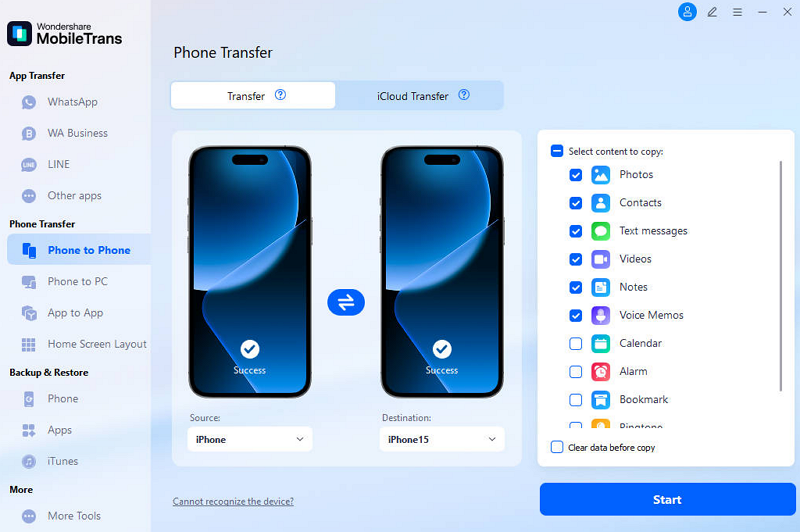
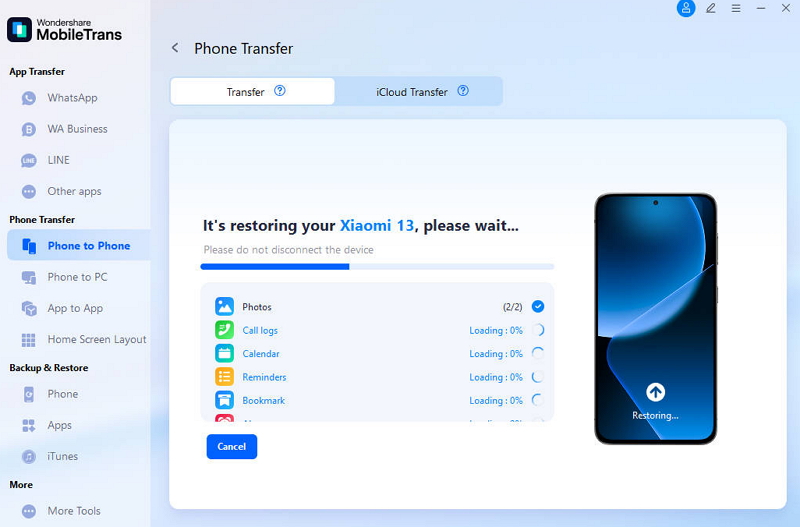
Step 2. Select the data types you want to transfer and click Start. Wait for MobileTrans to complete the transfer to your new phone.
 safe & secure

Part 5. How to Protect Your iPhone or Android from Future Hacking Attempts
Learning how to check if your phone is hacked helps identify potential threats, but taking preventive measures is equally important. Follow these 5 security practices to protect your iPhone or Android phone from unauthorized access and common security risks:
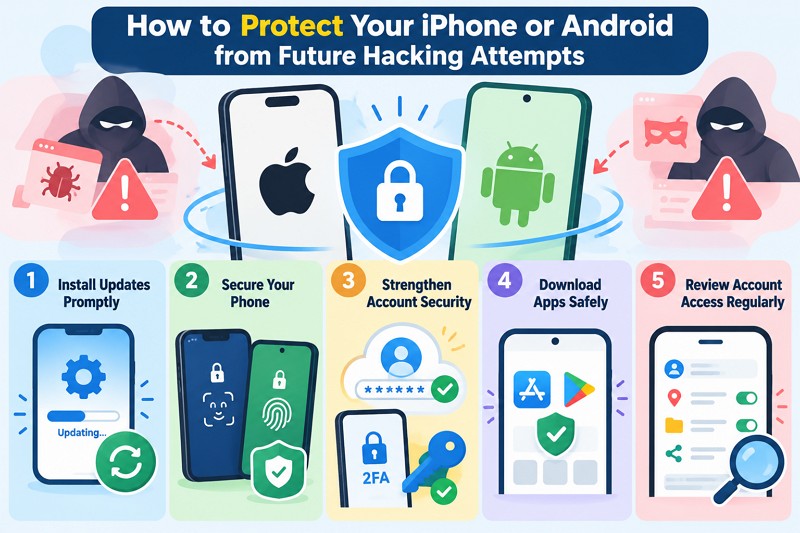
Install Updates Promptly: Keep your phone and apps updated to protect against known security vulnerabilities. Enable automatic updates and check Settings > System > Software updates or Security & privacy > System & updates on Android.
Secure Your Phone: Protect your device with a strong passcode, Face ID, or fingerprint authentication. For additional security, enable Stolen Device Protection on supported iPhones or Android's theft-protection features, where available.
Strengthen Account Security: Use unique passwords and enable two-factor authentication to prevent unauthorized sign-ins. Consider passkeys or security keys for stronger protection. Google recommends sign-in prompts over SMS verification codes.
Download Apps Safely: Stick to trusted sources like the App Store and Play Store when installing apps. Avoid suspicious links, unexpected attachments, and fake security alerts that could compromise your personal information.
Review Account Access Regularly: Periodically check connected devices, app permissions, and sharing settings for unfamiliar activity. Apple's Safety Check and Google Security Checkup can help you review and manage access.
Conclusion
Learning how to check if your phone is hacked involves reviewing suspicious sign-ins, unfamiliar apps, permissions, and security alerts. If you confirm unauthorized access, secure your accounts, remove suspicious software, and review your security settings. When switching to a new phone, MobileTrans can help transfer selected, trusted data to your iPhone or Android without moving unnecessary files.








