


 TL;DR:
WhatsApp transfers typically freeze at 99% due to corrupted media files or insufficient storage, which can be resolved by using MobileTrans to locally filter out broken data before migrating.
● The destination device requires at least twice the available storage capacity of your current WhatsApp data size to prevent write and verification failures during the final setup stage.
● Both phones must be charged to 100%, plugged in, connected to a private Wi-Fi network, and running the latest OS and WhatsApp versions to avoid syncing timeouts.
● The MobileTrans AI pre-check solely analyzes and removes problematic media attachments to increase transfer speeds by up to 50%, ensuring all text conversation history remains completely intact and private on the local device.
Ask AI for a summary
 ChatGPT
 Perplexity
 Gemini
 Claude
 Grok
Grok
You’ve finally got your hands on a new phone, but the excitement fades the moment your WhatsApp transfer gets stuck at 99%. Whether it's an endless loading screen or a “Transfer Failed” notification, the main cause is rarely your Wi-Fi. Instead, migration is often sabotaged by corrupted files, broken database fragments, and years of low-value media junk that your phone can't process.
When these glitches hit, you risk losing years of chats and irreplaceable photos. Nevertheless, this guide explains why WhatsApp migration fails at the finish line. Additionally, understand how AI-driven tools act as a digital sweeper to help you filter and remove problematic files.
In this article

Part 1. The “99% Stuck” Mystery: Why Transfers Fail at the Last Step
WhatsApp transfer is the most common issue that many users face when switching to a new device or restoring backups. In fact, the issue is reported on multiple Reddit reports, stating that:
My WhatsApp backup stopped on October 6, 2023, and nothing I tried could resolve the issue. Now, chat transfer fails at 97%, and repeated attempts have left me stuck in long verification wait times. - r/whatsapp
If you want to know what could be the reasons for this last-minute WhatsApp transfer failed issue, review the 5 mentioned reasons:
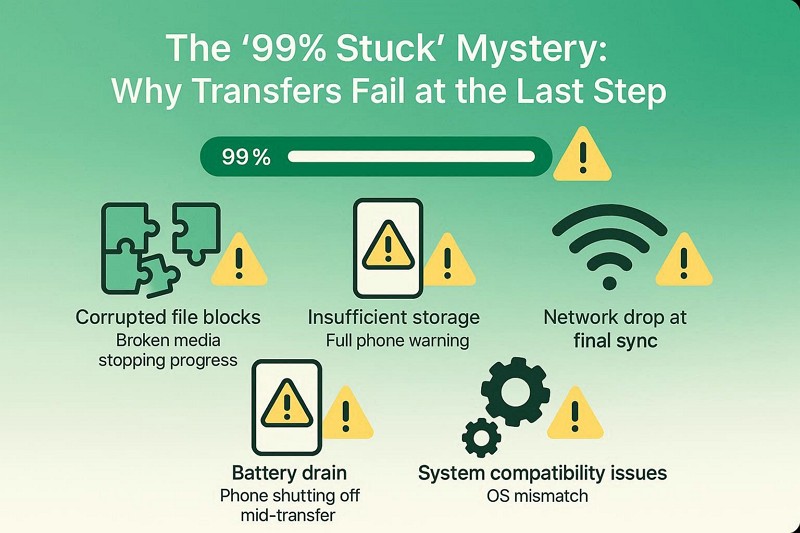
- Corrupted File Blocks the Transfer: Even a single damaged photo, video, or voice note can stop the transfer process at the final step. WhatsApp cannot detect or show which file is broken, so it freezes at 99%.
- Not Enough Storage on New Phone: The new device may run out of space during final file writing and verification. Thus, additional temporary space is needed, so even if there is enough storage, it may still fail.
- Network Drops at Final Sync: The transfer requires stable connectivity for final syncing and server confirmation. Hence, a minor connection break or a network switch can cause it to freeze at 99%.
- Battery Drain During Final Step: A low battery can slow or halt the final verification process. Furthermore, if the phone powers off, the transfer may be corrupted and fail.
- System or Data Compatibility Issues: Different devices or OS versions may reject files or metadata at the end. Moreover, a corrupted database or a permission issue can block the final transfer step.
Part 2. Detecting Hidden Threats: MobileTrans WhatsApp AI as Your Digital Mine-Sweeper in Transfers
When corrupt files in WhatsApp transfers cause unnecessary stalling, using AI cleaning tools can save the day. Tools like MobileTrans include an AI Data Optimization option that lets the AI perform a deep scan and filter out corrupted and low-value files. With the pre-check/preview option, you can determine which data types to keep or delete, and the separate tabs make navigation seamless.
Key Features
- Success Insurance Pre-check: Since data optimization is available during WhatsApp transfer, the AI can scan both the source and target devices. Through this, it aims to prevent the common issue of transfers getting stuck at 99% and to identify possible roadblocks.
- Smart AI Trash Filter Option: This ensures you don't move trash to the new device and scans WhatsApp for broken or low-value media files. When duplicate, junk, or large or small files are displayed, you can selectively choose to keep or delete them by analyzing the given storage per file.
- Privacy-Focused Local Scanning: With such tools, all AI scanning and media analysis occur locally on the device after installation. Thus, this ensures that no user data is uploaded to external servers, thereby securing end-to-end encryption.
- AI Speed Boost and Status Report: This AI tool optimizes how data is packed and moved between devices, making the process up to 50% faster than traditional methods. In addition, users are offered a detailed report after preview and selection, allowing them to confirm data optimization by pressing the "Start Restore" button.
- Intelligent Content Awareness: Unlike standard tools and WhatsApp that only sort by size, this AI uses pixel-level and semantic analysis. Hence, this can easily distinguish between precious memories and redundant forwarded files and display the folder and file sizes separately to support data management decisions.






Part 3. Pre-Transfer Safety Checklist for Hassle-Free WhatsApp Migration
A WhatsApp security checklist focuses on tightening privacy settings and avoiding suspicious links to protect your account from data leaks. Hence, to fix the WhatsApp transfer stuck, the given troubleshooting checklist helps ensure safe WhatsApp migration by preventing data loss and security issues during transfer:
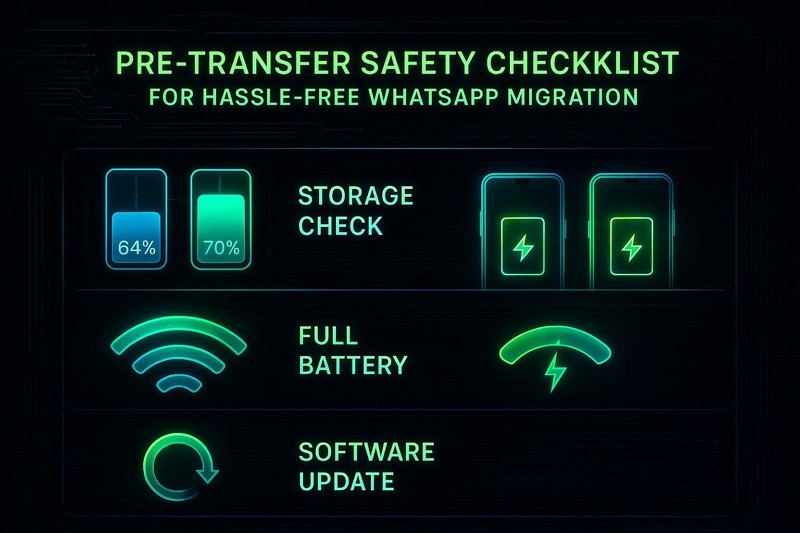
- Check Storage Space on Both Devices: Both phones must have sufficient storage, as insufficient storage can cause them to get stuck at 99%. Additionally, the destination device should have at least 2X the size of your WhatsApp data to avoid transfer failures.
- Fully Charge Both Devices: Ensure both phones are fully charged before starting; charge them to 100% and keep them plugged in during the transfer. This prevents shutdowns or interruptions during the critical verification process.
- Use a Stable Wi-Fi Connection: Connect both devices to a strong, private Wi-Fi network and keep them close to the router. In addition, avoid mobile data, switching networks, or heavy internet usage during the transfer.
- Update WhatsApp and System Software: Make sure WhatsApp and your phone’s OS are fully up to date on both devices. Outdated versions can cause compatibility errors and freeze transfers at the final step.
- Create a Fresh Backup and Check for Corrupted Files: Back up your WhatsApp data and ensure the backup completes successfully. Moreover, use an AI cleaner solution like MobileTrans to remove corrupted media files, as a single broken file can stop the entire process at 99%.
Part 4. MobileTrans Smart Filtering: Removing Low-Value and Risky Media
Let's say you had an issue with backup creation before the transfer. Use MobileTrans AI's pre-check to resolve it. In this section, the tool is rigorously tested to determine whether it can actually filter out corrupted and low-value media files. For your assistance, the detailed guide is mentioned ahead to make a reliable choice:
- Step 1. Go to the WhatsApp section on the tool. Tap the Start button as you connect devices.
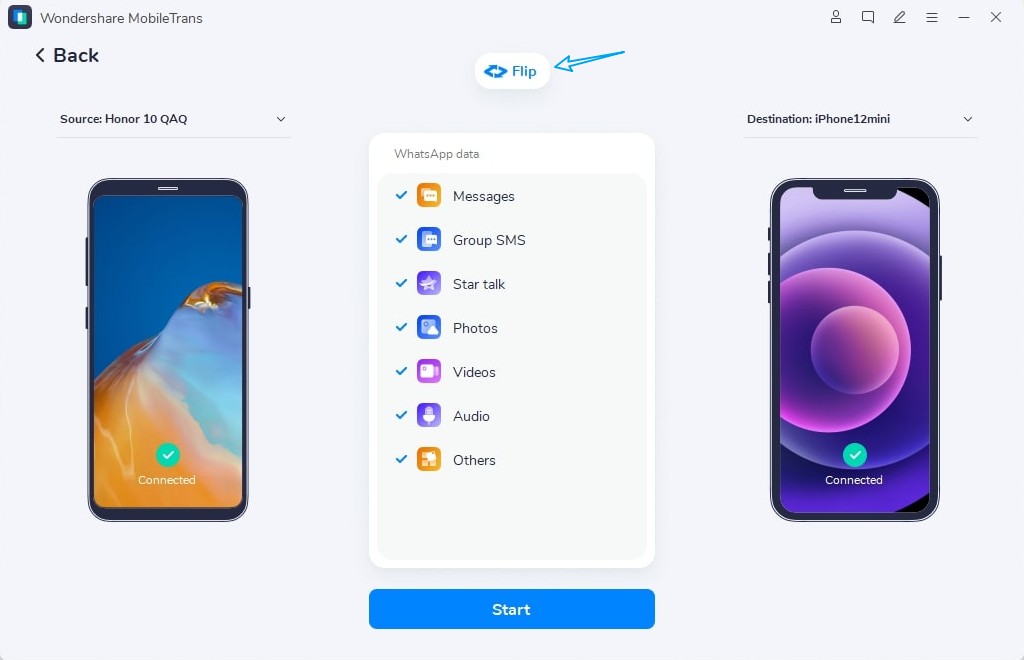
- Step 2. The AI will start the scan. Once it filters out media files, you have to preview and deselect the data before pressing the Start Restore button.
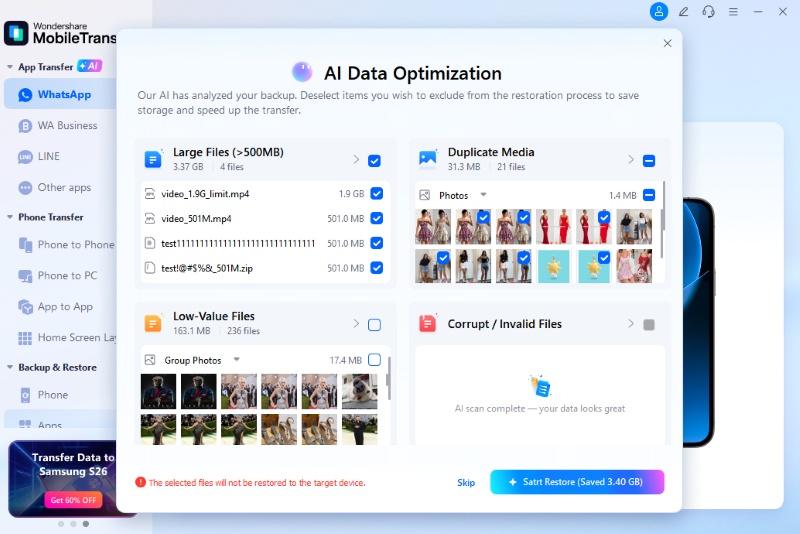
- Step 3. Review the final AI data optimization report, then select Start Restore.
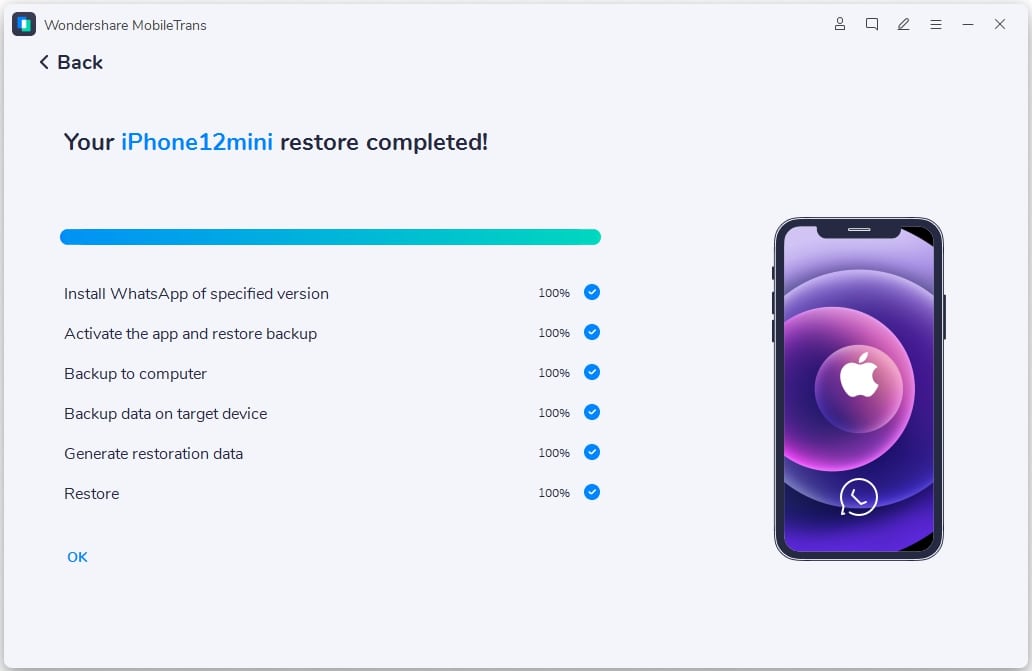
- Step 4. Monitor the progress and wait for the AI to remove the data. Continue to move WhatsApp data.
Conclusion
In conclusion, most users have encountered the situation where the WhatsApp transfer gets stuck at 99%. Since corrupted and low-quality media files are the cause, this guide explains how to perform AI Data Optimization using tools like MobileTrans. Before that, ensure the checklist is met, and let the AI pre-check your data to boost speeds by 50% and safely move your WhatsApp data.
FAQs
-
Will using AI to clean my WhatsApp delete my actual chat messages?
No, the AI filtering tool is designed specifically for media attachments, such as photos, videos, and files. It identifies the corrupted and low-value ones, including duplicates and junk, while keeping your full text conversation history intact on the new device. -
Is it safe to let an AI scan my private WhatsApp photos?
Yes, for user security, all the AI scanning and data analysis happen locally on your device. Hence, none of your personal data is uploaded to the cloud or external servers, ensuring your end-to-end encryption remains fully private. -
Why is AI optimization faster than standard WhatsApp transfers?
Standard transfer often moves data in a single large, unoptimized block. In comparison, the AI optimizes data packets and processes attachments more efficiently by removing corrupt and junk files. Thus, tools like MobileTrans can speed up migration by up to 50%, especially for users with large media libraries.










