



 TL;DR:
To safely transfer WhatsApp broadcast lists without losing contacts, use MobileTrans for direct cross-platform migration, the Move to iOS app for Android-to-iPhone transfers, or native Cloud Backup and Direct Chat tools if both devices share the same operating system.
● Cloud Backup and Direct Chat Transfer strictly require both devices to use the same operating system and identical phone number, with Direct Chat also failing if WhatsApp is already activated on the new phone.
● Transferring lists from Android to iOS via the Move to iOS app requires a stable Wi-Fi connection and mandates that the receiving iPhone must be completely factory reset or brand new before initiating the process.
● Offline transfers are restricted to Android devices and require using a PC to manually copy the specific Backups and Database folders from the old internal storage into the corresponding folder on the new phone.
Ask AI for a summary
 ChatGPT
 Perplexity
 Gemini
 Claude
 Grok
Grok
Many people worry about losing important WhatsApp broadcast lists when switching phones. These lists help you quickly and privately send updates or promotions to many contacts. If you move phones the wrong way, your broadcasts and settings may disappear from the new device.
That is why users search for how to transfer the WhatsApp broadcast list to a new phone without losing contacts. Therefore, this comprehensive guide will show simple, safe ways to move your WhatsApp broadcasts across different devices. By the end, you will learn key tips to keep your lists intact during any phone switch.
In this article

Part 1. 5 Ways to Transfer WhatsApp Broadcast Lists Across Devices
Some users change phones and worry that their important broadcast lists might disappear during the move. Different methods work better depending on your phone type and technical comfort level. Choosing the right method helps you restore the WhatsApp broadcast list on a new phone safely and completely. Now, let’s explore each way and see which option fits your situation best.
Way 1. MobileTrans: The Easiest Way to Move WhatsApp Broadcast List
MobileTrans, a reliable solution, is designed to simplify WhatsApp data migration between phones. MobileTrans helps you transfer chats and media through an intuitive, click‑through process. This app also lets you move WhatsApp broadcast contacts to a new device without technical steps. These capabilities make it ideal for anyone who wants a reliable WhatsApp transfer experience.
Key Features
- Cross‑Platform Support: Works for transfers within the same system and between Android and iOS.
- Wide Device Coverage: Lets you move WhatsApp across more than 6,000 different phone models.
- Keep Conversations Intact: Combines previous and new WhatsApp histories, so your messages stay together when you switch phones.
- Flexible Backup Control: Saves your WhatsApp data, then restores only the specific chats you choose on Android devices.
- More Apps Supported: Can also transfer, backup, and restore chats from WeChat, Line, Kik, and Viber.






How to Transfer WhatsApp Broadcast Lists Using MobileTrans
Having explored the features, follow the simple steps below to see how this app works:
Step 1. First, choose App Transfer > WhatsApp. Then, connect both phones via USB cable.
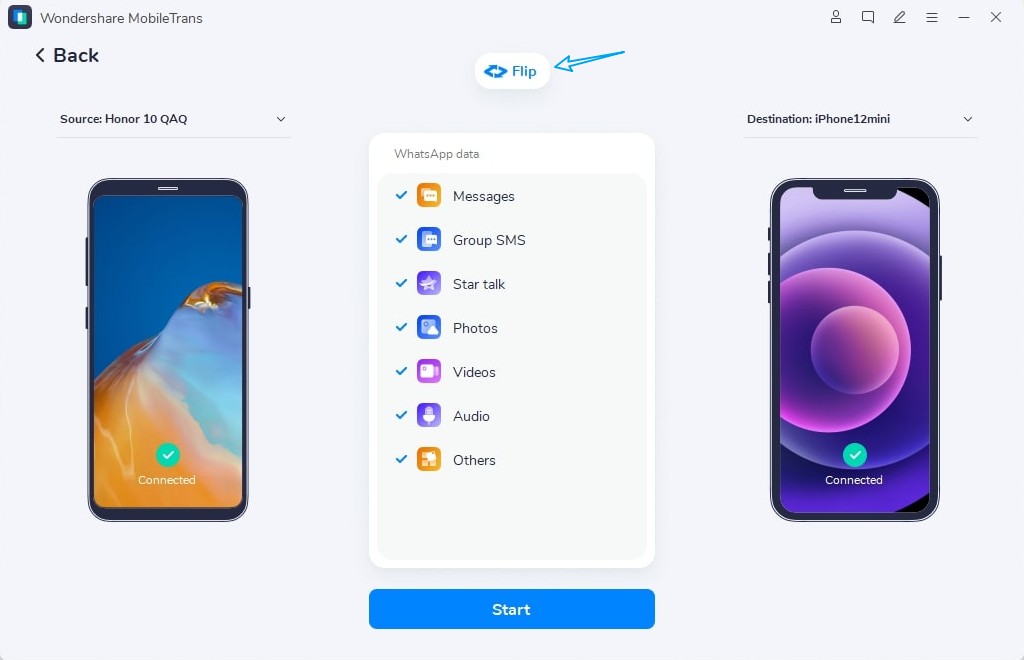
Step 2. Next, choose Transfer & Merge. Check both Source and Destination devices. Then, select the Broadcast List type and press Start.
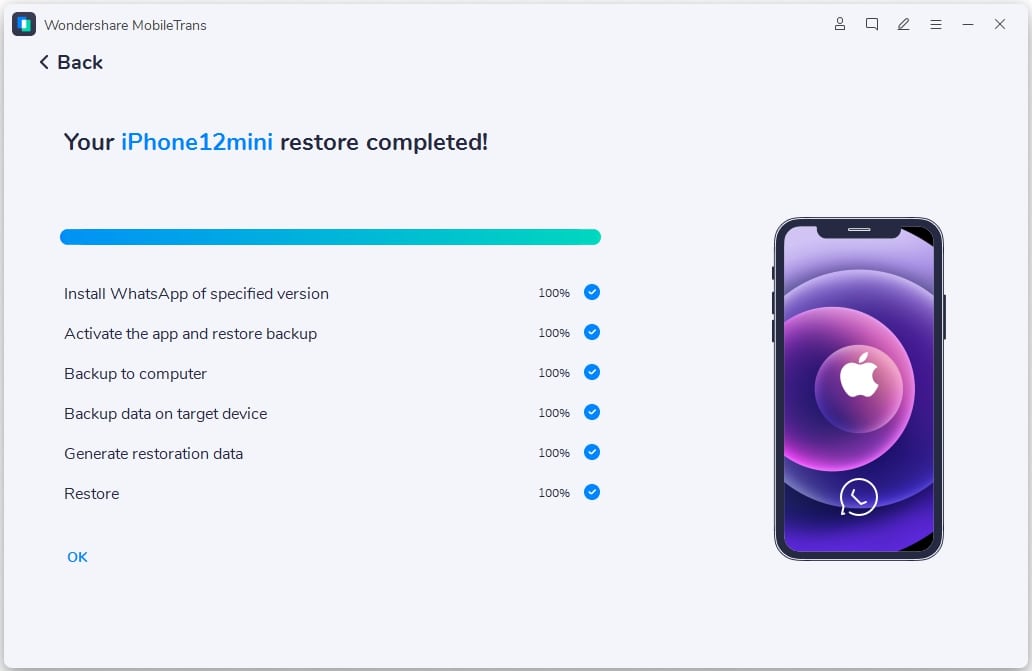
Step 3. Monitor the transfer process and wait for it to complete.
Why Use MobileTrans for Broadcast List Transfer
After learning how to use MobileTrans, it is clear why it is perfectly suited to WhatsApp transfers. Let's see how it keeps things simple, guiding you through each step when moving chats and broadcast lists.
Direct phone‑to‑phone transfers reduce setup mistakes, helping your broadcasts appear correctly on the new device.
You avoid juggling multiple backup methods, since MobileTrans keeps everything in a single, easy-to-use dashboard.
Its design focuses on stability, cutting the chances of failed transfers that break your WhatsApp broadcast lists.
Way 2. Cloud Backup & Restore (For Same OS Devices)
Cloud Backup & Restore works only when both phones use the same operating system and number. You need Google Drive/iCloud storage and a stable internet connection. This method safely transfers all WhatsApp data, helping prevent accidentally missing chats, media, or broadcast settings. It is ideal if you wonder how to keep the WhatsApp broadcast list when switching phones. Now, follow the steps below to see how to perform this.
From iPhone to iPhone
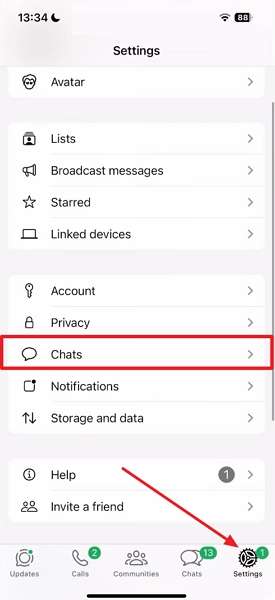
Step 1. On your old phone, open WhatsApp and tap Settings > Chats.
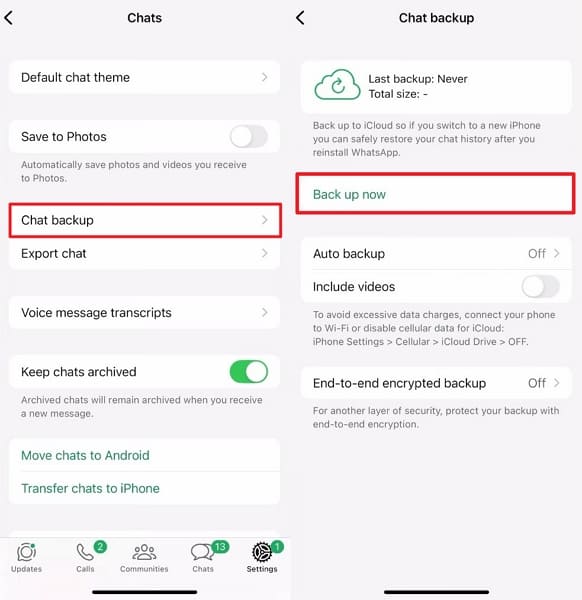
Step 2. Next, tap Chat Backup. Afterward, select Backup Now and wait for the backup to complete.
Step 3. Now, open WhatsApp on the new phone. Enter the same phone number to continue.
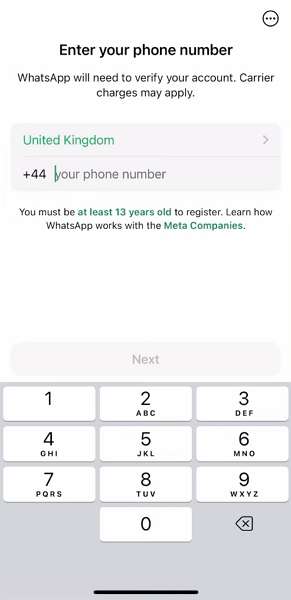
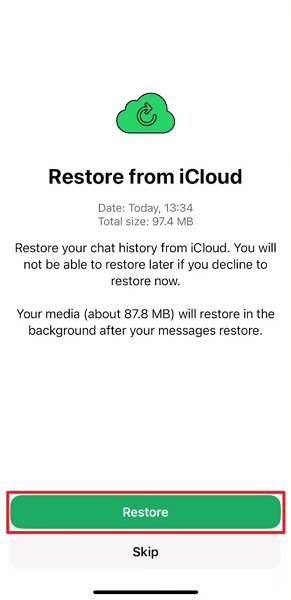
Step 4. It will automatically detect the latest WhatsApp backup > Tap Restore.
From Android to Android
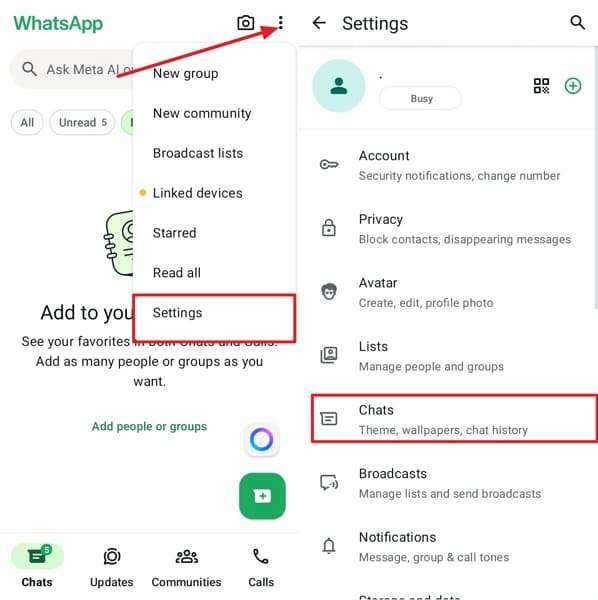
Step 1. On the old Android phone, tap Three-Dots > Settings. Next, tap Chats.
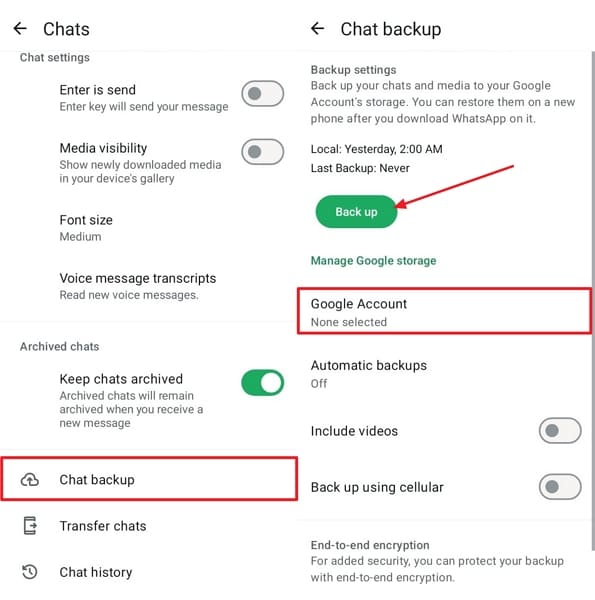
Step 2. Afterward, tap Chat Backup. Choose the Google Account and use Back up.
Step 3. Now, on the new Android, sign in with the same Google account. Tap Restore to restore chat.
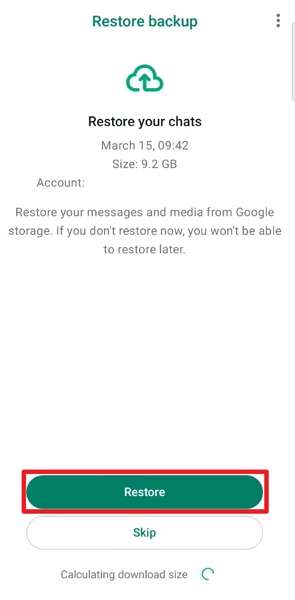
You must use the same phone number on your new device.
If the backup is outdated, recently created or edited broadcast lists can be lost.
Way 3. Direct Chat Transfer Feature (Android to Android & iPhone to iPhone)
This method lets you transfer WhatsApp data directly between phones without using cloud backups. Both devices must use the same operating system and be physically close to each other during the transfer. It works best when both phones have enough battery and the latest version of WhatsApp installed. This option is useful if you want to move WhatsApp broadcast contacts to new device. Next, we'll learn how to transfer chat using the same-end devices:
From iPhone to iPhone
Step 1. On your old iPhone, access the WhatsApp Settings app. Tap Chats.
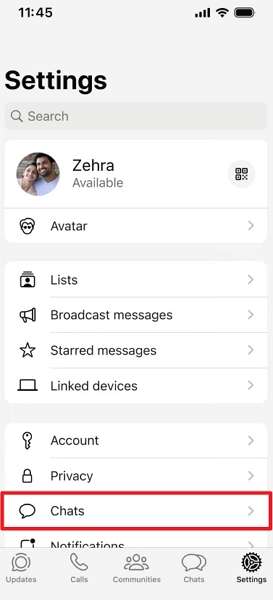
Step 2. Tap Transfer Chats to iPhone > Start. Next, choose OK to open the QR scanner.
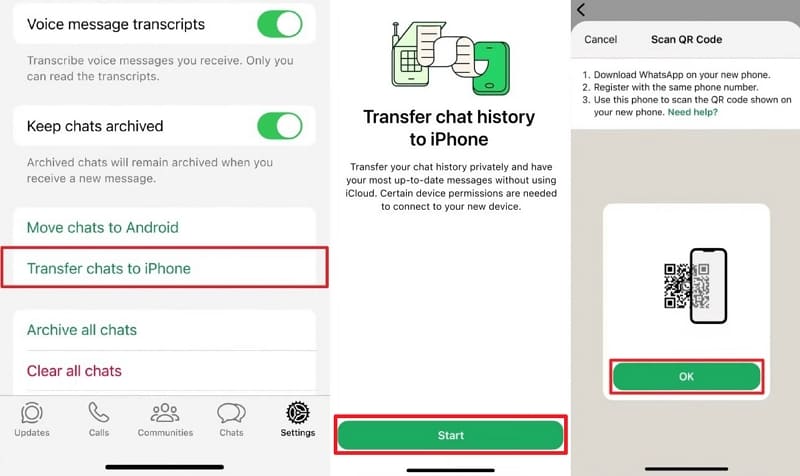
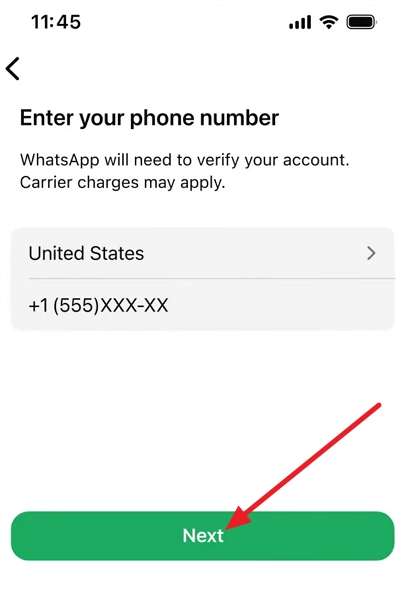
Step 3. Set up WhatsApp on your new iPhone by entering your phone number. Afterward, tap Next.
Step 4. Next, enter the verification code sent to your phone. Press Next > Continue.
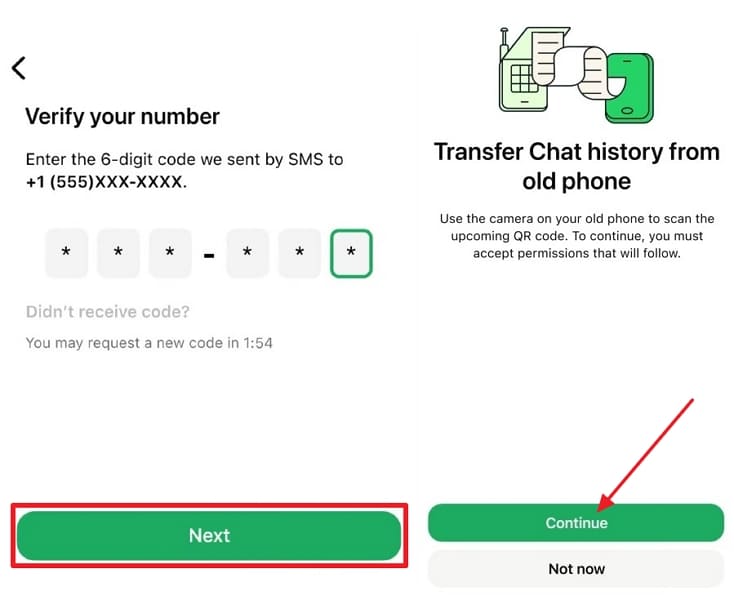
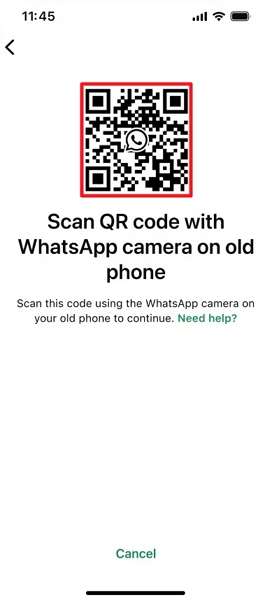
Step 5. Scan the QR code with your old phone. Lastly, grant the permissions to start the broadcast list transfer.
From Android to Android
Step 1. On the old Android, tap Three-Dots > Settings. Next, tap Chats.
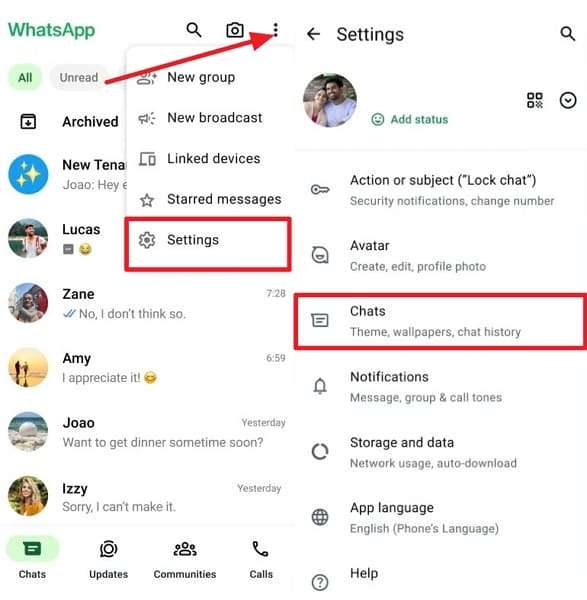
Step 2. Then tap Transfer Chats, then choose Start. It will display a verification code and QR scanner.
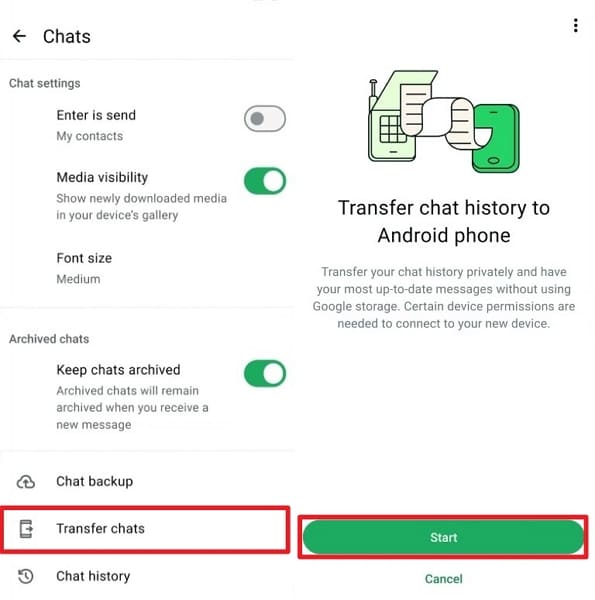
Step 3. Enter the phone number on the new phone's WhatsApp. Next, type the verification code shown on the old phone.
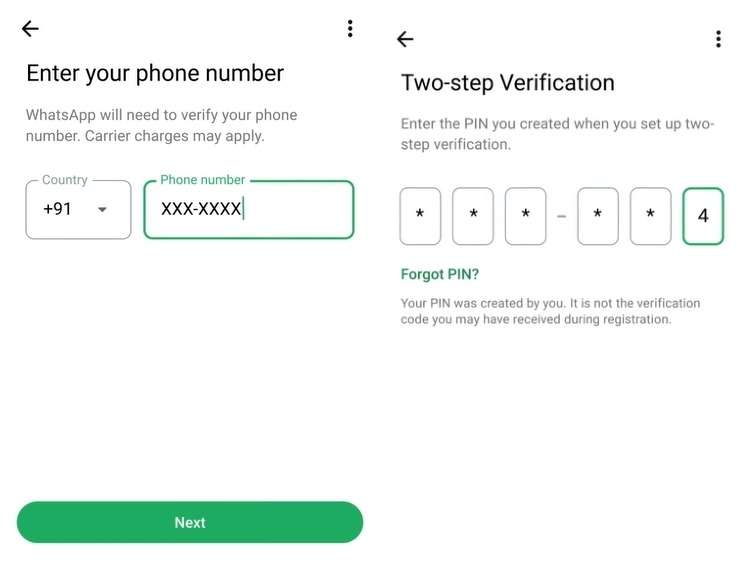
Step 4. Afterward, tap Continue on the new phone. Then, scan the QR code using your old phone QR scanner.
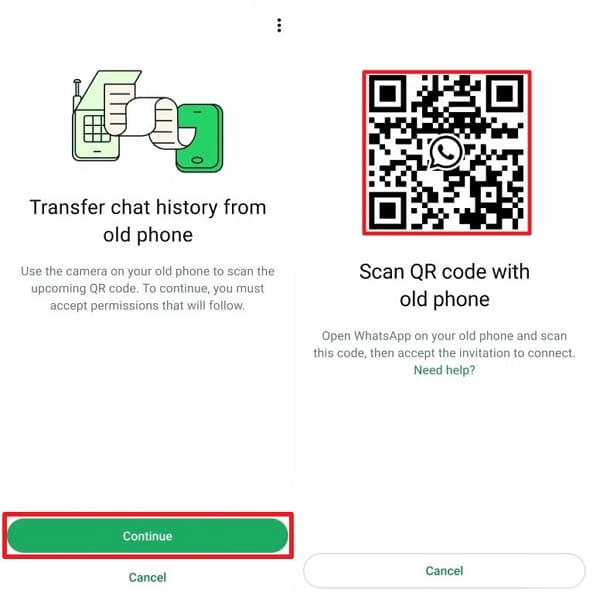
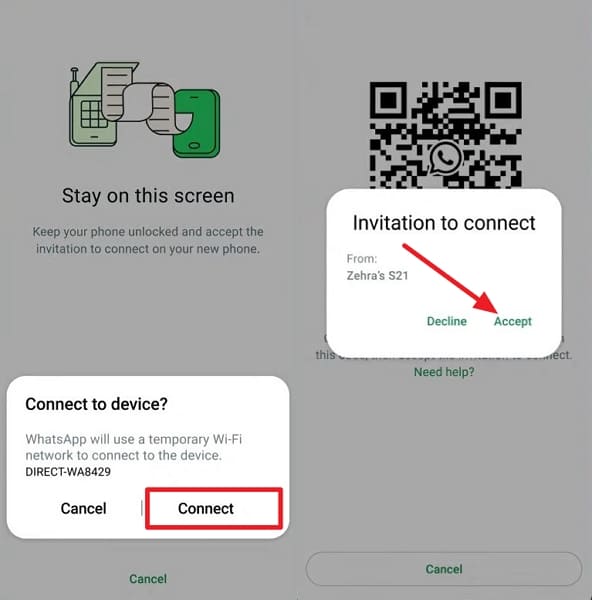
Step 5. After scanning, tap Continue on the old phone, then tap Accept on the new phone to start the transfer.
It fails if either phone is running an outdated or unsupported WhatsApp version.
You cannot use it once WhatsApp has been activated on the new phone.
Way 4. Local Backup Transfer (Android Only)
Local backup transfer relies on WhatsApp backup files stored on your Android device. You need enough free space and confidence in handling basic folder copies. This approach works well when you want full control instead of trusting cloud services. Many users choose it when learning how to transfer the WhatsApp broadcast list to a new phone offline. Follow the steps below to create and move the local backup to a new phone:
Step 1. First, enter WhatsApp Settings. Tap Chats > Chat Backup > Back up.
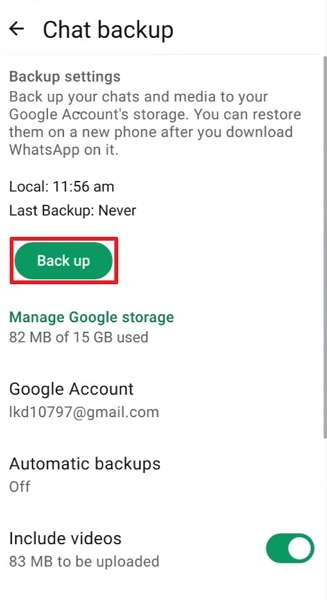
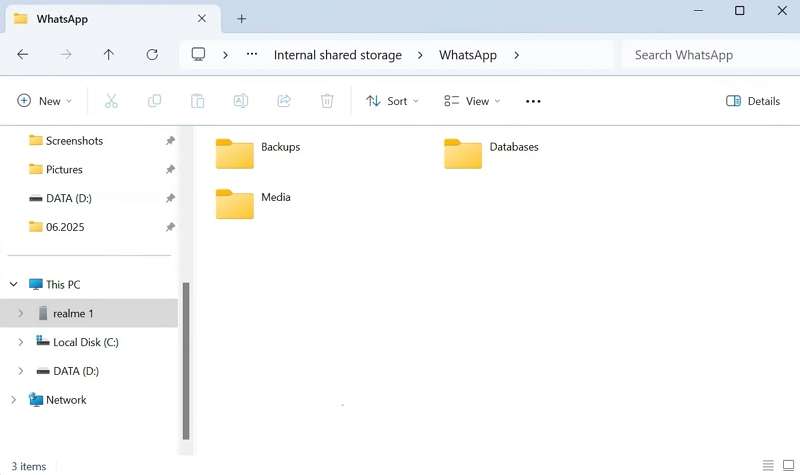
Step 2. Connect your Android phone to your PC. Open Phone Internal Storage > WhatsApp. Copy and save the “Backups” and “Database” folders.
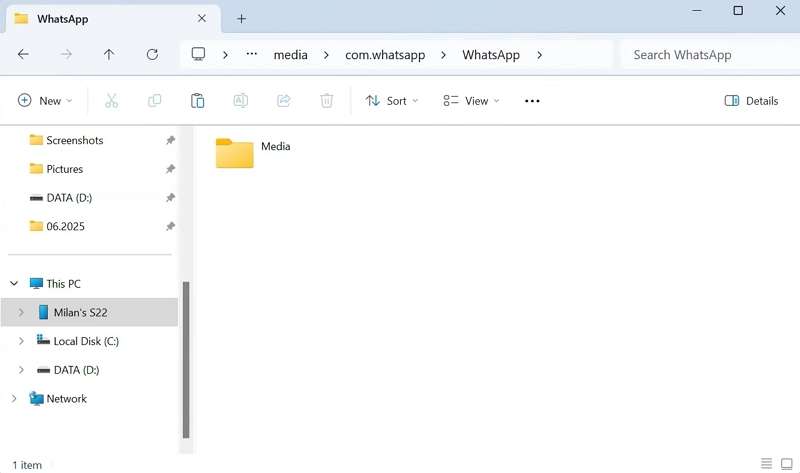
Step 3. Now, connect your new Android phone to the PC. Paste all folders in New Phone Internal Storage > WhatsApp.
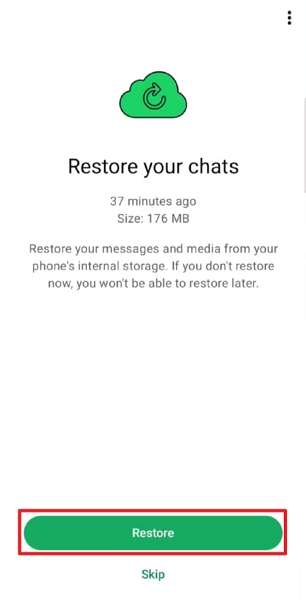
Step 4. Next, set up WhatsApp on the new phone. Once the Local Backup is detected, tap Restore.
Malware or random storage errors can damage the single backup file.
Restoring an older backup can roll back and remove your latest chats.
Way 5. Move to iOS App (Android to New iPhone)
Move to iOS is Apple's official tool for moving data from Android to iPhone. You need a new or factory-reset iPhone, the Move to iOS app, and a stable Wi‑Fi connection. This method transfers supported WhatsApp data during initial setup, keeping chats, media, and account details together. It works well when learning how to keep the WhatsApp broadcast list when switching phones. Now, go through the steps below to see how it works:
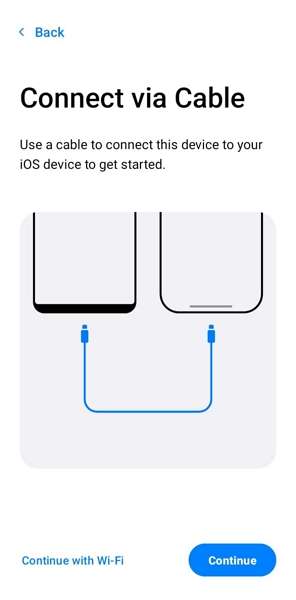
Step 1. First, install the Move to iOS app on Android. Set up the app on Android and connect both phones using a cable.
Step 2. On the Data Transfer screen of a new or factory reset iPhone, tap From Android to display the code.
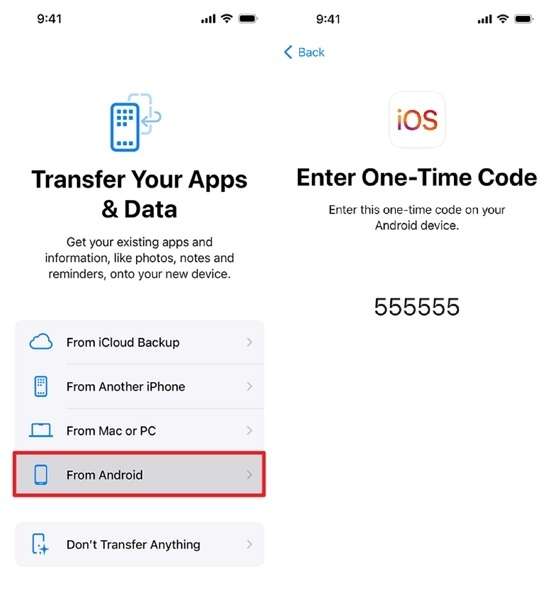
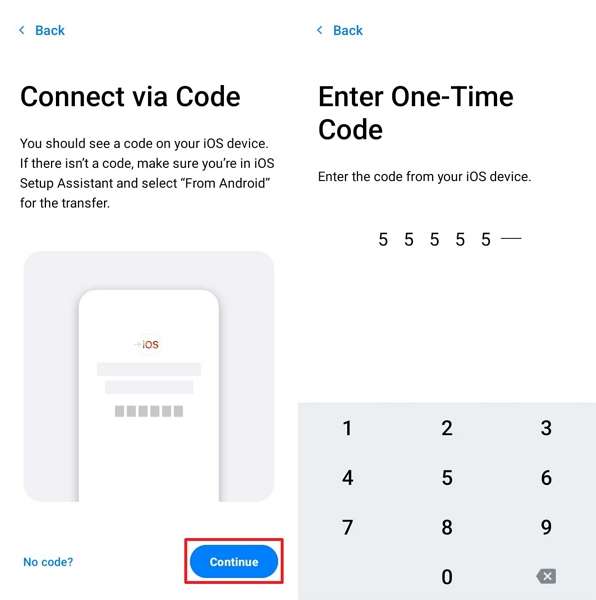
Step 3. On Android, tap Continue. Enter the 6-digit code shown on the iPhone.
Step 4. Next, choose the WhatsApp app, then tap Continue. Once transferred, choose Done.
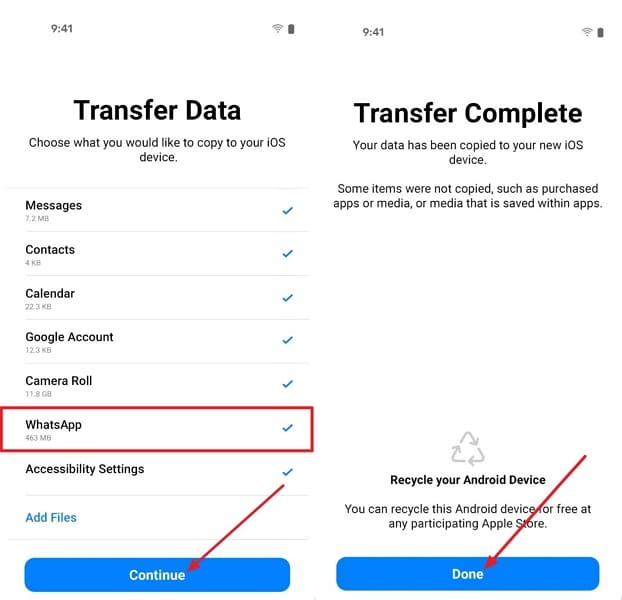
You must erase the iPhone or use it brand‑new before starting the transfer.
Does not work well when Android storage is nearly full during preparation.
Part 2. Troubleshooting Issues with WhatsApp Broadcast List Transfers
Sometimes problems appear even after carefully following the steps to move your WhatsApp data. You might see missing lists, restore errors, or messages not reaching everyone on the new phone. Now, we will explain simple fixes for common issues when you move WhatsApp broadcast contacts to new device.
Problem 1. Broadcast Lists Not Showing on New Phone
The broadcast lists are missing because WhatsApp skipped restoring your backup during setup. This usually happens when you tap "Skip" by mistake, use another number, or choose the wrong account.
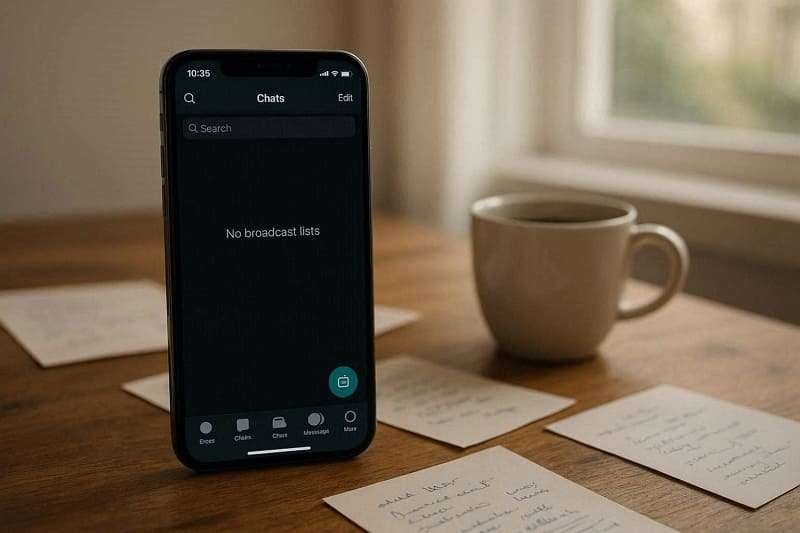
Update WhatsApp, restart phone, then check broadcast lists.
Enable WhatsApp contact access in iOS or Android settings.
Use the same number and account when restoring WhatsApp backup.
Make a fresh backup of your old phone, reinstall WhatsApp, and restore it.
Problem 2. Some Contacts Missing from Broadcast Lists
Some users notice that only part of their broadcast lists are available after moving WhatsApp to a new phone. This problem occurs when contact sync or storage permissions fail during the restore of the WhatsApp broadcast list on a new phone.
Refresh WhatsApp contacts list; tap Menu > Refresh.
Delete and recreate the broadcast list, re‑add all contacts.
Ask the contact to save your number, then retry.
Export contacts to a Google/iCloud account, sync, then reopen WhatsApp.
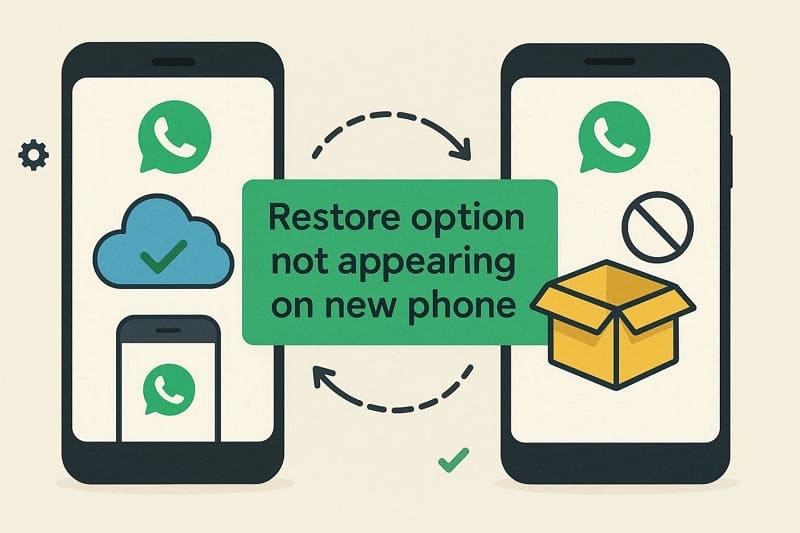
Problem 3. Restore Option Not Appearing on New Phone
This often happens when you use a different number, an incorrect account, or skip the setup steps. Sometimes the restore screen never appears, so your chats and broadcast lists do not load correctly.
If the number changed, change the number on the old phone, and re‑backup.
Uninstall WhatsApp, reinstall it, accept all permissions, and wait for the restore screen.
On Android, open Google Drive backups and verify that the WhatsApp backup exists.
On iPhone, enable iCloud Drive and WhatsApp in iCloud.
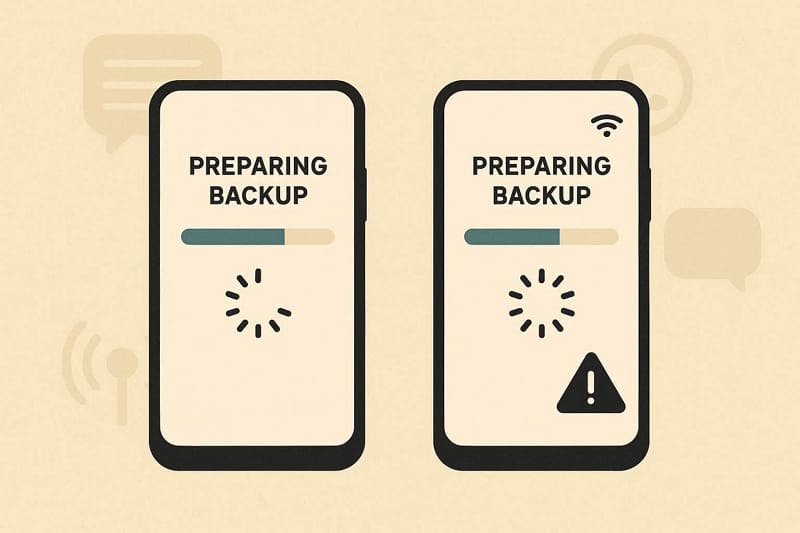
Problem 4. Transfer Stuck on “Preparing Backup” or “Restoring Messages”
Sometimes the transfer freezes on loading screens, leaving your chats and broadcast lists incomplete. It happens due to weak internet, low storage, and phones going to sleep mid‑transfer.
Ensure at least 5–10 GB of free internal storage.
Cancel the current backup, restart the phone, and start a fresh backup.
Disable battery saver to allow WhatsApp to run in the background.
Avoid using the phone heavily while backing up or restoring.
Problem 5. Different Time or Date Settings on Phones
When your phones show different times or dates, WhatsApp may ignore backups created on the other device. This mismatch can prevent recent data from loading, leading you to wonder whether WhatsApp backups include broadcast lists.
Restart phones after changing time settings, and retry restore.
Enable automatic date and time in phone settings.
Manually correct the wrong date, then reopen the WhatsApp backup.
Conclusion
In the end, we explored several practical methods for transferring the WhatsApp broadcast list to a new phone. These options help you protect important announcements, keep key contacts reachable, and avoid broken messaging workflows. Whether you prefer cloud backups or direct device transfers, choosing the right method keeps your broadcasts consistent. For the smoothest experience, MobileTrans offers a guided, reliable way to move everything.
FAQs
-
Can I use different broadcast lists on two phones with one WhatsApp number?
WhatsApp is designed for one primary device per number, so lists usually stay tied to the active phone. If you switch frequently, always finish backup and restore properly to avoid confusing or outdated broadcast setups.
-
Will my broadcast lists move if I only swap my SIM to a new phone?
No, simply moving your SIM card does not automatically copy your WhatsApp data or broadcast lists. You still need to use an appropriate transfer or backup method to move those lists safely.
-
How do I protect my broadcast lists when I change phones very often?
Create regular cloud or local backups and test restores occasionally to ensure your lists remain usable. For extra safety, note key broadcast groupings elsewhere so you can quickly move WhatsApp broadcast contacts to new device.










