



 TL;DR:
Transferring WhatsApp poll history to a new device requires choosing between MobileTrans to preserve interactive voting elements or using native WhatsApp transfer methods that strictly mandate same-OS migrations and may result in partial data loss.
● MobileTrans merges existing chats with new data without requiring a factory reset on the target device, serving as the primary method to ensure poll buttons remain interactive rather than reverting to static text.
● Native transfer features like Cloud Backup, PC-based Local Backup, and QR Code transfers are restricted to migrations within the same operating system and carry the specific limitation of potentially degrading live polls into non-interactive messages.
● If your device upgrade also involves switching to a new phone number, you must manually update your registered number within your current WhatsApp account settings before initiating any backup to prevent synchronization failures.
Ask AI for a summary
 ChatGPT
 Perplexity
 Gemini
 Claude
 Grok
Grok
Upgrading to a new phone can feel stressful when you care about your WhatsApp group poll history. Those polls often store team decisions, event plans, and group votes that you may need later. If you move phones in a rush, some polls or vote counts might quietly fail to come across.
Settings, operating systems, and backup types all change how completely your chat data is preserved. This guide walks you through clear, practical steps to transfer WhatsApp polls to a new phone. Follow along to protect your polls as you switch devices without stress or confusion.
In this article

Everything You Need to Know About Saving WhatsApp Polls on a New Device
WhatsApp polls help groups collect votes on plans and decisions inside a chat. They make it easier for friends and communities to choose dates, options, and preferences together. Before learning how to transfer WhatsApp poll history to a new device, let’s look at what they are and how they work.
What WhatsApp Polls Are and How They Work?
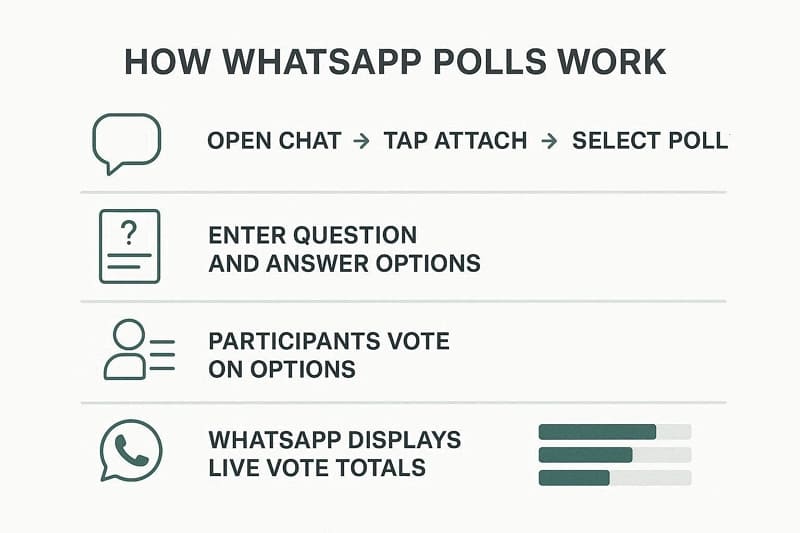
WhatsApp polls are special messages that let people vote on a question inside a chat. They appear in personal and group conversations, just like normal text or media messages. Each poll includes one question and several answer options that users can tap to vote. Poll results are updated live in the chat so everyone can quickly see which option is winning.
How WhatsApp Polls Work?
Next, let’s see how WhatsApp polls work in simple steps:
- Open the chat, tap the “Attach” icon, and choose the poll option from the menu.
- You type your question, add different answer options, and then send the poll to the chat.
- People in the chat tap one or more options based on the poll's settings.
- WhatsApp counts the votes and shows updated totals below each option directly inside the chat.
Does WhatsApp's Built-in Transfer Feature Include Poll Results?
Sometimes WhatsApp transfers the full interactive polls, so users can still tap and view votes. Other times, it keeps only the final results, and the poll interaction is lost. This mixed behavior has many people wondering, "Does WhatsApp backup save poll data?"
This is where users look for safer, clearer ways to protect their important poll history. However, available information suggests that WhatsApp's built-in methods may not always preserve full poll data and may only restore limited results in some cases.
How to Transfer WhatsApp Poll to New Phone - 5 Ways
You can move WhatsApp polls in several ways when changing to a different phone. Some methods use WhatsApp’s own backup tools, while others rely on extra transfer tools. These options can transfer WhatsApp poll data from an iPhone to another iPhone or other devices. Now, let’s move into each method step by step.
Way 1. MobileTrans: The Most Efficient Solution to Transfer WhatsApp Polls
The first method uses MobileTrans, often considered the best app for backing up WhatsApp chats before switching phones. This tool helps move chats, media, and poll messages using a clear, step‑by‑step on‑screen process. It supports both Android and iPhone and works smoothly with over 6,000 devices. These features work especially well when transferring between the same platform, such as Android‑to‑Android or iPhone‑to‑iPhone.
Key Features
- Restore from Cloud: Restore WhatsApp and WhatsApp Business data directly from your linked cloud drive backup.
- Recover Deleted Data: Recover deleted WhatsApp messages, media, and attachments that were removed from the phone storage.
- Support Other Apps: Backup and restore chats from WeChat, Line, Kik, and Viber messaging accounts easily.
- Merge Old and New Data: Merge existing chats with new data, keeping the complete WhatsApp history together after transfer.
- No Factory Reset Needed: Move WhatsApp data between phones without wiping or factory resetting the target device.






How to Transfer WhatsApp Polls to a New Phone Using MobileTrans
Now that you know what MobileTrans can do, look at the steps below to see how it transfers WhatsApp poll:
Step 1. First, click WhatsApp under App Transfer. Then, connect the same OS phones via USB cable.
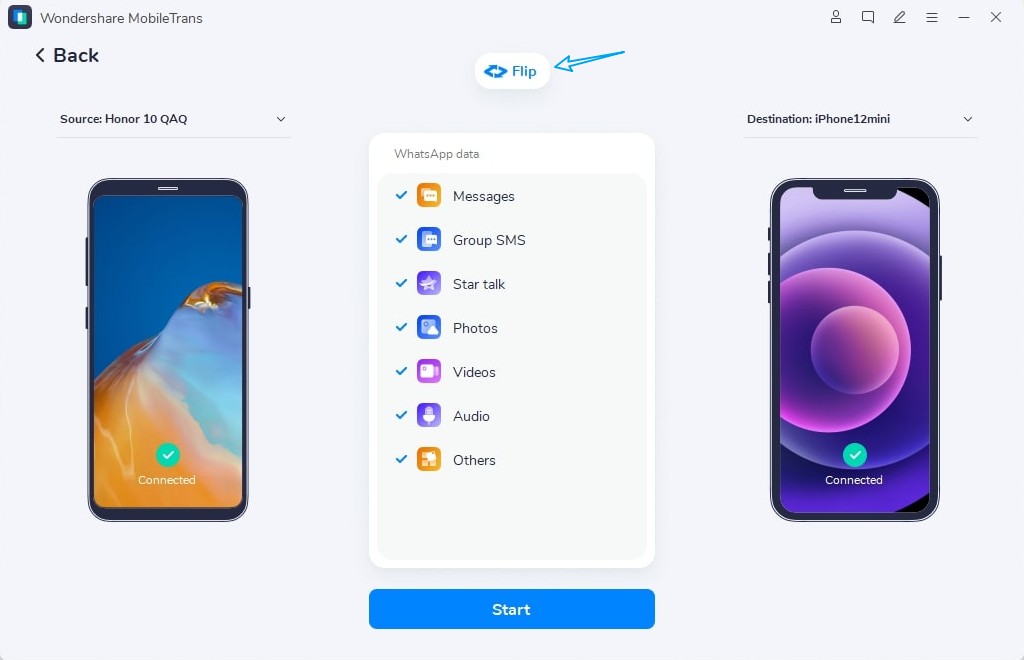
Step 2. Afterward, select Transfer & Merge. Verify both Source and Destination devices. Then, choose the WhatsApp Poll type and press Start.
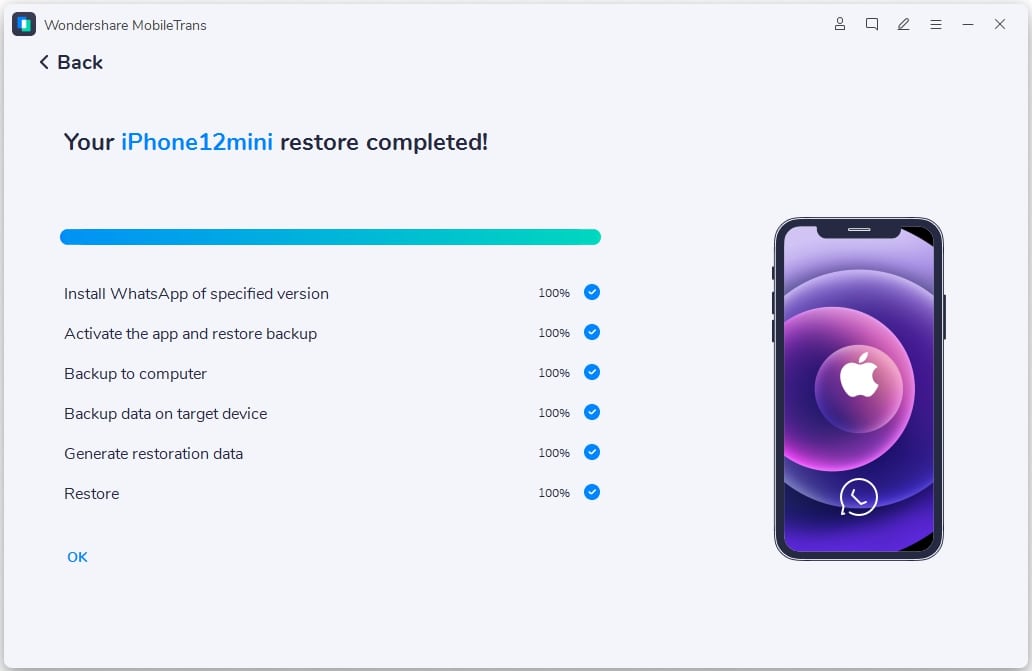
Step 3. Monitor the transfer and wait for it to complete. Press OK when completed.
Way 2. Using Cloud Backup (Most Common)
Cloud backup works when you use the same phone number and Google or iCloud account. You must have enough cloud storage space and a stable internet connection during backup. This method keeps chats and most polls together, restoring everything. It also helps to move WhatsApp polls from Android to Android or from iPhone to iPhone. Follow the steps below to see how this method works on iPhone and Android:
From Android to Android
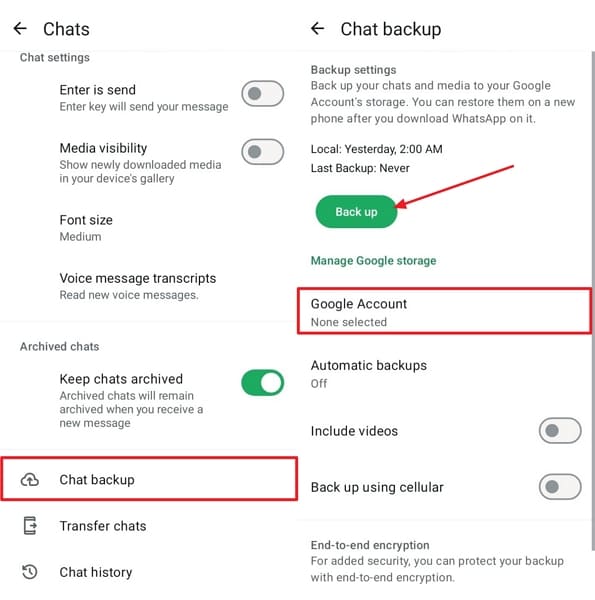
Step 1. First, on your old Android phone, tap Three-Dots > Settings. Afterward, tap Chats.
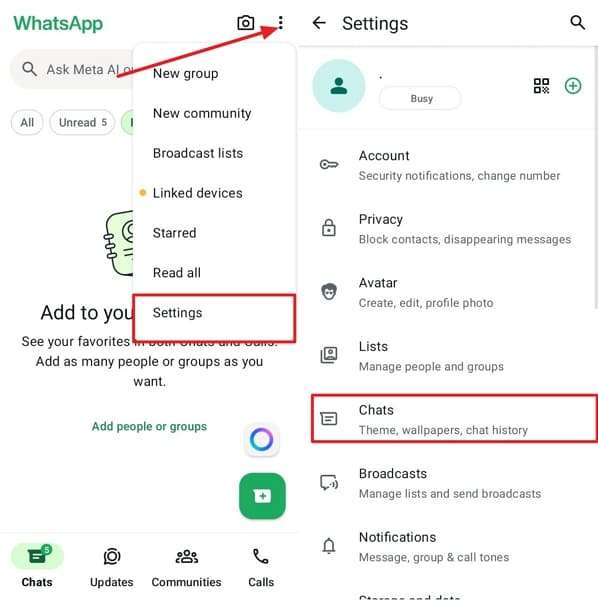
Step 2. Next, press Chat Backup. Then, choose Google Account and use Back up.
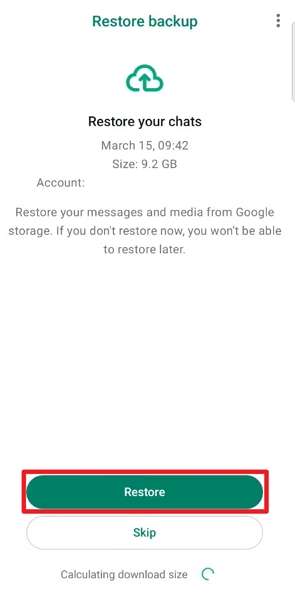
Step 3. Now, on the new Android, sign in with the same Google account. Tap Restore to restore your WhatsApp polls.
From iPhone to iPhone
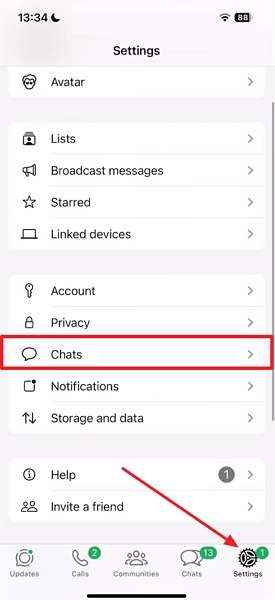
Step 1. First, open WhatsApp on the old phone. Next, tap Settings > Chats.
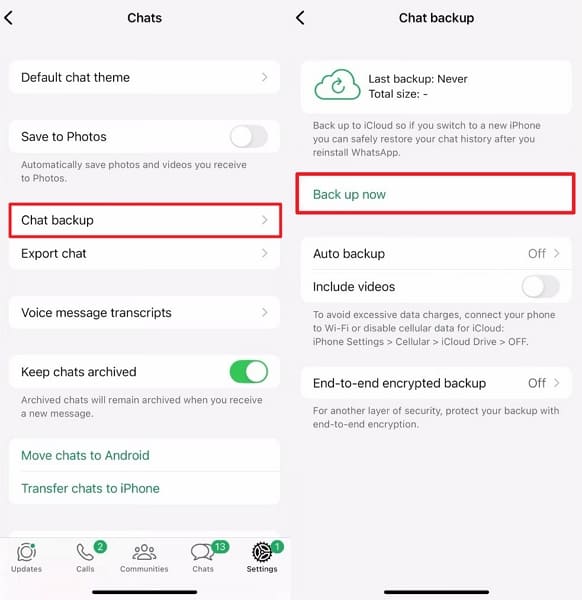
Step 2. Then, tap Chat Backup. Afterward, select Backup Now and wait for the backup to complete.
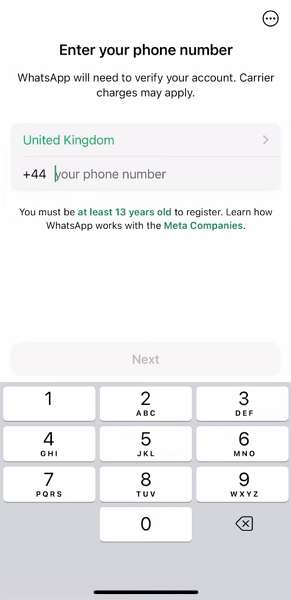
Step 3. Next, set up WhatsApp on a new iOS phone. Use the same phone number to continue.
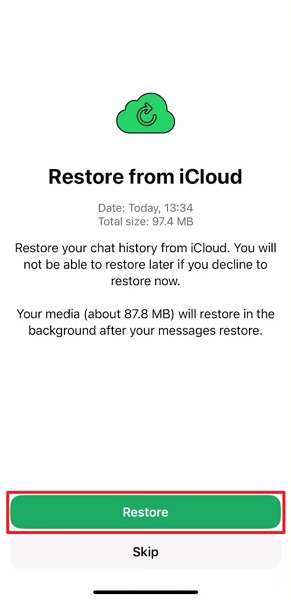
Step 4. Once WhatsApp detects an available iCloud backup. Press the Restore button to proceed.
- Backup sometimes skips the latest chats if you forget to run it before.
- Polls may appear only as messages, losing interactive buttons and live voting.
Way 3. Utilize the Local Backup Feature (Android to Android Only)
Local backup stores your WhatsApp data directly on the Android phone's internal storage. Both phones must be Android, and you need enough free space for the backup file. This method keeps chats and most poll messages together without relying on cloud accounts or the internet. It is another effective way to save WhatsApp poll results before changing phones. Go through the steps below to perform this:
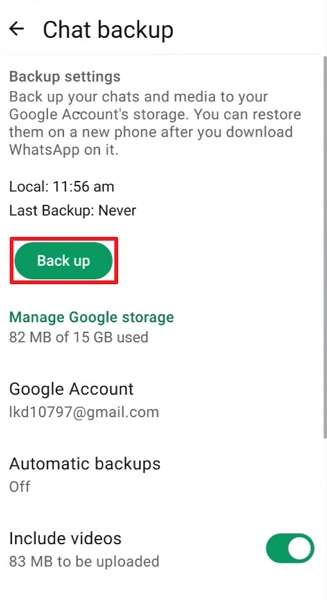
Step 1. Start by entering WhatsApp Chat Settings. Then, tap Chat Backup > Back up to create a backup without a Google account.
Step 2. Next, connect the phone to the PC. Open Internal Storage > WhatsApp. Copy and save all your WhatsApp data to your PC to avoid data loss.
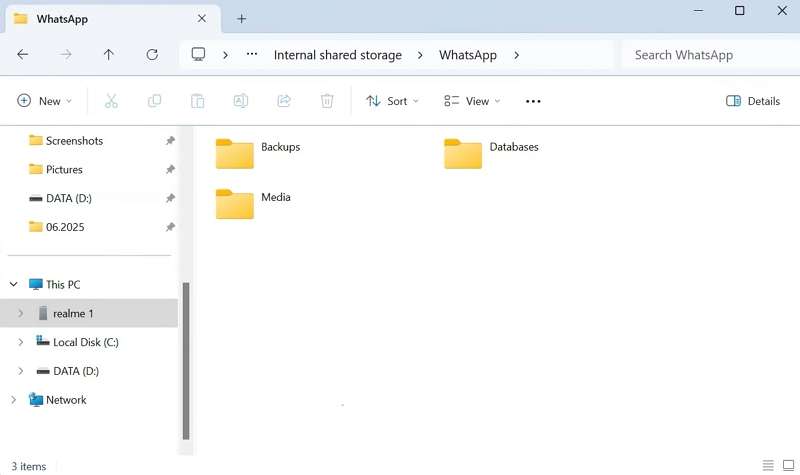
Step 3. Then, connect the new Android to the PC. Paste all folders in New Phone Internal Storage > WhatsApp.
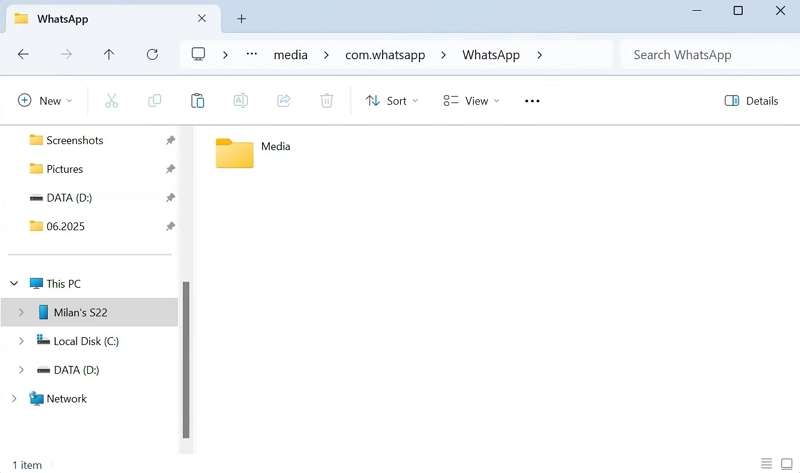
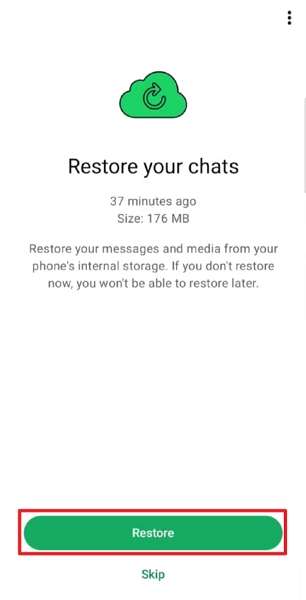
Step 4. Next, download and install WhatsApp on your new phone. Once your WhatsApp Local Backup is detected, press Restore.
- The backup file may not work if the WhatsApp version differs between phones.
- Storage errors can corrupt the backup, rendering all poll messages unusable.
Way 4. Try the "Transfer Chats" Feature (QR Code)
This method sends chats directly between phones by scanning a QR code on one device. Both phones must use the same platform, and WhatsApp must be fully updated on both. Transfer happens over a local connection, so it does not depend on cloud storage or accounts. It can transfer WhatsApp poll data from iPhone to iPhone or Android to Android. Adhere to the steps below to see how this method works to transfer data:
For iPhone to iPhone
Step 1. First, on your old iOS smartphone, open WhatsApp Settings. Then, tap Chats.
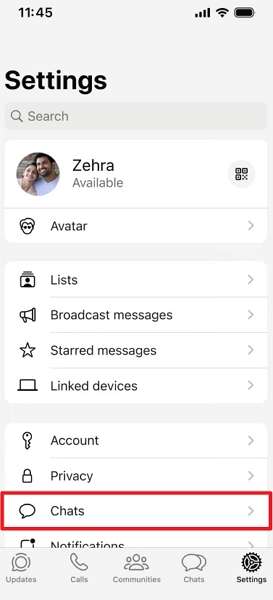
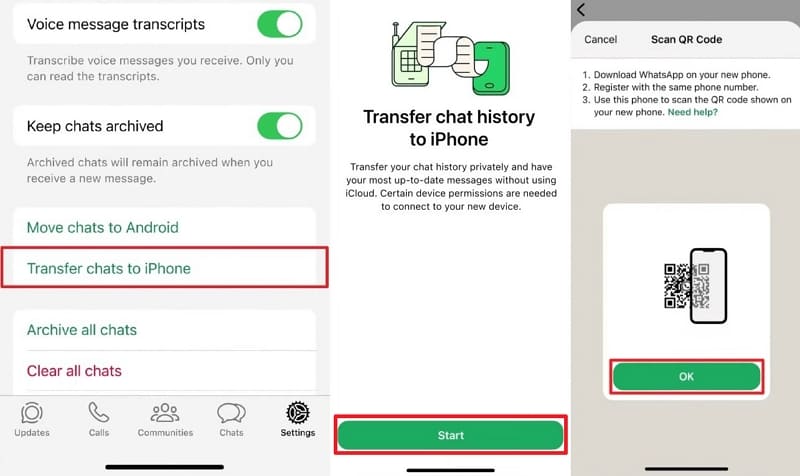
Step 2. Next, tap Transfer Chats to iPhone > Start > OK to view the QR scanner.
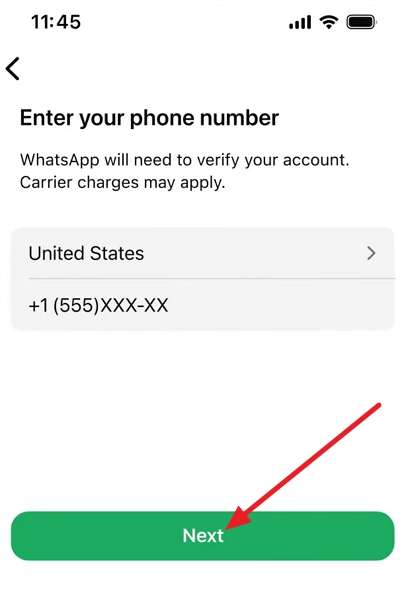
Step 3. Then, set up WhatsApp on your new phone by entering your number. Afterward, tap Next.
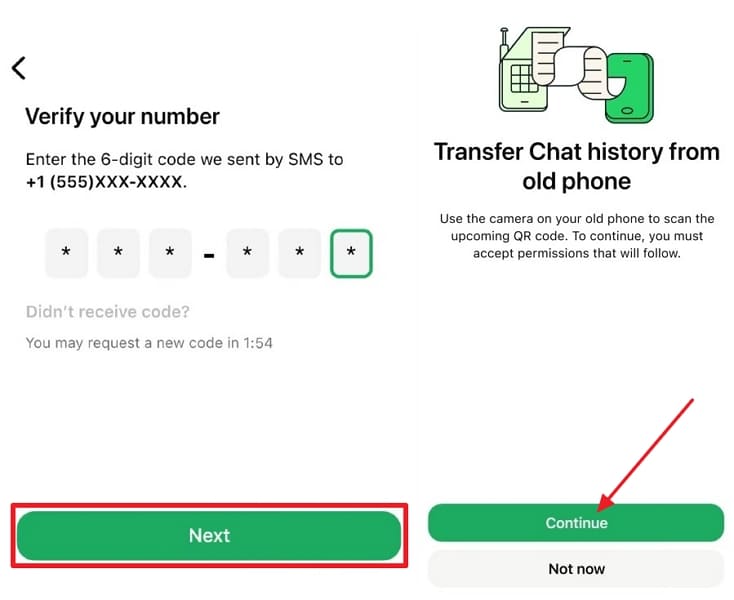
Step 4. Enter the verification code sent to your phone number. Then, tap Next > Continue to transfer WhatsApp polls data.
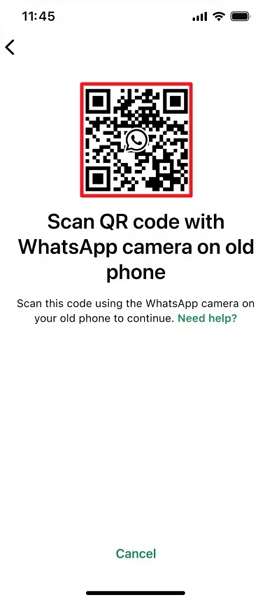
Step 5. Lastly, scan the QR code using your old iPhone to begin WhatsApp transfer.
For Android to Android
Step 1. Tap Three-Dots > Settings on your old Android smartphone. Then, access the Chats settings.
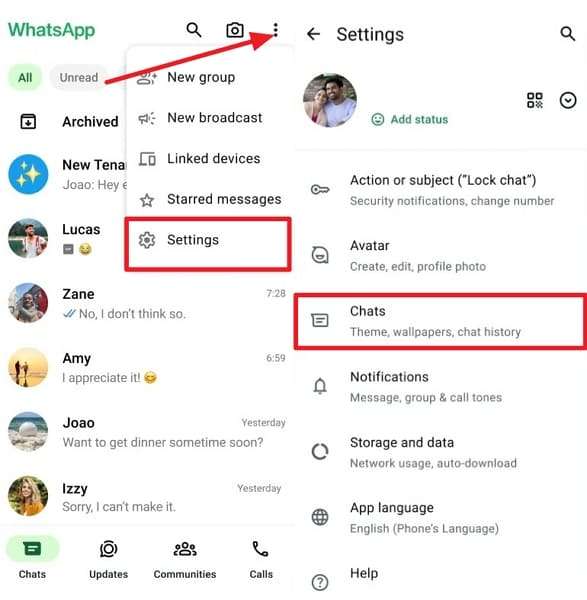
Step 2. Next, tap Transfer Chats > Start. The app will show a verification code and QR scanner.
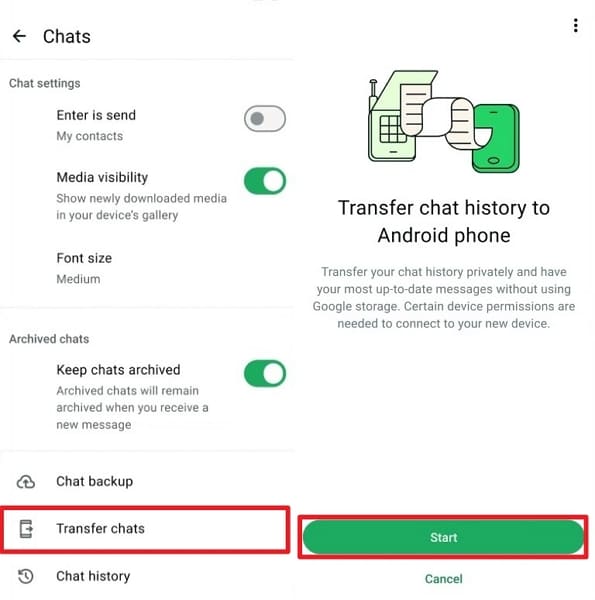
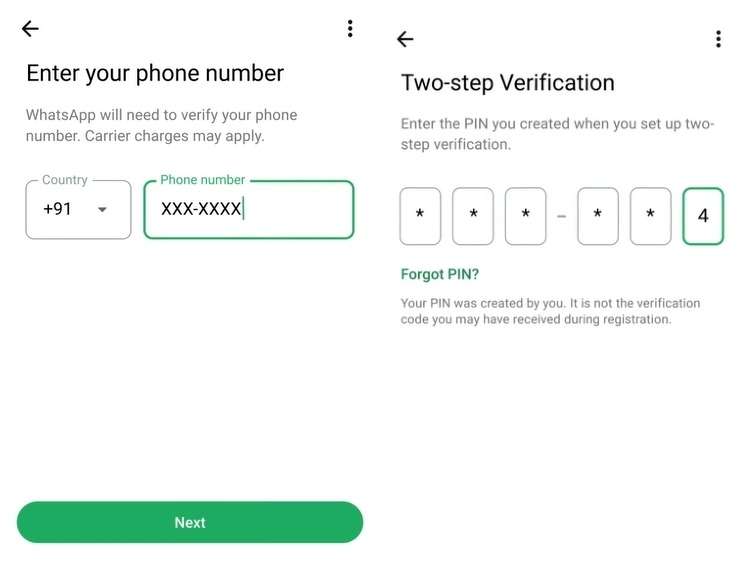
Step 3. Afterward, you have to set up WhatsApp on a new phone. Type verification code and two-factor authentication code.
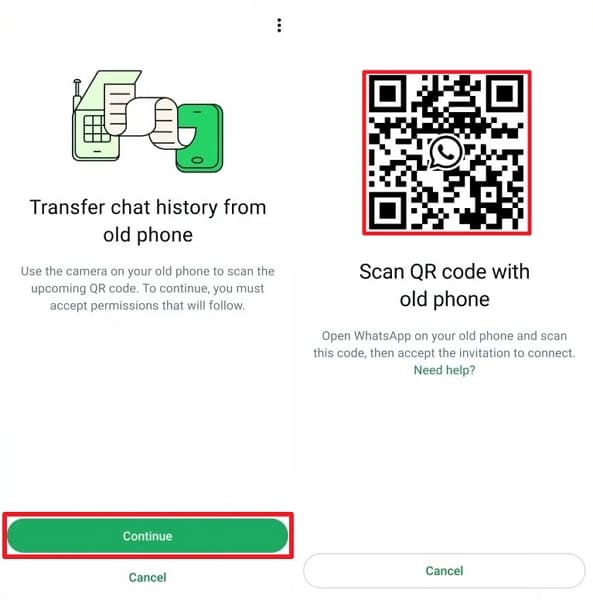
Step 4. Then, tap Continue. Scan the QR code with your old phone QR scanner.
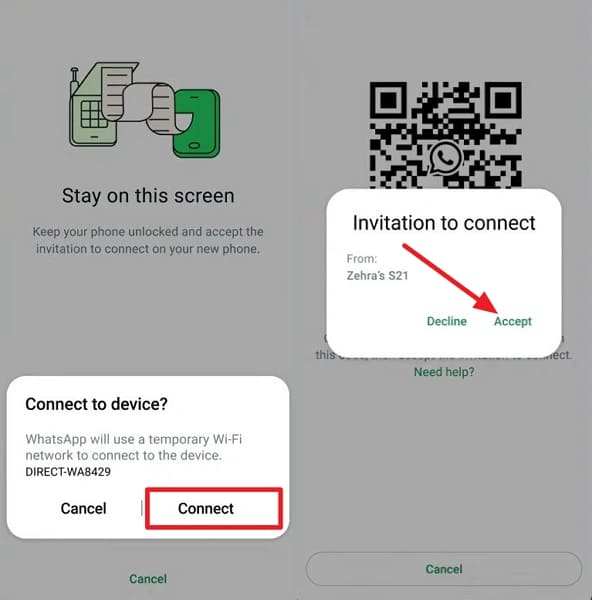
Step 5. Once scanned, tap Continue on the old phone, then tap Accept on the new Android phone to begin the transfer.
- Phones must stay close; moving away can interrupt and corrupt the transfer.
- A low battery during transfer can leave chats and polls incomplete.
Way 5. Save Poll Screenshots as a Manual Backup
This method only needs enough storage for several images. You capture what appears on screen, so it works on any phone or platform. Screenshots capture the exact poll question, options, and vote counts, even if transfers later fail. They give a visual record you can check outside WhatsApp, and after upgrading as well. Follow the steps below to see how to do it on Android and iPhone:
For Android
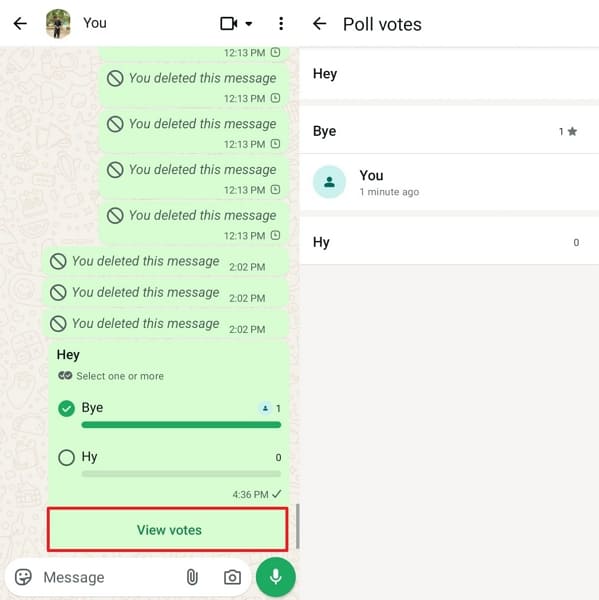
Step 1. First, open a WhatsApp chat with a poll. Tap View Votes to open the poll and take a screenshot.
Step 2. Open Phone Gallery and access the polls screenshot. Tap Share > Drive.
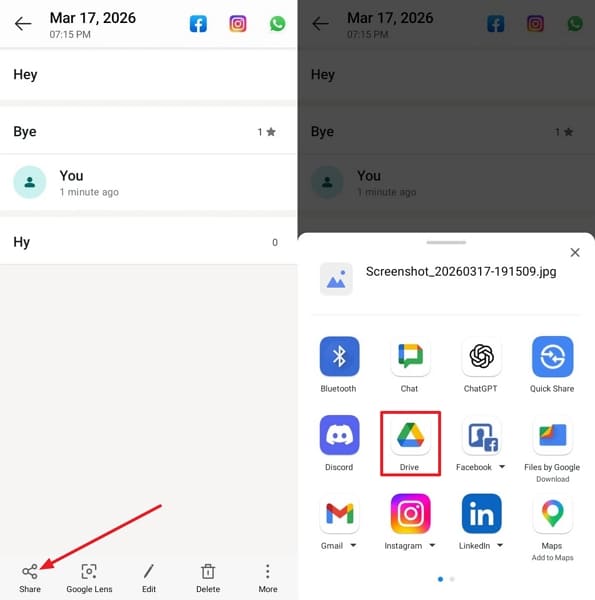
Step 3. You can access the same image on the new Android phone with the same Drive login.
For iPhone
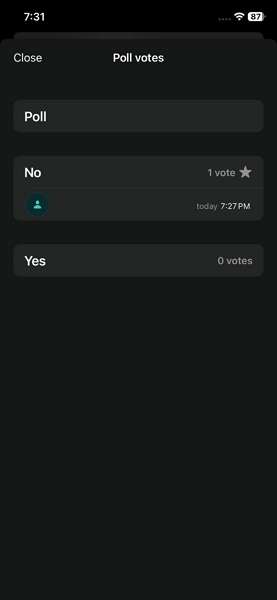
Step 1. On iPhone, take a screenshot of a WhatsApp chat poll.
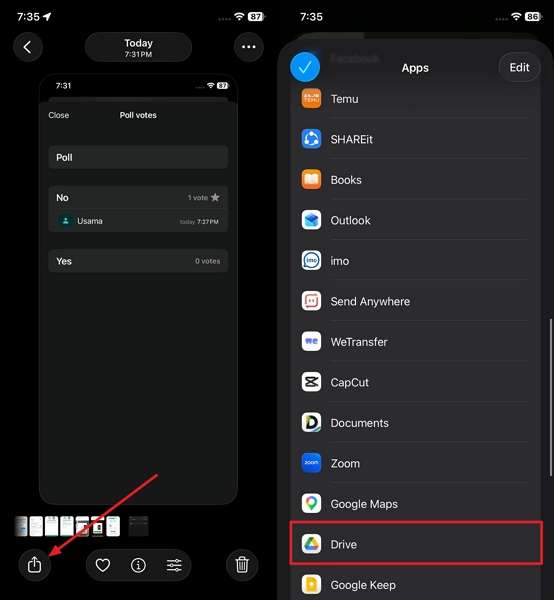
Step 2. Then, access the poll screenshots in the Photos app. Tap Share > Drive or another cloud storage service.
- Screenshots expose private information, so sharing them can compromise others' privacy.
- If the cloud fails, you lose every saved poll image at once.
Conclusion
In conclusion, we explore different methods for transferring WhatsApp polls to a new phone. With these approaches, you can keep group decisions safe as devices and systems change. Before upgrading, choose the method that best matches your phone type and comfort level. If you want to move long chat histories and keep polls intact, we recommend using MobileTrans for safer WhatsApp data transfers.
FAQs
-
Do polls in muted or archived chats move phones?
Muted or archived status does not block transfers; those chats remain part of your account history. As long as your chosen method copies full chats, their polls and results usually move along with them.
-
What happens to my polls if I switch phone numbers during the upgrade?
Changing numbers can confuse some transfer methods, especially cloud backups linked to your old account. To safely transfer your WhatsApp poll history to a new device, update your number in WhatsApp before creating a backup.
-
Can I restore just one specific chat with its polls, not everything?
WhatsApp’s official restore options work at the account level, so they bring back all chats together. If you need just one poll, you can normally export that chat or keep screenshots instead of selective restore.










