

![How to Transfer WhatsApp Video Notes to a New Phone [All Ways]](https://mobiletrans.wondershare.com/images/images2026/transfer-whatsapp-video-notes-1.jpg)

 TL;DR:
To transfer WhatsApp video notes to a new device without losing them, use the built-in Chat Transfer feature for same-OS migrations or rely on MobileTrans for cross-platform transfers between Android and iPhone.
● The native Chat Transfer method requires both phones to use the exact same phone number and remain physically nearby to scan a QR code, making it unsuitable for long-distance transfers or older unsupported devices.
● Exporting chats via email or downloading them through WhatsApp Web limits you to processing one conversation at a time, and the video notes are saved as separate external files that cannot be restored back into the WhatsApp chat interface.
● Forwarding video notes to another active WhatsApp account successfully keeps the visual media playable within the application, but this workaround permanently breaks the original message sequence and separates clips from their initial conversational context.
Ask AI for a summary
 ChatGPT
 Perplexity
 Gemini
 Claude
 Grok
Grok
Getting a new phone is exciting, yet worrying about losing your WhatsApp video notes feels overwhelming. Many users forget that their recorded video notes are saved only on the original phone’s internal storage. When logging in elsewhere, those short video messages disappear and do not appear again.
That’s why people frequently search for how to transfer WhatsApp video notes to a new phone safely online. This guide explains simple, secure methods for transferring all your WhatsApp video notes between phones. By the end, you will easily keep all your important video notes saved and ready on your new phone.
In this article

What is WhatsApp Video Note?
WhatsApp video notes are short visual messages you can record and send quickly inside chats. They capture moments better than texts or voice notes, making conversations more natural and fun. Video notes play directly in chats, showing a small round preview with clear voice and expressions.
These files are saved only in the chat, not automatically in your main phone gallery. Many users wonder how to easily transfer WhatsApp video notes from an iPhone to Android devices.
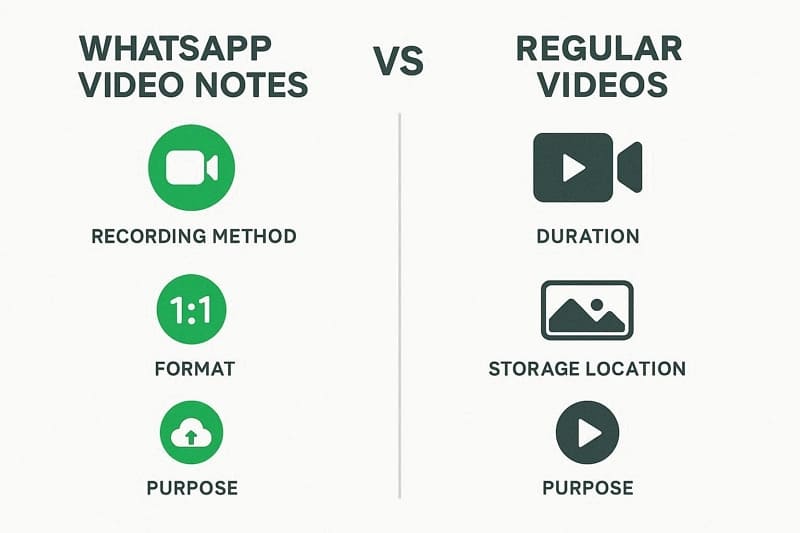
Video Notes vs Regular Videos
Regular videos are recorded with your phone camera and shared manually with contacts or groups. Now, we will see how video notes differ from regular videos clearly in purpose and storage:
| Feature | Video Notes | Regular Videos |
| Recording Method | Recorded directly inside WhatsApp chat | Captured using a phone camera or the Gallery app |
| Duration | Up to 60 seconds | Can be several minutes long |
| Format | Circular video bubble | Standard rectangular video file |
| Storage Location | Saved inside chat only | Stored in phone’s media folder |
| Purpose | Quick, personal communication | Longer or high-quality video sharing |
Can I Transfer WhatsApp Video Notes to Any Phone?
Yes, it is possible to move your WhatsApp video notes between different devices with care. Same-type phones, like Android to Android, usually support full chat and video note transfers. Different systems, such as Android to iPhone, may need special software or tools for success. Thus, always back up chats before switching to ensure your messages and video notes stay properly saved everywhere.
Why It’s Important to Transfer WhatsApp Video Notes When Switching Phones
Many users want to keep important clips safe when they change phones or upgrade devices. It also matters when you transfer WhatsApp video notes from Android to Android or iPhone to iPhone. Let's look at some common situations where these short video clips are very important for users.
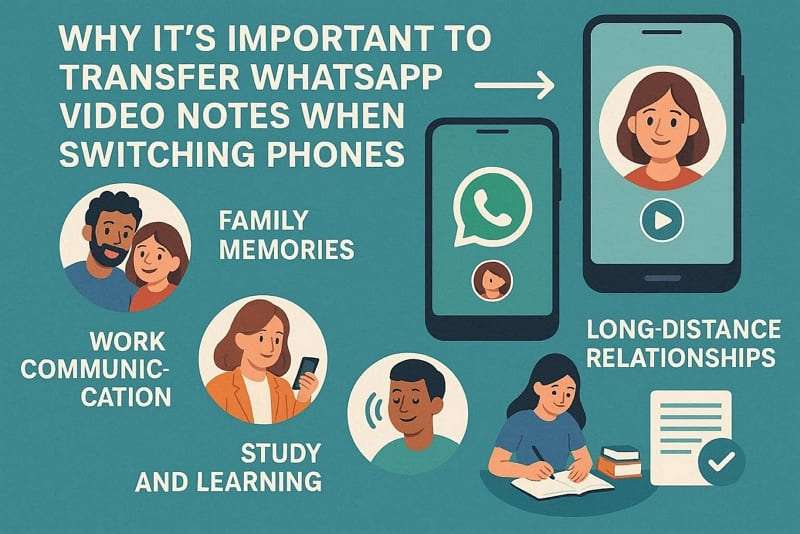
- Family Memories: Video notes often show birthdays, trips, and daily moments that feel special later. These clips help families remember expressions, voices, and reactions that simple text messages cannot show clearly.
- Work Communication: Some people share quick task updates, product demos, or field checks using short video notes. Keeping these clips safe helps them review instructions, avoid confusion, and prove what was discussed earlier.
- Long-Distance Relationships: Partners often use video notes to feel closer and show daily life moments. Losing them during a phone change can break emotional continuity and make conversations feel strangely empty.
- Study and Learning: Students may receive explanations, problem walkthroughs, or lab demos as short video notes. Saving them ensures they can replay important parts before exams, projects, or future lessons related to them.
- Client Communication: Many professionals share approvals, feedback, or updates through short video notes. Keeping these clips safe helps track discussions, avoid misunderstandings, and maintain proper records for future reference.
Top 5 Methods to Move WhatsApp Video Messages to a New Phone
After exploring the use cases, you may be wondering how to transfer WhatsApp video messages to a new device. There are many simple ways to keep your WhatsApp video messages safe during a phone change. All your clips and chats can stay organized and accessible even after setting up a new phone. Next, we'll explore methods to help you transfer your WhatsApp video notes to a new phone.
Method 1. Use MobileTrans One-Click Solution to Transfer Video Notes
The first method uses the best app to transfer WhatsApp video notes in 2026. This solution, MobileTrans, helps users transfer chats, media, and video notes with a simple process. It supports both Android and iPhone, and works with over 6000 iOS and Android devices. These features make it useful for users who want an easy, reliable transfer option.
Key Features
- Merge Old and New Data: MobileTrans keeps WhatsApp chat history together when moving between phones.
- Restore from Cloud Drive: It loads your WhatsApp backups from supported cloud storage accounts easily.
- Supports All WhatsApp Versions: Works well with the latest WhatsApp releases on Android and iPhone devices.
- Selective Backup and Restore: You back up WhatsApp data, then restore only the needed chats to Android.
- Support Other Messaging Apps: It also handles backups and transfers for WeChat, Line, Kik, and Viber accounts.






Ultimate Guide to Transfer Video Notes Using MobileTrans
Now, follow the steps below to learn how to transfer WhatsApp video notes to a new phone using this innovative app:
- Step 1. On the main interface, select App Transfer > WhatsApp. Connect both phones via USB cable.
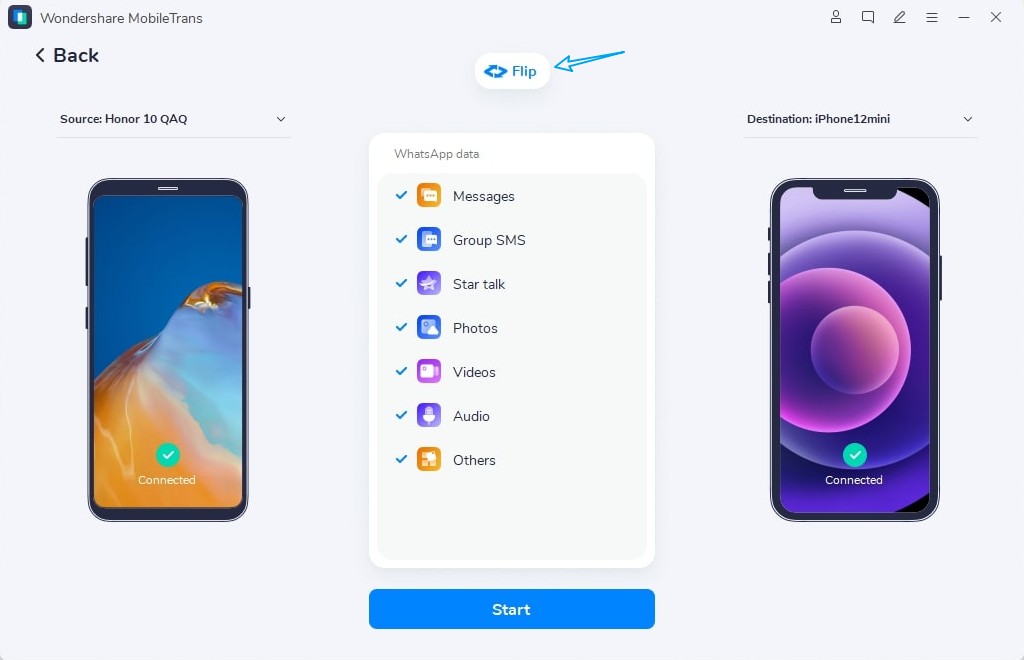
- Step 2. Choose Transfer & Merge. Verify Source and Destination devices. Choose Video Note and press Start.
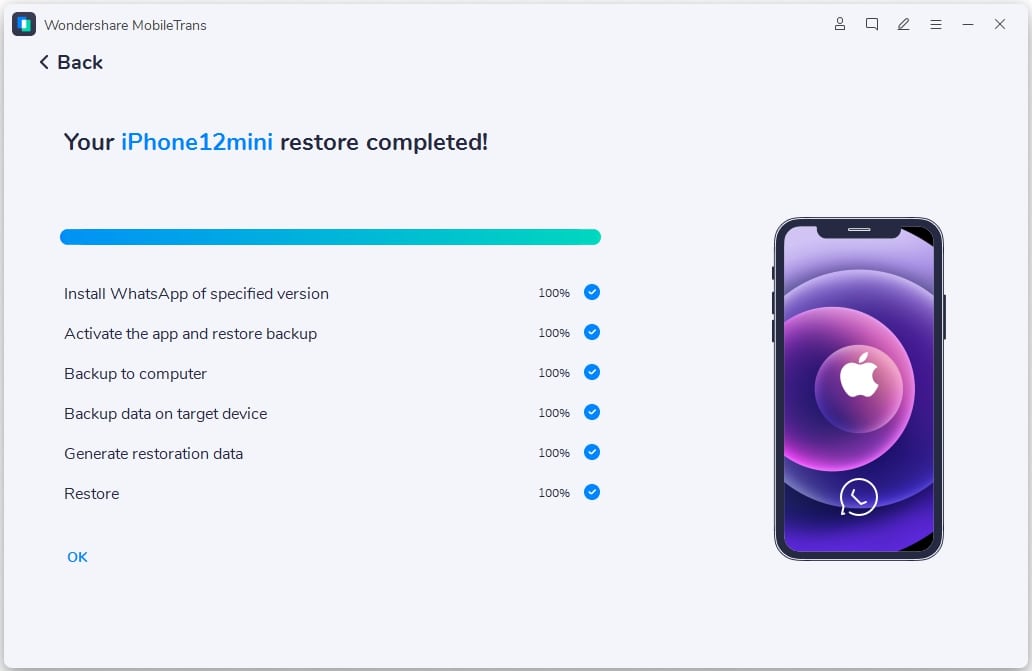
- Step 3. Wait for the WhatsApp video notes to be transferred.
Method 2. Direct Transfer via WhatsApp "Chat Transfer" (New Phone)
This method uses WhatsApp's built-in feature to move your chats between two phones. Both devices need the same phone number, a recent version of WhatsApp, and a stable connection. It helps you save WhatsApp video notes to a new phone before switching, keeping context together. Besides, it avoids cloud backups to make the process private. Now, let’s explore how this works on both iPhone and Android devices:
From Android to Android
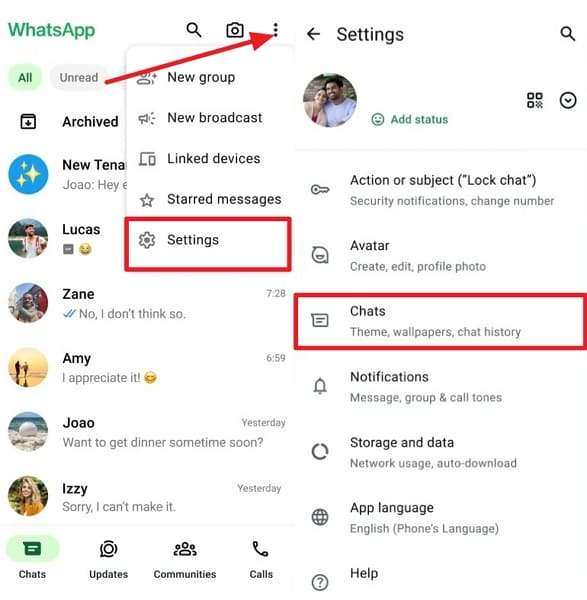
- Step 1. On the old phone, tap on Three-Dots > Settings. Afterward, tap on Chats.
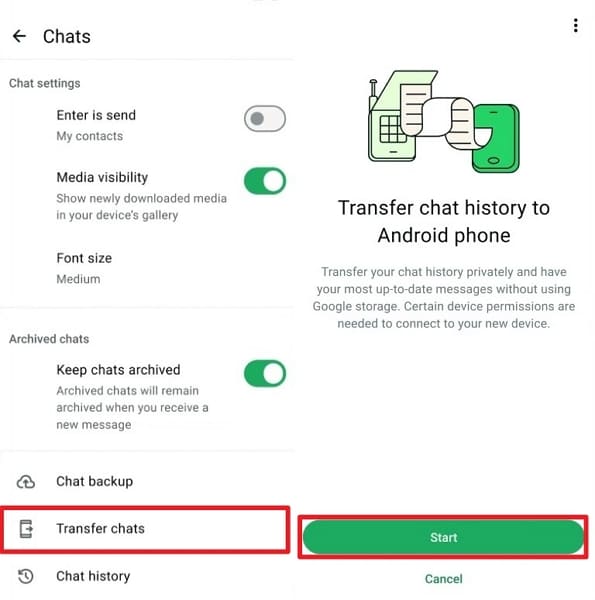
- Step 2. Then tap Transfer Chats, then select Start. It will show a verification code and QR scanner.
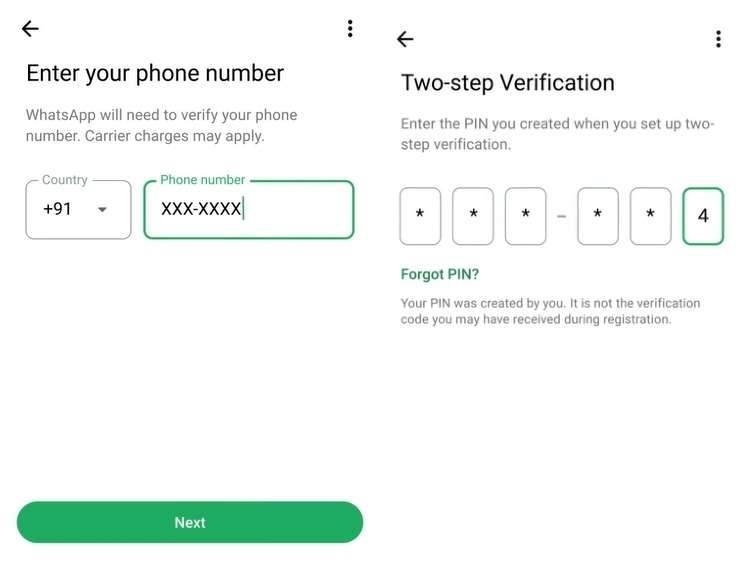
- Step 3. Next, enter the phone number on the new phone's WhatsApp. Then, type the verification code displayed on your old phone.
- Step 4. Here, tap Continue on new phone. Then, scan the QR code with your old phone using the QR scanner.
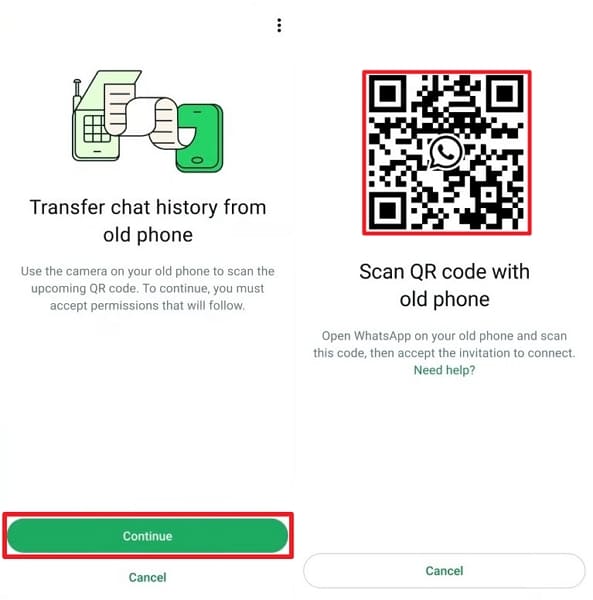
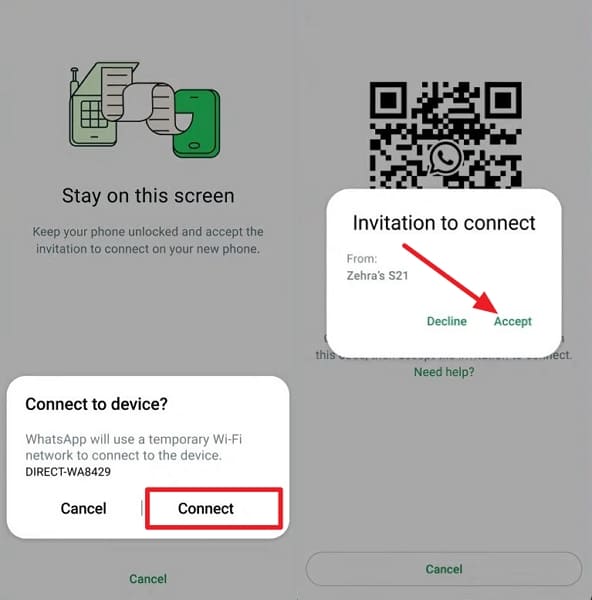
- Step 5. Once scanned, tap Continue on the old phone, then tap Accept on the new phone to start the transfer.
From iPhone to iPhone
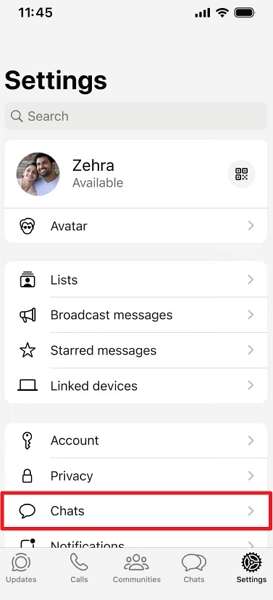
- Step 1. Access WhatsApp Settings on an old iPhone. Tap Chats.
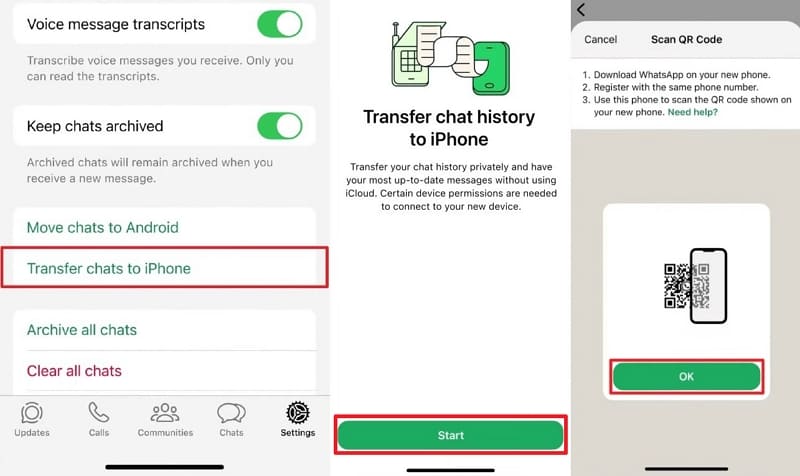
- Step 2. Next, tap Transfer Chats to iPhone > Start. Select Ok to open the QR scanner.
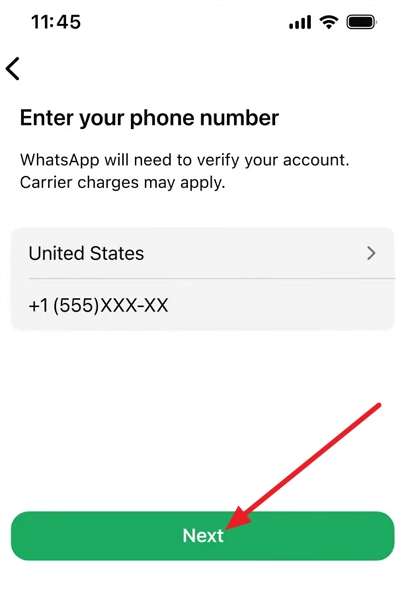
- Step 3. On your new iPhone, set up WhatsApp by entering your phone number. Then, tap Next.
- Step 4. Enter the verification code sent to your phone number. Tap Next > Continue.
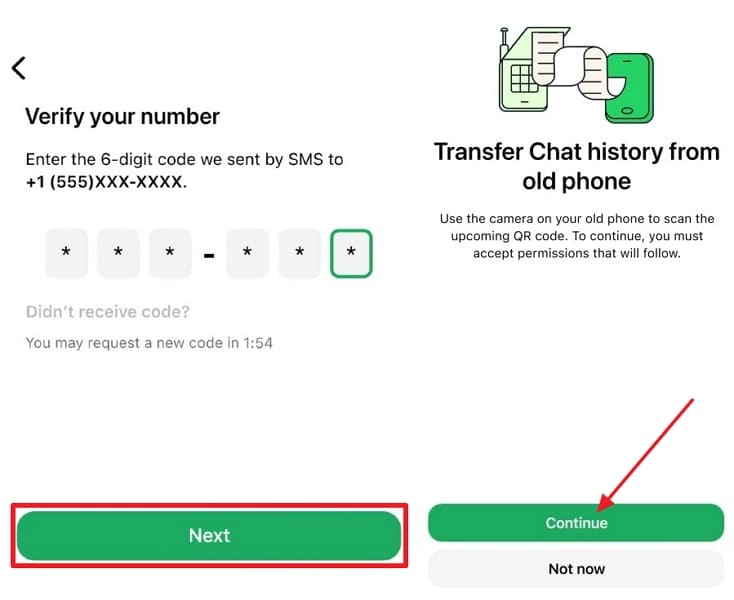
- Step 5. Scan the QR code with your old phone. Grant the required permissions to start the transfer.

Cons
- Both phones must stay nearby, which is hard over long distances.
- Older devices may not support this feature, causing confusion and delays.
Method 3. Export Chat via Email (Any Phone)
Sending a WhatsApp chat to email lets you keep messages and video notes outside the app. It works on both iPhone and Android, so almost any user can try it easily. This approach is helpful when you only need selected conversations, not your whole WhatsApp history. Now, follow the steps below to move WhatsApp video messages to a new device safely:
For Android
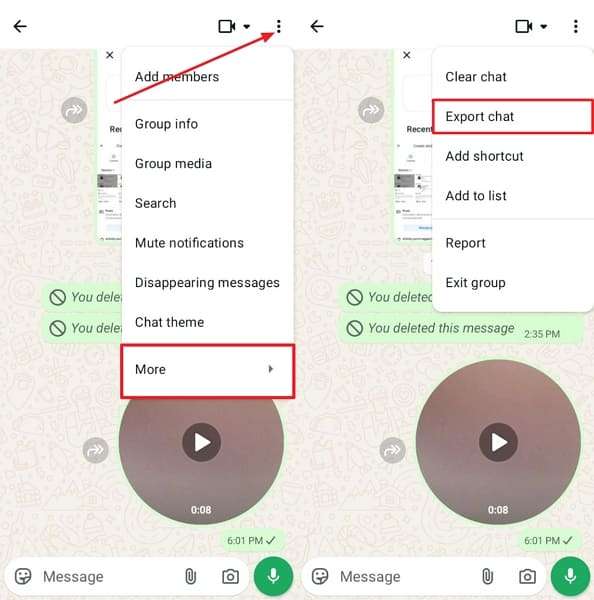
- Step 1. Open a chat and tap Three-Dots > More > Export Chat.
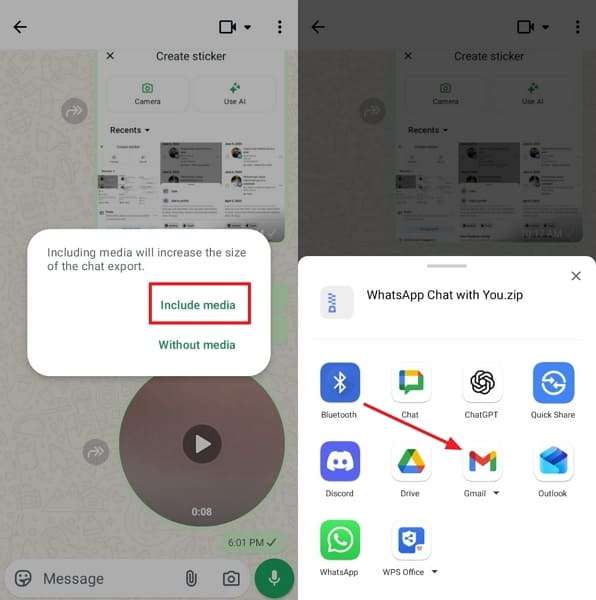
- Step 2. Tap Include Media. Choose Gmail or any other email app.
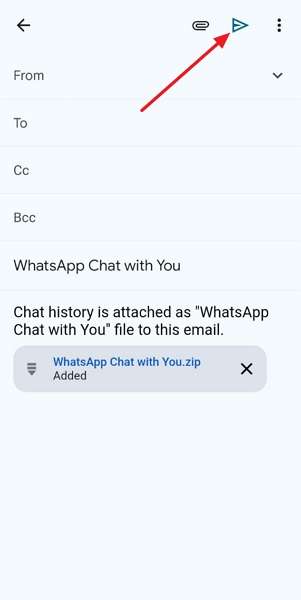
- Step 3. Enter your email in the Sender section and tap Send.
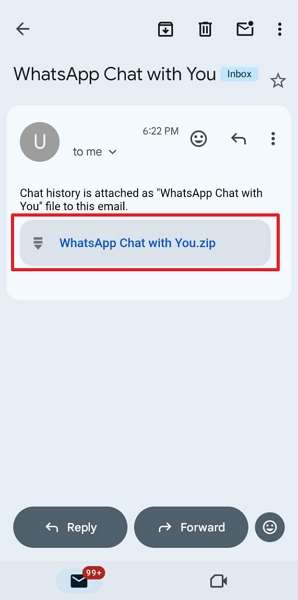
- Step 4. Access mail on the new phone and download the ZIP file.
For iPhone
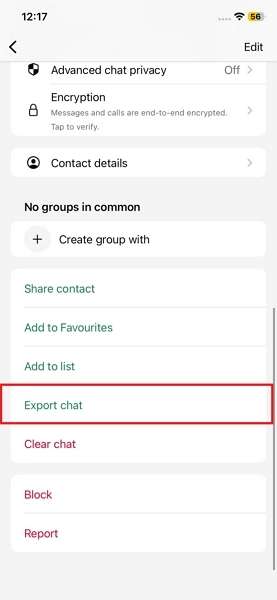
- Step 1. First, open WhatsApp chat > Access user profile. Tap Export Chat.
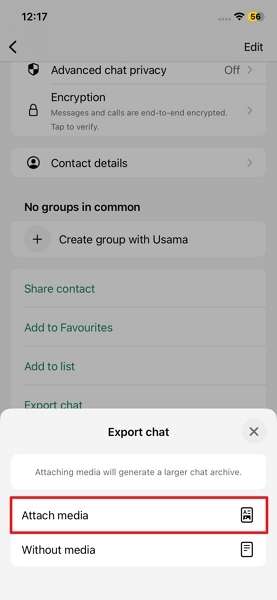
- Step 2. Afterwards, select Attach Media. It will start creating your chat ZIP file.
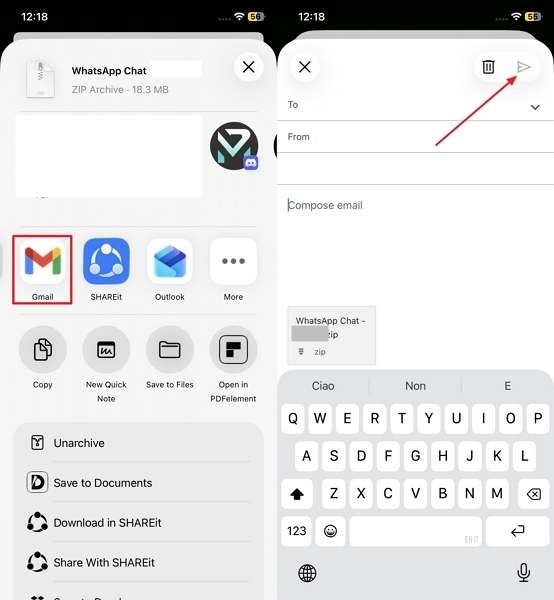
- Step 3. Once created, choose Gmail or another app. Enter your email address and tap Send.
Cons
- You can export only one chat at a time, which is slow for multiple conversations.
- Video notes are exported as separate files, making it impossible to restore them inside WhatsApp.
Method 4. Forward Video Notes to Another WhatsApp Account
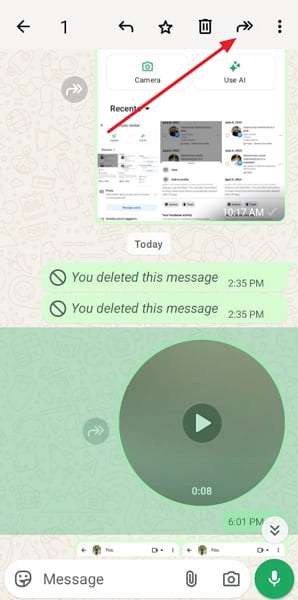
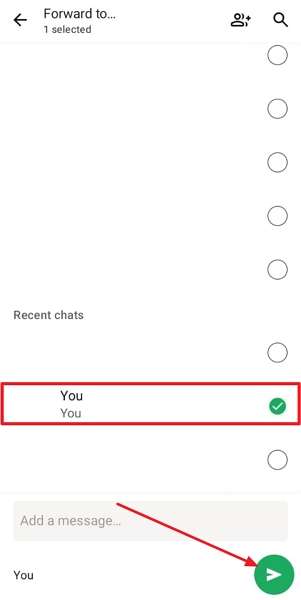
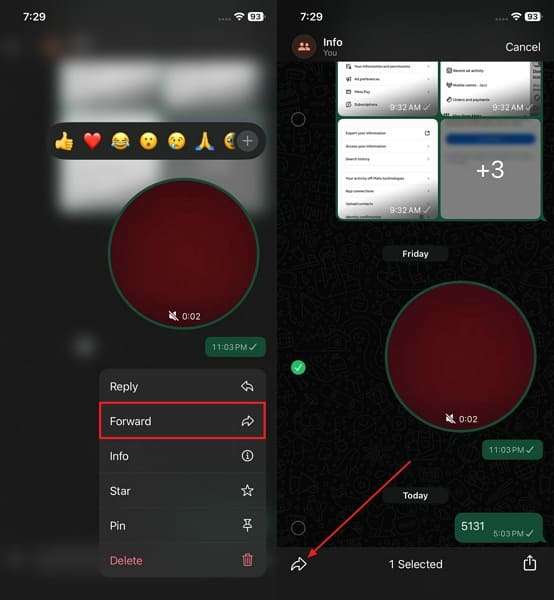
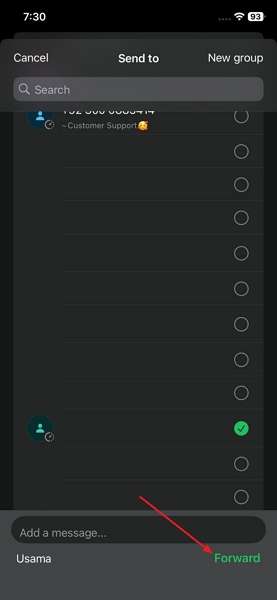
Forwarding video notes to another WhatsApp account lets you keep key clips inside WhatsApp. Many users like it because they visually see notes arrive in the new account immediately. It works on both iPhone and Android, as long as both accounts are accessible. Now, follow the steps below to learn how to transfer WhatsApp video notes to a new phone:
For Android
- Step 1. First, open chat and long-press Video Note. Then, tap the Forward icon.
- Step 2. Choose a contact and press Send.
For iPhone
- Step 1. On iPhone, long-press a Video Note. Tap on the Forward icon.
- Step 2. Next, select a contract. Tap Forward again.
Cons
- Chat order breaks, and old messages feel out of place.
- Forwarded notes mix with other chats, and the inbox feels very crowded.
Method 5. Use WhatsApp Web to Download Video Notes
Using WhatsApp Web lets you easily access your chats and video notes on a computer. You need a phone with an active WhatsApp account and a stable internet connection. This option is helpful when you want to control which clips you download and keep manually. It also lets you save WhatsApp video notes to a new phone before switching or resetting anything. Follow the steps below to see how this technique works:
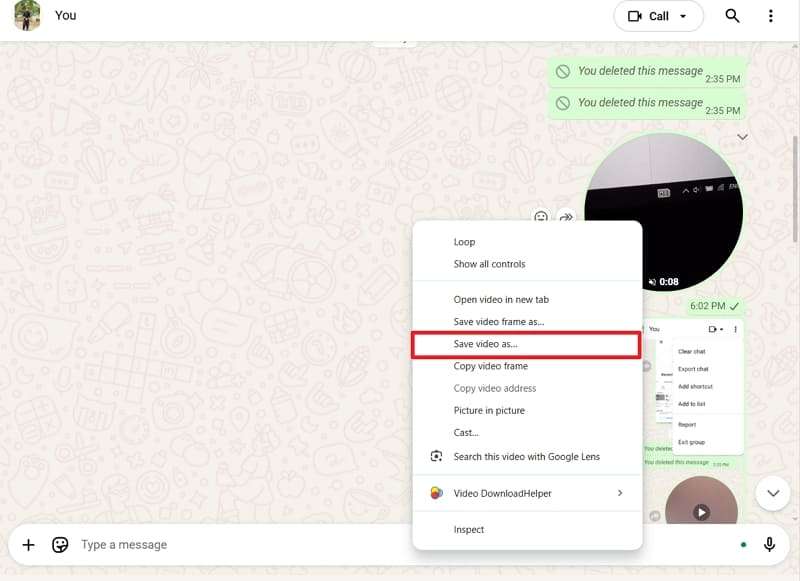
- Step 1. First, open Video Note chat. Then, Right-Click > Save Video as.
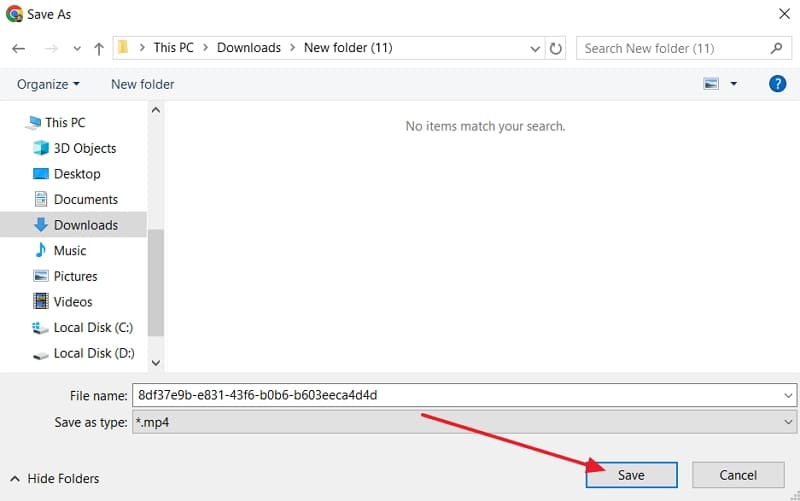
- Step 2. Choose a video location for saving. Press Save.
- Step 3. Next, transfer the video files to the new phone using a cable or another method.
Cons
- Video notes are saved as separate files, and reordering them later is hard.
- Web session ends when the phone disconnects, and longer downloads may fail.
Conclusion
In conclusion, we explored several practical methods for transferring WhatsApp video notes to a new phone. With these options, you can protect personal memories, keep important clips, and avoid gaps in conversations. If you want the smoothest experience across many devices, using MobileTrans offers a reliable, guided transfer process.
FAQs
-
Do WhatsApp video notes take up a lot of storage space?
WhatsApp video notes can slowly fill storage, especially if you receive many daily clips in multiple chats. Deleting unneeded notes or clearing media from specific chats helps free space without removing entire conversations.
-
Is it safe to use third-party tools for WhatsApp video notes?
Reputable tools like MobileTrans can be safe, but always download them from official sources only. Check reviews, avoid sharing passwords, and never use suspicious apps that promise to move WhatsApp video messages to a new device instantly.
-
Will my video notes stay if I change my WhatsApp number?
If you use WhatsApp’s Change Number feature, your chats and video notes usually stay on that device. Make sure the app updates correctly and avoid uninstalling WhatsApp before confirming everything appears as expected.










