


 TL;DR:
Because direct iCloud-to-Samsung WhatsApp transfers are blocked by incompatible storage formats and Apple's encryption, you must use MobileTrans for direct migration, utilize Samsung Smart Switch after a local iPhone restore, or export individual chats as text files.
● MobileTrans allows you to restore iCloud backups directly to your Samsung device without erasing current WhatsApp data, though it requires a cable connection and payment for certain features.
● Samsung Smart Switch requires an indirect sequence where you first restore the iCloud backup to the source iPhone and then connect both devices via cable to transfer the apps, which may exclude some call logs.
● Exporting chats generates offline .txt files for email sharing but is limited to processing one conversation at a time and cannot integrate the exported messages back into the WhatsApp application.
Ask AI for a summary
 ChatGPT
 Perplexity
 Gemini
 Claude
 Grok
Grok
Whenever someone changes their iPhone to Samsung, they fear losing valuable WhatsApp data. As we all know, personal messages and multimedia hold moments that people never want to forget. It becomes stressful when these conversations stay trapped inside the old iPhone storage. Many search for easy ways to move everything safely and securely on Samsung. Thus, this guide helps users restore WhatsApp from iCloud to Samsung with helpful directions.
In this article
Part 1. Why Users Need to Restore WhatsApp from iCloud to Samsung
Many people transfer chats to keep memories, work notes, and important files always reachable. Below are a few use cases where users restore WhatsApp from iCloud to Samsung:
- Business Chats: Business owners save important messages with clients and customers for future use. They need to move those chats to continue communication on their new phone.
- Personal Memories: Users save lovely conversations and multimedia shared with family or friends. That's why they want to transfer everything, so those memories remain easy to revisit later.
- Work Records: Professionals store work-related chats, notes, and deadlines within their WhatsApp app. Keeping those chats ensures they don't lose project details after switching phones.
- Storage Issues: Many users change phones because their iPhone storage space becomes too limited. They prefer to move chats and media files to continue using WhatsApp smoothly.
- Data Backup: Some users want a secondary copy for protection against data loss or damage. It offers comfort knowing old conversations remain accessible on their Samsung smartphone.
Part 2. Reasons Why You Cannot Directly Restore WhatsApp from iCloud to Samsung
Users can't transfer WhatsApp data between an iPhone and a Samsung due to many reasons. Here are the main reasons why you should restore WhatsApp backup from iCloud to Samsung:
- Different Systems: iPhone uses iCloud while Samsung uses Google services. Their storage formats are incompatible, preventing direct transfer between the two platforms.
- File Format: Backup file types differ, so Samsung cannot read iCloud data directly anytime. These files cannot be opened or read outside their specific systems.
- Encryption Rules: iCloud backups are encrypted using Apple's closed security methods. Thus, Samsung phones cannot decode or process these encrypted backup files.
- Storage Difference: iCloud saves backups on Apple's cloud, while Samsung uses Google Drive. Both services use different file systems that cannot connect automatically.
- App Limitation: WhatsApp only supports backup restore within the same system to keep things controlled. Users must find options because the official app offers no cross-cloud restore method.
Part 3. Best Methods to Restore WhatsApp from iCloud to Samsung
People want easy ways to transfer chats without losing any essential information. So, this section provides you with the top 3 ways to learn how to restore WhatsApp backup from iCloud to Samsung:
Method 1. MobileTrans
Among the best available options, MobileTrans offers a simple way to restore WhatsApp from iCloud to Samsung. It gives users complete control over what they want to back up or restore. Unlike iCloud or Google Drive, it lets you restore data without removing the current WhatsApp data. While restoring, it even lets you export your chats to your preferred location on your computer.
Key Features
- Data Export: Lets you export WhatsApp chats into readable formats for future recordkeeping.
- Wide Compatibility: Works with 6000+ smartphones to ensure effortless transfers across devices.
- WhatsApp Business Support: Transfers WhatsApp Business data safely between phones anytime required.
- Recover WhatsApp Data: Offers robust algorithms through which you can recover deleted WhatsApp chats.




Go through the following simplified tutorial to use this dedicated WhatsApp transfer tool for this need:
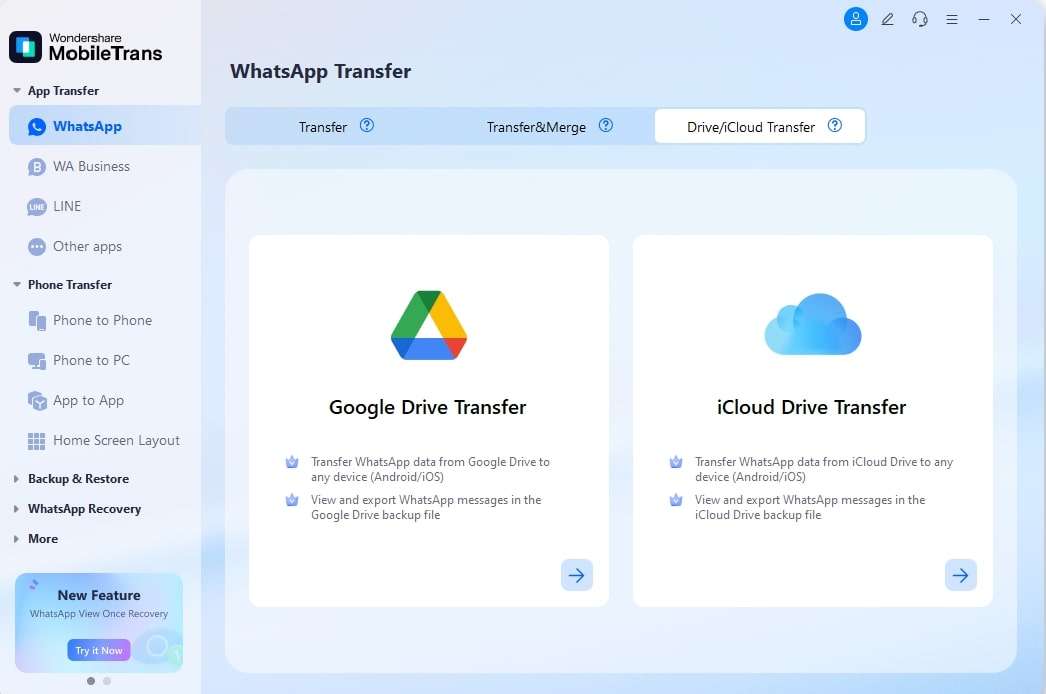
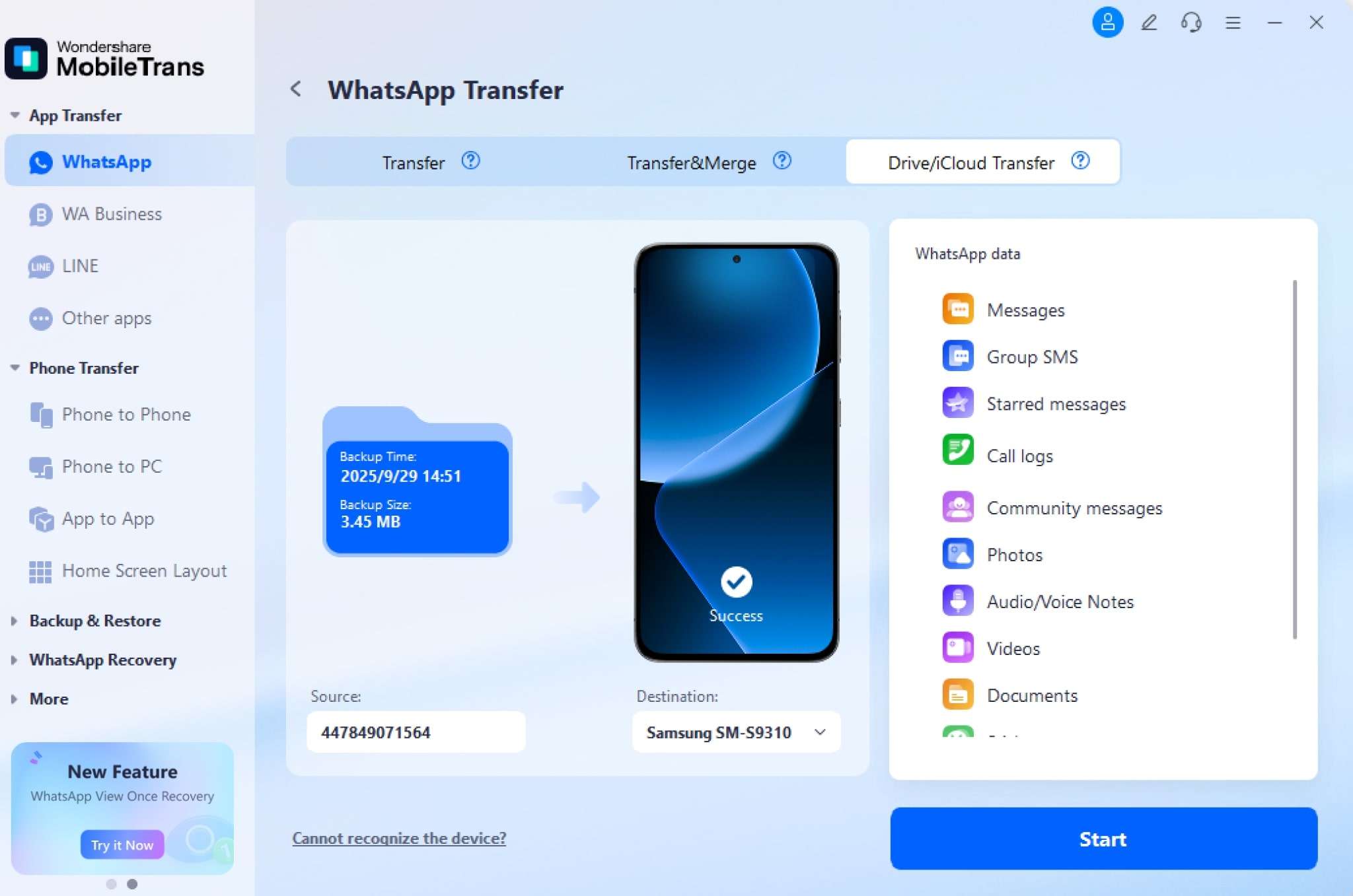
Step 1. Access WhatsApp tab > Drive/iCloud Transfer > iCloud Drive Transfer > Sign In.
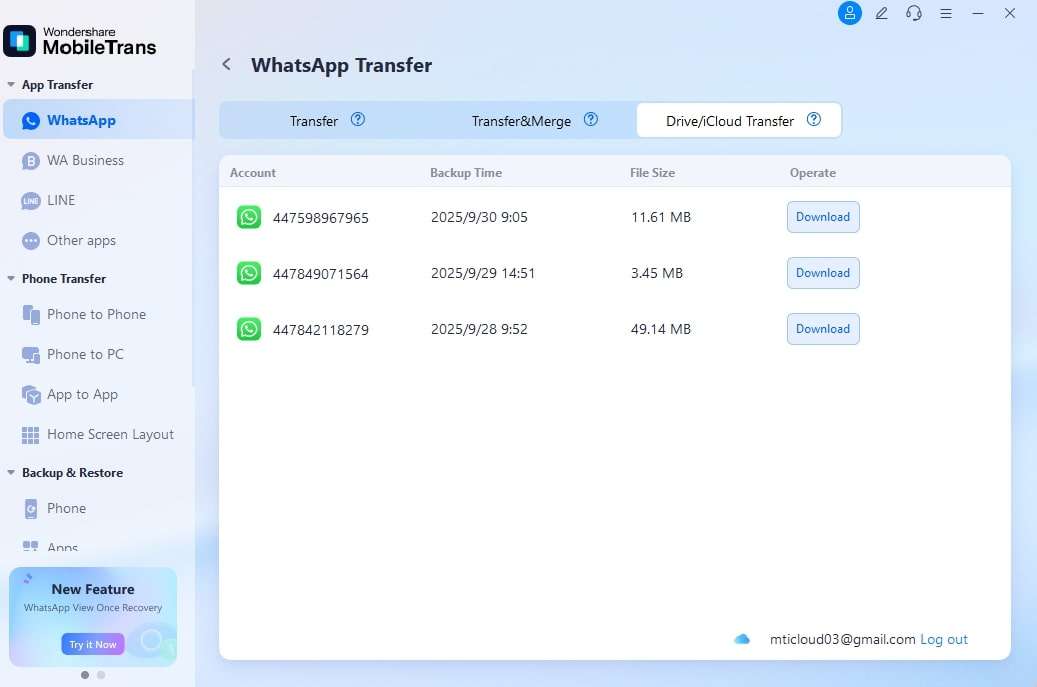
Step 2. Choose your desired Backup > Verify Your Account > Open the WhatsApp Backup File.
Step 3. Read your desired WhatsApp Chat > Connect your Samsung to the Computer > Click the Start button.
Limitations
- Some features are paid features.
- Needs cable connection.
Method 2. Samsung Smart Switch
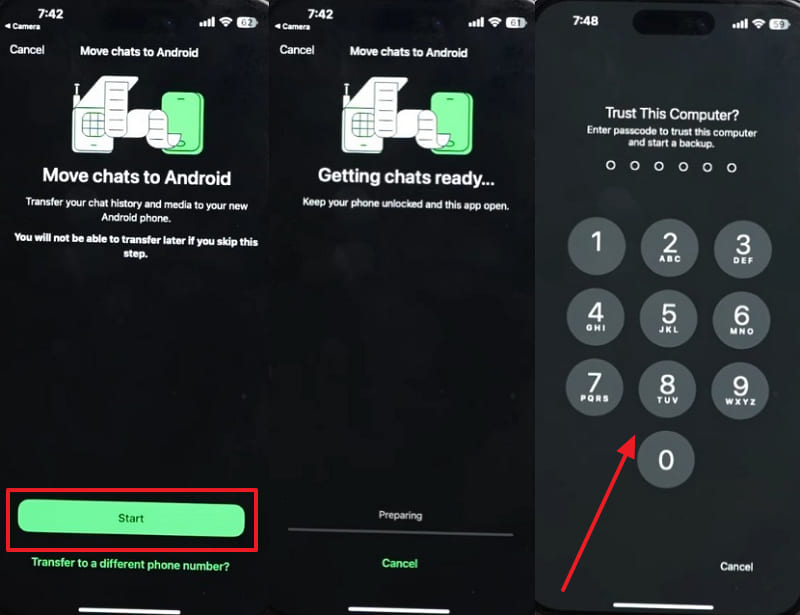
Another simple way to move files and WhatsApp is through the Smart Switch app. It basically allows you to first restore your WhatsApp to your iPhone and then transfer it. Although it is an indirect way to move apps from iCloud, Smart Switch also lets you migrate multiple types of data. When you restore WhatsApp backup from iCloud to Samsung, Smart Switch helps complete the process much faster. Take guidance to use this app:
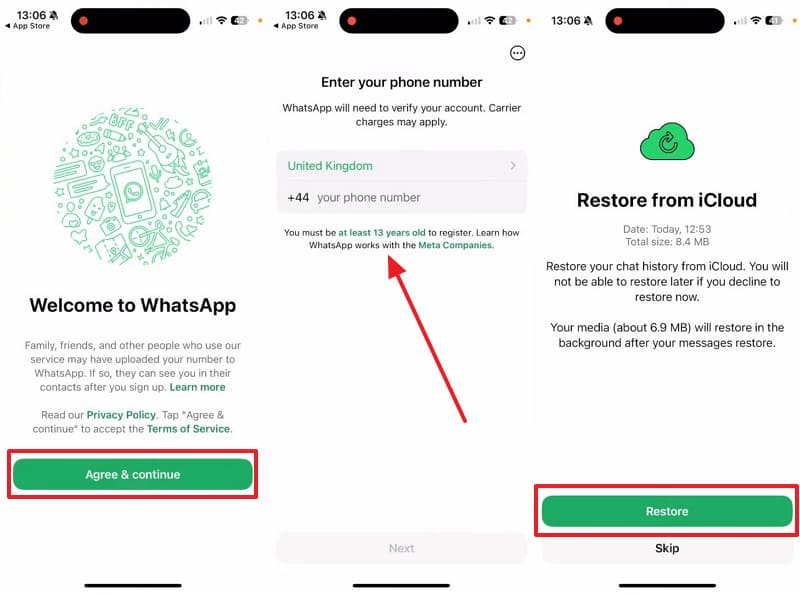
Step 1. Install and launch WhatsApp on iPhone > press Agree & Continue > Enter phone number > Hit Restore to load iCloud backup > Open Smart Switch.
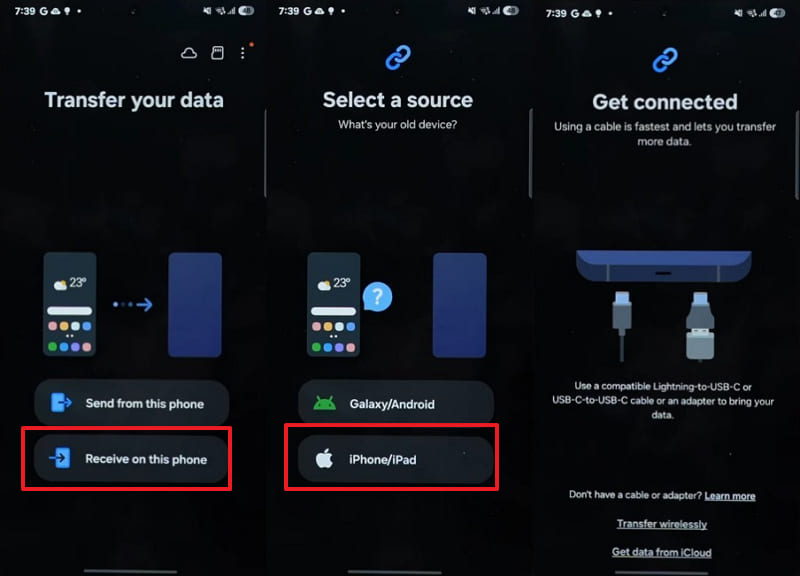
Step 2. On your Samsung, access Smart Switch > Receive On This Phone > iPhone/iPad > Connect both phones using a cable.
Step 3. Once iPhone data shows up, choose Apps > Transfer > WhatsApp Messenger > Install.
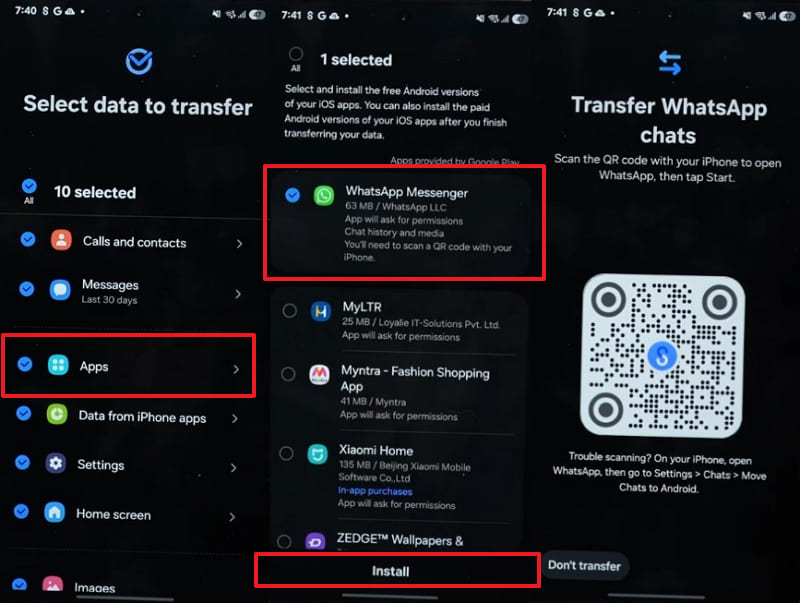
Step 4. Scan the QR code using your iPhone > Press Start > Enter your device Passcode to initiate the transfer process.
Limitations
- Have to wait for the iCloud backup to restore first.
- Some call logs might not transfer fully.
Method 3. Export WhatsApp Chat
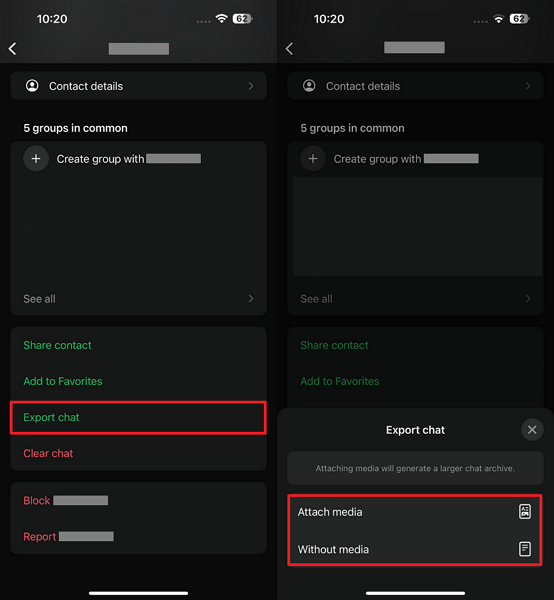
It is a supportive alternative when learning how to restore WhatsApp backup from iCloud to Samsung. Exporting chats helps save important conversations as readable files for offline viewing anytime. It uses .txt format to store chats, while media gets saved separately in folders. You can share exported chats through email, cloud storage, or messaging apps without difficulties. Go through these steps to export your preferred chat:
Step 1. Access WhatsApp Chat > Tap Contact Info > Export Chat > Attach Media/Without Media.
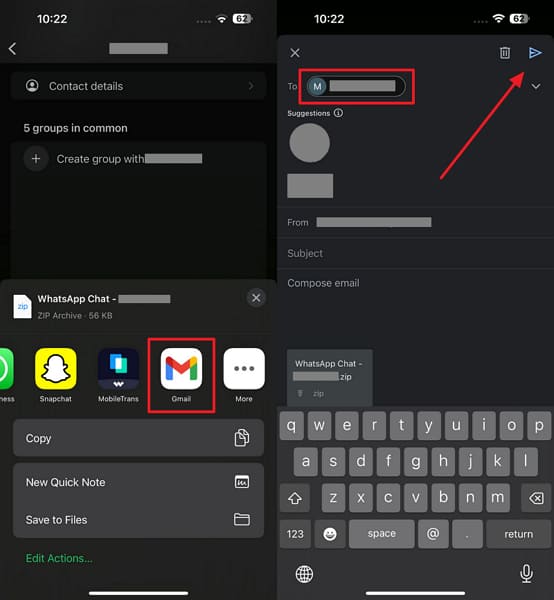
Step 2. Choose Gmail > Enter your Samsung's Email > Press the Send button.
Limitation
- Exports only one chat at once.
- Cannot restore the exported chat into WhatsApp.
Conclusion
In conclusion, restoring WhatsApp across different systems can be confusing, especially between iCloud and Samsung phones. Therefore, this article has explored 3 ways to safely move their chats, media, and contacts easily. Each method offers different results, so choosing one depends on specific data transfer needs. Among all options, MobileTrans remains the most effortless way to restore WhatsApp from iCloud to Samsung.










