



 TL;DR:
Use Apple's free Move to iOS app to transfer WhatsApp from Android to iPhone 18 Pro during the initial device setup, or choose MobileTrans to migrate chats without factory-resetting an already configured iPhone.
● Move to iOS requires Android 5.0 or higher, iOS 15.5 or higher, and the exact same phone number on both devices, but it cannot transfer call history or explicitly support WhatsApp Business data.
● MobileTrans and Mutsapper allow you to merge transferred Android data with existing iPhone WhatsApp history without wiping current chats, and they permit changing phone numbers during the transfer.
● If the original Android phone is unavailable, you must use MobileTrans to directly download and restore an existing Google Drive backup to the iPhone, as iOS cannot natively read Android backup formats.
Ask AI for a summary
 ChatGPT
 Perplexity
 Gemini
 Claude
 Grok
Grok
Google Drive backups can't be restored directly to an iPhone because WhatsApp uses different backup systems across Android and iOS. This creates a challenge when moving years of chats and media between platforms. While Apple's Move to iOS handles transfers during initial setup, MobileTrans provides more flexibility for transferring WhatsApp to an already configured iPhone.
This guide covers 4 practical methods for transferring WhatsApp from Android to iPhone 18 Pro, including Move to iOS and MobileTrans. Compare each option to move chats, media, and important WhatsApp history with fewer limitations.
In this article


Part 1. Before Transferring WhatsApp to iPhone 18 Pro
Whichever method you choose, a few preparations can help prevent transfer problems. Review these checks before you transfer WhatsApp from Android to iPhone 18 Pro:
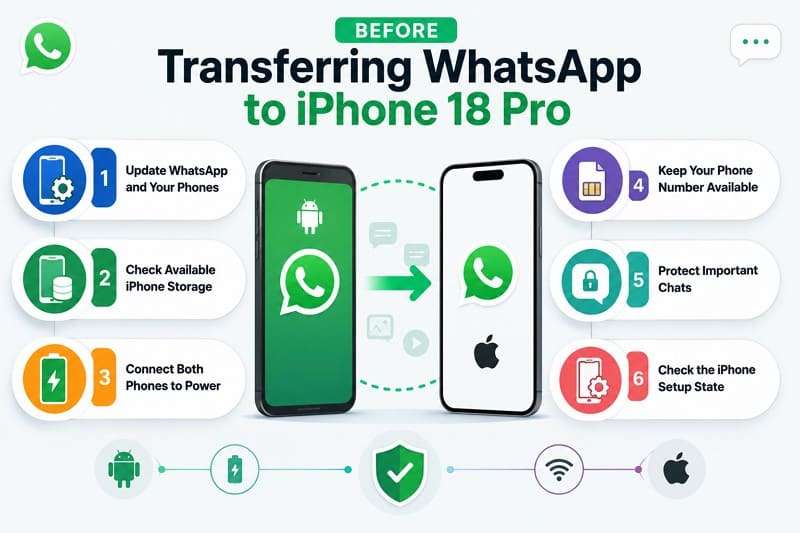
- Update WhatsApp and Your Phones: Install the latest WhatsApp and available system updates before starting. Current software helps reduce compatibility issues with Move to iOS and third-party transfer tools.
- Check Available iPhone Storage: Make sure the iPhone has enough free space for your WhatsApp chats and media. Apple recommends confirming that everything being transferred can fit on the new iPhone.
- Connect Both Phones to Power: Keep the Android phone and iPhone connected to power throughout the migration. Apple recommends leaving both devices nearby and plugged in until the transfer finishes.
- Keep Your Phone Number Available: Make sure you can access the phone number linked to your WhatsApp account. You may need to receive a verification code when activating WhatsApp on the iPhone.
- Protect Important Chats: Keep WhatsApp and its data intact on the Android phone until you verify the transfer. Avoid resetting, selling, or trading in the old device beforehand.
- Check the iPhone Setup State: Move to iOS transfers WhatsApp during initial iPhone setup. If setup is already complete, Apple says you must erase the iPhone and start again to use Move to iOS, or choose another supported transfer method.
Part 2. 4 Ways to Transfer WhatsApp from Android to iPhone 18 Pro
The iPhone's setup state determines which transfer method works best. Moving to iOS requires initial setup, while MobileTrans offers options for an already configured iPhone or an existing Google Drive backup. All 4 methods can transfer WhatsApp chats from Android to iPhone 18 Pro with supported media, although backup restoration is limited to the data saved in that backup.
1. Official Transfer During iPhone Setup
Method 1. Transfer WhatsApp with Move to iOS
Apple and WhatsApp offer Move to iOS as a free option for migrating WhatsApp chats and media during initial iPhone setup. You can't start this method after setup is complete without erasing the iPhone first. Review the requirements below, then follow the steps to move WhatsApp from Android to iPhone 18 Pro:
Before You Start:
- Plug both phones into power sources.
- Connect both phones to the same Wi-Fi network.
- Verify Android 5.0 and iOS 15.5 or higher.
- Install the official Move to iOS app from Google Play.
Step 1. Set up iPhone 18 Pro > Tap Continue with Wi-Fi on Android > Select From Android on iPhone 18 Pro.
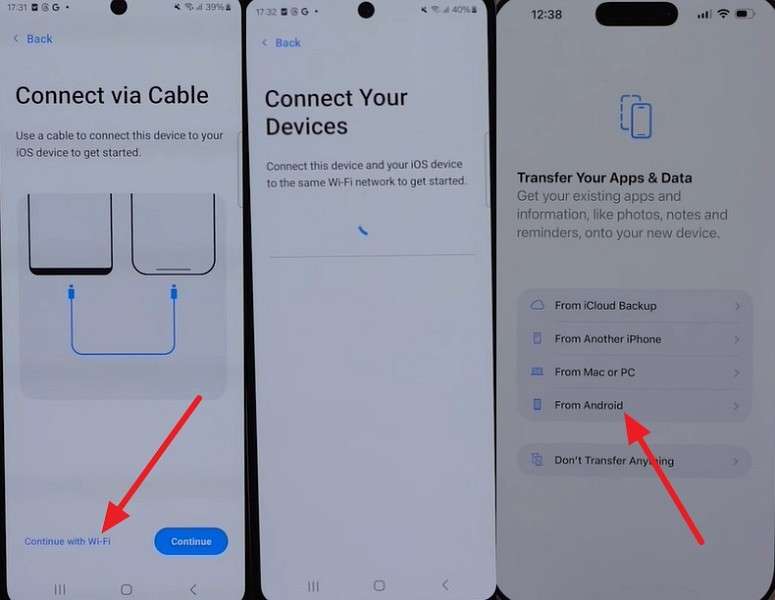
Step 2. Tap iPhone 18 Pro when it appears in the app, then press Continue.
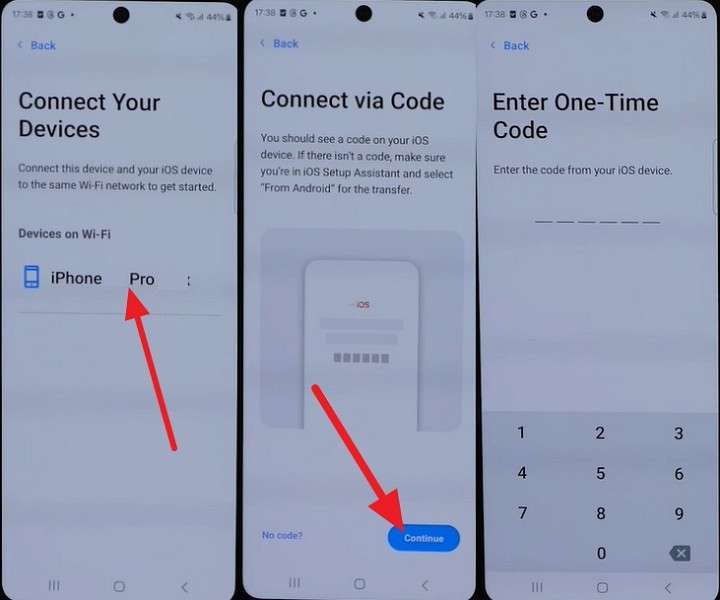
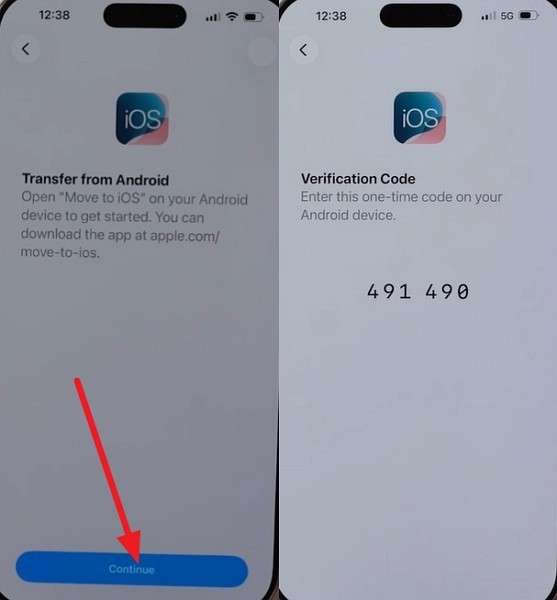
Step 3. Tap Continue on iPhone 18 Pro > Note the code > Enter it on the Move to iOS app.
Step 4. Choose WhatsApp as data type > Press Start > Next > Continue on Android.
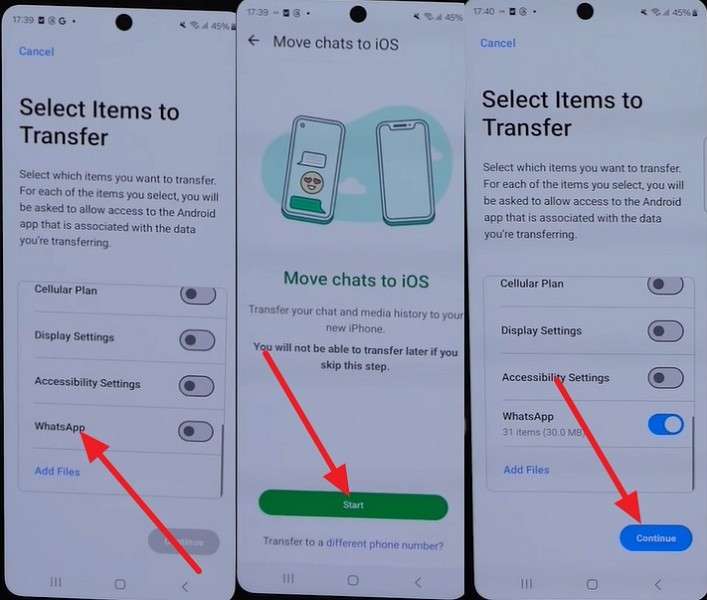
Step 5. You will be signed out of WhatsApp on Android during this step.
Step 6. Set up iPhone 18 Pro > Install WhatsApp > Agree & Continue > Add the same phone number used on Android.
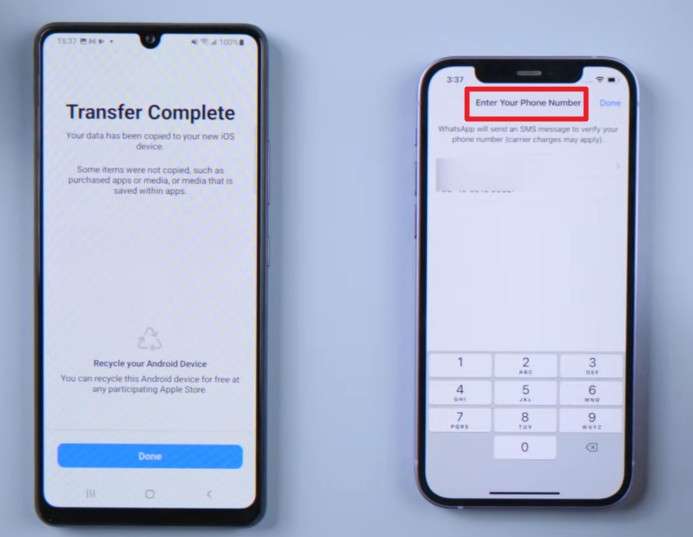
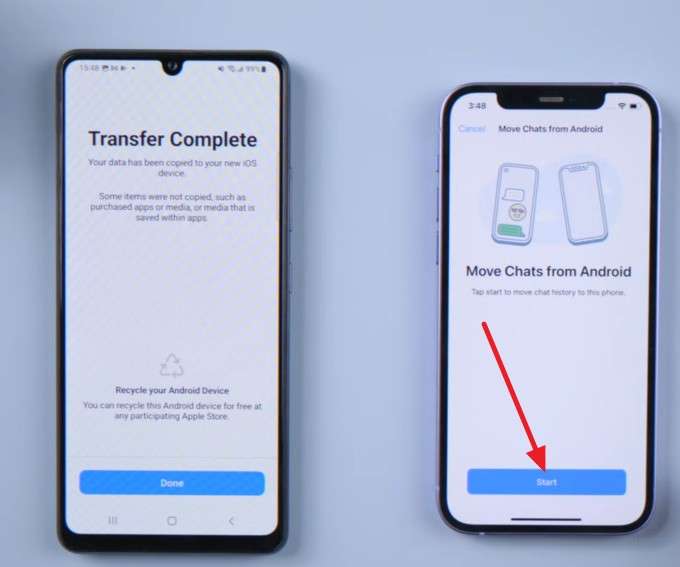
Step 7. Tap Start > Allow Access to All Photos > Next > Set up your profile on iPhone 18 Pro.
2. Transfer After iPhone 18 Pro Is Already Set Up
Method 2. Transfer WhatsApp with MobileTrans
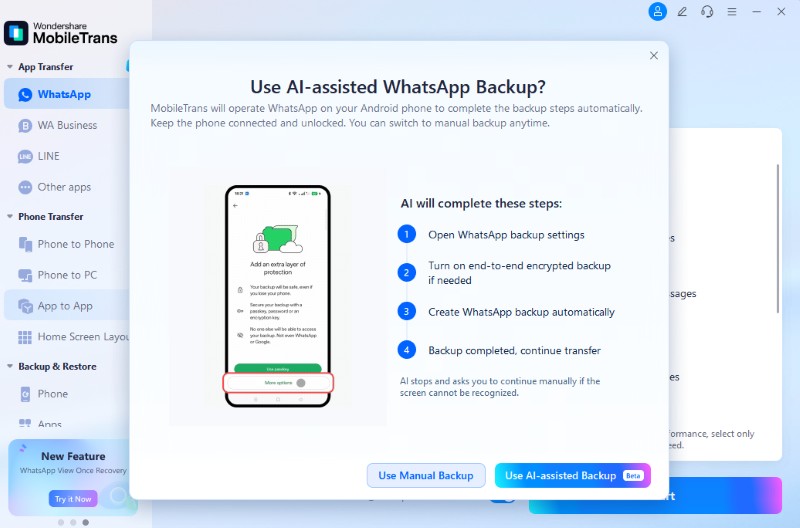
MobileTrans-WhatsApp Transfer reads WhatsApp directly from Android instead of relying on Google Drive, avoiding the cross-platform backup format problem. Both phones connect to a computer, where the software accesses chats and attached media before transferring them to the iPhone 18 Pro. Users can also choose AI-assisted backup to let MobileTrans handle the required WhatsApp backup steps automatically.
The tool can combine data from old and new accounts without erasing existing chats. It also supports restoring WhatsApp or WhatsApp Business backups from Google Drive or iCloud to a target device. Its AI-assisted process can pre-check device storage, identify unnecessary files, and help prepare enough space for a smoother transfer.
Key Features
- Reads the Phone Directly: Transfer WhatsApp directly from Android to iPhone without relying on a Google Drive backup.
- Deleted Data Recovery: Recover accidentally deleted WhatsApp messages and restore important conversations directly to your device.
- Support for Other Apps: Transfer data from other messaging apps, including LINE, Kik, and Viber, between supported devices.
- Export Messages: Export WhatsApp messages to PDF or HTML files for convenient offline viewing and archiving.
- Full Data Support: Transfer supported WhatsApp content, including personal chats, group chats, community messages, media, and call history.






Guide to Move WhatsApp onto a Configured iPhone 18 Pro
To transfer WhatsApp from Android to iPhone 18 Pro with MobileTrans, follow these steps:
Step 1. Go to App Transfer > Access WhatsApp > Select Transfer or Transfer and Merge.
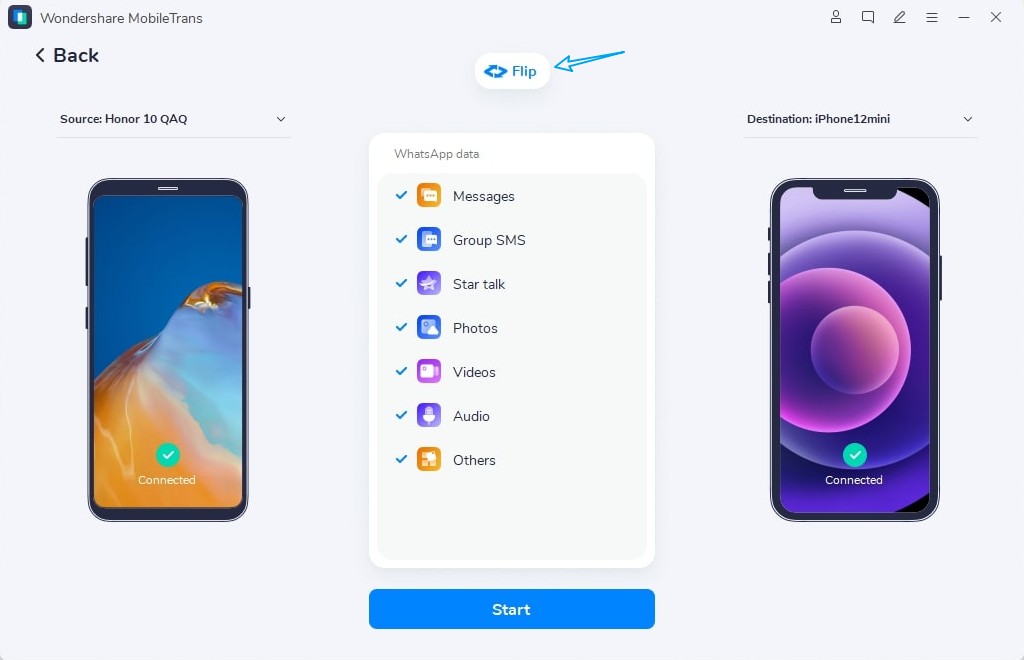
Step 2. Connect the Android and iPhone 18 Pro and wait for MobileTrans to complete the required checks automatically.
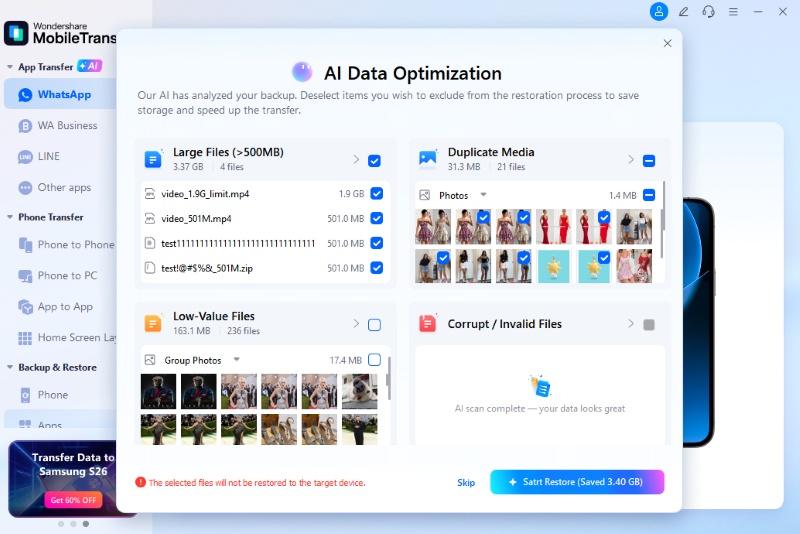
Step 3. Use the AI-Assisted Backup option or follow the on-screen instructions manually.
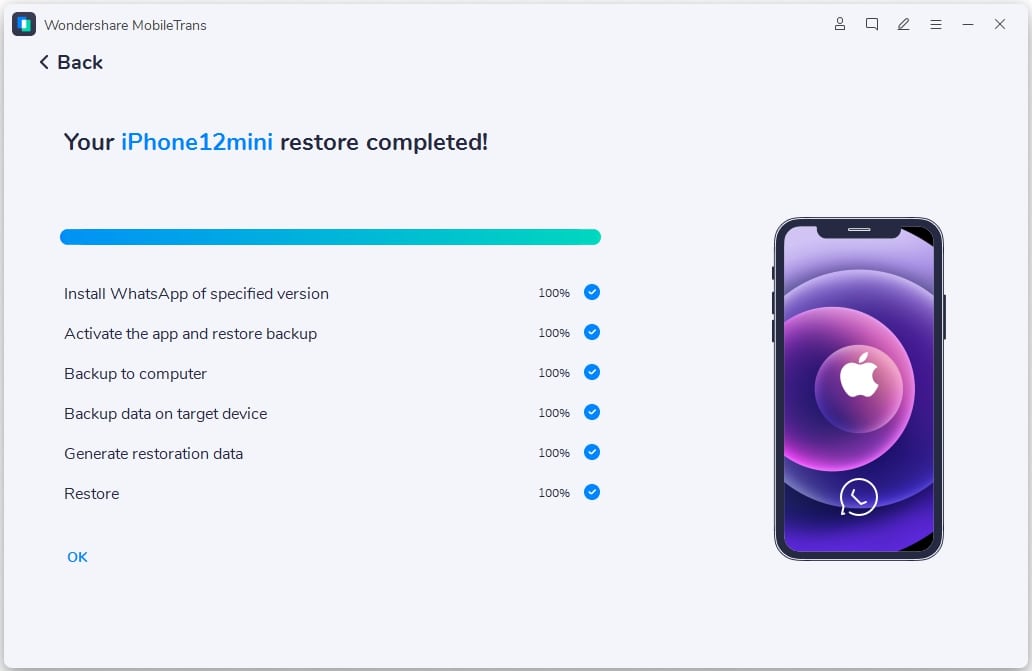
Step 4. Wait for the messages and other data to be restored. Tap Restore Attachments Now or do it later.
3. Transfer WhatsApp Without a Computer
Method 3. Transfer WhatsApp with Mutsapper
For users who want to transfer WhatsApp without a computer, Mutsapper provides a direct Android-to-iPhone solution. It can move chats, photos, videos, files, and other WhatsApp data while preserving conversation history. For Android-to-iPhone migration, the devices may need an OTG cable connection during the process.
It supports popular Android brands and all iPhone models, making it useful for an already configured iOS device. To transfer WhatsApp messages from Android to iPhone 18 Pro, follow these instructions:

Step 1. Install the Mutsapper app on both phones and choose Android to iPhone on Android.
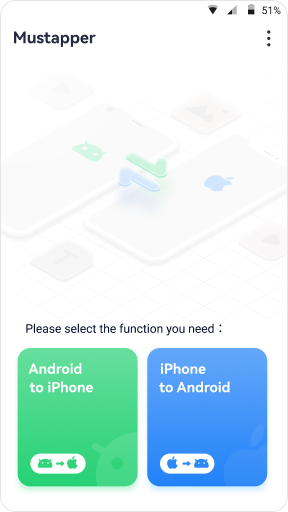
Step 2. Open WhatsApp on your Android > Log in with your phone number on Mutsapper > Tap Next.
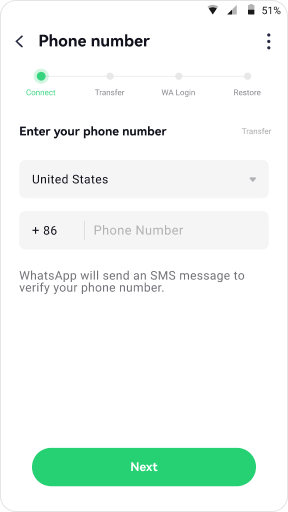
Step 3. Connect Android and iPhone 18 Pro with an OTG cable > Press Trust on iPhone > Tap Allow to give WhatsApp permissions.

Step 4. Follow the on-screen steps to transfer WhatsApp data and press Start Transfer.

4. Transfer from an Existing Android Backup
Method 4. Restore a Google Drive WhatsApp Backup to iPhone with MobileTrans
MobileTrans extracts WhatsApp backups directly from Google Drive without requiring the Android phone. It downloads the selected backup after Google account verification, then restores the chats and media to your iPhone. With merge mode, you can combine transferred data with existing iPhone WhatsApp history without wiping current chats.
The Google Drive backup must be complete and accessible before you erase the Android device. Follow these steps to transfer WhatsApp from Android to iPhone 18 Pro using your backup.
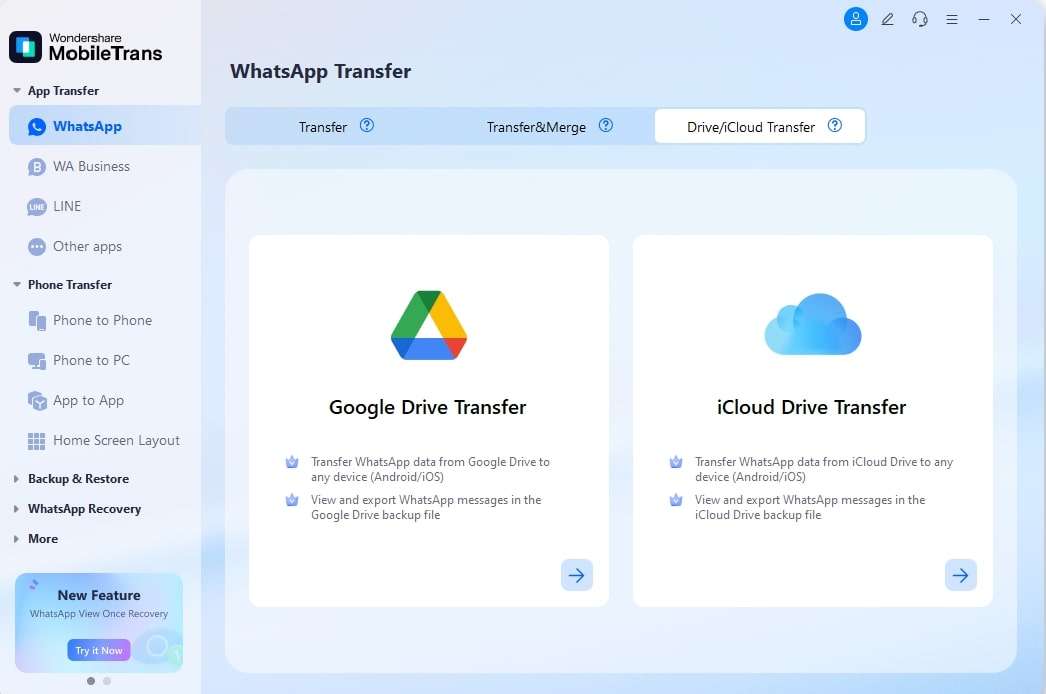
Step 1. In MobileTrans, select App Transfer > WhatsApp > Drive/iCloud Transfer > Google Drive Transfer.
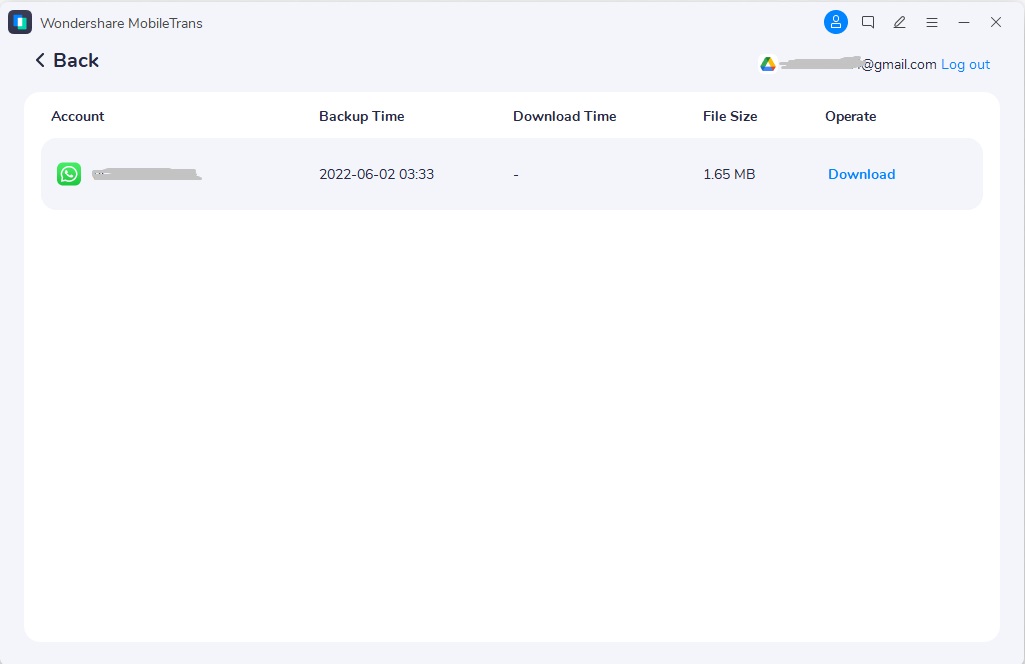
Step 2. Log in > Verify your account > Locate the required WhatsApp backup > Click Download.
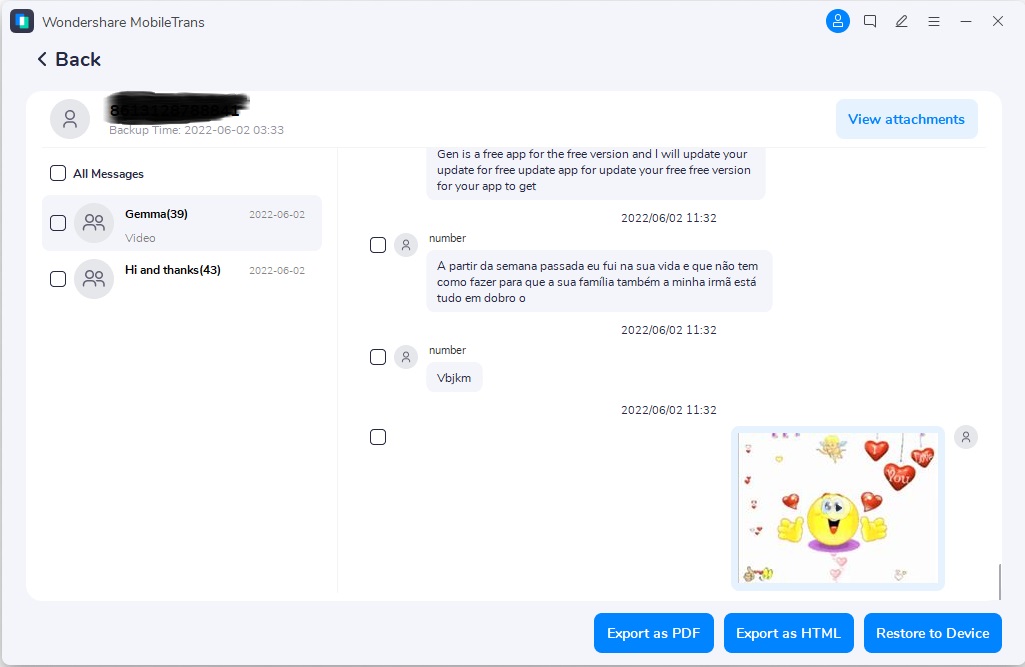
Step 3. Connect the iPhone 18 Pro > Choose the WhatsApp data you want to restore > Press Restore to Device.
Part 3. Compare Android-to-iPhone WhatsApp Transfer Methods
This section compares all methods for transferring WhatsApp from Android to iPhone 18 Pro so you can choose the right one.
| Method | Needs Reset | PC | Number Must Match | Drive | Keeps iPhone Chats | Suits | Watch For |
| Move to iOS | Yes, if set up | No | Yes | No | No | New iPhone | Setup only, free |
| MobileTrans | No | Yes | No | Optional | Yes, with Merge | iPhone in use | Paid plan |
| Mutsapper | No | No | No | No | Yes, with Merge | No PC available | Paid plan |
| Drive Restore | No | Yes | No | Yes | Yes, with Merge | Android unavailable | Paid plan |
Note: Apple does not explicitly document WhatsApp Business transfers through Move to iOS. For Business data, use a dedicated option like MobileTrans, which supports cross-platform WhatsApp Business transfers.
Verdict: A new iPhone 18 Pro can use Move to iOS for a free WhatsApp transfer during setup. For an already configured iPhone, MobileTrans offers more flexibility by transferring or merging chats without a reset. If the Android phone is unavailable, Drive Restore can recover WhatsApp data from an existing Google Drive backup.
Part 4. Alternative: Export WhatsApp Chats for Read-Only Access
If you only need a readable copy of one conversation, WhatsApp's built-in Export Chat feature is enough. It saves the chat as a text file with optional media for viewing or archiving. However, you can't restore exported chats into WhatsApp, so use a transfer method when you need to move WhatsApp from Android to iPhone 18 Pro.
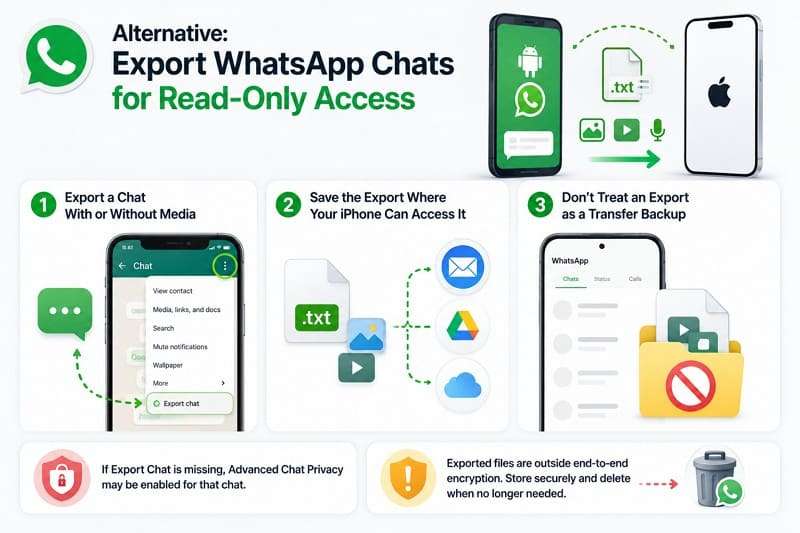
- Export a Chat with or Without Media: Open the conversation on Android, tap the “Three Dots” menu, select More > Export chat, and choose whether to include media. WhatsApp supports up to 40,000 of the latest messages without media or 10,000 with media in an export.
- Save the Export Where Your iPhone Can Access It: WhatsApp creates a readable .txt chat history, while selected media can accompany the export. Use the available share options to email it or save it to accessible cloud/file storage.
- Don't Treat an Export as a Transfer Backup: The exported conversation is for viewing and archiving outside WhatsApp. You cannot restore it as a normal chat inside WhatsApp on your iPhone.
If Export Chat is missing, Advanced Chat Privacy may be enabled for that conversation. This feature blocks chat exports while active. Exported chats also exist outside WhatsApp's end-to-end encrypted environment, so store or share these files carefully and delete them when you no longer need them.
Part 5. How to Fix WhatsApp Transfer to iPhone 18 Pro Problems?
Even with the right method, things can still go wrong. 7 failures account for nearly all of it, and WhatsApp documents several itself. While you learn how to transfer WhatsApp from Android to iPhone 18 Pro, go through this table and fix the transfer issues:
| Problem | Cause | Recommended Fix |
| Move to iOS Does Not Show WhatsApp | Outdated WhatsApp or unsupported setup state | Update WhatsApp and confirm iPhone is still in initial setup |
| WhatsApp Transfer Gets Stuck | Another Android app opened, or a call interrupted | Avoid calls, keep Move to iOS open, and retry |
| iPhone Does Not Have Enough Storage | Transferred content exceeds available iPhone storage | Free enough iPhone storage, then restart the transfer |
| WhatsApp Does Not Detect Transferred Data | WhatsApp import process was not completed correctly | Reinstall WhatsApp, verify the same number, and retry import |
| Phone Number Verification Fails | Registered number cannot receive the verification code | Confirm the number can receive SMS or calls, then retry |
| Some Chats or Media Are Missing | Source data was unavailable, or transfer was incomplete | Check the Android data and repeat the transfer if needed |
| Existing iPhone Chats Conflict | Transfer method may replace existing WhatsApp history | Use MobileTrans Merge to combine existing and transferred chats |
Part 6. What to Check After the WhatsApp Transfer?
After you move WhatsApp from Android to iPhone 18 Pro, review these 5 checks to confirm your chats, media, and settings transferred correctly:
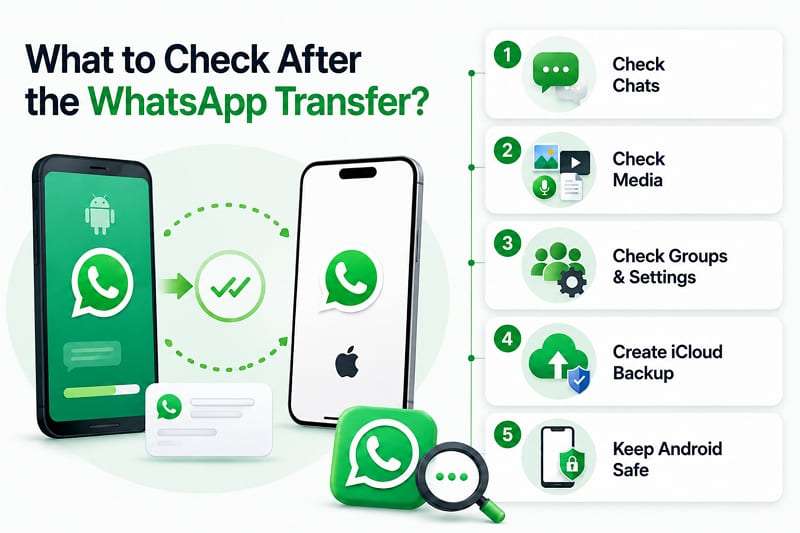
- Verify Recent and Older Chats: Check both recent and older conversations, not just the newest ones. Confirm important messages and dates transferred correctly.
- Check Photos, Videos, Voice Messages, and Documents: Open different attachments across older chats. Confirm photos, videos, voice messages, and documents are accessible after the transfer.
- Confirm Group Chats and WhatsApp Settings: Open important group chats and review their content. Also check notifications, wallpapers, and other preferences that may need reconfiguration.
- Create a New iCloud WhatsApp Backup: Create a fresh backup from WhatsApp settings after verifying your data. Make sure your iCloud account has enough available storage.
- Do Not Erase Android Until Everything Is Verified: Keep the Android phone intact until you confirm your chats and media transferred successfully. This preserves the source if you need to retry.
Conclusion
How to transfer WhatsApp from Android to iPhone 18 Pro depends mainly on the iPhone's setup state. Move to iOS works for free during initial setup, while MobileTrans can transfer or merge chats on an already configured iPhone. If the Android phone is unavailable, MobileTrans can restore an existing Google Drive backup. Afterward, verify your chats and media, then create a fresh iCloud backup.
FAQ
-
What happens to my Google Drive WhatsApp backup after switching to iPhone?
It stays in Drive, unused and unreadable. iOS cannot open the Android backup format, so the archive sits there until you delete it or Google clears the account for inactivity. Only MobileTrans can convert it into something an iPhone accepts.
-
Which WhatsApp data cannot move from Android to iPhone?
Call history doesn't transfer through Move to iOS, but MobileTrans can move it between devices. Your display name, payment records, linked-device sessions, and some preferences may still require manual setup.
-
How long does a large WhatsApp transfer usually take?
15 minutes to a couple of hours is typical, depending on archive size, media volume, connection speed, device performance, and transfer method. Text moves quickly, while a decade of photos, videos, and voice notes can take an afternoon.
-
Does changing my phone number affect the WhatsApp transfer?
Moving to iOS requires the same WhatsApp number on both phones. MobileTrans does not, making it practical for changing platforms and numbers at the same time. Verify the new number in WhatsApp before starting the MobileTrans transfer.










