


 TL;DR:
You can transfer WhatsApp messages and media from Android to an iPhone 17 using the free Move to iOS app during the initial device setup, or via premium desktop software like MobileTrans if your iPhone is already configured.
● The official Move to iOS method takes 1 to 2 hours to complete and is strictly limited to brand new iPhone setups where both phones are connected to the same WiFi network.
● MobileTrans bypasses the initial setup restriction to transfer full data in 30 to 60 minutes, but it requires purchasing the software and connecting both devices to a computer.
● Free alternative methods do not perform true app-to-app transfers; Email Export only saves single conversations as external text files, while Companion Mode requires the original Android phone to remain active and connected to the internet to sync chats.
Ask AI for a summary
 ChatGPT
 Perplexity
 Gemini
 Claude
 Grok
Grok
Thinking about switching to the upcoming iPhone 17? Apple’s newest device is on the horizon, and tech enthusiasts are buzzing with anticipation. Packed with cutting-edge features, it promises enhanced speed and intelligence.
Transitioning from Android to iPhone can be thrilling—but also a bit daunting. One major concern? Your WhatsApp history. Those years of conversations with loved ones hold priceless memories, and losing them isn’t an option.
Don't worry - we've got you covered. This complete guide shows you how to transfer WhatsApp messages from Android to iPhone 17.
In this article
Is it Possible to transfer WhatsApp messages from Android to iPhone 17?
Yes. You can transfer WhatsApp messages from Android to iPhone 17. WhatsApp made this possible in recent updates. Before, moving chats between different phone systems was very hard. Now there are several ways to do it.
You can move your chats, photos, videos, and voice notes to your new device, but certain data—like payment records—might not carry over.
Which is the best method to transfer WhatsApp from Android to iPhone 17?
There are four main ways to transfer WhatsApp data from Android to iPhone 17. Each method has pros and cons. Some are free but limited. Others cost money but work better.
The Move to iOS app is the official method from Apple and WhatsApp. It's free and reliable. But it only works when setting up a new iPhone. Third-party tools like MobileTrans work anytime. They cost money but offer more features.
| Method | Time Needed | What Transfers | Limitations | Best For |
| MobileTrans | 30-60 minutes | All chats, media, attachments, group chats | Requires a computer or USB cables | Users who want a complete transfer solution. |
| Move to iOS App | 1-2 hours | All chats, media, voice messages, documents | Only works during the new iPhone setup | Brand new iPhone 17 users are switching completely |
| Email Chat Export | 5-10 minutes per chat | Individual chat history as a text file | No media files, not actual WhatsApp format | Saving a few important conversations as backup |
| Companion Mode | 5 minutes setup | Real-time access to all chats | An Android phone must stay active and connected | Users are keeping both phones or gradually switching |
Quick Guide: Transfer WhatsApp Data to Your New iPhone 17
Moving your WhatsApp chats from Android to iPhone 17 needs the right method. Choose based on your needs and situation. Some methods work better than others.
Each method has different steps and requirements. Some need both phones connected. Others work through cloud services. Pick the one that fits your needs best.
Method 1: Use MobileTrans WhatsApp Transfer Feature
MobileTrans lets you transfer all your chats, media, and attachments at once, hassle-free.
And the best part? You can use this method even after setting up your iPhone 17—no reset needed. MobileTrans safely moves your WhatsApp data without changes, making it one of the most dependable ways to switch from Android.
When to use this method:
- You've already set up your iPhone 17
- You want to keep all WhatsApp data intact
- You don't mind paying for premium software


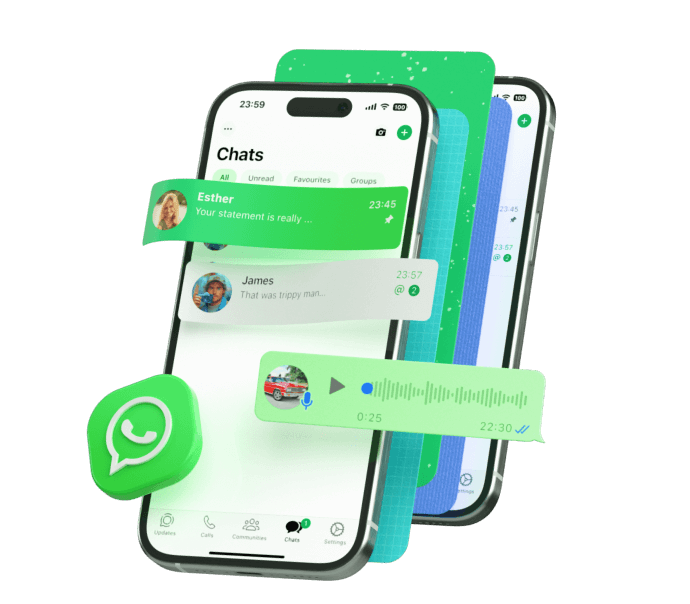


Steps:
Step 1: Open MobileTrans on your PC and go to App Transfer > WhatsApp. Choose Transfer or Transfer and Merge. Connect both phones, let the data load, and click Start to begin transferring WhatsApp messages.
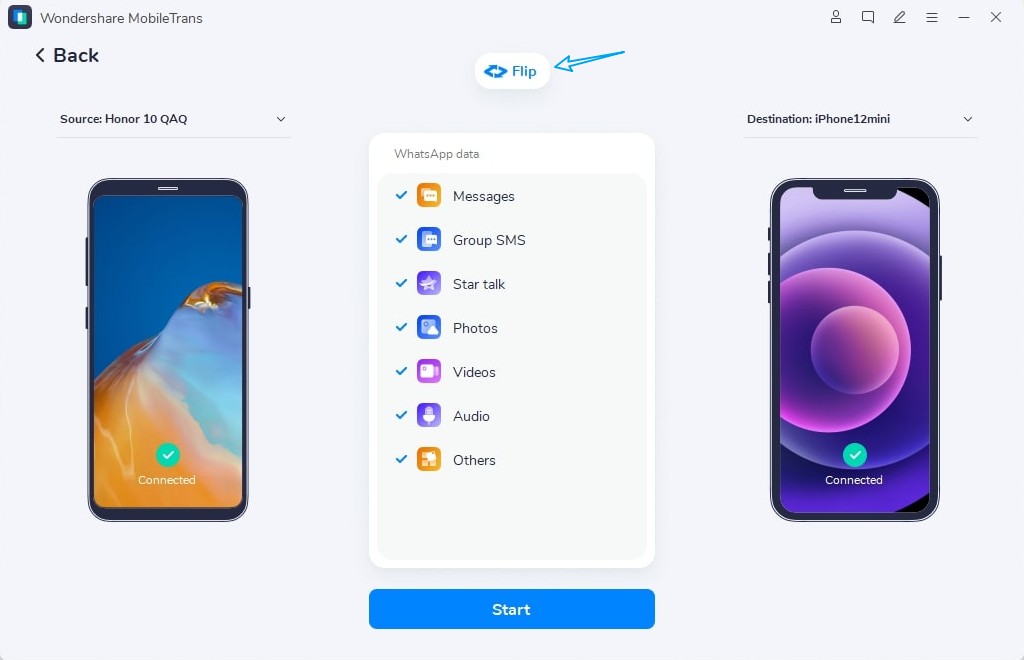
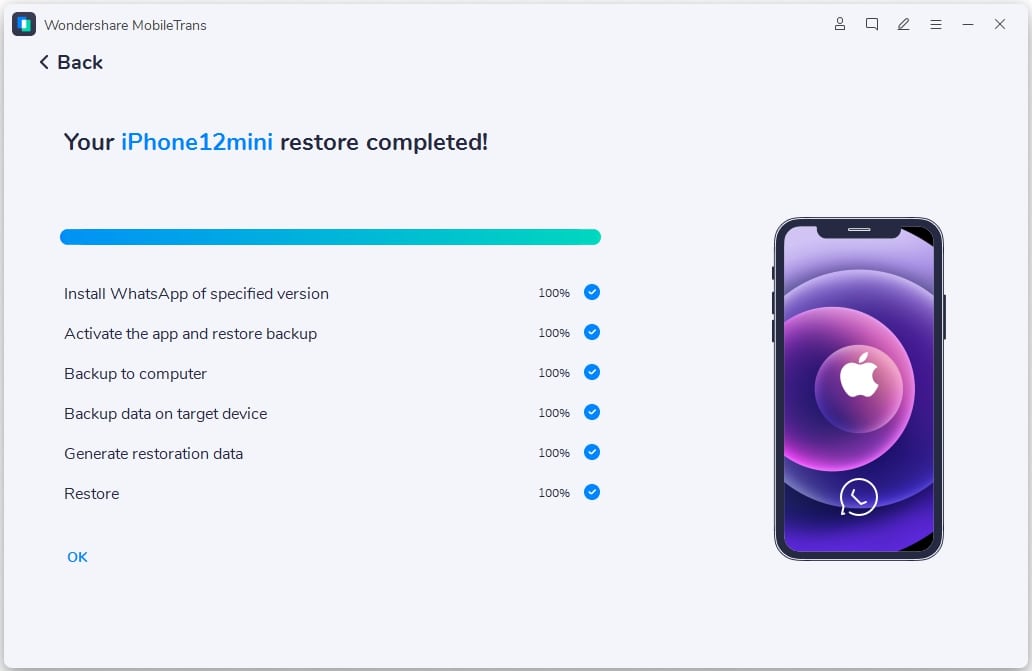
Step 2: Wait for the transfer to complete. Don't disconnect the phones during this process. Once done, check your iPhone 17 WhatsApp to see all transferred messages and media files.
Method 2: Use the Move to iOS App (Official Method)
The Move to iOS app is Apple's official tool for switching from Android to iPhone. WhatsApp partnered with Apple to make this the easiest way to transfer WhatsApp chats from Android to iPhone 17. It's completely free and works directly with WhatsApp.
This method only works when you're setting up a new iPhone 17. You can't use it if you've already started using your phone. The Move to iOS app transfers not just WhatsApp but also contacts, photos, and other data.
When to use this method:
- You're setting up a brand new iPhone 17
- You want the official Apple-approved method
- You prefer free solutions over paid ones
- You're doing a complete phone switch
Steps:
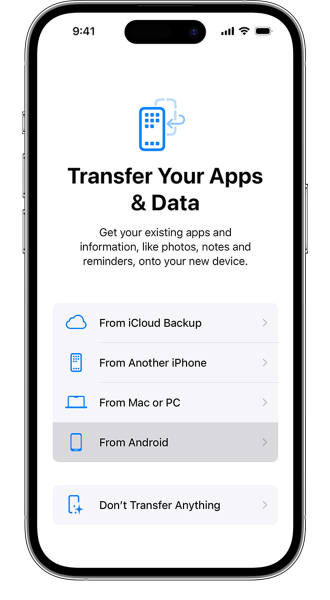
Step 1: Start setting up your new iPhone 17. When you reach the "Transfer Your Apps & Data" screen, choose "Move Data from Android."
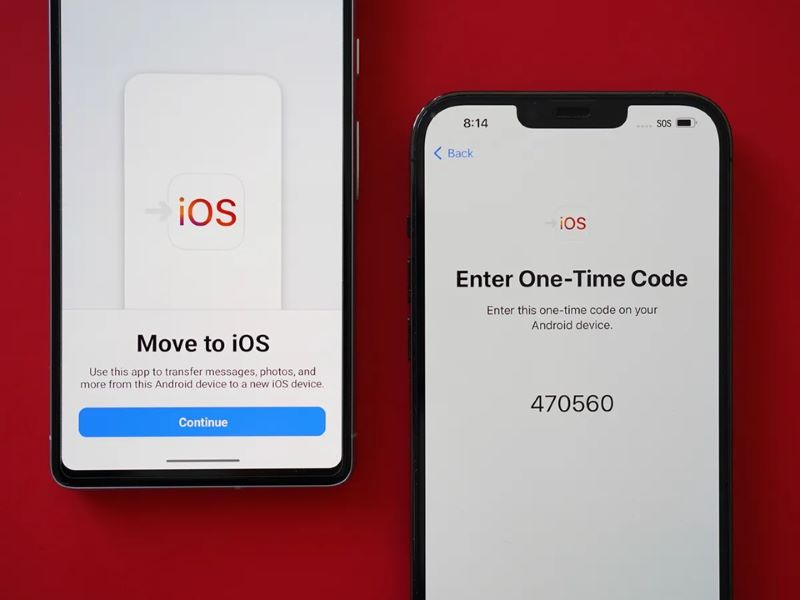
Step 2: Download the Move to iOS app from the Google Play Store. Now enter the code shown on your iPhone 17. Choose WhatsApp from the app list. The tool will back up your data, which might take a while based on its size.
Step 3: Complete the iPhone setup process. Install WhatsApp on your iPhone 17. When you open WhatsApp, it will detect the transferred data and restore all your chats automatically.
Method 3: Email Chat Export
Email chat export allows you to preserve specific WhatsApp conversations by sending them as email attachments. While this method is free, it’s limited to one chat at a time and doesn’t support full chat history transfers. It’s best suited for archiving important individual conversations.
This method doesn't actually transfer WhatsApp chats from Android to iPhone 17 in the traditional sense. Instead, it creates copies of your chats that you can view as text files. The chats won't appear in WhatsApp on your new phone.
When to use this method:
- You only need a few important chats
- Other methods have failed for you
- You want to keep chats as backup files
- You don't mind losing the WhatsApp chat format
Steps:
Step 1: Open WhatsApp on your Android phone. Go to the chat you want to export. Tap the three dots menu and select "More." Choose "Export chat" and decide if you want to include media files.
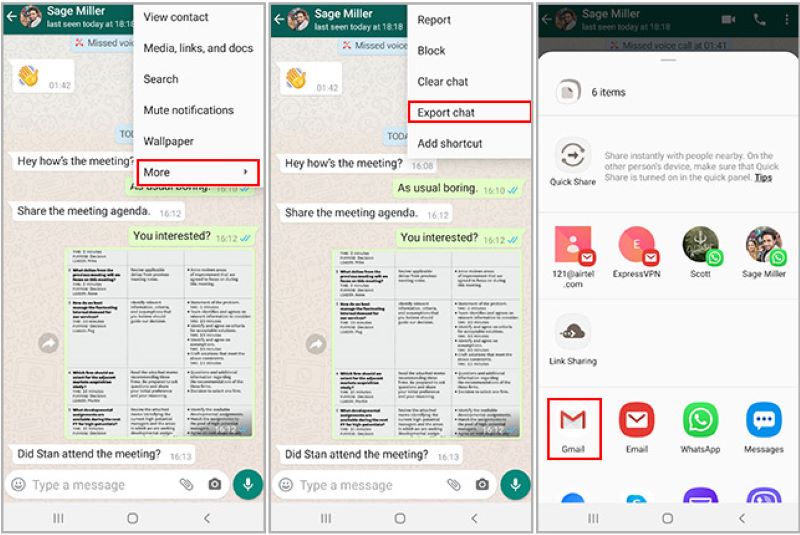
Step 2: Choose Mail to share the chat, send it to your email, then open it on your iPhone 17 and download the file.
Here is one drawback, though. You can read the chat, but it won’t appear in WhatsApp. Repeat the same steps for each chat you want to save.
Method 4: Activate Companion Mode
WhatsApp Companion Mode lets you use WhatsApp on multiple devices at once. You can keep your Android phone active while also using WhatsApp on iPhone 17. This isn't exactly transferring but gives you access to chats on both phones.
This method works like WhatsApp Web but on your iPhone. Your Android phone stays as the main device. The iPhone 17 acts as a companion device. You need to keep your Android phone connected to the internet for this to work.
When to use this method:
- You want to keep using both phones
- You need immediate access to WhatsApp on iPhone 17
- Other transfer methods aren't working for you
- You don't mind keeping your Android phone active
Steps:
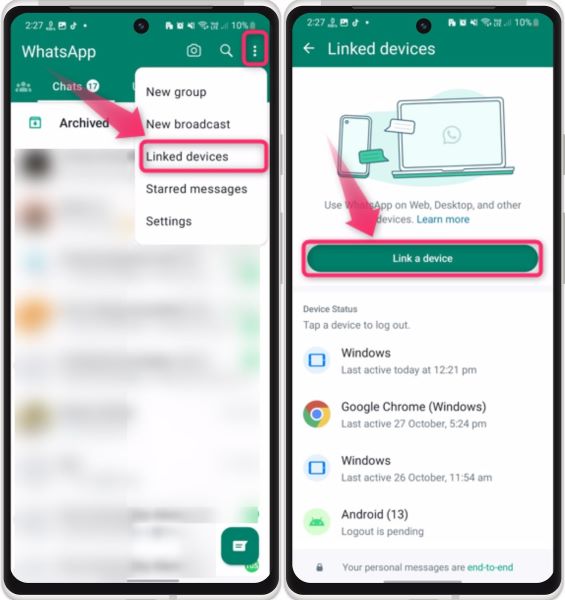
Step 1: Install WhatsApp on your iPhone 17, but don't set it up yet. On your Android phone, open WhatsApp and go to Settings. Find the "Linked Devices" option and tap "Link a Device."
Step 2: On your iPhone 17, open WhatsApp and choose "Link as Companion Device." Scan the QR code shown on your iPhone with your Android phone camera. This will link both devices.
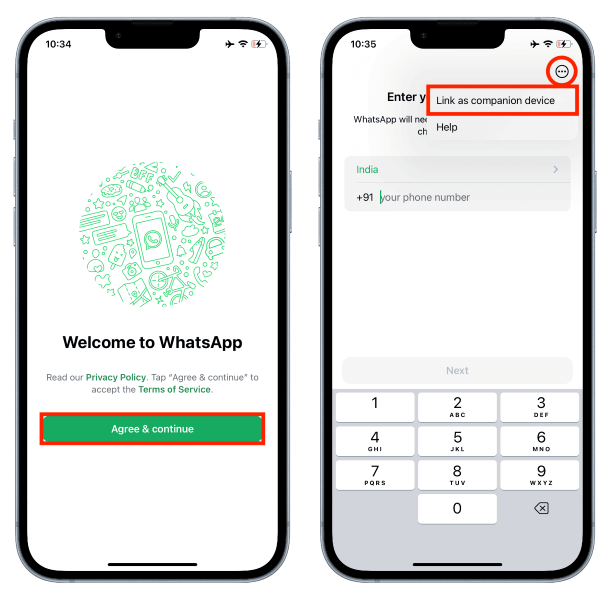
Your iPhone 17 can now access all your WhatsApp chats. The chat history will sync from your Android phone. You can send and receive messages from either device.
Tips for Troubleshooting Common Issues
Moving WhatsApp data between different phone systems can sometimes have problems. Here are solutions for the most common issues people face when trying to transfer WhatsApp messages from Android to iPhone 17.
- Transfer gets stuck or fails: Restart both phones and try again. Make sure both devices have enough battery and a stable internet connection.
- Not all chats transferred: Check if you have enough iCloud storage space. Free up space if needed and try the transfer again.
- Media files missing: Large video files might not transfer. Try transferring without media first, then manually save important videos.
- Move to iOS app not working: Make sure both phones are connected to the same WiFi network. Disable mobile data during transfer.
- MobileTrans shows error: Update the software to the latest version. Check if your phone models are supported by the software.
- WhatsApp won't restore chats: Sign out and sign in to WhatsApp again. Make sure you're using the same phone number on both devices.
- Companion mode disconnects: Keep your Android phone nearby with good internet. Don't let it go to sleep mode during use.
- Transfer takes too long: Large chat histories need more time. Be patient and don't interrupt the process. Close other apps to speed up transfer.



Conclusion
Transferring WhatsApp messages from Android to iPhone 17 is possible with the right method. Each approach has its own benefits and limitations. Choose based on your specific needs and situation.
The Move to iOS app works best for new iPhone setups. MobileTrans is perfect for complete transfers anytime. Email export helps save individual important chats. Companion mode lets you use both phones together.
Plan your transfer carefully before starting. Back up your Android WhatsApp data first. This way you won't lose anything if something goes wrong. With patience and the right method, you can keep all your precious WhatsApp memories on your new iPhone 17.
FAQ
-
Q: Can I transfer WhatsApp from Android to iPhone 17 without losing any data?
A: Yes, you can transfer WhatsApp data from Android to iPhone 17 without losing data if you use the right method. The Move to iOS app and MobileTrans are the most reliable options. They can transfer your chat history, photos, videos, and voice messages. However, some data like payment history and call logs, might not transfer. Always create a backup on your Android phone before starting the transfer process. This ensures you have a copy of everything in case something goes wrong during the transfer.
-
Q: Is it free to transfer WhatsApp messages from Android to iPhone 17?
A: Some methods to transfer WhatsApp chats from Android to iPhone 17 are free, while others cost money. The Move to iOS app is completely free and works well for new iPhone setups. Email chat export is also free but limited to individual conversations. MobileTrans and similar third-party tools require payment but offer more features and flexibility. The free methods work well for most people, but paid tools might be worth it if you need advanced features or have already set up your iPhone.
-
Q: How long does it take to transfer WhatsApp from Android to iPhone 17?
A: The time to transfer WhatsApp from Android to iPhone 17 depends on how much data you have. Small chat histories with few photos might take 10-30 minutes. Large histories with many videos and photos can take 1-3 hours. The Move to iOS app is usually faster than third-party tools. Your internet speed also affects transfer time, especially for methods that use cloud services. Be patient during the process and don't interrupt it. Starting the transfer when you have plenty of time ensures the best results.











