


 TL;DR:
You can transfer WhatsApp messages to a new phone without a cloud backup by utilizing the native QR code feature for same-OS migrations, Samsung Smart Switch for moving to Samsung phones, or MobileTrans for cross-platform transfers between iOS and Android.
● The built-in QR code transfer avoids iCloud and Google Drive storage limits but strictly requires both phones to share the same operating system and the identical registered WhatsApp phone number.
● MobileTrans enables direct cross-platform migration of WhatsApp chats and over 18 other data types using a USB connection or local hotspot, though full functionality and unlimited file sizes require a paid subscription.
● Manual email exports and Samsung Smart Switch serve as free alternatives, but email limits exports to 200,000 messages per individual chat as a viewing text file, while Smart Switch risks permanent data loss if a mid-transfer interruption occurs.
Ask AI for a summary
 ChatGPT
 Perplexity
 Gemini
 Claude
 Grok
Grok
Losing WhatsApp chat on a phone change has been a frustration, more so when there is no backup. The user is left frustrated as important discussions, pictures, and other media may be lost in a flash. This will most probably occur when you do not have cloud backups activated on iCloud or Google Drive.
Therefore, understanding how to transfer WhatsApp messages to a new phone without a backup is essential. This guide will lead you through the most efficient techniques to transfer your chats smoothly.
In this article
Part 1. Why Do You Need to Transfer WhatsApp Messages to a New Phone Without Backup?
Before we learn how to transfer WhatsApp chat without backup, it's essential to know why and which kind of users need this solution. The following section will cover the top 5 reasons why you need it for rescuing your data:
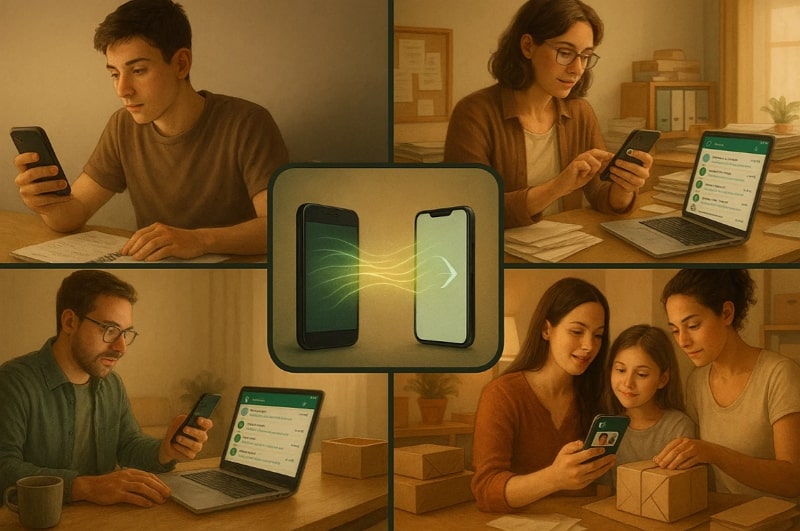
- Academic Continuity of Student: As a student, chances are that your chats contain notes and study group chats that are essential to your coursework. The loss of such a conversation without a backup may interfere with your studies, and you may be rushing to get the necessary materials on the eve of exams.
- Lesson Management of Teachers: This app is usually used by teachers to send messages to students and share educational materials. All information associated with every class can be lost unless these chats are transferred to a new phone.
- Work Projects: It is a chatting platform in which many professionals use to update their team or communicate with their clients, especially in remote or hybrid working arrangements. Failure to move messages may imply loss of contacts, which in turn affects your productivity.
- Business and Customer Chats: Small startup owners and online sellers usually manage orders or queries through WhatsApp. If chats aren't transferred, you risk losing all the details, which could harm your sales and reputation.
- Family and Personal Memories: Priceless personal memories, such as media, chats, or voice notes, are stored in the application. When you switch phones without backing up these chats, there is a chance that you will lose those moments and become a blank in your digital memory collection.
Part 2. How to Transfer WhatsApp Messages to a New Phone Without Backup
Best For: Transfer WhatsApp quickly between Android to Android or iPhone to iPhone.
To learn how to transfer WhatsApp messages to a new phone without a backup, this direct method lets you transfer data from Android to Android and iPhone to iPhone. You can transfer chats and other media by scanning a QR code on your new phone during setup.
This direct method avoids iCloud or Google Drive, keeping your messages secure and safe. By following the guides given, you can save time and learn the technique:
For Android to Android
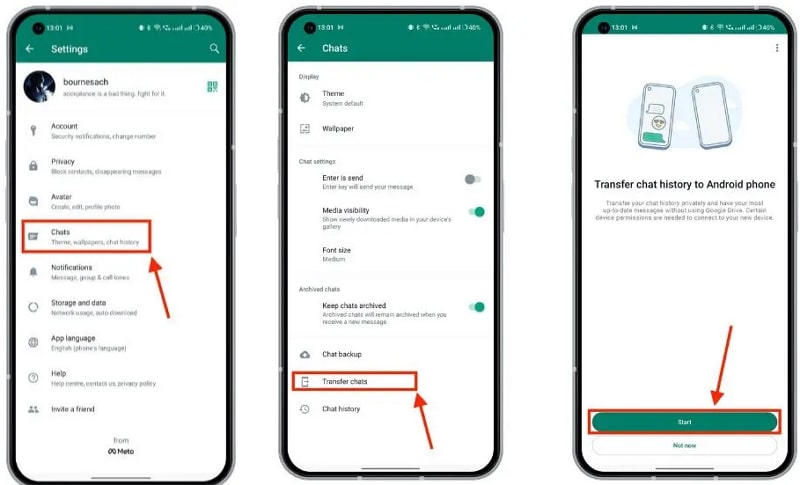
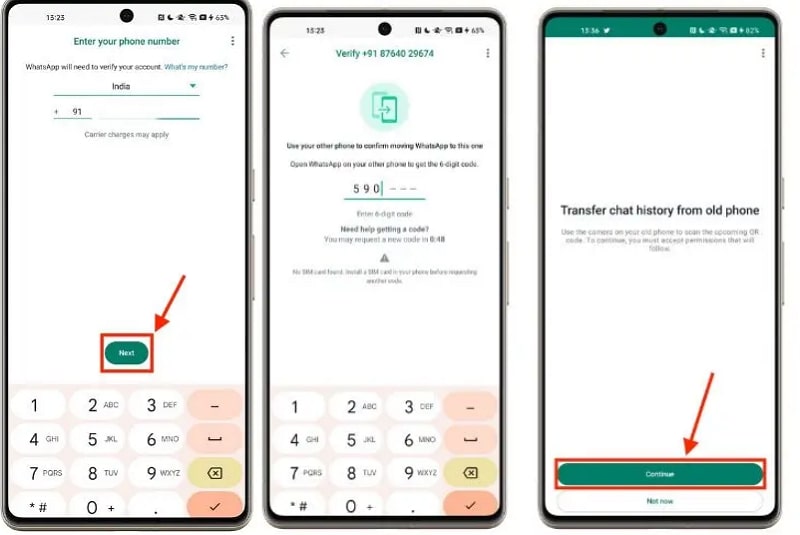
Step 1. Open WhatsApp> Go to "Settings" > "Chats" > "Transfer Chats" and hit the "Start" button.
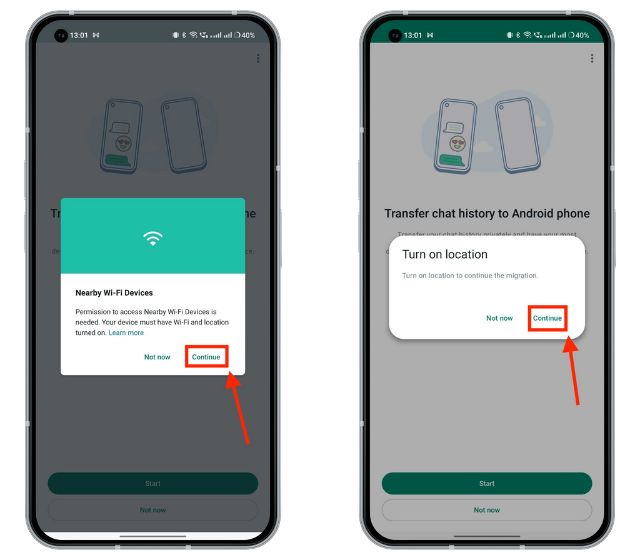
Step 2. Allow "Nearby Wi-Fi" and "Location Permission" and wait until the QR code screen appears.
Step 3. On a new device, enter your number > Press "Next" > "Enter 6 Digit Code" > "Continue" from "Transfer Chat History from Old Phone."
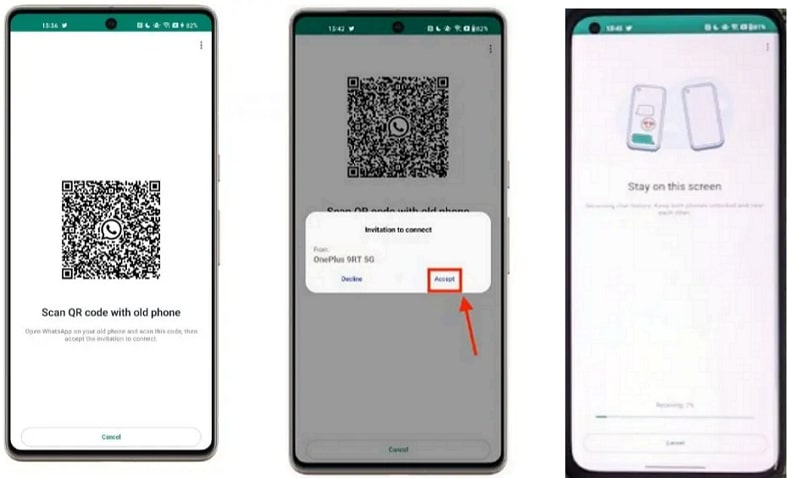
Step 4. Use your old phone to scan > Tap "Accept" and stay on the screen until the transfer completes.
For iPhone to iPhone
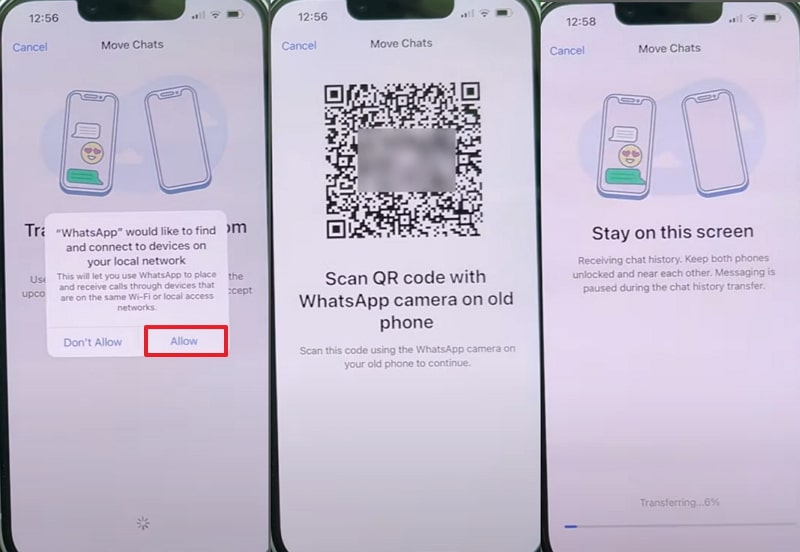
Step 1. Go to "Settings" > "Chats" > "Transfer Chats to iPhone" and press "Start" on your old iPhone.
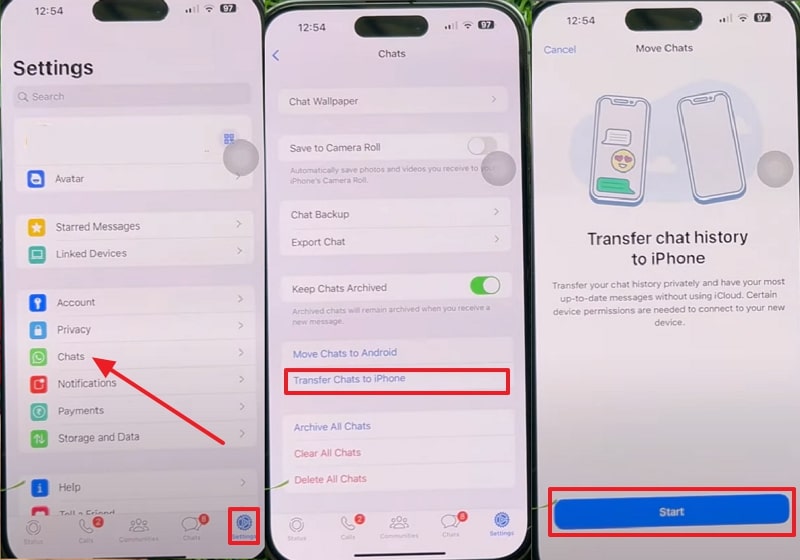
Step 2. Then, enter your contact number on the new phone. Once prompted > Tap "Continue" on the "Transfer Chat History to iPhone" screen.
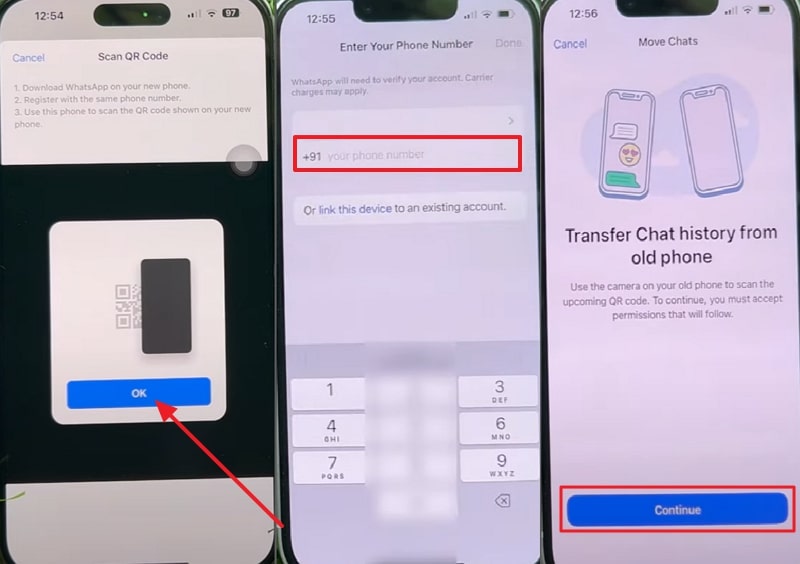
Step 3. Choose "Allow" to give access and scan the QR code within the application. Keep both phones nearby to complete the process.
Part 3. Best Method: Quickest Way to Transfer WhatsApp Messages to New Phone - MobileTrans
Best For: Fastest, most reliable, and complete WhatsApp data transfer to any new phone without backup.
To understand how to transfer WhatsApp chat without backup to a different device, you can use MobileTrans. It is a very quick and convenient way to transfer WhatsApp messages and other data without any problem. Besides, the tool maintains the original quality and structure of all files upon migration. MobileTrans is compatible with up to 6000 devices, including all Android and iOS devices.
The transfer takes just minutes, even if your app contains large files or lengthy chats. Anyone can use this tool as it supports both Windows and Mac, allowing seamless WhatsApp transfers across devices without requiring a backup.


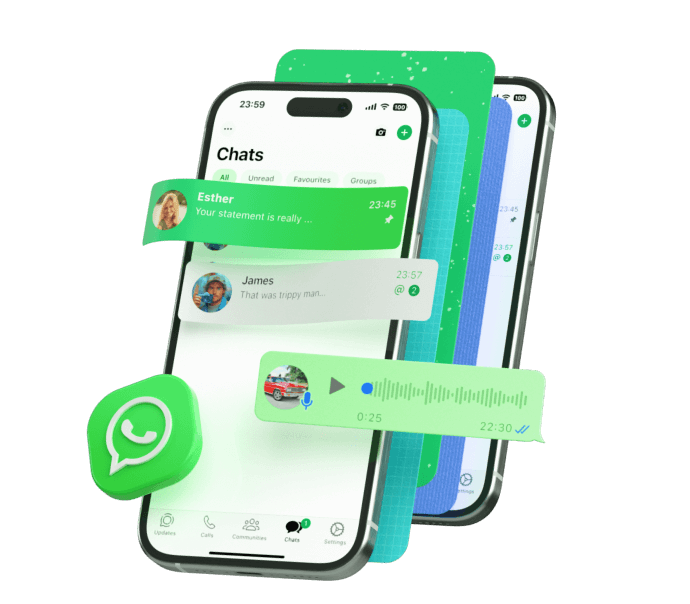




A Detailed Guide to Transfer WhatsApp Chat Without Backup Using MobileTrans
If you want to know how to transfer WhatsApp messages to a new phone without backup using MobileTrans, follow the given guide:
Step 1. Open MobileTrans > Navigate to "WhatsApp" in the "App Transfer" section. Connect both devices by selecting "Source and Destination" to specify models, and click "Start."
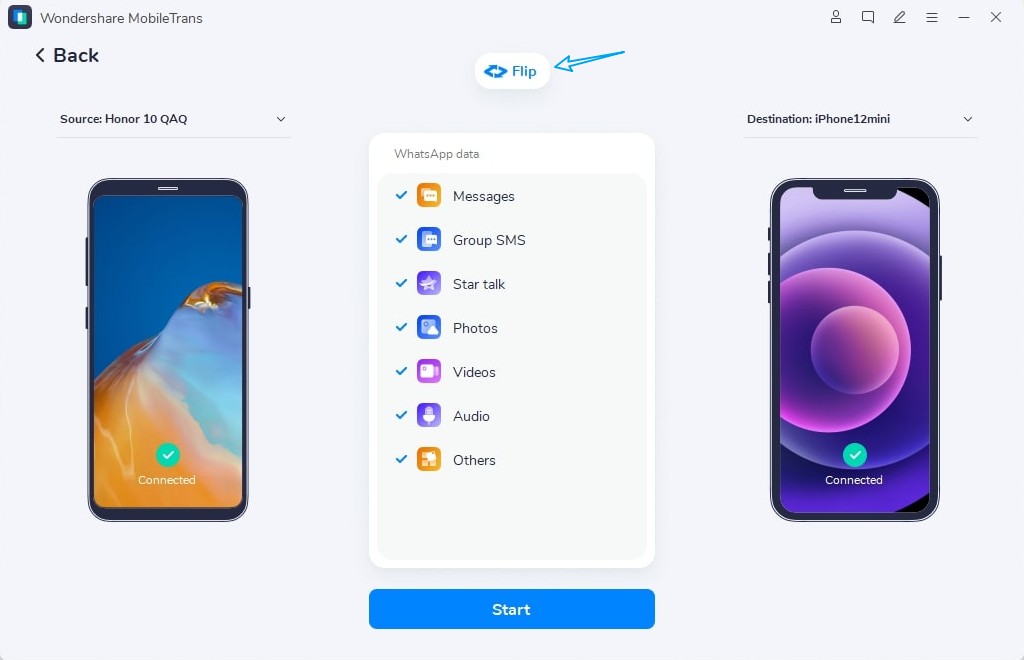
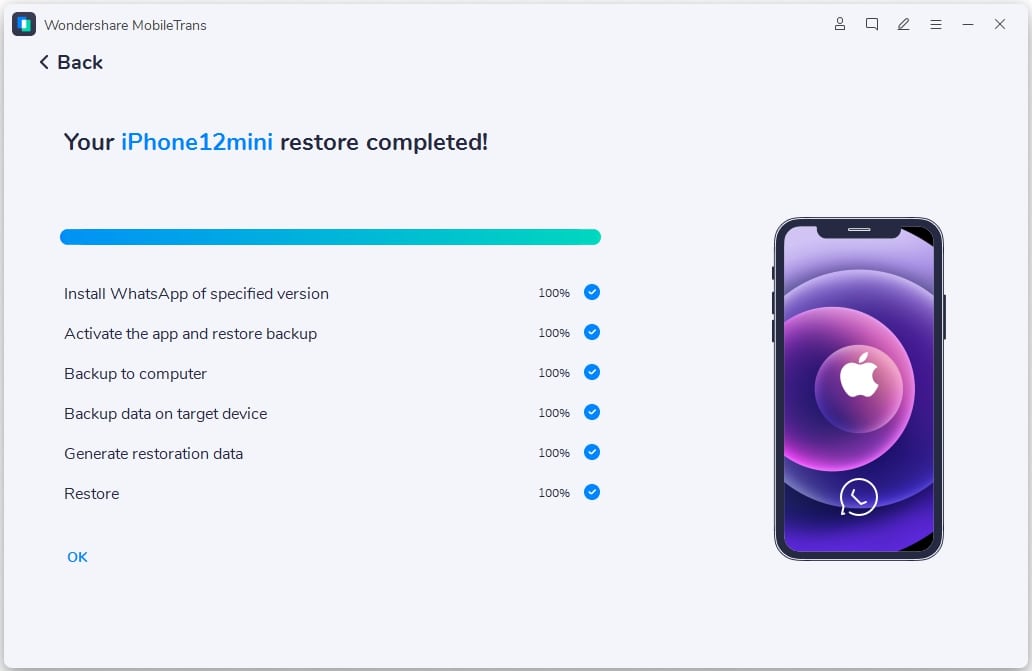
Step 2. Keep both devices connected until the WhatsApp transfer without backup is completed.
Apart from the desktop version, MobileTrans also provides the Mutsapper or MobileTrans App for quick and handy transfers. The apps have similar functions to move messages, all media, and other attachments across iOS and Android. Users can simply connect both the source and target phones via USB or a QR code and migrate data with ease.
As a handy version of MobileTrans, the apps are also free from cloud uploads, ensuring a safe, secure, and smooth transfer.
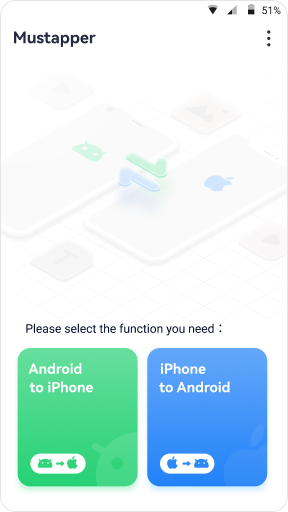
Best For: Easy on-the-go solution to transfer full WhatsApp chats between phones without using a computer or backup.
Part 4. Other Simple Ways to Transfer WhatsApp Messages to a New Phone Without Backup
If you prefer an alternative to direct QR transfer, several simpler methods will also let you move your WhatsApp chats. In this section, we'll cover the other few methods to migrate your chats to your new phone:
Way 1. Export Chat via Email
Best For: Save individual WhatsApp chats or small conversations for viewing on their new phone.
This built-in WhatsApp feature lets you manually send individual chat histories to your email, preserving important conversations without needing a cloud backup. It works by generating a text file of your messages, optimally including media, which you can access anytime from your email account. You can do this on both iPhone and Android, and to understand how to transfer WhatsApp chat without backup, follow these steps:
For iPhone
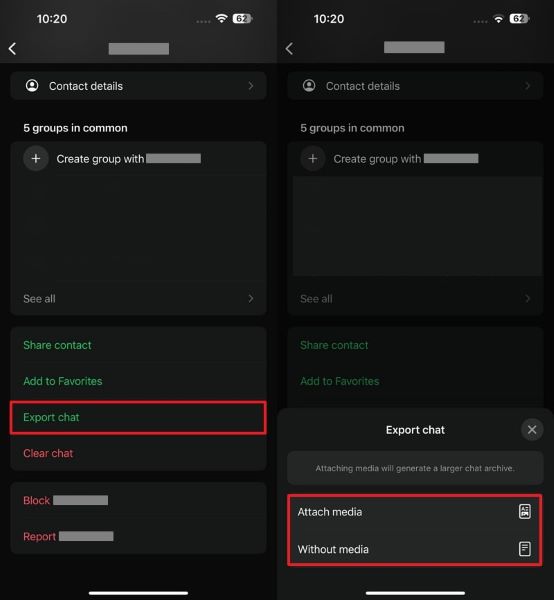
Step 1. Tap the "Contact" to open chat settings > Scroll down to "Export Chat" > Choose "Attach Media" or "Without Media."
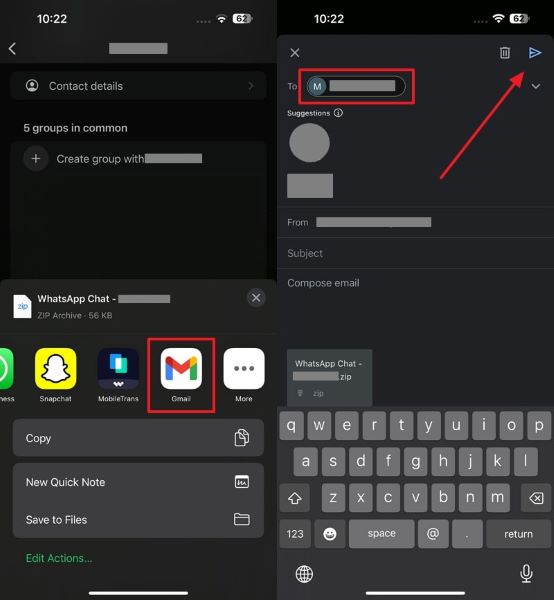
Step 2. Select any preferred Email app and enter your email address in the "To" field. Tap "Send" to share the exported chat file.
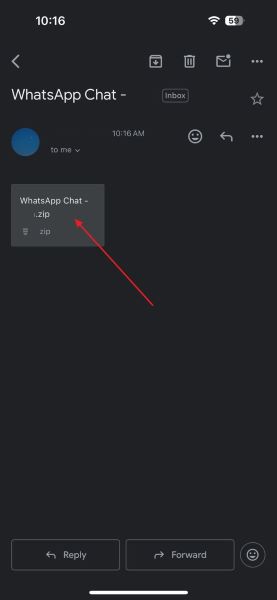
Step 3. Open email on your new iPhone and access the email with "WhatsApp Chat File." Tap the "Download" icon to save the conversation.
For Android
Step 1. Open the chat you want to export. Tap "Three Dots" menu > "More" > "Export Chat" and choose "Without Media or Include Media."
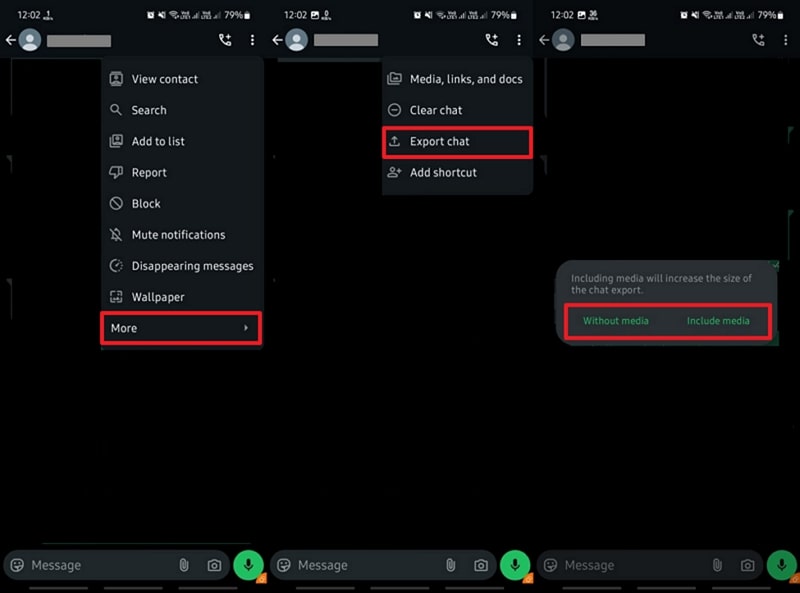
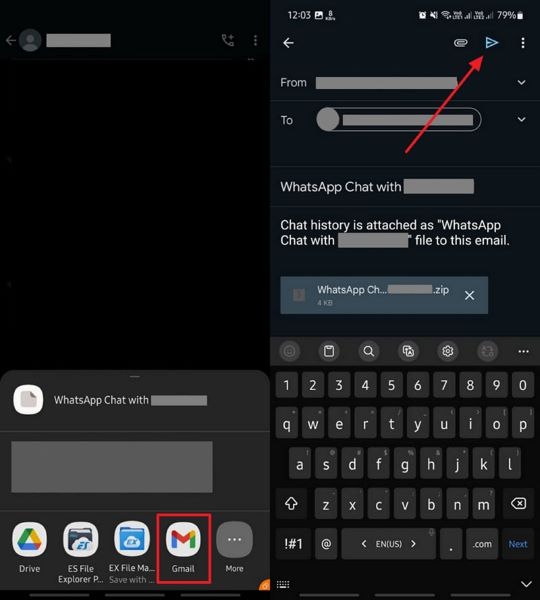
Step 2. Select your mail app and enter your email in the "To" field and hit "Send." Locate the received email and press "Download" to save the ZIP file.
Way 2. Use Move to iOS/Samsung Smart Switch
Best for: Individuals seeking a free and official method to transfer WhatsApp Chat.
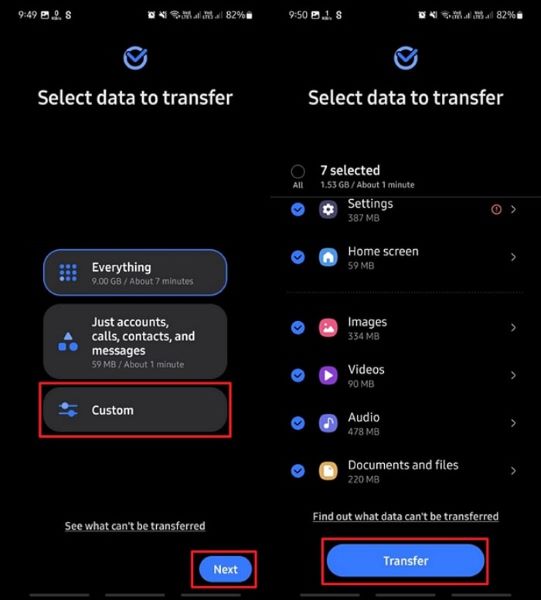
For Android users, Smart Switch is an official data migration program created by Samsung, which can transfer WhatsApp messages and any other files to a new device. It does not need backup and operates by connecting your old phone, Android or iPhone, to your new Samsung phone, either by cable or via Wi-Fi. You can learn how to transfer WhatsApp messages to a new phone without backup by following the guide:
Step 1. Download and open Smart Switch and connect both devices using the same cable. Tap "Send From This Phone" > Select "Cable" as connection method.
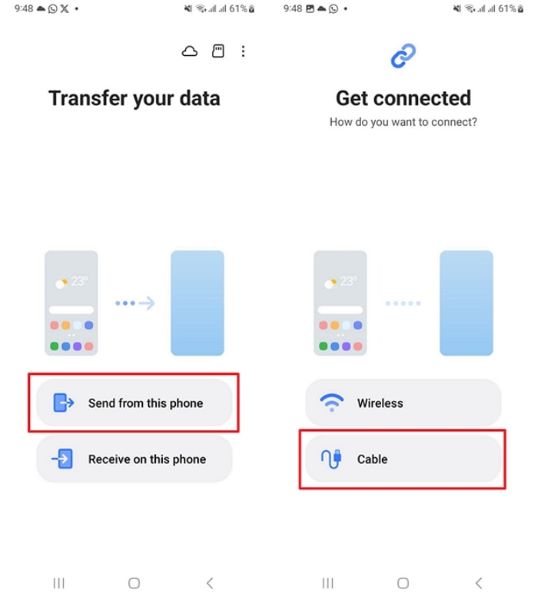
Step 2. On the receiving phone, tap "Receive on This Phone" and confirm connection to scan for data.
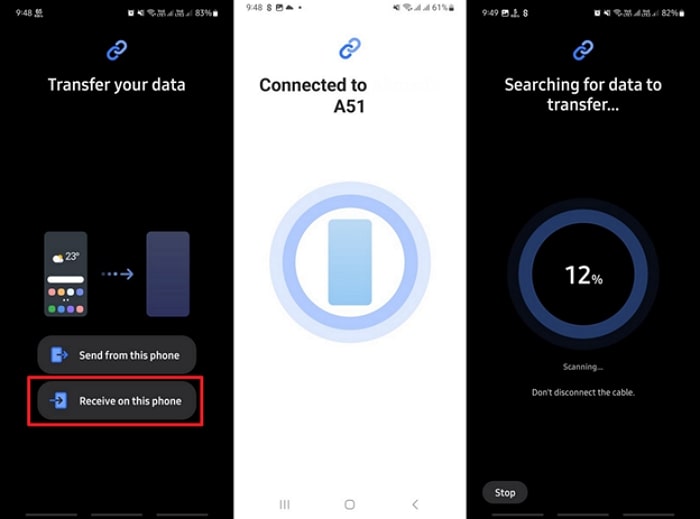
Step 3. Choose "Custom" > "Select Data to Transfer" > tap "Next." Check the boxes for "WhatsApp and other data," > press "Transfer" to start moving chats.
Part 5. Compare All Ways to Transfer WhatsApp Messages to a New Phone
Now that you have learned how to transfer WhatsApp chat without backup, using all the methods. If you are confused about which one to choose, the following comparison table can help you decide better:
|
Method |
Transfer Type |
Speed |
Chat History Transfer |
Media Transfer |
Ease of Use |
|
Direct Method |
Device-to-device local transfer using QR |
Fast (near instant over local connection) |
Moves all chats, groups, and media |
Yes (entire chat/media history) |
Simple uses in the app QR scan |
|
MobileTrans |
Desktop software & USB; Or App |
Extremely fast (Up to 97% faster than standard) |
Full WhatsApp and up to 18+ data types |
Yes (photos, videos, files, and app data, etc.) |
Very easy; provides visual steps |
|
Export Chat via Email |
Email export chat in text or media files |
Varies mostly slowly for large files |
Only selected chats (max 200,000 messages) |
Yes, but limited: media sent as attachments |
Simple but tedious for multiple chats |
|
Samsung Smart Switch |
App-based for Samsung devices via USB or wireless |
Slow via Wi-Fi Direct and fast via USB cable |
Partial WhatsApp transfer (especially from iOS) |
Yes, broader support for contacts, apps, and media |
Simple; step-by-step for Android/iOS-to-Samsung only |
Conclusion
In conclusion, it is essential to learn how to transfer WhatsApp messages to a new phone without backup when you switch phones. Therefore, this guide has provided you with the top easy methods to migrate WhatsApp chat from your previous mobile to your new one. Among them, MobileTrans is the best solution that allows you to transfer data on both desktop and mobile applications.











