


 TL;DR:
Resolve a stuck WhatsApp iCloud restore by securing a stable Wi-Fi connection, clearing sufficient iPhone storage, and updating both iOS and the WhatsApp application to eliminate syncing glitches.
● Force a cloud connection reset if the progress bar remains stalled by toggling WhatsApp sync off and on within Apple Account settings, or by completely signing out and back into iCloud.
● Eliminate hidden application bugs and corrupted temporary files by completely deleting and reinstalling WhatsApp from the App Store before reinitiating the backup recovery.
● Utilize MobileTrans via a direct computer link as a desktop alternative to restore personal or WhatsApp Business chats without relying on cloud synchronization or requiring an iPhone factory reset.
Ask AI for a summary
 ChatGPT
 Perplexity
 Gemini
 Claude
 Grok
Grok
The moment you try to restore important chats, every second feels extremely slow. Yet, many users face the issue of WhatsApp restoring from iCloud taking forever, causing stress. People want their old messages back quickly, especially when changing or resetting phones. A stuck progress bar creates confusion and makes users worry about losing data forever. Therefore, this guide helps you fix the problem fast and continue chatting without unnecessary delays.
In this article
Part 1: Common Reasons Behind WhatsApp Restore from iCloud Taking Forever
Many times, the process of WhatsApp taking forever to restore from iCloud happens due to minor issues. Below are the main reasons that usually cause this long and tiring restoration process:
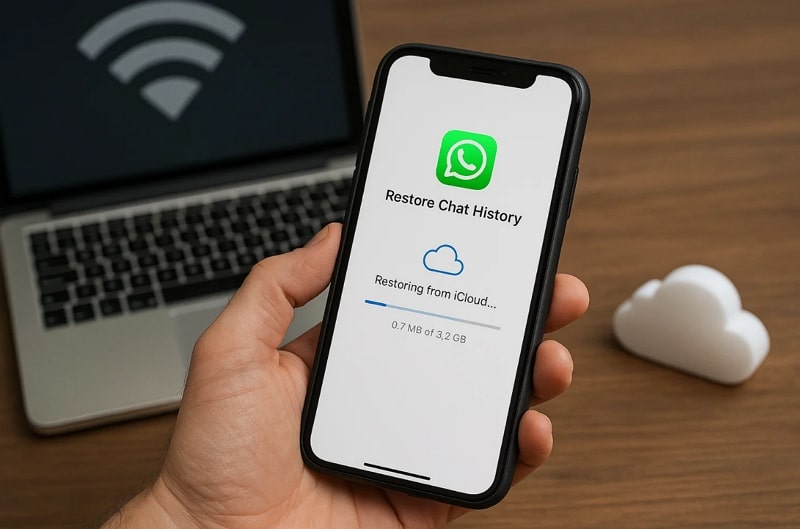
- Weak Network: Slow or unstable Wi-Fi makes the restore process take a very long time. Interrupted internet signals stop iCloud from sending data smoothly to your iPhone.
- Limited Storage: When device storage is almost full, iCloud cannot run the restore. The system is not able to process big data volumes, and this makes the process stall.
- Operating System: Sometimes, outdated versions of iOS will not work well with the new iCloud backup. This mismatch delays the entire process of restoring WhatsApp from iCloud, taking forever.
- Outdated App: An old WhatsApp version may not sync properly with iCloud data files. App compatibility issues can lead to longer waiting times during restoration.
- Account Issue: Using a different Apple ID stops iCloud from accessing your WhatsApp backup. Plus, incorrect login information can even confuse the system and delay the restore process.
Part 2: Quick Fixes When WhatsApp Restores from iCloud, Taking Forever
When facing the issue of WhatsApp restore from iCloud taking forever, it can be fixed with a few simple steps. The following part covers 7 solutions to help speed up the restoration process and get your chats back:
Fix 1. Check Internet Connection Quality
To fix slow restoring, first check your internet connection quality carefully. Restoring WhatsApp from iCloud is taking forever, which usually happens due to a weak or unstable internet. You need to move closer to your router to receive faster internet signals if possible. Apart from that, users can switch from mobile data to a strong Wi-Fi to make it happen. Thus, a strong and steady internet speed helps finish the process much faster.
Fix 2. Ensure Enough Free iPhone Storage
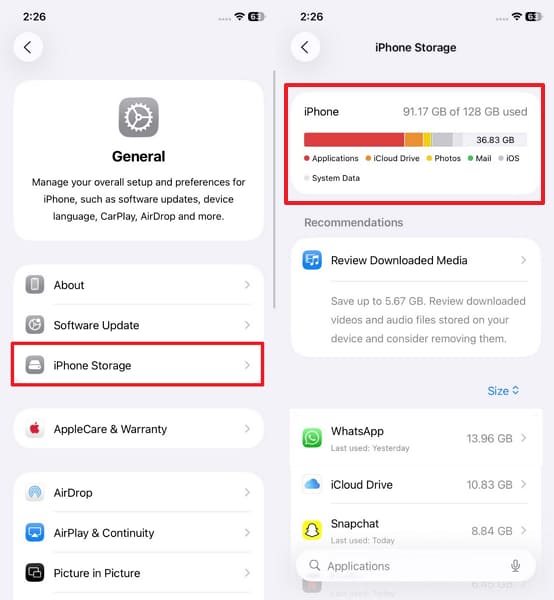
Not having enough space on your iPhone can seriously slow down the restore process. When WhatsApp restores from iCloud takes forever, it means your device lacks free storage for recovery. WhatsApp media, like videos and photos, require a lot of space to complete the process successfully. So, go through the following steps to check your device storage:
Instructions. Access the General settings > iPhone Storage > Check Storage > Remove unwanted data like videos, photos, apps, or documents.
Fix 3. Update iOS and WhatsApp
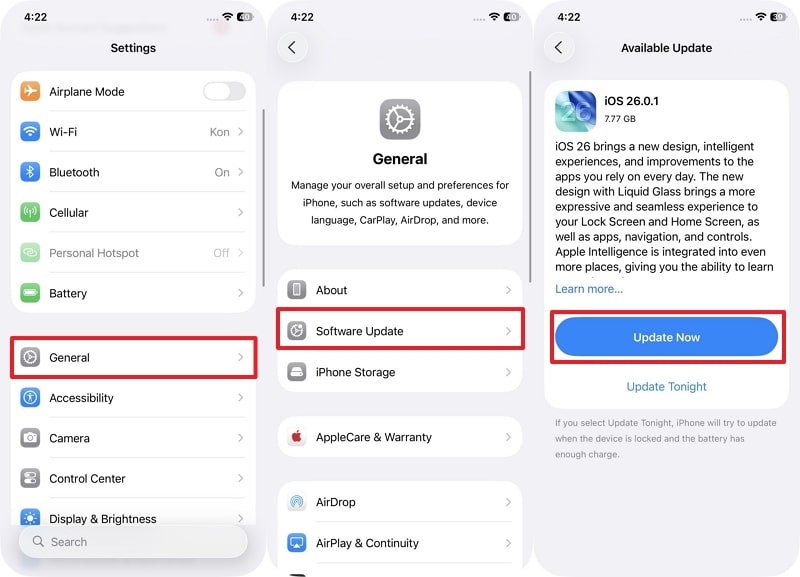
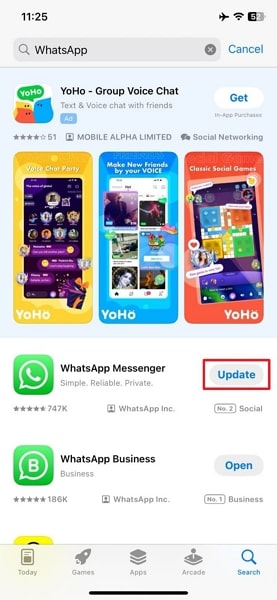
Updating both iOS and WhatsApp is also crucial when WhatsApp takes forever to restore from iCloud. Older versions may lack important fixes that slow down the backup recovery process. New updates improve compatibility between WhatsApp and iCloud services, reducing delays. Besides, keeping your software updated helps keep the process running without errors or interruptions. Follow the given steps below to update both your iOS and app:
Update iOS: Head to the General > Software > Press the Update Now button.
Update WhatsApp: On App Store, search for the WhatsApp app and tap Update.
Fix 4. Toggle WhatsApp Sync Off and On
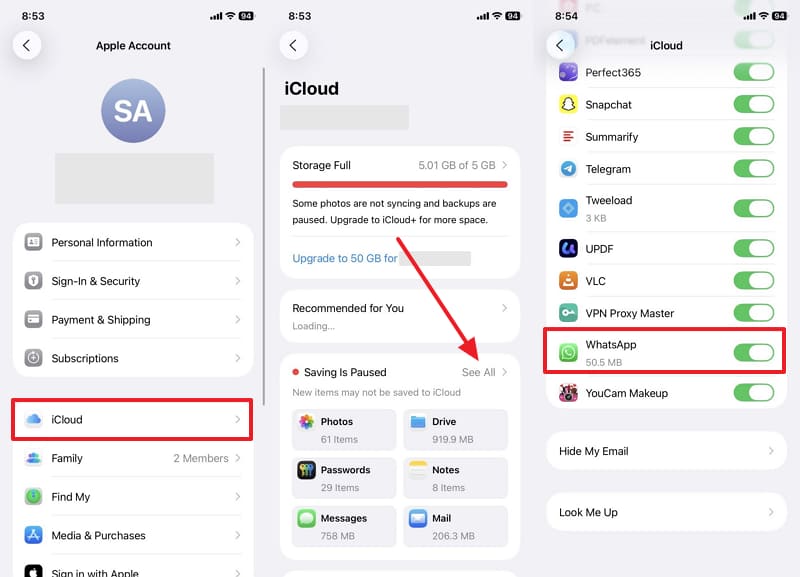
Sometimes, the reason WhatsApp is taking forever to restore from iCloud is that iCloud faces a temporary syncing problem. Turning WhatsApp sync off and then on resets its connection with iCloud. This trick refreshes background systems and clears tiny glitches that interrupt the process. It also clears minor glitches that interrupt the data transfer. Hence, review the following guide to know how you can perform this task:
Instructions. Once you access the Apple Account section, tap iCloud > See All > toggle on and off WhatsApp.
Fix 5. Restart iPhone and Sign Back into iCloud
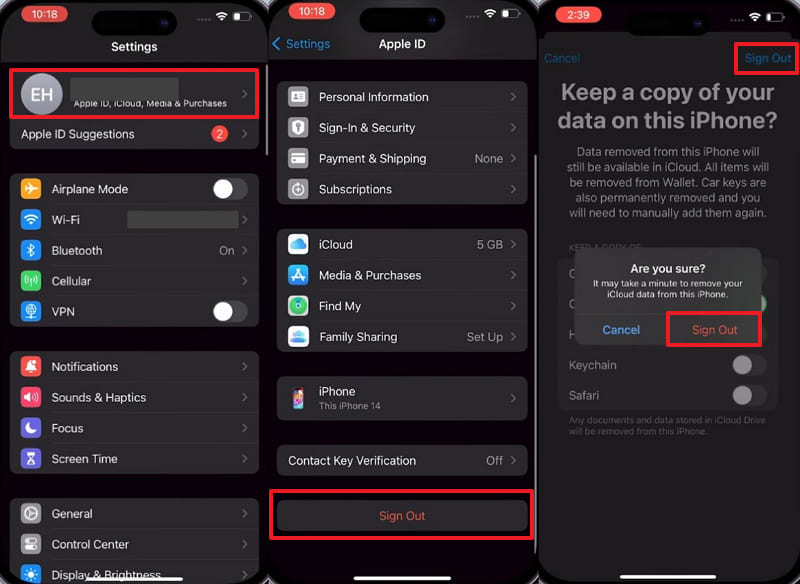
Restarting your iPhone can solve many small software issues that slow down the restore. When restoring WhatsApp from iCloud takes forever, a simple reboot refreshes system functions. After restarting, signing back into iCloud creates a fresh connection with cloud servers again. This process helps ensure smoother data synchronization and faster restoration progress. Follow the instructions below to perform this solution without hassle:
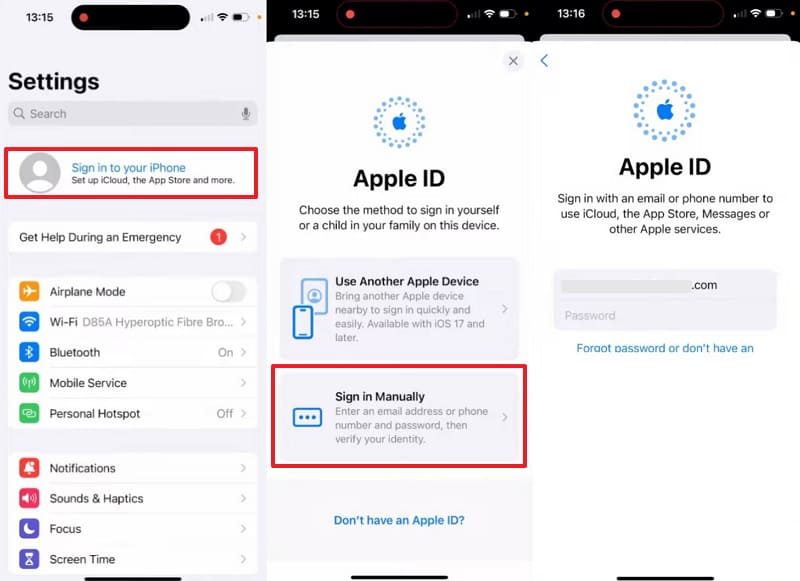
Step 1. Go to Settings > Choose Apple Account > Press Sign Out > Sign Out > Sign Out.
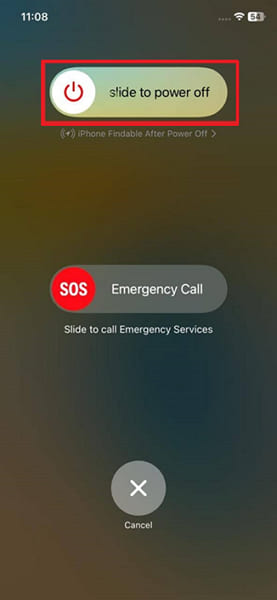
Step 2. Press the Volume Up and Power keys together > Drag the Slide to Power Off > Turn on your device after some time.
Step 3. Access Settings > Tap Sign In to Your iPhone > Sign In Manually > Add Apple ID and Password.
Fix 6. Delete and Reinstall WhatsApp
Apart from the above, app glitches or hidden bugs can also interrupt the restore process. When WhatsApp takes forever to restore from iCloud, reinstalling the app helps remove those hidden issues. This step clears temporary files that may slow down the restoration. It also ensures you download the latest app version, improving compatibility with iCloud backup. So, go through the following steps to reinstall your messaging app:
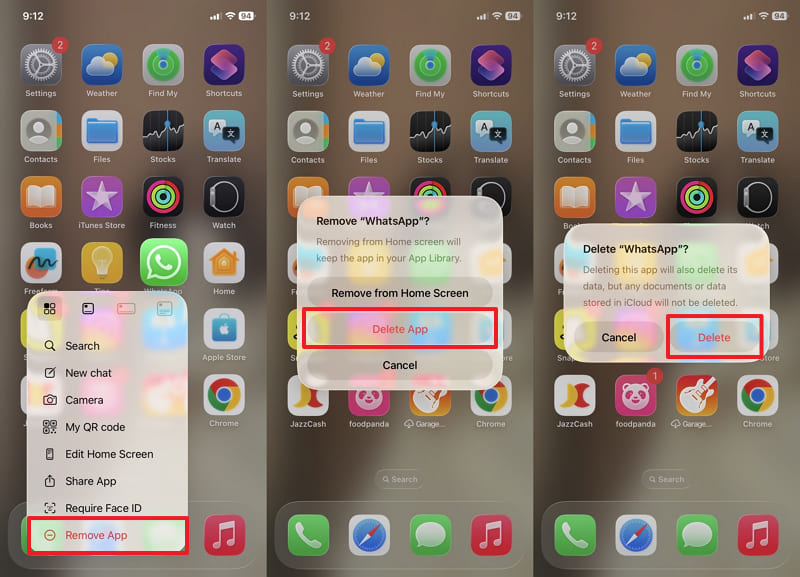
Step 1. Tap the WhatsApp app icon for a few seconds and choose Remove App > Delete App > Delete.
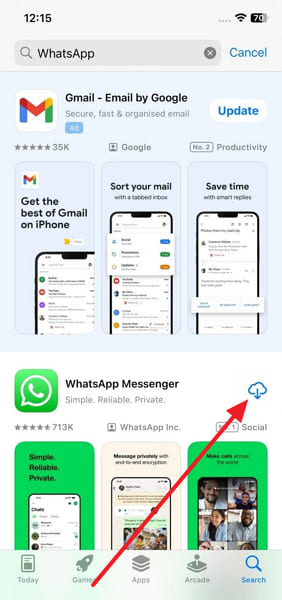
Step 2. Search for WhatsApp on your App Store > Tap the Install icon.
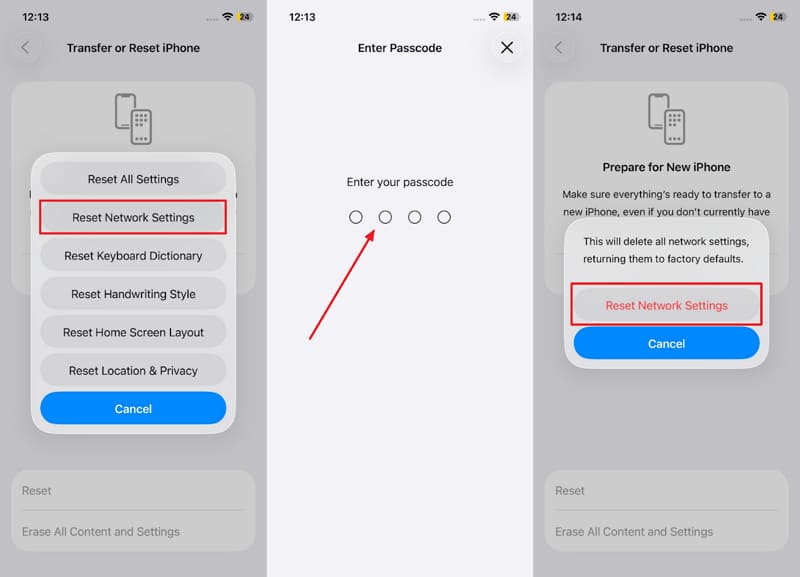
Fix 7. Reset Network Settings
In case WhatsApp is taking forever to restore from iCloud, your phone's network settings may be causing trouble. Resetting these settings removes wrong configurations that block proper data transfer. It refreshes Wi-Fi, mobile internet, and other connection tools your phone uses daily. After the reset, you can set up your internet again and continue restoring chats faster. Take guidance from the given steps to reset your device's network settings:
Step 1. Navigate to General > Transfer or Reset iPhone > Reset.
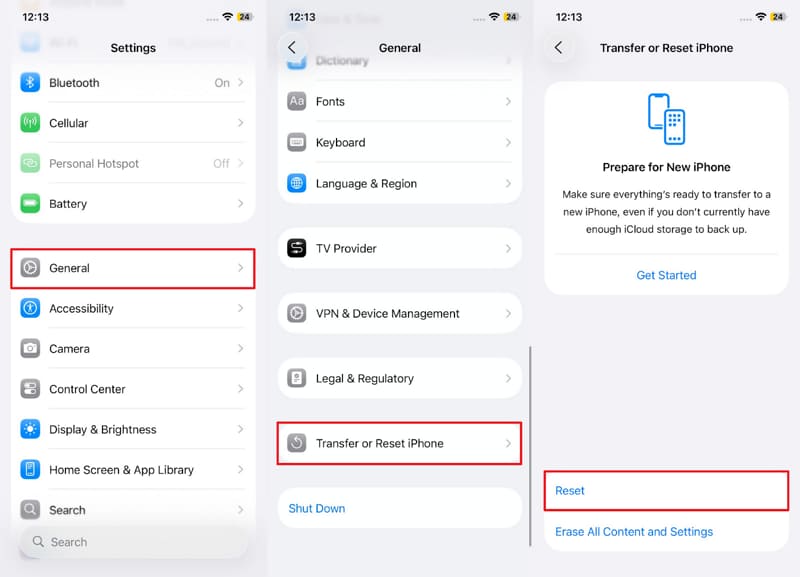
Step 2. Choose the Reset Network Settings > Enter Passcode > Reset Network Settings.
Part 3: Best Alternative When WhatsApp Restores from iCloud, Taking Forever: MobileTrans
When WhatsApp restores from iCloud takes forever, MobileTrans offers a smooth and effortless option. It supports fast restoration by using a direct computer link instead of slow cloud syncing. This software works without any factory reset, so your current iPhone data remains untouched. Users can even restore their chats, photos, and files to Android without any compatibility issues.
Key Features
- iPhone Supported: Compatible with the latest iPhone 17 and iOS 26 for effortless transfers.
- Business Support: Safely transfers WhatsApp Business chats and attachments between smartphones.
- Data Merge: Adds new WhatsApp data while keeping existing chats intact and accessible together.
- Multiple Formats: Exports history in formats like HTM to ensure convenient viewing outside WhatsApp.




Adhere to the guide given below to restore your WhatsApp chats from iCloud using this advanced program:
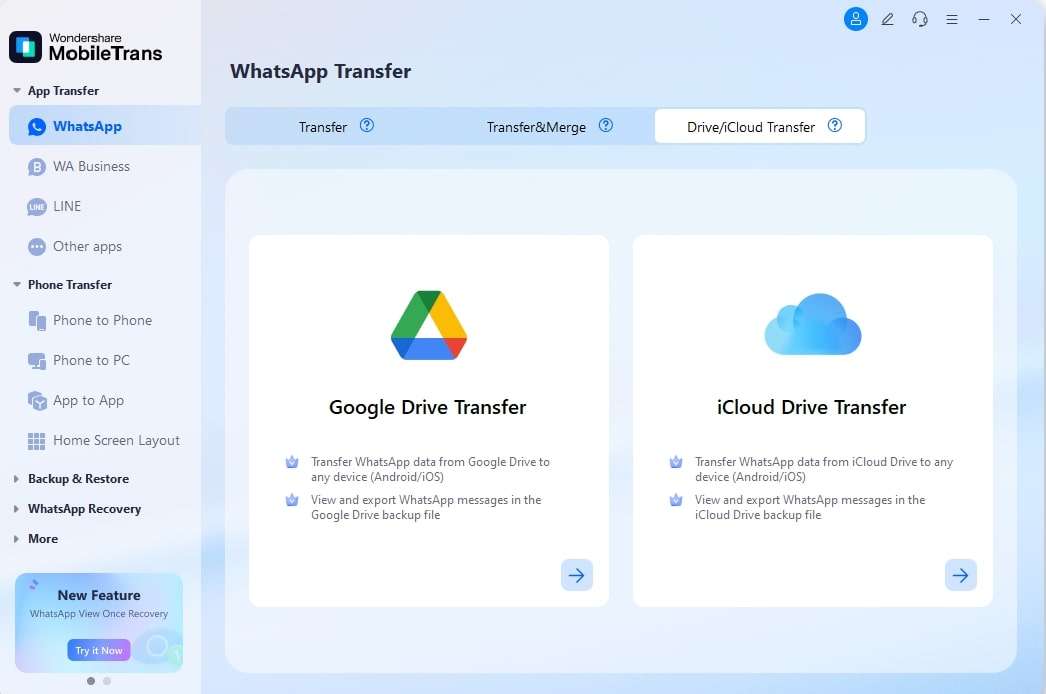
Step 1. Go to the WhatsApp tab > Pick Drive/iCloud Transfer > iCloud Drive Transfer > Log in to your Apple ID.
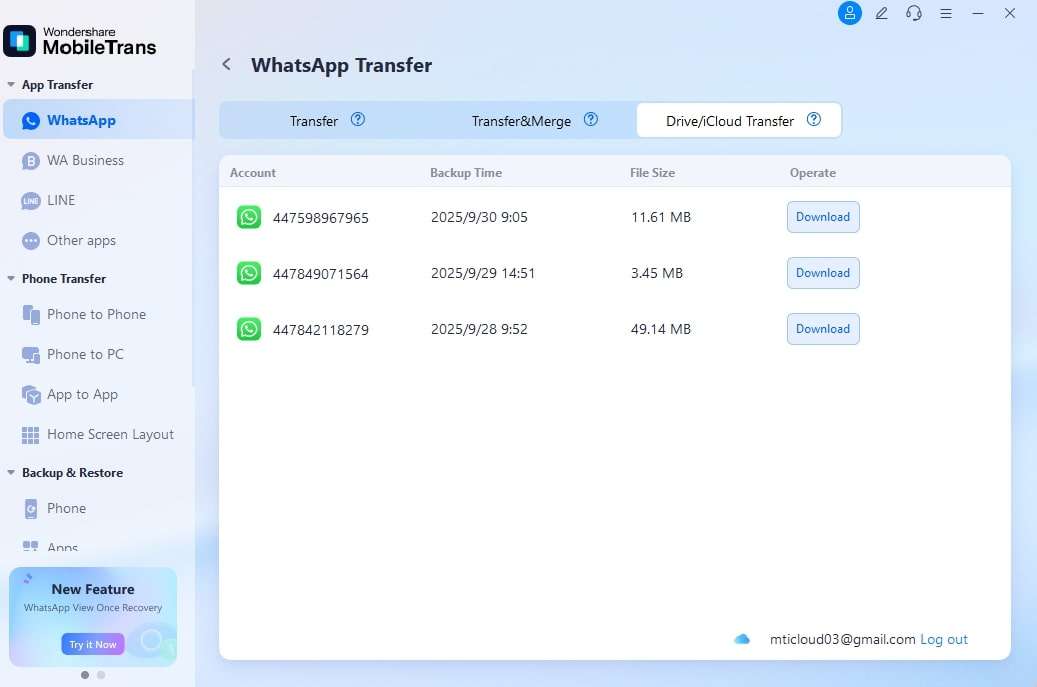
Step 2. Select a Backup file > Confirm authorization > Let MobileTrans read WhatsApp data.
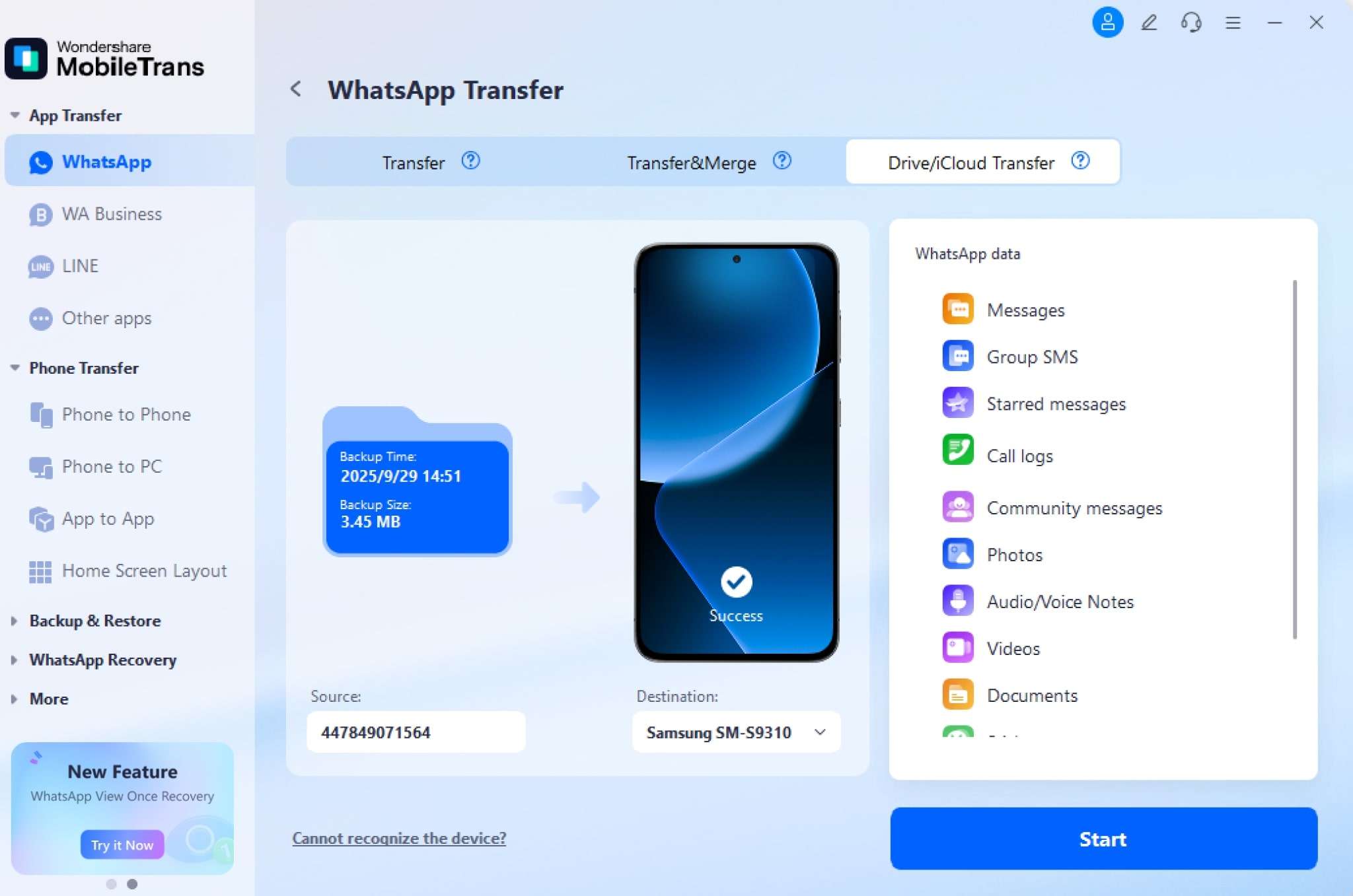
Step 3. Cross-check the required WhatsApp data > Plug in your iPhone > Press Start to restore WhatsApp data.
Part 4: Prevent Future Cases of WhatsApp Restore from iCloud Taking Forever
To avoid this slow restoring issue again, it is better to prepare your device early. The following simple habits will help keep your backup and restore working smoothly every time:
- Stable Network: Use strong Wi-Fi to prevent delays and keep the restoration progress moving faster. Weak signals interrupt cloud syncing and can waste time on simple background tasks.
- Regular Backup: Create backups so files stay updated without large data transfers altogether. Smaller and newer backups restore faster when switching or resetting your phone later.
- App Updates: Always install the latest WhatsApp version for better performance and quicker fixes. New updates remove issues that may slow down the restoring process on your iPhone.
- iOS Update: Keep iPhone software updated because older versions may reduce iCloud backup speed. Updated systems handle cloud services better and avoid long waiting times during restore.
- Free Storage: Check iPhone storage so that enough space is always available before restoring anything. If storage is full, restoring data struggles and stops progress without a clear warning.
Conclusion
In conclusion, facing WhatsApp restoration from iCloud taking forever can be stressful for anyone. Following the mentioned tips ensures smoother data recovery the next time you restore chats. However, if cloud restoring still feels slow or stuck, try using MobileTrans. It helps restore data using direct transfer, avoiding waiting and keeping conversations safe.










