


 TL;DR:
Using the Google Photos Free up space feature on an iPhone with iCloud Photos enabled removes the local device copies, which automatically deletes those same photos from your synced iCloud library.
● To safely reduce device storage while keeping both services active, enable Apple's Optimize iPhone Storage instead, which retains full-resolution originals in iCloud and smaller space-saving versions locally without triggering deletions.
● If transitioning to Google-only storage, you must first disable Sync this iPhone in your Apple settings before using the Google Photos cleanup tools to prevent your existing iCloud library from being erased.
● Removed items are temporarily moved to the Apple Photos Recently Deleted album for 30 days, meaning your iPhone storage will remain full until you manually empty that folder after verifying your backups.
Ask AI for a summary
 ChatGPT
 Perplexity
 Gemini
 Claude
 Grok
Many iPhone users use iCloud Photos and Google Photos together, assuming two backups make it safe to clear storage. However, iCloud Photos syncs your Apple library, while Google Photos stores separate backups. Google's Free up space feature removes local copies, which can also delete synced photos from iCloud. This creates the risk behind "Google Photos free up space iCloud Photos."
This guide explains how photo deletions sync, which storage method to choose, and how to verify backups first. MobileTrans also lets you export photos to a computer, keeping a separate copy outside both cloud services.
In this article

Part 1. How Do iCloud Photos and Google Photos Work Together?
To understand the risks of Google Photos free up space iCloud Photos, first explore how these two services handle photo storage, syncing, and deletion differently.
iCloud Photos vs. Google Photos: Storage and Syncing Differences
The first difference is syncing behavior, as iCloud Photos maintains one library across Apple devices. Apple confirms that changes made on one device also appear on other connected devices. Meanwhile, Google Photos backs up supported photos and videos to a separate library in your Google Account. Storage is divided among your iPhone, iCloud, and Google Account, with each maintaining its own storage allowance.
To understand how to free up iPhone storage with Google Photos and iCloud, compare their storage limits, syncing behavior, and deletion rules in the following table:
| Feature | iCloud Photos | Google Photos |
| Primary Function | One synced library across Apple devices | Separate backup in a Google Account |
| Cloud Storage | 5 GB free, shared with other iCloud data | 15 GB free, shared with Gmail and Drive |
| Automatic Backup / Sync | Two-way sync of photos, edits, albums, and deletions | Uploads iPhone photos and videos while Backup is on |
| iPhone Storage Optimization | Optimize iPhone Storage keeps space-saving local versions | Free up space deletes backed-up iPhone copies |
| Photo Deletion Behavior | Deletes across synced devices, then keeps items in Recently Deleted for 30 days | App deletions also affect the iPhone; deleted items remain in Google Photos Trash for 30 days |
| Access Across Devices | Apple devices plus iCloud.com in a browser | Google Photos apps plus photos.google.com |




What Happens When You Delete Photos While Both Services Are Enabled?
The answer to "Does Google Photos free up space delete from iCloud?" depends on how you remove photos. Google's Free up space feature removes backed-up copies from your iPhone, while Apple's iCloud Photos syncs deletions across devices using the same Apple Account.
As a result, removing local photos can also delete their synced iCloud copies. Before deleting photos, understand how each action affects your iPhone storage and cloud libraries:
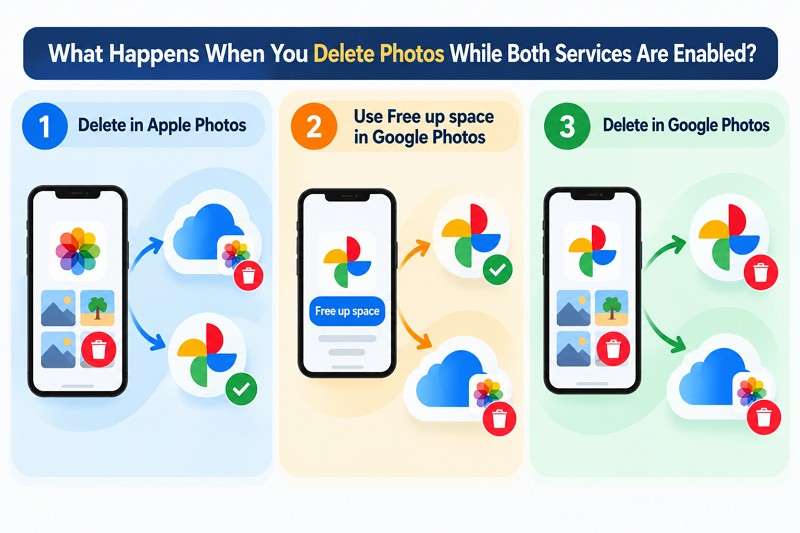
- Delete in Apple Photos: The photo is removed from your iPhone and synced iCloud Photos library, then moves to Recently Deleted for up to 30 days. A separately backed-up copy in Google Photos remains unless you delete it there too.
- Use Free Up Space in Google Photos: Backed-up photos are removed from your iPhone but remain in your Google Photos library. If iCloud Photos is enabled, these deletions also sync to iCloud. Google instructs iPhone users to clear the removed items from Recently Deleted in Apple Photos to finish freeing local storage.
- Delete in Google Photos: The item moves to Google Photos Trash and is also removed from your iPhone when you confirm the deletion. With iCloud Photos enabled, removing the local Apple Photos copy also syncs the deletion to iCloud.
Part 2. How to Use iCloud Photos and Google Photos Together Safely
Before you free up iPhone storage with Google Photos and iCloud, make sure both services have finished syncing or backing up your important photos. The following methods explain how to configure each service safely and verify your copies before making storage changes:
Enable iCloud Photos on Your iPhone
iCloud Photos keeps your photo library synced across Apple devices using the same Apple Account. Apple confirms that original, full-resolution photos and videos are stored in iCloud, with changes reflected across connected devices. Before setting up Google Photos as a separate backup, enable iCloud Photos and check its sync status using these steps:
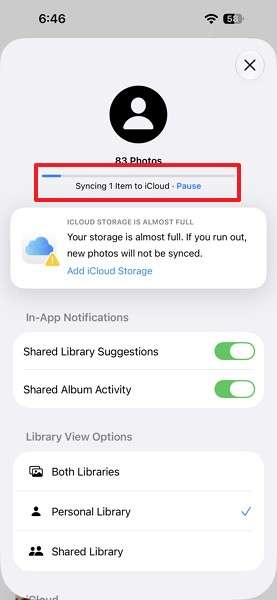
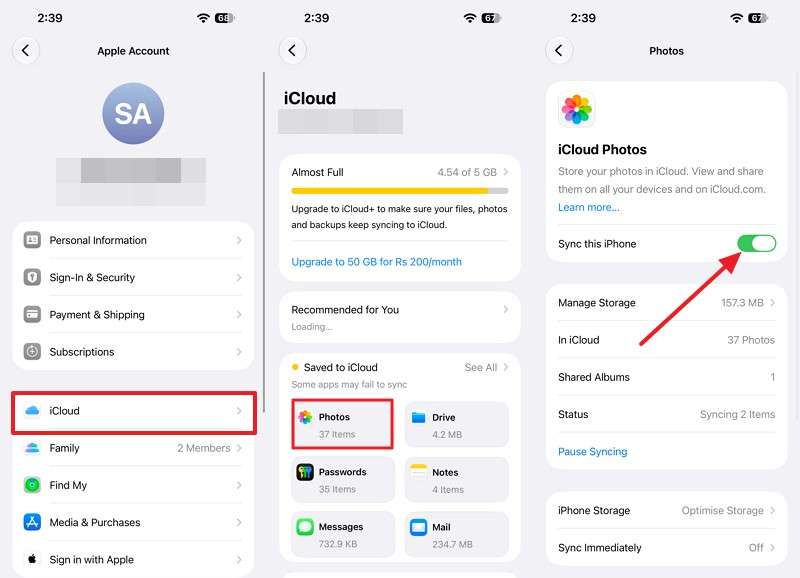
Step 1. Open Settings > [Your Name] > iCloud > Photos and turn on Sync this iPhone.
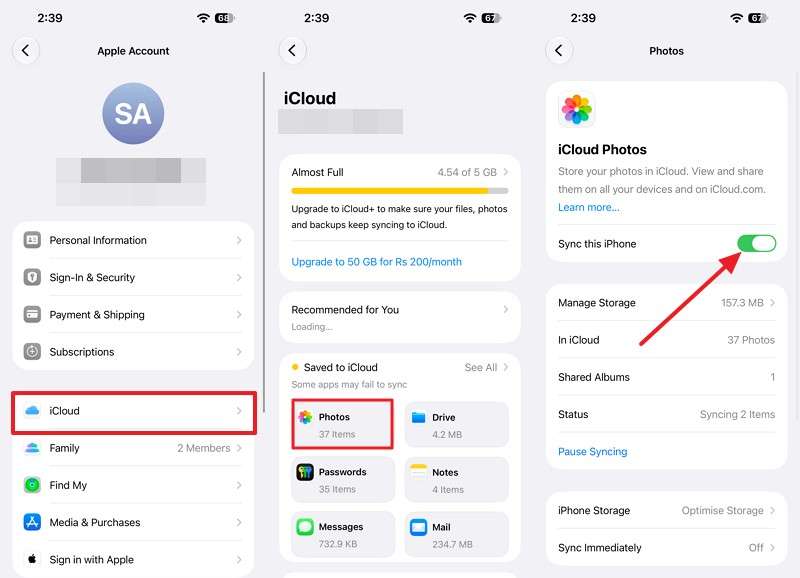
Step 2. Open Photos > Collections, tap the profile button, and read the sync status under your name.
Enable Google Photos Backup on the Same iPhone
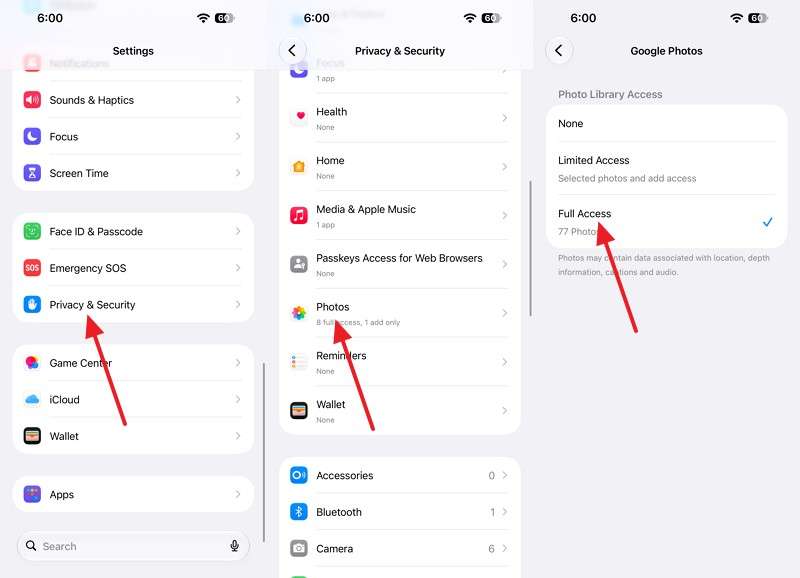
Google Photos creates a separate backup while iCloud Photos remains enabled. First, grant Full Access and confirm the correct Google Account. The Original Quality option preserves resolution, while Storage saver compresses files. Optimized iCloud photos can require downloading originals, and insufficient cloud storage can interrupt uploads. Before using Google Photos Free up space iPhone iCloud, follow these steps to enable backup and verify its completion:
Step 1. In iOS, open Settings > Privacy & Security > Photos > Google Photos and choose Full Access.
Step 2. Open Google Photos, tap your Profile picture, and go to Google Photos Settings > Backup. Enable Backup and select your preferred option under Photos & Videos Quality.
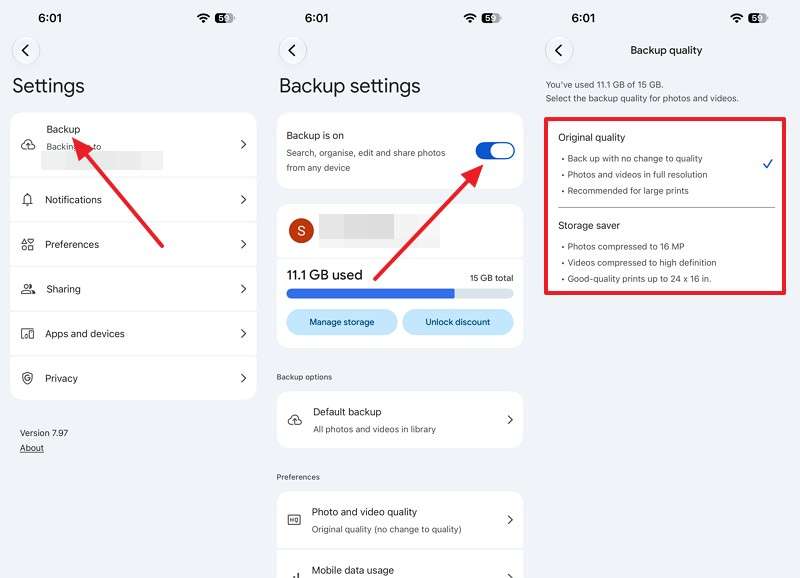
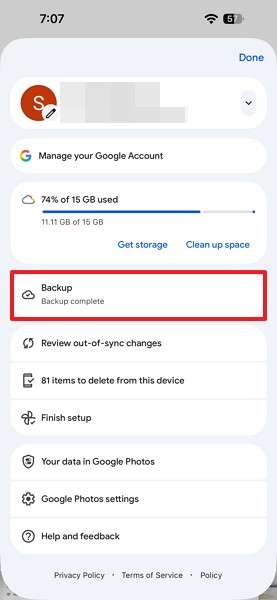
Step 3. Keep the app open on power until Backup Complete appears at the top of the library.
Important Checks:
- Open important photos and videos on iCloud.com and Google Photos, including older photos and lengthy recordings.
- A thumbnail in either app does not necessarily confirm that the original file has finished uploading.
- Download a few important originals to your computer and verify they open correctly before changing sync or deletion settings.
Part 3. How to Free Up iPhone Storage Using iCloud and Google Photos
Once you've verified your backups, you can choose how to free up storage without losing important photos. If you're wondering, “Does Google Photos Free up space delete from iCloud?” the answer depends on whether iCloud Photos syncing is enabled. The following methods explain how to reduce iPhone storage safely while keeping both services or switching to Google Photos alone:
Method 1. Use Optimize iPhone Storage While Keeping Both Services
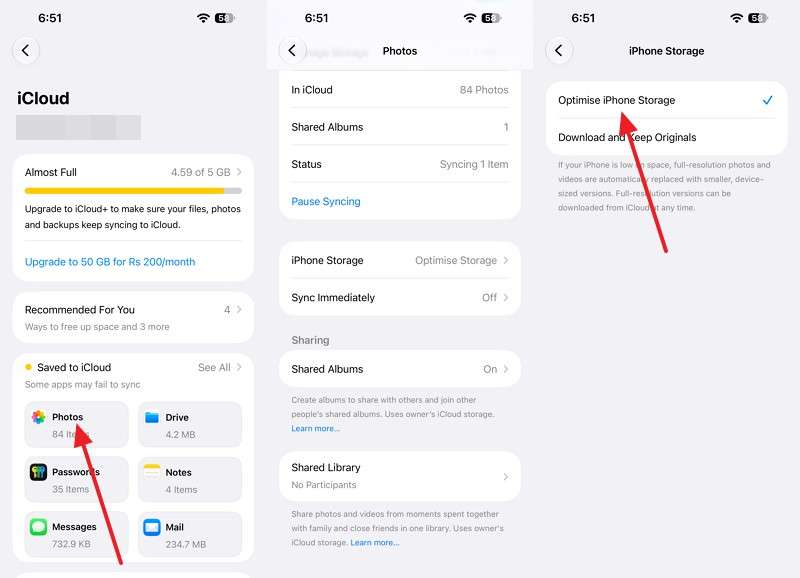
If you want to keep both iCloud Photos and Google Photos, Optimize iPhone Storage helps reduce local storage without deleting photos from either cloud library. Apple explains that full-resolution originals remain in iCloud, while smaller versions are stored on your iPhone as needed. The optimization process prioritizes less frequently accessed photos and videos, so storage savings might not appear immediately.
To avoid the Google Photos Free up space iPhone iCloud deletion risk, enable storage optimization and follow these steps to monitor available space:
Step 1. Open Settings > [Your Name] > iCloud > Photos > iPhone Storage and confirm Optimize iPhone Storage is enabled.
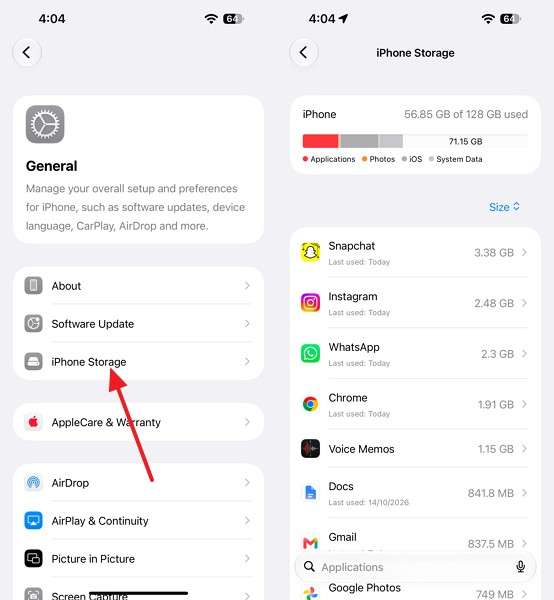
Step 2. Afterward, go to Settings > General > iPhone Storage and note the available space.
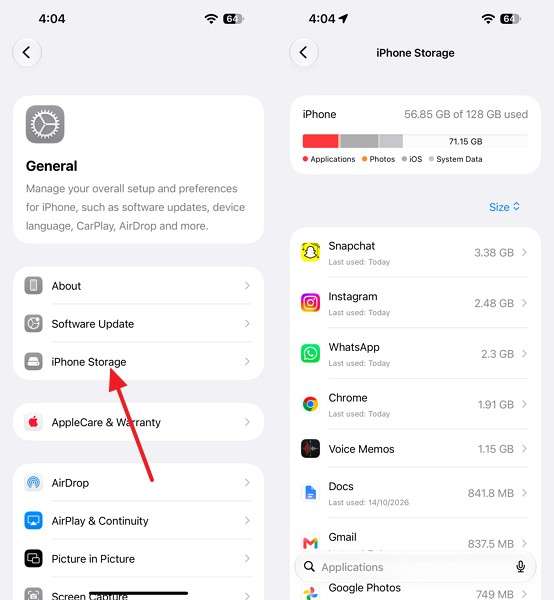
Step 3. Check that figure again after the iPhone runs low on space, not minutes after the change.
Method 2. Use Google Photos Free Up Space After Choosing Google-Only Storage
Switching from iCloud Photos to Google Photos requires careful handling of your existing photo library. Google's Free up space feature removes backed-up photos from your iPhone. However, these deletions can also affect iCloud when syncing remains enabled. Apple explains that disabling Sync this iPhone stops syncing on that device without deleting the existing iCloud library.
To avoid the risks associated with “does Google Photos Free up space delete from iCloud,” follow these steps to verify backups and safely remove local photos:
Step 1. Open Google Photos, confirm Backup Complete, and check important older photos and videos at photos.google.com.
Step 2. Go to Settings > [Your Name] > iCloud > Photos and turn off Sync this iPhone.
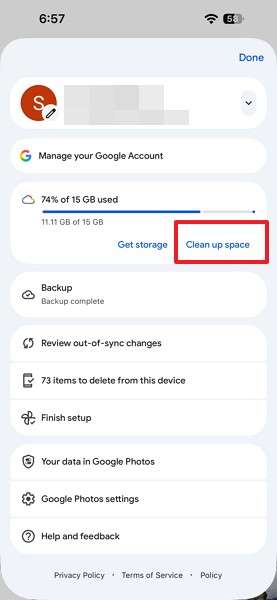
Step 3. If you kept local photos in Step 2, open Google Photos, tap your Profile picture, and select Clean Up Space.
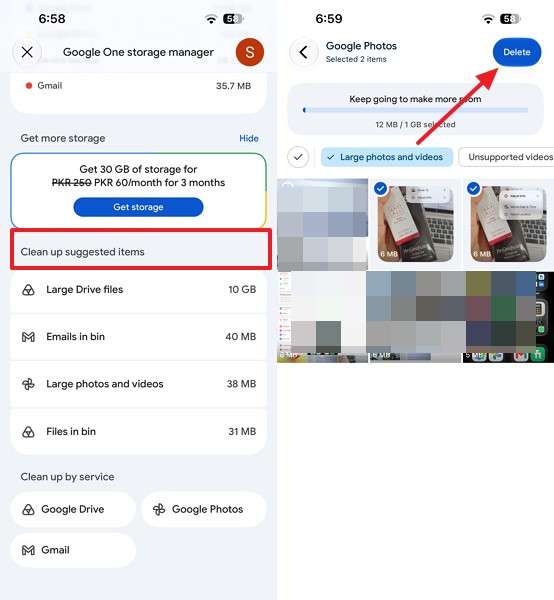
Step 4. Under Clean Up Suggested Items, select Large Photos and Videos, choose the files you want to remove, and tap Delete.
Warning: Google recommends clearing Recently Deleted in Apple Photos to fully free up iPhone storage. However, this permanently removes those photos. Empty the album only after verifying your Google Photos and computer backups.
Method 3. Export Photos to a Computer Before Removing Unneeded Copies
Exporting photos to a separate computer folder creates an independent backup outside iCloud and Google Photos. However, copying files doesn't free iPhone storage until local copies are removed. With iCloud Photos enabled, deletions also affect iCloud. Before transferring photos to Windows or Mac, ensure full-resolution originals are available. To free up iPhone storage with Google Photos and iCloud safely, follow these steps:
Step 1. Plug your iPhone into your Mac using a compatible USB or Lightning cable > Trust This Computer > Trust.
Step 2. Open the Photos app on your Mac and select your iPhone under Devices in the left sidebar.
Step 3. To import everything new, click Import All New Items or Import Selected.
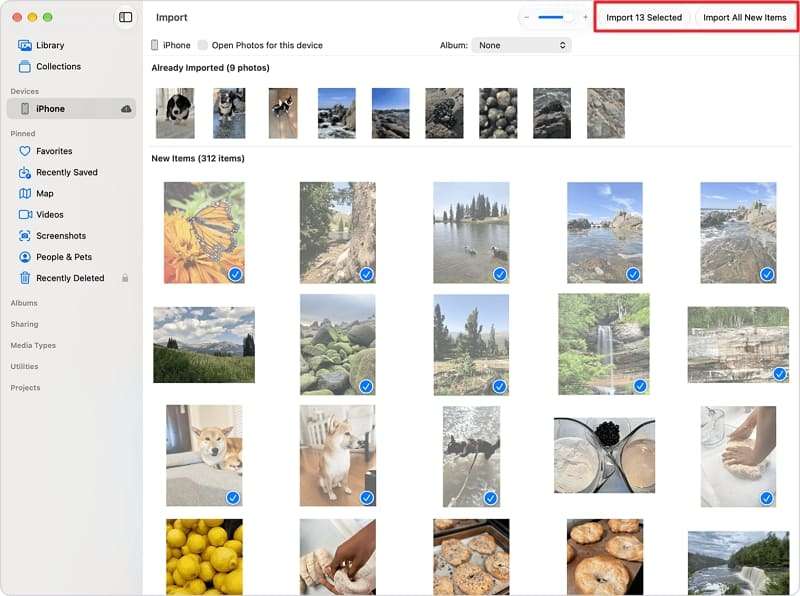
Note: On Windows, import photos using the Photos app and a USB connection, or download them directly from iCloud Photos. Verify that the transferred photos and videos are complete before deleting anything from your iPhone.
Pro Tip. Export iPhone Photos to a Computer with MobileTrans
When using iCloud Photos and Google Photos together, keeping a separate computer backup helps protect important photos and videos from accidental cloud-synced deletions. MobileTrans provides a Phone to PC feature for exporting supported iPhone photos and videos to Windows or Mac without removing the originals.
Unlike iCloud storage optimization, MobileTrans creates independent file copies on your computer without automatically freeing iPhone storage. You can select specific photos and videos for export, making it useful before switching to Google-only storage or deleting local files. However, photos stored only in iCloud must be downloaded to the iPhone before they can be exported through a USB connection.
Key Features
- Selective File Export: Choose specific photos and videos instead of transferring your entire iPhone library.
- Original Quality Preservation: Transfer supported images without compression, maintaining their original resolution and clarity.
- EXIF Metadata Retention: Preserve photo details, including capture dates, timestamps, and location information.
- Photo Album Preservation: Maintain supported album structures during transfers to reduce manual photo reorganization.
- Multiple Format Support: Handle popular image formats, including HEIC, HEIF, JPEG, PNG, and supported RAW files.
How to Export iPhone Photos with MobileTrans
Before using Google Photos Free up space iPhone iCloud, follow these steps to export your important photos and videos to a computer for safekeeping:
Step 1. Select Phone Transfer > Phone to PC, then connect your unlocked iPhone with a compatible USB cable and tap Trust.
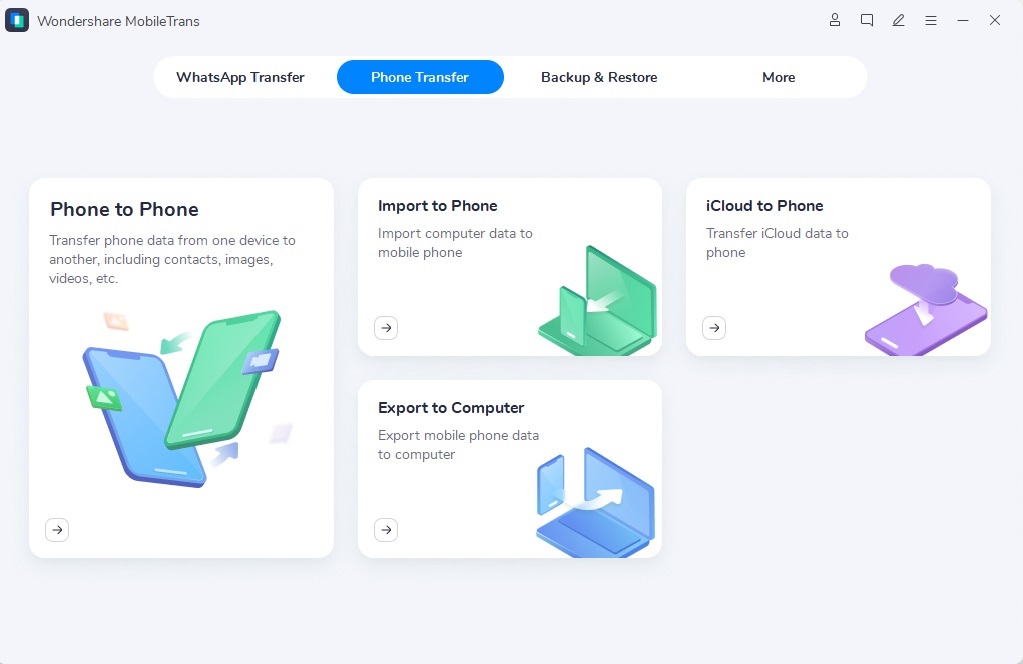
Step 2. Choose Photos or Videos from the available categories. Browse the supported files and select the items you want to preserve.
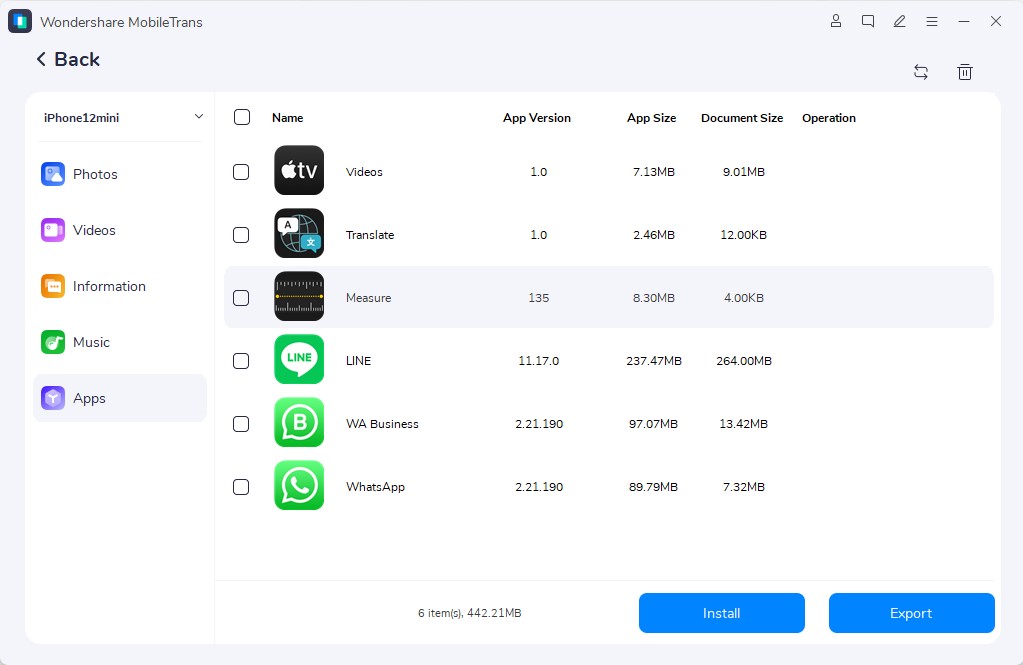
Step 3. Click Export and keep your iPhone connected until the transfer finishes.
Step 4. Open the destination folder and check several photos and videos to confirm that the exported copies are accessible and complete.
Part 4. How to Avoid Photo Loss and Fix Storage Problems
Even after verifying backups, photo cleanup can cause accidental deletions or leave iPhone storage unchanged. If you're wondering, “Does Google Photos Free up space delete from iCloud?” the following solutions explain how to recover accidentally deleted photos and resolve storage issues safely:
1. Recover Photos Accidentally Removed from iCloud or Google Photos
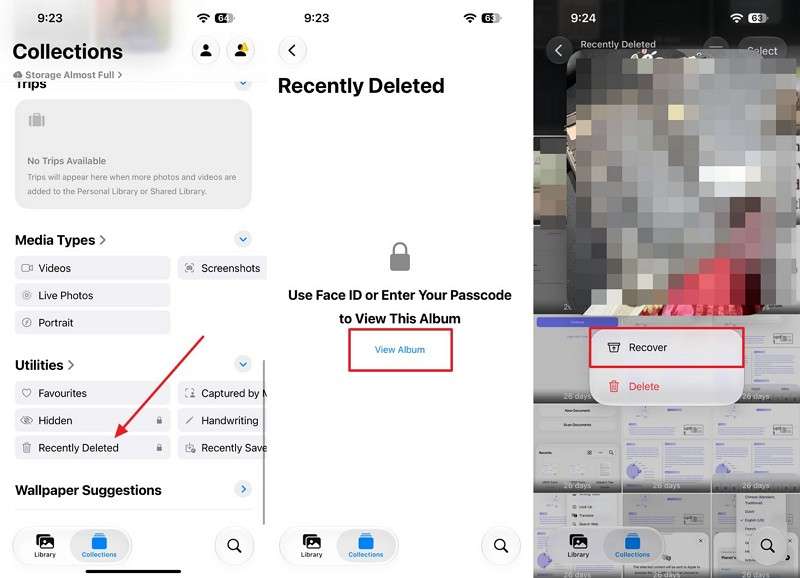
Photos deleted from Apple Photos or removed through Free up space remain in Apple’s Recently Deleted album for up to 30 days. Recovered photos sync back to iCloud when iCloud Photos is enabled. Meanwhile, items deleted from Google Photos remain in Google’s Trash for 30 days before permanent deletion. Check the appropriate recovery location before emptying either folder using these steps:
Step 1. In the iPhone Photos app, go to Collections > Utilities > Recently Deleted, open the album > Select > Choose images > Recover.
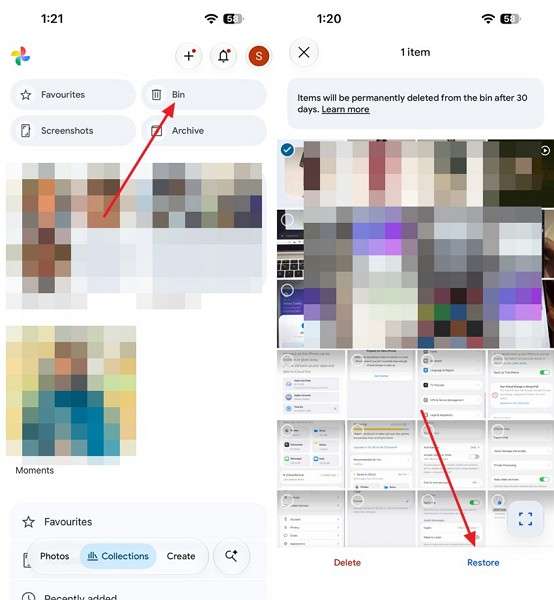
Step 2. Open Google Photos, go to Collections > Bin, select the deleted items, and tap Restore.
Why Is iPhone Storage Still Full After Freeing Up Space?
iPhone storage can remain full because deleted photos stay in Recently Deleted for up to 30 days. Optimize iPhone Storage reduces local storage gradually, while Google Photos Free up space removes only backed-up items. Insufficient cloud storage can also interrupt uploads, preventing further cleanup. If you're trying to free up iPhone storage with Google Photos and iCloud but available space remains unchanged, follow these checks:
Check 1. Access Settings > General > iPhone Storage and check the space occupied by Photos and the available iPhone storage.
Check 2. Open Google Photos, tap your Profile picture, and confirm Backup complete before using Free up space again.
Check 3. Open Photos > Collections and check the sync status. Tap the Profile icon to review any yellow or red warnings, then check Google Photos for storage alerts.
Conclusion
Using iCloud Photos and Google Photos together helps manage iPhone storage, but understanding deletion behavior is essential. The Google Photos free up space iCloud Photos issue occurs when removing local photos also deletes their synced iCloud copies. Enable Optimize iPhone Storage to preserve both libraries, or verify your Google Photos backup before switching. For additional protection, MobileTrans-Phone Transfer lets you export important photos to a computer.
FAQ
-
Does Google Photos preserve Live Photos and HEIC files from an iPhone?
Google’s backup guide confirms support for HEIC, HEIF, and Live Photos uploaded through its iPhone app. However, Apple’s iCloud-to-Google transfer excludes Live Photos. For additional protection, MobileTrans can export supported iPhone photos, including HEIC files, to a computer. -
Can I use iCloud Photos and Google Photos with different backup quality settings?
Google Photos offers independent backup quality settings, while Apple confirms that iCloud Photos stores original, full-resolution photos. Google's Storage Saver compresses photos larger than 16 MP and videos above 1080p to reduce cloud storage usage. -
Will my photo albums remain organized the same way in both services?
Album changes sync across Apple devices, as Apple’s iCloud guide confirms. However, Google Photos doesn't automatically preserve Apple Photos album organization during backup. You can recreate important albums using Google's Add to Album option. -
Can I access my Google Photos offline after freeing up iPhone storage?
Not automatically. Photos removed through Google Photos Free Up Space require an internet connection unless local copies remain. For offline access, download important photos to your iPhone or export supported media to a computer using MobileTrans.