


 TL;DR:
Upgrading your iCloud plan does not expand your iPhone's physical capacity because they use separate storage systems; you must actively clear local data or use optimization features to replace local files with cloud-only versions.
● Enable Optimize iPhone Storage and use the Remove Download function in iCloud Drive to free up physical space, but note that manually deleting a synced file removes it entirely from iCloud and all connected Apple devices.
● Recover local storage by utilizing the Offload App feature to remove app installation files while preserving their saved data, and manually clear out the Recently Deleted folder to bypass the automatic 30-day retention period for deleted media.
● Check if Low Power Mode or Low Data Mode is pausing the background sync if storage optimization appears delayed, and use tools like MobileTrans to back up data to a computer before permanent deletion, as creating backups does not automatically free up device space.
Ask AI for a summary
 ChatGPT
 Perplexity
 Gemini
 Claude
 Grok
An iPhone can show a “Storage Almost Full” alert even when iCloud has plenty of available space. The “iPhone storage full, but iCloud has space” issue occurs because both use separate storage systems. Your iPhone stores apps and local files, while iCloud holds synced content and backups. Therefore, available iCloud space does not automatically free up device storage.
Features like Optimize iPhone Storage, Remove Download, app offloading, and duplicate cleanup can help recover space. However, deleting certain files can cause data loss. This guide covers 5 practical solutions and explains how MobileTrans helps protect important data through computer backups.
In this article

Part 1. Why Is iPhone Storage Full When iCloud Has Space?
In “iPhone out of storage, but iCloud has space” situations, both use separate storage systems. According to Apple, device storage is the built-in space used for apps, photos, and files, while iCloud storage holds synced content and backups. Upgrading your iCloud plan increases cloud capacity but does not expand your iPhone's physical storage.
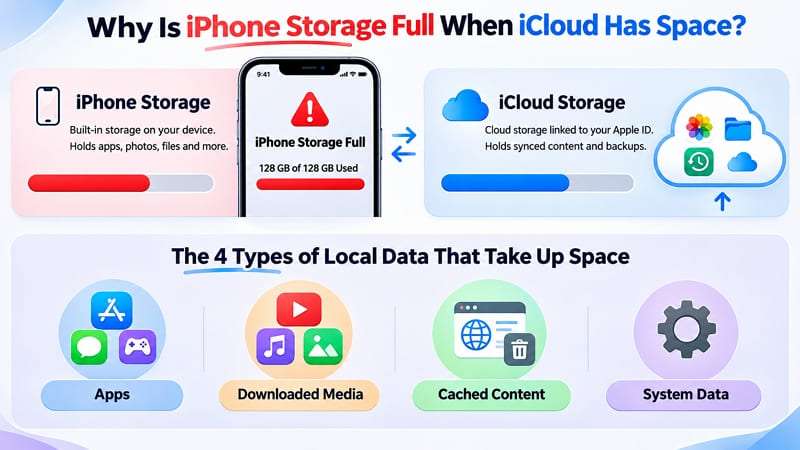
Turning on iCloud does not automatically remove locally stored content. For example, iCloud Photos can retain full-size originals until Optimize iPhone Storage reduces their storage usage. Similarly, iCloud Drive files remain downloaded until you remove their local copies. iCloud Backup creates copies of eligible data without deleting originals. Besides these, the following 4 types of local data commonly occupy iPhone storage:
- Apps: Installed apps occupy device storage through their software and Documents & Data, including saved files, chat histories, and offline content.
- Downloaded Media: Offline videos, music, podcasts, and other downloaded files remain on your iPhone until removed, even when the content is available online.
- Cached Content: Browsers and apps store temporary files to improve performance. Some caches clear automatically, while others remain until the app or iOS removes them.
- System Data: iOS uses storage for logs, caches, databases, and other system resources. This category can increase or decrease depending on device activity.
iPhone Storage vs. iCloud Storage: What's the Difference?
When “phone storage is full, but iCloud has space,” understanding these 2 storage types explains why available cloud space does not automatically free up device storage. The table below highlights their key differences and shows where to check each one:
| Factor | iPhone Storage | iCloud Storage |
| What It Is | Physical storage built into your iPhone. | Cloud storage linked to your Apple Account. |
| Where to Check | Settings > General > iPhone Storage | Settings > Your Name > iCloud |
| Storage Capacity | Fixed capacity based on your iPhone model. | Includes 5 GB of free storage, expandable with iCloud+. |
| What Uses Storage | Installed apps, photos, videos, downloads, and System Data. | Synced photos, videos, documents, messages, and device backups. |
| When Storage Is Full | You may struggle to install apps, download files, or update iOS. | New backups, file uploads, and data syncing may stop. |
| Increasing Storage | Cannot be expanded by purchasing additional iCloud storage. | Can be increased by upgrading your iCloud+ plan. |
| How to Free Up Space | Remove unnecessary files, offload apps, or optimize local content. | Delete unwanted cloud files or manage existing backups. |
Verdict: Available iCloud space helps free up iPhone storage when supported features optimize or remove local copies of cloud-stored files. Upgrading your iCloud plan alone does not increase your iPhone's physical storage capacity.


Part 2. How to Free Up iPhone Storage Using Available iCloud Space
You can use iCloud Photos and iCloud Drive to free up local storage when iCloud has space, but the phone is full. Both services let you keep content in iCloud while reducing its storage usage on your iPhone. The following 2 methods explain how to use these features safely:
Method 1. Enable Optimize iPhone Storage for iCloud Photos
“Optimize iPhone Storage” helps reduce the space your photos and videos occupy on your iPhone. According to Apple, this feature stores full-resolution originals in iCloud while keeping smaller versions locally when needed. You can download the originals again with an internet connection. To use this feature, enable iCloud Photos and ensure sufficient iCloud storage. Follow the steps below to configure it:
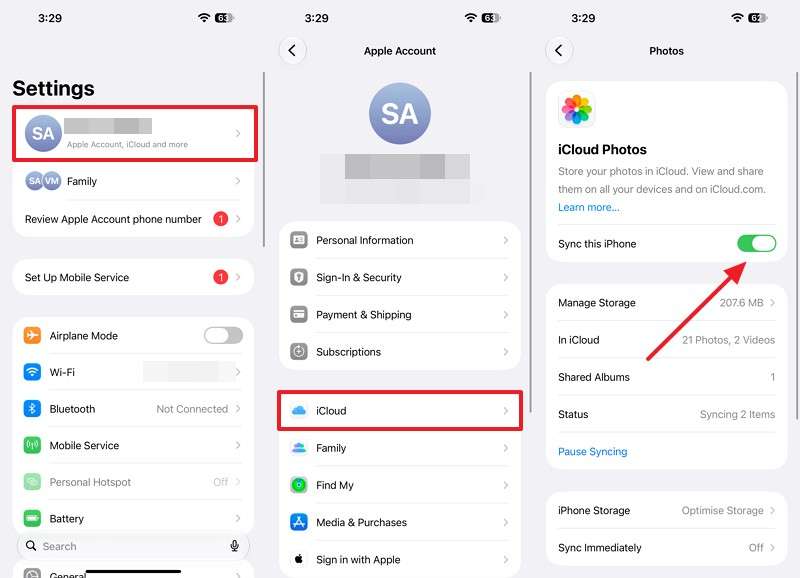
Step 1. Go to Settings > Your Name > iCloud > Photos. Turn on Sync this iPhone if it is disabled.
Step 2. Choose iPhone Storage > Optimize iPhone Storage instead of Download and Keep Originals.
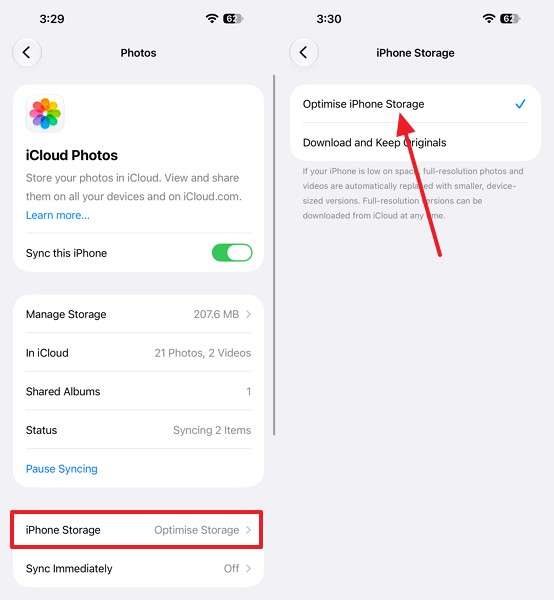
Note: On iOS 27 or later, open the additional iPhone Storage menu and select Optimize iPhone Storage. Earlier iOS versions display this option directly.
Step 3. Connect the iPhone to Wi-Fi and power. Apple recommends allowing the device to sync overnight.
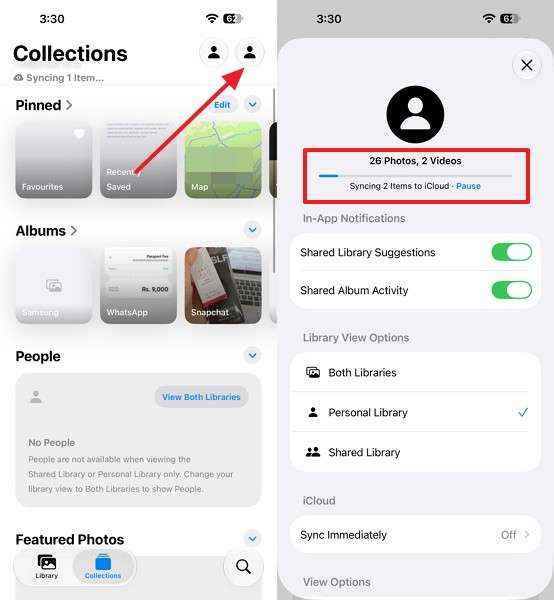
Step 4. Open Photos > Collections, tap the Profile icon to check the syncing status.
Step 5. Return to Settings > General > iPhone Storage to monitor available space.
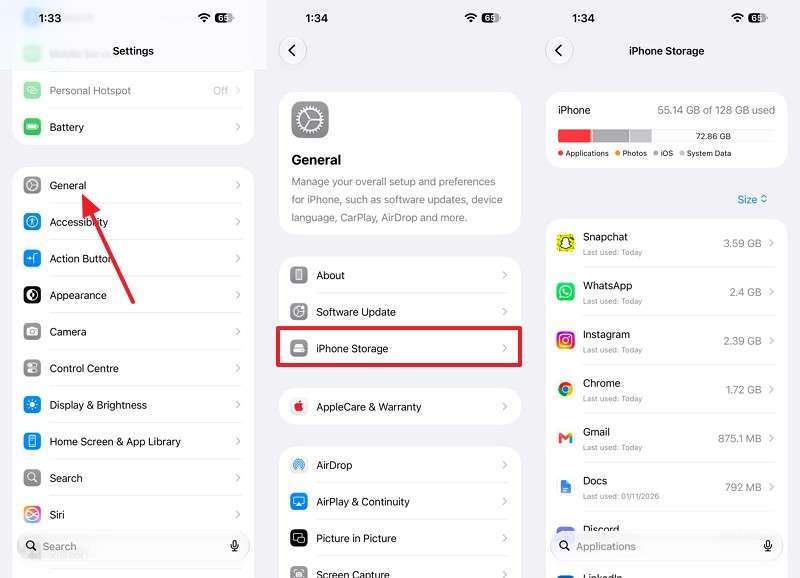
Note: Optimization does not immediately remove all full-resolution files. iOS manages local copies based on available storage, while recovered space depends on your photo library size and syncing progress.
Method 2. Move Files to iCloud Drive and Remove Local Downloads
To fix the “iPhone out of storage, but iCloud has space” issue, you can move locally stored documents to iCloud Drive. This service stores PDFs, spreadsheets, and other files in the cloud while syncing them across your Apple devices. According to Apple, “Remove Download” removes a file's local copy while keeping its cloud version accessible.
However, deleting a file from iCloud Drive also removes it from other devices linked to the same Apple Account. Deleted files generally remain in “Recently Deleted” for 30 days before permanent removal. To free up iPhone storage without deleting your cloud files, follow the steps below:
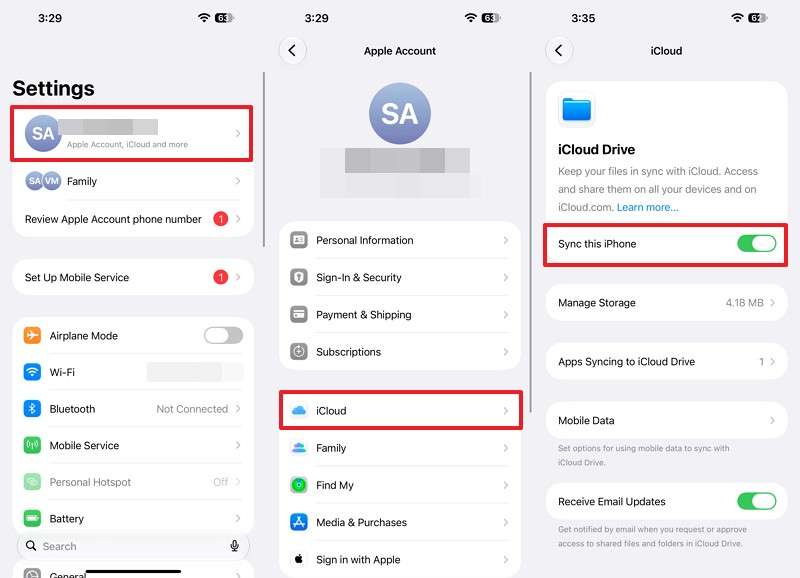
Step 1. Open Settings > Your Name > iCloud > iCloud Drive and enable Sync this iPhone.
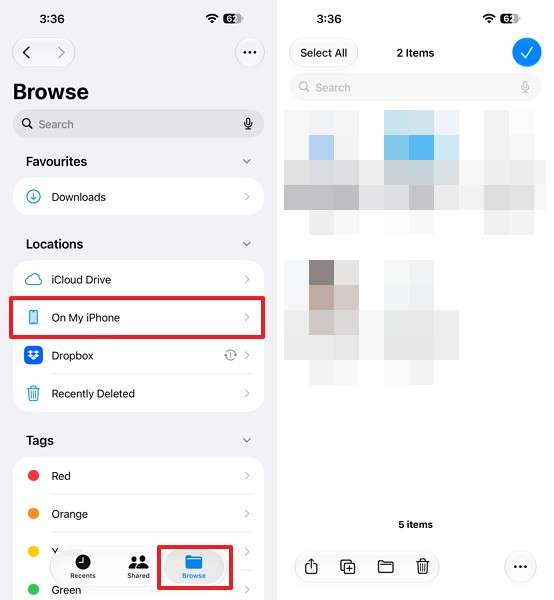
Step 2. Launch the Files app, tap Browse > On My iPhone, and find the documents or folders you want to move.
Step 3. Touch and hold a file or folder, select Move, choose a destination in iCloud Drive, and confirm the move.
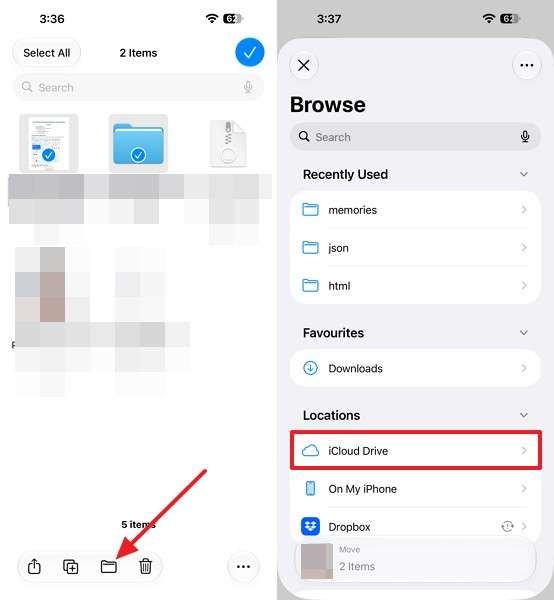
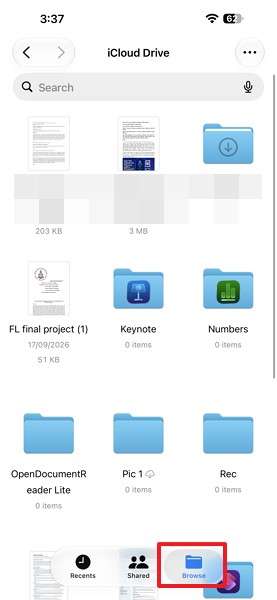
Step 4. Open Browse > iCloud Drive and confirm the moved files appear there. Wait for iCloud Drive sync to finish.
Step 5. Hold a downloaded file in iCloud Drive and select Remove Download.
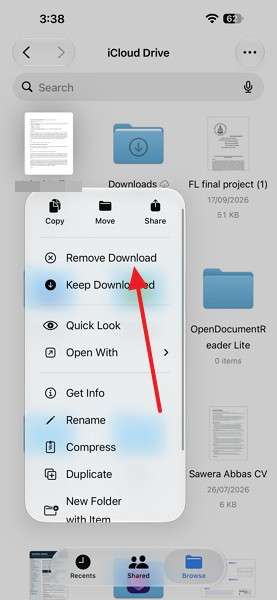
Note: When handling multiple files, tap More > Select, choose the files you want to remove locally, and tap Remove Download.
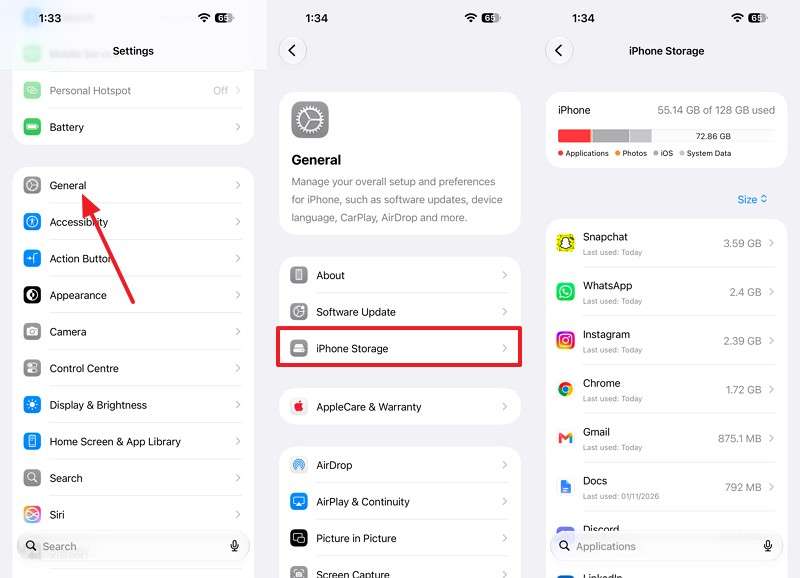
Step 6. Return to Settings > General > iPhone Storage to check whether available space has increased.
Pro Tip. Back Up Important iPhone Data to a Computer Before Deleting Local Files
If “phone storage full, but iCloud has space,” backing up important data to a computer adds protection before deleting local files. iCloud Photos and iCloud Drive sync changes across connected devices, so deleting synced files also removes them from iCloud. MobileTrans offers 2 computer-based workflows for protecting supported iPhone data. Its Backup & Restore feature creates a backup package for later restoration.
Meanwhile, its file export feature supports transferring photos, videos, and other supported files from an iPhone to a Windows PC or Mac. Both methods require sufficient computer storage and a successful iPhone connection. However, neither automatically frees up device storage because the original files remain on your iPhone. After verifying the saved data, you can review which local files are safe to remove.
Key Features
- Selective Data Backup: Supports 18+ data types, including photos, messages, contacts, notes, and call logs, allowing users to choose which information to back up.
- Backup Preview and Selective Restore: Lets users preview supported backup content and restore specific data types without recovering the entire backup.
- Restore Without Factory Reset: Restores supported backup data without resetting the iPhone or overwriting existing content, helping preserve important files.
- Organized File Management: Keeps exported photos, videos, and other supported files accessible on a computer for easier viewing, organization, and long-term storage.
- Phone-to-Phone Transfer: Supports transferring up to 18+ data types between compatible iOS and Android devices, including photos, videos, contacts, and messages.
Guide to Back Up and Export iPhone Data Using MobileTrans
Creating a separate computer backup helps protect important data before removing files when iCloud has space, but the phone is full. Follow the steps below to back up your iPhone using MobileTrans:
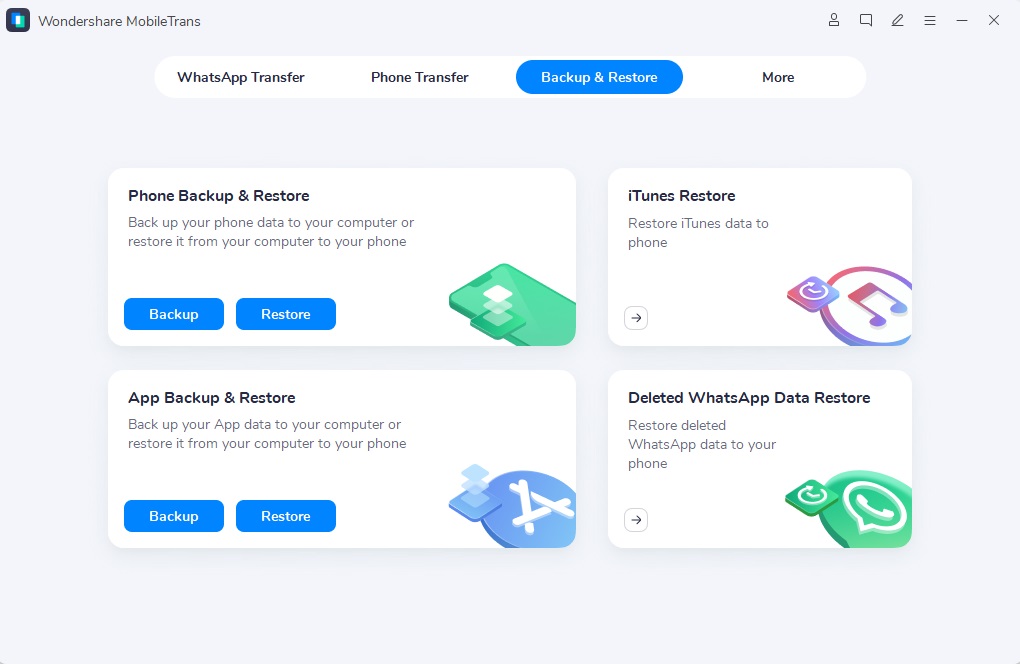
Step 1. Access Backup & Restore > Phone > Connect your iPhone > Press Trust.
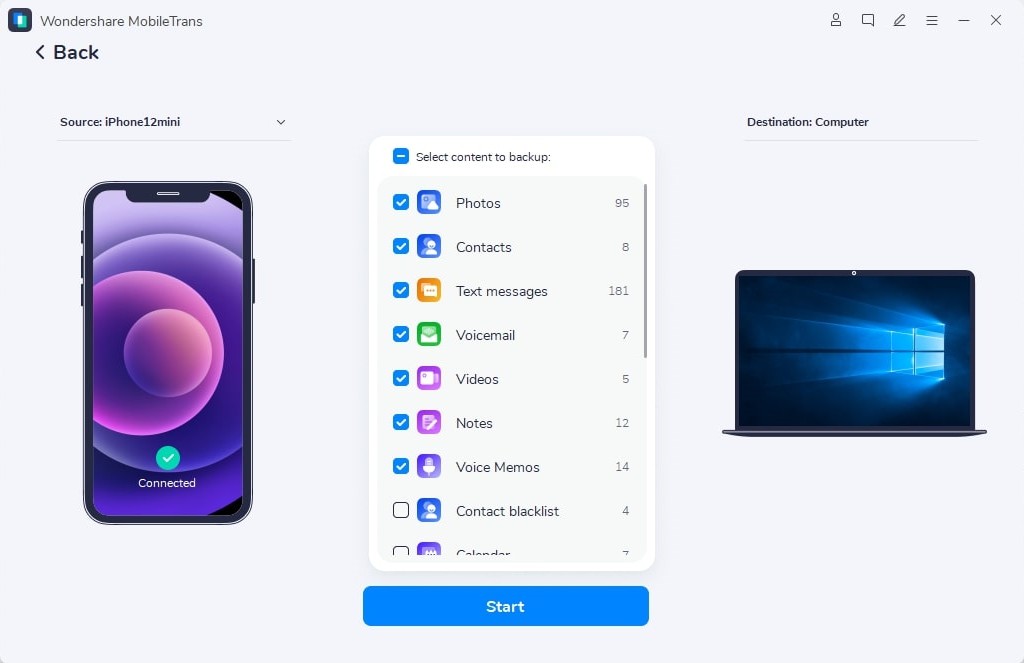
Step 2. Pick the desired data types > Click Start > Keep the iPhone connected until MobileTrans confirms that the process has finished.
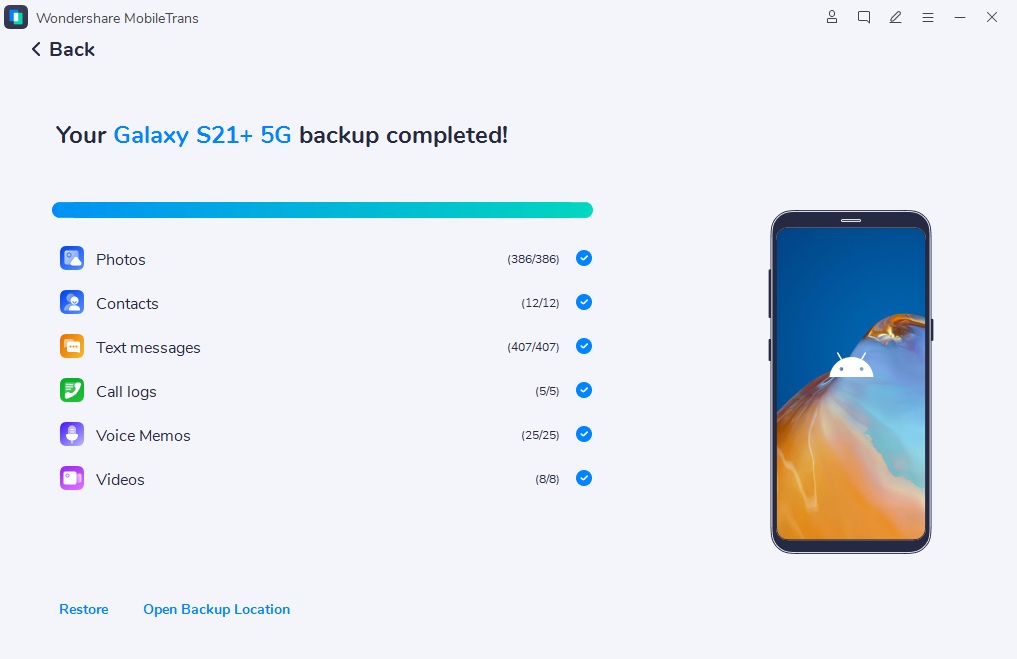
Step 3. Choose Open Backup Location to confirm that the new backup is present.
MobileTrans also supports exporting large photos, videos, and other files to a computer when the iPhone is out of storage, but iCloud space remains an issue. Follow these steps to transfer supported files:
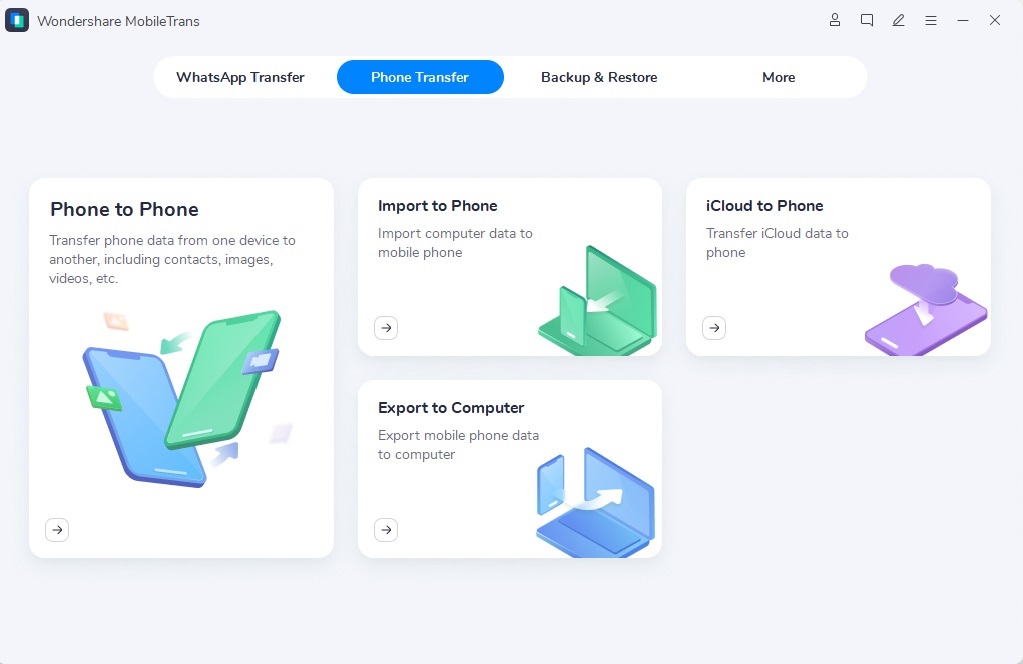
Step 1. Choose Phone Transfer > Phone to PC > Connect iPhone and Trust the computer.
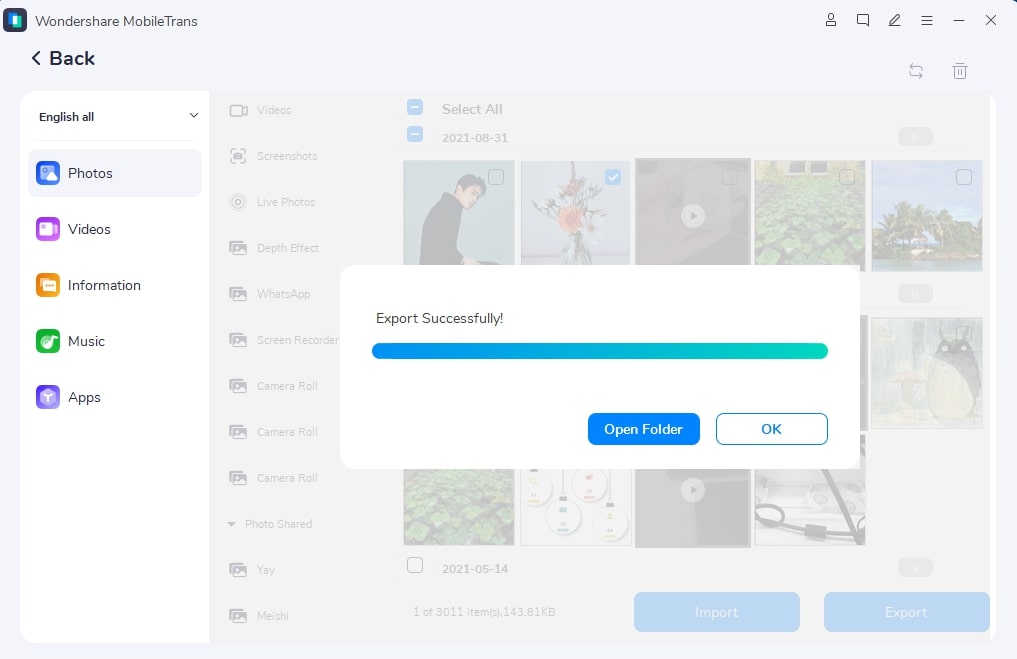
Step 2. Access the required data type > Select the files > Click Export > Select a destination folder.
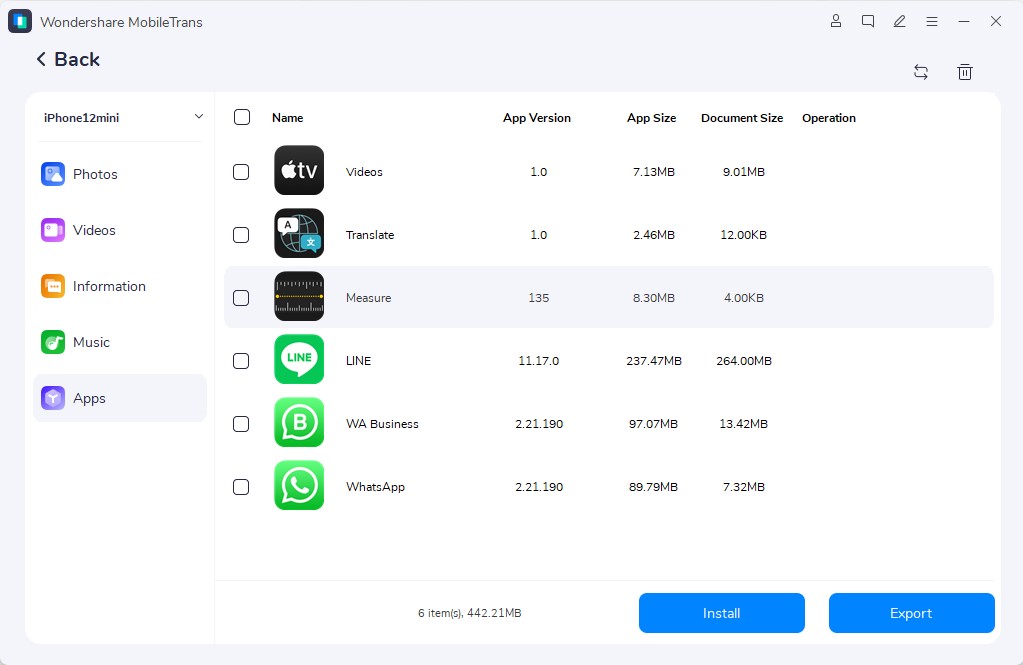
Step 3. Wait for the transfer to be finished > Choose Open Folder and verify that the exported data is accessible.
Part 3. How to Clear iPhone Storage Without Relying on Additional iCloud Space
With a backup in place, you can focus on removing unnecessary local data without relying on additional iCloud storage. Unused apps, offline downloads, and duplicate media often occupy valuable space when iCloud has space, but the phone is full. The following 3 methods explain how to free up iPhone storage while keeping your important data protected:
Method 3. Offload Unused Apps
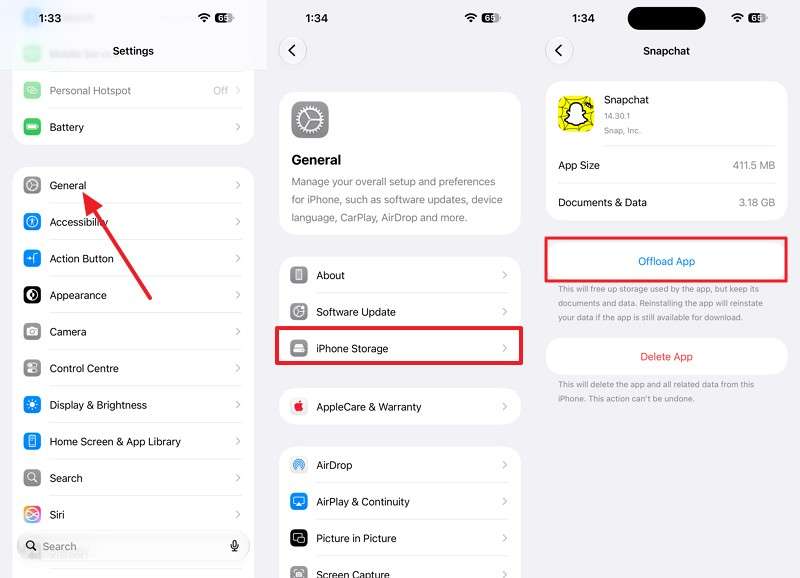
Unused apps are a good starting point for freeing up iPhone storage. According to Apple’s storage guide, Offload App removes the app while keeping its documents and data. In contrast, Delete App removes both, potentially causing permanent loss of unsynced data. Since offloading preserves app data, it only frees up the app's installation space. Follow these steps to identify suitable apps and recover storage:
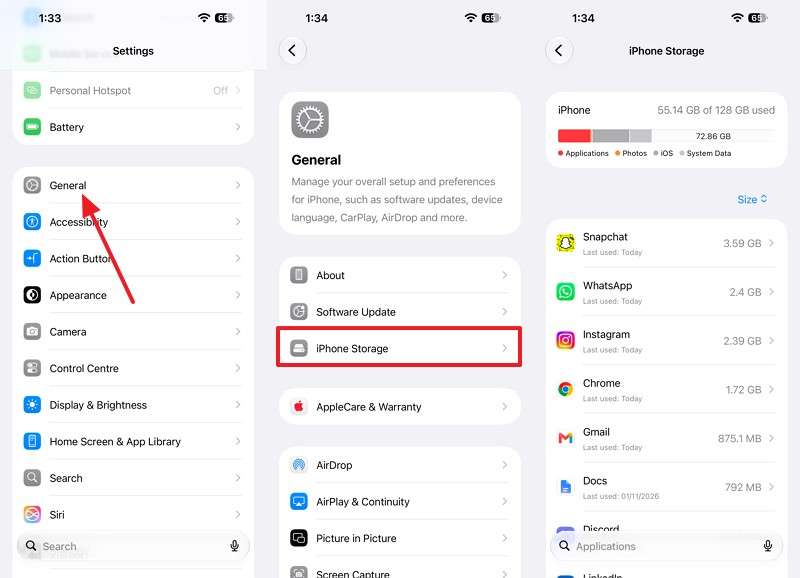
Instructions. Go to Settings > General > iPhone Storage. Compare App Size with Documents & Data, and tap Offload App twice to confirm.
Enable Automatic Offloading (Optional):
To let iOS manage unused apps, open Settings > Apps > App Store and enable Offload Unused Apps, if available.
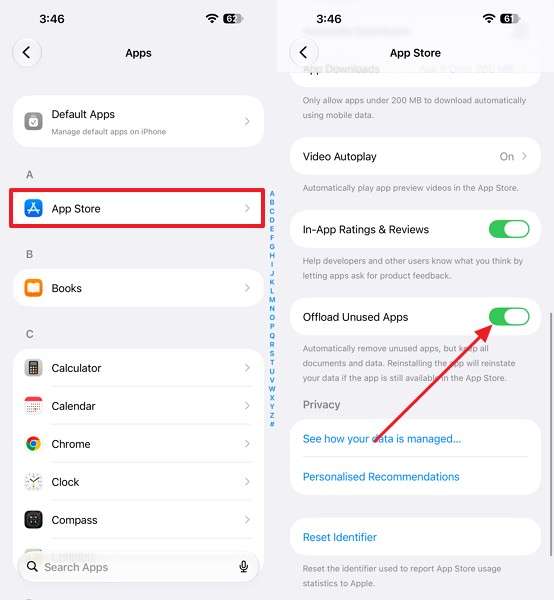
Return to Settings > General > iPhone Storage to review the updated storage usage.
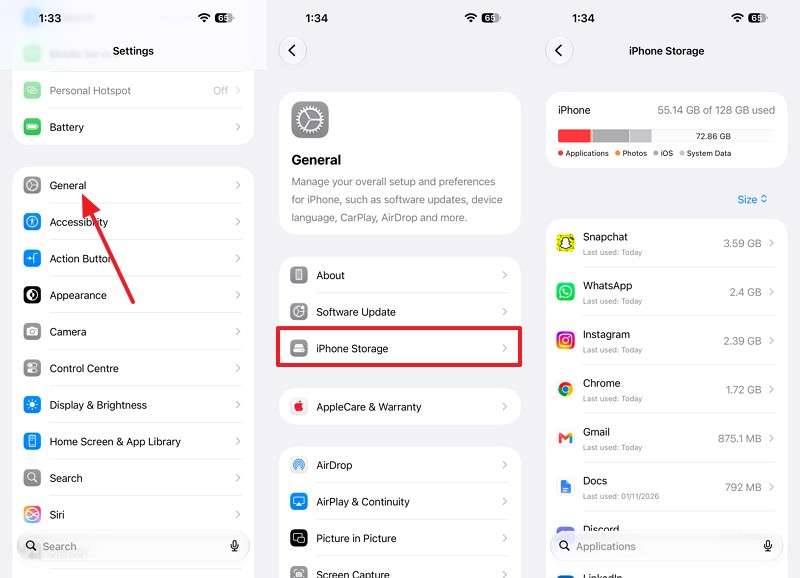
Method 4. Remove Large Downloads and Unnecessary App Data
When iPhone is out of storage, but iCloud has space, large downloads and app attachments may occupy valuable storage. According to Apple's storage guide, removing unnecessary content helps recover space. App caches also consume storage, although cleanup options vary between apps. Since deleting apps removes associated local data, review important files first. Follow these steps to remove unnecessary downloads:
Step 1. Open Settings > General > iPhone Storage.
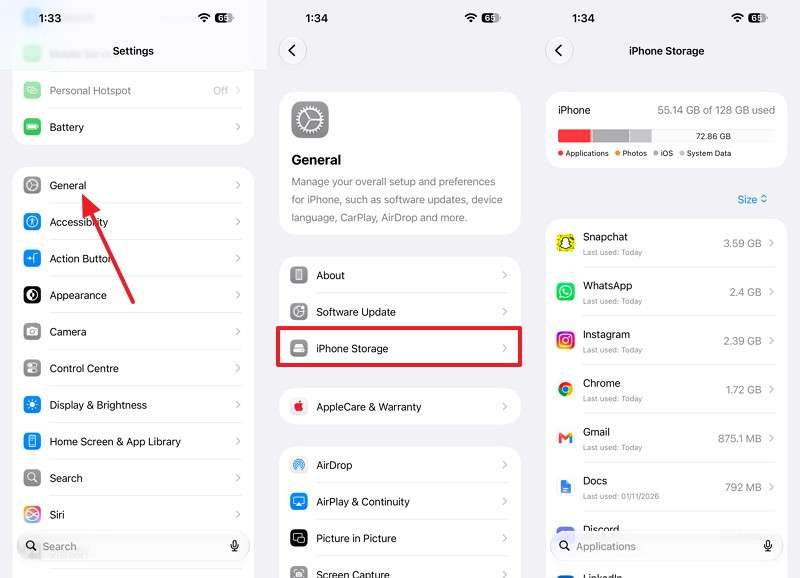
Step 2. Tap Show if recommendations are available, then review suggested actions or large attachments.
Clear Unnecessary App (WhatsApp) Media
Step 1. Open WhatsApp > Settings/You > Storage and Data > Free Up Storage.
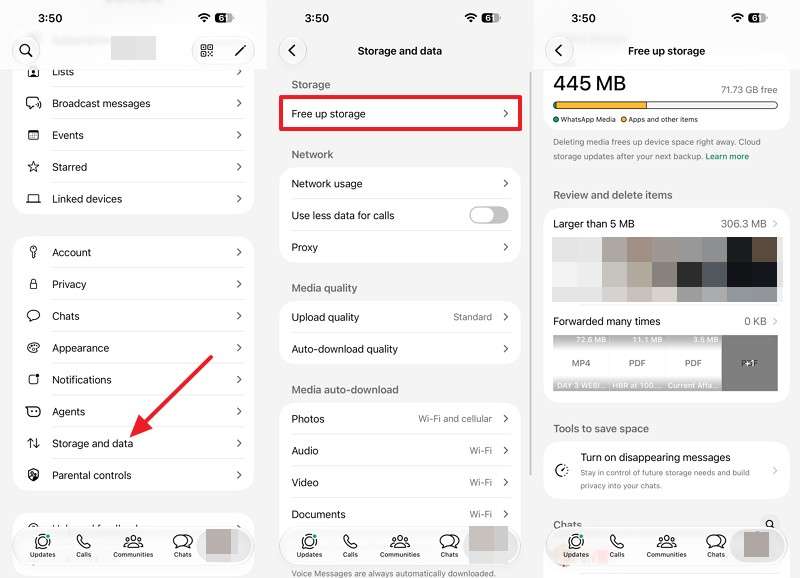
Step 2. Review large media files > Select > Choose the unwanted data > Press Delete.
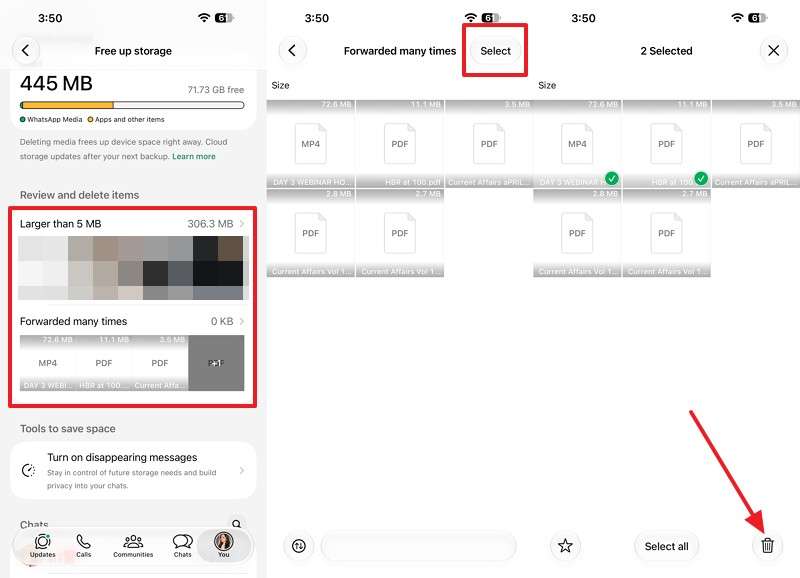
Step 3. Go back to Settings > General > iPhone Storage and compare the available space.
Method 5. Merge Duplicate Photos and Clear Recently Deleted Media
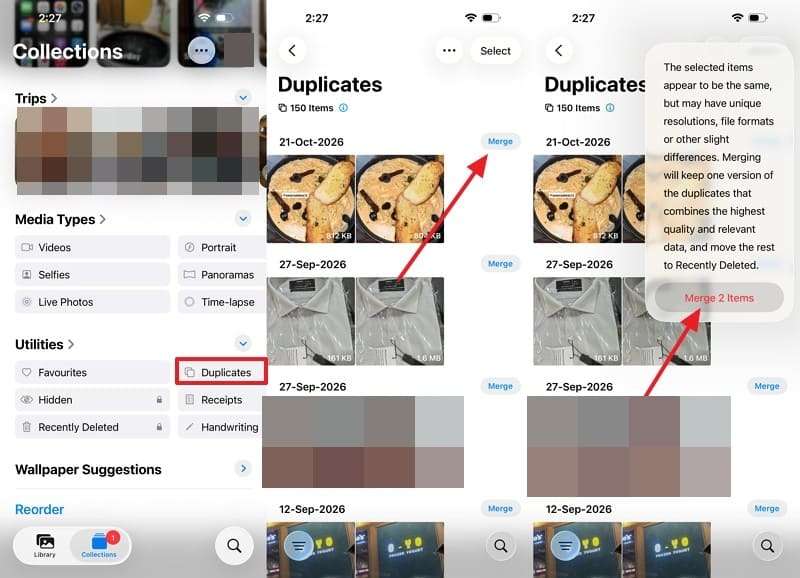
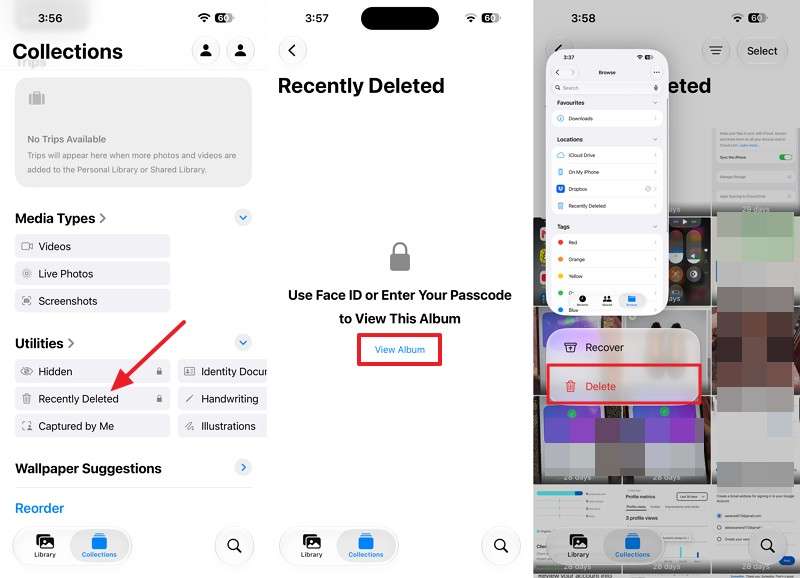
Duplicate photos, large videos, and recently deleted media can occupy valuable iPhone storage when iCloud has space, but the phone is full. Apple's Photos app includes a Duplicates collection for merging copies while preserving relevant data. Deleted media also remains in Recently Deleted for 30 days. Since deletions sync across iCloud Photos and connected devices, follow these steps to clean up unwanted media safely:
Step 1. Open Photos > Collections > Utilities > Duplicates. Tap Merge beside a duplicate group > Select Merge (X) Items.
Step 2. Choose Photos > Collections > Utilities > Recently Deleted. Press View Album > Unlock the album, select the items, and choose Delete.
Part 4. Why Is iPhone Storage Still Full After Optimizing iCloud?
Storage optimization may not free up space immediately, especially when the iPhone is out of storage, but iCloud has space. Before making further changes, review the following checks to identify what's preventing your iPhone from recovering storage:
| Possible Cause | What to Check |
| Paused Photo Sync | Check the sync status in Photos and review the Unable to Upload album for affected items. |
| Low Power Mode | Temporarily disable Low Power Mode in Settings > Battery to resume photo syncing. |
| Low Data Mode | Check your Wi-Fi or cellular settings and disable Low Data Mode if it restricts syncing. |
| Delayed Sync | Use Sync Immediately if available, or connect to Wi-Fi and power while syncing finishes. |
| Delayed Storage Updates | Recheck Settings > General > iPhone Storage after syncing and optimization have progressed. |
Conclusion
Available iCloud space does not increase your iPhone's physical storage capacity. When iPhone storage is full, but iCloud has space, you need to reduce locally stored data. Features like Optimize iPhone Storage, Remove Download, app offloading, and duplicate cleanup can help recover space. Before deleting important files, use MobileTrans-Backup & Restore to back up and export supported iPhone data to a computer for safekeeping.
FAQs
-
Can I store iPhone apps in iCloud instead of keeping them on my phone?
No, apps must remain installed on your iPhone to run. However, Apple's Offload App feature removes unused apps while keeping their documents and data. You can reinstall an offloaded app by tapping its icon, provided it remains available in the App Store. This helps recover storage without losing saved app data. -
Does iCloud Backup automatically free up storage on my iPhone?
No, iCloud Backup creates copies of eligible device data without removing the originals from your iPhone. If iCloud has space, but the phone is full, you need to manage local storage separately. Use Optimize iPhone Storage to reduce photo storage or Remove Download to clear local copies of synced iCloud Drive files. -
Can I free up iPhone storage without deleting my photos?
Yes, Optimize iPhone Storage stores full-resolution originals in iCloud while keeping smaller versions locally when needed. You can also use MobileTrans Backup & Restore to back up supported photos to a computer. However, MobileTrans does not automatically free device storage. Always verify your backup before deleting any photos or videos. -
Can I move iPhone System Data to iCloud?
No, System Data includes caches, logs, and other resources that iOS manages locally. You cannot move this category directly to iCloud. If phone storage is full, but iCloud has space, iOS may automatically remove some temporary files when necessary. You can also free up storage by removing unnecessary downloads and offloading unused apps.