


 TL;DR:
To fix the iCloud passcode verification failed error on a new iPhone and restore access to encrypted data, navigate to Settings > Apple Account Suggestions, select Resume Data Sync, and authenticate using the exact passcode of your previous Apple device.
● Apple limits iCloud Keychain escrow recovery to exactly 10 failed attempts before permanently destroying the record, so avoid guessing passcodes and instead use another trusted Apple device to approve the new iPhone.
● Restoring passwords requires manually enabling Sync this iPhone on both devices by navigating to Settings > [Your Name] > iCloud > Passwords on iOS 18 and later, or Passwords and Keychain on iOS 17 and earlier.
● Alternative transfer methods like MobileTrans can migrate accessible contacts and photos between unlocked devices, but they strictly cannot bypass device passcodes, fix Apple Account verification errors, or recover locked end-to-end encrypted iCloud data.
Ask AI for a summary
 ChatGPT
 Perplexity
 Gemini
 Claude
 Grok
Your new iPhone may finish setup successfully but still display a warning that some iCloud data isn't syncing on the new iPhone. Passwords and passkeys can remain inaccessible until you complete additional verification, often using a previous device's passcode. An "iCloud passcode verification failed on new iPhone" error can result from an incorrect passcode, incomplete approval, or temporary connection issues.
This guide explains how to complete verification, restore iCloud Keychain syncing, and check missing data before resetting anything. If syncing remains incomplete, MobileTrans can transfer accessible photos, contacts, messages, and other data from your old iPhone.
In this article

Part 1. Why Does iCloud Passcode Verification Fail on a New iPhone?
If iCloud passcode verification failed on a new iPhone, an incorrect passcode, incomplete device approval, or a connection issue could be responsible. Apple requires additional verification to protect encrypted iCloud data. Check these 5 possible causes before trying again:
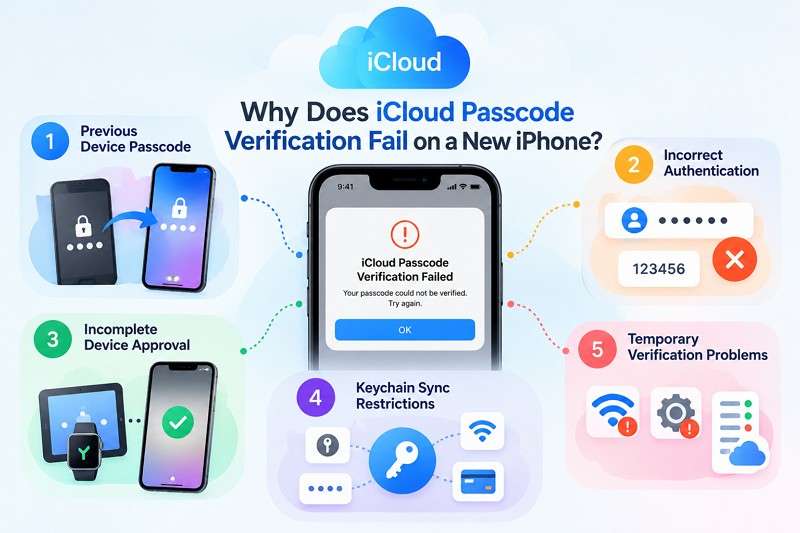
- Previous Device Passcode: Apple explains that a device passcode helps recover an encrypted iCloud Keychain. Your new iPhone might request a previous device's passcode instead of its current one.
- Incorrect Authentication: Entering your Apple Account password, 6-digit verification code, or the wrong device's passcode can prevent verification. This can explain why the “old iPhone passcode not accepted on new iPhone” issue occurs.
- Incomplete Device Approval: Your new iPhone might require approval from another trusted Apple device or iCloud Keychain recovery before accessing encrypted information.
- Keychain Sync Restrictions: Incomplete iCloud Keychain setup can require additional verification before passwords, passkeys, payment information, and Wi-Fi credentials sync. Apple's iCloud Keychain guide explains these requirements.
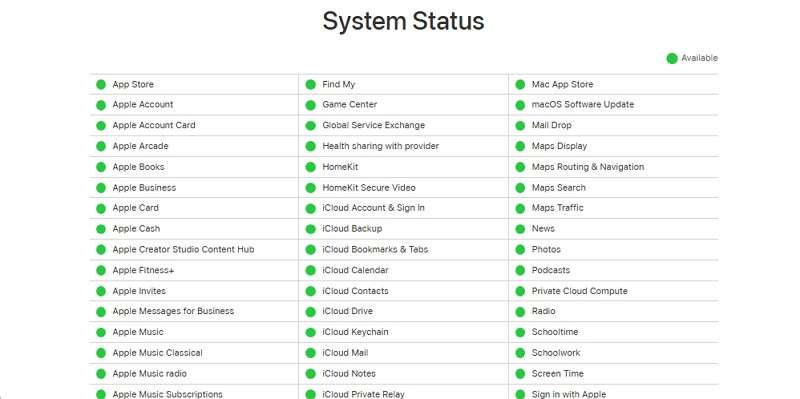
- Temporary Verification Problems: Unstable Wi-Fi, incomplete account setup, outdated iOS, or an iCloud service outage can interrupt verification. Check Apple's System Status page for reported service issues.
If your “old iPhone passcode not accepted on new iPhone” issue persists, you might be entering the wrong credential. Apple uses different codes for account sign-in and encrypted data verification. The table below explains their purposes and differences:
|
Credential |
What It Proves |
Common Mix-Up |
|
Apple Account Password |
Verifies your Apple Account credentials |
Cannot unlock end-to-end encrypted iCloud data alone |
|
Two-Factor Code |
Verifies an Apple Account sign-in using a trusted device or phone number |
One-time verification code, not a device passcode |
|
New iPhone Passcode |
Authenticates access to your new iPhone |
May be requested before a previous device's passcode |
|
Previous Device Passcode |
Helps verify access to protected iCloud data |
Must match the previous device Apple identifies |




Important Account Distinction:
- Personal Apple Accounts: If you see an iCloud Data Not Syncing alert, open it in Settings and follow Apple's verification instructions. Available options depend on your device and account settings.
- Managed Apple Accounts: Apple's education guide documents “Some iCloud Data Isn't Syncing > Resume Data Sync,” including options to select another device or delete encrypted iCloud data. Resume Data Sync also applies to personal accounts, although recovery options can differ.
- Keychain and Backups: iCloud Keychain is end-to-end encrypted, and Apple notes that synced Keychain items aren't included in iCloud Backup because they sync separately.
Part 2. How to Fix Failed iCloud Passcode Verification on a New iPhone
Whether you use a personal or managed Apple Account, start by checking the “some iCloud data isn’t syncing on new iPhone” alert in Settings. Follow these fixes to complete verification and restore syncing:
Fix 1. Complete the iCloud Verification Prompt in Settings
Your iPhone may display an iCloud Data Not Syncing alert or an Apple Account verification prompt in Settings. It might request your current iPhone passcode, a previous device's passcode, or another verification method. Apple documents Resume Data Sync for Managed Apple Accounts, but personal accounts can also have this option. To complete verification and restore syncing, follow these steps:
Step 1. Open Settings > Apple Account Suggestions, select the Some iCloud Data Isn't Syncing alert, and tap Resume Data Sync if available.
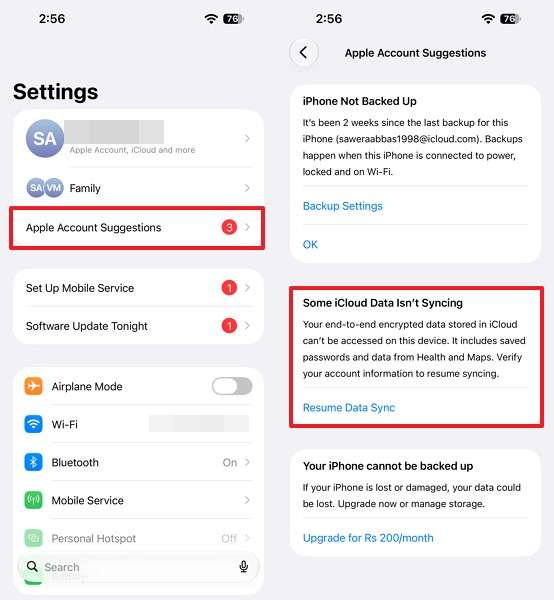
Step 2. Enter your new iPhone's passcode if prompted, then provide the previous device's passcode if requested.
Step 3. Wait for verification to finish, then check whether the alert disappears and your encrypted iCloud data starts syncing.
Fix 2. Complete Pending Apple Account Verification
If the alert leads to an Apple Account prompt, your sign-in verification might be incomplete. Two-factor authentication requires your password and a 6-digit code from a trusted device or phone number. However, signing in alone doesn't unlock end-to-end encrypted iCloud data requiring device verification. If “resume data sync not working on iPhone,” confirm you're using the same Apple Account through these steps:
Step 1. Open Settings > [Your Name] and confirm the email address matches the Apple Account on the old iPhone.
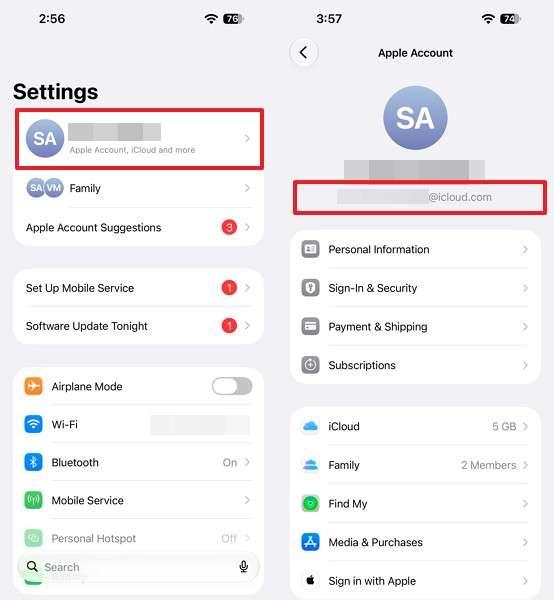
Step 2. If prompted, complete Apple Account verification using the 6-digit code sent to your trusted device or phone number.
Fix 3. Resolve Network and iOS Issues Affecting Verification
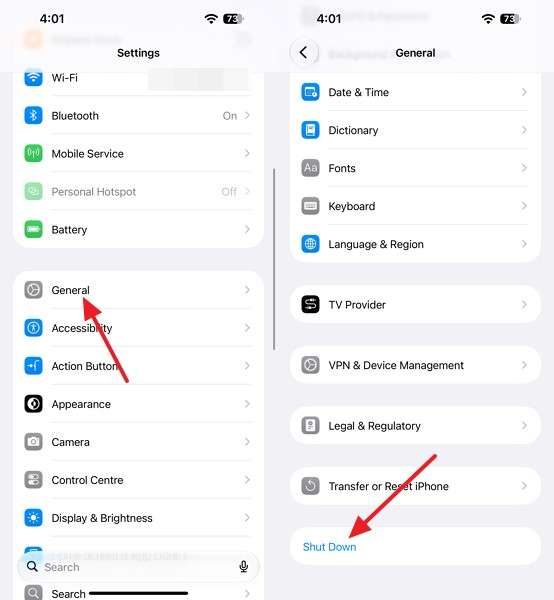
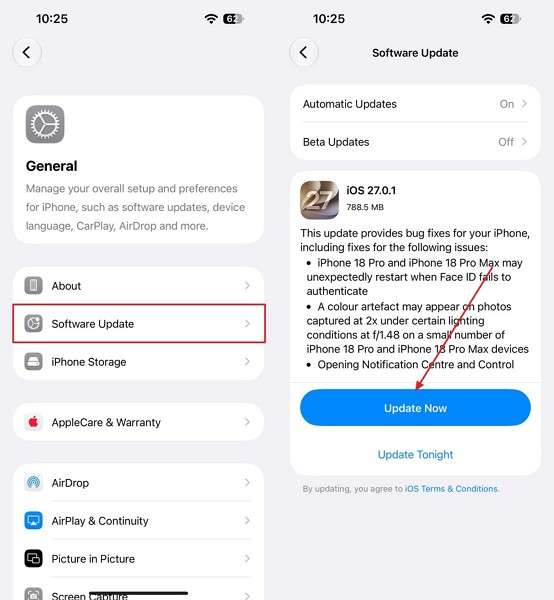
An iCloud outage or unstable connection can interrupt passcode verification, even when you enter the correct code. Restarting your iPhone or installing the latest iOS can resolve temporary issues, but neither replaces Apple's required verification. If “iCloud passcode verification failed new iPhone” persists, try these 3 checks before entering your passcode again:
Check 1. Check Apple’s System Status page and wait out any iCloud outage it lists.
Check 2. Connect to a stable Wi-Fi network, then go to Settings > General > Shut Down. Turn your iPhone back on and retry verification.
Check 3. Open Settings > General > Software Update > Update Now to install any available compatible iOS update. Reopen the verification prompt afterward.
Part 3. How to Fix iCloud Keychain Not Syncing After a Phone Upgrade
Clearing the verification alert does not always restore missing passwords. If “iCloud Keychain not syncing after iPhone upgrade” remains an issue, you need to check its sync settings separately. Follow these methods to restore access to your saved passwords and other Keychain data:
Fix 1. Enable iCloud Passwords and Keychain Sync
iCloud Keychain has a separate sync setting that can remain disabled even after the verification alert disappears. Both iPhones must also use the same Apple Account. According to Apple's setup guide, enabling Keychain syncing can require your device passcode or Apple Account password.
On iOS 18 and later, the setting appears under Passwords, while iOS 17 and earlier use Passwords and Keychain. To check whether disabled settings are causing the issue, follow these steps:
Step 1. On your old iPhone, open Settings > [Your Name] > iCloud > Passwords. Make sure Sync this iPhone is enabled.
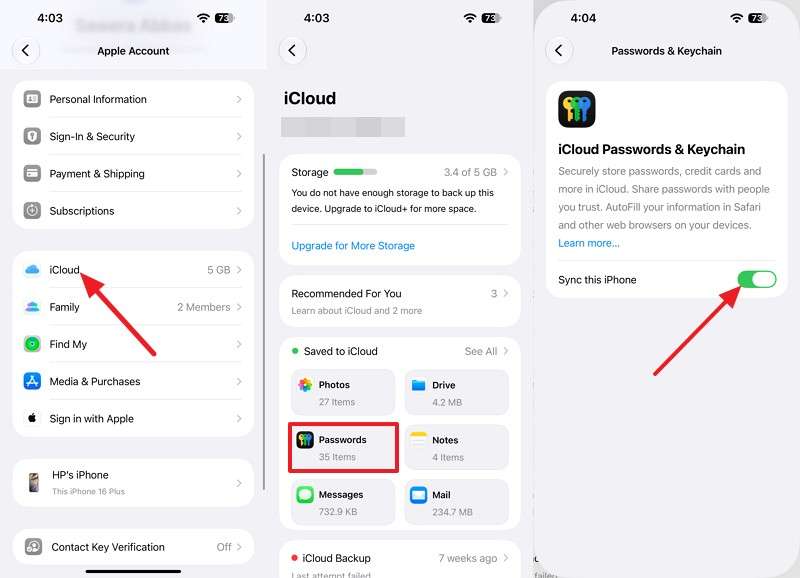
Step 2. Repeat on the new iPhone, turn on Sync this iPhone, complete any passcode request, and compare entries in Passwords.
Fix 2. Approve the New iPhone Using Another Trusted Apple Device
If enabling iCloud Keychain stalls during approval, another trusted Apple device can help complete verification. Apple explains that new devices can join iCloud Keychain through an existing approved device or Keychain recovery. However, available options depend on your account settings and the verification prompt displayed. If “some iCloud data isn't syncing on new iPhone” persists, try approving Keychain access using another trusted device through these steps:
Step 1. On your new iPhone, open Settings > [Your Name] > iCloud > Passwords & Keychain and turn on Sync this iPhone. Alternatively, open the Passwords app and tap Enable if prompted.
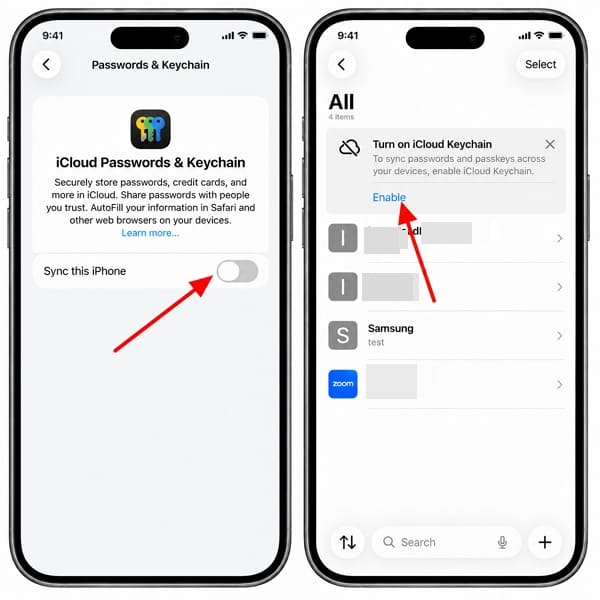
Step 2. If Apple offers approval through another trusted device, follow the on-screen instructions. Alternatively, enter the previous-device passcode Apple requests.
Step 3. After verification, open the Passwords app on your new iPhone and check whether your saved passwords appear.
What If Saved Passwords Are Not Auto-filling?
Missing passwords in Safari do not always mean iCloud Keychain has stopped syncing. If your login appears in the Passwords app, disabled AutoFill could explain the issue. However, changing AutoFill settings cannot restore passwords that never synced. If “resume data sync not working on iPhone” persists or saved passwords aren't appearing in Safari, follow these steps:
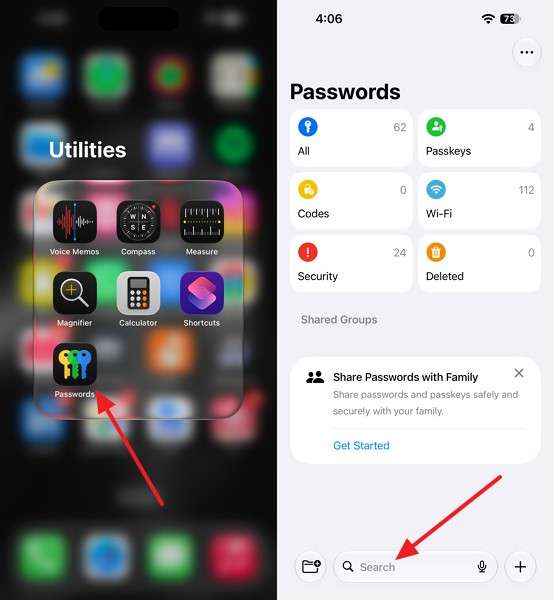
Step 1. Open the Passwords app and search for the website or account to confirm its login is saved.
Step 2. Go to Settings > General > AutoFill & Passwords and enable AutoFill Passwords and Passkeys.
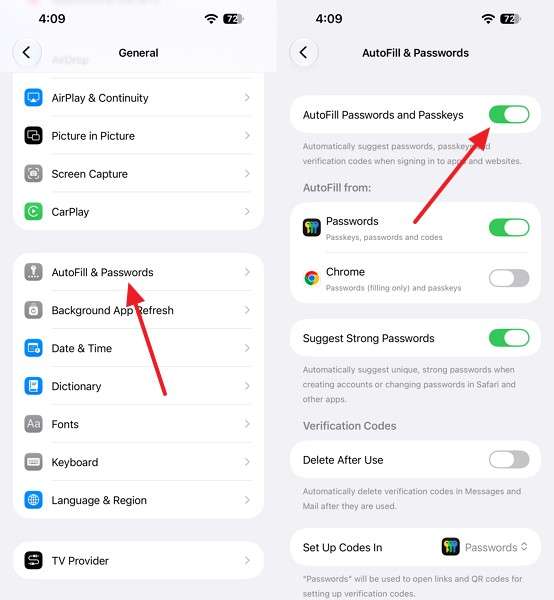
Note: On iOS 17 or earlier, use Settings > Passwords > Password Options.
Step 3. Under AutoFill From, enable Passwords and any compatible third-party password manager you want to use.
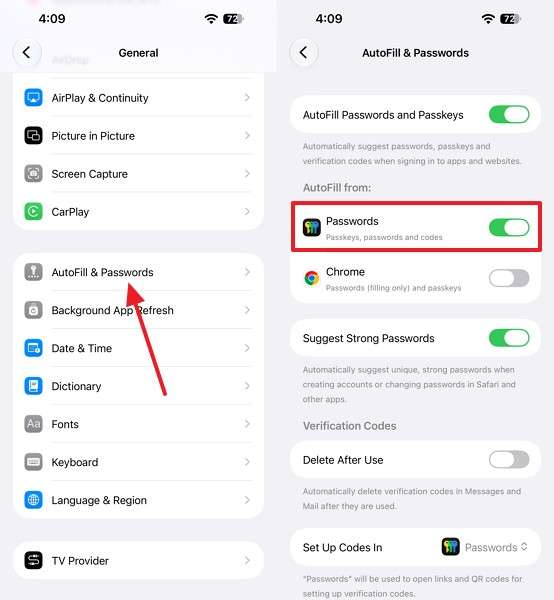
Step 4. Return to Safari and test AutoFill on the website's sign-in page.
Part 4. Other iCloud Data Not Syncing After Switching iPhones
Not every “some iCloud data isn’t syncing on new iPhone” issue involves encryption. Other syncing problems can result from app-specific settings or incomplete data transfers. Try these methods to identify the cause and restore your missing data:
Check iCloud Sync for Photos, Contacts, and Notes
Missing contacts, events, photos, or notes can result from disabled iCloud syncing or incomplete uploads. These app-specific issues differ from previous-device passcode verification. With Advanced Data Protection enabled, Photos and Notes also receive end-to-end encryption, potentially requiring additional verification. You can manage individual app syncing through Apple's iCloud settings. To identify why your data isn't appearing on your new iPhone, follow these steps:
Step 1. Open Settings > [Your Name] > iCloud > See All under Saved to iCloud. Make sure syncing is enabled for each missing app.
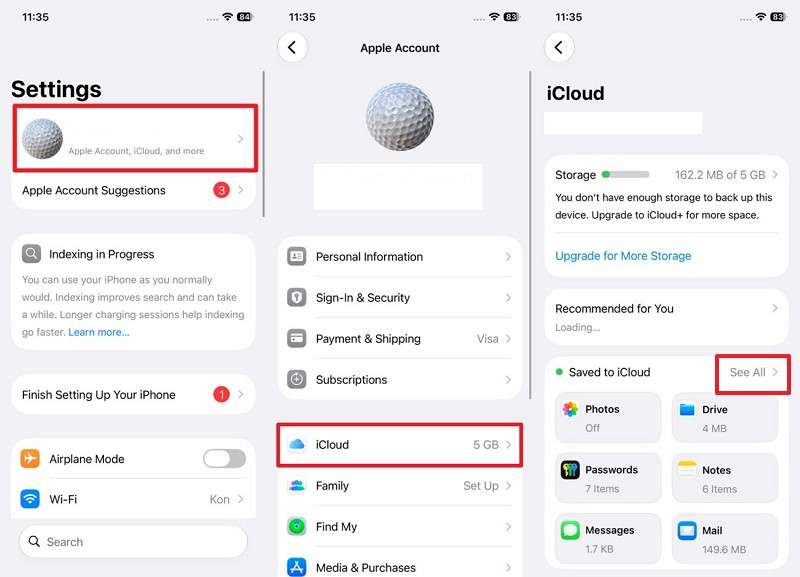
Step 2. Repeat the check on your old iPhone and confirm that any missing items stored there have finished syncing to iCloud.
Step 3. Open Photos > Collections and tap your Profile icon to check the iCloud sync status.
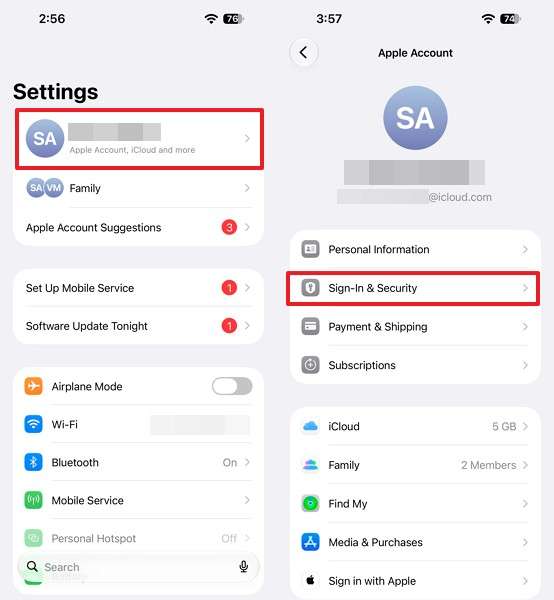
Note: On iOS 17 or earlier, open Photos > Library > All Photos and scroll to the bottom to check whether iCloud syncing is paused or incomplete.
Alternative: Transfer Missing Personal Data with MobileTrans
If your iCloud settings are correct but some iCloud data isn't syncing on a new iPhone, MobileTrans-Phone Transfer provides an alternative for transferring accessible data from your old device. Available for Windows and Mac, it supports iPhone-to-iPhone transfers even after the new iPhone's initial setup. You can move supported data without resetting your device or relying on iCloud syncing.
MobileTrans supports more than 18 data categories across its available transfer routes, including contacts, messages, photos, videos, and calendars. You can connect both devices and select the supported data types you want to transfer. However, MobileTrans cannot fix Apple Account verification errors, bypass device passcodes, or access locked end-to-end encrypted iCloud Keychain data.
Key Features
- iCloud to Android Transfer: Move supported iCloud data, including photos, contacts, calendars, and reminders, to an Android device without manually downloading individual files.
- Cross-Platform Data Transfer: Transfer supported contacts, photos, videos, and other personal data between Android and iPhone devices without relying on cloud synchronization.
- Phone Backup and Restore: Create local backups of supported iPhone data on your computer and restore available information without relying on iCloud storage.
- iTunes Backup Restoration: Access existing iTunes backups and restore supported data to your phone without performing a complete device restoration.
- WhatsApp Data Migration: Transfer supported WhatsApp conversations, photos, videos, and attachments between compatible devices using a dedicated transfer feature.
How to Transfer Missing Data from an Old iPhone Using MobileTrans
MobileTrans can help transfer accessible personal data when the “old iPhone passcode not accepted on new iPhone” issue prevents iCloud syncing. Both devices must be unlocked and authorized before starting. Follow these steps to transfer your data:
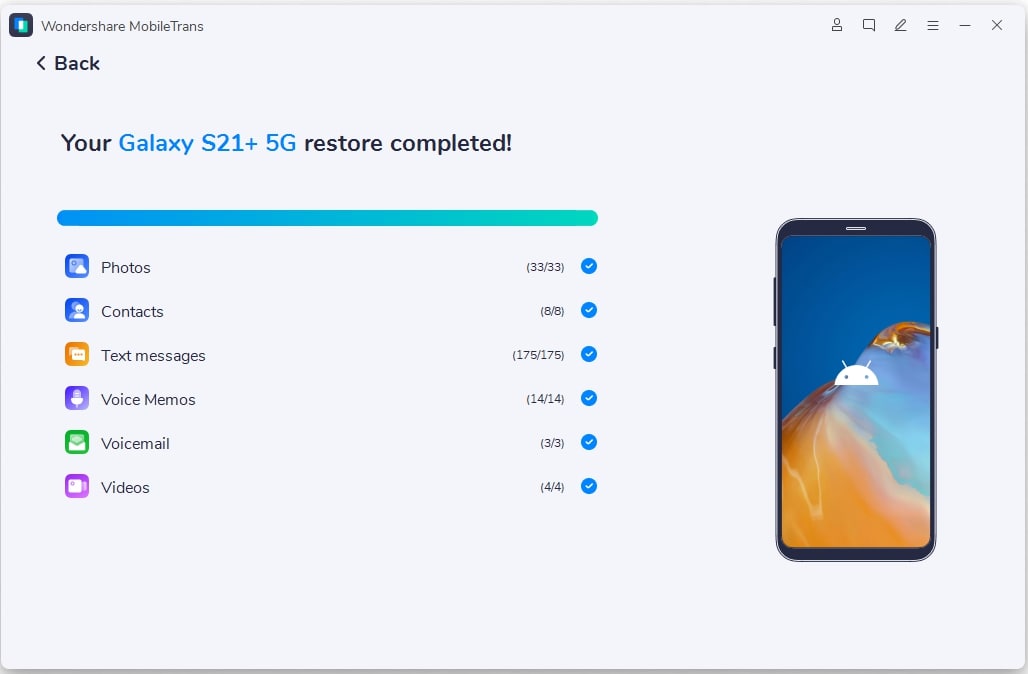
Step 1. Choose Phone Transfer > Phone to Phone, then connect both iPhones using compatible USB cables > Press Trust.
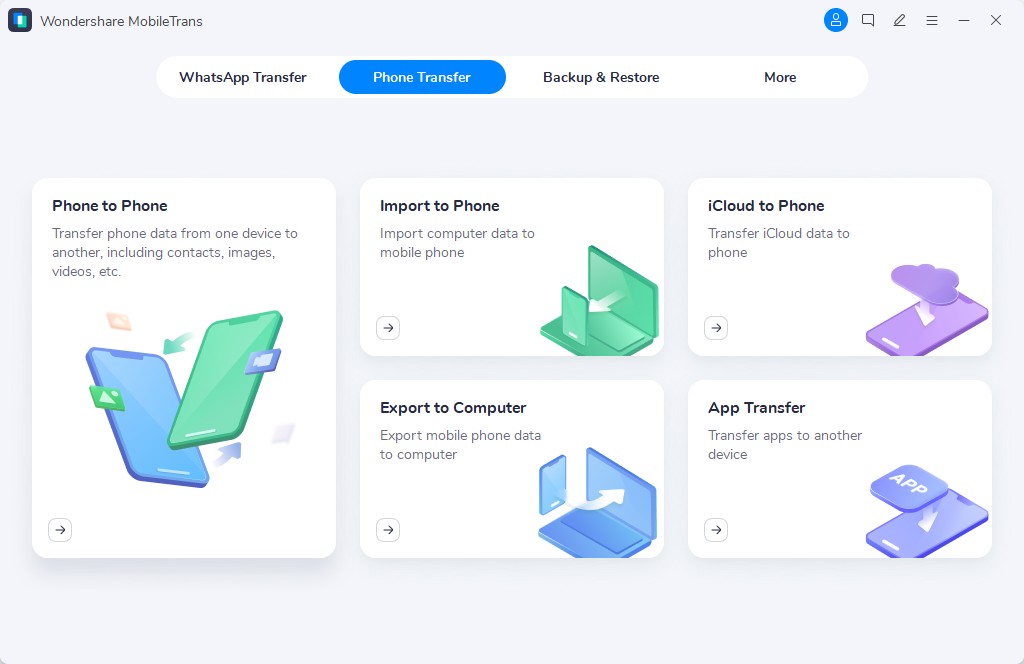
Step 2. Use Flip if necessary, then select the available data categories you want to transfer.
Step 3. Click Start and keep both iPhones connected until the transfer finishes.
Part 5. What If iCloud Passcode Verification Still Fails?
If “resume data sync not working on iPhone” persists, Apple's recovery options can help address unresolved verification issues. MobileTrans cannot bypass encryption or restore locked iCloud data. Try the following methods to regain access while reducing the risk of permanent data loss:
Try Another Trusted Device or Previous Passcode If Offered
When facing the “old iPhone passcode not accepted on new iPhone” issue, check which previous device Apple identifies in the prompt. Apple's education guide explains how Managed Apple Accounts can select another previous device using the “Don't know [device] Passcode?” option. Avoid guessing because Apple's iCloud Keychain escrow service allows only 10 failed recovery attempts before destroying the escrow record. Follow these steps to avoid unnecessary failures:
Step 1. Check the device named in the verification prompt and confirm its passcode by unlocking it, if available.
Step 2. If Apple offers another previous device, select one whose passcode you remember and enter it.
Step 3. Stop guessing after repeated failures and contact Apple Support for assistance with recovery attempts.
Review Available Apple Account and Encrypted-Data Recovery Options
When previous passcodes fail, review your recovery options. Apple Account recovery can restore account access after a waiting period, but it does not automatically unlock end-to-end encrypted iCloud data. Recovering that data requires an eligible method, such as a trusted device's passcode or a previously configured recovery contact or recovery key when Advanced Data Protection is enabled.
Apple cannot recover end-to-end encrypted data without an eligible recovery method. Managed Apple Accounts have different recovery arrangements and cannot enable Advanced Data Protection. If “iCloud passcode verification failed new iPhone” persists after earlier fixes, check your available recovery options through these steps:
Step 1. On a trusted iPhone that's still signed in, open Settings > [Your Name] > Sign-In & Security.
Step 2. Tap Recovery Contacts to see who can help, then check whether Recovery Key is turned on.
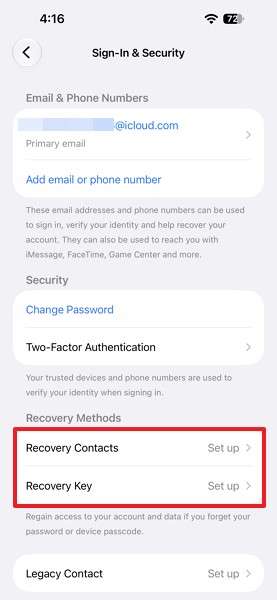
If you cannot access your Apple Account or reset its password, follow the recovery prompts at Apple Account Recovery. Use an existing recovery contact or recovery key when applicable. Standard account recovery can involve a waiting period, but this process is unavailable when an account recovery key is enabled.
Last Resort. Reset Encrypted iCloud Data Only If Apple Offers It
Resetting encrypted iCloud data can permanently erase saved passwords, passkeys, and other protected information. Apple's Keychain guide advises resetting encrypted data only when prompted after device approval fails. In its Managed Apple Account guide, Apple documents Delete iCloud Data and Permanently Delete Data options. This process removes saved passwords, Safari bookmarks and history, Messages in iCloud, Maps history, and Memoji, but leaves iCloud Drive unaffected.
For personal accounts, the affected end-to-end encrypted categories depend on account settings, including whether Advanced Data Protection is enabled. If “iCloud Keychain not syncing after iPhone upgrade” persists after all verification attempts, complete these checks before considering a reset:
- Check whether your encrypted iCloud data remains accessible on an older trusted Apple device. Use that device to approve your new iPhone if Apple offers the option.
- Contact Apple Support if the reset consequences are unclear. Proceed only when Apple's verification screen explicitly offers the option.
Conclusion
When some iCloud data isn't syncing on a new iPhone, resolving the issue starts with checking verification prompts, your previous-device passcode, and iCloud Keychain settings. For missing photos, contacts, or messages, review their individual iCloud sync settings. If the data remains accessible on your old iPhone, MobileTrans-Phone Transfer offers an alternative transfer method. Explore Apple's recovery options before resetting encrypted data to avoid permanent loss.
FAQs
-
Can changing the passcode on my old iPhone affect verification on the new iPhone?
Yes. Your new iPhone can request a passcode previously used on another device, as explained in Apple's guide. Keep your previous and current passcodes available for verification. However, the 10-attempt limit applies specifically to iCloud Keychain escrow recovery, not every verification prompt. -
Does restoring an iCloud backup bring back missing Keychain passwords?
Not directly. Apple confirms that iCloud Keychain items sync separately and aren't included in iCloud Backup. Enable Keychain syncing and complete any required verification. For other missing data, MobileTrans can transfer supported, accessible files from your old iPhone without restoring an entire backup. -
Why are some Wi-Fi passwords missing after upgrading to a new iPhone?
Wi-Fi passwords sync through iCloud Keychain, so incomplete verification or disabled syncing can prevent them from appearing. Passwords saved locally while Keychain syncing was disabled might also be missing. Check the Passwords app's Wi-Fi section to see which networks are available. -
Can iCloud Keychain sync passwords while the old iPhone is turned off?
Yes. Passwords previously uploaded to iCloud Keychain can sync while your old iPhone is off, provided the new device completes any required verification. Approving through the old device requires it to be available. Changes not yet uploaded will sync when the older device reconnects.