




 TL;DR:
Switching to a new phone often means moving important data such as contacts, photos, videos, messages, and app data.
MobileTrans makes phone-to-phone transfer easier by helping users transfer data across iOS and Android devices in just a few steps. It also supports WhatsApp transfer, backup, and restore, making it a convenient solution for users who want a faster and simpler way to manage mobile data.
Ask AI for a summary
 ChatGPT
 Perplexity
 Gemini
 Claude
 Grok
Grok
Knowing how to recover photos from a broken iPhone starts with checking iCloud Photos, other cloud services, and existing backups. These options can help you retrieve pictures without accessing the damaged device. If the iPhone still turns on and unlocks, you can also transfer photos using a computer or AirDrop. However, photos stored only on an unresponsive iPhone may require a data-preserving repair.
This guide explains each recovery method, from cloud downloads and backup restoration to direct transfers and repair options. If your iPhone is still accessible, MobileTrans can export photos and videos to a computer after you unlock and authorize the device. You can also create a restorable backup before the damage worsens.

In this article
Part 1. Can You Recover Photos from a Broken iPhone?
Yes, you can recover photos from a broken iPhone, especially if you have existing backups or the device still works. The best recovery method depends on whether you can unlock the phone, access previously saved copies, or restore its functionality. To understand how to recover photos from a damaged iPhone, check the table below to find the safest option based on your device's condition:
| Phone Condition | What Recovery Depends On |
| Broken Screen with Working Touch | Unlocking the iPhone and authorizing computer access. |
| Black Screen or Unresponsive Touch | Existing cloud copies, backups, or a display repair to restore access. |
| iPhone Won’t Turn On | Previously saved copies or restoring access through hardware repair. |
| Water-Damaged iPhone | Disconnecting cables, avoiding charging, and seeking professional assessment before recovery. |
Note: For water-damaged iPhones, drying alone does not confirm that the internal components are safe. Avoid powering on or charging a device with suspected internal liquid damage.
Important Considerations:
Data Encryption: Apple's Data Protection uses a unique 256-bit key for each new file. Photos stored only on the damaged iPhone generally require access to its original hardware and security protections.
Computer Access: Apple requires device authorization to access photos. A new computer connection generally requires an unlocked iPhone and approval of “Trust This Computer,” while previously trusted computers may retain authorization.
Data Loss Prevention: Check existing backups before repairing or restoring the device. Apple warns that an iPhone returned from service may have been erased.
Liquid Damage: If the iPhone is wet, disconnect cables and avoid charging until it is completely dry. Follow Apple's liquid-detection guidance and seek professional assessment for serious damage.
Part 2. How to Recover Photos from a Broken iPhone Without Using It
Previously saved cloud copies and backups can help you recover photos without accessing the damaged iPhone. If you're wondering, “how can I retrieve photos from a broken iPhone,” try the following methods to find and restore your pictures:
Method 1. Download Photos from iCloud Photos
Start by checking iCloud Photos, which stores pictures synced before your iPhone was damaged. Unlike the iCloud device backup discussed in Method 3, these photos are accessible through iCloud.com. If Advanced Data Protection is enabled, you must allow web access and approve access using a trusted Apple device. Follow these steps to download your previously synced photos:
Step 1. Open iCloud.com/photos on a computer and sign in with the broken iPhone’s Apple Account.
Step 2. Select up to 1,000 photos and videos, then click More > More Download Options.
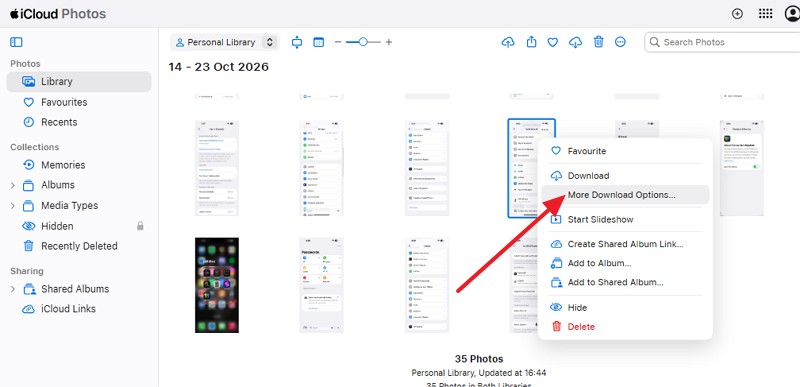
Step 3. Select Unmodified Originals to download the photos in their original format.

Method 2. Check Google Photos and Other Cloud Storage
Photos missing from iCloud.com may still be available in Google Photos, OneDrive, or Dropbox if you previously enabled backups. According to Google Photos, backed-up pictures remain accessible through your Google Account. Similarly, OneDrive Camera Upload automatically uploads photos, while Dropbox Camera Upload saves them to a dedicated folder.
However, these services cannot retrieve photos that weren't uploaded before the damage. To understand how to recover pictures from a broken iPhone using previously saved cloud copies, follow these steps:
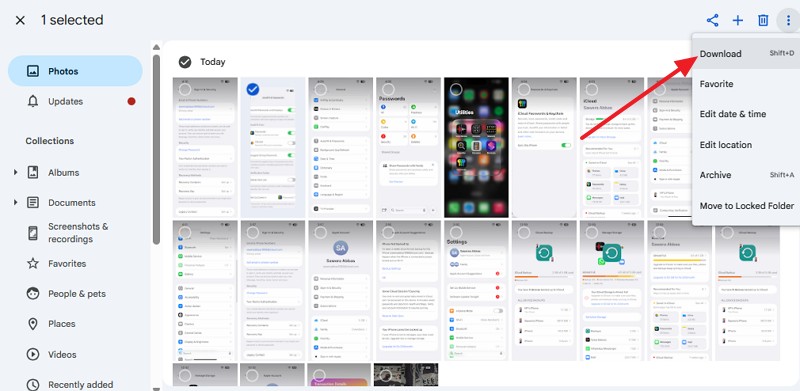
Step 1. Sign in to photos.google.com on another phone or computer using the account you used on your iPhone.
Step 2. Find pictures taken before the damage and press Three Dots > Download.
Method 3. Restore Photos from an Existing iCloud Backup
If your photos aren't available in cloud storage, an existing iCloud device backup might contain them. According to Apple’s backup guide, iCloud backups exclude photos already synced through iCloud Photos. Since iCloud.com cannot display photos stored inside a device backup, you must restore it to a compatible replacement or repaired iPhone.
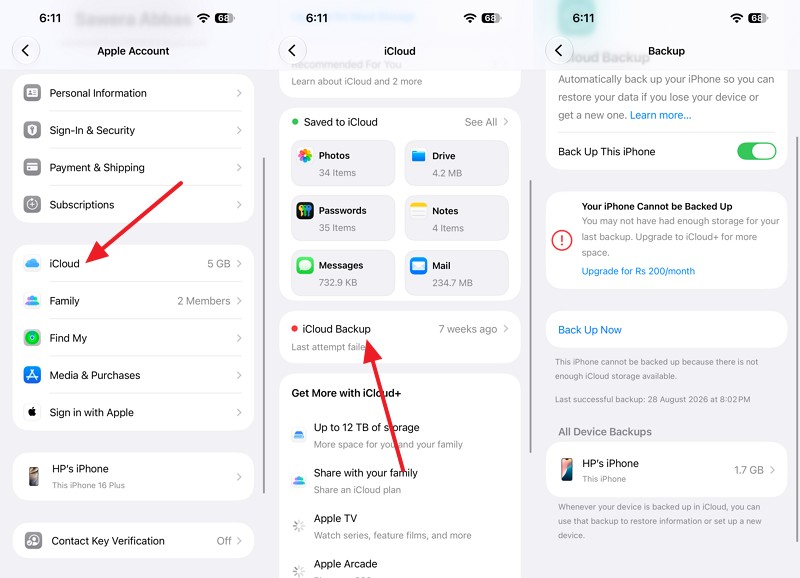
Before erasing anything, check which backups exist using another Apple device signed in to the same account. To learn how can I retrieve photos from a broken iPhone using an earlier backup, follow these steps:
Step 1. On another device signed in to the same Apple Account, open Settings > [Your Name] > iCloud > iCloud Backup and look for the broken iPhone.
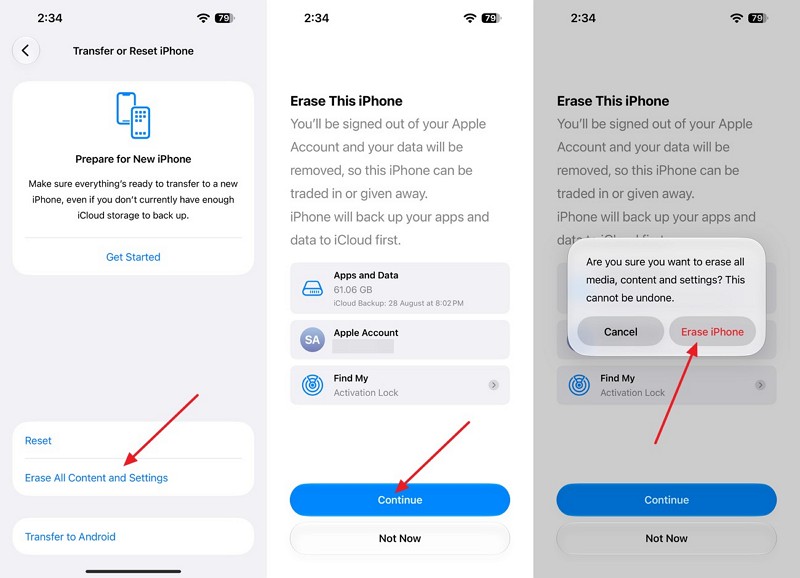
Note: If the replacement iPhone is already set up, save any important data before erasing it, as required by Apple's restore instructions.
Step 2. For that, go to General > Transfer or Reset iPhone > Erase All Content and Settings > Continue > Erase iPhone.
Step 3. On the Transfer Your Apps & Data screen, select From iCloud Backup, sign in to your Apple Account, and agree to the terms.
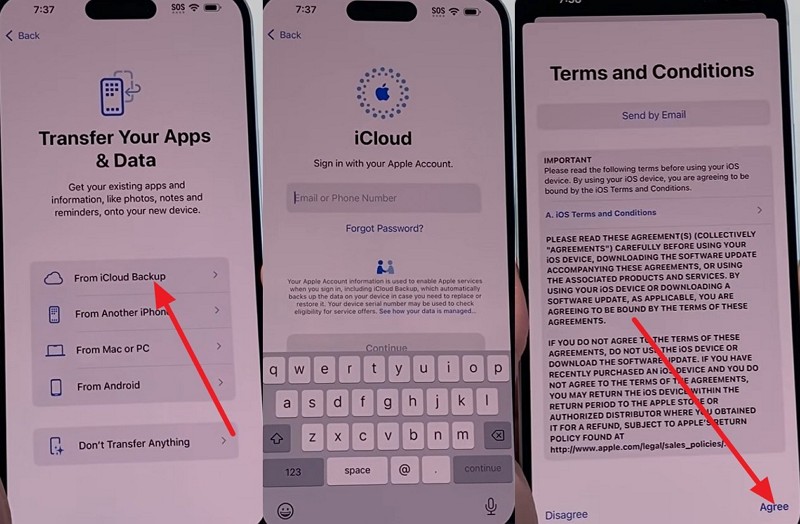
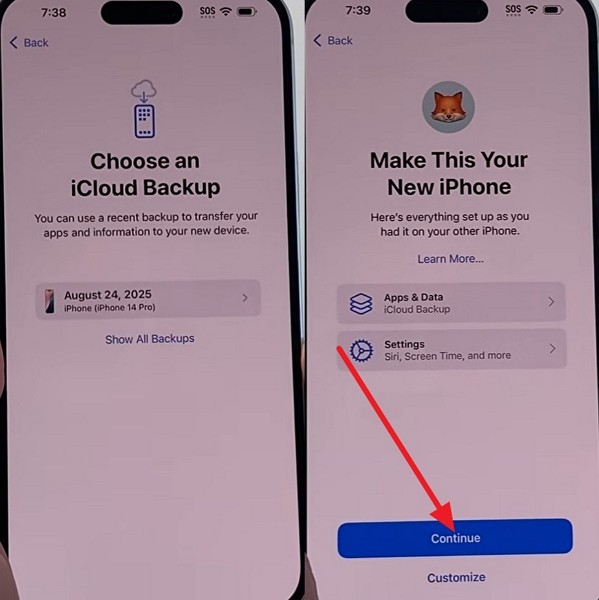
Step 4. Choose a backup from before the damage > Continue. Keep the iPhone connected to Wi-Fi and power until restoration finishes.
Method 4. Recover Photos from a Previous Computer Backup
A Finder, Apple Devices, or iTunes backup can contain locally stored photos that weren't synced to iCloud Photos or originally transferred from a computer. Unlike regular photo imports, these tools don't offer built-in options to browse or extract individual photos from an iPhone backup.
Instead, you must restore the backup to a working iPhone. Before proceeding, you can locate existing backups on your Mac or Windows computer. To learn how to get pics from a broken iPhone using a previous Mac backup, follow these Finder steps:
Step 1. Open Finder on a Mac > Connect your replacement or repaired iPhone > Select it from the Finder sidebar.
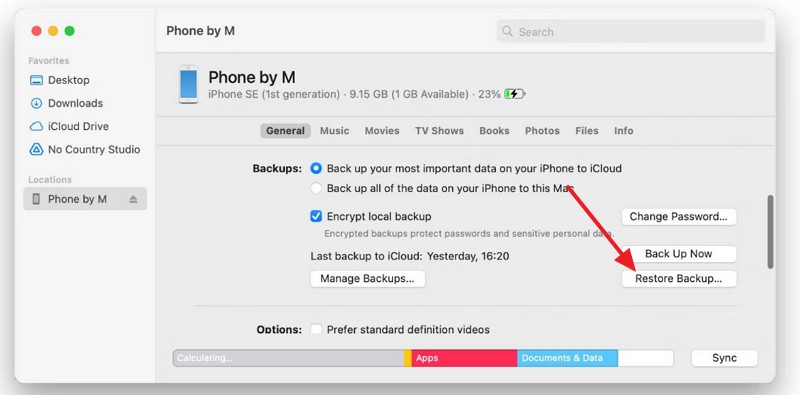
Step 2. Open the General tab and click Manage Backups to review existing backups.
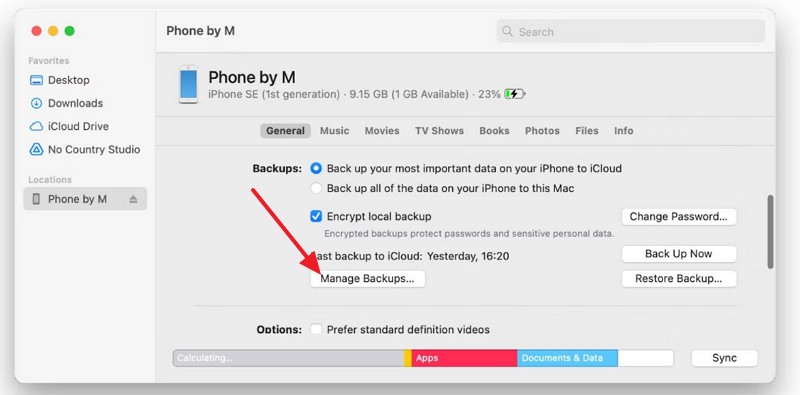
Step 3. Confirm that a backup from before the iPhone was damaged is available, then click OK.
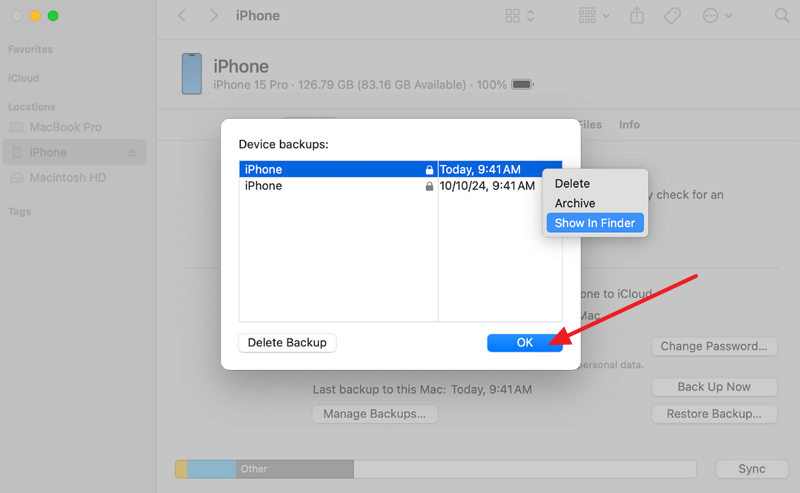
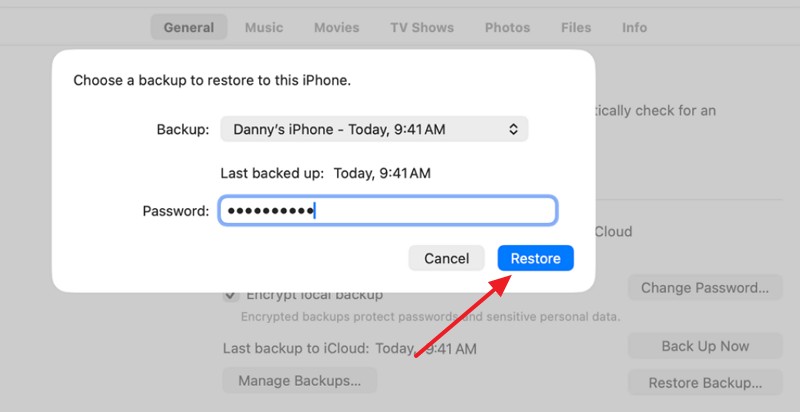
Step 4. Click Restore Backup, select the appropriate backup by date.
Step 5. Enter the encrypted backup password if prompted > Click Restore to begin.
Step 6. Keep the iPhone connected while the restoration completes and the device restarts.
Part 3. How to Get Photos Off a Broken iPhone That Still Works
If your photos aren't available in cloud storage or existing backups, you can try transferring them directly from the damaged iPhone. To understand how to recover photos from a broken iPhone, explore the following methods if your device still powers on, unlocks, and allows access to stored pictures.
Important Requirement:
The iPhone must power on and allow you to unlock it. USB transfers generally require computer authorization, while AirDrop requires access to the Photos app.
A previously trusted computer might not display the Trust This Computer alert, but the iPhone can still require passcode verification.
Method 1. Import Photos Using a Mac or Windows Computer
A USB connection lets you transfer photos from a broken iPhone if it still powers on and can be unlocked. According to Apple's photo transfer guide, you can import pictures using the Photos app on a Mac or Windows PC. Mac users can also use Image Capture to save images directly to a folder. To learn how to get photos from a broken iPhone using a Mac, follow these steps:
Step 1. Connect the iPhone via USB, click Allow if prompted, and open Photos.

Step 2. Unlock the iPhone and tap Trust when the Trust This Computer alert appears.
Step 3. Select the photos and click Import Selected, or choose Import All New Items.

On Windows, Microsoft's import guide explains how to transfer photos from a connected iPhone using the Photos app. Follow these steps to import pictures to your PC:
Step 1. Connect your unlocked iPhone to the PC using a USB cable. Tap Trust or Allow if prompted to authorize access.
Step 2. Open Microsoft Photos and select Import > From a Connected Device. Choose the pictures you want to save and complete the import.

Important:
If Optimize iPhone Storage is enabled, some full-resolution originals remain in iCloud. Download them from iCloud.com or to your iPhone before importing.
Avoid repeated USB connections if your iPhone has unresolved liquid damage. Follow the drying precautions in Fix 3 of Part 4 before attempting another transfer.
Method 2. Send Photos Through AirDrop
AirDrop lets you wirelessly transfer photos from a broken iPhone to another Apple device without a USB connection. According to Apple's AirDrop guide, both devices must be nearby with Wi-Fi and Bluetooth enabled. Any active Personal Hotspot connection should also be disconnected. However, the damaged iPhone must remain unlocked and operational. To learn how to recover photos from a damaged iPhone, follow these steps:
Step 1. Open the Photos app on your damaged iPhone, tap Select, choose the pictures, then tap Share > AirDrop.
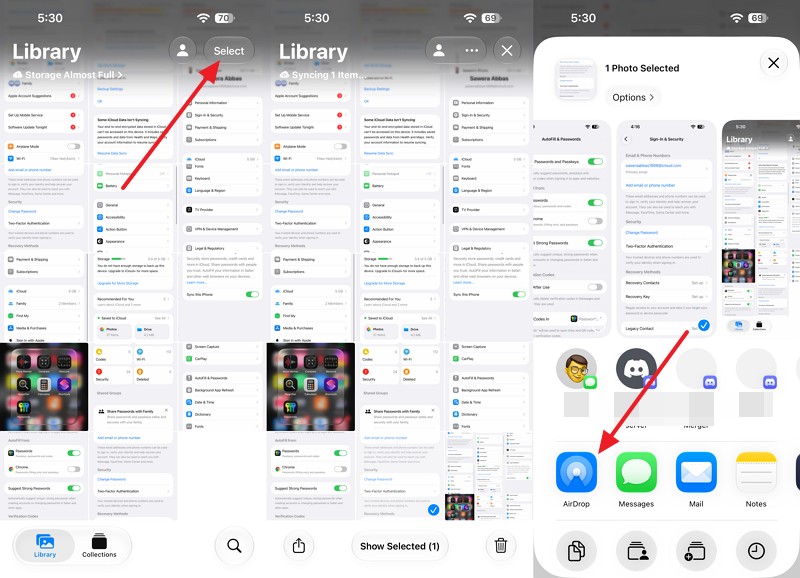
Step 2. Select the Mac you want to receive the photos > Click Accept on your MacBook and wait for the transfer to finish.
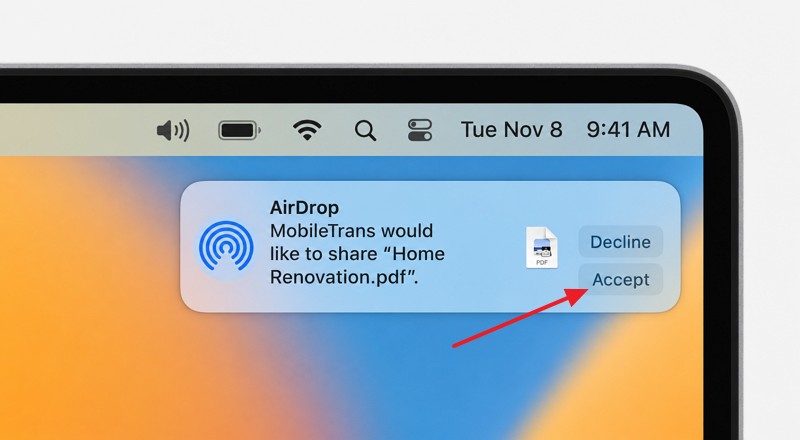
Note: If both devices use the same Apple Account, the transfer may be accepted automatically.
Pro Tip. Back Up Accessible iPhone Photos with MobileTrans
If your broken iPhone still turns on and unlocks, consider saving your photos before its condition worsens. While iCloud and AirDrop provide useful transfer options, they aren't always ideal for exporting selected pictures directly to a computer or creating a separate backup. In such cases, MobileTrans offers another way to transfer accessible photos and videos from your iPhone to a computer.
MobileTrans includes Phone Transfer and Backup & Restore features to help preserve your data. Its Phone to PC option lets you select and export supported files, while the backup feature creates a local copy for future restoration to a compatible device. However, the damaged iPhone must remain operational, unlocked, and authorized to connect to your computer.






Key Features
Original-Quality Photo Transfer: Export iPhone photos and videos without compression, preserving their original quality during transfer.
Batch Media Export: Transfer multiple photos and videos together instead of selecting and saving each file individually.
Offline Data Backup: Back up over 18 supported data types directly to a computer without requiring an internet connection or cloud storage.
Selective Backup Restoration: Preview existing MobileTrans or iTunes backups and restore selected data without resetting or overwriting existing phone content.
HEIC to JPG Conversion: Convert iPhone HEIC photos into widely compatible JPG files for easier viewing and sharing on Windows computers.
How to Back Up Photos from a Broken iPhone Using MobileTrans
To learn how to get pics from a broken iPhone before its condition worsens, follow these steps to export your accessible photos to a computer and create a local backup:
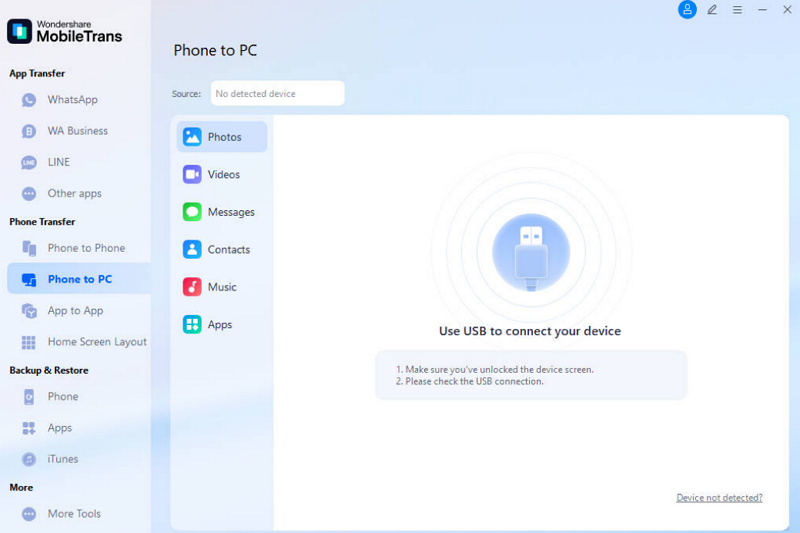
Step 1. Launch MobileTrans and select Phone Transfer > Phone to PC. Connect your unlocked iPhone to the computer using a USB cable, then tap Trust if prompted.
 safe & secure

Step 2. In the left sidebar, select Photos or Videos and choose the files you want to save. Click Export and select a secure folder on your computer.

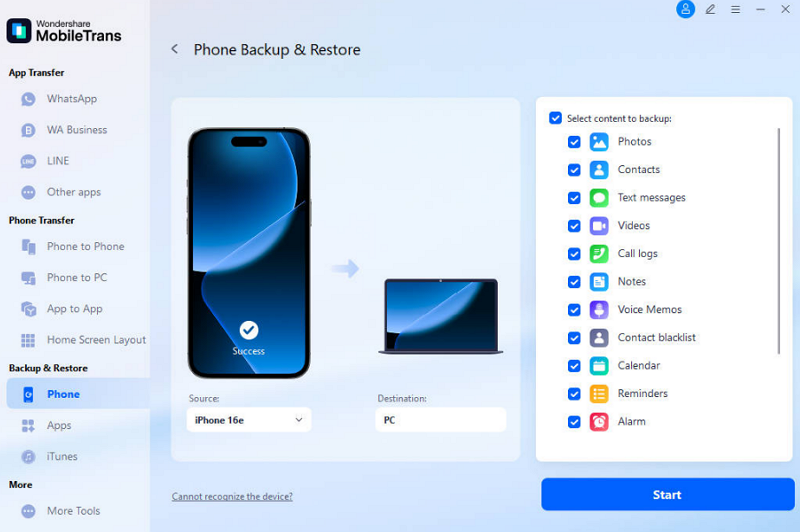
Step 3. To create a restorable backup, open Backup & Restore. Select the phone backup option > Choose Photos > Click Start to save the backup to your computer.
Part 4. How to Recover Photos When the iPhone Cannot Be Accessed
MobileTrans and the transfer methods in Part 3 require a working, unlocked iPhone. If your device is unresponsive, understanding “how can I recover photos from a broken iPhone” starts with identifying screen, power, or liquid damage. Try the following fixes to restore access while minimizing the risk of further data loss:
Fix 1. Repair a Broken Screen Without Erasing the iPhone
A cracked or unresponsive screen doesn't necessarily mean your photos are lost. A display repair can restore access to the original iPhone, allowing you to unlock it and transfer photos. However, Apple warns that a serviced device may be erased, so request data preservation before proceeding. To determine whether a screen repair could help recover your photos, follow these steps:
Step 1. Call your iPhone to check whether it rings or vibrates.
Step 2. If there's no suspected liquid damage, connect the iPhone to a charger and check for signs of power.
Step 3. Request a display-only repair that preserves the original storage, and confirm how your data will be handled.
Fix 2. Address Power or Charging Problems Before Recovery
A drained battery or frozen iPhone can prevent you from accessing photos. According to Apple's troubleshooting guidance, a force restart or charging the device can help restore access. These methods don't erase your stored data. To learn how to recover photos from a damaged iPhone, try the following checks:
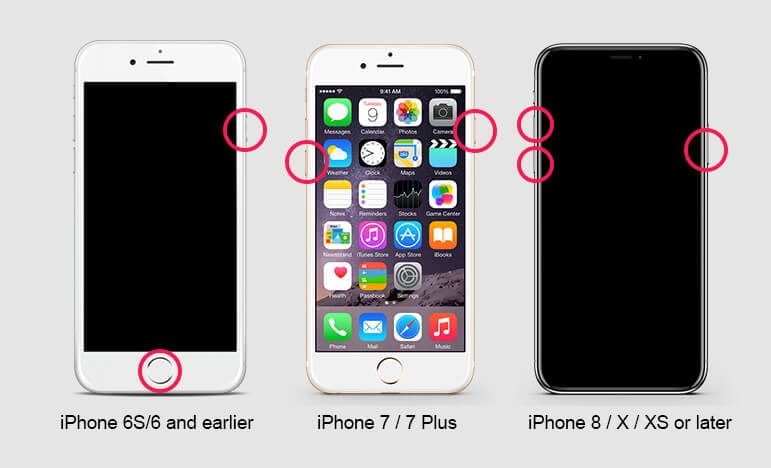
Step 1. On iPhone 8 or later, quickly press and release Volume Up, followed by Volume Down. Hold the Side button until the Apple logo appears.
Step 2. On iPhone 7 or 7 Plus, hold Side and Volume Down together. For iPhone 6s or earlier, hold Home and Side/Top until the Apple logo appears.
Step 3. If there's no suspected liquid damage and the iPhone remains unresponsive, charge it for one hour and try restarting it again. Seek professional repair if it still won't turn on.
Fix 3. Handle Water Damage Before Attempting Photo Recovery
Water damage can prevent you from accessing photos on your iPhone. Apple warns that wet connectors can corrode and take up to 24 hours to dry completely. To understand how to recover pictures from a broken iPhone after liquid exposure, follow these precautions to avoid further damage:
Unplug all cables and avoid connecting the iPhone to chargers or computers while it remains wet.
Gently tap the iPhone against your hand with the connector facing down, then leave it in a dry, well-ventilated area.
Avoid rice, external heat, compressed air, or inserting objects into the charging port, as Apple advises.
If only the connector is wet, allow at least 30 minutes before retrying. If the liquid alert returns, wait up to 24 hours.
What If the iPhone Has No Backup and Cannot Be Repaired?
Without existing backups or a working iPhone, recovering photos becomes difficult. Apple's Secure Enclave documentation explains how device-bound encryption protects stored data. A specialist might restore access by repairing the original hardware, but recovery depends on the device's condition and available data. Before giving up, check these alternative sources for previously saved photos:
Exported Folders: Photos previously saved to computers or external storage drives.
Shared Copies: Pictures shared through Messages, email, or social media apps.
Older Libraries: Photos stored in previously synced libraries on a Mac or Windows PC.
Conclusion
Understanding how to recover photos from a broken iPhone starts with checking iCloud Photos, other cloud services, and existing backups. If your iPhone still works, you can transfer pictures using AirDrop, computer imports, or MobileTrans.
However, unresponsive devices may require data-preserving repairs to restore access. To avoid similar situations in the future, regularly back up your photos and enable cloud synchronization to protect important memories.








